Easy Flight Map
- By
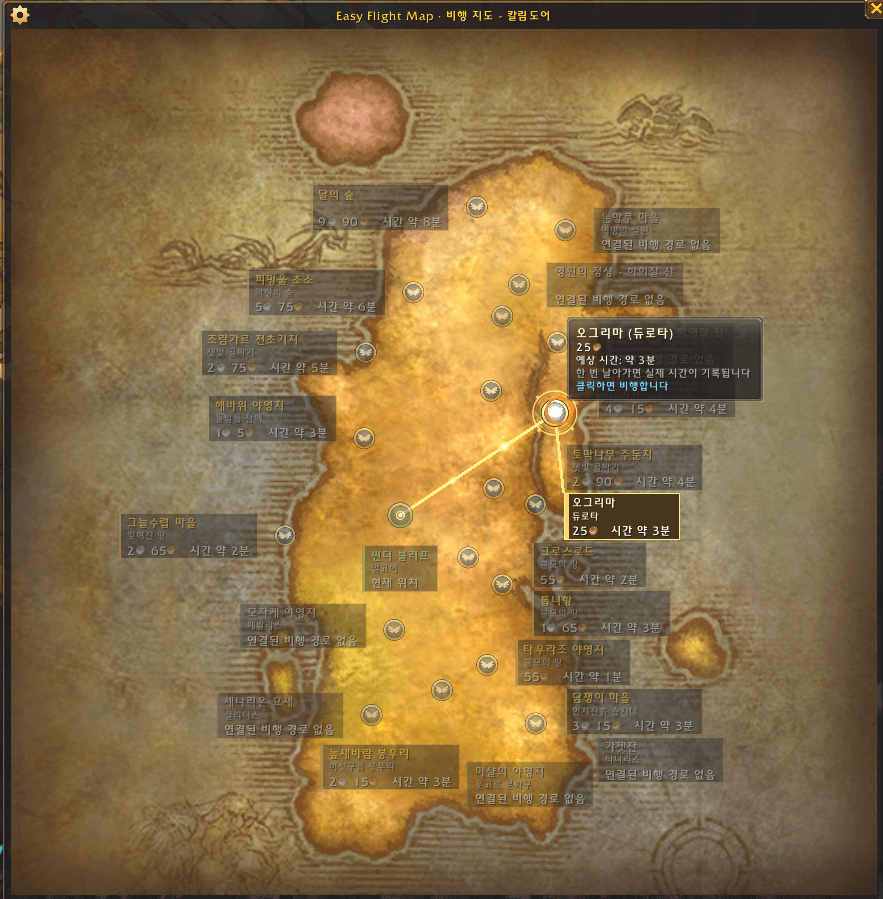
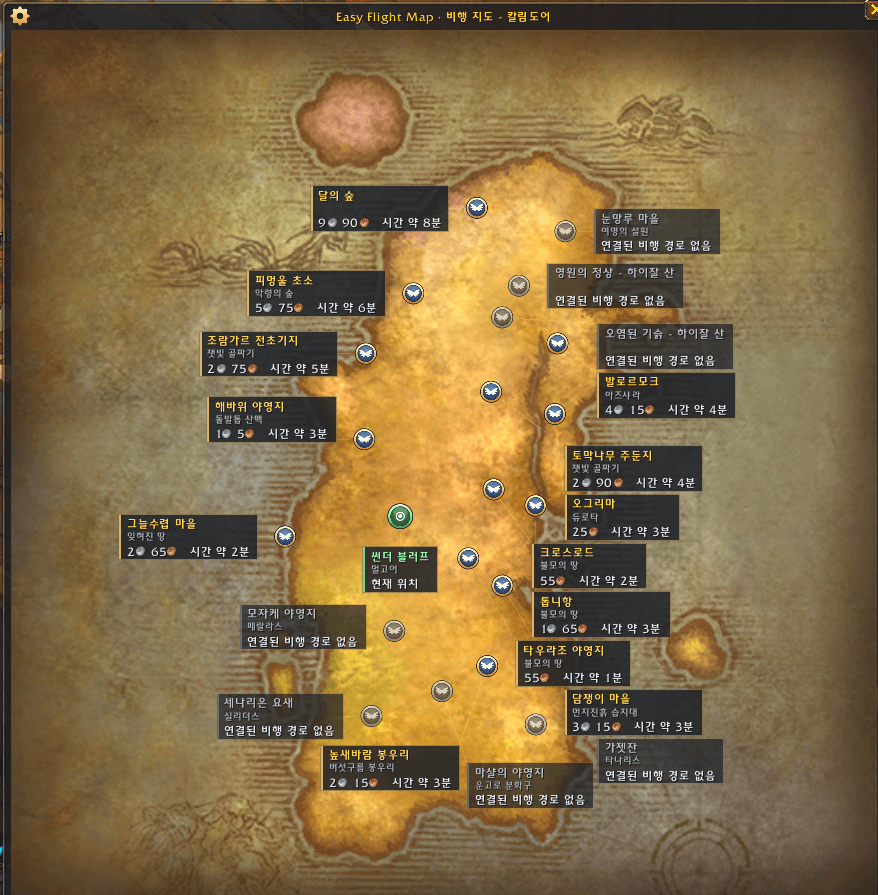
Easy Flight Map —A dedicated flight map with destination names, fares, travel times, and animated route highlighting when you hover over a destination.
2026-10-10 22 47 22.png
2026-10-10 22 46 23.png
2026-10-10 22 47 22.png
2026-10-10 22 46 52.png
Description
Easy Flight Map
See destinations, fares, and flight times at a glance.
Talk to a flight master to open a clean, dedicated flight map. Check each destination's name, area, fare, and travel time directly on the map, then hover over a destination to highlight its flight route.
Features
- Destination details on the map — Labels display destination names, areas, fares, and flight times. Gold, silver, and copper icons make fares easy to read.
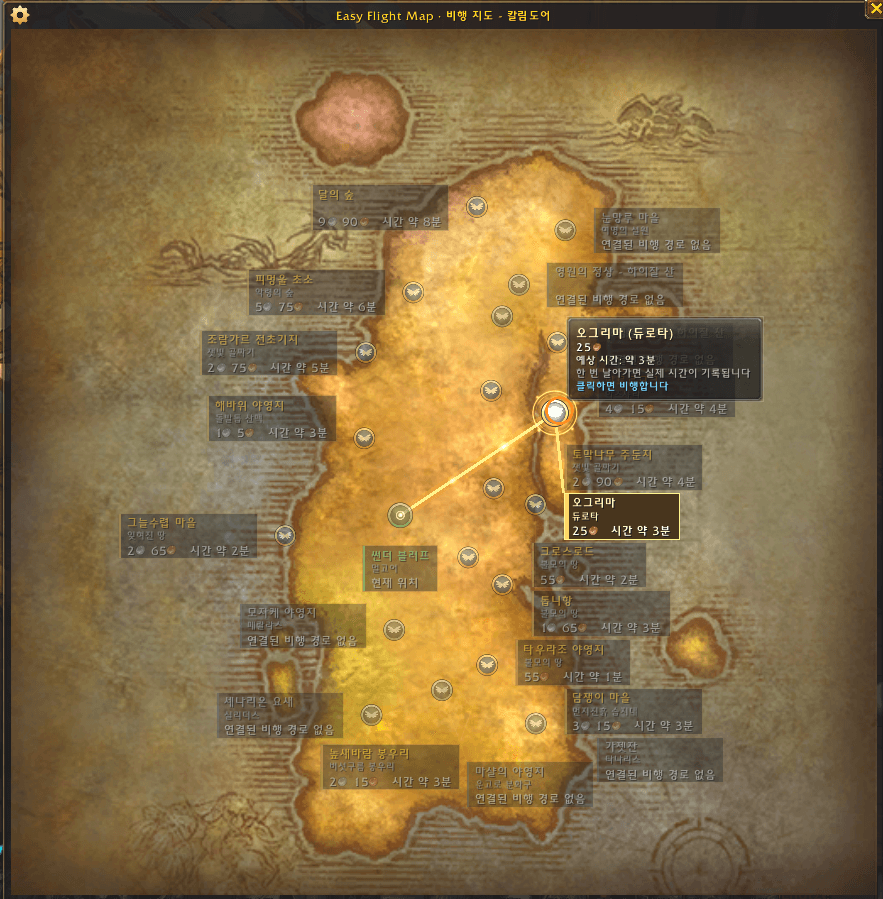
- Animated route highlighting — Hovering over a destination highlights its marker, label, connecting line, and flight route. Moving lights trace the route.
- Labels inside the map — Labels are positioned to avoid covering flight markers. The full map is shown by default.
- Recorded flight times — Completed flights save the actual travel time. Routes without a recorded time show an estimate when segment distance data is available.
- Optional flight confirmation — Enable a confirmation dialog to review the destination, fare, and time before taking off.
- Remaining time and arrival alerts — An optional flight timer bar and arrival alert help you track your trip.
- Display settings — Adjust window size, transparency, text size, labels, and the visibility of undiscovered or unconnected destinations.
- Korean and English UI — Korean clients use Korean; other client languages use English. Destination names come from the game client.
Getting started
- Install the addon and talk to a flight master.
- Check the fare and time on the destination labels.
- Hover over a marker or label to inspect the route.
- Click a reachable destination to fly. To enable confirmation, open
/efm configand turn on Confirm before flying.
Drag the window to move it, or use Ctrl + Mouse Wheel to change its size. Hold Shift while talking to a flight master to see the conversation dialog even when dialog skipping is enabled.
Understanding the information
- ~…: An estimated time based on route distances and flight speed. Actual flight time may differ.
- Not recorded: No recorded time or sufficient segment data is available.
- Unknown: The fare could not be confirmed from the game.
- Flight path not discovered: The game identifies this destination as undiscovered.
- No connected flight path: A connected route from your current location could not be confirmed.
Only completed flights are used to record travel times. Flights ended with early landing are excluded. If destinations are too crowded for every label to fit, hover over a marker to view its details.
Compatibility
The current package targets interface version 16001. Compatibility with other game client versions is not guaranteed.
Support development
Easy Flight Map User Guide
Version: 0.5.2
Installation
- Extract the release ZIP.
- Place the
EasyFlightMapfolder in your game'sInterface/AddOnsdirectory. - Confirm that
Interface/AddOns/EasyFlightMap/EasyFlightMap.tocexists. Avoid nesting twoEasyFlightMapfolders inside each other. - Restart the game and enable the addon at the character selection screen.
This guide covers the package targeting interface version 16001.
Language
The addon selects its UI language automatically. Korean clients (koKR) use Korean; all other client languages use English. Destination and area names are supplied by the game client; the addon does not independently translate those names. The introduction and user guide are provided in Korean and English.
Opening the map and flying
Talk to a flight master to open the dedicated map. The conversation dialog is skipped by default. Hold Shift while talking if you want to see the dialog.
Labels show the destination, area, fare, and travel time. Hover over a marker or label to highlight the selected marker, label, and connecting line. Confirmed flight routes are shown with a gold line and moving lights.
Click a reachable destination to fly. To review the destination, fare, and time before departure, open /efm config and enable Confirm before flying. Then click Fly in the confirmation dialog to depart. Confirmation is disabled by default. If the fare changes while the dialog is open, you must confirm the updated fare again.
Reading fares and times
| Display | Meaning |
|---|---|
| Gold, silver, and copper icons with numbers | Current fare confirmed from the game |
| Free | A reachable route with a confirmed fare of zero |
| Unknown | The current fare could not be confirmed |
| A time such as ~1m 30s | Estimated time based on route distances and flight speed |
| A time without ~ | Actual time recorded after completing that route |
| Not recorded | No actual recording or sufficient segment data for an estimate |
| Flight path not discovered | A destination identified as undiscovered by the game |
| No connected flight path | No connected route from the current location could be confirmed |
Estimates may differ from actual travel times. Completing a flight saves its travel time. Early landing is excluded from time recording and flight speed learning. Unknown fares and times are not treated as free or zero seconds.
Controls
- Drag the window: Move the map window.
- Ctrl + Mouse Wheel: Resize the map window.
- Drag the flight timer bar: Move the remaining time bar.
- Show default flight map: Switch to the game's default flight map.
Labels are placed inside the map and avoid covering flight markers. Some labels may be hidden when destinations are too crowded. Hover over a marker to view its details in that case.
Settings
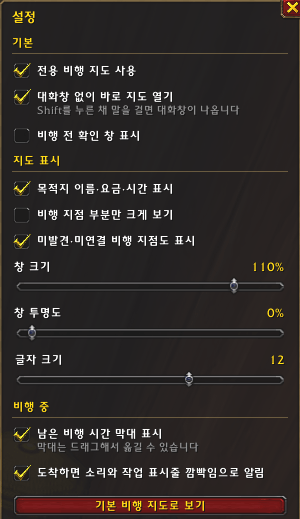
Enter /efm config in chat to open settings.
| Setting | Purpose |
|---|---|
| Use the Easy Flight Map window | Enable or disable the dedicated map |
| Skip the dialog and open the map directly | Skip the flight master's conversation dialog |
| Show destination name, cost and time | Display labels on the map |
| Zoom to flight points | Zoom to the area containing flight markers; off by default |
| Show unreachable points | Display undiscovered and unconnected destinations |
| Use world map art | Change the map background; default flight map art is used by default |
| Window size, transparency, and text size | Adjust the display |
| Confirm before flying | Review the destination and fare before departure |
| Show remaining flight time bar | Display the flight timer |
| Arrival alert | Play a sound and flash the taskbar on arrival |
Commands
You can use /easyflightmap instead of /efm. The Korean alias /비행지도 is also available.
| Command | Action |
|---|---|
/efm |
Show help and the current enabled state |
/efm config |
Open settings |
/efm on / /efm off |
Enable or disable the dedicated map |
/efm skip |
Toggle skipping the flight master dialog |
/efm labels |
Toggle destination labels |
/efm crop |
Toggle zooming to flight points |
/efm all |
Toggle undiscovered and unconnected destinations |
/efm art |
Switch between default flight map and world map art |
/efm scale 80 |
Set window size to 80%; range: 50–120% |
/efm alpha 20 |
Set transparency to 20%; range: 0–70% |
/efm bar |
Toggle the remaining time bar |
/efm alert |
Toggle arrival alerts |
/efm reset |
Reset map and timer bar positions and map size |
/efm donate |
Show the donation link |
/efm reset does not delete recorded flight times. Flight confirmation is configured in the settings window.
Troubleshooting
If the map is cropped or text is too large, reduce window and text sizes and turn off Zoom to flight points. Use /efm reset if the window has moved off screen.
If the time says Not recorded, the route lacks sufficient data for an estimate. Completing the flight records its actual time.
To use the default map, click Show default flight map or enter /efm off.
When reporting an issue, include the addon version, client version, faction, departure and destination, error message, and a screenshot.
Easy Flight Map
목적지와 요금, 비행 시간을 한눈에 확인하는 전용 비행 지도입니다.
비행 조련사와 대화하면 깔끔한 지도 창이 열립니다. 목적지 이름·지역·요금·소요 시간을 지도 위에서 확인하고, 원하는 목적지에 마우스를 올려 비행 경로를 살펴보세요.
주요 기능
- 항상 보이는 목적지 정보 — 이름표에 목적지, 지역, 요금과 비행 시간을 함께 표시합니다. 요금은 금화·은화·동화 아이콘으로 구분합니다.
- 움직이는 경로 강조 — 목적지에 마우스를 올리면 선택 지점과 이름표가 밝아지고, 연결선과 비행 경로를 강조합니다. 경로 위로 빛이 움직여 이동 방향을 보여줍니다.
- 지도 안쪽 이름표 — 비행 지점과 겹치지 않도록 이름표 위치를 조정합니다. 기본 설정은 지도를 전체 표시합니다.
- 비행 시간 기록 — 완주한 경로의 실제 시간을 저장합니다. 기록이 없는 경로는 구간 거리 정보가 있을 때 예상 시간을 표시합니다.
- 비행 전 확인 — 설정에서 확인 창을 켜면 목적지·요금·시간을 확인한 뒤 비행할 수 있습니다.
- 남은 시간과 도착 알림 — 비행 중 남은 시간 막대와 도착 알림을 사용할 수 있습니다.
- 표시 설정 — 창 크기, 투명도, 글자 크기, 이름표, 미발견·미연결 지점 표시를 조절할 수 있습니다.
- 한국어·영어 지원 — 한국어 클라이언트에서는 한국어, 그 외 언어에서는 영어 UI를 표시합니다. 목적지 이름은 게임 클라이언트가 제공한 이름을 사용합니다.
사용 방법
- 애드온을 설치하고 비행 조련사와 대화합니다.
- 이름표에서 요금과 시간을 확인합니다.
- 목적지 지점 또는 이름표에 마우스를 올려 경로를 확인합니다.
- 목적지를 클릭하면 비행합니다. 확인 창을 사용하려면
/efm config에서 비행 전 확인 창 표시를 켜세요.
창을 드래그하면 위치를 바꿀 수 있고, Ctrl + 마우스 휠로 크기를 조절할 수 있습니다. 비행 조련사 대화창을 건너뛰는 설정이 켜져 있어도 Shift를 누른 채 대화하면 대화창을 볼 수 있습니다.
시간과 경로 표시 안내
- 약 …: 거리와 비행 속도를 바탕으로 계산한 예상 시간입니다. 실제 비행 시간과 차이가 날 수 있습니다.
- 미측정: 실제 기록과 계산에 필요한 구간 정보가 없습니다.
- 미확인: 게임에서 요금을 확인할 수 없습니다.
- 비행 경로 미발견: 아직 발견하지 않은 것으로 게임에서 확인된 지점입니다.
- 연결된 비행 경로 없음: 현재 위치에서 연결된 경로를 확인할 수 없는 지점입니다.
비행 시간은 정상적으로 도착한 경로를 기준으로 기록하며, 조기 하차한 비행은 기록에 반영하지 않습니다. 목적지가 밀집해 이름표를 배치할 공간이 부족한 경우 지점에 마우스를 올려 정보를 확인할 수 있습니다.
호환성
현재 배포 파일의 인터페이스 버전은 16001입니다. 다른 게임 클라이언트 버전에서의 호환성을 보장하지 않습니다.
후원
Easy Flight Map 사용 설명서
버전: 0.5.2
설치
- 배포 ZIP을 압축 해제합니다.
EasyFlightMap폴더를 게임 설치 경로의Interface/AddOns폴더에 넣습니다.Interface/AddOns/EasyFlightMap/EasyFlightMap.toc파일이 있는지 확인합니다. 같은 이름의 폴더가 두 번 중첩되지 않도록 주의하세요.- 게임을 재시작하고 캐릭터 선택 화면에서 애드온을 활성화합니다.
이 설명서는 인터페이스 버전 16001을 대상으로 한 배포 파일 기준입니다.
지원 언어
한국어 클라이언트(koKR)에서는 한국어 UI를 사용하며, 그 외 언어에서는 영어 UI를 사용합니다. 목적지와 지역 이름은 게임 클라이언트가 제공한 이름을 표시하며, 애드온이 별도로 번역하지 않습니다. 소개글과 사용 설명서는 한국어·영어 문서로 제공합니다.
지도 열기와 비행
비행 조련사와 대화하면 전용 지도가 열립니다. 기본 설정에서는 조련사 대화창을 건너뜁니다. 대화창이 필요하면 Shift를 누른 상태에서 말을 거세요.
목적지 이름표에는 목적지와 지역, 요금과 시간이 표시됩니다. 목적지 지점이나 이름표에 마우스를 올리면 선택 지점, 이름표와 연결선이 강조됩니다. 확인된 비행 경로에는 금색 선과 움직이는 빛이 표시됩니다.
비행 가능한 목적지를 클릭하면 비행합니다. /efm config에서 비행 전 확인 창 표시를 켜면 클릭 후 목적지·요금·시간을 확인하고 비행 버튼을 눌러 출발합니다. 기본 설정에서는 확인 창이 꺼져 있습니다. 확인 중 요금이 변경되면 갱신된 요금을 다시 확인해야 합니다.
요금과 시간 읽기
| 표시 | 의미 |
|---|---|
| 금화·은화·동화 아이콘과 숫자 | 게임에서 확인한 현재 비행 요금 |
| 무료 | 비행 가능한 경로에서 확인된 요금이 0인 경우 |
| 미확인 | 현재 요금을 확인할 수 없는 경우 |
| 약 1분 30초 같은 표시 | 구간 거리와 비행 속도로 계산한 예상 시간 |
| 약 표시가 없는 시간 | 해당 경로를 완주하며 기록한 실제 비행 시간 |
| 미측정 | 실제 기록과 예상 계산에 필요한 구간 정보가 없는 경우 |
| 비행 경로 미발견 | 게임에서 미발견 상태로 확인한 지점 |
| 연결된 비행 경로 없음 | 현재 위치에서 연결 경로를 확인할 수 없는 지점 |
예상 시간은 실제 시간과 차이가 있을 수 있습니다. 정상적으로 도착하면 경로별 실제 시간을 저장하며, 조기 하차는 기록과 속도 학습에서 제외합니다. 요금이나 시간이 확인되지 않는 지점을 무료 또는 0초로 간주하지 않습니다.
화면 조작
- 창 드래그: 지도 창 이동.
- Ctrl + 마우스 휠: 지도 창 크기 조절.
- 남은 시간 막대 드래그: 막대 위치 이동.
- 기본 비행 지도로 보기: 게임 기본 비행 지도로 전환.
이름표는 지도 안쪽에 배치하며 비행 지점과의 겹침을 피합니다. 지점이 밀집해 공간이 부족하면 일부 이름표가 숨겨질 수 있습니다. 이 경우 해당 지점에 마우스를 올려 정보를 확인하세요.
설정
채팅창에 /efm config 또는 /비행지도 설정을 입력합니다.
| 설정 | 용도 |
|---|---|
| 전용 비행 지도 사용 | 애드온 지도 사용 여부 |
| 대화창 없이 바로 지도 열기 | 조련사 대화창 건너뛰기 |
| 목적지 이름·요금·시간 표시 | 지도 위 이름표 표시 |
| 비행 지점 부분만 크게 보기 | 지점이 있는 영역 확대; 기본값은 꺼짐 |
| 미발견·미연결 비행 지점도 표시 | 현재 이용할 수 없는 지점 표시 |
| 세계 지도 그림 사용 | 지도 배경 변경; 기본값은 기본 비행 지도 |
| 창 크기·투명도·글자 크기 | 화면 표시 조절 |
| 비행 전 확인 창 표시 | 출발 전 목적지와 요금 확인 |
| 남은 비행 시간 막대 표시 | 비행 중 남은 시간 표시 |
| 도착 알림 | 도착 시 소리와 작업 표시줄 깜빡임 |
명령어
/efm 대신 /easyflightmap 또는 /비행지도를 사용할 수 있습니다.
| 명령어 | 동작 |
|---|---|
/efm |
도움말과 현재 사용 상태 표시 |
/efm config |
설정 창 열기 |
/efm on · /efm off |
전용 지도 켜기·끄기 |
/efm skip |
조련사 대화창 건너뛰기 전환 |
/efm labels |
이름표 표시 전환 |
/efm crop |
비행 지점 영역 확대 전환 |
/efm all |
미발견·미연결 지점 표시 전환 |
/efm art |
기본 비행 지도와 세계 지도 그림 전환 |
/efm scale 80 |
창 크기를 80%로 설정; 범위 50~120% |
/efm alpha 20 |
창 투명도를 20%로 설정; 범위 0~70% |
/efm bar |
남은 시간 막대 표시 전환 |
/efm alert |
도착 알림 전환 |
/efm reset |
지도와 시간 막대 위치, 지도 크기 초기화 |
/efm donate |
후원 주소 표시 |
/efm reset은 비행 시간 기록을 삭제하지 않습니다. 비행 전 확인 창은 설정 화면에서 변경합니다.
문제 해결
지도가 잘리거나 글자가 너무 크다면 창 크기와 글자 크기를 줄이고, 비행 지점 부분만 크게 보기를 꺼보세요. 창이 화면 밖으로 이동했다면 /efm reset으로 위치를 초기화하세요.
시간이 미측정이라면 계산에 필요한 구간 정보가 없는 경로입니다. 비행을 완료하면 실제 시간이 기록됩니다.
기본 지도로 확인하려면 지도 창의 기본 비행 지도로 보기 버튼을 사용하거나 /efm off를 입력하세요.
오류를 제보할 때는 애드온 버전, 클라이언트 버전, 진영, 출발지·목적지, 오류 메시지와 화면 캡처를 함께 알려주세요.
Easy Flight Map Team