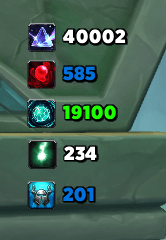
All trackers are drag and drop!

Description
CountOnIt
A World of Warcraft addon for displaying configurable currency and item trackers onscreen.
Features
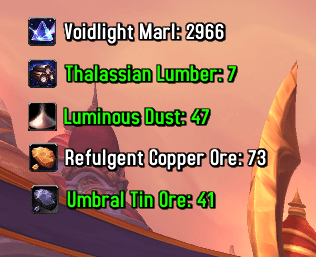
- Track currencies and items with customizable on-screen displays
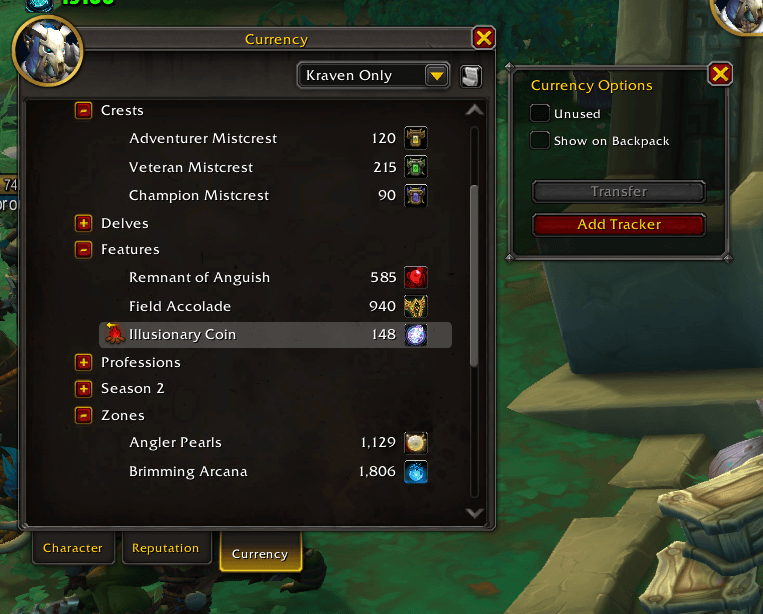
- Add currencies straight from the Currency tab with the "Add Tracker" button in the Currency Options popup
- Alt+Left Click any item anywhere in the UI to add it as a tracker (with a confirmation prompt)
- Drag trackers anywhere on screen - positions persist across sessions and reloads
- Quality-based text coloring (gray/white/green/blue/purple/orange)
- Tooltips on hover showing full item/currency details
- Configurable fonts with live previews in the settings dropdown (supports SharedMedia)
- Configurable icon size (16-64 pixels)
- Toggle name display (show just values or full names)
- Combat visibility toggle (hide trackers during combat)
- Group visibility toggle (hide trackers while in a party or raid)
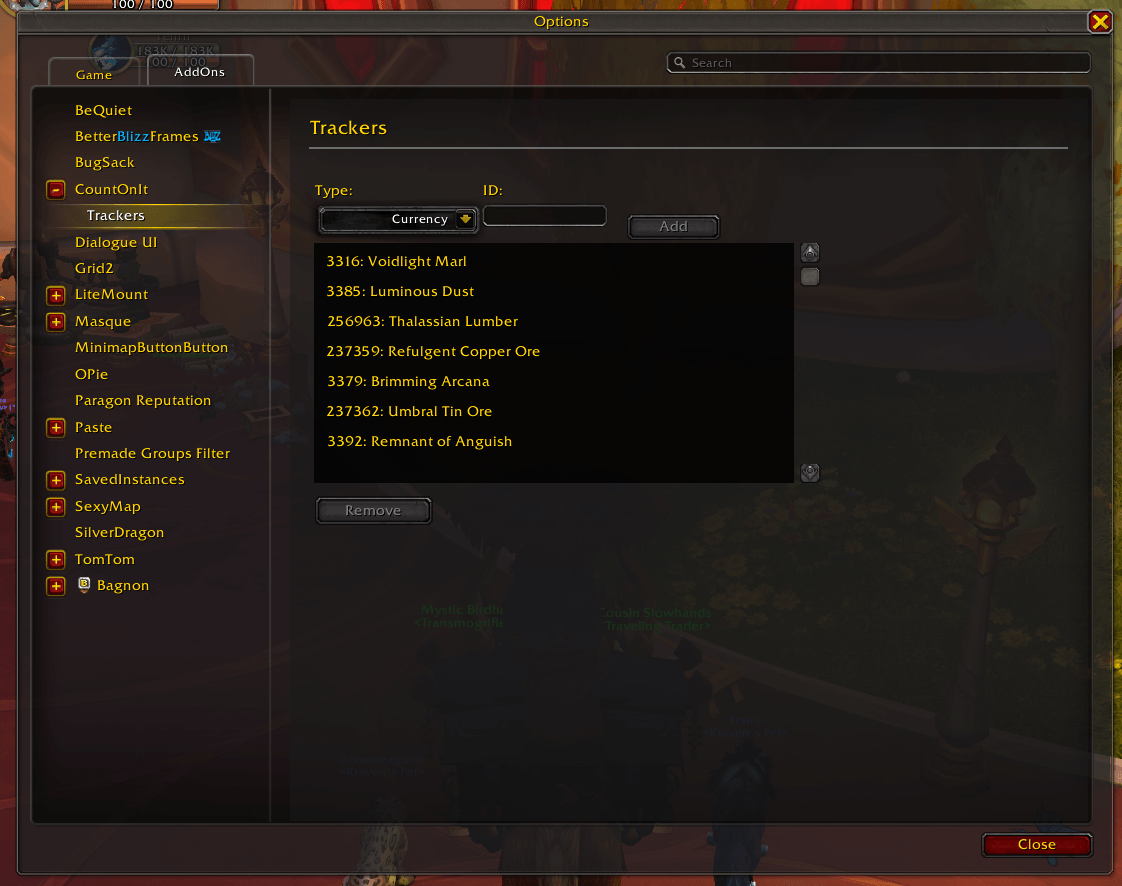
- Full settings panel in the Interface Options, including a Trackers submenu for managing trackers
- Shift+Right Click to remove trackers
Installation
Copy the CountOnIt folder to your WoW addons directory:
- Windows:
C:\Program Files (x86)\World of Warcraft\_retail_\Interface\AddOns\ - macOS:
/Applications/World of Warcraft/_retail_/Interface/AddOns/
- Windows:
Restart WoW or reload UI with
/reload
Usage
Use /countonit or /coi in-game to interact with the addon. Most options are also available in the settings panel under Game Menu → Options → AddOns → CountOnIt, including a Trackers submenu for adding and removing trackers.
Adding Trackers
There are several ways to add a tracker:
- Currency tab - Open your Currency tab, click a currency to open its Currency Options popup, then click "Add Tracker". The button is disabled if that currency is already tracked.
- Alt+Left Click an item - Hold Alt and left-click any item anywhere in the UI (bags, character panel, chat links, tooltips). A confirmation prompt appears before it's added.
- Slash command -
/countonit add <currency|item> <id> - Settings panel - Use the Trackers submenu in the Interface Options.
Available Commands
Tracker Management:
/countonit add <currency|item> <id>- Add a new tracker/countonit remove <groupId>- Remove a tracker by ID/countonit list- List all active trackers- Shift+Right Click on a tracker to remove it
Appearance:
/countonit font <fontName>- Set the font for all trackers/countonit fontsize <size>- Set the font size (6-32)/countonit fonts- List all available fonts/countonit iconsize <size>- Set the icon size (16-64 pixels)
Display Options:
/countonit togglenames- Toggle showing currency/item names (icon always shows)/countonit togglecombat- Toggle showing trackers during combat/countonit togglegroup- Toggle showing trackers while in a party or raid
Debug:
/countonit debug dump- Show current configuration/countonit debug loglevel <level>- Set log level (ERROR/WARNING/INFO/DEBUG)
Help:
/countonit help- Display help message
Font System
CountOnIt supports three ways to specify fonts:
- Friendly Names - Use simple names like "Friz Quadrata" or "Arial Narrow"
/countonit font Friz Quadrata- SharedMedia Fonts - If you have LibSharedMedia-3.0 compatible addons installed (like SharedMedia or SharedMediaAdditionalFonts), you can use any font they provide by name
/countonit font PT Sans Narrow- Direct Paths - You can still use direct file paths if needed
/countonit font Fonts\FRIZQT__.TTFTo see all available fonts, use /countonit fonts. The current font will be marked with an asterisk (*).
Built-in Fonts
- Friz Quadrata (default WoW font)
- Morpheus
- Skurri
- Arial Narrow
Additional fonts are available if you have SharedMedia addons installed.
Tips
- The fastest way to track a currency is the "Add Tracker" button in its Currency Options popup
- Alt+Left Click an item anywhere in the UI to add it without looking up its ID
- Drag trackers to reposition them - positions are saved automatically and survive
/reload - Hover over a tracker to see the full item/currency tooltip
- Trackers automatically resize based on content when names are toggled
- Text color matches item/currency quality (common=white, rare=blue, epic=purple, etc.)
- The font dropdown in the settings panel shows a live preview of each font
- Use
/countonit debug dumpto see all your current settings
Common Currency IDs (Midnight)
Here are some useful currency IDs for The War Within / Midnight:
General
- 2803 - Undercoin
- 515 - Darkmoon Prize Ticket
- 2032 - Trader's Tender
- 3363 - Community Coupons
- 2588 - Riders of Azeroth Badge
Midnight:
- 3383 - Adventurer Dawncrest
- 3376 - Shard of Dundun
- 3316 - Voidlight Marl
- 3385 - Luminous Dust
- 3377 - Unalloyed Abundance
- 3392 - Remnant of Anguish
- 3379 - Brimming Arcana
- 3400 - Uncontaminated Void Sample
- 3373 - Angler Pearls
- 3264 - Artisan Miner's Moxie
- 3260 - Artisan Herbalist's Moxie
- 3265 - Artisan Skinner's Moxie
- 3258 - Artisan Enchanter's Moxie
- 3266 - Artisan Tailor's Moxie
- 3257 - Artisan Blacksmith's Moxie
- 3263 - Artisan Leatherworker's Moxie
- 3262 - Artisan Jewelcrafter's Moxie
- 3261 - Artisan Scribe's Moxie
- 3259 - Artisan Engineer's Moxie
- 3256 - Artisan Alchemist's Moxie
The War Within:
- 2815 - Resonance Crystals
- 2803 - Kej
- 2806 - Artisan's Acuity
Classic Currencies:
- 1166 - Timewarped Badge
- 1792 - Honor
- 1602 - Conquest
- 2122 - Storm Sigil
To find currency IDs, hover over a currency in your Currency tab and use an addon like idTip, or check Wowhead.
Development
CountOnIt.toc- Addon metadata and file loading orderCountOnIt.lua- Main addon logic (ConfigManager, GroupManager, UIManager, DataProvider, SlashCommands, Logger)modules/ConfigUI.lua- Settings panel and Trackers submenu in the Interface Optionsmodules/CurrencyIntegration.lua- "Add Tracker" button in the Currency Options popup and Alt+Left Click item trackingLibs/- Embedded libraries (LibStub, LibSharedMedia-3.0)
Font Resolution System
The addon uses a font resolution system that:
- Checks SharedMedia for registered fonts
- Falls back to built-in WoW fonts
- Treats input as a direct file path if not found
- Caches resolved paths for performance
CountOnIt Team