Description
AppearanceMatic
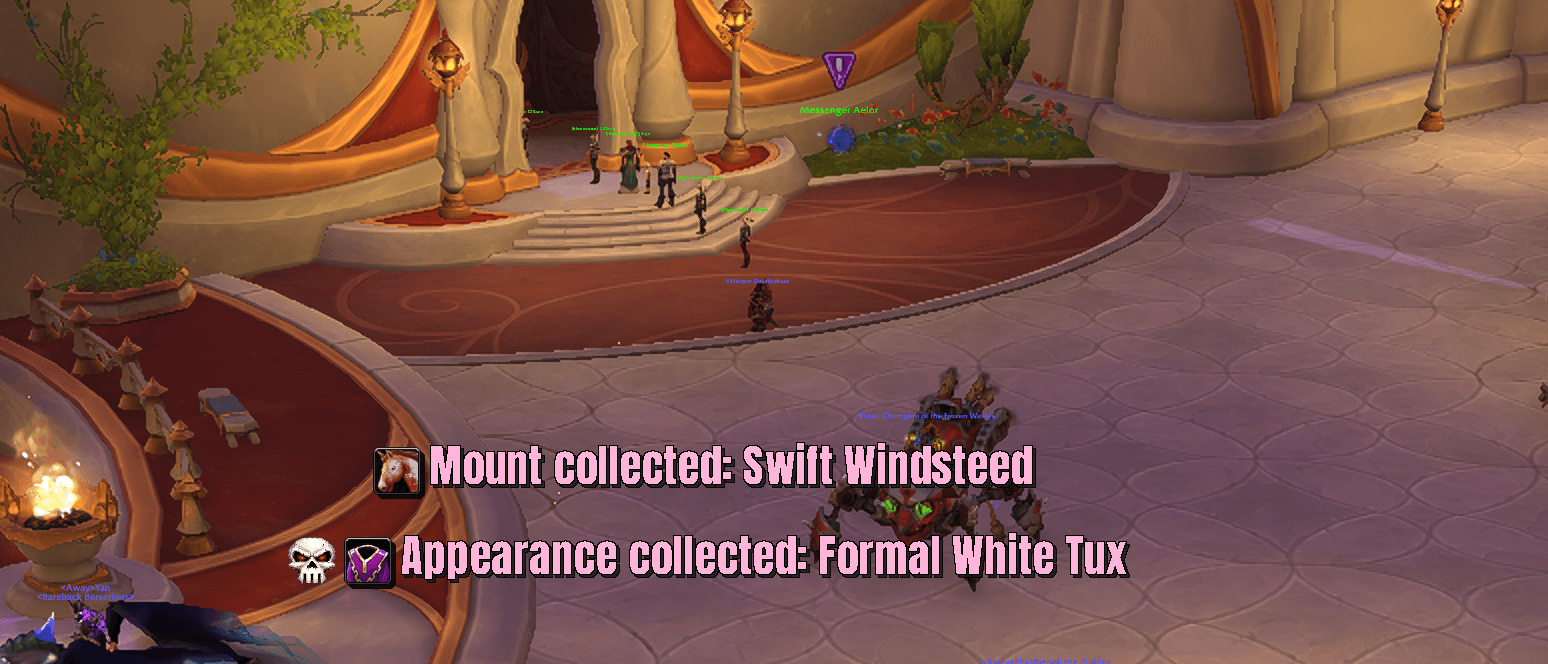
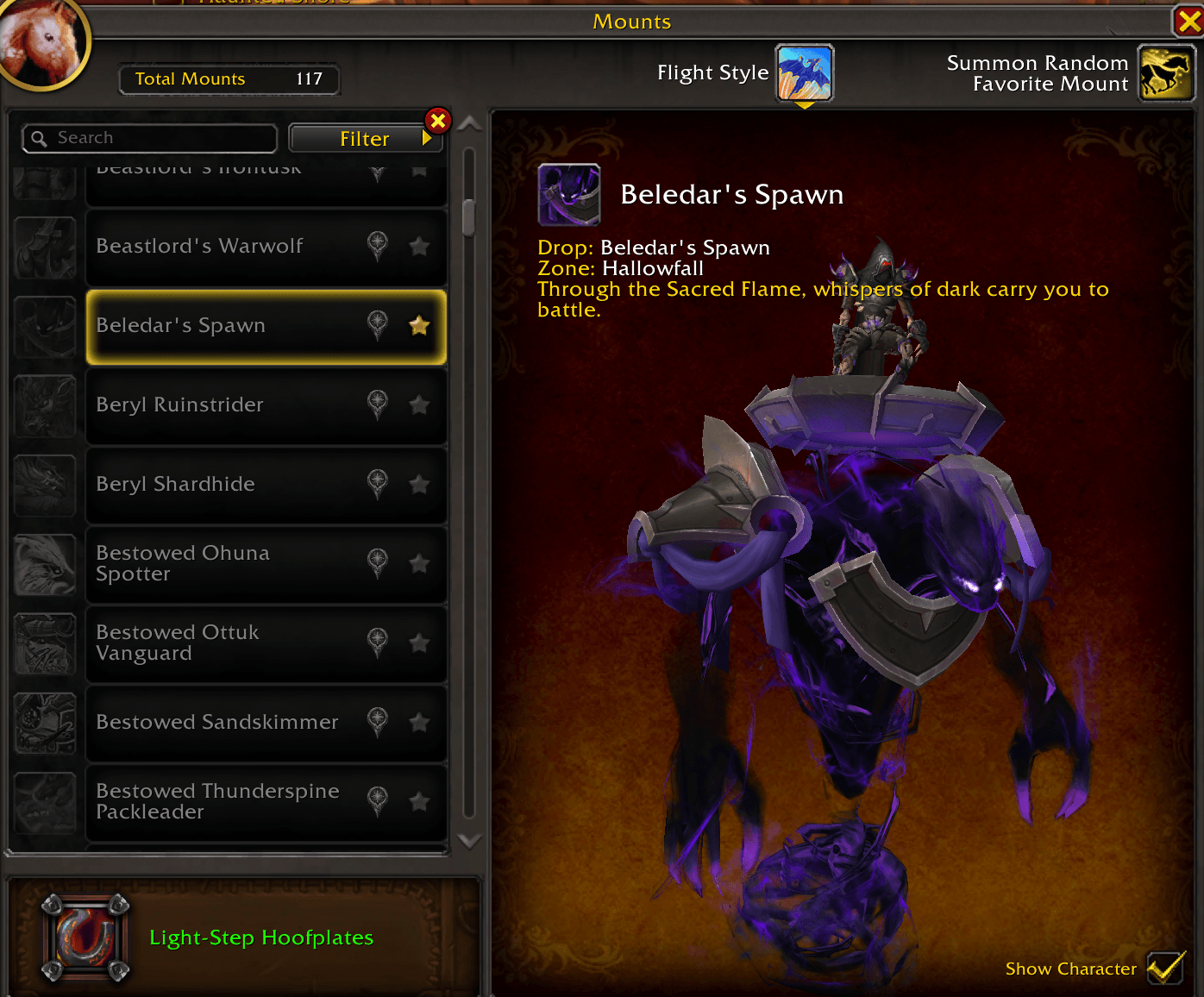
AppearanceMatic turns the Wardrobe and the Mount Journal into a hunting list. Star an appearance or a mount you still want, and one panel shows where it comes from, which of your characters can still go this week, what stands in the way, and a route that guides you there through the right portals, boats, zeppelins and flight paths. The star comes off on its own the moment you collect it, with an alert and a chat line to show for it.
Highlights
- Star anything in the Wardrobe's Appearances tab or the Mount Journal. Owned items refuse the star, and a leftover star on something you already have is cleaned up for you.
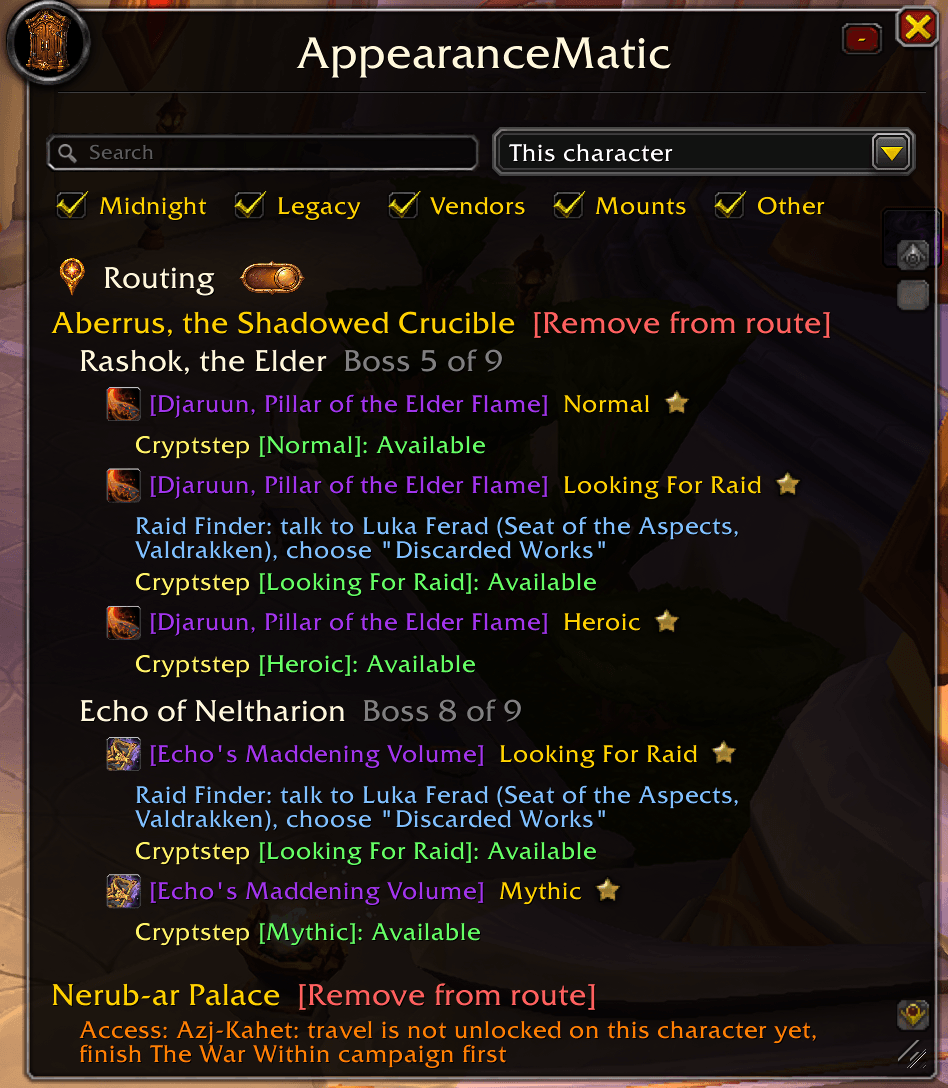
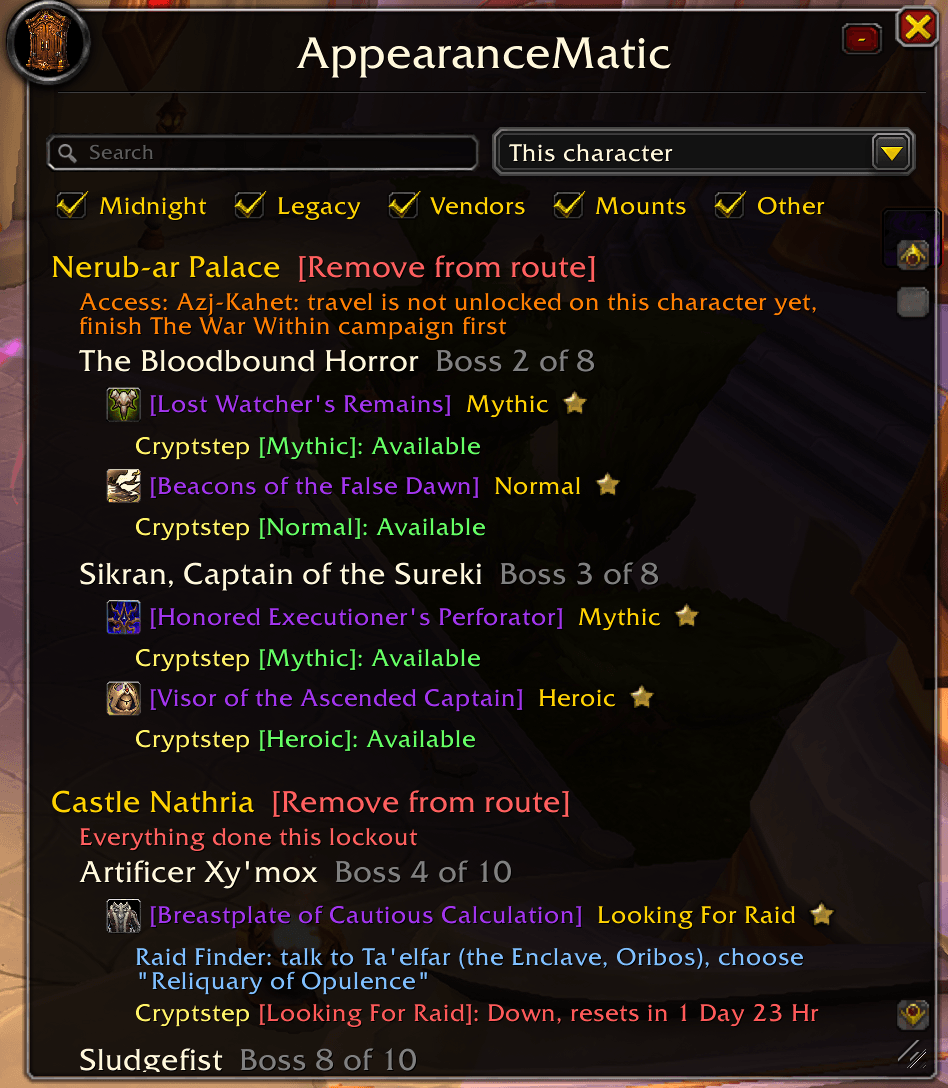
- One panel for every alt. Every starred item grouped by the raid, dungeon, vendor or zone it comes from, with each character's lockout under it, per difficulty, plus cost, location and what must be done first.
- A route and a guide arrow. Add whole raids or single items to the route; the guide picks the nearest, takes you portal to boat to flight master to entrance, and moves on by itself when you collect or clear.
- Access lines tell you what is closed and why: who holds Tol Barad or Wintergrasp and when the next battle is, which campaign opens the zone, which quest opens the door, which reputation, faction, race or holiday an item needs.
- 3D try-on on any item tooltip, in bags, at vendors, on loot, chat links and quest rewards, and a docked preview in the Wardrobe itself.
- Collected alerts with your own text, font, sound and animation, and a line to your guild, group or an emote when a starred item drops.
- Fully localized: English, German, French, Italian, Spanish (EU and Latin America), Portuguese, Russian, Korean, Simplified and Traditional Chinese.
Starring
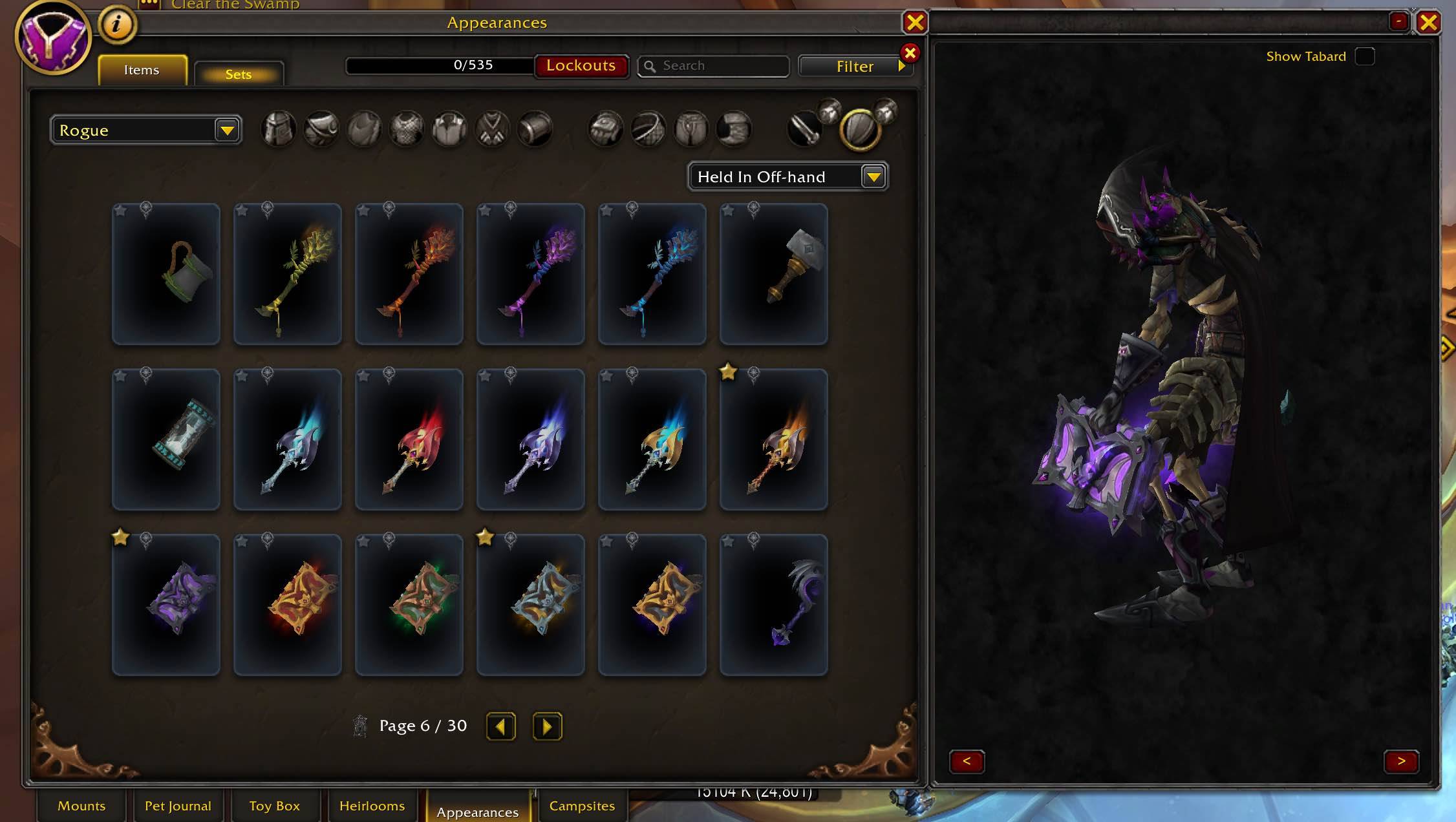
- Click the star on any appearance in the Wardrobe or any mount in the Mount Journal to track it.
- Starring something you already own is refused with a chat line; stars left on owned items are removed automatically and the panel says how many it cleared.
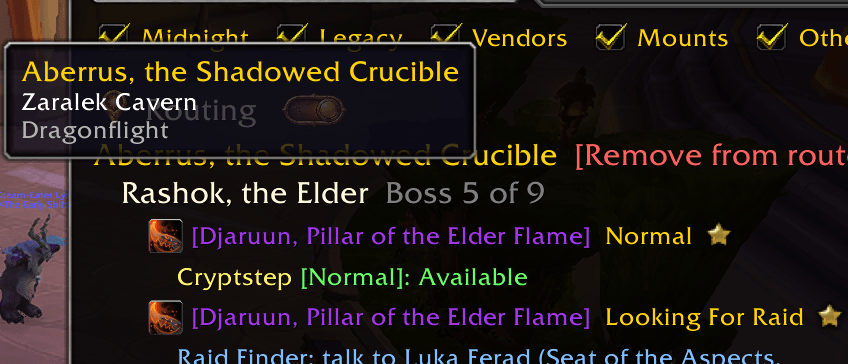
- Hover a star for the item's expansion, cost and zone, whether it is already collected, and the hint that right-click guides you there.
- Right-click a star to guide straight to the item's known location.
- A gold route pin beside every star adds that one item to the route (adding also stars it) and stays lit while it is on the route.
- A Favorites box in the Wardrobe and Mount Journal filter menus shows only your starred, uncollected items.
- Your existing Wardrobe favorites are picked up on first login.
- Collecting a starred item removes its star and ends any guide to it on its own.
- Starring during combat never errors: what the game hides in a fight is marked as hidden and fills in when the fight ends.
The Widget Panel (/am)
- Opens with
/am, the minimap button, the medallion menu or the Lockouts button inside the Wardrobe. - Lists every raid, dungeon, vendor, mount and world drop tied to something you starred, with each character's lockout state directly under the item, only for the difficulties it drops on.
- Difficulties that share one weekly lock show on one line; a raid you finished this week reads "Everything done this lockout" and sinks to the bottom of the Routing section.
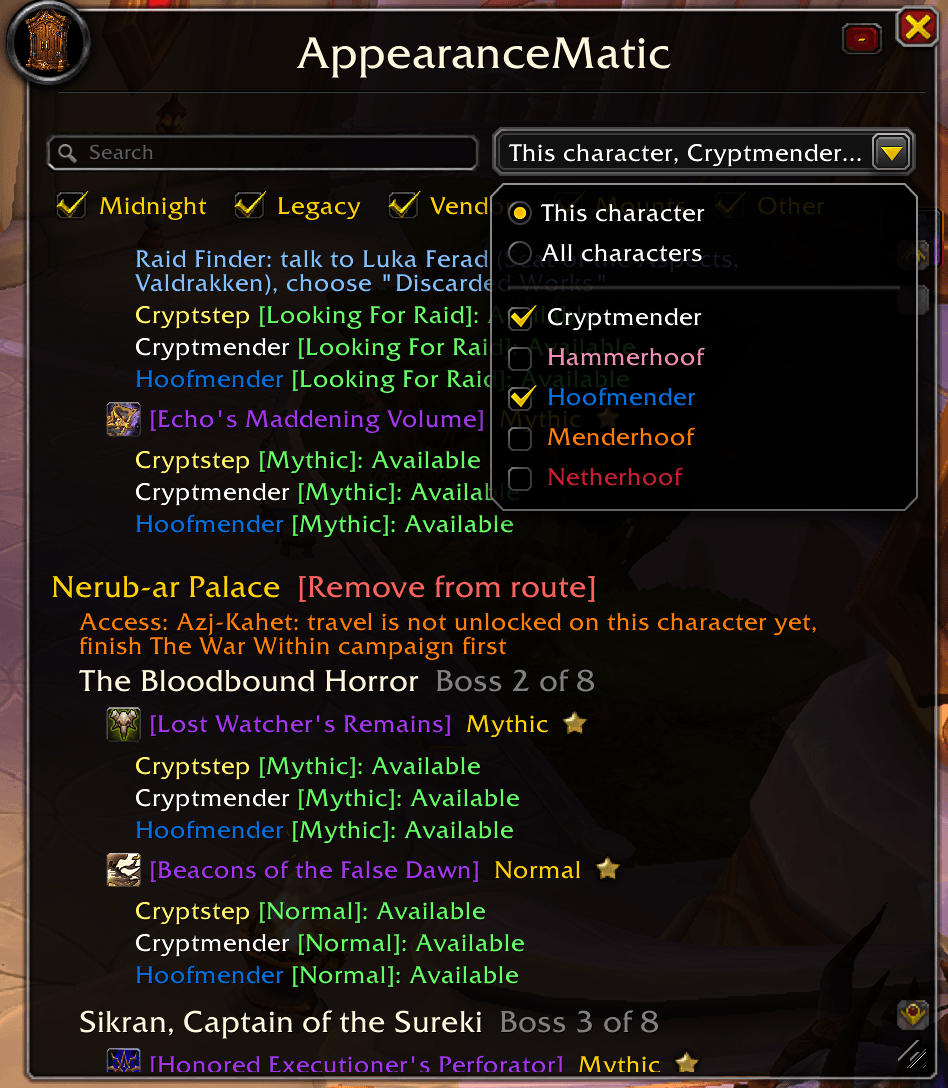
- Hover a character's name under a boss for every character's state on every difficulty; character names draw in class colours.
- The raid or dungeon you are standing in is tagged "you are here" and pinned to the top.
- Boss rows show their order ("Boss 3 of 8"); difficulty tags show in gold on item rows.
- Search by item, boss, vendor, zone, expansion or character name; type "routing" to see only the route. A count shows what the filter or search hid.
- Tick boxes under the search choose what shows: the current expansion (and this season's instances), Legacy, Vendors, Mounts and Other. Choices are remembered.
- The character picker defaults to this character, lets you tick others to show beside it, or shows all characters.
- Ignore Characters tab: check off characters you never want in the panel, or ignore everyone off your current realm in one click (that also un-ignores this realm's characters). The character you are playing is never hidden.
- Hide unattainable items: leave out starred things that were removed from the game or never made it in.
- Resize from the bottom-right grip (lines re-wrap, size remembered), drag it anywhere, lock its position, scale it, set its transparency, minimize it to the title bar, reset its position.
- One font face, size and outline for the whole panel, with boss lines and headers a step larger; non-English clients draw with the game's own font.
- Bigger item icons on rows and currency icons on cost lines. A loader covers the list while data is still arriving after login so you never read a half-filled panel.
Lockouts, sources and access
- Every character you log into has its raid lockouts recorded, so the panel covers your whole roster just by playing each alt once.
- Locks show Available or Down with the reset timer, and who holds an extended or owned lock.
- Vendor rows show the price in gold, the right currency with its icon, or the items required, formatted like the vendor window.
- Sources cover boss drops, vendors, quest rewards, achievements, objects, world drops and mounts, with the zone and the exact spot when known.
- Access lines, orange under raids and in the Wardrobe tooltip: who controls Tol Barad and Wintergrasp with the next battle time (Baradin Hold, Vault of Archavon); the campaign that opens Undermine, K'aresh, Azj-Kahet, Voidstorm, the Isle of Quel'Danas, Harandar, Zereth Mortis, The Maw, the Isle of Thunder, Argus, Nazjatar, the Emerald Dream and Sporefall (War Within, Midnight, Eternity's End, Chains of Domination and the rest); the door quest for Manaforge Omega, Crucible of Storms, Ny'alotha, Antorus, The Eternal Palace and Amirdrassil, named by title. Red when it blocks you, grey when it is only good to know, updated the moment a quest turns in or you level.
- Item rows say what stands between you and them: a quest to finish first, a reputation standing, a faction or race limit, a holiday it only appears during (named from the calendar), or that it left the game, or leaves in an upcoming patch.
- Current-season Raid Finder drops link straight into the Group Finder's Raid Finder tab; older raids name the NPC and the wing.
Route and guide
- Every raid and dungeon header has Add to route; vendor, mount and world-drop rows have their own; Remove all routes empties it after a confirm.
- The route sits under a Routing header at the top of the panel, nearest first, and it drives the guide: it starts on the nearest entry as soon as you add one, moves to the next when an item is collected or the raid is done for the week, and keeps a raid through weekly resets until you remove it or collect everything in it.
- A gold switch beside Routing rests the guide (so TomTom's own arrow and pins show again) and resumes it; the route keeps its entries and the switch survives logouts.
- The guide chains portals, boats, zeppelins, teleporters and flight paths across continents, learns gateways as you use them, and never sends you through one your character has not unlocked. It names the blocker ("Portal to Undermine is not unlocked on this character yet, travel manually") and tells you when there is no known way across.
- Flight hops name the flight master and tell you when discovering a closer flight point would shorten the trip; open the flight map while guided and the right flight point is highlighted.
- Prefer my own mount: when you can fly on the continent, the arrow points straight at the target instead of following flight-path hops.
- The on-screen arrow shows the bearing and distance, turns green when you face the target, says Arrived when you are there; drag it anywhere, Ctrl-scroll to resize it, right-click to cancel the guide. It hides in combat and comes back after.
- Optional arrival chime at every hop.
- Every route change answers in chat; the guide reports setting out, the next hop, arriving, or being inside already.
- Blizzard's own map pin and objective tracker stay in charge for the item itself; the guide adds the travel in front of it.
- Route and guide resume where they were after a reload or login.
Previews
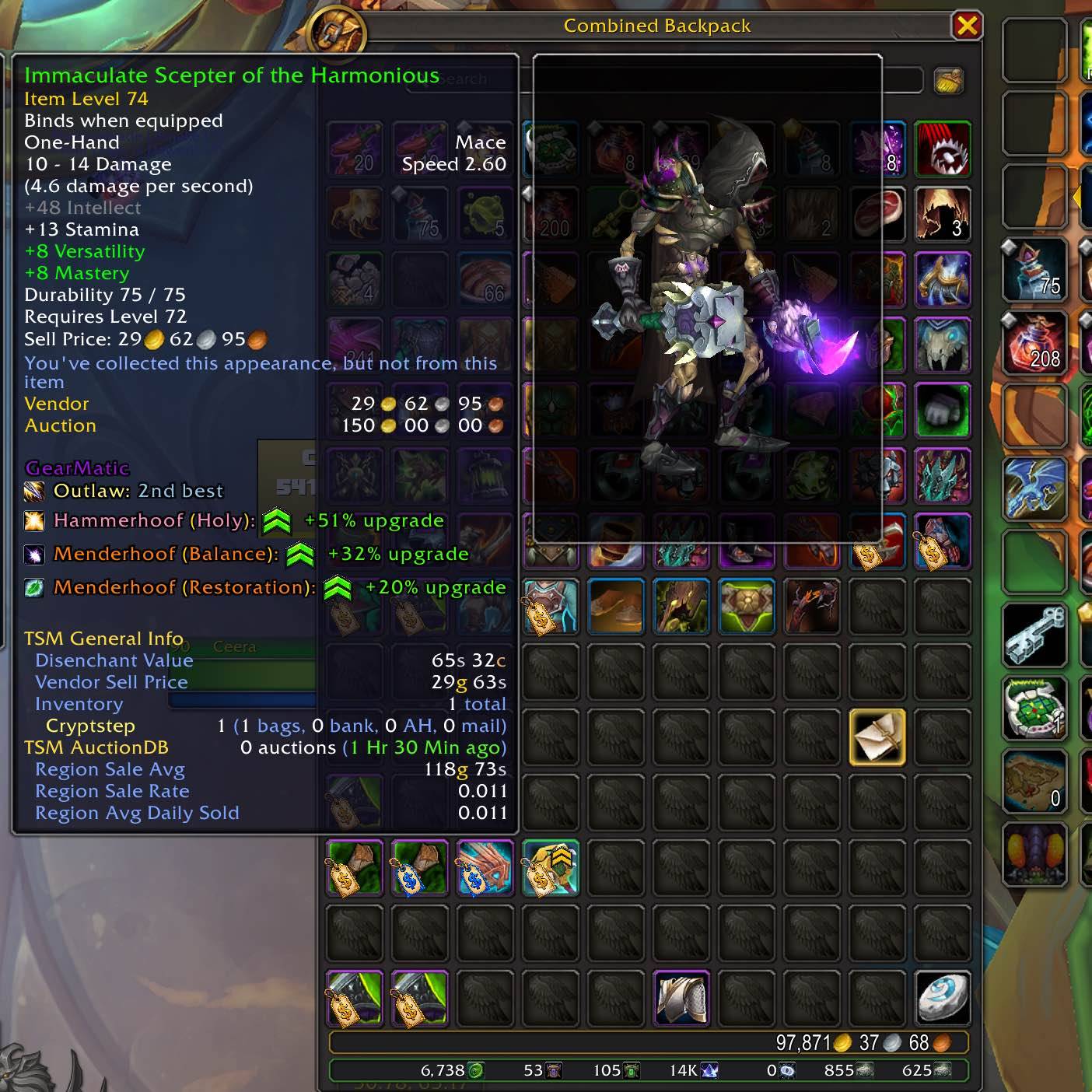
- Every item tooltip for gear with an appearance shows a 3D try-on of your character, in bags, at vendors, on loot, chat links and quest rewards; it flips sides when it would leave the screen. On by default, can be limited to the panel's rows.
- A docked preview on the Wardrobe's right edge shows whatever tile you hover; rotate it with < and >, it turns to show weapons side-on, collapse it to a strip, show or hide the tabard.
- Choose whether the preview undresses to the hovered piece or tries it on over your current gear.
- The preview steps aside for Blizzard's own comparison tooltips.
- A bookmark button beside the Wardrobe's page number saves your category and page and jumps back to it when you reopen the tab.
Alerts
- An on-screen alert with the item's name and icon when a starred appearance or mount is collected, with a separate message for appearances and mounts.
- Font face, size, colour, outline and shadow; two bounce styles; icon size and bounce; a skull on drops from a dungeon or raid boss; all-caps if you like.
- Timing controls: display time, fade time, start delay, stagger and a repeat cooldown; up to four alerts stack, sharing position with the other Infinite Loop Alchemist addons.
- An alert that lands during a boss kill waits behind the boss banner and loot toasts instead of getting lost.
- Separate sounds for appearances and mounts from the game's library or up to ten of your own files, a master mute, channel choice, once-per-login and in-combat switches.
- Preview any alert from the options or with
/am test appearanceand/am test mount.
Chat and social
- A chat line to yourself for every collection, and to your guild, your party, raid or instance chat when grouped, or as an emote the people around you can read. Each has its own box; all on by default.
- Every routing line goes out the same way: with the Emote box on, the people around you read what you are chasing; with it off, only you see it.
Options
- Tabs: General, Alerts, Widget Panel, Detection, Sound, Guide arrow, Social, Ignore Characters, Change Log, Profiles.
- Show Expansion in Tooltip adds the source expansion to appearance tooltips and after raid names.
- Welcome message at login with the version and the help command; a notice when a newer version is on CurseForge.
- Minimap button with the AppearanceMatic medallion: left-click the panel, right-click the settings, drag it around the ring, or hide it.
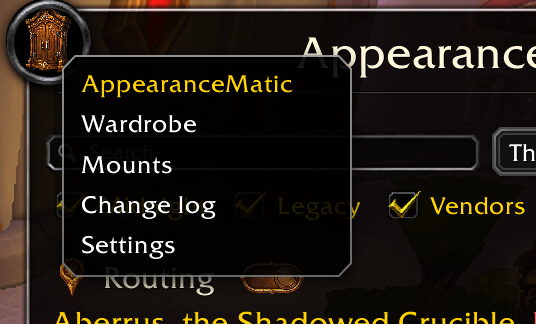
- Right-click the panel's medallion for Wardrobe, Mounts, Change log and Settings. The Wardrobe cannot open in combat; it opens for you when the fight ends.
- Detection tab: shows GearMatic when installed, its auto-sell and auto-repair settings, and while both are installed GearMatic keeps every item whose appearance you have not collected out of its auto-sell (needs a current GearMatic; an older one is flagged).
- Profiles: create, copy and reset settings profiles, kept apart from your stars, route and lockout data.
- An in-game change log (
/am changelog).
Slash commands
/amopens or closes the panel./am settingsopens the options./am test appearanceor/am test mountpreviews an alert./am stoprests the guide until the route changes or the next login./am resetclears the guide, Blizzard's tracking and the remembered guide state; the route keeps its entries./am hereprints your map and position as a /way line./am diagprints routing diagnostics for a bug report./am changelogopens the change log./am helplists every command.
Works with
- Blizzard's Wardrobe, Mount Journal, Group Finder, Encounter Journal, calendar, map pin and objective tracker.
- TomTom: waypoints are mirrored into it, and its arrow and pins can be hidden while AppearanceMatic guides.
- GearMatic: uncollected appearances are kept out of its auto-sell.