Motion Blur
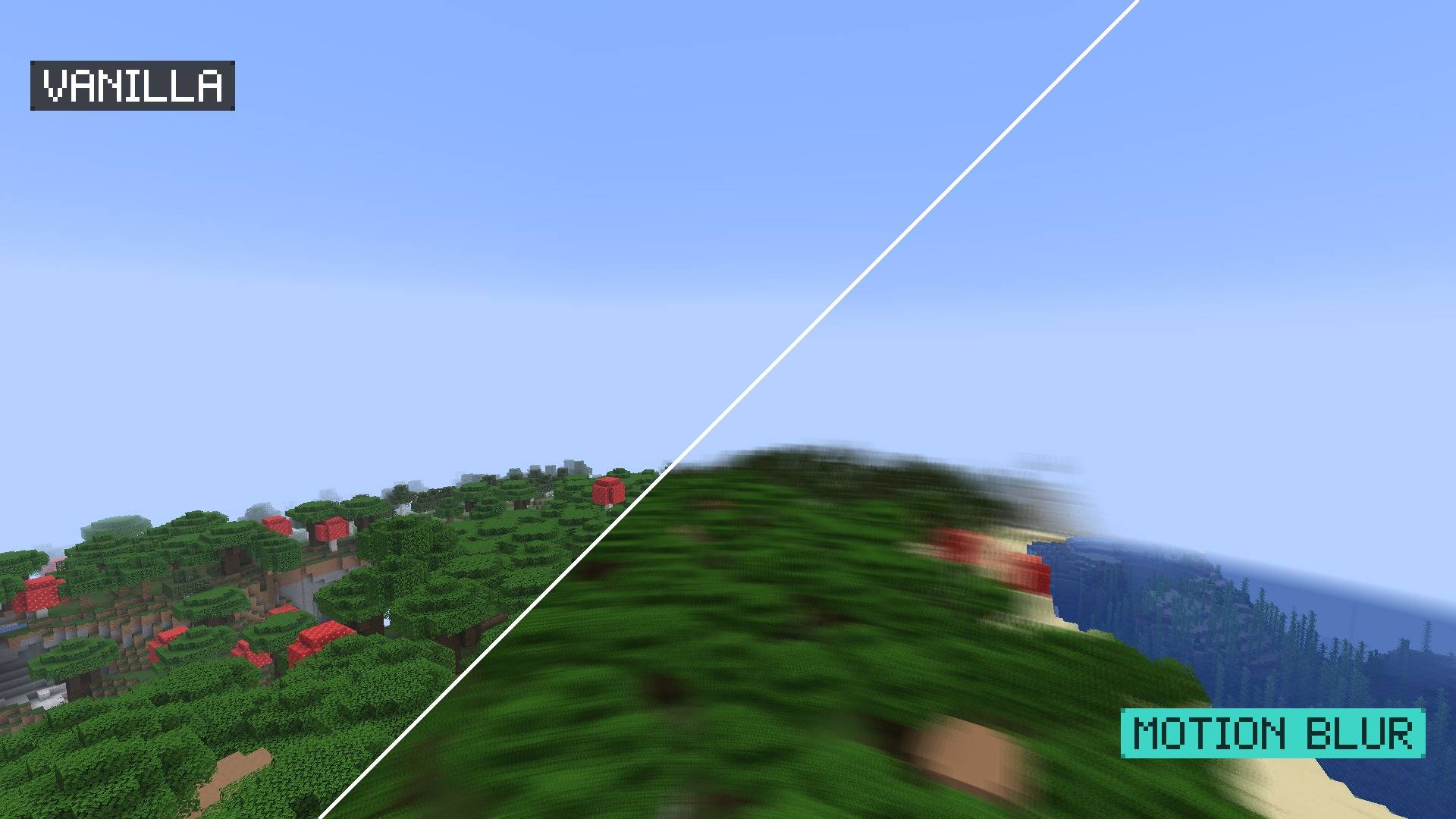
Motion Blur adds camera motion blur to Minecraft. When you turn or move fast, the picture smears along the movement, like a camera with a longer shutter. When you stand still, nothing is blurred. It is an Iris shader pack that changes nothing but the blur.
What changes
- The whole picture, sky included, blurs in the direction you move the camera. Fast turns blur more, slow ones less.
- Standing still looks like vanilla: no blur without movement.
- Your held item stays sharp.
- Textures, lighting and colours stay vanilla. There are no shadows, waving plants or water effects.
Settings
Open Options → Video Settings → Shader Packs → Shader Pack Settings (Iris) to change:
| Setting |
What it does |
| Blur strength |
How long the smear is for a given movement |
| Blur quality (samples) |
Number of samples along the smear: more is smoother |
| Maximum blur length |
Upper limit of the smear, as a share of the screen |
Compatibility
- Minecraft: Java Edition 26.3, with Iris and Sodium.
- Tested in game on 26.3 with Iris 1.11.7 and Sodium 0.9.2. Other versions are not tested yet.
- Client-side: works in singleplayer and on any server.
- Iris loads one shader pack at a time, so Motion Blur replaces other shader packs while it is selected.
FAQ
Does it blur when I stand still? No. The blur comes from camera movement, so a still picture stays sharp.
Does it blur moving mobs? No. It only blurs the camera's own movement.
Does it change how the game looks? Textures and lighting stay vanilla. The sky and the distant fog are rebuilt to match vanilla; in our test the sky was within a few colour steps and far terrain was slightly darker than vanilla.
Does it work without Iris? No. Shader packs need Iris (with Sodium).
Does it work with OptiFine? It is not tested with OptiFine, so it is not listed for it.
Can I combine it with another shader pack? Iris loads one shader pack at a time. Use Motion Blur alone.
Does it work on servers? Yes. It only changes what you see.
Installation
- Install Iris and Sodium for your Minecraft version.
- Download the file. Do not unzip it.
- In Minecraft, open Options → Video Settings → Shader Packs → Open Shader Pack Folder and drop the file in.
- Select Motion Blur in the shader list.
More by Tweakwell
Small, single-purpose projects that each change one thing and keep everything else vanilla: