Tepox Better Third Person Cameras
- By
Adds smooth free third-person and shoulder camera modes with adjustable zoom, aiming, interaction support, and server-controlled distance limits.
Tepox Camera
Tepox Camera is my take on a more flexible third-person camera system for Minecraft.
It adds several new camera modes to the normal F5 camera cycle, including free third-person movement, shoulder cameras, smooth zoom, crosshair interaction support, and server-controlled camera distance limits.
Camera Modes
The F5 camera cycle is:
First Person → Vanilla Third Person Back → Shoulder Follow → Vanilla Third Person Front → Free Third Person → Shoulder Camera → First Person
Shoulder Follow
A shoulder camera that behaves more like Minecraft's normal third-person camera.
- The camera is positioned over the player's shoulder.
- The player always faces the same direction as the camera.
- Moving the mouse rotates both the camera and the player.
W/Smove forward and backward.A/Dstrafe left and right.- Camera distance can be adjusted normally.
This mode is useful if you want a shoulder camera without the completely independent movement of the other custom cameras.
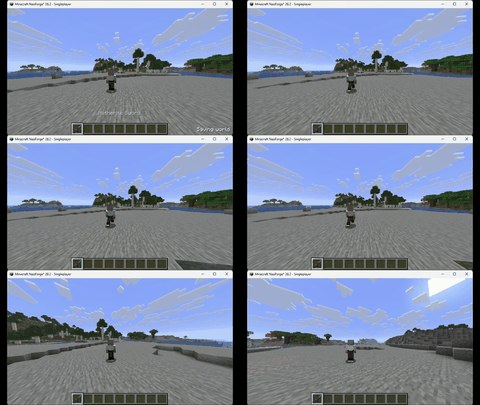
Free Third Person
A fully free third-person camera.
- Rotate the camera around the player without forcing the player to face the same direction.
- Movement is relative to the camera.
- Move forward, backward, sideways, or diagonally freely.
- The character turns naturally depending on movement and interactions.
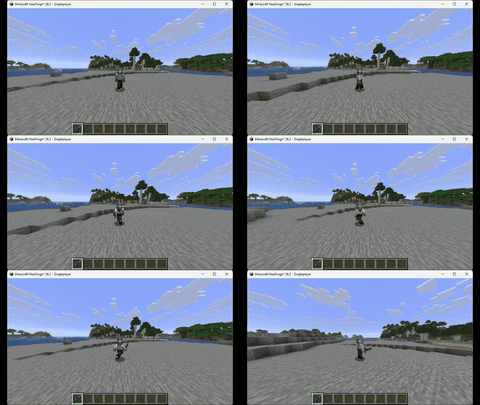
Free Shoulder Camera
Works like Free Third Person, but places the camera over the player's shoulder.
The player can still move independently from the direction of the camera while keeping the shoulder-style perspective.
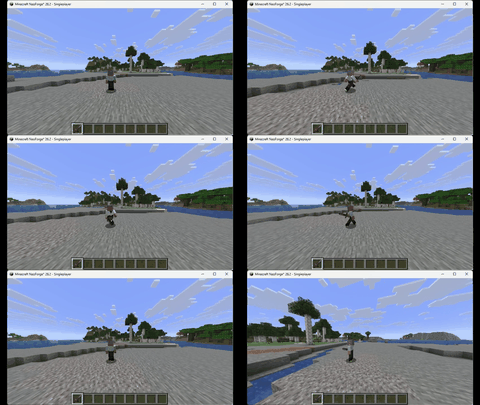
Interaction and Aiming
The custom cameras are fully usable during normal gameplay.
The crosshair remains active, allowing you to:
- Break blocks
- Attack entities
- Interact with blocks
- Use items
- Use bows
- Use shields
- Pick blocks and entities normally
Holding Right Click makes the player face the direction of the crosshair while using an item.
Using Left Click also makes the player face the targeted block or entity for a short moment so attacks and block breaking look more natural in third person.
Camera Distance
Each custom camera keeps its own camera distance.
Default controls:
- Up Arrow — Move the camera closer
- Down Arrow — Move the camera farther away
- P — Reset the camera distance to the vanilla default of
4
All keys can be changed from Minecraft's normal Controls menu.
Camera zoom uses whole-number distances, but the visual movement between distances is smoothly interpolated.
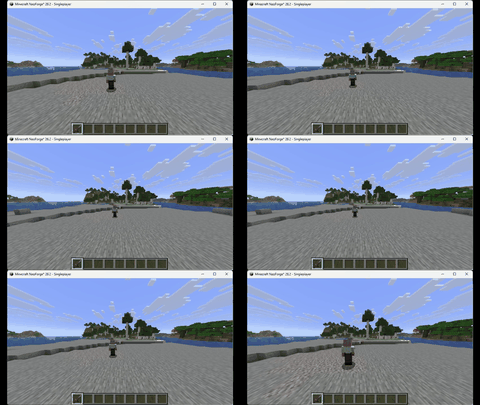
Hold Acceleration
Holding the zoom keys gradually increases the distance step:
0–5 seconds— steps of 15–10 seconds— steps of 210–15 seconds— steps of 415+ seconds— steps of 10
Configuration
Tepox Camera works on both the client and server.
The server or world host controls the minimum and maximum camera distance available to players.
Default values:
- Minimum Distance:
1 - Maximum Distance:
14 - Reset Distance:
4
Rules:
- Minimum distance must always be at least
1. - Maximum distance must always be equal to or greater than the minimum distance.
- Maximum distance has no normal gameplay limit.
In multiplayer, the server settings are authoritative and connected players automatically use the limits configured by the server.
Server Commands
Server owners and administrators can change the allowed camera distance directly with commands.
Set Minimum Distance
/tepoxcamera_set mindistance <value>Example:
/tepoxcamera_set mindistance 1Set Maximum Distance
/tepoxcamera_set maxdistance <value>Example:
/tepoxcamera_set maxdistance 14The same distance rules used by the configuration menu also apply to commands:
mindistancemust be at least1.mindistancecannot be greater thanmaxdistance.maxdistancecannot be lower thanmindistance.
Changes are saved to the server configuration and are immediately synchronized with connected players.
If you want to completely lock the camera to a single distance, simply set both values to the same number.
Example:
/tepoxcamera_set mindistance 4
/tepoxcamera_set maxdistance 4
This forces all custom cameras to stay at distance 4.
These commands can be used by server administrators, operators, the dedicated server console, and the integrated-world host.
Controls
| Control | Default Key |
|---|---|
| Camera Closer | Up Arrow |
| Camera Farther | Down Arrow |
| Reset Camera Distance | P |
| Change Camera Mode | F5 |
The zoom controls can be reassigned from Minecraft's normal Controls menu.
Author
Tepox00
The Tepox Better Third Person Cameras Team


![Scorched Guns 2 Neoforged [Unnoficial Port] project image](https://media.forgecdn.net/avatars/thumbnails/2058/523/256/256/639254711768853653.png)