Painting Selection Gui: Lagn't
- By
A Cleanroom port of the Paintings selection GUI with a fix for the ridiculous lag caused by large custom painting collections. 50+ paintings? No problem. Probably.
logo.png
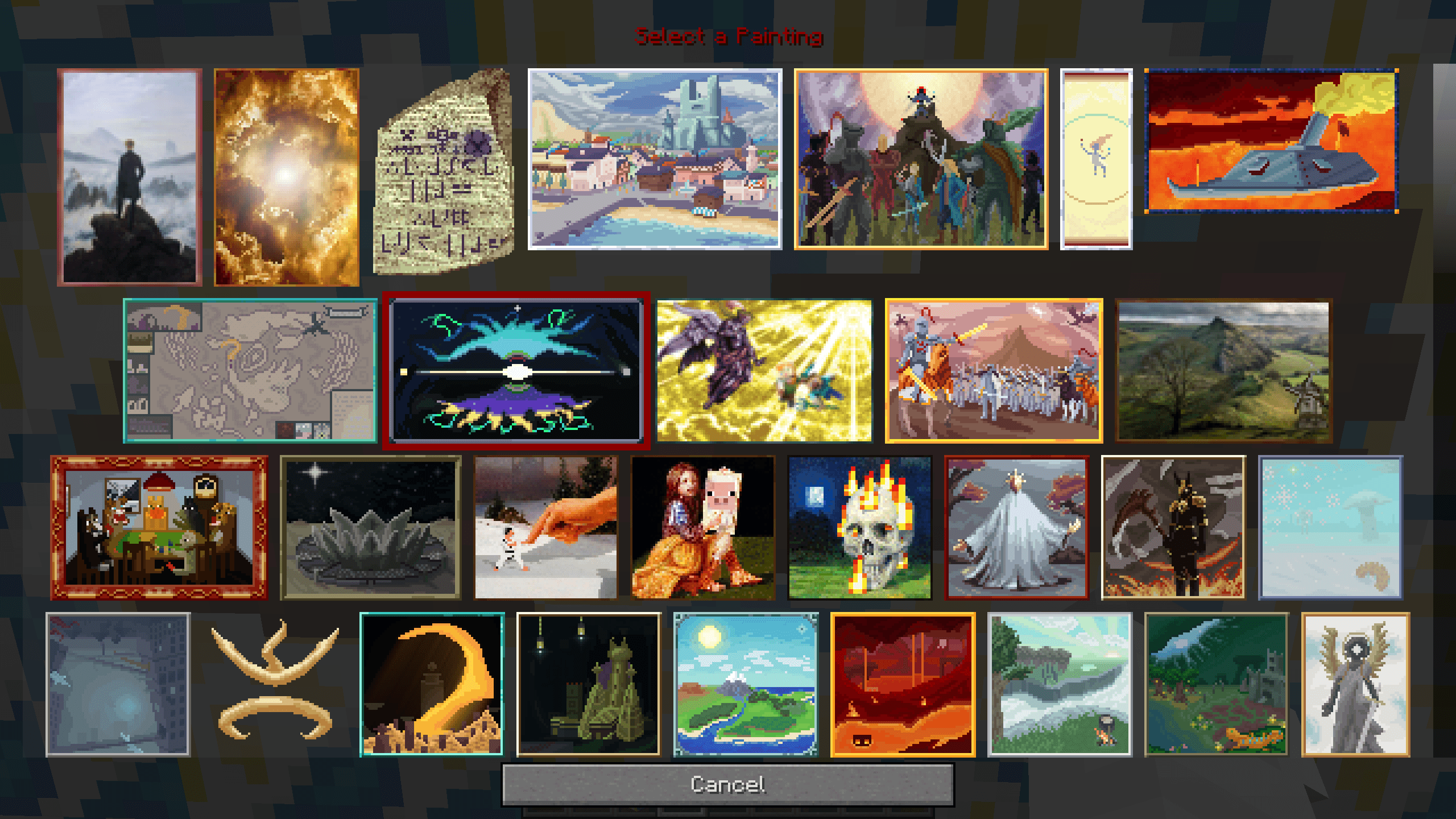
ROTN Art
Description
Painting Selection Gui: Lagn't
MC 1.12.2 // Cleanroom
tl;dr
A Cleanroom port of the Paintings++ selection GUI, with the lag from large custom painting collections fixed.
(This is a pretty small fix. Honestly, creating the thumbnail probably took longer than writing the code.)
Version 1.4 wasn't.
what changed
- Painting sizes are now checked once per size. This means adding hundreds of paintings of the same size no longer makes placement checks hundreds of times slower.
- Ported to Cleanroom.
- New: right-click a placed painting to change it. Just right-click the painting to open the selection GUI and pick a new one.
- Removed some unused code.
1.4 and up:
- Added a config.
- More performance improvements.
- Improved the GUI layout. The layout calculations now make better use of the available space.
- Added smooth scrolling. Scrolling through large painting collections in the GUI is now smoother and faster.
- Removed more unused code.
- More changes and details can be found in the changelogs.
usecase
If you're using lots of custom paintings with JSON Paintings, this should make the painting GUI much smoother, even with hundreds or thousands of paintings.
adding your own paintings
Want to add your own paintings? It's pretty simple.
Install JSON Paintings and this mod, then find the paintings folder created by JSON Paintings. Inside it you'll find paintings.json and a textures folder. Put your actual painting images inside textures. You can name them whatever you want; for this example, I'm keeping it simple and using 1.png, 2.png, 3.png, etc.
paintings/
├── paintings.json
└── textures/
    ├── 1.png
    ├── 2.png
    ├── 3.png
    └── ...
Next, open paintings.json and add an entry for each painting, including its width and height:
[
    {
        "motive": "1",
        "width": 3,
        "height": 2
    },
    {
        "motive": "2",
        "width": 4,
        "height": 4
    },
    {
        "motive": "3",
        "width": 3,
        "height": 2
    },
    {
        "motive": "4",
        "width": 2,
        "height": 4
    }
]
motive is the name of the texture without the .png. width and height are the size of the painting in blocks.
For example, "motive": "1" uses textures/1.png, and "width": 3, "height": 2 makes it a 3 × 2 painting.
a small performance tip
If you're planning on adding hundreds of paintings, it's worth optimizing your images first. Tools such as Pinga can reduce PNG file sizes and save some space. Try to keep individual paintings reasonably small; around 100–200 KB or less per image is a good target if you're building a large collection.
Also make sure your files are actually PNG-encoded, rather than simply having a .png extension. Properly encoded and optimized PNGs keep the texture files smaller and can help reduce unnecessary loading overhead.
If you don't want to build a collection from scratch, you can also grab the paintings folder from Rebirth of the Night and adapt it for your own setup, or just take it and enjoy the RotN art.
getting pictures ready
If you're grabbing pictures from the internet, you'll probably want to crop them into the right shape before putting them in the game. This PNG cropper is a simple way to crop an image to the shape you want.
Try to match the image's aspect ratio to the painting's width and height. For example, a 3 × 2 painting should use an image with a 3:2 aspect ratio. Otherwise, your painting may look stretched or squashed in-game.
Once you've cropped it, save it as a real PNG. If the original image is huge (for example, 2 MB+), save/export it as a JPG first to bring the filesize down, ideally to under 1 MB. Then convert the JPG to PNG, optimize the PNG with Pinga, and put it in the textures folder with the name you want to use as the motive.
credits
Based on the selection GUI from Paintings++; this is a Cleanroom port with performance fixes and the changes listed above.
// happy little paintings.
Painting Selection Gui: Lagn't Team