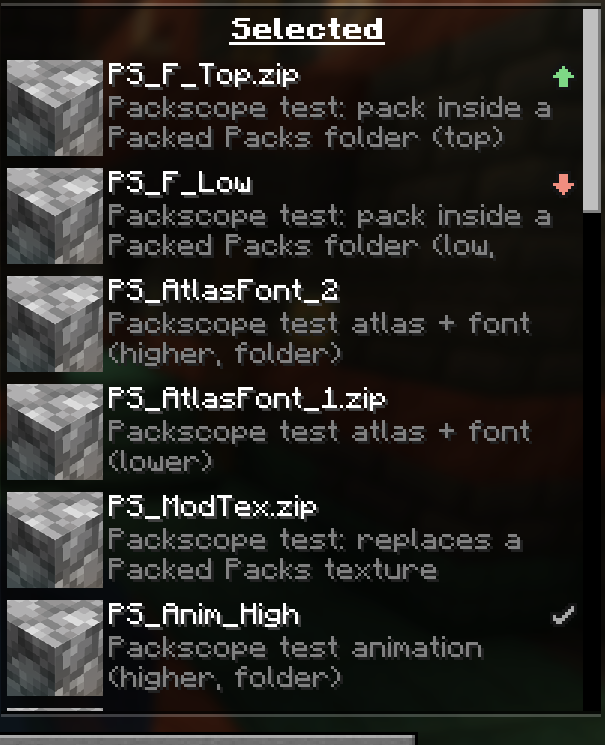
Which resource pack wins?
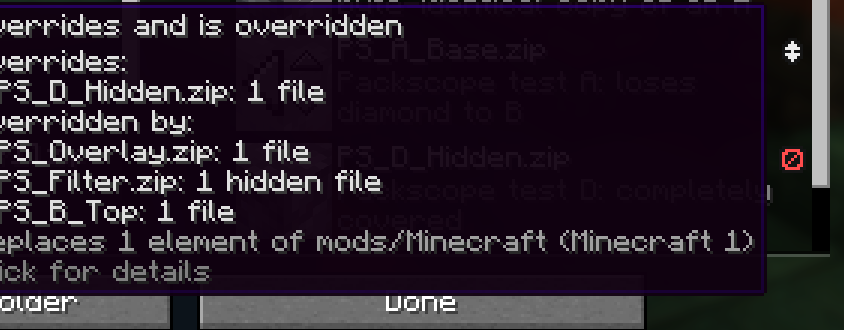
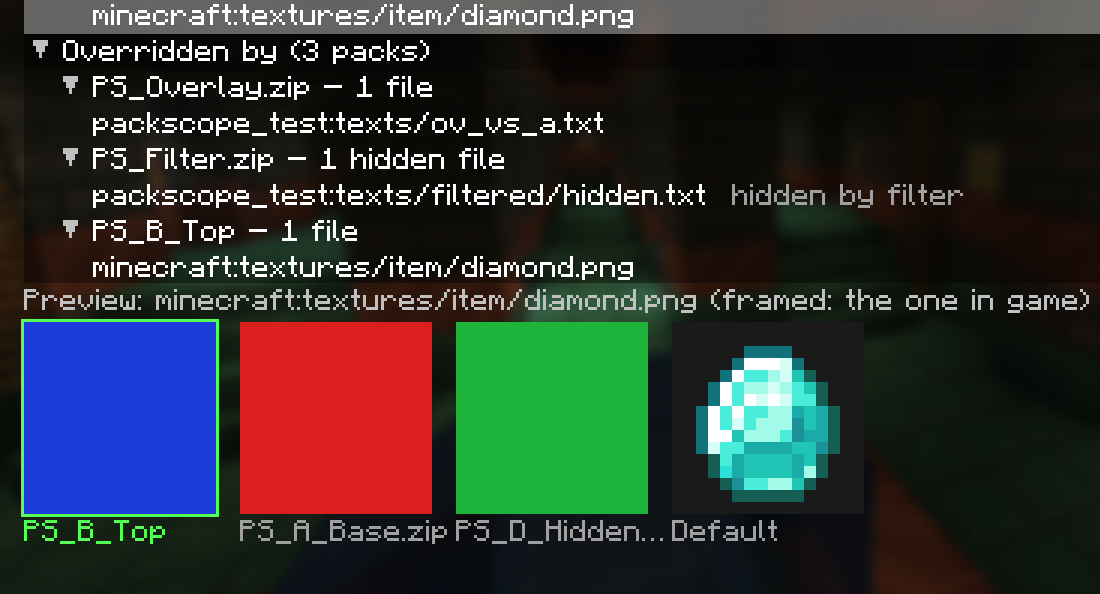
Packscope shows it right where you sort your packs. Every active pack with a conflict gets a small icon in the resource pack screen: does it override other packs, is it overridden, or does it have no effect at all any more? Hover for the numbers, click for the full list of files, with every version of a texture side by side.
If you know the conflict view of Mod Organizer 2, you already know how it works.
Client only · NeoForge 1.21.1 · Packed Packs optional · Read only: Packscope never touches your packs or the pack order.
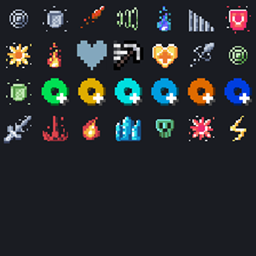
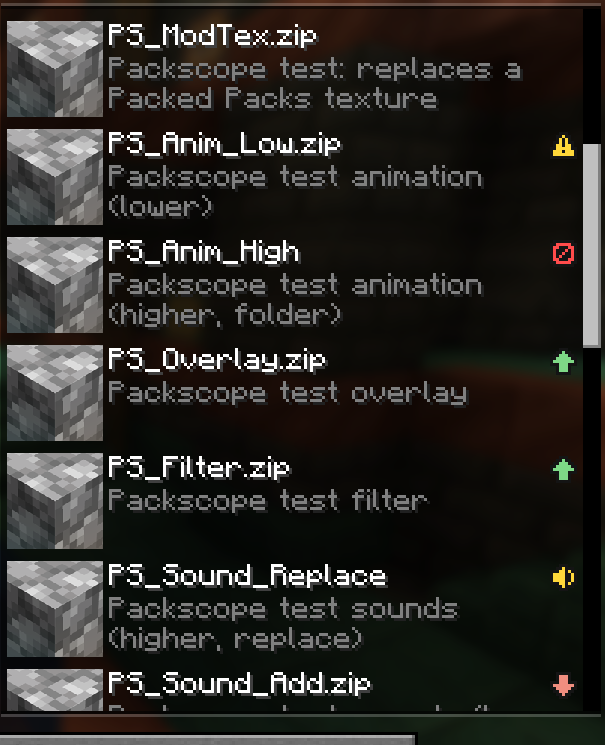
Seven icons, one glance
| Icon |
Status |
What it means |
 |
Overrides other packs |
Some of its files win over lower packs |
 |
Is overridden |
Higher packs replace some of its files |
 |
Overrides and is overridden |
Both at once |
 |
Completely covered |
Nothing of this pack reaches the game |
 |
Against marking |
A pair you marked as intended is the wrong way round |
 |
Replaces sounds |
It mutes sound events of lower packs |
 |
Only intended conflicts |
All its conflicts are marked as intended |
The three arrows are only information: in a sorted list most packs override something. Completely covered, Against marking and Replaces sounds are the ones worth a look. More about the icons →
How you use it
1. Move a pack, watch the icons
Every change shows up at once, before you press "Done". The tooltip names the packs on both sides, with the number of files, language entries and sound events. Pack screen →
2. Look inside
Click an icon for the detail window: every file, language entry and sound event, grouped by pack, with search, filters and a texture preview of every version. The "All packs" view shows every conflict of the whole list. Detail window →
3. Mark what you meant
Most overlaps in a sorted list are wanted: an add-on over its base pack, an icon pack over a texture pack. Mark the pairs of a pack once as intended and its icon turns grey. From then on every new overlap stands out, and if a marked pair ends up the wrong way round, Packscope warns you. Markings keep working when a pack update changes the version in the file name. Intended conflicts →
4. Ship it with your modpack
Your markings are stored in config/packscope-intended.json. Put that file into your modpack and your players start with grey icons; after a pack update, only the new overlaps show up. /packscope report writes the whole load order with every pair and every marking as Markdown and JSON, handy for your changelog. For pack makers → · Reports and commands →
Works with
| With |
What Packscope does |
| Packed Packs |
Optional. The same icons and tooltips in its screen, plus the right-click items Show conflicts, Mark all as intended and Remove all markings. Folders and profiles included. Details → |
| KubeJS |
The packs KubeJS adds behind the scenes, including your kubejs/assets folder, are part of the check. Details → |
| Built-in packs of mods |
Read straight from the mod jar, just as exactly as zip packs. |
| Everything a pack can hold |
Textures, models, language files (compared key by key), sounds.json with "replace": true, filters, overlays, OptiFine/ETF/EMF files. Files the game merges (atlases, fonts) are no conflict, byte-identical copies count as harmless. Conflict rules → |
Good to know
- Client only. Servers don't need it, and you can join servers without it.
- Read only. Packscope writes nothing but its own files: reports, a small cache and your markings.
- Resource packs only. Datapacks are not covered.
- Settings in the config screen of the mod list or in
config/packscope-client.toml, no restart needed. Configuration →
- Questions? The FAQ has the common ones.
Links
Wiki · Getting started · FAQ · Source code · Report a bug
Credits
The idea comes from the conflict view of Mod Organizer 2; no code from it is used. The integration into Packed Packs by fishstiz uses its public API (MIT). Packed Packs is not bundled, and Packscope is not made by or affiliated with its author. Packscope is open source under the MIT license.