Genesis
A Minecraft mod that adds a live biome map preview, seed management panel, and world pre-generation to the Create New World screen, letting you explore and compare world seeds before committing to generation and pre-generate terrain.
Available for Forge and Fabric — Minecraft 1.20.1.
The Problem
The vanilla Create New World screen tells you nothing about the world before you create it. The only way to see a seed's biome layout is to generate the world, load it, and explore — a process that can take several minutes per attempt. Seed hunting becomes a tedious loop: generate → load → explore → delete → repeat.
External seed viewers exist, but they don't know about your mod configuration. A climate gradient mod, a terrain overhaul, or a custom biome pack all change where biomes actually appear — and a viewer that only knows vanilla will give you the wrong map.
What This Mod Does
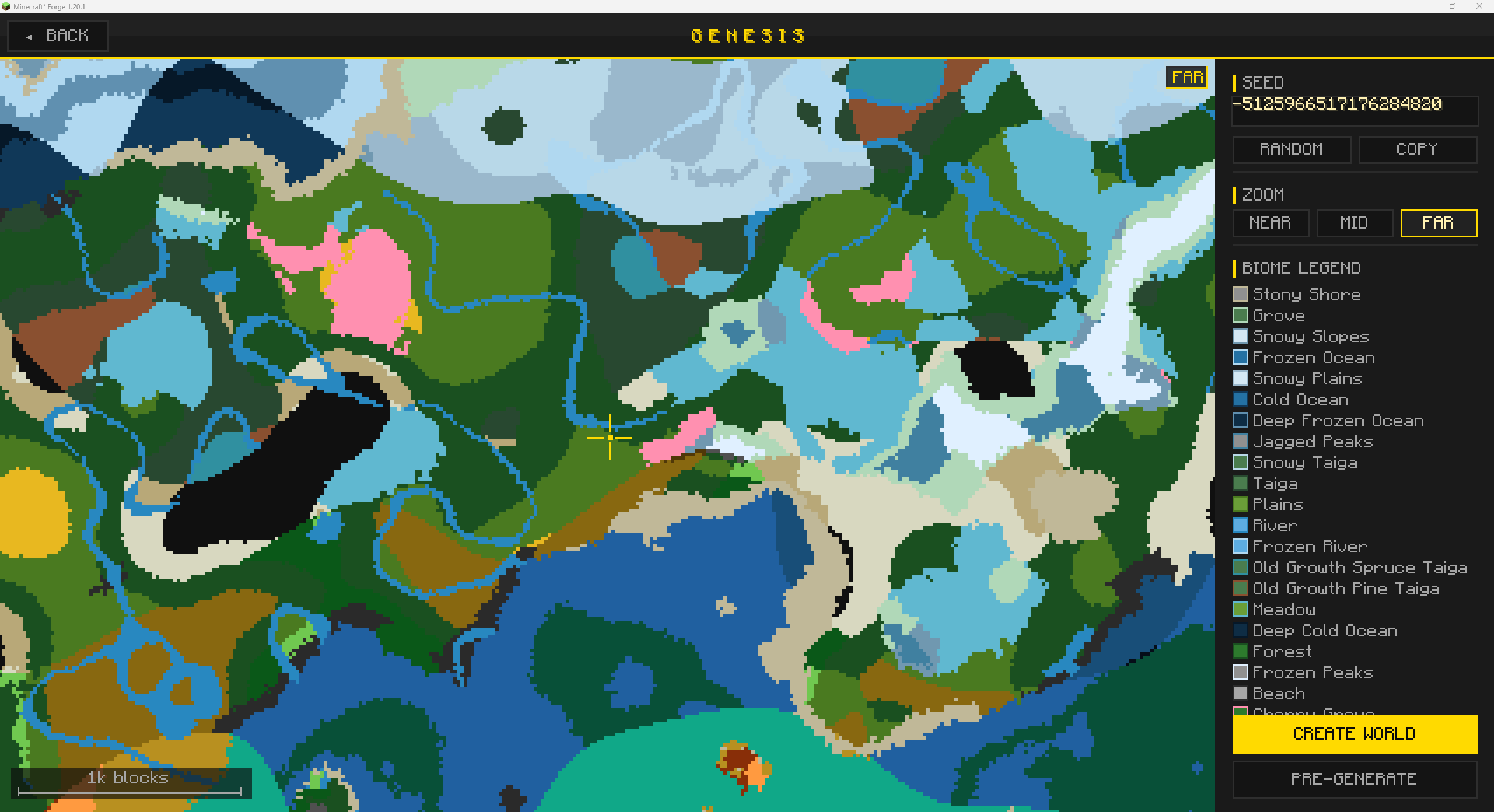
Genesis adds a GENESIS button to the Create New World screen. Clicking it opens a full-screen preview split into a live biome map on the left and a control panel on the right. From there you can also pre-generate chunks before the world loads, so your first session is smooth even on a large modpack.
Biome Map
The map is sampled directly from your world's generator — the exact same code path that generates your actual terrain — using the current seed and all installed mod settings. What you see on the map is what you will get in the world.
- Multi-pass spiral sampling: a coarse step-4 pass fills in the rough layout immediately, step-2 refines it, then step-1 completes full detail. You get a readable map in seconds, not minutes.
- Multi-threaded: 2–4 background threads run concurrently by default (configurable up to 16), dividing work across Z-rows with no contention.
- Surface-only sampling: tiles are always sampled at Y = 320 (above all terrain), so cave biomes never bleed through to the surface map.
- Fault-tolerant: a broken or incompatible generator never crashes the preview screen. Tiles that can't be sampled are shown in neutral gray.
Color-Coded Biome Families
The map uses a two-layer color system. Each biome belongs to a family with a shared fill color painted on the map tiles. In the legend, each individual biome within a family gets a unique border color on its swatch so siblings are visually distinct at a glance.
| Family |
Appearance |
Examples |
| Plains | Light green | Plains, Sunflower Plains, Meadow |
| Forest | Dark green | Forest, Birch Forest, Dark Forest, Cherry Grove |
| Jungle | Vivid green | Jungle, Sparse Jungle, Bamboo Jungle |
| Desert | Sandy gold | Desert |
| Badlands | Burnt orange | Badlands, Eroded Badlands, Wooded Badlands |
| Savanna | Straw gold | Savanna, Savanna Plateau, Windswept Savanna |
| Taiga | Muted teal-green | Taiga, Old Growth Pine/Spruce Taiga, Snowy Taiga, Grove |
| Windswept | Slate gray | Windswept Hills, Windswept Gravelly Hills, Windswept Forest |
| Mountain | Medium gray | Stony Peaks, Jagged Peaks, Frozen Peaks, Stony Shore |
| Snowy | Pale ice blue | Snowy Plains, Snowy Slopes, Ice Spikes |
| Ocean | Steel blue | Ocean, Warm Ocean, Cold Ocean, Frozen Ocean |
| Deep Ocean | Deep navy | Deep Ocean, Deep Lukewarm Ocean, Deep Frozen Ocean |
| Swamp | Olive-green | Swamp, Mangrove Swamp |
| Mushroom | Purple | Mushroom Fields |
| River | Sky blue | River, Frozen River |
| Cave | Dark brown-black | Lush Caves, Dripstone Caves, Deep Dark |
Modded biomes that aren't in the built-in map are colored automatically. Genesis uses the biome's grass color override if one is defined, or derives a unique hue from the biome's registry name. Modded biomes will never appear as a generic gray.
Navigation
Click and drag anywhere on the map to pan. Scroll to zoom in or out. The NEAR, MID, and FAR buttons in the control panel jump to fixed zoom levels.
| Zoom |
Pixels per chunk |
Scale bar |
| NEAR | 8 | 256 blocks |
| MID | 4 | 512 blocks |
| FAR | 2 | 1024 blocks |
Seed Management
The seed field in the control panel displays the current seed as a number. You can type any number directly, or enter text — text input is converted to a number via hash, matching how vanilla handles it.
- Press Enter to apply a new seed and restart the preview immediately.
- RANDOM generates a fresh random seed and restarts the preview.
- COPY copies the seed to your clipboard with a 2-second confirmation toast.
- Pressing R while the seed field is not focused also randomizes the seed.
- When you leave the Genesis screen via BACK or CREATE WORLD, the current seed is written back to the parent Create New World screen automatically.
Coordinate Readout
Hovering over the map shows a small overlay in the upper-left corner of the map area with the block coordinates (X / Z) of the tile under your cursor and the localized name of the biome at that position.
Scale Bar
A scale bar in the lower-left corner of the map always shows the real-world block distance represented by the current zoom level.
Biome Legend
The right panel lists all biomes currently visible in the viewport. Each entry shows a 9×9 color swatch — outer border in the biome's individual border color, inner fill in its family color — alongside the localized biome name. The legend updates live as you pan or zoom.
World Pre-Generation
Genesis can pre-generate chunks before you ever enter a world, so your first session loads instantly instead of stuttering through on-demand generation. Pre-generation can be started from the Genesis screen before world creation, or from in-game commands for any dimension after the world is already loaded.
Starting from the Genesis Screen
The Genesis screen has a PRE-GENERATE button alongside the CREATE WORLD button. Clicking it opens a configuration overlay where you set:
- Radius (chunks) — how far from spawn to pre-generate. Pre-fills from config (default: 128 chunks).
- Threads — how many chunks are generated simultaneously. Pre-fills from config (default: 4). Higher values use more CPU in exchange for faster generation.
Clicking START PRE-GENERATE creates the world, then automatically opens the Pre-Generation screen as soon as the world finishes loading. The overworld is always targeted when starting from the Genesis screen.
Pre-Generation Screen
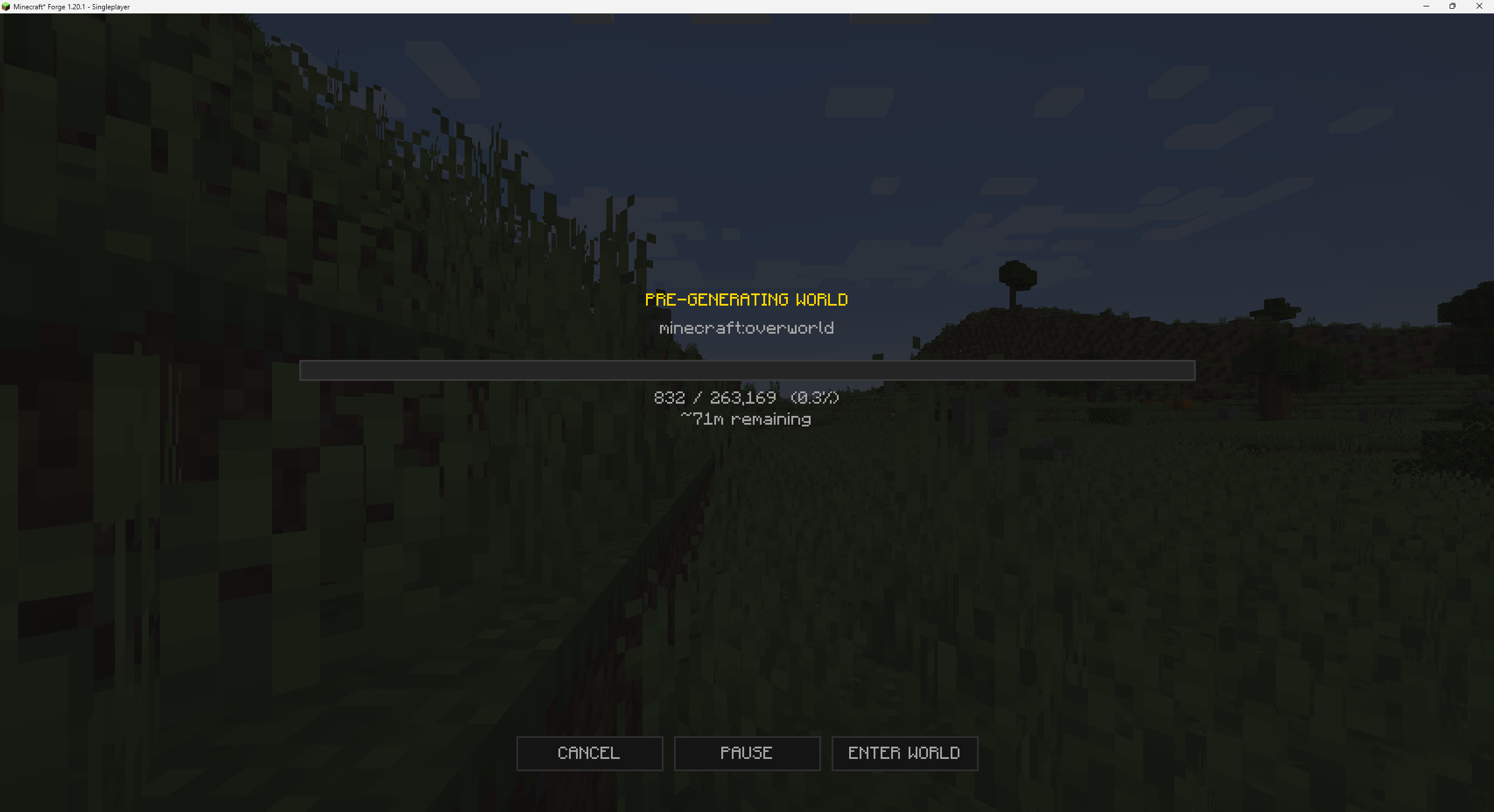
A full-screen overlay shows progress in real time:
- Gold progress bar spanning 60% of the screen, with a chunk counter (
4,218 / 66,049 (6.4%)) and a rolling ETA estimate below it.
- Dimension line shows the active dimension and job index when multiple dimensions are queued (
minecraft:overworld (1 / 3)).
- CANCEL — stops pre-generation immediately and closes the screen.
- PAUSE / RESUME — suspends chunk generation without losing progress. A — PAUSED — indicator appears below the progress bar while paused.
- ENTER WORLD — closes the screen and lets you play normally; pre-generation continues in the background on the server.
When all queued dimensions finish, the screen shows "Pre-generation complete!" and closes automatically after 2 seconds.
In-Game Progress HUD
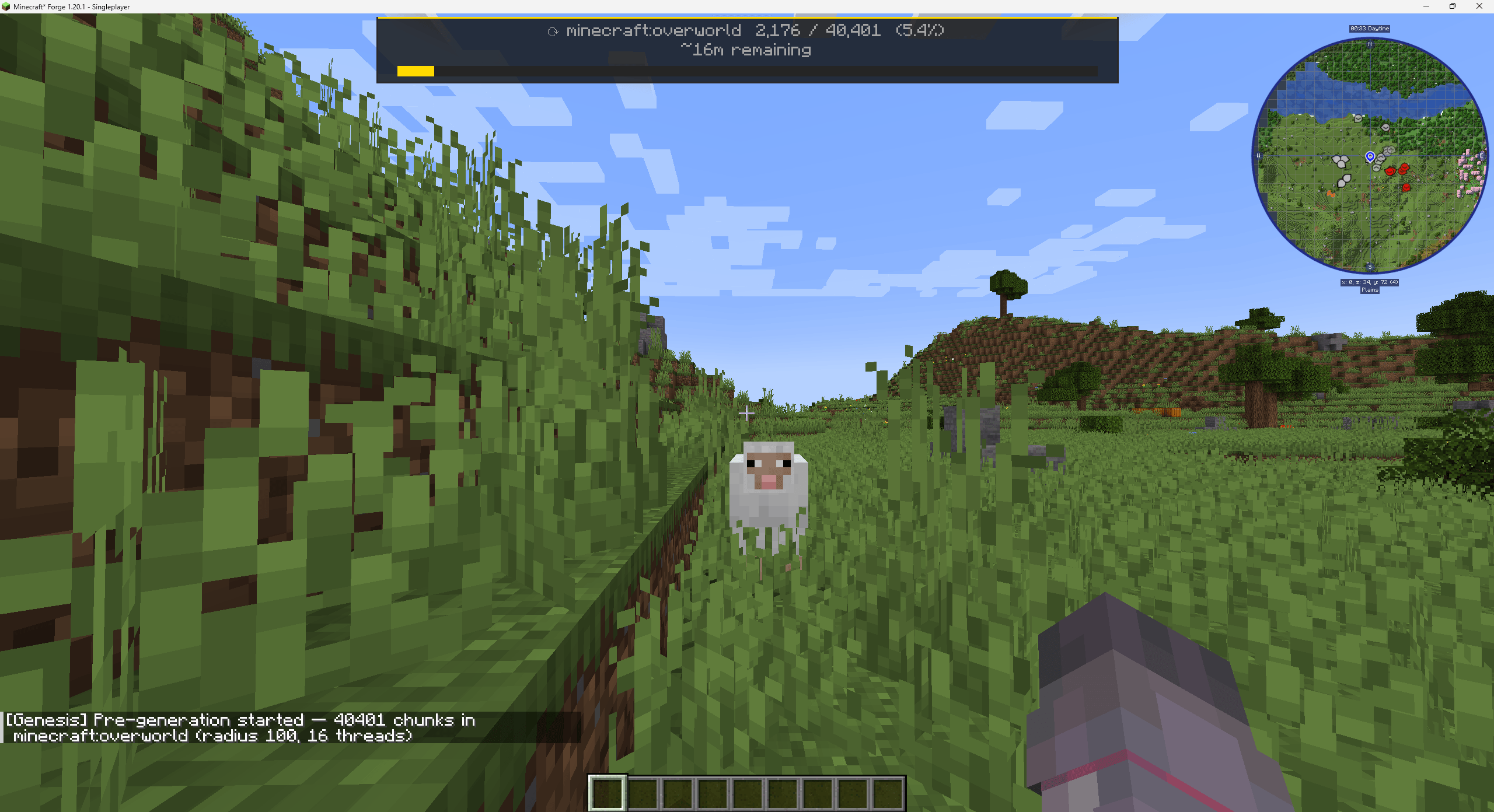
If pre-generation is running in the background (after pressing ENTER WORLD, or when started via command), a compact HUD appears at the top center of the screen showing the active dimension, chunk count, percentage, and ETA. The bar turns amber when paused. The HUD disappears automatically when all jobs complete.
Center Origin
Pre-generation always spirals outward from the initiating player's position — not from world origin. When started from the Genesis screen the center is your spawn position. Command-initiated jobs center on the command executor's block position (console defaults to 0, 0).
Commands
All pre-generation commands require operator level 2 on multiplayer servers, except status and info which are available to all players. In singleplayer, all commands are available regardless of the Allow Commands world setting.
/genesis pregen
| Command |
Description |
/genesis pregen <dimension> <radius> [threads] | Pre-generate a single dimension centered on the executor's position. |
/genesis pregen all <radius> [threads] | Queue pre-generation for every loaded dimension sequentially. |
/genesis pregen at <x> <z> <dimension> <radius> [threads] | Pre-generate a single dimension centered on an explicit block coordinate. |
/genesis pregen at <x> <z> all <radius> [threads] | Queue all dimensions centered on an explicit block coordinate. |
/genesis pregen cancel | Cancel the current job and clear the queue. |
/genesis pregen pause | Pause the running job. |
/genesis pregen resume | Resume a paused job. |
/genesis pregen status | Print progress, ETA, and queue depth to chat. |
The radius argument accepts 1–2048 chunks. The optional threads argument accepts 1–16 (default from config). When a job is already running, starting a new one fails with an error message directing you to cancel first.
/genesis info
Prints the current world's seed and active dimension to chat. Available to all players.
Configuration
On Forge, edit config/genesis-client.toml. On Fabric, edit config/genesis.json (or use a Cloth Config-compatible in-game editor).
Preview
| Option |
Default |
Range |
Description |
preview_enabled |
true |
— |
Enable or disable the biome preview entirely. Useful on very low-end systems. |
preview_threads |
0 |
0–16 |
Number of biome sampling threads. 0 = auto-detect (2–4 based on CPU cores). Higher values fill the map faster at the cost of more CPU usage during preview. |
preview_initial_radius |
64 |
16–512 |
Radius in chunks covered by the initial three-pass coarse spiral. Larger values sample a bigger area on first open before expanding outward. |
preview_expand_radius |
16 |
4–128 |
Chunks added to the sampling radius on each expansion step after the initial spiral completes. |
Pre-Generation
| Option |
Default |
Range |
Description |
pregen_default_radius |
128 |
1–2048 |
Default radius in chunks pre-filled in the Genesis screen overlay and used by commands when no explicit radius is given. |
pregen_default_threads |
4 |
1–16 |
Default number of chunks generated simultaneously, pre-filled in the Genesis screen overlay and used as the command default. |
Note: Config changes take effect the next time the preview restarts — either on a seed change or when the screen is reopened.
Requirements
Forge
| Dependency |
Version |
| Minecraft | 1.20.1 |
| Forge | 47.4.0 or later |
| Architectury API | 9.2.14 or later |
Fabric
| Dependency |
Version |
| Minecraft | 1.20.1 |
| Fabric Loader | 0.14.23 or later |
| Fabric API | 0.90.4 or later |
| Architectury API | 9.2.14 or later |
| Cloth Config | 11.1.136 or later |
Note: NeoForge is not supported for Minecraft 1.20.1 — the NeoForge fork began at 1.20.2.
Installation
- Install Architectury API for your loader. Fabric users also need Fabric API and Cloth Config.
- Download the correct jar for your loader (
-FORGE.jar or -FABRIC.jar) from the Releases page.
- Drop it into your
mods/ folder.
- Launch the game. Genesis adds its button to the Create New World screen automatically — no additional setup required.
Compatibility
- Worldgen mods: Genesis samples your world using the exact same generator that builds actual terrain, so any mod that changes biome layout — such as Tectonic or TerraBlender — is reflected accurately on the map with no special configuration needed.
- GeoGradient: the biome map reflects GeoGradient's latitude-based temperature gradient. Genesis detects GeoGradient automatically and sets up its climate system for the preview session, so the pole-to-equator gradient is visible on the map before you create the world.
- Custom generators (including Superflat and mod-provided generators): Genesis falls back gracefully, showing biome colors where possible.
- The biome map preview is a purely client-side tool. It does not affect world generation, chunk loading, structure placement, loot tables, or any server-side gameplay mechanics. It can be installed on the client only and will not cause any server incompatibilities.
- World pre-generation requires the mod to be installed on the server (or the integrated server for singleplayer). The client-side biome preview does not require a server-side installation.
License
Alkeari License Agreement (ALA v2.2)
Issues & Feedback
Found a bug or have a suggestion? Open an issue on the GitHub Issues page.