Bundled Inventory
- By
Changes the players inventory to be based on capacity rather than geometry.
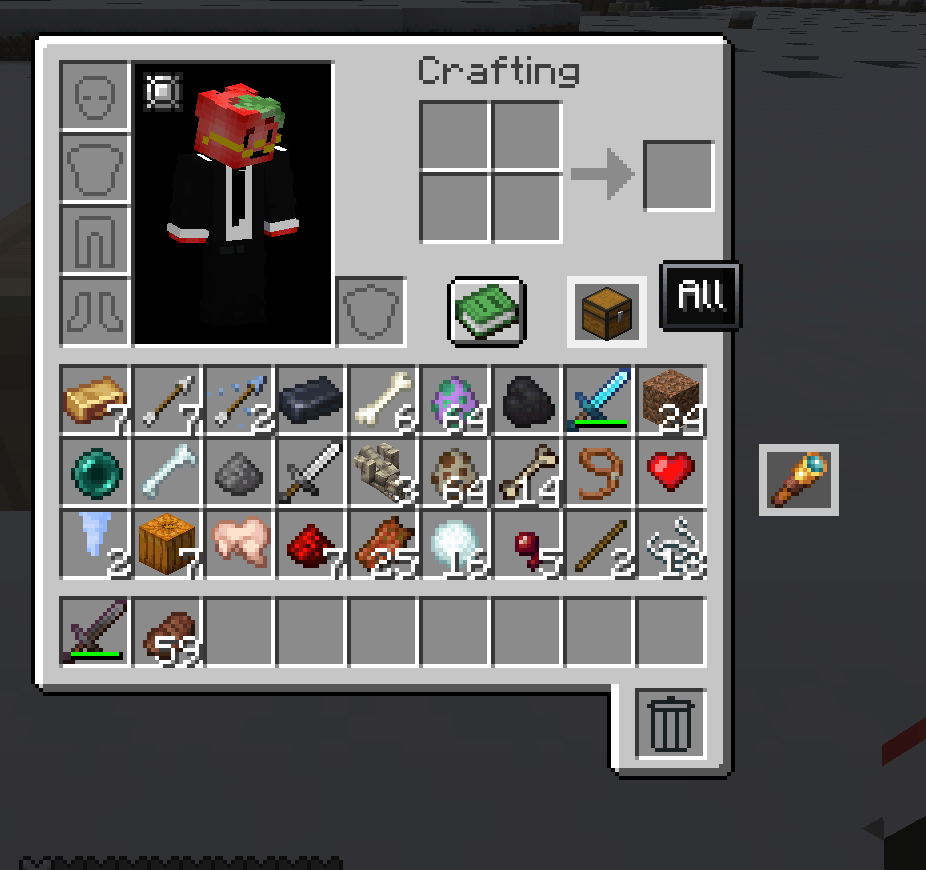
category-all.png
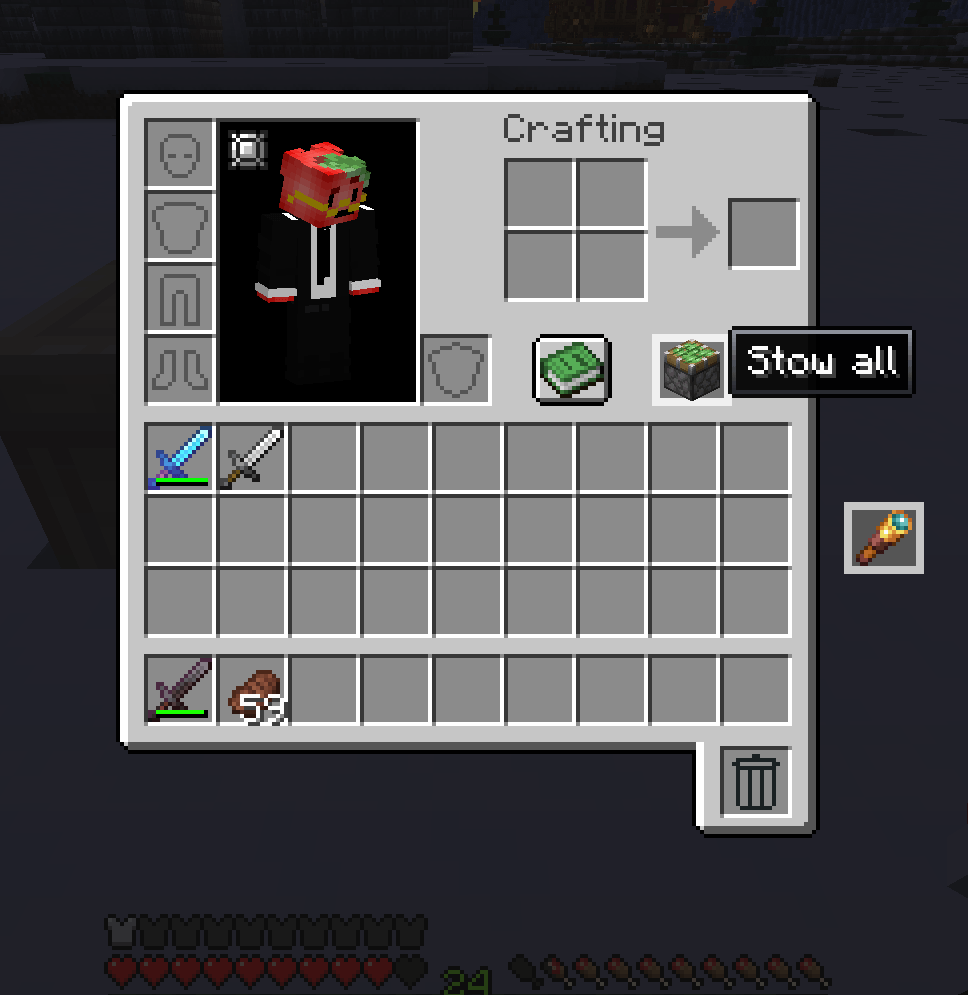
hold shift to stow all.png
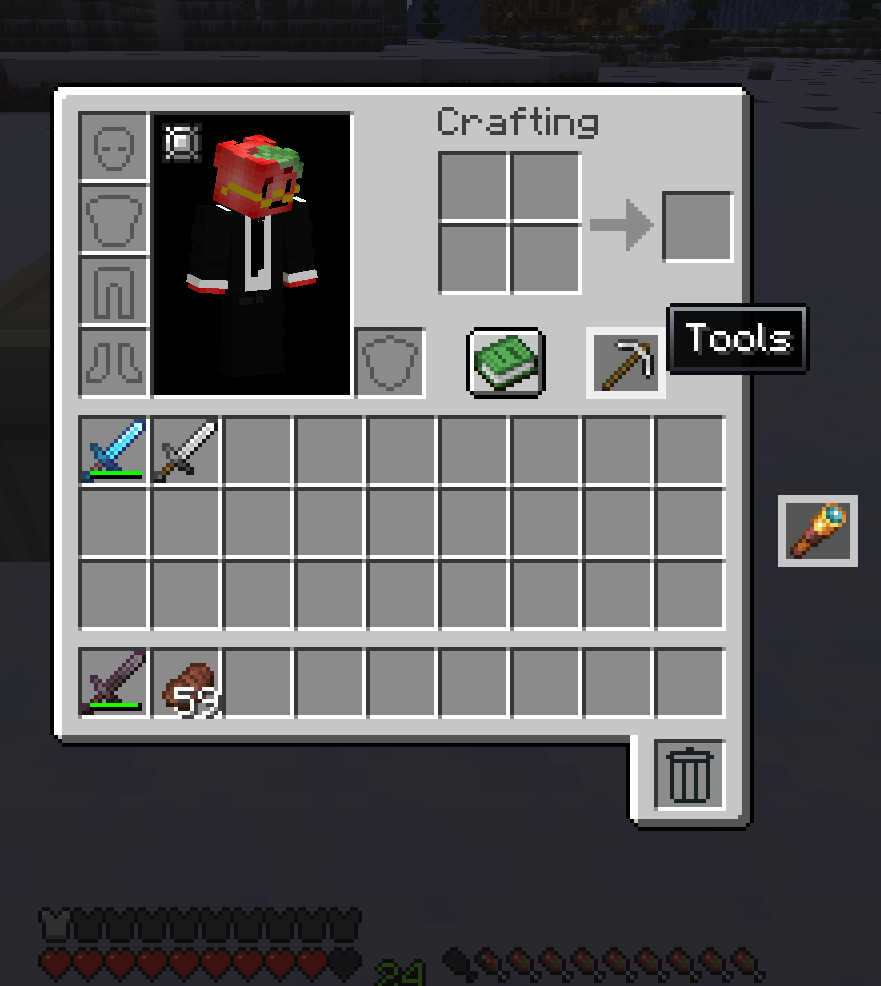
category-tool.png
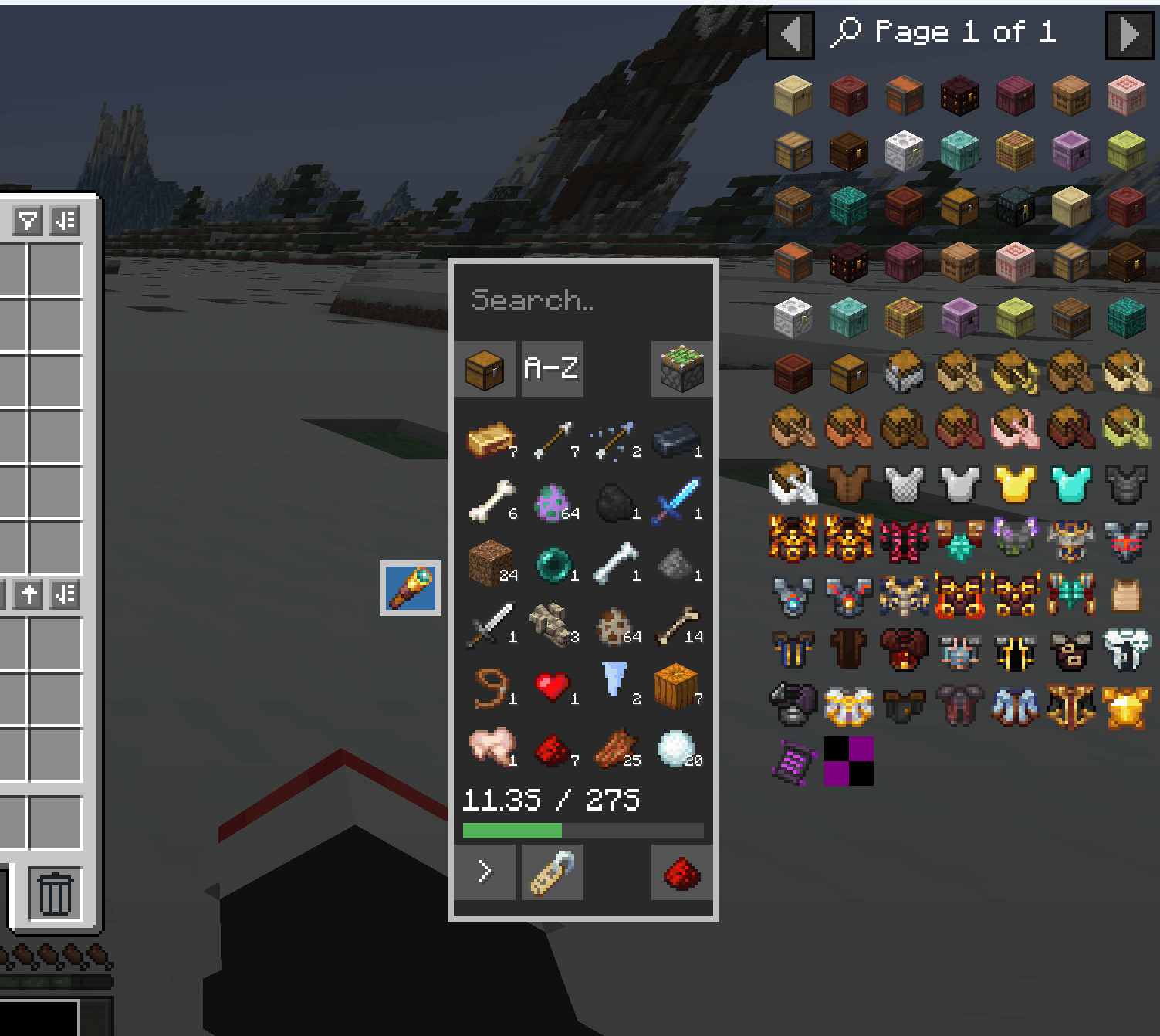
dynamic-jei.png
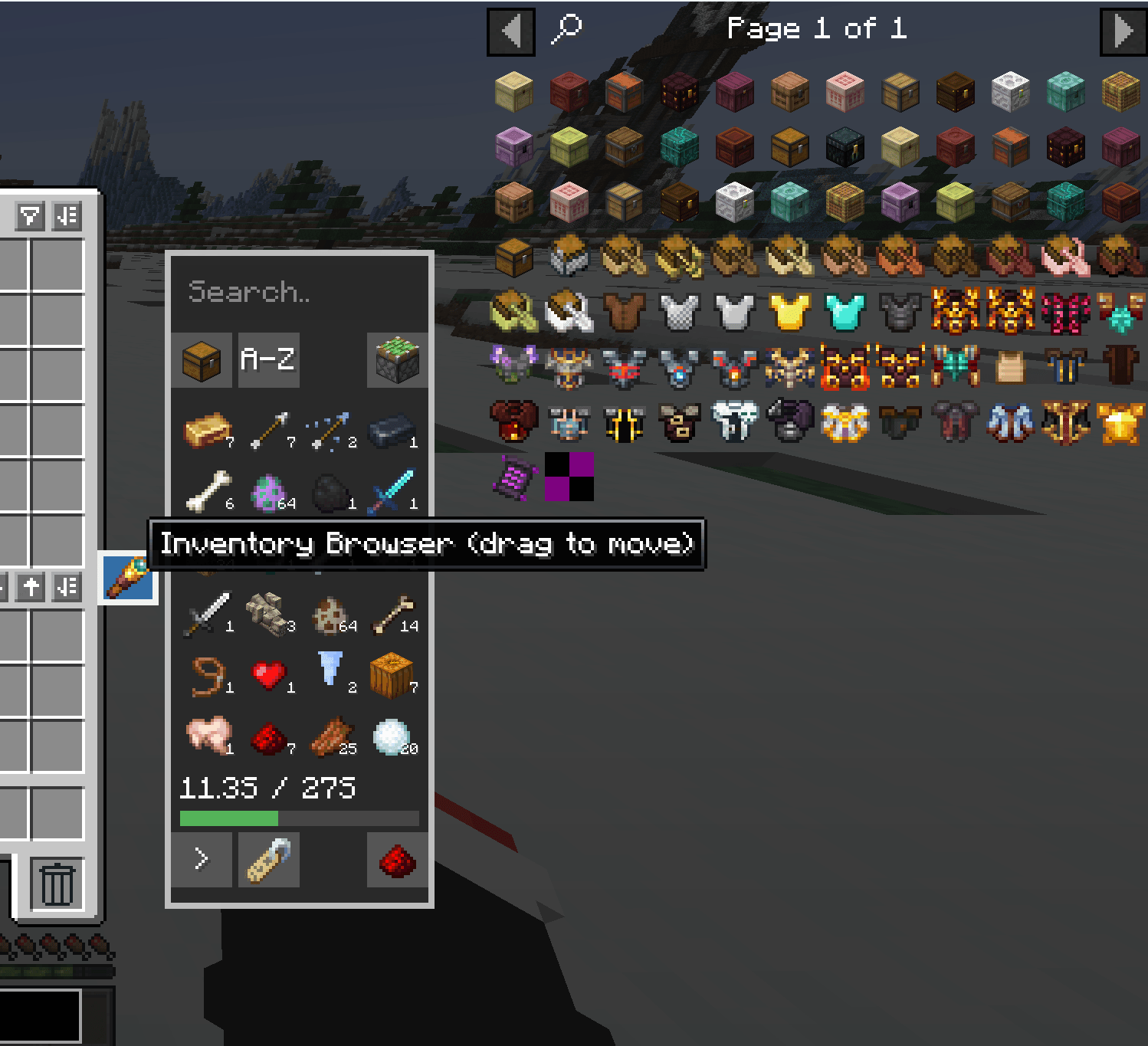
moveable window.png
Description
Bundled Not Siloed
Bundled Not Siloed is a complete inventory overhaul for NeoForge 1.21.1 designed to make carrying items feel less restrictive without turning your inventory into a giant wall of slots.
Instead of treating every inventory slot as a separate storage box, Bundled Not Siloed treats your inventory as one shared pool of storage.
Your hotbar and normal inventory still look and behave like familiar Minecraft inventory spaces, but they are now simply ways to access the items you are carrying rather than hard limits on what you can hold.
Storage Based on Space, Not Slots
By default, you have the equivalent capacity of a normal Minecraft inventory: 36 full stacks.
The difference is that items now use space based on how large their normal stack size is.
For example:
- A normal item that stacks to 64 uses the standard amount of space.
- An item that only stacks to 16 uses four times as much space per item.
- A normally unstackable item uses the same space as an entire stack of 64 normal items.
- Items from other mods that stack above 64 automatically use proportionally less space.
This means your total carrying capacity stays balanced while removing the awkward limitations caused by fixed inventory slots.
No Artificial Item Limit
You are not limited to 36 different item types just because Minecraft normally has 36 inventory and hotbar slots.
If you have enough remaining capacity, you can carry as many different kinds of items as that capacity allows.
A collection of many small stacks can use the same amount of space as a few large stacks.
Your Hotbar Still Works Normally
The familiar 9-slot hotbar remains your quick-access area.
Items placed there still count toward your total inventory capacity, but the hotbar itself does not provide additional storage. It simply lets you choose which carried items you want immediately available.
The same idea applies to the normal inventory screen: it is a convenient view into your collection rather than the actual limit of your storage.
Expandable Capacity
Your inventory capacity can be changed dynamically through the mod's inventory capacity attribute.
This allows modpacks, equipment, progression systems, commands, or other mods to increase or decrease how much a player can carry without changing how the inventory system works.
Built on Stacks Not Slots and Panels Not Screens
Bundled Not Siloed uses two companion libraries:
Stacks Not Slots handles the actual inventory and capacity system.
Panels Not Screens powers the movable inventory browser used to view and manage everything you are carrying.
Together, they allow Bundled Not Siloed to provide a much more flexible inventory while still keeping the parts of Minecraft's inventory players already understand.
Carry what fits, not what fits into arbitrary slots.
There is no hidden compatibility-slot ceiling below capacity. If a player has capacity N, the backend and NeoForge item-handler view can grow to represent N distinct quantity-one 64-stackable identities (subject only to Java's practical integer/memory limits). Snapshot chunking and the vanilla 36-index projection are transport/access details, never carrying limits.
Player Usage
Stacks, Not Slots keeps the familiar vanilla inventory while adding a separate inventory browser for accessing your full stored inventory.
Inventory Browser
Open your normal inventory and click the spyglass handle beside the inventory window to open the browser.
- Click the spyglass handle to open or close the browser.
- Drag the handle to reposition it anywhere on the screen.
- The browser automatically opens to the left, right, above, or below the handle depending on available space.
- A blue handle means the browser is currently open.
- Press Ctrl + F to toggle the handle. If the browser is open, this also closes it.
The same draggable browser is available on container screens such as chests and other inventories.
Taking and Storing Items
The browser represents your full logical inventory rather than a fixed set of storage slots.
When hovering an item in the browser:
- Left-click to take one legal stack onto the cursor.
- Right-click to take half of a legal stack.
- Press your normal Drop key to drop one item.
- Hold Ctrl while pressing Drop to drop a full stack.
To move items from the visible vanilla inventory into backend storage:
- Ctrl + Left-click a visible player inventory slot to stow that stack.
- If you are already carrying an item stack, click anywhere in the browser item area to stow it.
You can also take an item from the browser onto your cursor and place it into another container normally.
Shift-Click Behavior
Shift-clicking changes slightly depending on whether the browser is open.
Browser Closed
Shift-clicking behaves like normal Minecraft between:
- the 27-slot main inventory
- the hotbar
- equipment slots
- the currently open container
Browser Open
When viewing your player inventory:
- Shift-click a visible player stack to move it into backend storage.
- Shift-click a browser entry to move one backend stack into the first available slot in the 27-slot main inventory.
- If the main inventory is full, nothing is moved.
When another container is open:
- Container → Player: Shift-clicked items are sent directly into backend storage.
- Player → Container: The container keeps its normal shift-click behavior.
Bulk Container Transfers
The browser includes a piston button for quickly moving large amounts of inventory.
- Click the sticky piston to extract the contents of the currently open container into your inventory.
- Hold Shift and the button becomes a normal piston, allowing you to dump your player inventory into the container.
Keyboard shortcuts are also available:
- Ctrl + G - bulk dump
- Ctrl + H - bulk extract
These work with the currently open menu or, where supported, the container you are looking at.
Categories
The draggable category icon above the vanilla inventory controls which category is currently selected.
You can scroll through categories whether the category popup is open or closed.
Hold Shift while using the category control to turn it into a sticky piston. This stows the contents of the 27-slot main inventory into backend storage without affecting the hotbar.
Click Manage Tabs to:
- create categories
- edit categories
- delete categories
- reorder categories
- configure category rules
- assign hotbar cycle categories
- choose whether automatic pickups may use empty hotbar slots
Category rules can match:
- exact items
#tags@modidnamespaces
Categories are organizational views and rules over the same unified inventory. They do not create separate storage compartments.
Organizing the Vanilla Inventory
Selecting a category or sort mode performs a one-time arrangement of the 27-slot main inventory.
The game places one stack of each distinct matching item identity into the visible grid where possible.
After that, the inventory is fully manual again. Stacks, Not Slots will not continuously rearrange your inventory in the background.
The grid is only reorganized when you explicitly select another category or sort option.
Available sort modes include:
- Name
- Quantity
- Registry ID
- Mod namespace
Your selected category and sort mode are saved with your player data.
Hotbar Category Cycling
Each of the nine hotbar positions can optionally be assigned its own category.
Hotbar bindings do not:
- reserve items
- restrict where items can be placed
- automatically rearrange the inventory
- continuously replace held items
Instead, they provide an explicit cycling action.
Use the configurable Cycle Forward and Cycle Backward keys to swap the selected hotbar position with the next item you own that matches its assigned category.
This lets a hotbar position behave like a quick-access group while still remaining a normal Minecraft hotbar slot.
Search
The browser includes a full inventory search.
When the search box is empty, the browser shows items from the currently selected category.
When text is entered, search expands across the entire inventory regardless of category.
Search supports:
- item display names
- full registry IDs
- mod namespaces using
@modid - item tags using
#tag - optionally, cached tooltip text
The Bundled Inventory Team