Ultimate Coordinates HUD: Speedometer
- By
Never get lost or lose your loot again. A live coordinates HUD, a real speedometer and a Death Saver that remembers where you died and points you back to it.
18514.jpg
18516.jpg
18518.jpg
18520.jpg
18531.jpg
Description
Ultimate Coordinates HUD: Speedometer & Death Saver
Never get lost. Never lose your loot again.
Where are you? How fast are you going? And where exactly did you just die? Ultimate Coordinates HUD puts your coordinates, a live speedometer and a Death Saver on your screen. After you die, an arrow on your HUD points you straight back to your items. 🧭⚡💀
👉 Join the Discord community for updates, bug reports and sneak peeks!
Features
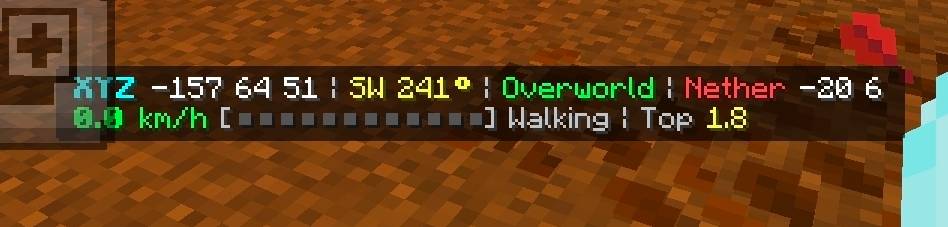
- Coordinates HUD: XYZ, facing direction with degrees, dimension and optional world time
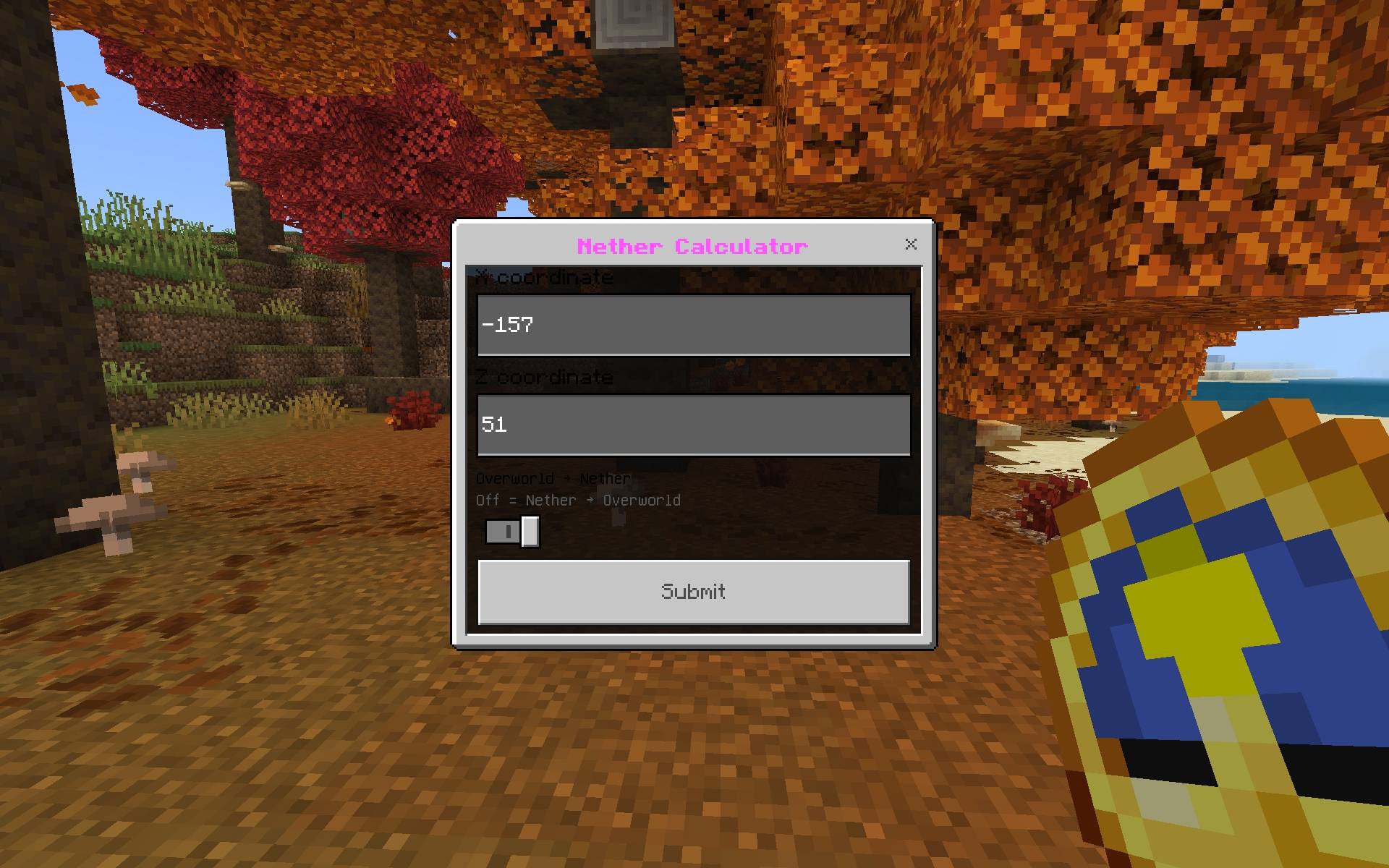
- Nether calculator on screen: your Nether or Overworld coordinates are shown live, so portals line up
- Real speedometer: blocks/s, km/h or mph with a color speed bar, your movement state and your top speed
- Death Saver: the exact spot, dimension and cause of your last 10 deaths are saved automatically
- Tracker arrow: after you respawn, the HUD points you back to your death with the distance and height difference
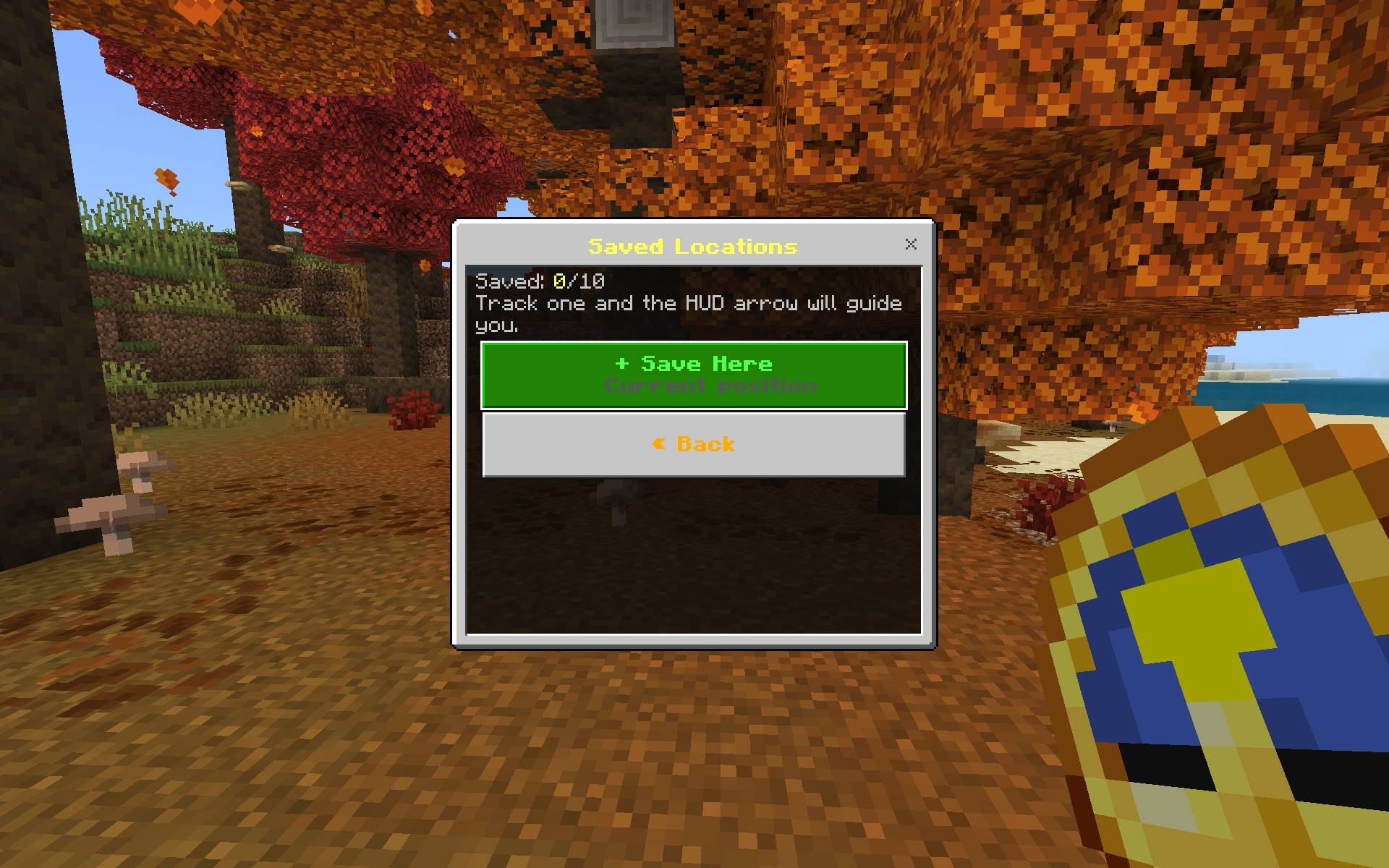
- Saved locations: save up to 10 named spots like your base or a village and track any of them
- Menu clock: a special clock opens the menu. It can't be dropped, it stays with you when you die, and it can't be crafted
- Fully customizable: 12 switches, 3 speed units and 8 HUD colors, saved for each player
- Lightweight: pure script pack with no resource pack to download
- Easy to edit: the main numbers are at the top of one script file
The HUD 🧭
Three lines appear above your hotbar:
XYZ 120 64 -300 | E (+X) 90° | Overworld | Nether 15 -38
5.1 b/s [■■░░░░░░░░░░] Sprinting | Top 21.6
Last Death ^> 142m -12y
Turn off anything you don't need, or use Compact mode to squeeze it into fewer lines.
The speedometer ⚡
Your speed is measured from how far you really move, so it works on foot, in a boat, on a horse, flying with an elytra and more. The number and the bar change color as you speed up:
| Speed | Color |
|---|---|
| Under 6 blocks/s | Green |
| 6 to 12 blocks/s | Yellow |
| 12 to 25 blocks/s | Gold |
| 25+ blocks/s | Red |
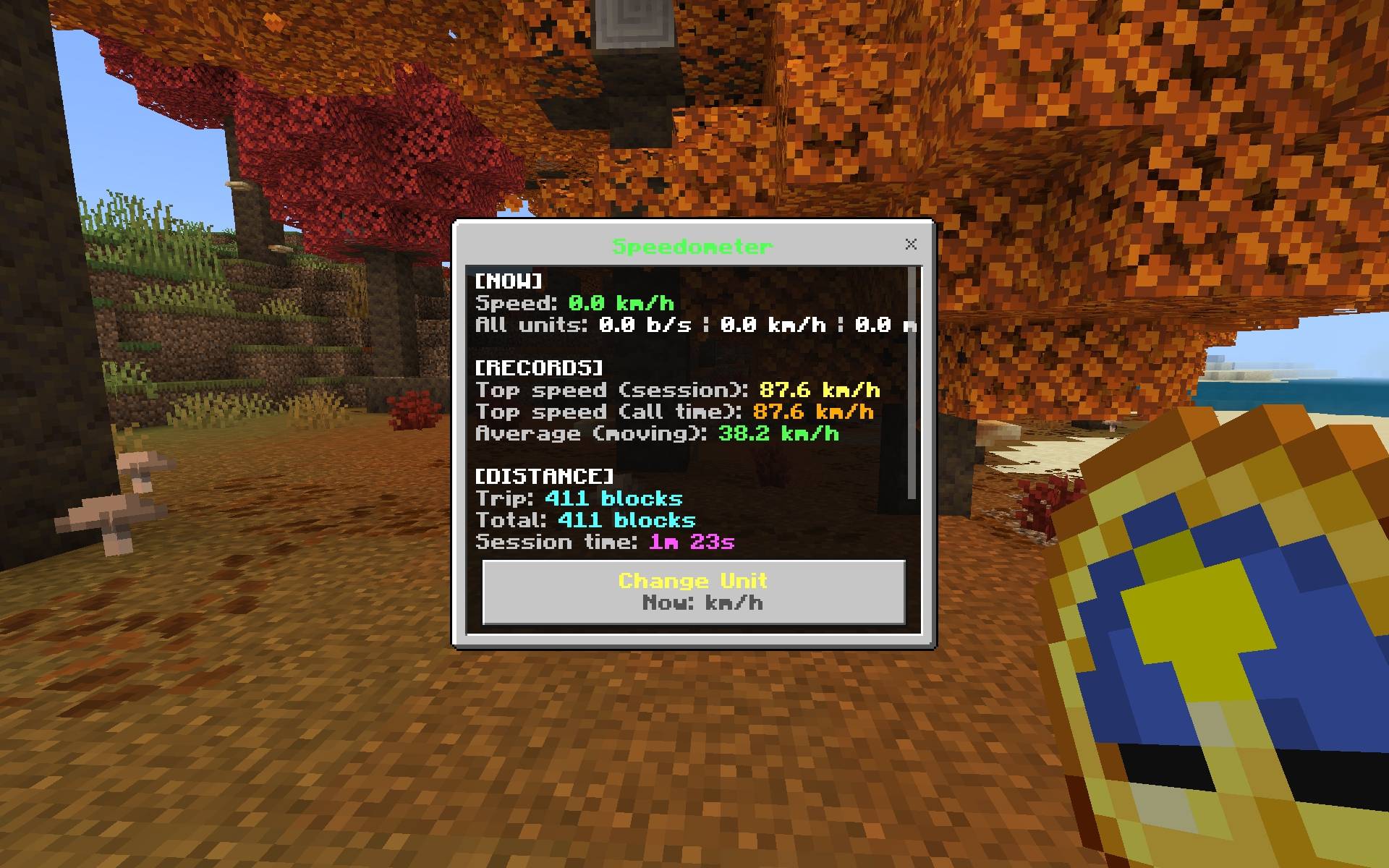
The HUD shows what you are doing (Walking, Sprinting, Sneaking, Swimming, Flying, Gliding, Falling or Riding) and your top speed this session. The menu also shows your all-time top speed, average moving speed, trip distance and total distance. Switch units any time between blocks/s, km/h and mph.
The Death Saver 💀
When you die, the pack saves everything you need to get back:
| Saved | Details |
|---|---|
| Location | Exact X, Y and Z |
| Dimension | Overworld, Nether or The End |
| Cause | What killed you, or who |
| Day | The world day you died |
Right after you respawn you get a Death Saved title and a chat message with the coordinates. The HUD then tracks the spot with an arrow, the distance in blocks and how many blocks up or down it is. When you get close it says YOU ARE HERE, and particles mark the exact spot within 48 blocks so you can find your items fast.
Open the Death Saver in the menu to see your last 10 deaths. You can track any of them, share one to chat so your friends can help, or delete it.
Died in the Nether and now you're in the Overworld? The HUD tells you which dimension your death is in, so you never run around the wrong world.
Saved locations 📍
Save your current position with a name of up to 16 characters, like Base, Mine or Village. Choose one and the same HUD arrow guides you there. You can save up to 10 spots, share any of them to chat and delete them when you're done.
The menu clock 🕐
You get a special clock called HUD Menu the first time you join. Right-click it to open the menu:
- Locked to you: it can't be dropped or moved out of your inventory
- Safe when you die: you keep it, and if it ever goes missing it is given back when you join or respawn
- Can't be crafted: only the special clock opens the menu, and normal clocks do nothing
Lost your clock somehow? Run /scriptevent uch:menu to open the menu anyway.
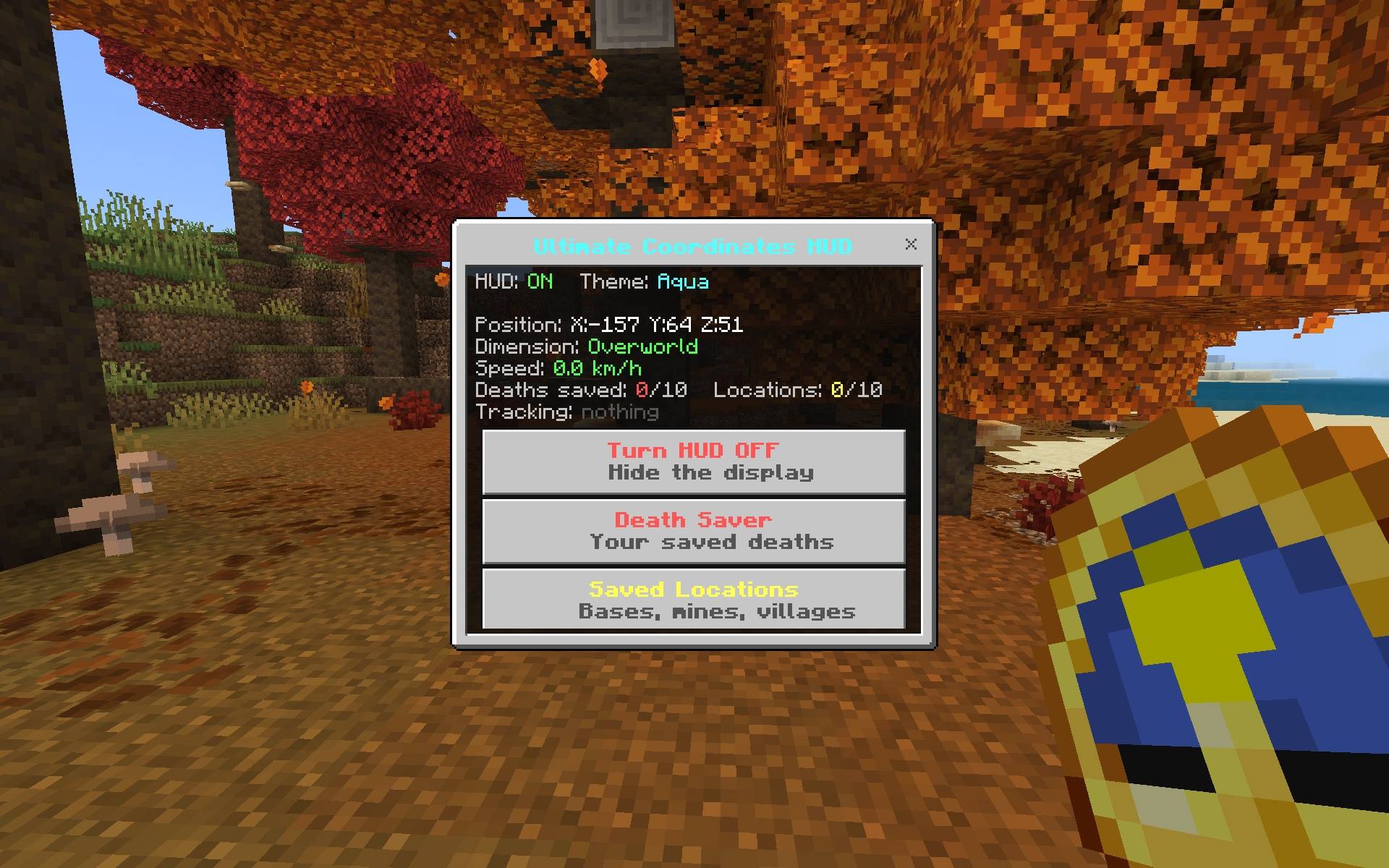
Menu ⚙️
| Button | What it does |
|---|---|
| HUD On/Off | Shows or hides the whole HUD |
| Death Saver | Your last 10 deaths with track, share and delete |
| Saved Locations | Save, track, share and delete your spots |
| Speedometer | Speed in all units, records, trip and total distance |
| HUD Settings | Switches, speed unit and HUD color |
| Share Coordinates | Sends your position and direction to chat |
| Nether Calculator | Converts any coordinates between the Overworld and the Nether |
| Help | Short guide to every feature |
HUD settings 🎨
- Decimals in coordinates
- Direction
- Dimension
- World time
- Nether/Overworld coordinates
- Speedometer and speed bar
- Count vertical speed
- Top speed
- Tracker arrow
- Auto-track new deaths
- Compact mode
- Speed unit: blocks/s, km/h or mph
- HUD color: Aqua, Green, Gold, Red, Purple, Yellow, Blue or White
Settings are saved for each player, so everyone can set up their own HUD.
Installation
- Download the
.mcpackfile. - Open it with Minecraft Bedrock. It imports automatically.
- Create or edit a world and activate the Behavior Pack.
- Load into your world. The HUD appears right away and you get your menu clock.
Requires Minecraft Bedrock 1.21.0 or newer. This is a behavior pack only, so there is no resource pack to activate. If the HUD doesn't show, turn on the Beta APIs experiment in your world settings.
Commands
| Command | What it does |
|---|---|
/scriptevent uch:menu |
Opens the menu without the clock |
/tag <player> add hudtp |
Lets that player teleport to saved deaths and locations |
/tag <player> remove hudtp |
Takes teleport access away again |
Operators can teleport to their saved spots automatically. Other players only get the Teleport button after you give them the hudtp tag, so it never breaks survival worlds.
Tips
- Turn on Auto-track new deaths (it is on by default) and just follow the arrow after you respawn.
- Died in lava or the void? Check the death list for the cause and the Y level before you jump in.
- Save your portals in Saved Locations and use the Nether Calculator to line up the other side.
- Use km/h if you like to compare boat, elytra and horse speeds.
- Want a clean screen? Turn on Compact mode or switch off the lines you don't need.
- Test it on a creative world first and try a few different speeds to see the colors.
FAQ
Do I need any experimental features?
The pack uses the Scripting API. If the HUD doesn't show up, turn on the Beta APIs experiment in your world settings.
Does it work in multiplayer?
Yes. Every player has their own HUD, settings, deaths, saved locations and records.
Does it work on mobile and console?
It works anywhere Bedrock supports add-ons with scripting.
What if I die and I'm far from my items?
The tracker arrow stays on your HUD until you stop tracking it or die again, and it shows the distance as you move.
Can I turn the arrow off?
Yes. Open the menu and use Stop Tracking, or switch off the tracker arrow in HUD Settings.
Why doesn't my old clock open the menu?
Only the special HUD Menu clock opens it. This is on purpose so a normal clock can't be used to get extra copies. If you lose it you get it back when you respawn or rejoin, or you can use /scriptevent uch:menu.
Can I change the numbers?
Yes. Open scripts/main.js. At the top you can change how many deaths and locations are saved, the HUD update speed, the colors and the speed units.
Will it lag my game?
No. The HUD updates a few times per second and settings are only saved when something changes.
Does it work with other add-ons that use the action bar?
The HUD uses the action bar (the text above your hotbar). Add-ons that also write there can overlap with it. If that happens, switch the HUD off in the menu when you need the other text.
Community 💬
Got a bug to report, an idea for a new feature, or a story about the worst place you ever died? Come hang out!
Leaving a comment or a rating on this page also helps a lot. Thank you for the support! ❤️
Notes
- Death locations are saved when you die and kept in your player data, so they stay after you leave the world.
- Speed is measured from your real movement, so teleports are ignored and don't count as speed.
- The menu clock is the normal clock item with a custom name, so it uses the vanilla clock texture.
Never get lost. Never lose your loot again. 🧭⚡💀
Ultimate Coordinates HUD: Speedometer Team