Quantum Chest Network (QCN)
- By
Wireless storage network: search, pull, deposit, blacklist, sort—anywhere, infinite range, NBT-safe.
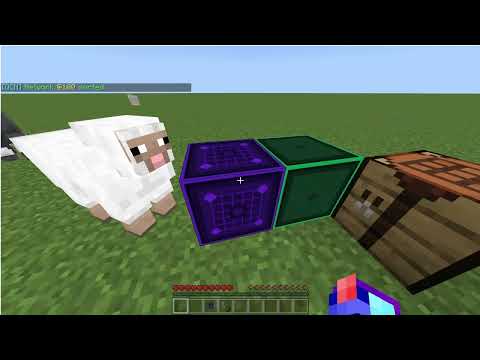
Description
QCN Guide: https://youtu.be/L43WGng926I
🚀 Quantum Chest Network (QCN) — The ULTIMATE Wireless Storage Guide!
Say goodbye to inventory clutter FOREVER!
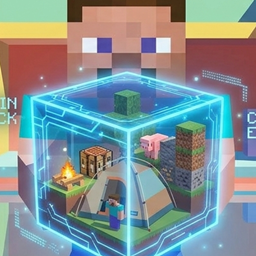
The Quantum Chest Network (QCN) turns all your chests into a single, wireless, searchable storage system. Built-in chunk loading lets you access your network from ANY distance with the click of a button—no commands required!
🔧 Crafting Recipes
(All recipes are shaped and crafted in a standard Crafting Table).
1. 🖥️ Quantum Scanner (Your remote access tool)
🟫 Stick 🟩 Iron
🟫 Stick 🟩 Iron 🟫 Stick
🟩 Iron 🟫 Stick
Ingredients: 4x Stick, 4x Iron Ingot
Result: 1x Quantum Scanner
2. ⚡ Master Core (The heart of your network)
🟫 Stick 🟩 Iron 🟫 Stick
🟩 Iron 🟣 Ender Pearl 🟩 Iron
🟫 Stick 🟩 Iron 🟫 Stick
Ingredients: 4x Stick, 4x Iron Ingot, 1x Ender Pearl
Result: 1x Master Core
3. 🧩 Storage Node (Links chests to the network)
🟫 Stick 🟩 Iron 🟫 Stick
🟩 Iron 🟩 Iron
🟫 Stick 🟩 Iron 🟫 Stick
Ingredients: 4x Stick, 4x Iron Ingot
Result: 4x Storage Nodes (great value!)
🏕️ Getting Started (Step-by-Step)
Step 1: Craft Your Gear 🛠️
Craft a Master Core, a Quantum Scanner, and a few Storage Nodes.
Step 2: Place the Master Core 📍
Place the Master Core in your base.
Step 3: Bind the Quantum Scanner 🔗
Hold the Quantum Scanner and Sneak+Right-click the Master Core.
✨ The core will glow, and you'll see:
[QCN] Master Core registered. Network: @101
Your Scanner is now bound to this network!
Step 4: Place Storage Nodes 📦
Place a Storage Node directly adjacent to any Chest, Barrel, or Copper Chest. or other storage block.
(If the block has "Vanilla storage component" it should work with the nodes should work with hoppers,etc)
Step 5: Link Storage Nodes 🔄
Hold your bound Quantum Scanner and Sneak+Right-click the Storage Node.
✨ The node will glow
Step 6: Open Your Network 🌐
Right-click anywhere in the air while holding the Scanner, or interact with the Master Core block.
The Network UI opens—time to manage your loot!
🎮 The Network UI (Your Command Center)
🔍 1. Search & Pull Items
Type any item name (e.g., "diamond", "iron, plank, etc" (Keep search blank to show all)).
Use the slider to choose the amount (1–64).
Click the item—it appears in your inventory instantly!
💎 Enchantments, custom names, lore, and durability are 100% preserved!
📦 2. View All Items
Browse a paginated list of every single item in your network.
Click any item to pull a full stack (64).
⬇️ 3. Deposit All
Click this button to empty your entire inventory into the network!
Automatically skips: Tools, Armor, Enchanted Books, and QCN items.
Respects your blacklist—blocked items stay in your inventory.
Items fill chests based on Node Priority (higher numbers fill first).
🧹 4. Sort Network
Consolidates all chests alphabetically.
🔒 100% Safe: Enchanted, named, damaged, and lore items are NEVER merged or lost—they are preserved as unique stacks.
🎛️ 5. Node Manager
View every linked chest in your network.
Click a node to:
✏️ Set a Label (e.g., "Ores", "Food", "Redstone").
📊 Set Priority (0–10). Higher priority = fills first during Deposit All.
❌ Unlink Node (removes it from the network).
🚫 6. Blacklist
Add Item: Pick from a visual list of items currently IN your network. No typing required!
Remove Item: Select a blacklisted item to unblock it.
Clear Entire Blacklist: Remove all blocks at once.
Blacklisted items are skipped during Deposit All and hidden from search results.
🗺️ 7. Ticking Area (NEW — Game Changer!) 🌍
Want to access your network from 1,000s blocks away?
In the main menu, you'll see a button:
✘ Ticking Area (Inactive) → Click to Enable.
✔ Ticking Area (Active) → Click to Disable.
One Click. No commands. No OP permissions required (just standard /tickingarea access).
🌍 Works in ANY dimension: Overworld, Nether, and The End are fully supported now!
📊 Limit: Max 10 active ticking areas per world (Bedrock engine limit—It will warn you if you hit it!).
🧹 Auto-Cleanup: Ticking areas are automatically removed when you dissolve or break the core.
💀 8. Dissolve Network (Destructive — Use with Caution!)
Click this to permanently wipe the network.
A confirmation popup will appear to prevent accidents.
What happens:
Core resets to inactive.
All nodes reset to unlinked.
Sneak+Interact Your Scanner is reset (unbound from old network ).
Ticking area is removed.
@ network is recycled
🛡️ Items in chests are 100% SAFE. Nothing is deleted from your chests.
⚡ Quick Actions (Sneak + Right-Click)
Action How To Result
🔗 Bind Scanner Right-click Master Core Scanner bound, core glows.
🔄 Link Node Right-click Storage Node Node linked to your network.
💀 Dissolve Network Sneak + Right-click bound Master Core Network dissolved, scanner reset.
🌐 Open UI Right-click air (holding Scanner) Opens the Network UI.
🔄 Reset Scanner Sneak + Right-click air (if network dead) Scanner unbound.
🌍 Cross-Dimension & Chunk Loading
✅ Works flawlessly in Overworld, Nether, and The End!
Without Ticking Area: Works within ~64 blocks (4 chunks).
With Ticking Area (NEW): Works from ANY distance in the same dimension. Just toggle it on in the UI!
❓ FAQ (Troubleshooting)
Q: I opened the UI but it shows no items.
A: Make sure you've linked Storage Nodes, you are within 64 blocks (or have a Ticking Area enabled), and you're in the same dimension as your Master Core.
Q: My Scanner says "Network @101 no longer exists."
A: The network was dissolved or the core was broken. Sneak + Right-click the Scanner to reset it, then bind it to a new core.
Q: My enchanted sword disappeared when I hit Sort!
🚨 Impossible in QCN! Our sorting system is designed to never merge enchanted, named, damaged, or lore-heavy items. Your gear is 100% safe.
Q: How do I unlink a node?
Break the Storage Node, or open the Node Manager, select the node, and click "Unlink Node".
Q: Do you support copper chests?
✅ Yes! All 8 copper chest variants (oxidized, waxed, etc.) are fully supported.
Q: Does this work with modded chests?
✅ It should, (Not Tested) The QCN automatically detects any block with an inventory component.
Q: I hit the 10 Ticking Area limit!
Dissolve an old network or disable its ticking area via the UI to free up a slot.
Quantum Chest Network (QCN) Team