promotional bannermobile promotional banner

Custom Portals!

Welcome to Custom Portals! This mod adds the ability to create custom portals in world world with different sizes and colors! These portals are not easy to get though, but once you do you can travel distances in a matter of seconds!

This mod is probably more complicated than other portal mods. It requires a system of portal cores, connectors, and hub and gatherer. These are each explained in their respective sections below.

Item and Blocks

There is one item in this mod.

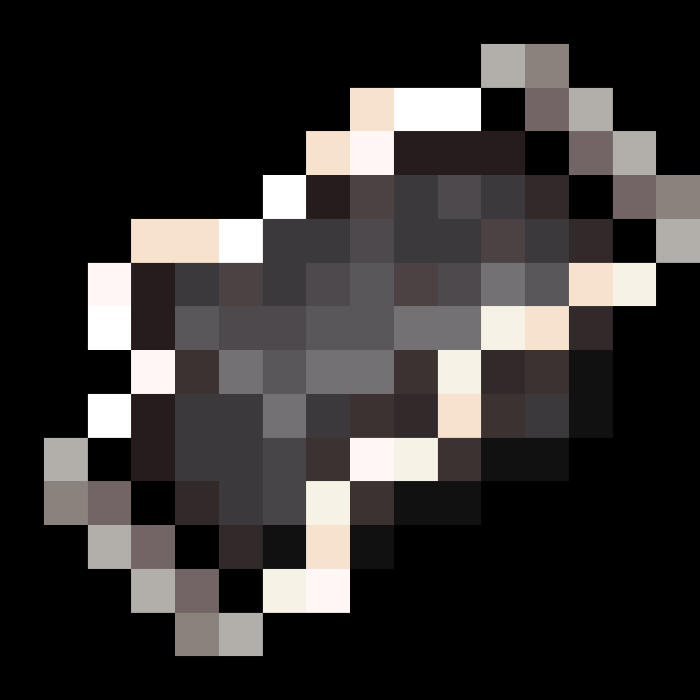
Portal ComponentPortal Component (Appears to be a chunck of netherite with energy around it)</figure>

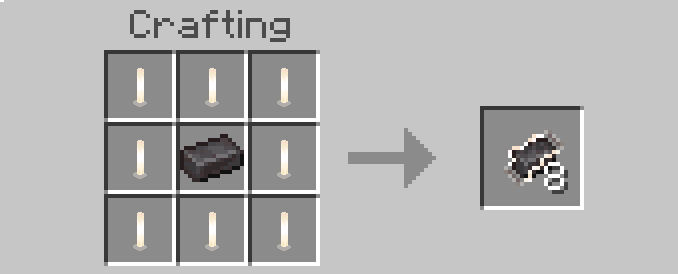
Recipe:

Ingredients:

  • x8 End Rods
  • x1 Netherite Ingots

Overview:

The portal component is the core ingredient in all of the recipes for everything else in this mod. It is also the most expensive item to craft. It has no purpose by itself though.

There are several blocks though.

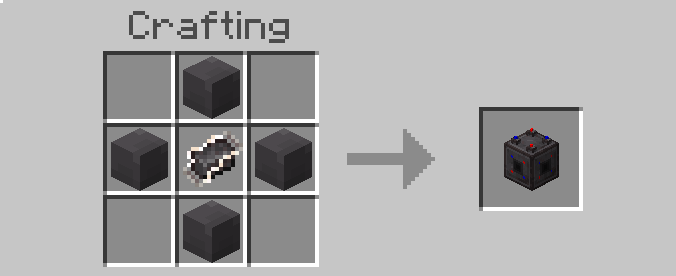
Portal Connector

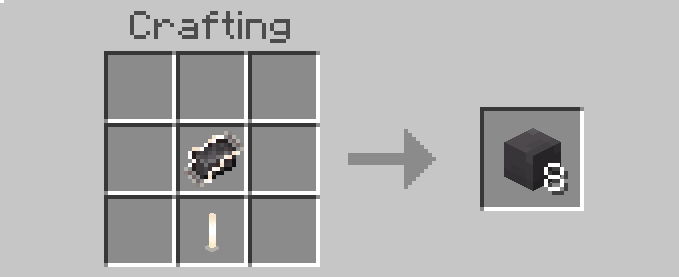
Recipe:

Ingredients:

  • x1 End Rod
  • x1 Portal Component

Overview:

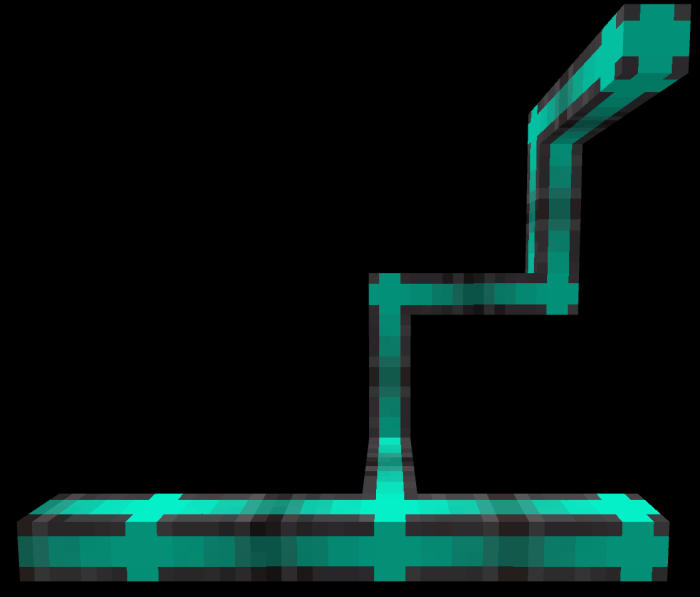
The portal connector is probably the block you will craft the most of. It is what is used to connect portal cores to portal hubs.

The portal connector can connect to any other portal connector on any side.

The portal connector has two states (It will start in the off state):

Off (not connected to system)


On (Connected to system)

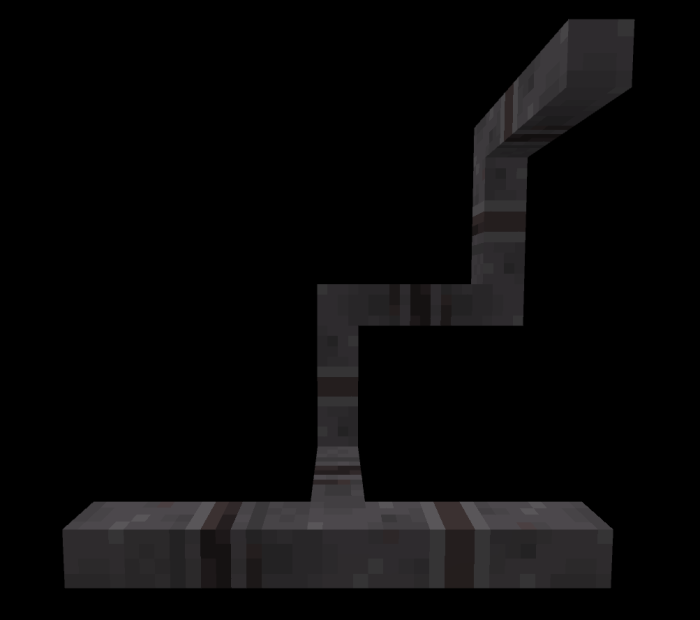
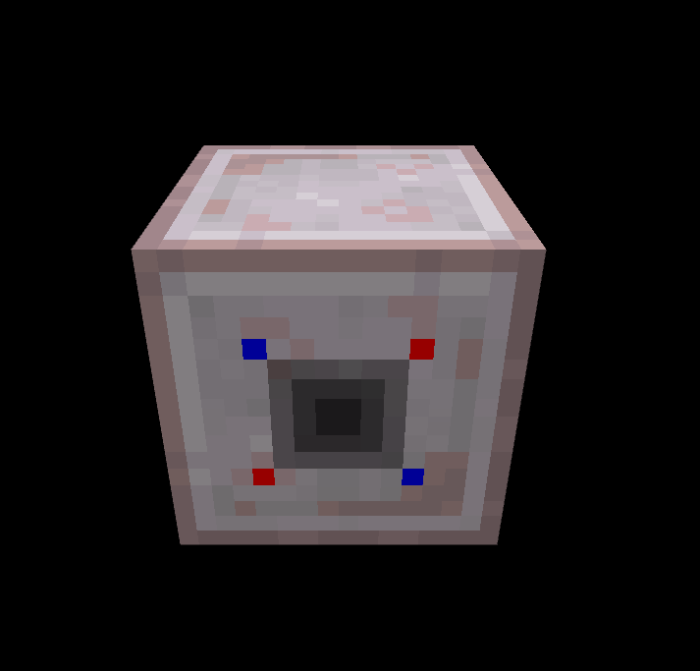
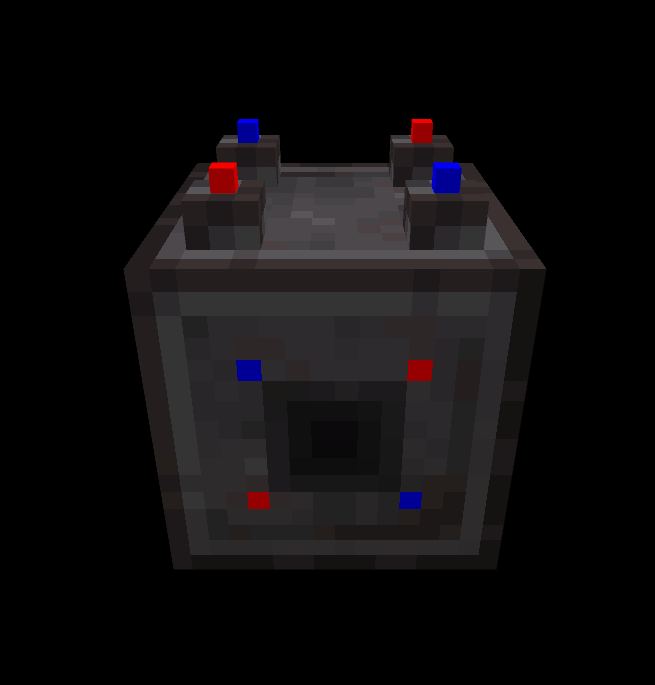
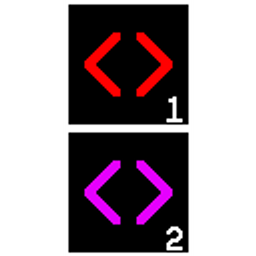
Portal Connectors will connect to ports on blocks that look like this:

If a block that can connect to a Portal Connector is placed next to one, it will turn off and connect to the block. This will also turn off all other Portal Connectors and Portal Cores connected to that line.

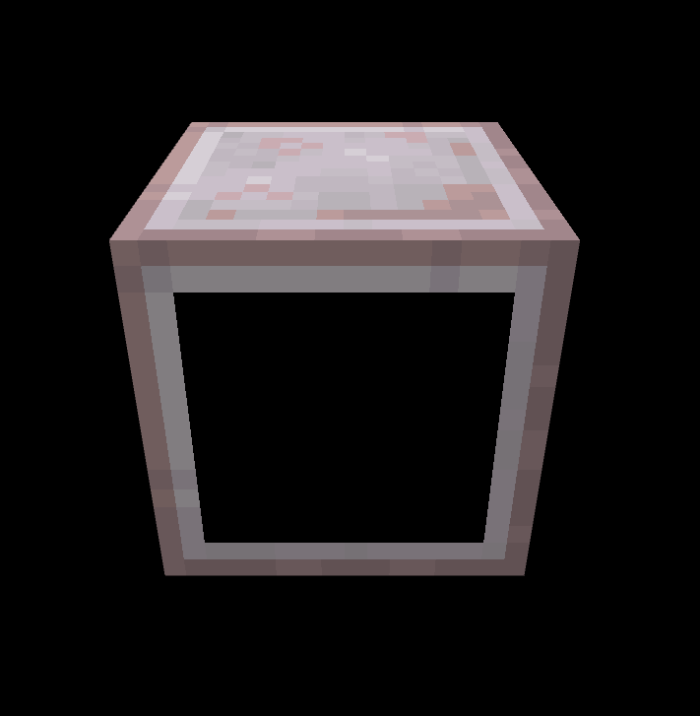
Portal Frame

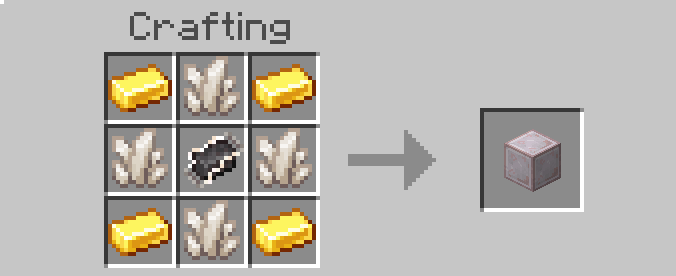
Recipe:

Ingredients:

  • x1 Portal Component
  • x4 quartz
  • x4 gold ingot

Overview:

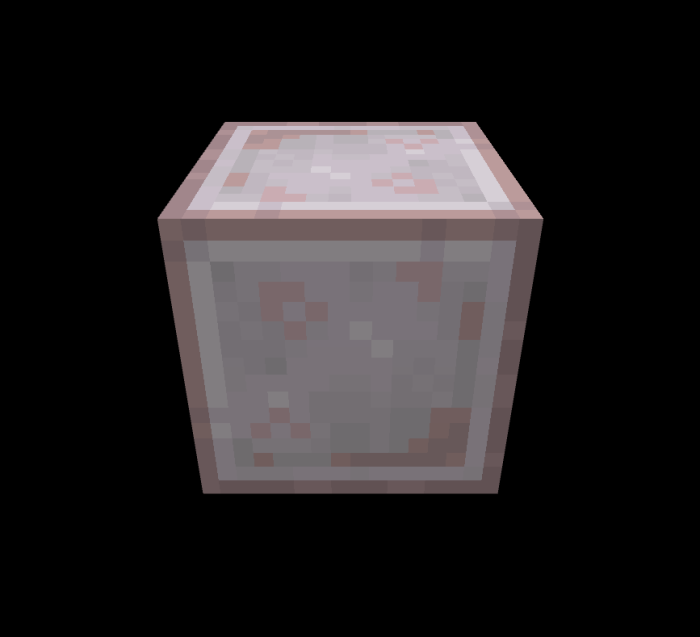
This is the second most crafted block. It is the frame of your actual portals. It is what will be used to determine your portal size and shape.

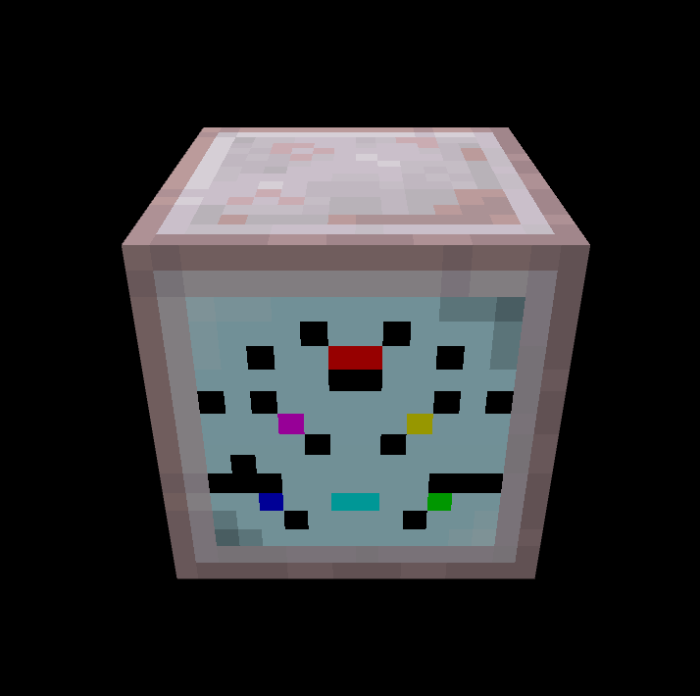
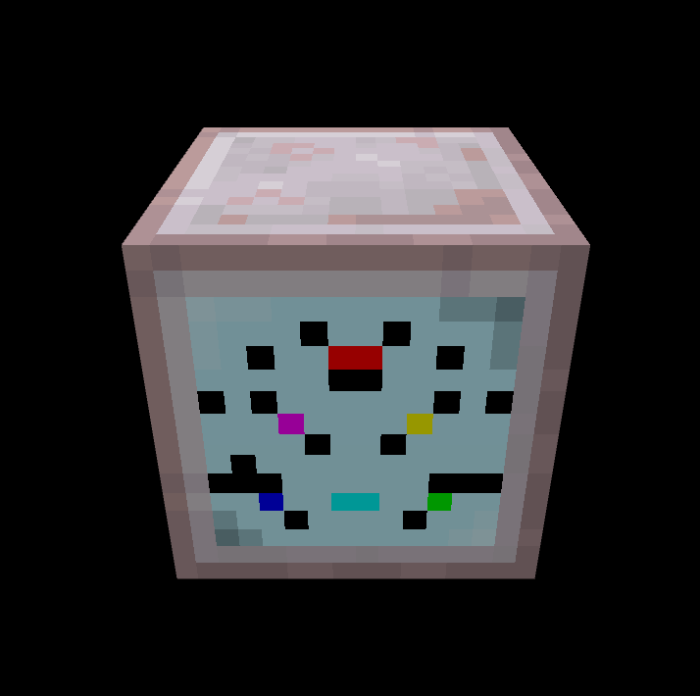
Portal Core

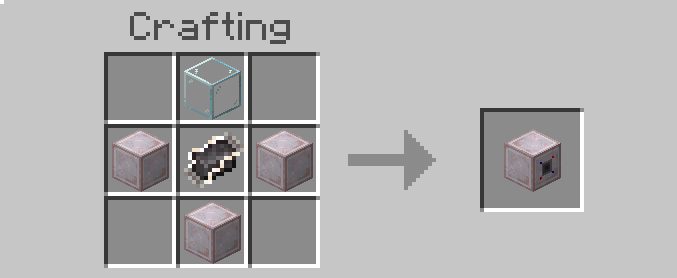
Recipe:

Ingredients:

  • x1 Portal Component
  • x1 Glass
  • x3 Portal Frames

Overview:

This is the main piece of your portal. It is what will be used to locate, build, and customize your portal. They are the most important part of the whole system.

The portal core has two states it will start in its off state:

On (connected and powered by portal connectors)


Off (Not powered by portal connectors)

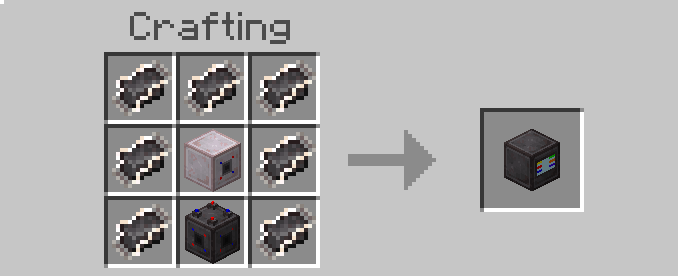
Portal Gatherer

Recipe:

Ingredients:

  • x1 Portal Component
  • x4 Portal Connectors

Overview:

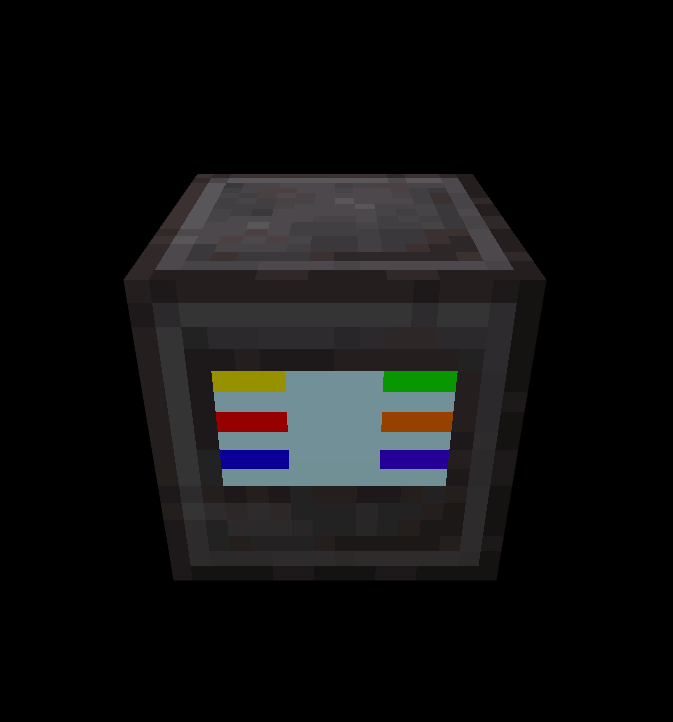
This is the block that all connectors lead back to. It is the second part of the Portal Hub. It will go underneath the Portal Hub block, and it required for it to work. Portal connectors can be attached to all sides except the top of the block. Each seperate port on the Portal Gatherer is a seperate line, meaning if one gets turned off by some means, the other lines won't (unles you connect them to each other, but why would you do that?).

Portal Hub

Recipe:

Ingredients:

  • x7 Portal Components
  • x1 Portal Core
  • x1 Portal Gatherer

Overview:

This is probably the most important block in the mod. It is what allows you to activate and control your portals. In order for it to work it must be placed on top of a portal gatherer. More details on what it can de are below.

Portals!

Portals are the main focus of this mod, hence the name. There are several parts to creating portals.

Building the Frame

The portal frame is the most impotrant part, hence there can be no portal without a frame of one. They are made with one Portal Core and several Portal Frames.

Structure

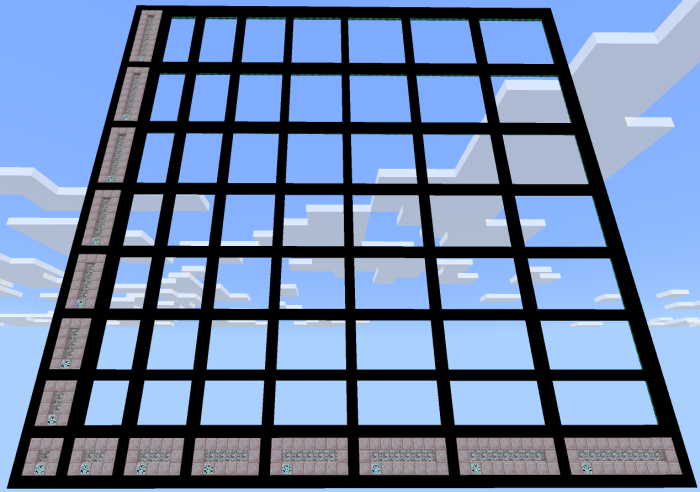
Size

The frame can be as small as 3x3 (for a portal size of 1x1) to 10x10 (for a portal size of 8x8)

Portal Size Grid. 

Bottom left is smallest, top right is largest

Shape and Placement of Blocks

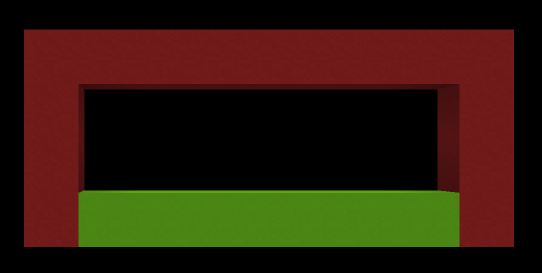
A portal must be rectangular with ALL corners filled. No skipping out on these edges!

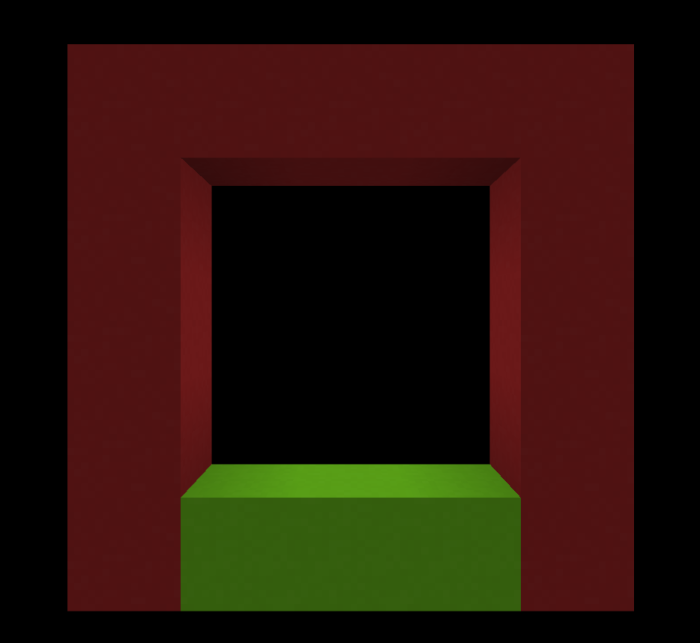
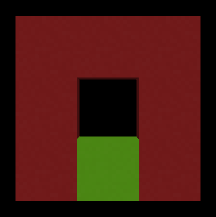
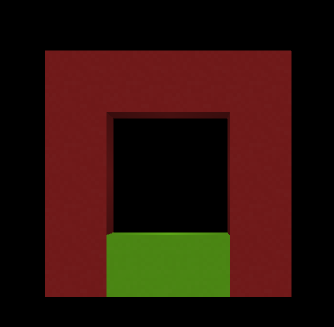
In order for a portal to function it must have a Portal Core. The Portal Core can be placed only on the bottom of the portal and on no corners.

Examples:

Possible places for Portal Core are labeled in green concrete

5x5 portal:

3x3 portal

4x4 portal

9x4 portal

Connecting Everything

In order for everything to work you need a simple setup.

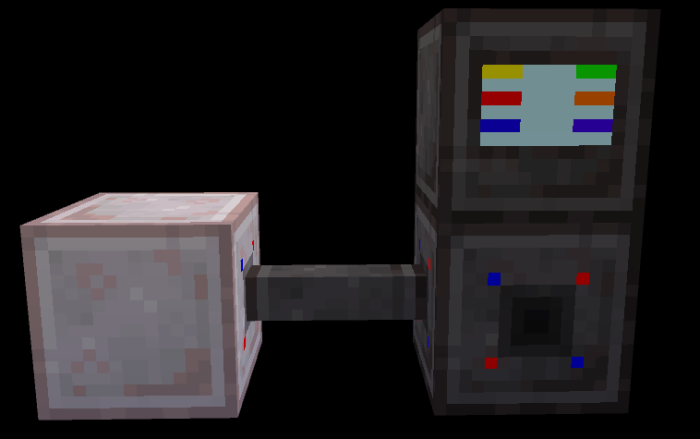
You must have a Portal Hub on top of a Portal Gatherer with at least one Portal Connector between the gatherer and Portal Core (Shown Below)

Once this is done you're ready to move onto portal menus!

Activation and Control (aka Menu Navigation)

Activation and Control

Portal Hub Menus

First thing to do is to is interact with the Portal Hub this will bring up the Hub menu.

Hub Menu
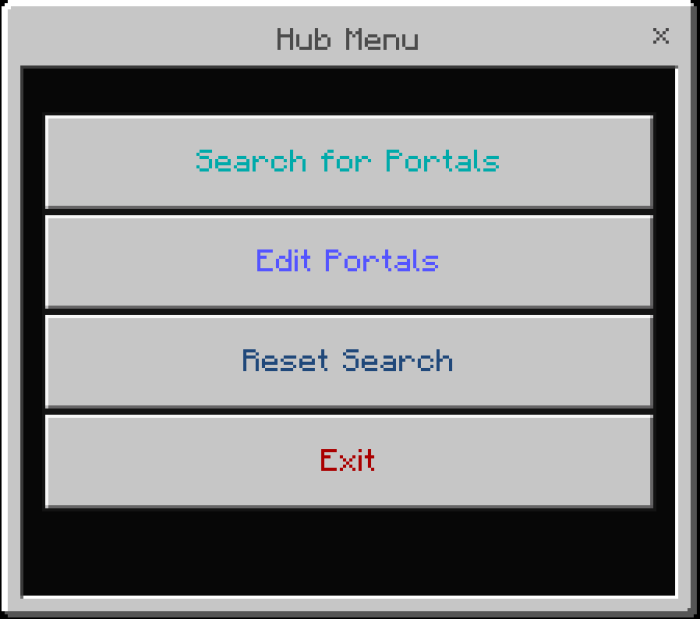
The first button on the Hub Menu will activate a search which will connect to and turn on all portals it is connected to within actively simulated chunks (Chunks within your simulatiuon distance).

The second button on the Hub Menu lets you edit your portals from the Hub and set their destinations more on that below.

The third button will reset the connections by turning off all portals it is connected to and delete the exsisting connections of the hub.

The fourth button will exit you out of the Hub Menu, but that is also done by clicking/tapping on the X in the top right corner of it.

Edit Menu
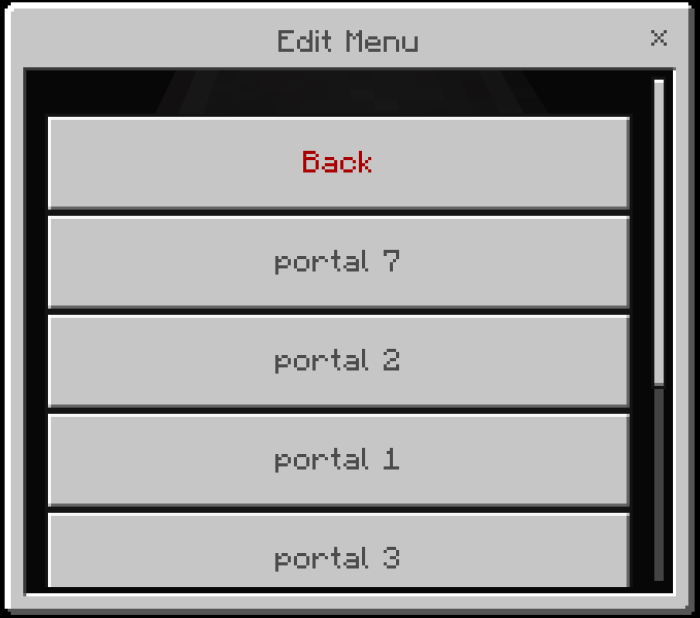
This menu is gotton to by pressing the second button in the Hub Menu. It will show a list of all portals connected to the current Portal Hub you are acessing. These buttons will appear with the name of the assigned portal. Clicking any of these will bring up a secondary edit menu. The back button at the top will bring you back to the Hub Menu.

Portal Edit Menu (Edit Menu Secondary)
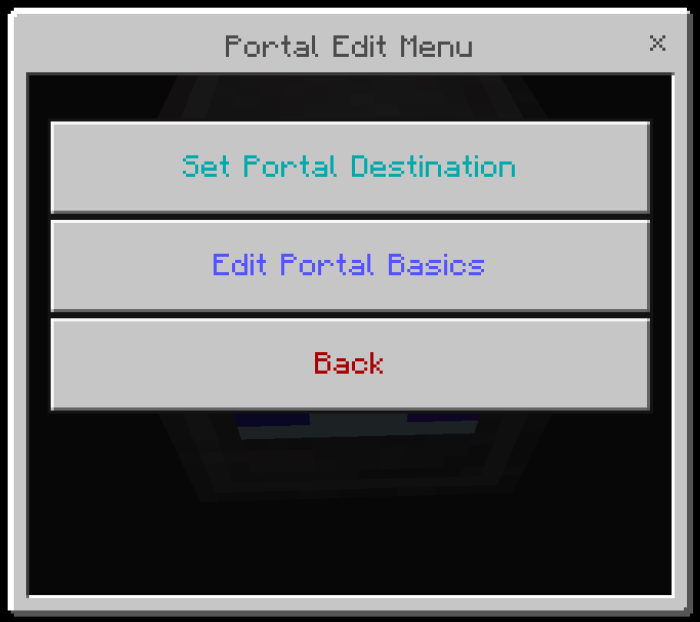
This menu allows you to choose whether you want to change the portal's destination, or the Portal Core settings. The first button will allow you to set the portal's destination. The second button will allow you to go into the Portal Core's Portal Menu (see below in Portal Core Menus). The third button will bring you back to the main Edit Menu.

Set Destination Type Menu
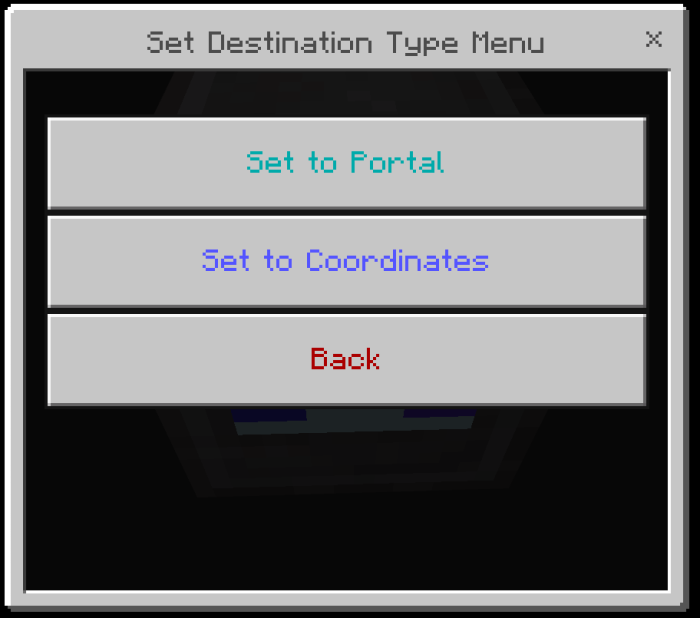
This is possibly the mod's most powerful feature. You can set the portal's destination either to another Portal Core in the system, or any coordinates in the dimension you're in. The first button will open up a secondary menu to set the destination of this Portal Core to another Portal Core. The second button will open up a different secondary menu which allows you to set the coordinates for you to land at.

Set to Portal Menu (Set Destination Type Secondary #1)
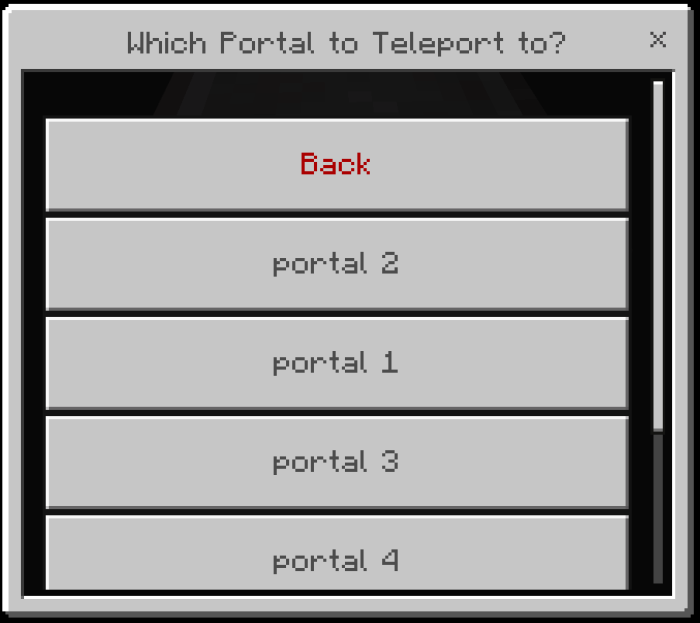
This menu will show you a list of the other Portal Cores in the system to choose from. Pressing back will sned you back to the Set Destination Type Menu, and pressing any of the buttons labeled with a portal's name will set the destination of your current portal to that Portal Core.

Set to Coordinates Menu (Set Destination Type Secondary #2)
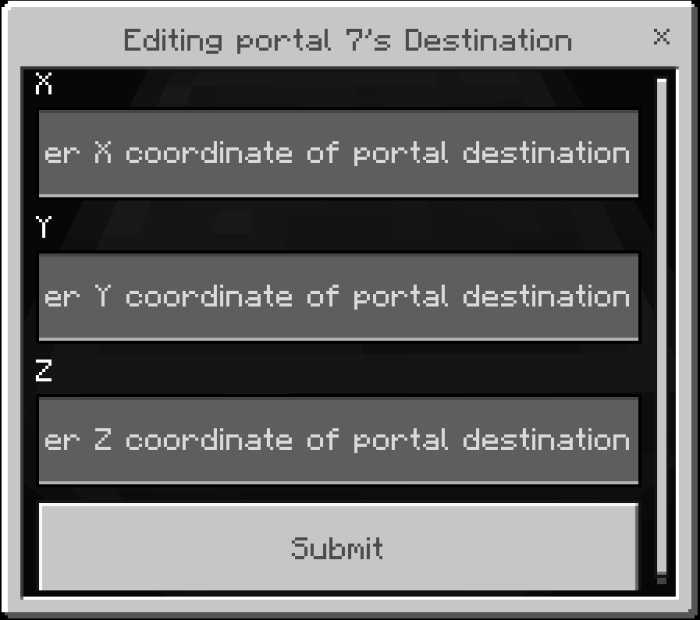
This menu allows you to enter the coordinates you wish this portal to teleport to. The first input box is for the X coordinate, the second input box is for the Y coordinate, and the third input box is for the Z coordinate. Press the 'Submit" button to set the destination to the provided coordinates. If no number is inputted, it will default to 0.


Portal Core Menus

Interact with the Portal Core (when on) to open the main menu

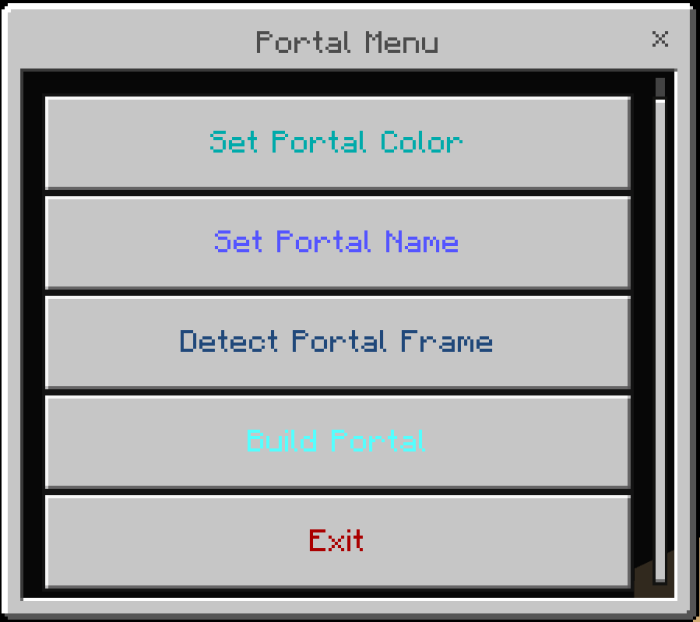
Portal Menu

This is the main menu of the Portal Core. It is where you will setup and activate your portal. The first two buttons are for customization and organization, and will be covered in that section. The third button will scan for your portal's frame and find if its dimensions fit the limits. YOU MUST DETECT THE PORTAL FRAME BEFORE BUILDING THE PORTAL IN ORDER FOR IT TO WORK. The fourth button will actually build the portal and create the portal blocks. The fifth button will close the menu as will pressing the 'X' in the top right corner.

Organization and Customization

Hooray! You made your portals! Now to make them truly special.

First go back to the Portal Core main menu

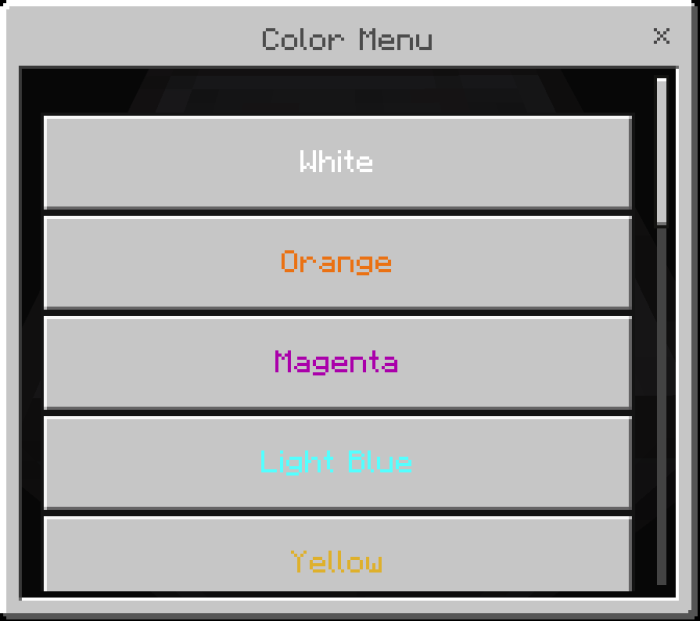
The first item avaliable in the list of things for customization is the first button. This button will open up a color selection menu. The second button opens up the naming menu for the portal (see below Color Selection Menu section).

Color Selection Menu

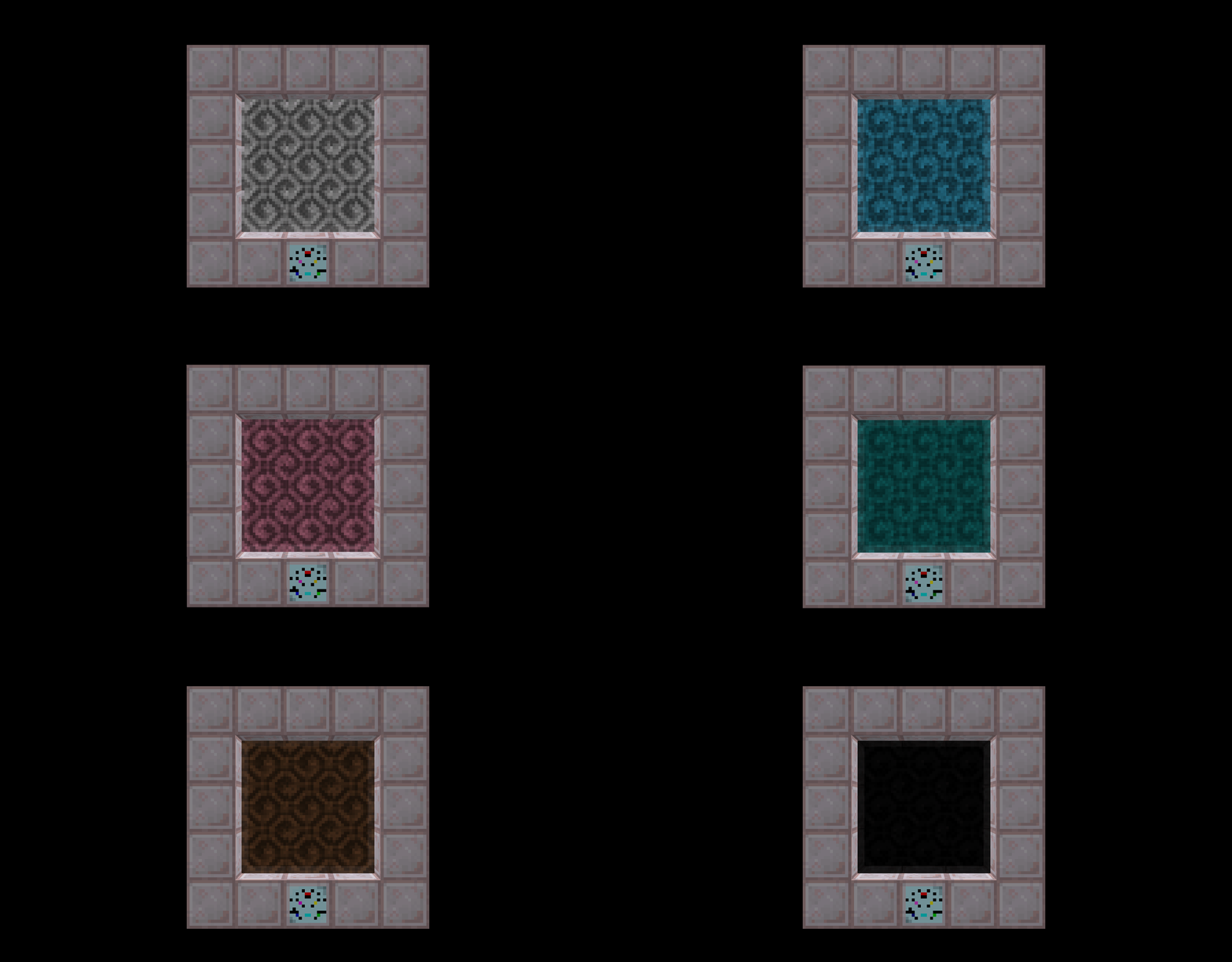
This menu lists evey color avaliable for the portal to be. Every vanilla color is avaliable to choose. The gif below shows each color, listed in the same order as they are in the wiki.

Order of Colors:

  • White
  • Orange
  • magenta
  • light blue
  • yellow
  • lime
  • pink
  • gray
  • light gray
  • cyan
  • purple
  • blue
  • brown
  • green
  • red
  • black

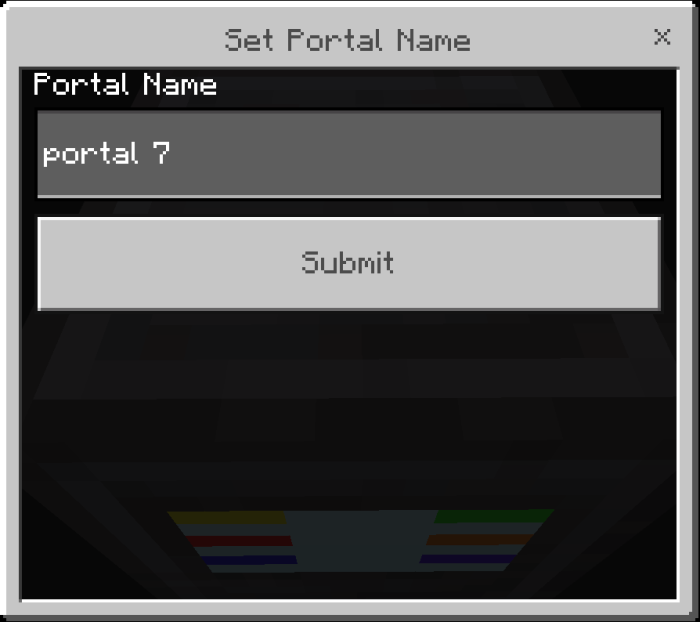
Name Changing Menu

This menu allows you to change the name of the current Portal Core you are editing. The name that appears in the text box is the current name of the portal (which defaults to portal). Once you are happy with your name, press the submit button. Though there only characters that are allowed are A-Z, a-z, 0-9, and §.

Showcase Video:

Permissions:

Dos:

  • You are allowed to download and use the mod
  • You are allowed to show the mod in a video, ONLY if you give credit and a link to this modpage
  • You are allowed to share the link to this modpage
  • You are allowed to comment and like.
  • You are allowed to look through my code to LEARN how I did it. (There will be spoilers for secrets and further updates though)

Don'ts:

  • You are not allowed to copy anything from this mod as claim it as your own.
  • You are not allowed to make your own links.
  • You are not allowed to post this mod anywhere else.

Common Bugs

  • Sometimes the portal blocks won't update, just break and place them again.
  • Sometimes portal connectors get stuck in what I call "energy loops" which can lag. Just break them. 

Thank You!


The Custom Portals! Team

profile avatar
  • 11
    Followers
  • 3
    Projects
  • 20.4K
    Downloads

More from DracionStudios