ChestGo
- By
Turn your chests into an organized storage network with ChestGo! Find stored items, manage your supplies, and transfer materials between your inventory and your chests—even from far away. No complicated redstone machines required.

Description
ChestGo: Your storage, under control.
By: xzMellizo
EXPLANATORY VIDEO FOR THE ADDON


Turn your chests into an organized storage network with ChestGo! Find stored items, manage your supplies, and transfer materials between your inventory and your chests—even from far away. No complicated redstone machines required.
Customize your chests with names and item icons, assign storage filters, organize everything into groups, and keep your most important chests in Favorites.
🔷 Meet Chest Core
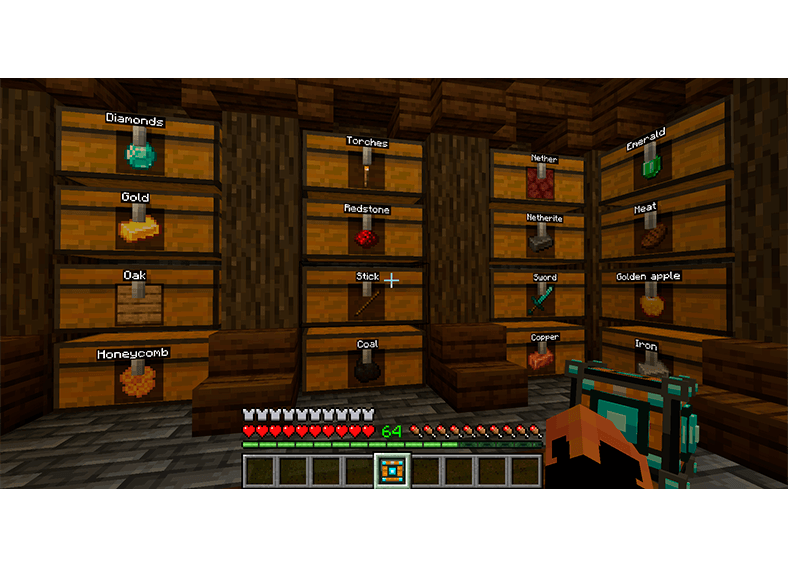
Chest Core is your handheld storage controller. It features a detailed wooden design with cyan accents, a frontal inventory icon, and a custom 3D model when held.
Use Chest Core on a chest to register it or open its settings. Use it in the air to access the main menu and manage your storage remotely.
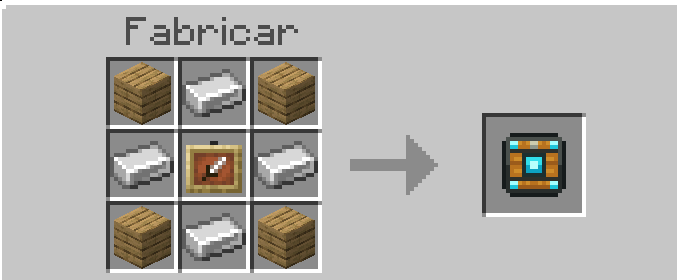
Craft it using four planks, four iron ingots, and one item frame:
| Planks | Iron Ingot | Planks |
|---|---|---|
| Iron Ingot | Item Frame | Iron Ingot |
| Planks | Iron Ingot | Planks |
Any plank type works, and you can mix different types in the same recipe!
📦 Register and customize your chests
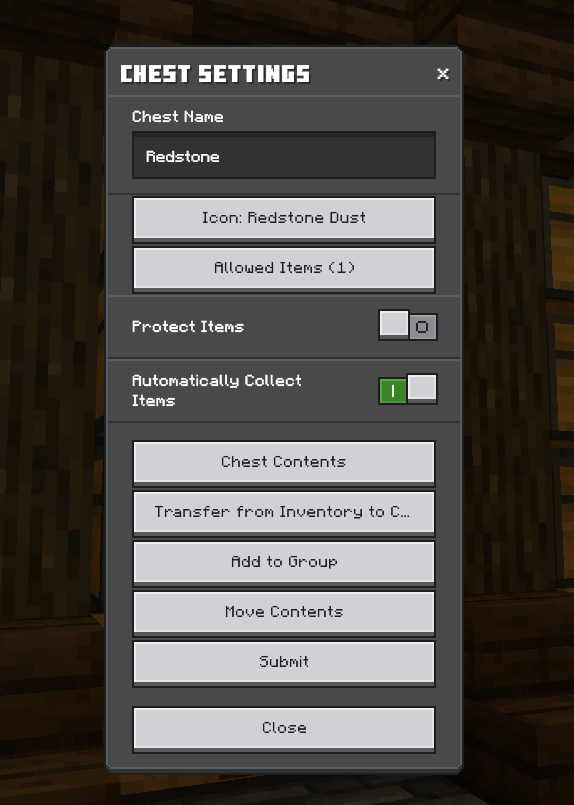
Give each chest a custom name and choose an item or block icon using the built-in search. Names and icons appear on the front of the chest, making your storage easy to identify—even when chests are stacked.
Registered chests retain their familiar appearance and can still be opened normally. Their registration also follows changes between single and double chests.
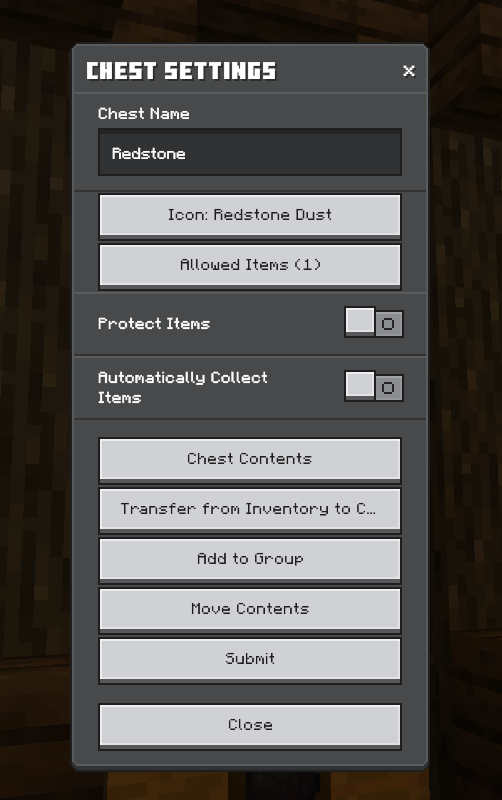
Use Allowed Items to choose what belongs in each chest. Search for an item, add it to the list, or select an existing entry to remove it.
⚡ Automatic collection and sorting
Enable Automatically Collect Items to move matching items from your inventory into your storage automatically. It works with items you already have and items you pick up afterward.
When a destination is full, the system looks for another compatible chest. Matching destinations are prioritized by how much of that item they already contain, helping consolidate your supplies.
Items placed into the wrong registered chest are routed to a compatible destination. If no valid destination has room, incompatible items cannot remain in that filtered chest.
Unregistered chests can also act as drop-off points: matching items you deposit into them can be transferred to registered chests with the corresponding filters.
↔️ View contents and transfer items
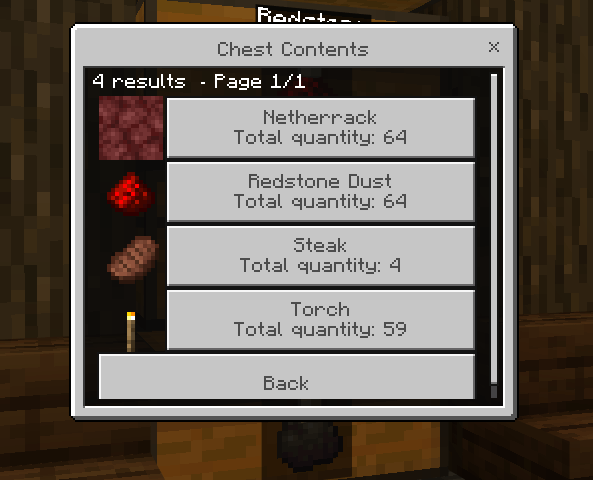
Open Chest Contents to see everything stored in a chest, with an icon and a combined total for each item type. Multiple stacks appear as one entry, keeping the list easy to browse.
Select an item to:
- Transfer it to your inventory, entering the amount you want.
- Transfer it to another chest, choosing a compatible destination and an amount.
You can also use Transfer from Inventory to Chest to select an item from your inventory and enter how much to send. If the selected chest does not accept it, the transfer follows the sorting rules to find a compatible registered chest.
These options are available through My Chests, so you can manage your storage remotely without standing beside the chest.
🔍 Find exactly what you need
Use Find Item from the main menu to search for an item or block.
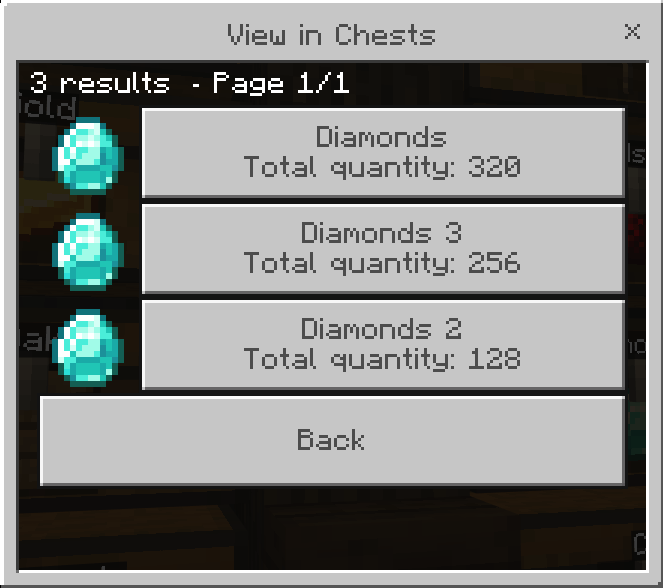
View in Chests shows which registered chests contain it, including each chest’s name, icon, and stored quantity. Select a chest and enter the amount you want to withdraw.
Deposit / Withdraw offers two quick actions:
- Deposit: Send all matching items from your inventory to compatible registered chests.
- Withdraw: Collect matching items from your registered chests, starting with the chest holding the most.
Withdrawals respect the available space in your inventory. Items that do not fit remain safely in storage.
⭐ Groups and Favorites
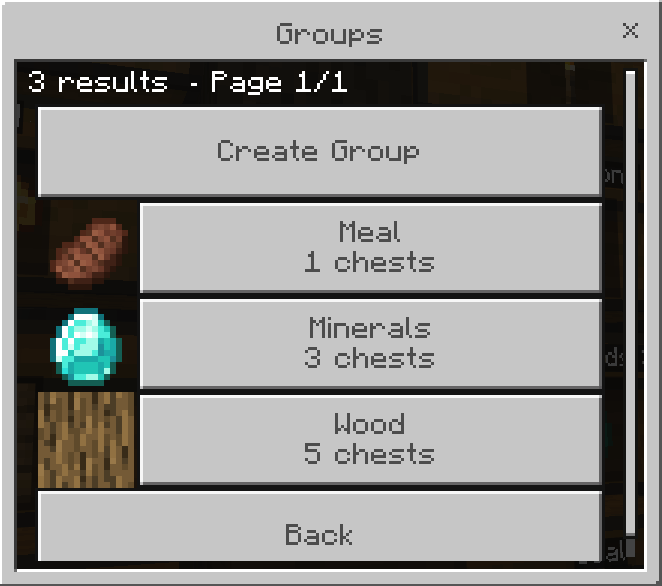
Keep your storage organized with Groups. Create a group, give it a name and icon, and add your registered chests. A chest can belong to multiple groups, allowing you to organize it in different ways.
Add frequently used chests to Favorites for quick access. Select a favorite to open its chest settings directly.
🚚 Move your storage
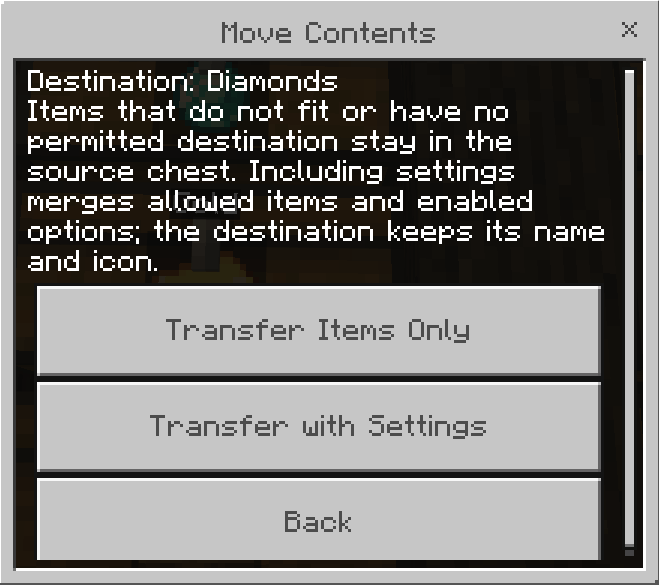
Use Move Contents to transfer a chest’s contents without selecting each item individually.
Choose between:
- Transfer Items Only: Move the contents while following storage filters and routing rules.
- Transfer with Settings: Move the contents and merge storage settings into the destination.
Allowed-item lists are combined instead of replacing existing assignments. The destination keeps its own name and icon, and anything that cannot be transferred remains in the source chest.
🛡️ Protect and carry your chests
Enable Protect Items to carry a chest with its contents and settings preserved. When a protected chest is broken by a player or an explosion, it drops as a special chest item instead of scattering its contents.
Place it again to restore your storage. Protected chest items do not stack with ordinary chests.
Protecting a double chest splits it into two protected single chests, preserving its contents.
⚙️ Personal settings
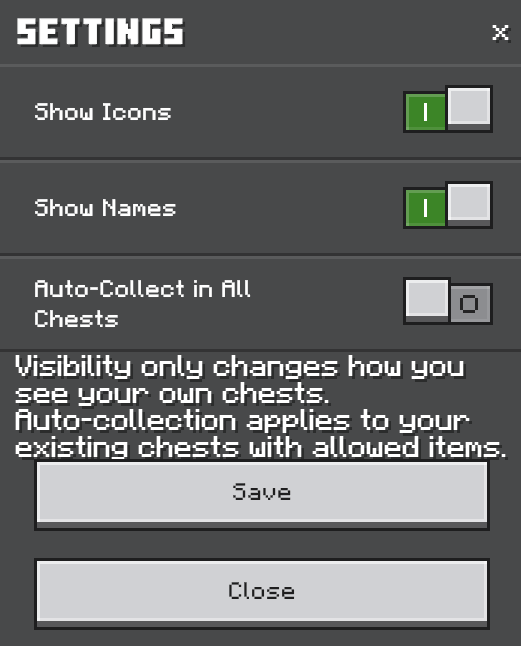
Customize your experience from Settings:
- Show Icons: Toggle icons on your chests.
- Show Names: Toggle names on your chests.
- Automatic Collection for All: Enable or disable collection across your registered chests with assigned items.
Name and icon visibility settings apply only to you.
🌐 Available in English and Spanish
Choose Language → English or Idioma → Español from the main menu.
Menus, messages, item names, and searches adapt to your selected language. Your preference is saved individually, while custom chest and group names stay exactly as you wrote them.
Spend less time searching through chests and more time building, exploring, and playing—with ChestGO.
ChestGo Team

Owner