Andy's Smart Tool Swapper
- By
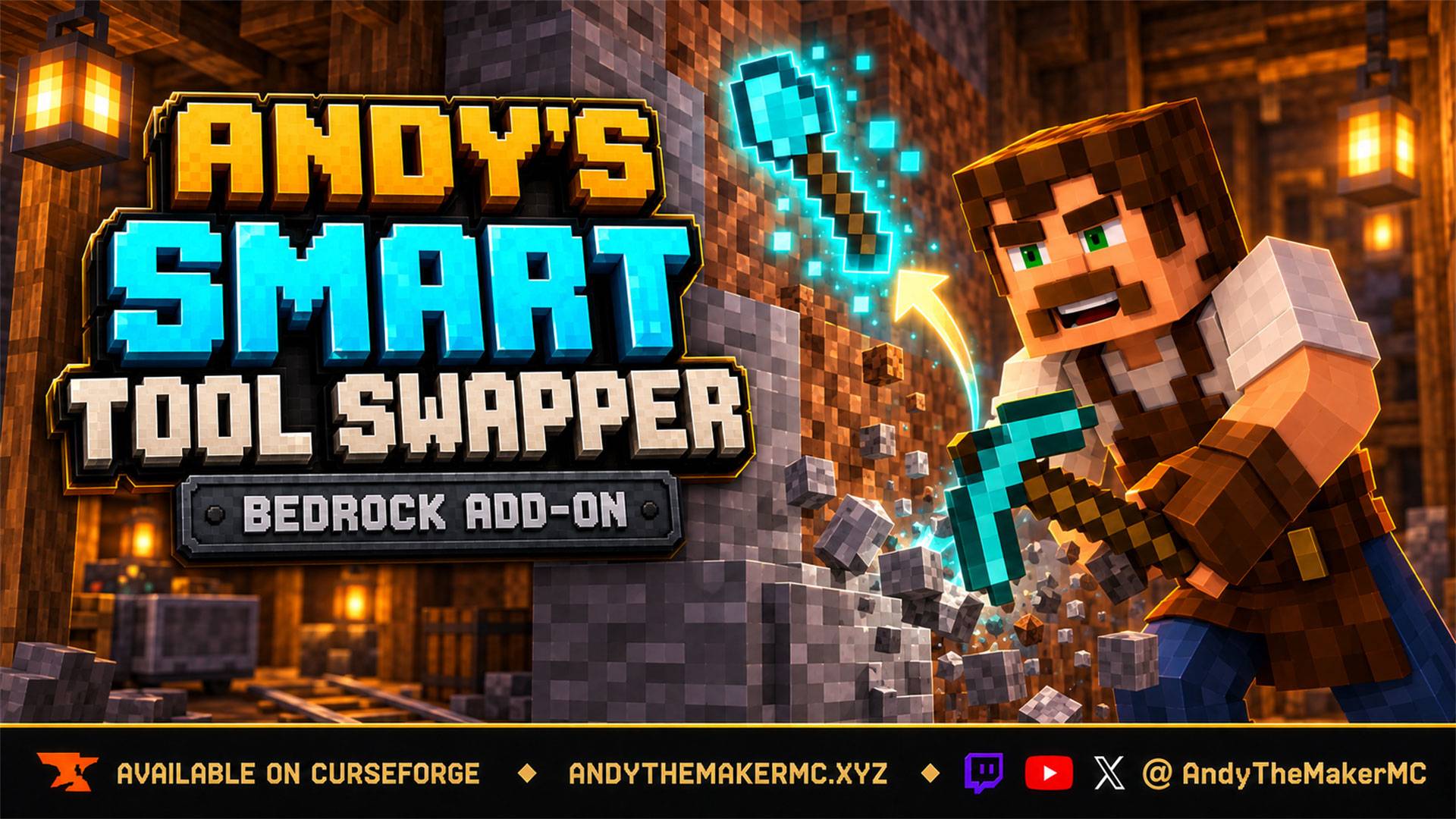
Automatically switches to the right tool and enchantment for each block, then returns your previous item. Handles Fortune vs. Silk Touch, respects manual tool choices, skips low-durability gear, and won’t auto-equip area-mining tools.
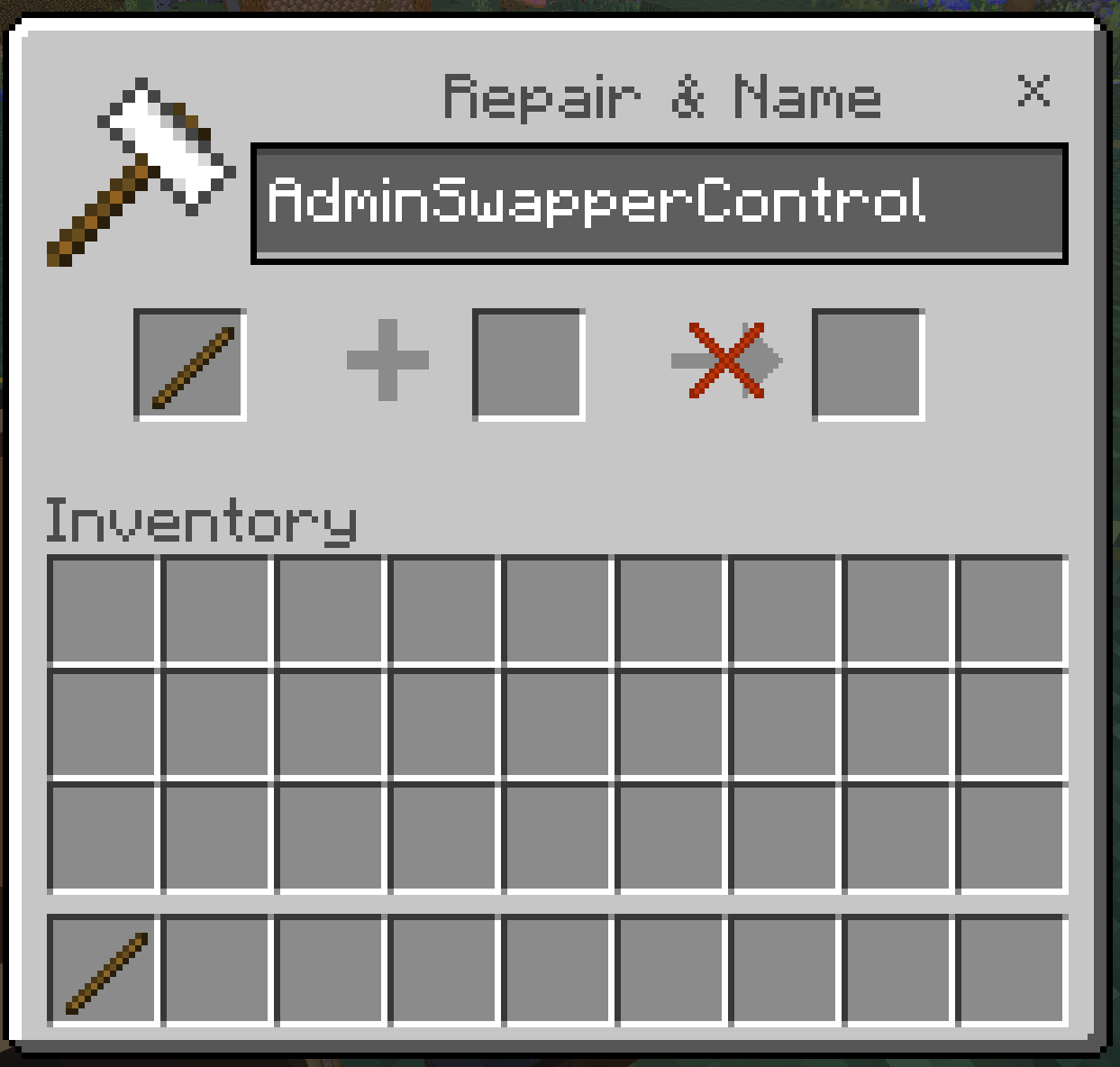
AdminSwapperControl-Stick.png
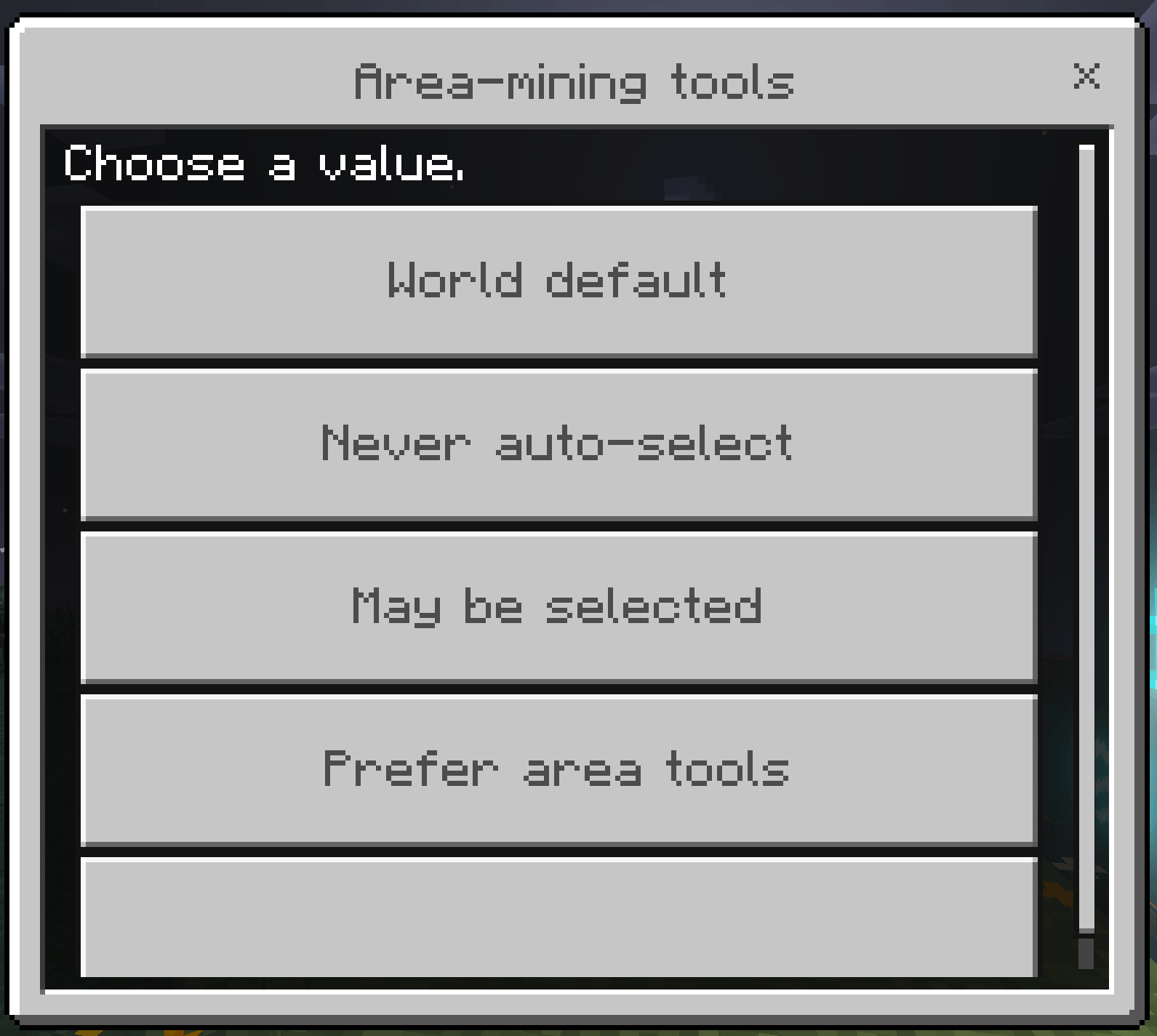
area-mining-tools-menu.png
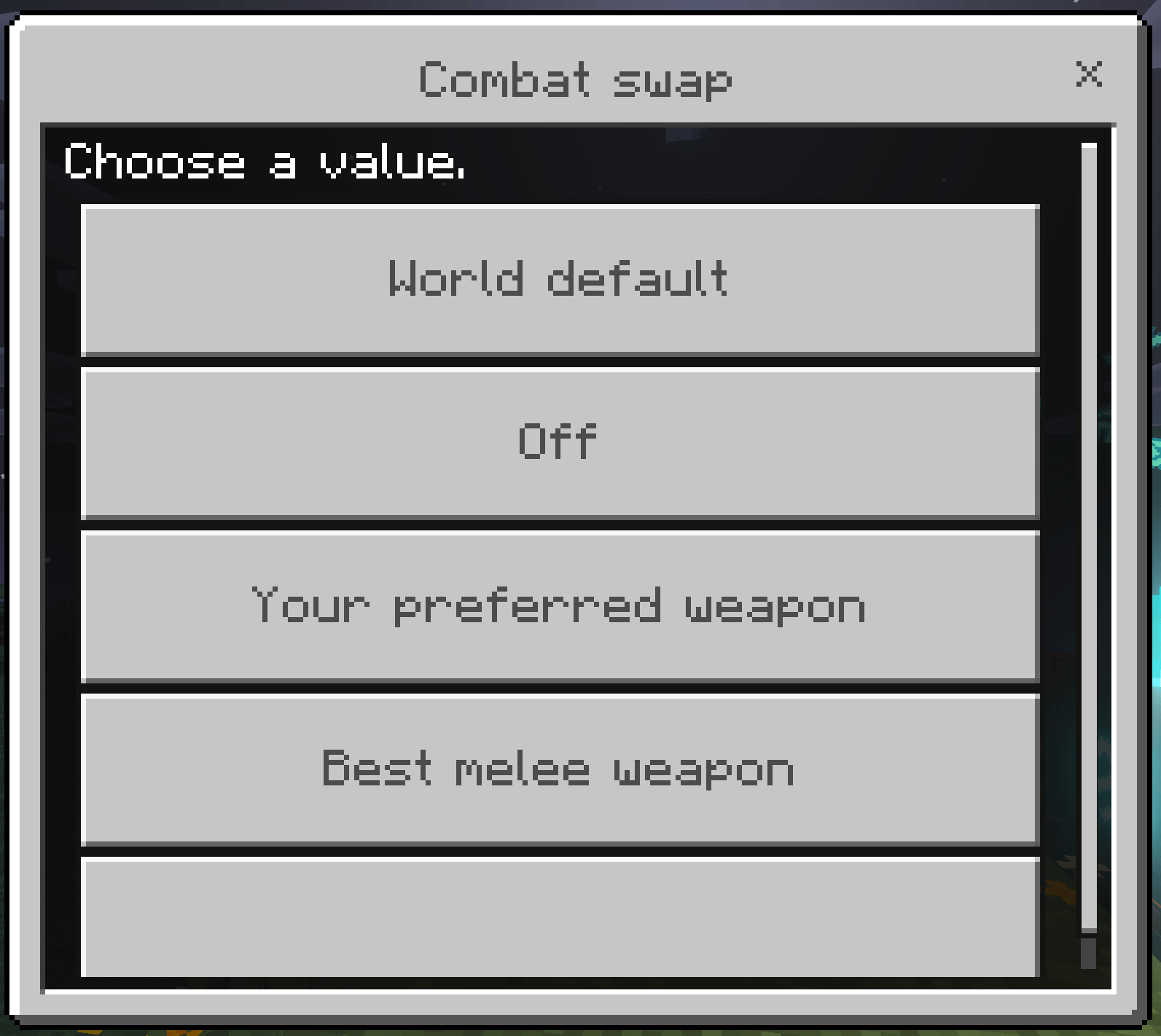
combat-swap-menu.png
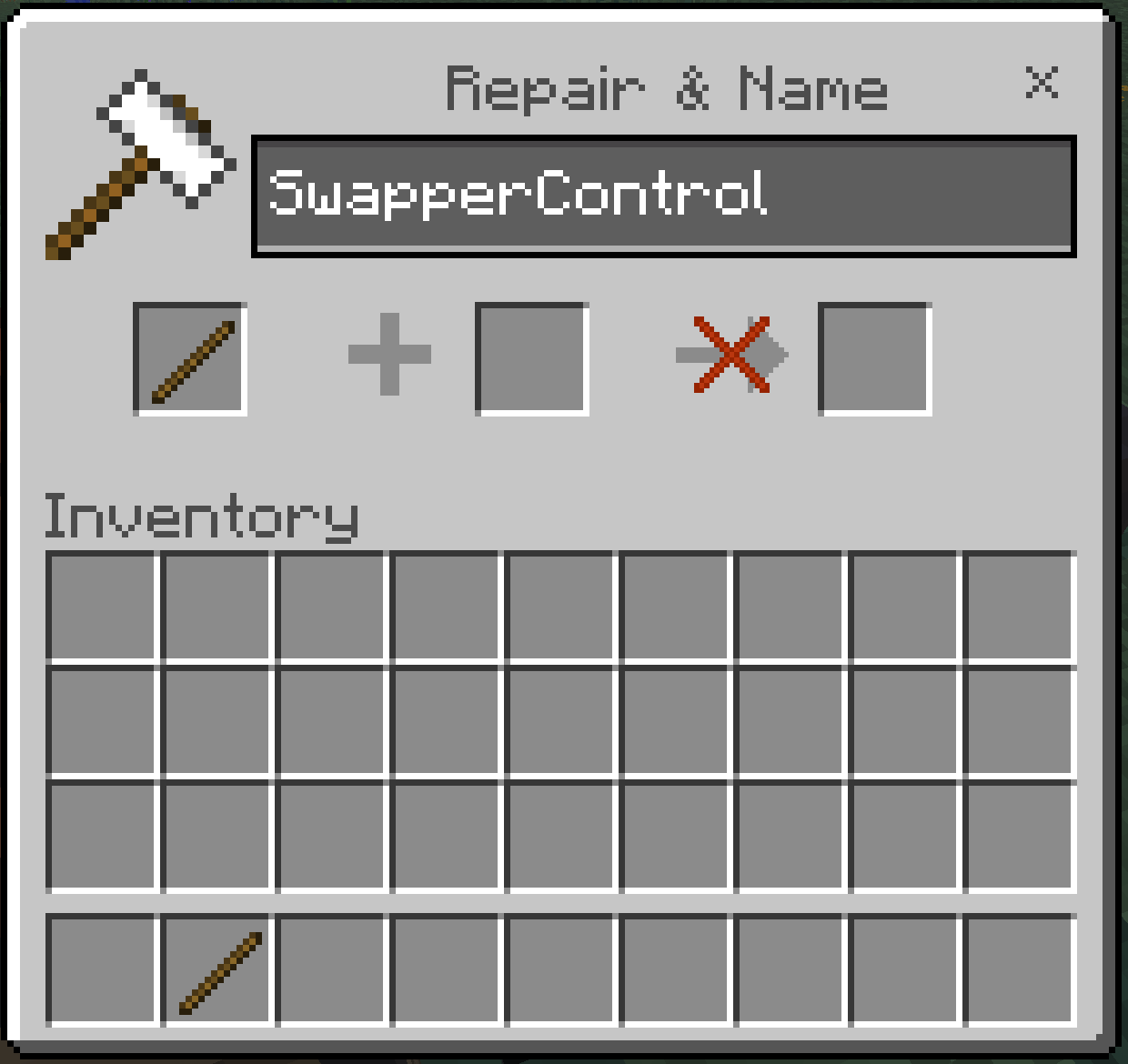
SwapperControl-stick.png
Description
Andy's Smart Tool Swapper
Every automatic tool switcher for Bedrock answers the same question: what category of tool breaks this block? Stone gets a pickaxe, dirt gets a shovel, wood gets an axe, and that is where they stop. Andy's Smart Tool Swapper answers a harder one — of everything you are carrying right now, which exact tool belongs in your hand for this exact block, given what you actually want out of it? Diamond ore does not just get "a pickaxe". It gets your Fortune III pickaxe. A spawner gets Silk Touch. A pickaxe two hits from breaking gets skipped entirely. A 3×3 Hammer never gets equipped by surprise.
You are holding a torch. You start breaking stone and a pickaxe is already in your hand. You hit gravel and a shovel takes over without you releasing the button. You cut through a mineshaft beam and an axe appears, then the pickaxe returns for the stone behind it. You stop, and the torch is back before you have finished turning around. It borrows; it does not take over. That is the whole experience — you keep mining and the add-on quietly keeps up, and when you are done your hotbar looks exactly like it did before you started.
Vanilla-friendly by design
- No block is re-tuned, no drop table is edited, no recipe is replaced, no mob behaves differently, and no vanilla item is modified. Mining speeds, harvest requirements, enchantment effects and durability costs are exactly what they were
- No custom items or blocks at all. Both menus open from a plain vanilla Stick renamed at an Anvil, so nothing new enters your world, nothing can be lost on death, and nothing clashes with another pack
- No cheats, commands, Beta APIs, experimental gameplay toggles, or required add-on dependencies
- Standard graphics and Vibrant Visuals/PBR support
- Single-player, multiplayer, Realms, and compatible Bedrock servers
It also deliberately stops there. There is no auto-totem, no auto-armor, no Elytra deployment, no stack refill, no inventory sorting and no general survival automation. It is a tool-selection engine and it stays one.
Requirements
- Minecraft Bedrock Edition 1.26.30 or newer
- Both Andy's Smart Tool Swapper [BP] and [RP] active — they depend on each other, so activating either activates the other
- A Stick and an Anvil, only if you want to change settings. The add-on works fully on its defaults with no setup at all
- No required add-on dependencies
The add-on uses stable Script APIs supplied by Minecraft. Players do not need to enable cheats or experimental features.
Installation
Windows and supported desktop devices
- Download the current
Andys_Smart_Tool_Swapper_0.2.3.mcaddonfrom the official project page. - Open the
.mcaddonwith Minecraft Bedrock. - Wait for both Andy's Smart Tool Swapper [BP] and Andy's Smart Tool Swapper [RP] to import successfully.
- Create a world or edit the intended existing world.
- Activate the Behavior Pack, then confirm the linked Resource Pack is active.
- Enter the world holding anything at all and start breaking a block — the right tool comes to hand immediately.
Android and iOS
Download the .mcaddon, open or share it to Minecraft, allow both packs to import, then activate both linked packs on the intended world. The exact file-sharing steps vary by device and operating-system version.
Consoles through a Realm
Consoles generally do not offer the same local .mcaddon import workflow. Import and activate the add-on on a supported Windows or mobile device, upload that prepared world to a Realm, and join the Realm from the console. Minecraft will deliver the required world packs through its normal Realm process.
Servers and Realms
Install and activate both packs on the world before uploading or starting it. Joining players must accept the Resource Pack so the pack's text and identity appear correctly. Test tool swapping in a backed-up staging copy before deploying to an established shared world, especially if another automatic tool switcher is already installed.
Updating
- Back up the world.
- Import the newer
.mcaddonand wait for both pack updates to complete. - Edit the world and verify that matching versions of the Behavior Pack and Resource Pack are active.
- Remove or deactivate obsolete duplicate copies if Minecraft retained them.
- Completely leave and reopen the world before testing the update.
World settings, every player's personal settings, any tools you have marked, and any custom tools you have registered all persist across updates — they are stored on the world and on the items themselves, not in the pack.
Quick start
- Activate the pack and enter your world.
- Start breaking anything. The tool that suits it comes to hand, and your previous item comes back when you stop.
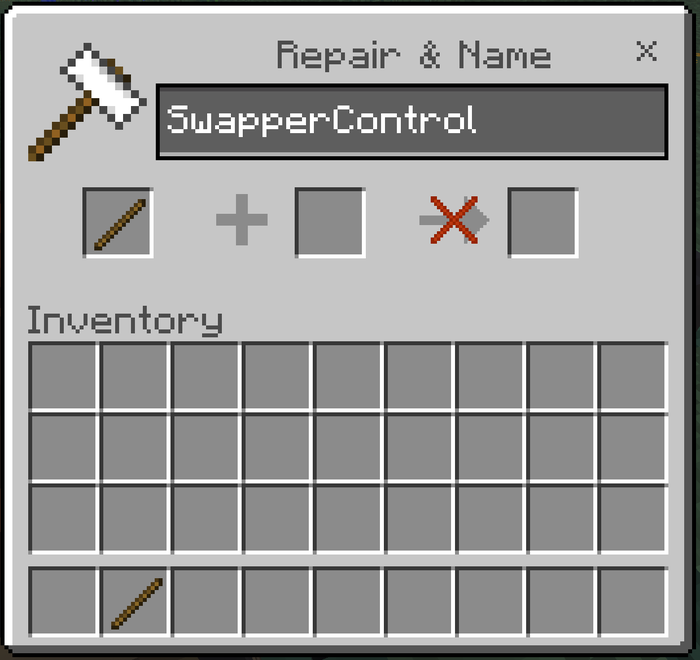
- Rename a Stick at an Anvil to exactly
SwapperControland use it to open your settings.
Nothing needs configuring first. Every option already sits on its recommended setting.
Automatic tool selection
What it does: Watches for you actually starting to break a block, works out what that block needs, scores every eligible tool you are carrying, and puts the winner in your hand. Pickaxes, axes, shovels, hoes, shears and melee weapons are all first-class.
Why and when to use it: It is the core of the add-on and it is on by default. It matters most in mixed ground — a mineshaft, a cave floor, a ravine — where vanilla has you reaching for a different hotbar slot every few seconds.
It covers the blocks other switchers consistently get wrong. Sculk in all five forms, sponge and wet sponge, hay bales, dried kelp, nether wart blocks, shroomlight and target blocks all correctly ask for a hoe. Wool, carpet, leaves and vines ask for shears. Cobwebs take shears, or a sword as a stand-in. Bamboo takes a sword. Muddy mangrove roots want a shovel while plain mangrove roots want an axe. Nether stems and hyphae are wood. Copper in every state — cut, waxed, oxidized, grates, bulbs, doors — is pickaxe work. Decorated pots and flower pots correctly ask for nothing at all, because no tool helps and the wrong one can cost you the sherds.
Where to use it: Anywhere. Overworld, Nether and End; Survival and Adventure. Creative works; Spectator is skipped.
How to use it: Start breaking a block. That is the entire interaction. Swapping follows what you do, never what you look at — glancing past a cow, a chest and a log on the way to the block you wanted changes nothing.
Suggested starting settings: Leave everything at its default for the first session. The defaults are Balanced selection, Respect-the-tool-you-chose enchantments, hotbar-only search, and tools near breaking skipped.
Return to the previous item
What it does: Remembers what was in your hand when you started, and gives it back when you stop.
Why and when to use it: This is the feature that makes the add-on feel like it is lending you a tool rather than taking over your hotbar. It matters most when building: place a run of blocks, notice one is wrong, break it, and your building stack is already back in your hand.
Where to use it: Anywhere the swapper is active.
How to use it: Automatic. The session closes after roughly half a second with no swings, and your original item returns.
Suggested starting settings: On. Almost nobody wants this off; it exists for players who genuinely prefer to keep whatever they last mined with.
Search scope — hotbar, or your whole inventory
What it does: Decides how far the engine may reach for a tool.
Why and when to use it: Hotbar only moves the selected-slot cursor and never touches your inventory — fast, completely predictable, and nothing can ever end up in the wrong slot. Hotbar and inventory also reaches tools sitting in rows 2 and 3: it swaps the tool you need into your hand, your held item out to where it came from, and puts the layout back when the action ends.
Choose whole-inventory if you carry spare tools in storage rows and hate reorganising mid-session. Stay on hotbar-only if you are particular about your hotbar and would rather nothing ever moved.
Where to use it: Anywhere. Whole-inventory does slightly more work per material change, which is worth knowing on a busy server.
How to use it: SwapperControl → Search scope.
Suggested starting settings: Hotbar only. Switch to Hotbar and inventory once you trust the restore.
There is one deliberate limit worth knowing. The restore checks that both slots still hold what it left there, so if you rearrange your inventory during a swing it does nothing rather than shuffle slots you have since changed. In that one case a borrowed tool can be left where the restore would have gone. That is the safe failure, and it is exactly why hotbar-only exists.
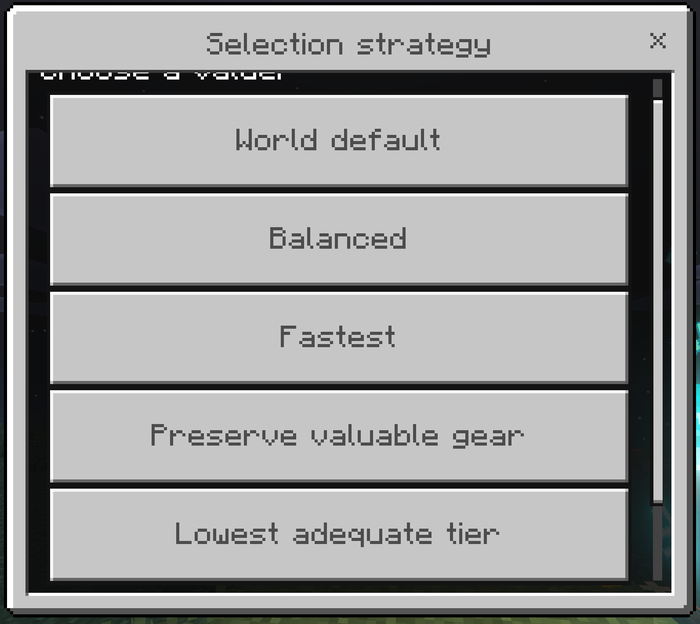
Selection strategy — four ways to define "best"
What it does: Tells the engine what "the best tool" means to you.
Why and when to use it: The worked example throughout: you own a stone pickaxe and an Efficiency V Netherite pickaxe, and you are mining ordinary stone.
- Balanced — weighs mining speed against what a tool costs to replace, and leans away from expensive gear when a fair alternative exists, without ever letting a wooden pickaxe beat a Netherite one on ordinary stone. Takes the Netherite.
- Fastest — the quickest valid tool, full stop. Takes the Netherite. For strip mining, where speed is the only thing that matters.
- Preserve valuable gear — cheap tools win outright, and speed only settles ties between equals. Enchantments and anvil names count heavily, so a named enchanted tool is treated as far more precious than its materials alone suggest. Takes the stone pickaxe.
- Lowest adequate tier — always the cheapest tier that can legally harvest the block. Takes the stone pickaxe, every time.
Efficiency is read with the real formula, so an Efficiency V iron pickaxe genuinely outranks a bare Netherite one under Fastest. That is not a quirk; it really is faster.
Where to use it: Anywhere.
How to use it: SwapperControl → Selection strategy.
Suggested starting settings: Balanced. Move to Preserve valuable gear if you find yourself wincing every time an enchanted pickaxe touches cobblestone.
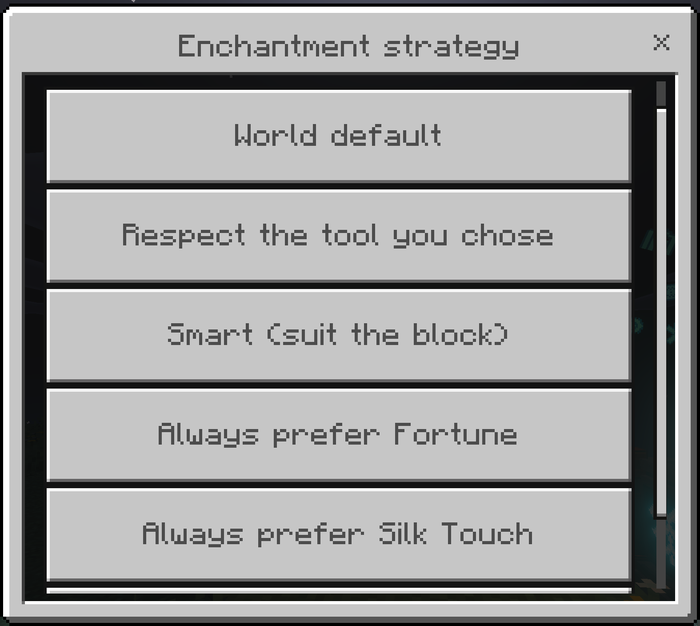
Enchantment strategy — what should the block drop?
What it does: Decides whether the engine cares about Fortune and Silk Touch, and which one a given block deserves.
Why and when to use it: This is the setting the whole add-on is built around. Fortune and Silk Touch are mutually exclusive, so a tool carrying either one is a decision about what the block should drop — and a switcher that treats them as "two valid pickaxes" will eventually hand you the wrong drop from a block you cannot get back.
- Respect the tool you chose (default) — if you are holding a Fortune or Silk Touch tool that can do the job, nothing swaps it out, whatever else you are carrying and however much faster it is. You picked it up on purpose.
- Smart — picks the enchantment each block deserves. Fortune on ores, gravel, glowstone, sea lanterns, melons, mushroom blocks and amethyst clusters. Silk Touch on glass, ice, grass blocks, mycelium, podzol, sculk, budding amethyst, turtle eggs, bookshelves, leaves, snow, spawners, trial spawners, vaults and end portal frames. Everything else takes whatever is fastest.
- Always Fortune / Always Silk Touch — exactly that, on every block, overriding both the block's own preference and the tool in your hand.
Where to use it: Anywhere. Smart is most valuable on a long mixed run where you would otherwise be swapping enchanted picks by hand.
How to use it: SwapperControl → Enchantment strategy.
Suggested starting settings: Respect the tool you chose. It is the safe option and never surprises you. Switch to Smart once you want the best drop without thinking about it.
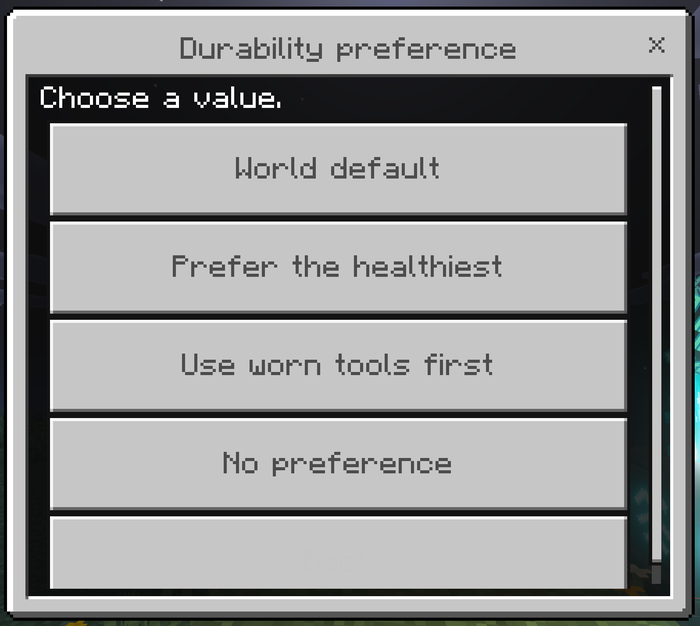
Durability preference
What it does: Decides which of two safe tools wins — the healthiest, or the most worn.
Why and when to use it: This is about spreading or concentrating wear, and is separate from the safety net that refuses nearly-broken tools outright.
- Prefer the healthiest — spreads wear evenly across your spares.
- Use worn tools first — finishes off a tool you want used up, repaired, or gone. Good for clearing a chest of half-dead pickaxes.
- No preference — ignores condition entirely.
Where to use it: Anywhere.
How to use it: SwapperControl → Durability preference.
Suggested starting settings: Prefer the healthiest. Switch to Use worn tools first only for a deliberate clear-out session.
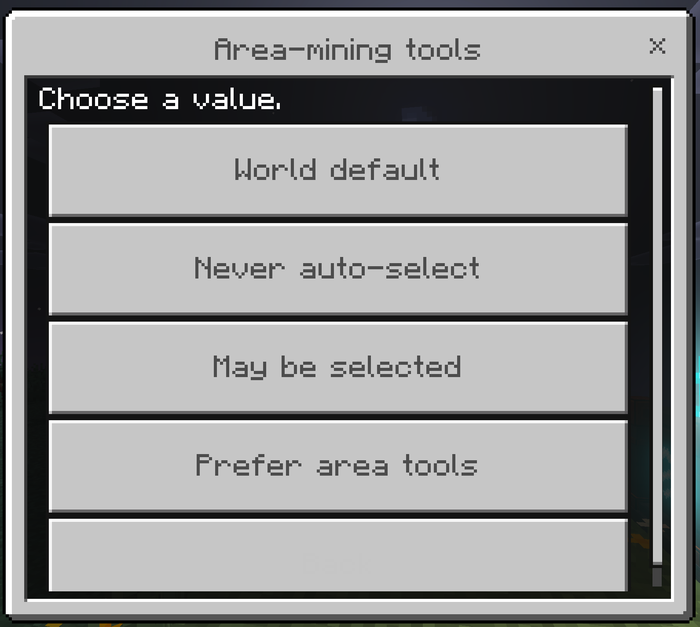
Area-mining tools
What it does: Decides whether multi-block tools — Hammers, Excavators, Tillers, Sickles, Scythes, Seeder Rakes, Pavers — may be selected automatically.
Why and when to use it: A 3×3 Hammer is technically a pickaxe. Equipping one to fix a single misplaced block takes eight of its neighbours with it, which is not what "swap to the right tool" should ever mean. So they are held back by default.
- Never auto-select (default) — never chosen for you. You can still use one by selecting it yourself.
- May be selected — competes normally with everything else.
- Prefer area tools — wins whenever one fits.
Where to use it: Anywhere, but Prefer is worth switching on deliberately when you are clearing space rather than building.
How to use it: SwapperControl → Area-mining tools.
Suggested starting settings: Never auto-select. Change it only for a dedicated clearing session, and change it back.
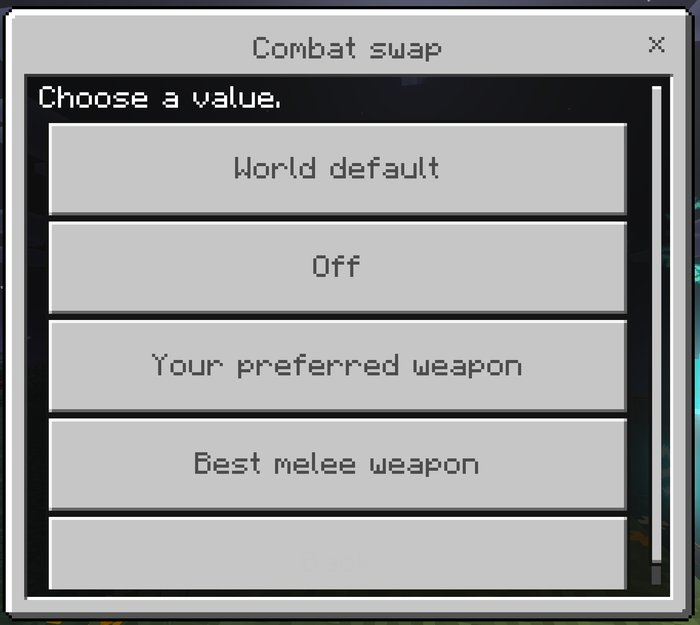
Combat swap and Combat Lock
What it does: Optionally selects a melee weapon when a fight starts, and holds that weapon for a short window so mining swaps cannot interrupt it.
Why and when to use it: Weapon management is a matter of taste, so it is off by default. Combat Lock, however, works whether or not combat swap is on — it is what stops a pickaxe appearing mid-swing because the wall behind a zombie drifted into your crosshair.
- Off (default) — weapons are never touched.
- Your preferred weapon — selects only a weapon you have explicitly marked Preferred, and does nothing at all until you mark one.
- Best melee weapon — scores base damage and Sharpness and takes the best you carry.
Combat is intent-based like mining: the weapon comes out when you start attacking, not when an entity enters your crosshair.
Where to use it: Anywhere you fight.
How to use it: SwapperControl → Combat swap.
Suggested starting settings: Off, with Combat Lock left on. Turn combat swap to Best melee weapon if you want weapons handled too.
Sneak to pause
What it does: Holding sneak stops the swapper entirely. Releasing it resumes.
Why and when to use it: It is your manual override, and the fastest one possible — no menu, no command, no delay. Use it when you want to break one specific block with one specific tool and not have the engine think about it at all.
Where to use it: Anywhere.
How to use it: Hold sneak.
Suggested starting settings: On. Turn it off only if you sneak constantly while mining — around ledges, say — and find the pause disruptive.
Marking a tool: Preferred, Normal, or Never auto-select
What it does: Marks one exact item so the engine always favours it, or never touches it.
Why and when to use it: The mark follows that specific stack, not its item type. Two identical Diamond pickaxes in the same hotbar can carry different marks — one off limits, one in the rotation. That is the entire point: "never auto-select Diamond pickaxes" would be useless, because you want the engine to use the other one.
Mark something Never for a named collector's piece, a specific enchantment combination you are saving, a tool reserved for one job, an area tool you want available manually but never automatically, or simply the pickaxe you do not want anything touching.
Mark something Preferred for the tool you always want reached for first regardless of strategy — and note that Combat swap → Your preferred weapon does nothing until you mark a weapon this way.
Where to use it: The tool must be in your hotbar to appear in the list.
How to use it: SwapperControl → Mark a tool: Preferred, Normal or Never → pick the tool from the list → choose a mark. The list shows each tool's current mark and slot, so you can see what is already set before changing anything.
Suggested starting settings: Nothing marked. Add a Never mark the first time the engine reaches for a tool you were saving.
Why did it pick that tool?
What it does: Runs the real engine against the block you are aiming at and prints the entire decision to chat.
Why and when to use it: An automatic selector that silently disagrees with you is the most frustrating kind of add-on to own, because there is nothing to look at. This is the answer, and it is the first thing to include in a bug report.
It reads back the block and the tool class and tier it needs; the drop intent; your active strategy, enchantment strategy and search scope; the safety floor and whether Durability Guard is raising it; every candidate it considered in score order with the reason each scored what it did; every tool it skipped and why; and what it would equip.
Where to use it: Aim at a block within reach first.
How to use it: SwapperControl → Why did it pick that tool?. The menu closes so you can read the chat.
Suggested starting settings: Not a setting — use it any time the add-on surprises you.
Action-bar note on every swap
What it does: Prints the chosen tool and the main reason it won just above your hotbar — Iron Pickaxe (has Fortune) — and says what you were returned to when the action ends.
Why and when to use it: Switch it on while you are tuning your strategy; it shows you exactly what the engine is thinking, in real time. Most people switch it off once they trust it, which is why it is off by default.
Where to use it: Anywhere.
How to use it: SwapperControl → Action-bar note on every swap.
Suggested starting settings: On for your first session, off afterwards.
Teach Smart Tool Swapper — custom tools from other add-ons
What it does: Registers an item type as a tool class for the whole world, so the engine understands gear it cannot read on its own.
Why and when to use it: Tools that declare the ordinary Bedrock item tags — minecraft:is_pickaxe, is_axe, is_shovel, is_hoe, is_sword, digger — are recognised with no setup at all. A well-built add-on declares these and its tools work here immediately.
Not every add-on does, and there is no reliable way to inspect a third-party item's internal block list from script. So rather than depend on introspection that may not be there, an operator can simply tell the engine what a tool is, once, for the whole world. A taught classification outranks both the item's tags and its name, so this is also how you correct a tool the engine reads wrongly.
Where to use it: The tool must be in your hotbar. This lives behind the operator stick because the registration is world-wide.
How to use it: AdminSwapperControl → Teach Smart Tool Swapper → Register a tool from my hotbar → pick it → choose its class → say whether it breaks an area. The class-picker shows the item's id and a Currently read as line telling you what the engine thinks it is right now.
Suggested starting settings: Nothing registered. Add entries only when a specific tool is being ignored or misread.
Crafting Recipes
Andy's Smart Tool Swapper adds no custom items. Both menus are opened by a plain vanilla Stick renamed at an Anvil. There is no Crafting Table recipe to unlock and nothing new appears in the creative inventory.
SwapperControl (Anvil rename)
Recipe type: Anvil rename — no Crafting Table recipe
- Obtain a Stick.
- Rename it at an Anvil to exactly:
SwapperControl - Use the renamed Stick to open your personal settings.
Exact match required: Yes — the name is matched exactly, including capital letters. swappercontrol and Swapper Control will not work. This is by far the most common way players get this wrong.
What it produces or unlocks: Your ten personal settings, the Mark-a-tool page, and the "Why did it pick that tool?" report.
Who can use it: Any player. No permission is required, which is correct — these settings only affect the player holding it.
AdminSwapperControl (Anvil rename)
Recipe type: Anvil rename — no Crafting Table recipe
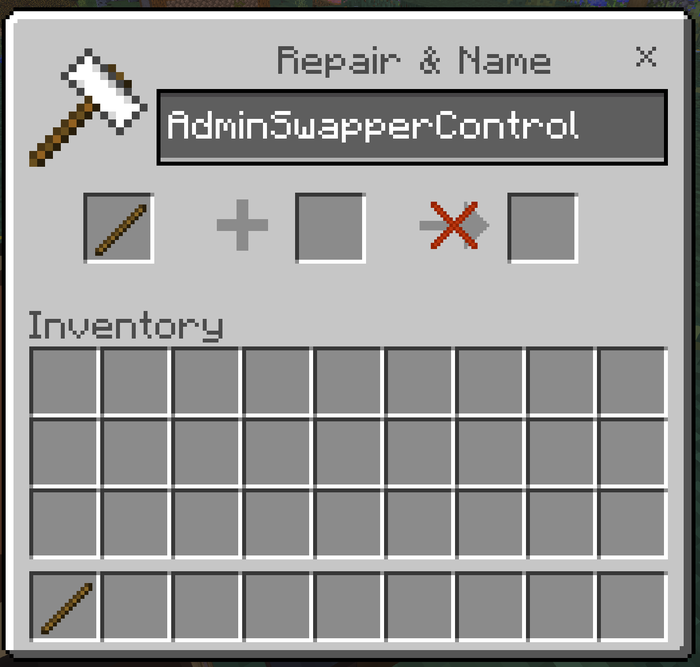
- Obtain a Stick.
- Rename it at an Anvil to exactly:
AdminSwapperControl - Use the renamed Stick to open the world settings.
Exact match required: Yes, exactly as above, capital letters included.
What it produces or unlocks: The six world-setting pages, Teach Smart Tool Swapper, and the option to clear the operator override.
Who can use it: Operators only. Anyone can rename a Stick — renaming needs no permission — so the restriction is enforced in script when the menu is opened, not at the Anvil. A non-operator who makes one is told in chat that only a world owner or operator can open the admin menu, rather than being left with an item that silently does nothing.
Admin & Operator Guide
Every category of behavior this add-on performs can be turned off or tuned by a world owner or server operator if your world or server policy doesn't allow it.
In-game operator menu
Rename a Stick at an Anvil to exactly AdminSwapperControl and use it. The menu opens six pages — Core Behavior, Selection & Enchantments, Durability, Tool Classes & Area Tools, Combat, and Players & Notifications — plus Teach Smart Tool Swapper and a Clear-override action.
World defaults can also be set from the gear icon beside the pack at world creation. There are 27 toggles there, all off by default, every one phrased as "do this unusual thing" so that a toggle which is never read behaves identically to one left at its recommended setting.
The status line at the top of the admin menu always says which layer is currently in force — the gear-menu settings, or an operator override — and how many settings the override covers.
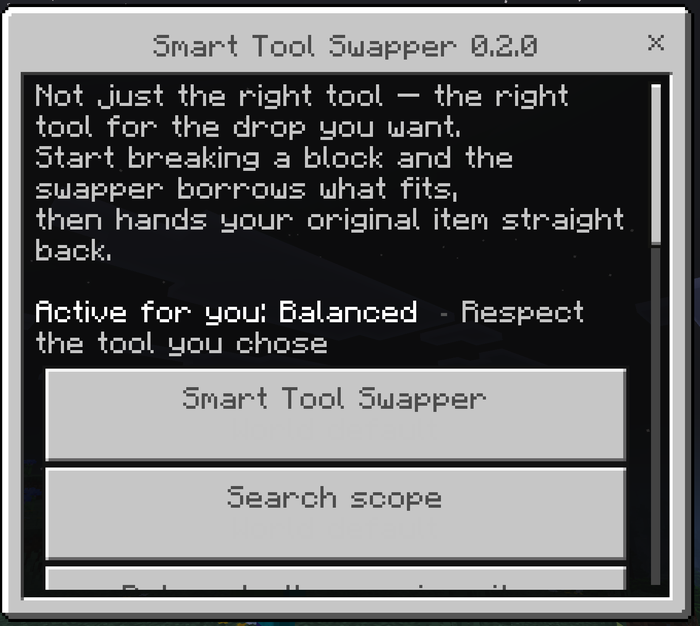
Smart Tool Swapper (master switch)
What it controls: Whether the add-on does anything at all on this world. Off means nobody gets swapping, whatever their personal settings say.
Why and when to change it: To disable the add-on without removing the pack — for an event, a build session, or while diagnosing something else.
Suggested starting value: On. Use scriptevent andy_sts:off for a quick temporary disable rather than uninstalling.
Search scope
What it controls: The world-wide default for how far the engine may reach — hotbar only, or hotbar and inventory.
Why and when to change it: Hotbar-only is the safer default on a busy server, since whole-inventory does more work per material change and touches inventory slots.
Suggested starting value: Hotbar. Players can still choose their own unless you lock them.
Return to the previous item
What it controls: Whether the add-on borrows or takes.
Why and when to change it: Effectively never. Off exists for completeness.
Suggested starting value: On.
Sneak pauses the swapper
What it controls: Whether holding sneak suspends swapping.
Why and when to change it: Leave it on — it is the only override a player has that needs no menu.
Suggested starting value: On.
Builder protection
What it controls: Keeps the swapper out of the way while a player is actively placing blocks — specifically, for a short window after placing one, while still holding a stack of building material.
Why and when to change it: It never blocks the useful case: start breaking a misplaced block and the right tool still comes to hand, then your building stack comes back. Turn it off only if you have builders who want swapping to be instant even mid-placement.
Suggested starting value: On.
Selection strategy (world default)
What it controls: The default definition of "best tool" for everyone on the world.
Why and when to change it: A survival server where gear should last sets Preserve valuable gear. A mining or resource server sets Fastest. A hardcore world sets Lowest adequate tier.
Suggested starting value: Balanced; Preserve valuable gear for a long-running survival world.
Enchantment strategy (world default)
What it controls: The default Fortune/Silk Touch policy for everyone.
Why and when to change it: Smart suits a resource server where players want the best drop without micromanaging. Respect the tool you chose suits anywhere players curate their own enchanted gear.
Suggested starting value: Respect the tool you chose.
Low-durability avoidance
What it controls: Whether tools close to breaking are eligible at all. This is the safety net, separate from the player-facing durability preference.
Why and when to change it: Turn it off only if you want the engine to hand out anything that still exists.
Suggested starting value: Skip tools near breaking.
Durability preference (world default)
What it controls: Which of two safe tools wins — healthiest, most worn, or no preference.
Why and when to change it: Worn-first suits a server running a communal tool chest.
Suggested starting value: Prefer the healthiest.
Points held back as unsafe
What it controls: How close to breaking is too close. A tool with this many durability points or fewer is never selected. Range 1–64.
Why and when to change it: Raise it if players report tools dying mid-swing, or if your world uses tools with unusually fast wear. Lower it if players complain good tools are being skipped.
Suggested starting value: 3 — roughly one or two more blocks on a normal tool, enough that nothing you are handed breaks in your hand. Raise to 5 on a survival server where losing a tool matters.
Respect Durability Guard
What it controls: Whether to read Andy's Advanced Durability Guard's reserve, when that add-on is installed, and raise the safety floor to match.
Why and when to change it: A tool inside the Guard's reserve still looks perfectly healthy to anything reading only its damage value — but equipping one produces a swing that does nothing, which reads as this add-on being broken. Turn it off only if you have deliberately set the Guard to something you do not want mirrored.
Suggested starting value: On. With no Durability Guard installed it does nothing either way.
Area-mining tools (world default)
What it controls: Whether Hammers, Excavators and similar multi-block tools may be auto-selected.
Why and when to change it: Leave it on Never unless your world is built around area tools. It is the setting that stops a 3×3 Hammer taking eight extra blocks when somebody meant to fix one.
Suggested starting value: Never auto-select.
Swap to pickaxes / axes / shovels / hoes / shears
What it controls: Each tool class can be switched off individually. Off means the engine will never equip one, for any block.
Why and when to change it: The common case is shears — a server where players keep accidentally shearing decorative sheep or leaves can switch shears off and leave everything else working. Melee weapons are governed by the Combat page instead.
Suggested starting value: All on.
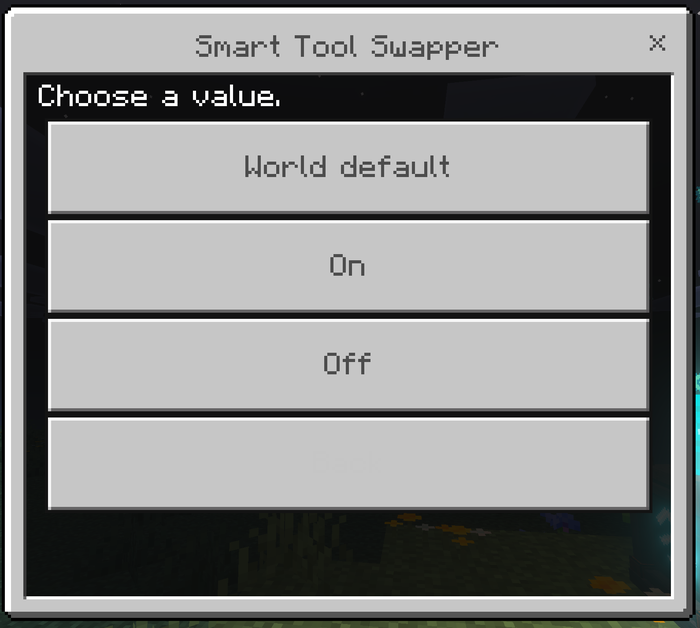
Combat swap (world default)
What it controls: The world-wide weapon policy — off, preferred weapon, or best melee weapon.
Why and when to change it: Off by default because weapon management is a matter of taste. A PvE server may want Best melee weapon on.
Suggested starting value: Off.
Combat Lock
What it controls: Holds the current weapon during a fight so a mining swap cannot interrupt it. Works whether or not combat swap is on — the part people miss.
Why and when to change it: Turning it off only makes sense if you want mining swaps to take priority during combat, which is rarely what anyone wants.
Suggested starting value: On.
Combat Lock window
What it controls: How long after the last hit the lock holds, 1–30 seconds.
Why and when to change it: Raise it for slower, more deliberate combat or players who circle-strafe with pauses. Lower it if players complain mining does not resume quickly enough after a fight.
Suggested starting value: 5 seconds.
Action-bar note on every swap (world default)
What it controls: The world-wide default for the swap notice.
Why and when to change it: Turn it on world-wide for a tutorial world, or a server where you want players to understand what the add-on is doing.
Suggested starting value: Off.
Players may change their own settings
What it controls: Whether personal settings are honoured at all.
Why and when to change it: Switch it off to lock everyone to the server configuration — useful on a competitive or curated server where the tool policy is part of the ruleset. SwapperControl then tells players their settings are locked rather than failing silently, and personal preferences are ignored entirely rather than half-applied.
Suggested starting value: On.
One-time welcome tip
What it controls: The single chat message a new player gets on first join, explaining the renamed Stick.
Why and when to change it: Turn it off on a server that does its own onboarding, or where chat noise matters.
Suggested starting value: On.
Clear the operator override
What it controls: Drops every operator change at once and hands the world back to the gear-menu values.
Why and when to change it: When you want to start over, or hand a world to someone else at its as-created defaults. Player marks and registered custom tools are unaffected.
Suggested starting value: Not a setting — an action, used deliberately.
Bedrock Dedicated Server / console access
Andy's Smart Tool Swapper supports full console administration without a form, for servers running headless or scripted. The event is authorized by source, not by player permission level — a console/server-issued command is always accepted, which is the usual failure in add-ons that check a player's permission rank and find nothing there.
scriptevent andy_sts:<action> <args>| Action | Effect |
|---|---|
set <key> <value> |
Change one setting |
get <key> |
Report one setting's current value |
list [group] |
Report every setting and its current value |
status |
Report the add-on's overall state and which config layer is in force |
reset |
Drop the operator override; gear-menu settings control the world again |
on / off |
Turn the swapper on or off without changing anything else |
player <name> <key> <value|inherit> |
Change one connected player's personal setting |
player_get <name> |
Report one player's personal settings |
player_reset <name> |
Return a player to the world default |
teach <item id> <class> [area] |
Register a custom tool |
forget <item id|all> |
Remove a registration |
tools |
List registered custom tools |
debug <player name> |
Print the full "why did it pick that tool?" report for a player |
help |
List every command |
Setting keys are the aliases andy_sts:list prints: enabled, search_scope, return_item, sneak_bypass, builder_protection, strategy, enchant_strategy, durability_avoidance, durability_preference, durability_floor, guard_awareness, area_tools, swap_pickaxe, swap_axe, swap_shovel, swap_hoe, swap_shears, combat_swap, combat_lock, combat_lock_seconds, notify_swaps, allow_player_config, welcome_tip.
Booleans accept on, true, 1, yes, enable, enabled and their opposites.
The gear-menu toggles are the base; anything set here is written into a persistent override that wins for that one setting only, so changing the search scope does not silently reset everything else.
Suggested base configuration for a new server:
scriptevent andy_sts:status
scriptevent andy_sts:set strategy preserve_gear
scriptevent andy_sts:set enchant_strategy respect_current
scriptevent andy_sts:set search_scope hotbar
scriptevent andy_sts:set durability_floor 5
scriptevent andy_sts:set area_tools never
scriptevent andy_sts:list
Compatibility
- Minecraft Bedrock 1.26.30 and newer
- Standard graphics and Vibrant Visuals/PBR
- Single-player, multiplayer, Realms, and compatible Bedrock servers
- All dimensions — Overworld, Nether and End. Survival and Adventure; Creative works, Spectator is skipped
- No cheats, commands, experiments, or required dependencies
- Blocks from other add-ons that the engine does not recognise are left alone entirely rather than guessed at, so an unfamiliar block never costs you the tool in your hand
Do not run two automatic tool switchers in one world. Both will try to control the selected slot, and the result is unpredictable regardless of which two you pick.
Companion add-on compatibility
None of these are required, and every add-on works completely on its own.
- Andy's Advanced Durability Guard — a tool inside the Guard's reserve is never selected, because equipping one produces a swing that does nothing. The Guard's reserve is read live from the world. Fail-closed: if the Guard is absent, or its configuration cannot be read, Smart Tool Swapper falls back to its own safety floor rather than assuming no reserve — skipping a nearly-spent tool is the safe error; equipping a dead one is not.
- Andy's Advanced Hammers, Excavators & More — Hammers, Excavators, Tillers, Sickles and Seeder Rakes are recognised as area tools and held out of automatic selection by default.
- Andy's Silk Touch Relics — spawners, trial spawners, vaults, budding amethyst and end portal frames ask for Silk Touch, so the right pickaxe is already in hand when the relic system checks.
- Andy's Configurable Vein Miner & Tree Capacitor — the swap happens on the punch, before the block breaks, so the intended tool is already active when vein mining triggers.
- Andy's Handy Hotbar Reloader — complementary; refilling stacks belongs there and this add-on stays out of it.
Troubleshooting
Nothing swaps at all
- Are you sneaking? That pauses the swapper by design.
- Open
SwapperControl— if your personal setting is Off, that is the answer. - On a server,
scriptevent andy_sts:statusreports which configuration is in force. - Check you are not in Spectator, which is skipped.
- Check no second tool switcher is installed.
The renamed Stick does nothing when I use it
- The name is matched exactly, including capital letters:
SwapperControl,AdminSwapperControl. No space, no lower-case s. - It must be a plain vanilla Stick, not a stick-like item from another add-on.
AdminSwapperControlrefuses anyone who is not an operator — it says so in chat rather than failing silently.- Try once more. A form opened in the same moment as an item use is occasionally refused while another screen is still closing.
It picked a tool I did not expect
- Open
SwapperControl→ Why did it pick that tool? while aiming at the block. It lists every candidate with its reason. - Almost always the selection strategy, the enchantment strategy, or the durability floor doing exactly what it was set to.
It will not use my best pickaxe
- It may be marked Never auto-select.
- The strategy may be Preserve valuable gear or Lowest adequate tier, both of which deliberately save it.
- It may be close enough to breaking that the safety floor is skipping it.
- The diagnostic names whichever it is.
It swapped away from my Silk Touch pickaxe
- With Respect the tool you chose — the default — it should not have, as long as that pickaxe could actually harvest the block.
- If your enchantment strategy is Smart, Always Fortune or Always Silk Touch, it overrides your held tool by design.
- If the block needed a higher tier than that pickaxe could manage, the swap was correct: a tool that cannot break the block is not a candidate at all.
My Hammer is not being equipped
- Deliberate. Area tools are never selected automatically until Area-mining tools is set to May be selected or Prefer area tools.
A custom tool from another add-on is ignored or misread
- It does not declare the item tags the engine reads. Register it under Teach Smart Tool Swapper, or from a console with
scriptevent andy_sts:teach <item id> <class> [area]. - A taught classification outranks both the item's tags and its name, so this also fixes a wrong guess.
My hotbar got rearranged
- Whole-inventory search borrows tools into your hand and restores your layout when the action ends. If you rearrange your inventory during a swing, the restore is deliberately skipped rather than risk shuffling slots you have since changed — so an item can be left in the borrowed position.
- Switch Search scope to Hotbar only if you would rather nothing ever moved.
Settings changed on the gear menu are being ignored
- An operator override wins over the gear menu for each setting it covers.
scriptevent andy_sts:statusreports which is in force;scriptevent andy_sts:resetclears it. - If there is no override and the gear menu still is not taking effect, configure through the in-game menu or the console instead — some worlds do not expose saved gear values to a pack at all.
Nothing happens on a dedicated server
- Confirm both packs are listed in the world's
world_behavior_packs.jsonandworld_resource_packs.json, then runscriptevent andy_sts:statusfrom the console. No reply at all means the behavior pack is not loaded. - A permission refusal from the console should never happen — commands are authorized by the event source — so report it if you see one.
Reporting problems
Include:
- Smart Tool Swapper version
- Exact Minecraft Bedrock version and platform
- Standard or Vibrant Visuals graphics
- Single-player, multiplayer, Realm, or server
- Active Behavior and Resource Pack order
- The output of Why did it pick that tool?, which usually contains the whole answer
- Exact reproduction steps and any messages shown
- Screenshots or video
- Relevant Content Log entries
- Whether the issue repeats in a new backed-up test world with other add-ons disabled
Support AndyTheMakerMC
All of my Minecraft Bedrock add-ons are free to download and use. If one of my add-ons has improved your world, saved you time, or added something you wish Minecraft already had, consider supporting continued development. Your support helps fund the time and tools required to maintain existing add-ons, test new Minecraft Bedrock releases, fix bugs, create documentation and artwork, and continue building new add-ons.
Help me keep these add-ons free, updated, and actively maintained — support through Buy Me a Coffee or a direct donation through Stripe. Prefer another way? Ko-fi · Patreon · GitHub Sponsors. Every bit of support is appreciated, but it is never required.
Enjoying the add-on? Ratings, favorites, recommendations, and kind comments also help more Bedrock players discover Andy's work.
Explore more of Andy's add-ons
Visit AndyTheMakerMC.xyz for more Minecraft Bedrock add-ons, .mcstructure downloads, HoloPrint files, world lore, tutorials, guides, videos, and other creations.
Follow AndyTheMakerMC
Follow @AndyTheMakerMC for new add-on releases, development updates, tutorials, showcases, streams, and more Minecraft adventures, and join the community on Discord and Facebook:
End-user permission
You may download the official, unmodified release of Andy's Smart Tool Swapper from its official CurseForge or authorized GitHub project page and install, activate, and use it in personal single-player worlds, multiplayer worlds, Realms, and compatible Bedrock servers.
This permission includes Minecraft's normal automatic delivery of the official, unmodified add-on to players joining a world, Realm, or server where it is active. It does not permit offering the add-on file separately or distributing it as part of a world download, modpack, bundle, mirror, archive, or server download.
Content-creator permission
Content creators may use an official, unmodified release of Andy's Smart Tool Swapper in original gameplay videos, livestreams, screenshots, tutorials, reviews, showcases, articles, guides, social posts, and other original content, including monetized content.
Credit to AndyTheMakerMC and a link to the official CurseForge project page are appreciated whenever practical. This permission covers display of normal gameplay and commentary; it does not grant permission to redistribute, modify, extract, or republish the add-on or its assets.
License — All Rights Reserved
All Rights Reserved. Copyright © 2026 Andy / AndyTheMakerMC.
You may not redistribute, reupload, rehost, mirror, resell, sublicense, bundle, repackage, modify and publish, translate, adapt, decompile, disassemble, reverse engineer, extract, or reuse the add-on, its source code, scripts, documentation, branding, textures, models, pack icons, or promotional artwork without prior written permission from the copyright holder.
You may not create derivative works or incorporate any portion of the project into another add-on, Behavior Pack, Resource Pack, application, product, modpack, download, or project without prior written permission. The end-user and content-creator permissions above are limited permissions; they do not transfer ownership or grant redistribution rights.
The promotional artwork is original AI-assisted concept artwork directed for this project. It is not an in-game screenshot.
Minecraft is a trademark of Microsoft Corporation. This project is not affiliated with, endorsed by, sponsored by, or associated with Microsoft or Mojang Studios.
Andy's Smart Tool Swapper Team