Andy's Palette Paver / Randomizer
- By
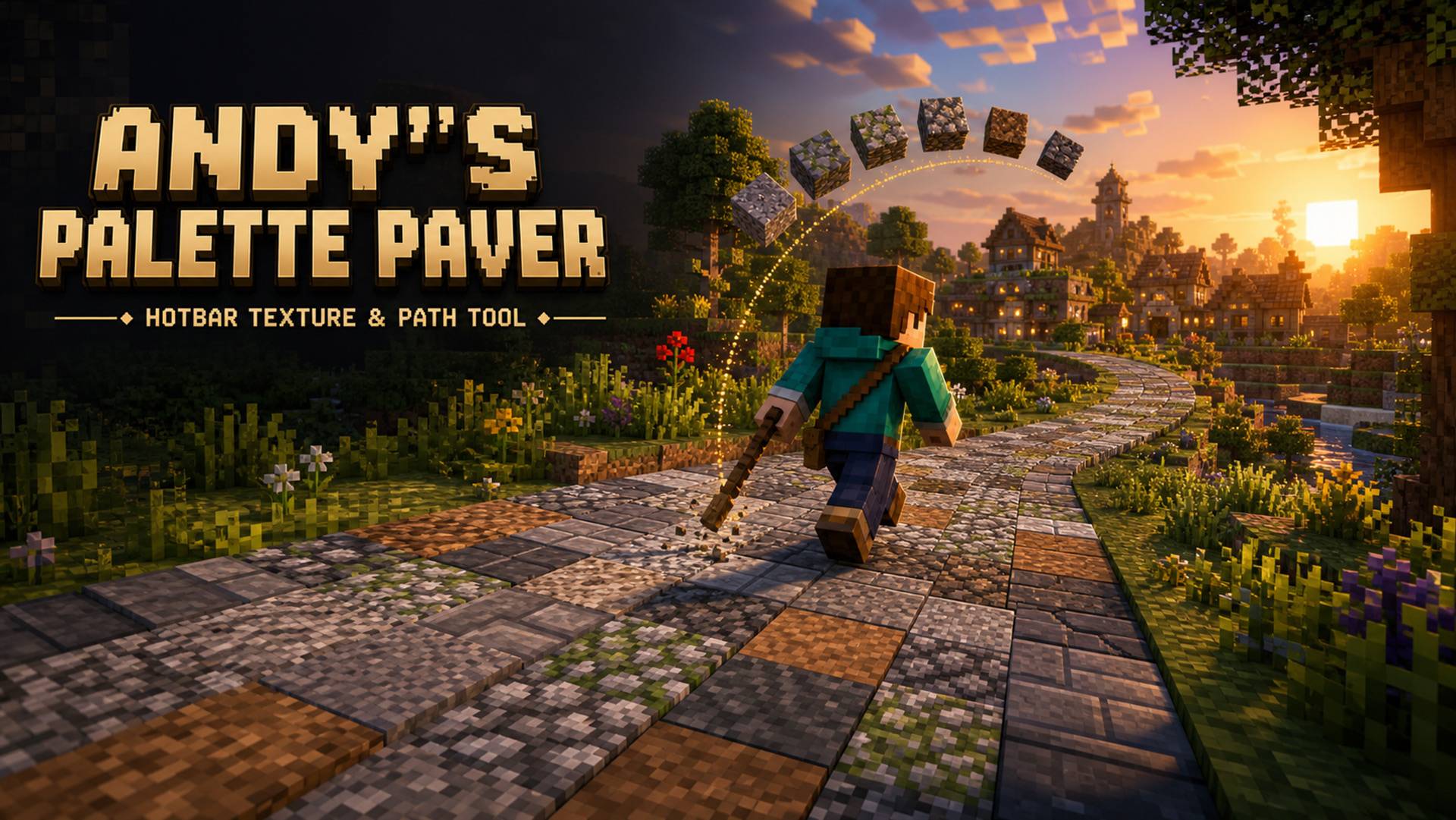
Andy's Palette Paver randomizes the placement order of blocks from hotbar slots 2–9 in Minecraft Bedrock. Use a renamed stick to quickly build naturally textured roads, paths, floors, walls, ruins, and terrain - no cheats required.
andys-palette-paver-hero-16x9.jpg
Description
Andy's Palette Paver
This is a Minecraft Bedrock add-on that randomly selects and places building materials from hotbar slots 2–9 while you keep a single tool in your hand. It is designed for textured roads, paths, floors, walls, ruins, roofs, landscaping, and terrain—anywhere a repeated single-block pattern looks too clean.
Fill the palette with materials such as stone, gravel, andesite, mossy blocks, wood, or your own combination, then build normally with the Palette Paver stick. Empty slots are ignored, Survival materials are consumed safely, and the add-on uses collision-safe walking and sprinting placement together with each material's correct vanilla placement sound.
Better Video Coming Soon.
Why it is helpful
Palette Paver removes the constant hotbar switching involved in textured building. It can create natural variation automatically, maintain a carefully weighted material mix over long projects, produce clusters and rare accents, or gradually blend one palette into another.
It is especially useful for:
- Roads, trails, paths, pavements, and bridges
- Castle floors, courtyards, ruins, and weathered walls
- Natural stone, cave, and terrain texturing
- Roofs, wooden structures, and mixed masonry
- Large projects where manually alternating blocks becomes repetitive
- Survival builders who want controlled variation without Creative-only tools
Main features
- Palette materials from any combination of hotbar slots 2–9
- Ordinary vanilla sticks renamed Palette Paver and Palette Paver Settings
- Nine randomization modes
- Per-slot weights, protected slots, exclusions, and diagnostics
- Empty and depleted slots automatically ignored
- Smart main-inventory refill
- Low-material warnings
- Walking and sprinting placement tuned for continuous path building
- Player collision protection
- Correct positional vanilla placement sounds
- Survival consumption and Creative preservation
- Presets with checksummed sharing codes
- Session or persistent placement statistics
- Per-player multiplayer settings
- No cheats or experimental toggles required
- Vibrant Visuals and visual resource-pack friendly
Requirements
- Minecraft Bedrock Edition 1.26.30 or newer
- Andy's Palette Paver behavior pack activated on the world
- No cheats required
- No Beta API experiment required
Installation
- Download the
.mcaddonfile. - Open it with Minecraft.
- Wait for Minecraft to report a successful import.
- Edit an existing world or create a new world.
- Go to Behavior Packs → My Packs.
- Select Andy's Palette Paver and press Activate.
- Enter the world and create the two tools.
When updating, import the newer .mcaddon, confirm the pack was updated successfully, and verify that the world is using the newest version.
Create the tools
For a completely vanilla, no-cheat setup, rename two ordinary sticks in an anvil:
Palette PaverPalette Paver Settings
Alternatively, run /abr:tools. This convenience command does not require cheats.
Keep Palette Paver in hotbar slot 1. Put building materials in slots 2–9. Use Palette Paver Settings on a block—or run /abr:menu—to open configuration.
Quick start
- Place Palette Paver in slot 1.
- Put eligible blocks in any of slots 2–9. Empty gaps are allowed.
- Open settings with the Settings stick.
- Enable Palette Paver.
- Aim at a block face and use the Paver.
- Hold the place control while walking or sprinting to extend paths continuously.
In Survival, one chosen material is consumed only after successful placement. Creative players keep their materials. If every material slot is empty or ineligible, nothing is placed or consumed.
Complete settings guide
General Settings
Enabled
Turns Paver placement on or off. It starts disabled so each player chooses when to activate it.
Frozen
Pauses Paver placement without deleting the palette, preset, mode, or other configuration.
Randomization mode
Chooses one of the nine selection modes described in the Randomization Modes section.
Sneaking keeps the current material
This is Sneak Bypass. When enabled, sneaking temporarily prevents the Paver from placing a randomized block. It is enabled by default.
Smart auto-refill
When a palette stack becomes empty, the add-on searches the player's main inventory and moves a matching stack into that hotbar slot.
Auto-refill matching
- Same block type: accepts an inventory stack that resolves to the same placed block.
- Exact item data: requires the replacement stack to be fully stack-compatible with the remembered hotbar item.
Low-material warning
Displays a warning when the total remaining amount of the selected item reaches the configured threshold. Set it to 0 to disable warnings.
Action-bar feedback
Controls routine status and low-material messages above the hotbar.
Chat feedback
Controls chat-based help, warnings, and state responses.
Placement and feedback sounds
Controls block placement audio and short add-on state sounds. Placement uses the chosen block's vanilla sound group, pitch range, and volume at the block's world location.
Quiet mode
Suppresses routine sound, chat, and action-bar feedback.
Persist statistics
When enabled, placement statistics are saved between sessions. When disabled, they reset when the player leaves.
Reset to Defaults
Reset to Defaults restores the current player's active Palette Paver configuration to its original settings. A confirmation screen appears before the reset is applied.
Resetting will:
- Disable Palette Paver and clear the Frozen state.
- Enable hotbar slots 2–9.
- Restore every palette-slot weight to
1. - Select No Repeat mode.
- Restore all mode-specific options.
- Clear protected slots, exclusions, favorites, and accent lists.
- Disable Smart Auto-refill.
- Restore normal chat, action-bar, and sound feedback.
- Enable Sneak Bypass.
- Disable persistent statistics.
Saved presets and existing placement statistics are not deleted. After resetting, open General Settings and enable Palette Paver again.
Palette and Weights
Hotbar slot 1 is reserved for the Paver. Every material slot from 2–9 has two controls:
Slot enabled
Determines whether that slot participates in the palette.
Slot weight
Sets relative selection weight from 0–100. A weight of 0 disables the slot. A slot with weight 20 is selected roughly twice as often as a slot with weight 10 in weighted modes.
Weights are relative rather than fixed percentages. Empty slots, non-block items, disabled slots, and zero-weight slots are ignored.
Palette Safety
Protected slots
Each slot from 2–9 can be protected. A protected slot is never selected or consumed by Palette Paver.
Excluded block IDs
Comma-separated item or block identifiers that are never eligible. The minecraft: namespace is added automatically if omitted.
Example:
tnt, bedrock, minecraft:chestFavorite block IDs
Marks matching materials as Favorites in Palette Diagnostics and stores those labels in presets. In version 0.2.6, Favorites are informational and do not alter probability or override other safety settings.
Mode Details
Maximum streak
Limits repeated selections of the same block type in supported weighted modes when alternatives exist. Set to 0 for unlimited repetitions. Burst mode uses its configured burst length while a burst is active.
Minimum burst length
The shortest cluster created by Burst / Clump mode.
Maximum burst length
The longest cluster created by Burst / Clump mode.
Seed
The text used to initialize Seeded Random mode. The same seed and identical setup reproduce the same successful-placement sequence.
Rare accent block IDs
Comma-separated full identifiers for accent materials.
Example:
minecraft:mossy_cobblestone, minecraft:cracked_stone_bricksMinimum spacing between accents
The number of non-accent placements required before accent blocks are allowed again. Once eligible, an accent is still selected according to its weight; it is not forced.
Progressive blend length
The number of successful placements used to transition from normal palette weights to Progressive Blend ending weights.
Progressive Blend Weights
Sets the final weight from 0–100 for every material currently in slots 2–9.
Progressive Blend begins with the normal Palette and Weights values and moves linearly toward these ending weights over the configured blend length. It is useful for increasingly mossy roads, weathering, biome transitions, gradients, and mixed-material borders.
Presets
Save Current Settings
Stores the complete current configuration under a name.
Load Preset
Replaces current settings with the saved configuration.
Export Preset Code
Prints a checksummed ABR1: code to chat for sharing.
Import Preset Code
Validates and saves a shared preset code.
Delete Preset
Removes the selected preset.
Each player may store up to 24 presets with names up to 40 characters.
Statistics
The Statistics screen tracks:
- Total placements
- Count and percentage by block type
- Longest same-material streak
- Smart-refill count
The 12 most-used block types are shown. Statistics can be reset at any time.
Diagnostics
Palette Diagnostics lists each hotbar slot and explains:
- Which item is present
- Whether it is eligible
- Why it is rejected
- Its effective weight
- Whether it is marked as a Favorite
Use Diagnostics to find disabled, empty, protected, excluded, non-block, or zero-weight slots.
Randomization modes
True Random
Makes an independent weighted choice for each successful placement. Maximum Streak can prevent excessive repetition.
No Repeat
Avoids the previously selected block type whenever another eligible material exists. This is the default mode.
Shuffle Bag
Creates a shuffled weighted bag, uses every entry, and then rebuilds it. It reduces unlucky droughts while retaining randomness and configured weight differences.
Alternating
Cycles through eligible hotbar slots in order and skips gaps. Weight size does not affect the order, but weight 0 removes a slot.
Rare Accents
Uses normal weighted selection while enforcing minimum spacing between configured accent materials.
Balanced Random
Compares actual results with the weighted target mix and favors materials that have fallen behind. This keeps long projects near the requested distribution without producing a rigid pattern.
Burst / Clump
Chooses a weighted block type and repeats it for a random cluster length. Useful for patches of moss, cracked masonry, mixed stone, and natural-looking areas.
Seeded Random
Creates a repeatable weighted sequence from the configured seed. The palette, weights, settings, and order of successful placements must also match.
Progressive Blend
Gradually changes from the normal palette weights to the configured ending weights.
Commands
All commands are player-only and do not require cheats.
| Command | Purpose |
|---|---|
/abr:menu |
Opens all settings. |
/abr:tools |
Gives both named sticks. |
/abr:toggle |
Enables or disables Palette Paver. |
/abr:on |
Enables Palette Paver. |
/abr:off |
Disables Palette Paver. |
/abr:pause |
Freezes or resumes placement. |
/abr:status |
Shows current state, mode, palette slots, and refill status. |
/abr:slots <1-8> |
Enables that many consecutive palette slots beginning with slot 2. |
/abr:mode <mode> |
Changes the randomization mode. |
/abr:refill [on|off] |
Enables, disables, or toggles Smart Auto-refill. |
/abr:stats |
Opens Placement Statistics. |
/abr:help |
Shows abbreviated help. |
Mode command values:
true_random
no_repeat
shuffle_bag
alternating
rare_accents
balanced_random
burst
seeded_random
progressive_blend
Multiplayer and compatibility
- Every player has independent settings, presets, state, and statistics.
- Nearby players hear positional block placement sounds.
- Placement is rejected if the target space intersects any player.
- Vibrant Visuals remains fully supported.
- The add-on does not replace textures, lighting, shaders, water, skies, or color grading.
- Other visual resource packs remain in control.
- No global tick loop is used.
Supported and rejected placement
Palette Paver supports common full blocks, slabs, stairs, logs, directional blocks, and other ordinary building materials with best-effort vanilla orientation.
Doors, beds, occupied spaces, Adventure/Spectator placement, and other unsafe or unsupported placement-sensitive blocks are rejected without consuming materials. Those blocks can still be placed normally without the Paver.
Unknown third-party blocks that are otherwise placeable use the vanilla stone placement sound when no specific vanilla sound mapping exists.
Troubleshooting
"Put eligible blocks in hotbar slots 2–9"
Palette Paver cannot find a usable building material.
- Keep the Palette Paver stick in the leftmost hotbar slot, slot 1.
- Put at least one placeable block in slots 2–9.
- Open Palette and Weights.
- Ensure the occupied slots are switched on.
- Ensure each occupied slot has a weight of
1or higher. - Check Palette Safety for protected slots or excluded block IDs.
- Open Diagnostics to see why each slot is being rejected.
Empty slots are allowed and are automatically ignored.
If the cause is unclear, use Reset to Defaults, re-enable Palette Paver, and try again.
The Paver does nothing
Check the following:
- The stick is named exactly
Palette Paver. - Palette Paver is enabled under General Settings.
- The add-on is not Frozen.
- You are playing in Survival or Creative mode.
- You are aiming at a block face with an empty, replaceable space beside it.
- You are not sneaking while Sneak Bypass is enabled.
- At least one eligible block is available in slots 2–9.
The name is not case-sensitive, but using the exact recommended name avoids accidental spaces or spelling errors.
The settings menu will not open
Rename a second vanilla stick:
Palette Paver Settings
Use that stick on a block to open the menu. You can also run:
/abr:menu
Palette Paver commands do not require cheats.
Blocks are present but still rejected
Open Diagnostics from the main settings menu. Each hotbar slot will report one of the following:
- Eligible
- Empty
- Slot not selected
- Slot protected
- Block excluded
- Weight is zero
- Item is not a recognized block
Correct the reported setting or use Reset to Defaults.
Empty hotbar slots are being used
Empty slots are never selected. If an empty slot appears active in Palette and Weights, it only means that the slot is available when a block is placed into it.
Blocks are not being consumed
Palette materials are consumed only in Survival mode. Creative players retain their blocks.
A material is removed only after a successful placement. Rejected or obstructed placements consume nothing.
A depleted slot is not being refilled
Smart Auto-refill is disabled by default.
Open General Settings, enable Smart Auto-refill, and select either:
- Same block type
- Exact item data
A matching stack must be available in the main inventory.
The same material appears too often
Open Palette and Weights and check the relative weights. Higher weights make a material more common.
You can also select:
- No Repeat to avoid immediate repeats.
- Shuffle Bag for a more even distribution.
- Balanced Random to keep long builds closer to the requested proportions.
- Alternating for predictable hotbar order.
Duplicate stacks of the same block can also increase that material's overall probability.
Holding the place button places only once
Confirm that version 0.2.6 or newer is installed and active on the world. Older test versions did not continuously attempt placement while the control was held.
After importing an update, check the world's Behavior Packs and ensure it is using the newest version.
Placement pushes the player or stacks blocks unexpectedly
Install version 0.2.6 or newer. Current versions include movement-aware placement timing and player collision checks designed for building while walking or sprinting.
Aim at the leading face of the path while moving forward. Palette Paver will still allow vertical placement when the destination is clear.
Placement is silent
Open General Settings and verify:
- Placement and feedback sounds is enabled.
- Quiet mode is disabled.
- Minecraft's block and master volume settings are audible.
Vanilla blocks use their corresponding placement sounds. Unknown third-party blocks may use the stone placement sound as a safe fallback.
A door, bed, or other special block will not place
Multi-block and placement-sensitive materials may be refused because scripted placement cannot safely reproduce every part of their normal behavior.
Place those blocks normally without the Paver. Standard building blocks, slabs, stairs, logs, walls, falling blocks, and many directional blocks are supported.
A custom add-on block will not work
Third-party blocks are supported on a best-effort basis. Palette Paver can use a custom material only when Bedrock exposes it as a recognized placeable block.
Use Diagnostics to see whether the item is recognized. Unknown custom placement sounds use the vanilla stone fallback.
Resetting did not enable the Paver
This is expected. Palette Paver starts disabled by default, and Reset to Defaults restores that state.
After resetting, reopen General Settings and switch Enabled on.
Support Andy's Add-ons
If Andy's Palette Paver helps with your worlds, saves you time, or makes texturing more enjoyable, please consider supporting the development of future Andy's Addons.
Thank you for helping make more Bedrock building tools possible!
License and disclaimer
Andy's Palette Paver is released with All Rights Reserved.
Minecraft is a trademark of Microsoft Corporation. This project is not an official Minecraft product and is not approved by or associated with Mojang or Microsoft.
The Andy's Palette Paver / Randomizer Team