Andy's Explorer's Notebook
- By
A Minecraft Bedrock exploration addon that records Survey Marker coordinates, names, categories, and notes in a persistent notebook, with repair tracking and optional shareable signed archive volumes.
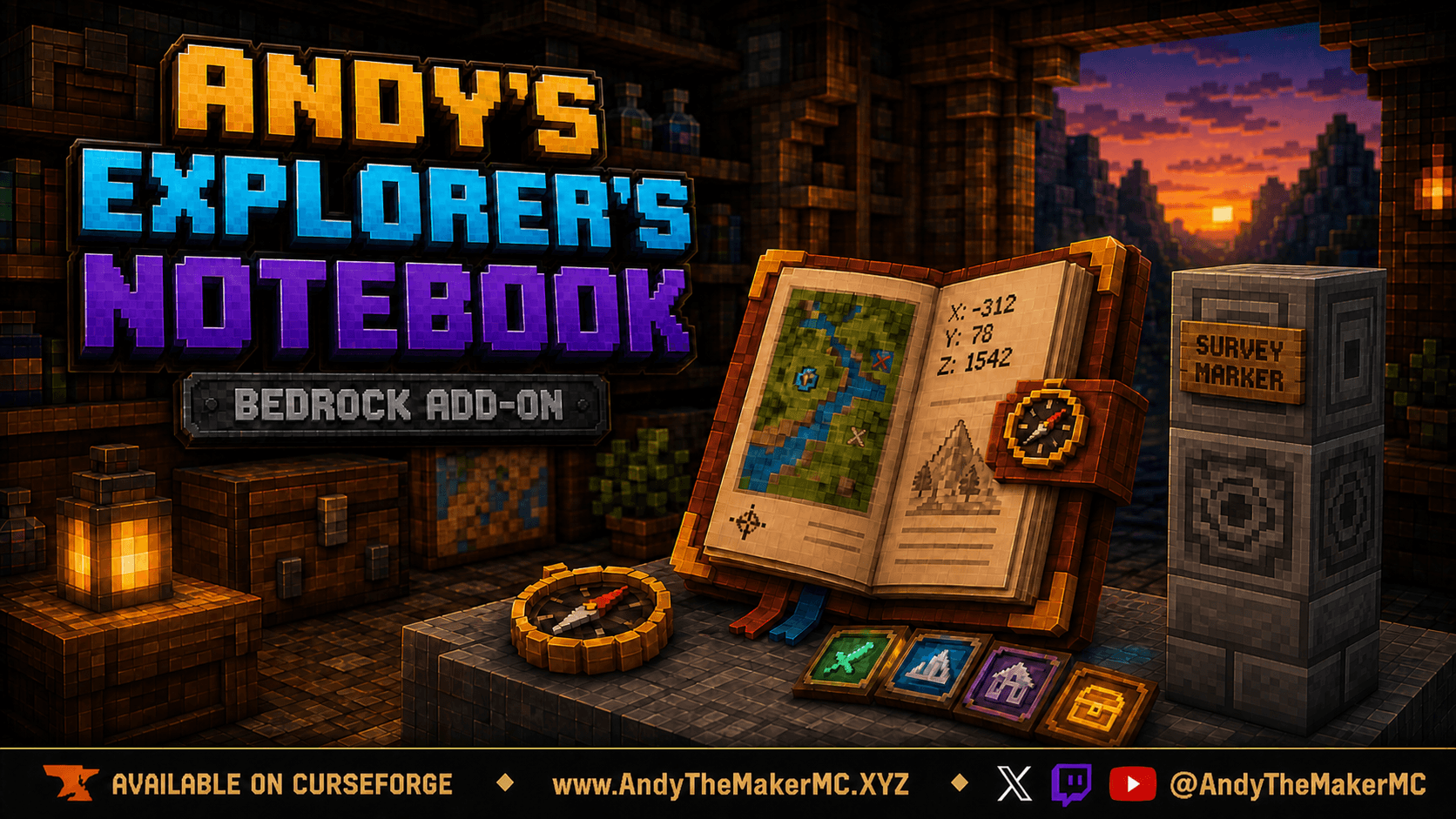
andys-explorers-notebook-hero-16x9-v4-standard-footer.png
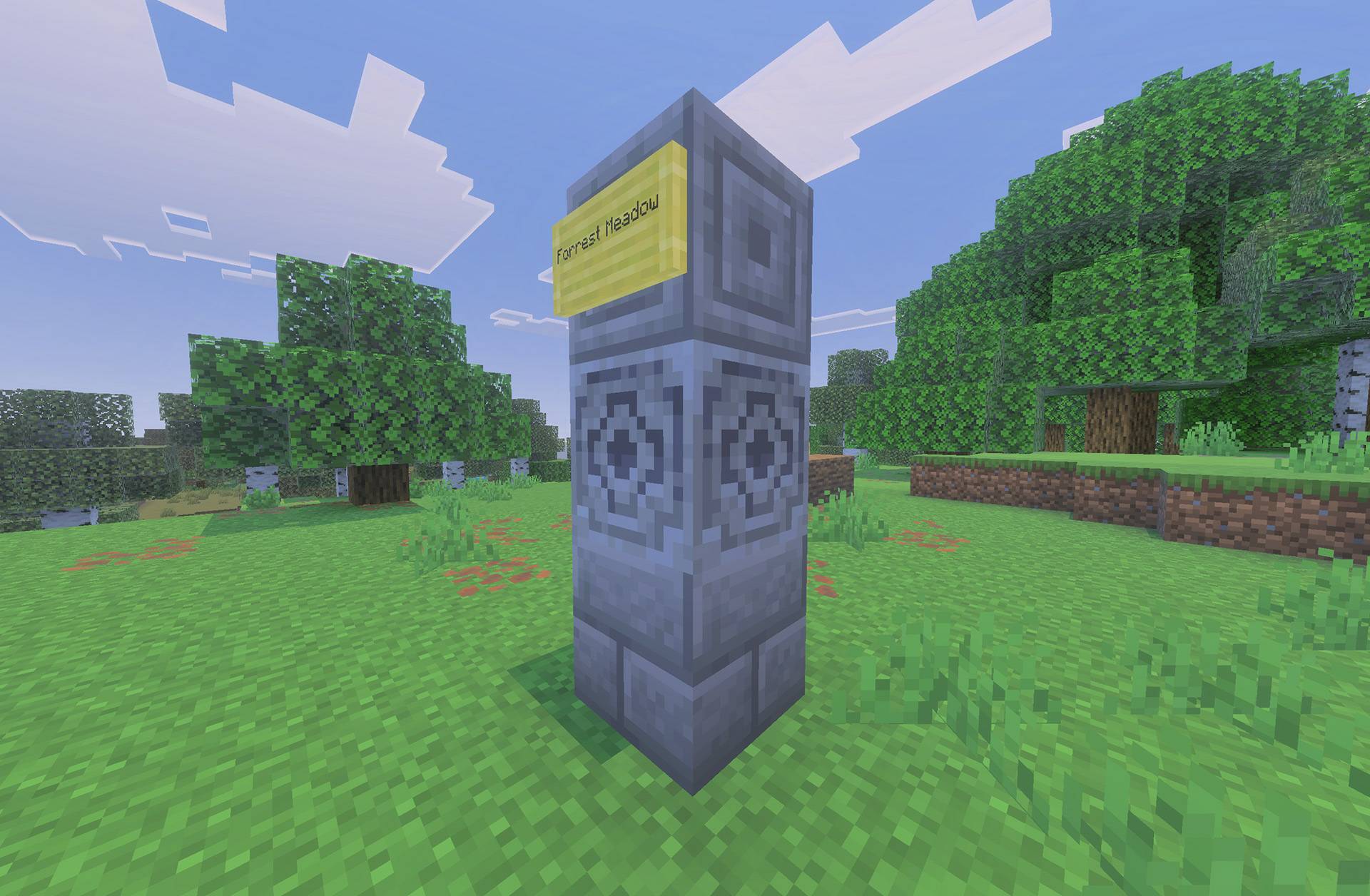
survey-marker-stack.jpg
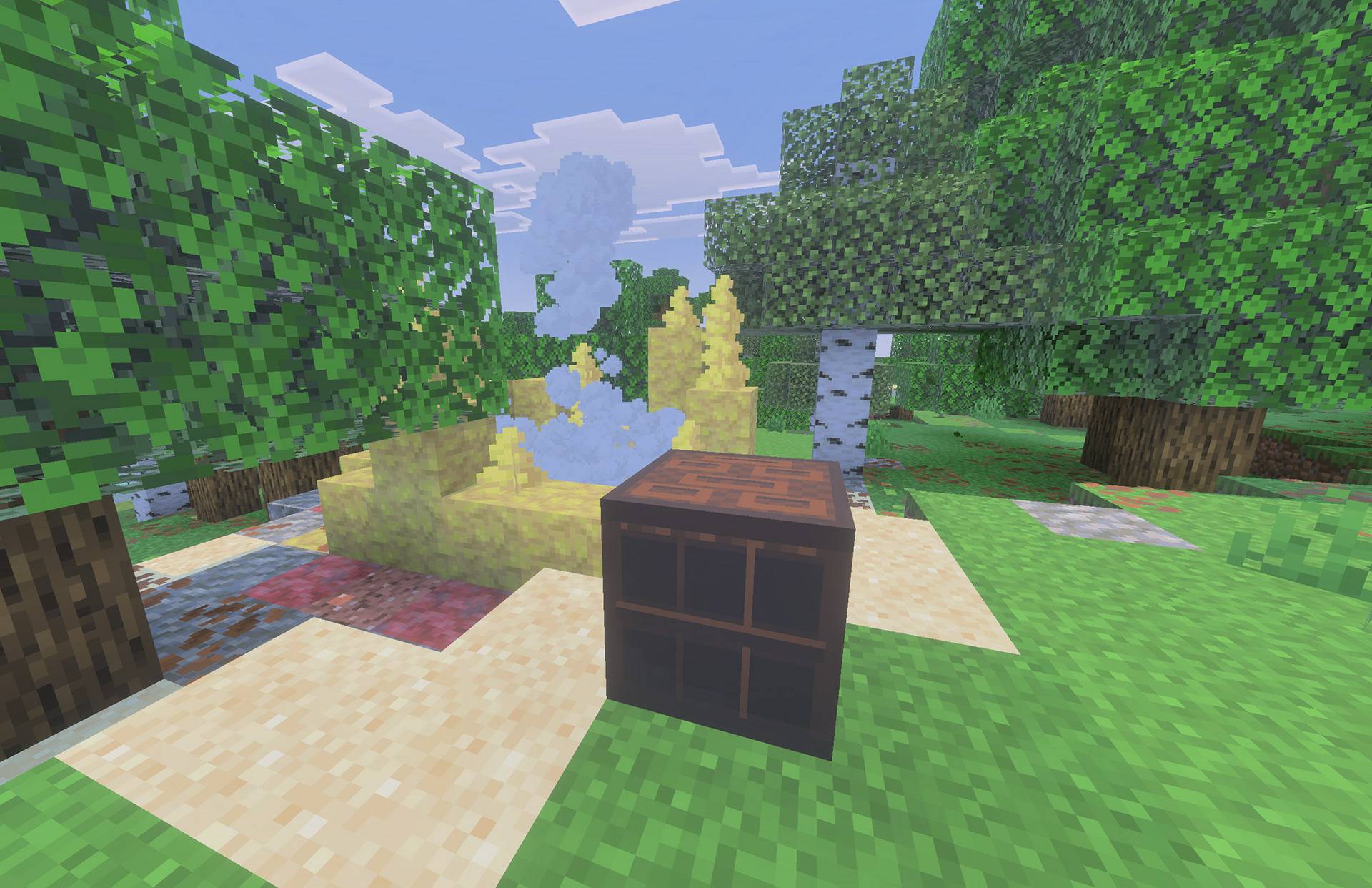
Archival-Chiseled-Bookshelf.jpg
Archival-process.jpg
Archive-Books-stored-in-bookshelf.jpg
Description
Andy's Explorer's Notebook
A Persistent Survey Journal and Coordinate Notebook for Minecraft Bedrock
Andy's Explorer's Notebook turns the places you discover into a lasting record of your world. Build a permanent Survey Marker at a cave entrance, village, portal, base, structure, landmark, or other meaningful site, then use the craftable leather Notebook on its Lodestone to record the exact coordinates, dimension, Minecraft day, category, site name, optional Waystone status, and your own field note.
Every entry is stored persistently in the world and presented through an immersive, signed-book-style two-page interface. Losing or destroying the physical Notebook does not erase the log: craft another one and the player's complete collection returns. Optional numbered archive volumes can turn those records into real signed books that can be shelved, preserved, or shared with other players, while the living Notebook continues to retain every recorded location.
Installation Guide
- Download
Andys_Explorers_Notebook_1.0.0.mcaddon. - Open the file with Minecraft Bedrock and wait for both included packs to import successfully.
- Create a world or edit the world where you want to use the add-on.
- Open Behavior Packs → My Packs.
- Select Andy's Explorer's Notebook BP and choose Activate.
- Confirm that the linked Andy's Explorer's Notebook RP is also active under Resource Packs.
- Select the active Behavior Pack's gear/settings button if you want to change the world-wide Notebook, archive, or Survey Marker options.
- Enter the world and craft the Explorer's Notebook.
On a Realm or Bedrock server, install and activate the add-on on the world before uploading or launching it. Joining players receive the required packs through Minecraft's normal world-pack delivery.
Minecraft Bedrock 26.40 or newer is required. Cheats and experimental gameplay toggles are not required for normal use. Back up an important world before installing or updating any add-on.
Features
- Persistent per-player exploration records stored in the world
- Records retained if a Notebook item is lost, burned, destroyed, or replaced
- Immersive two-page Minecraft book presentation with compact, readable entries
- Exact coordinates, dimension, Minecraft day, site name, category, note, and marker condition
- Deliberate survival-friendly Survey Markers instead of effortless coordinate capture
- Automatic green validation and randomized vanilla Amethyst Bud break sound
- Needs Repair tracking when a registered marker is damaged
- Landmark, Structure, Portal, Village, Place of Interest, Cave Entrance, Home, Farm, Base, and Illager Outpost categories
- Five personal Custom Categories with player-selected names and readable colors
- Optional Waystone Present notation
- Native-style page-turn arrows and a small in-book settings gear
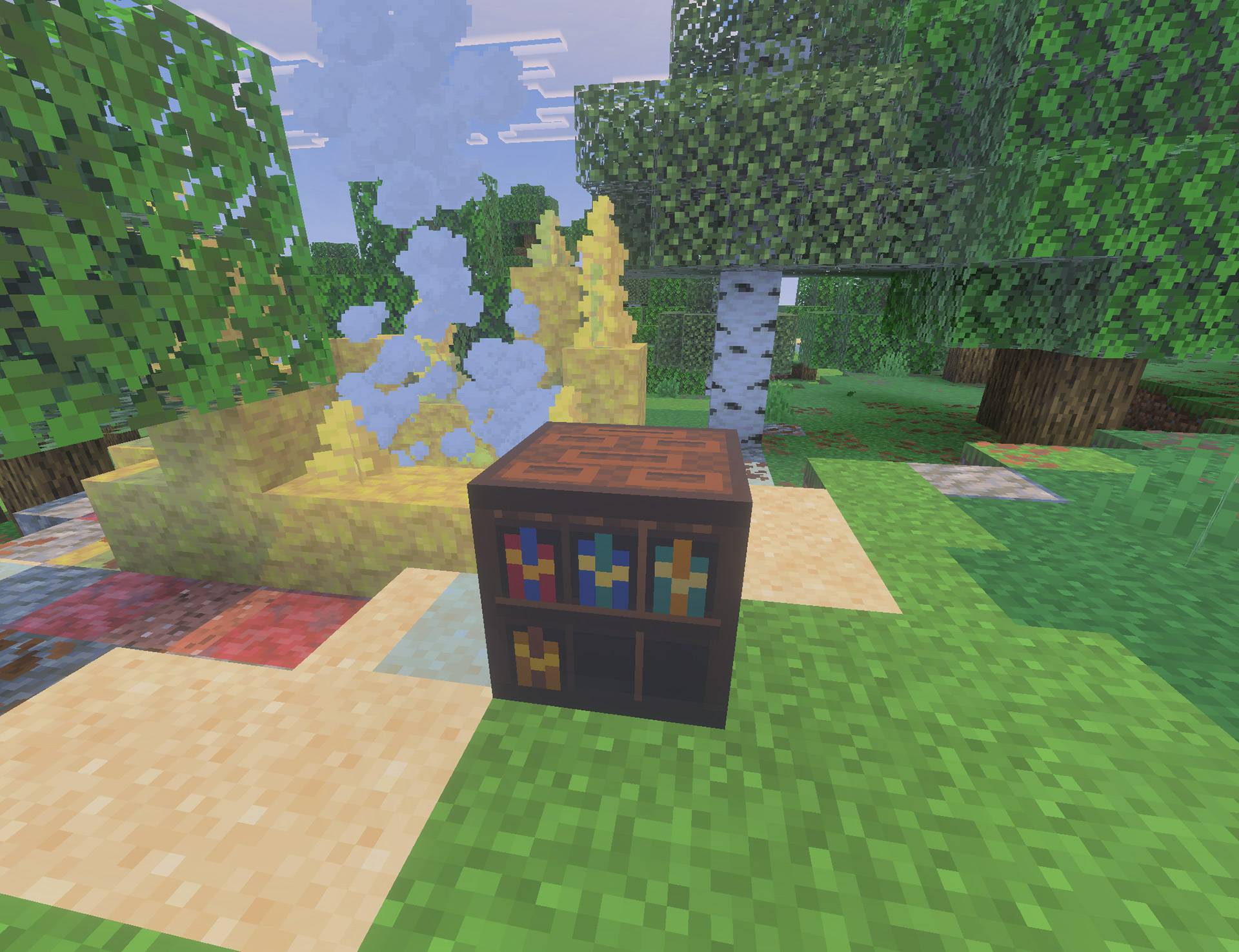
- Dark Oak Explorer's Archive Bookshelf with six visible book positions
- Optional sequential signed archive volumes containing up to 49 entries each
- Archive printing remembers the last printed entry and prints only newer records next time
- Physical archive books that can be stored or shared without replacing the living Notebook
- Vibrant Visuals/PBR support and standard-graphics compatibility
- Multiplayer, Realm, and Bedrock server support
- Stable Script APIs with no Beta API experiment required
Crafting the Explorer's Notebook
Combine these three items in any arrangement at a Crafting Table:
- 1 Book & Quill
- 1 Compass
- 1 Lodestone
The shapeless recipe unlocks when the player obtains a Compass.
Building a Survey Marker
A valid Survey Marker is a three-block vertical column with one ordinary wall sign attached to the top block.
Build the column in this exact bottom-to-top order:
- Place Stone Bricks as the bottom block.
- Place a Lodestone directly on top of the Stone Bricks. This is the middle block and the part the Notebook will use.
- Place Chiseled Stone Bricks directly on top of the Lodestone.
- Attach a normal wall sign to any one of the four side faces of the Chiseled Stone Bricks.
The sign must be attached to a horizontal side of the top block. A standing sign placed on top, a Hanging Sign, a sign attached to the Lodestone, or a different block order will not validate.
The add-on checks the completed structure whenever a required marker part is placed, so the pieces may be assembled in any placement sequence as long as the finished structure has the exact order above. When the marker becomes valid, the player receives a green Survey Marker verified and active message and hears one of Minecraft's randomized vanilla Amethyst Bud breaking sounds. Both forms of feedback can be enabled or disabled by the world owner through the Behavior Pack settings gear.
Recording a Location
- Hold the Explorer's Notebook.
- Interact directly with the middle Lodestone of a verified Survey Marker.
- Enter a site name of up to 36 characters.
- Choose a category.
- Add a short field note of up to 180 characters.
- If Waystone notation is enabled for the world and the player, choose whether a Waystone is present.
- Select Record Site.
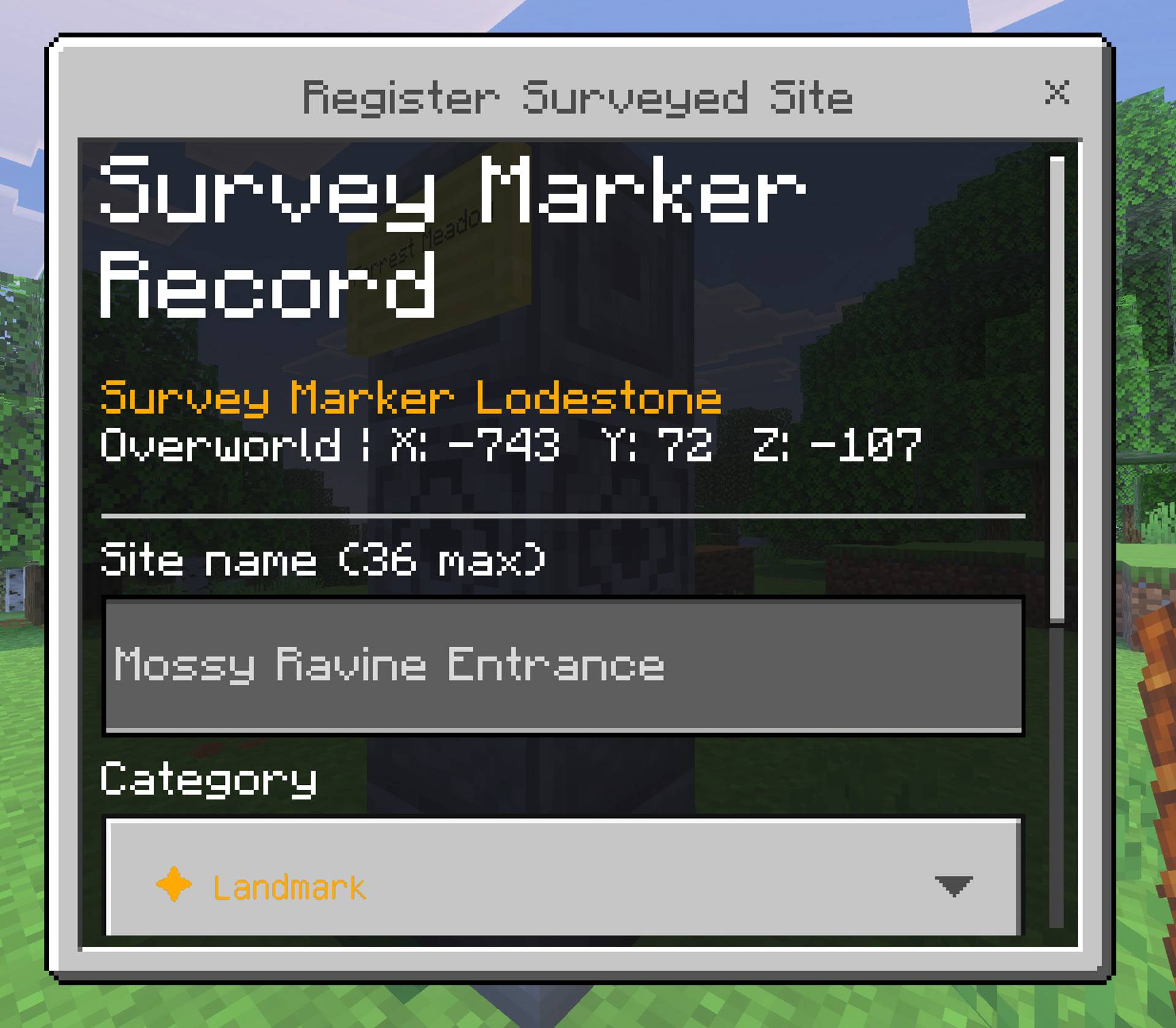
The entry records the Survey Marker's Lodestone coordinates, dimension, Minecraft day, category, site name, note, Waystone notation, and Verified marker status. Using the Notebook on the same registered marker again opens the entry for updating instead of creating an unnecessary duplicate.
A registered Survey Marker belongs to the explorer who recorded it. Another player cannot overwrite that marker's record in their own Notebook.
Viewing the Notebook
Use the Explorer's Notebook while pointing into the air or at a block other than a Survey Marker Lodestone or Explorer's Archive Bookshelf.
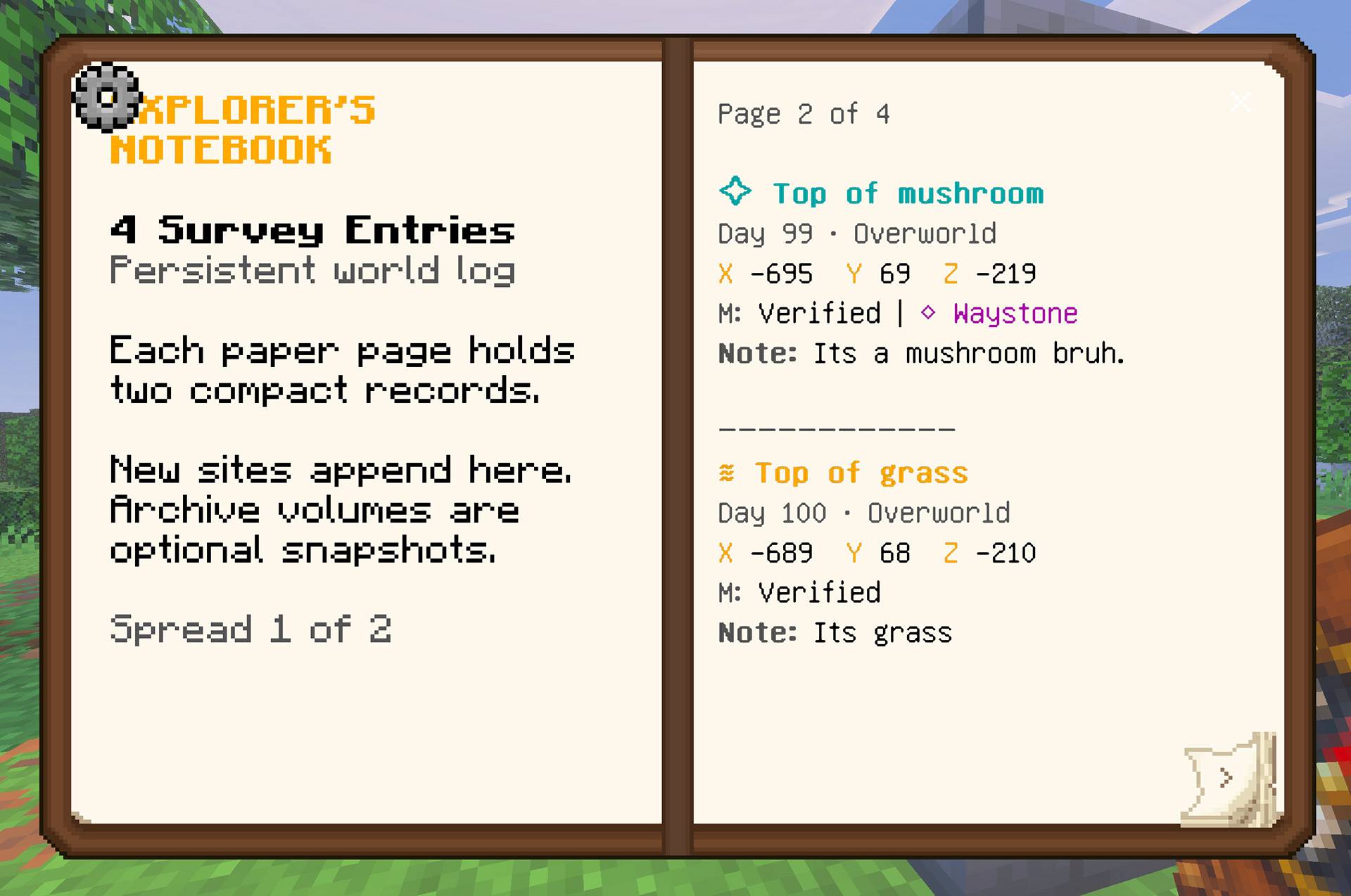
The Notebook opens as an immersive two-page book. The first spread places Notebook information on the left page and survey entries on the right. Later spreads use both pages for records. Each paper page fits up to two compact entries, and every entry displays its category symbol and color, site name, day, dimension, coordinates, marker condition, optional Waystone notation, and note.
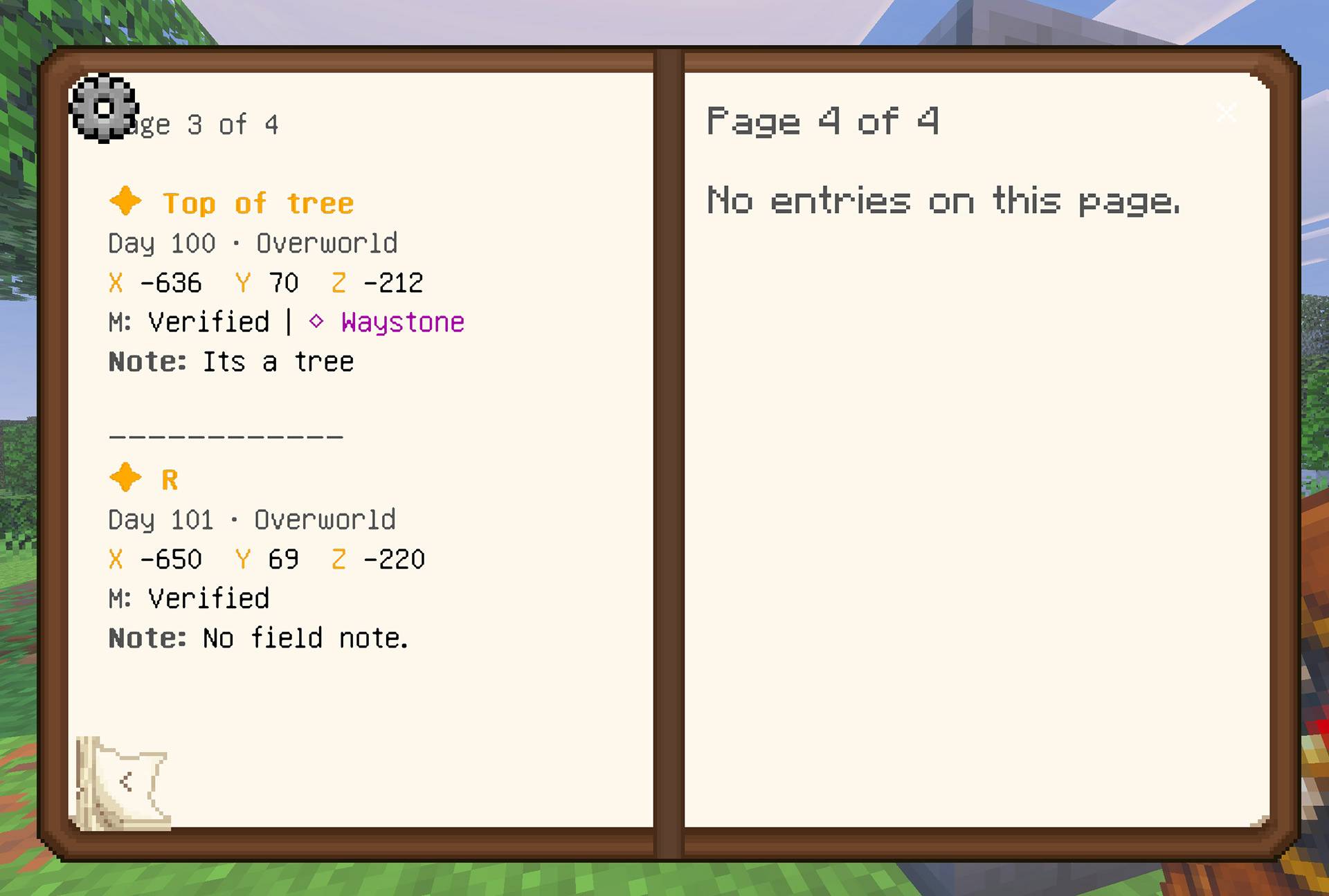
Use the small folded-corner arrows to turn backward and forward through the complete log. New sites append in the order they were surveyed, and recording a site opens the Notebook near that new entry.
There is no 49-entry cap on the custom Notebook. Its persistent master log is designed to continue across additional pages as the player records more discoveries.
Notebook Settings
Select the small gear in the open Notebook to configure personal options:
- Show or hide the Waystone Present field when recording locations.
- Configure up to five Custom Categories.
- Give each Custom Category a name of up to 24 characters.
- Choose a readable category text color.
- Enable or disable each Custom Category independently.
Every Custom Category uses the shared custom wind-charge-style symbol and displays it in the category's selected color.
These choices are stored per player. The world owner may disable Waystone notation or Custom Categories world-wide with the Behavior Pack settings gear; the personal controls remain available only when the corresponding world feature is allowed.
Built-In Categories
| Category | Visual Language |
|---|---|
| Landmark | Gold compass/star |
| Structure | Stone-gray tower |
| Portal | Purple portal glyph |
| Village | Gold bell |
| Place of Interest | Cyan sparkle |
| Cave Entrance | Teal cave glyph |
| Home | Red-orange house |
| Farm | Golden wheat |
| Base | Blue banner |
| Illager Outpost | Dark red outpost tower |
| Custom | Player-selected name and readable color with the shared custom symbol |
Damaged and Repaired Survey Markers
Breaking the Stone Bricks, Lodestone, Chiseled Stone Bricks, or attached wall sign of a recorded Survey Marker changes that site's condition to Needs Repair. The Notebook entry and all saved information remain intact.
Restore the exact three-block column and side-mounted wall sign. When the structure validates again, its recorded status returns to Verified, the repair message appears when world feedback is enabled, and the randomized Amethyst Bud break sound plays when sound feedback is enabled.
Crafting the Explorer's Archive Bookshelf
The Explorer's Archive Bookshelf is optional. Its shapeless Crafting Table recipe uses:
- 1 Chiseled Bookshelf
- 1 Compass
- 1 Ink Sac
The result is a Dark Oak version of the vanilla Chiseled Bookshelf style with six visible book positions.
Printing Archival Volumes
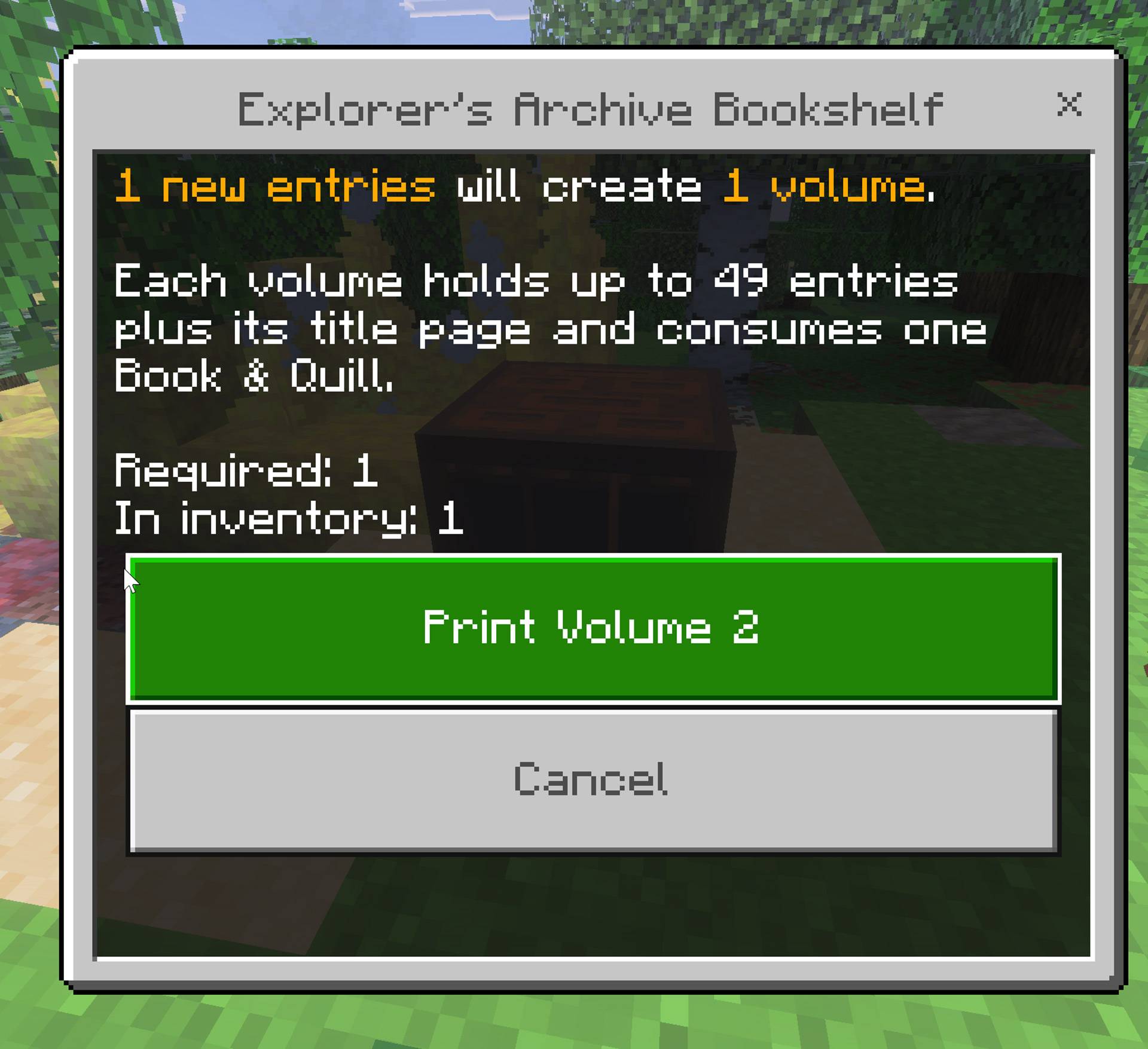
Archival printing is not required to preserve locations. The Explorer's Notebook already stores every recorded location in its persistent master log. Printing exists to create real in-world signed copies that can be placed in a library, preserved as expedition records, or given to other players.
To print:
- Place an Explorer's Archive Bookshelf.
- Carry the Explorer's Notebook.
- Carry at least one Book & Quill for every volume that will be created.
- Use the Notebook directly on the Explorer's Archive Bookshelf.
- Review the preview showing the number of new entries, volumes, and required Book & Quill items.
- Choose Print Volume or Print Volumes.
Each signed volume contains a title page and up to 49 survey entries, with two compact records on each entry page. One Book & Quill is consumed per printed volume.
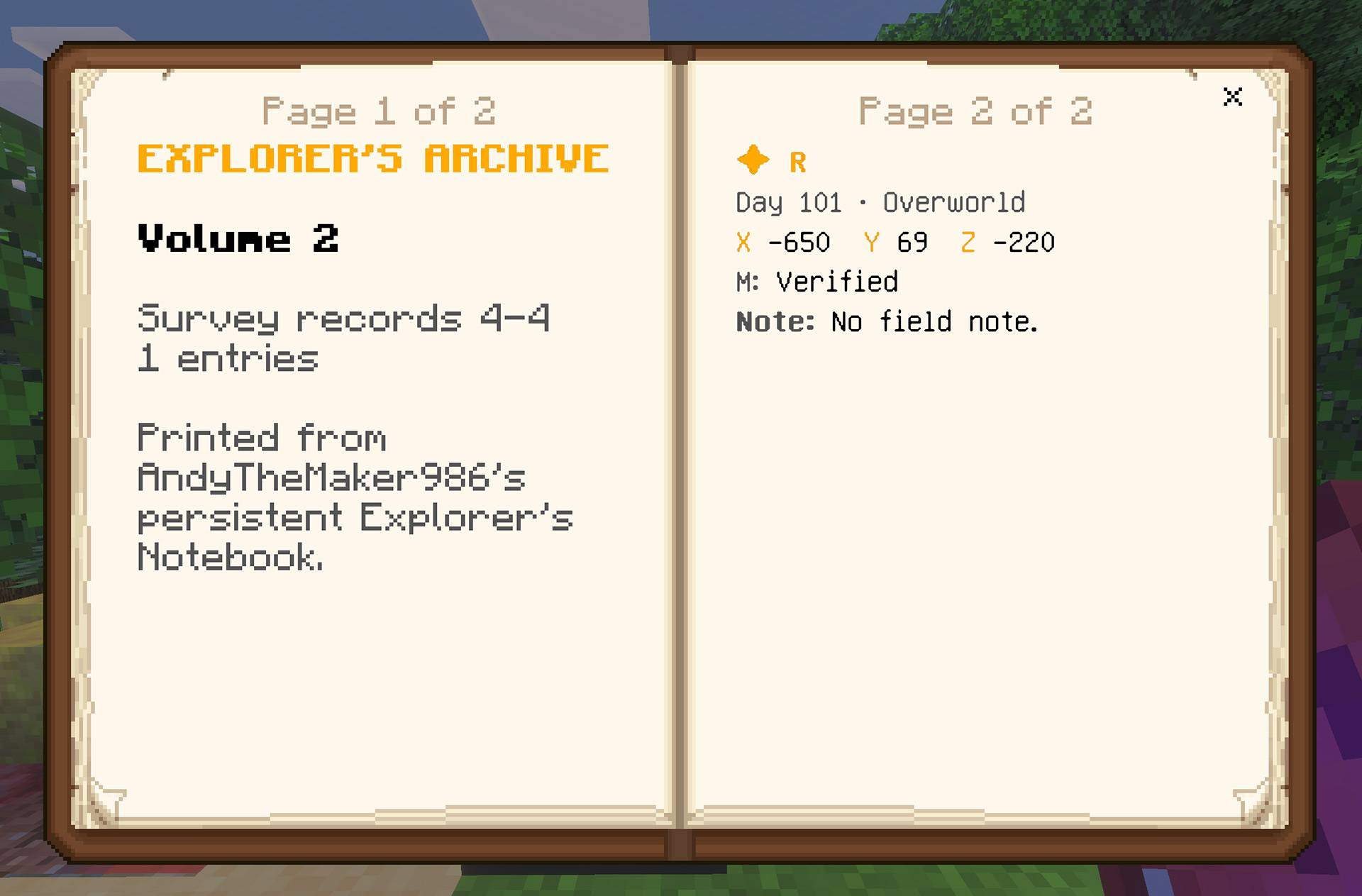
The printing history is persistent and sequential. The add-on remembers the last printed entry and next volume number. Later printing sessions include only entries recorded after the previous successful print and continue with the next numbered volume. Printed entries are never removed from the custom Notebook.
If there are no new records, the shelf reports that the archive is current. If there are more than 49 new entries, the add-on creates as many sequential volumes as needed, provided the player carries enough Book & Quill items.
Storing Books on the Archive Shelf
The Explorer's Archive Bookshelf stores up to six book items and changes its front appearance as its slots fill.
- Use an archive volume on the shelf to store it.
- The shelf also accepts Books, Book & Quills, Written Books, and Enchanted Books.
- Use an empty hand on the shelf to remove the most recently stored book.
- Breaking the shelf returns its stored books instead of deleting them.
- Signed archival volumes are ordinary physical signed books and can also be stored in regular vanilla Chiseled Bookshelves.
Because the archive copies are physical books, they can be removed, carried, displayed, stored in another location, or shared with another player. Losing an archive copy does not affect the persistent entries in the original explorer's Notebook.
Behavior Pack Settings Gear
World owners can select the active Behavior Pack's gear/settings button before entering the world. All settings begin enabled:
| Setting | Purpose |
|---|---|
| Allow Waystone Present notation | Allows players to show and record the optional Waystone field |
| Allow player Custom Categories | Allows the five personal Custom Category slots |
| Allow signed archive volume printing | Allows Notebook-on-shelf printing; existing books and shelf storage remain usable when disabled |
| Show validation and repair chat messages | Controls green validation/repair and red Needs Repair messages |
| Play amethyst validation sound | Controls the randomized Amethyst Bud break sound for validation and repair |
These are world-wide settings. Personal names, colors, and display preferences remain stored separately for each player.
Commands for World Owners and Operators
Andy's Explorer's Notebook adds no custom commands. Normal crafting, Survey Marker use, Notebook reading, settings, archive printing, and shelf storage require no cheats or operator permissions.
World owners or operators with cheats enabled may use vanilla commands for testing or recovery:
/give @s andys_explorers_notebook:explorers_notebook
/give @s andys_explorers_notebook:explorers_archive_bookshelf
There is intentionally no command that clears or rewrites a player's persistent Notebook archive.
Compatibility
- Minecraft Bedrock 26.40 or newer
- Single-player worlds
- Multiplayer worlds
- Realms and Bedrock servers that support world behavior and resource packs
- Standard graphics and Vibrant Visuals
- No required dependencies
- No cheats required for normal use
- No experimental toggles required
Both included packs must remain active. Public achievement compatibility is not advertised as guaranteed; Minecraft makes the final eligibility decision for each platform, version, world, and server configuration.
Troubleshooting
The Notebook or Archive Bookshelf has missing, pink, or incorrect textures
Confirm that both included packs imported successfully and that the Resource Pack is active. Move Andy's Explorer's Notebook RP above conflicting interface or texture packs, completely leave the world, and reopen it. Remove older duplicate pack copies if Minecraft retained them after an update.
The Survey Marker does not validate
Verify the exact structure: Stone Bricks on the bottom, Lodestone in the middle, Chiseled Stone Bricks on top, and a normal wall sign attached to one horizontal side of the top block. Standing signs and Hanging Signs do not count. Break and replace one required part to trigger another validation check.
Validation works but there is no message or sound
Open the active Behavior Pack's settings gear and confirm that chat feedback and the amethyst validation sound are enabled. Also check the player's sound volume. The sound is a randomized vanilla Amethyst Bud break event, so its exact sample can vary.
Using the Notebook on the Lodestone only opens the Notebook reader
Aim directly at the marker's middle Lodestone and confirm the completed marker has validated. Completely leave and reopen the world after updating the add-on. If the behavior continues, check Minecraft's Content Log for Explorer's Notebook errors and remove older duplicate pack versions.
Entries appear as Needs Repair
At least one required part of the recorded Survey Marker was broken. Restore the exact structure and wall sign. The entry itself has not been lost.
A replacement Notebook looks empty
Confirm that the same player account is using the replacement in the same world and that the Behavior Pack is active. Records are stored per player in that world's persistent data; they do not automatically transfer to a different world or player identity.
Archive printing says the archive is current
All entries recorded so far have already been printed. Record another Survey Marker and return to the shelf. The next print continues with the next volume number and includes only the new entries.
Archive printing does not open
Confirm that signed archive printing is enabled in the Behavior Pack settings gear and that the Notebook is being used directly on the Explorer's Archive Bookshelf, not a regular Chiseled Bookshelf. Bring enough Book & Quill items for every volume shown in the preview.
The Archive Bookshelf is full
It holds six books. Use an empty hand to remove the most recently stored book, or place additional Explorer's Archive Bookshelves. Archive volumes can also be stored in vanilla Chiseled Bookshelves.
Enjoying Andy's Explorer's Notebook?
Follow the project on CurseForge to receive update notifications, leave a comment with your feedback, and share screenshots or videos of the landmarks, expeditions, libraries, and long-running worlds you document.
If the add-on helps your world, please consider rating or favoriting the project. Those small actions help other Minecraft Bedrock players discover Andy's Addons.
Follow and Support Andy
Visit AndyTheMakerMC.xyz for Andy's add-ons, world lore, tutorials, guides, videos, and other Minecraft content.
Follow @AndyTheMakerMC on:
- YouTube
- Twitch
- <input type="checkbox" disabled style="margin: 0px 0.35em 0.25em -1.6em; vertical-align: middle;" checked>(https://x.com/AndyTheMakerMC)
- TikTok
Support future projects through Ko-fi or a direct Stripe contribution.
End-User Usage Rights
Players may use an official, unmodified release of Andy's Explorer's Notebook in their personal Minecraft worlds, multiplayer worlds, Realms, and servers. Normal automatic delivery of the official, unmodified add-on to players joining an authorized world, Realm, or server is permitted.
This permission does not allow the add-on file or any project content to be offered as a separate download, redistributed, rehosted, mirrored, modified, reverse engineered, extracted, or reused.
Content Creator Usage Rights
Content creators may use an official, unmodified release of Andy's Explorer's Notebook in their Minecraft worlds, multiplayer worlds, Realms, servers, videos, livestreams, screenshots, tutorials, reviews, showcases, articles, guides, social posts, and other original gameplay content, including monetized content.
Credit to AndyTheMakerMC and a link to the official CurseForge project page are appreciated whenever practical.
This permission allows normal Minecraft delivery of the official, unmodified add-on to players joining an authorized world, Realm, or server. It does not grant permission to offer the add-on file as a separate download or to redistribute, rehost, mirror, modify, translate, adapt, extract, decompile, disassemble, reverse engineer, or reuse any project content.
All Rights Reserved License
All Rights Reserved. Copyright © 2026 Andy / AndyTheMakerMC.
You may not redistribute, reupload, rehost, mirror, resell, sublicense, bundle, repackage, modify and publish, translate, adapt, decompile, disassemble, reverse engineer, extract, or reuse the add-on, its source code, documentation, branding, textures, models, or artwork. You may not create derivative works or incorporate any portion into another add-on, pack, application, website, download, or project without prior written permission from the copyright holder.
The End-User Usage Rights and Content Creator Usage Rights above provide limited permission to use and display normal gameplay with an official, unmodified release. They do not transfer ownership or grant permission to distribute, modify, reverse engineer, or rehost the project files.
The promotional artwork is original AI-assisted concept artwork directed for this project. It is not an in-game screenshot.
Minecraft is a trademark of Microsoft Corporation. This project is not affiliated with, endorsed by, sponsored by, or associated with Microsoft or Mojang Studios.
The Andy's Explorer's Notebook Team