Sunflower - Camera Filter
- By
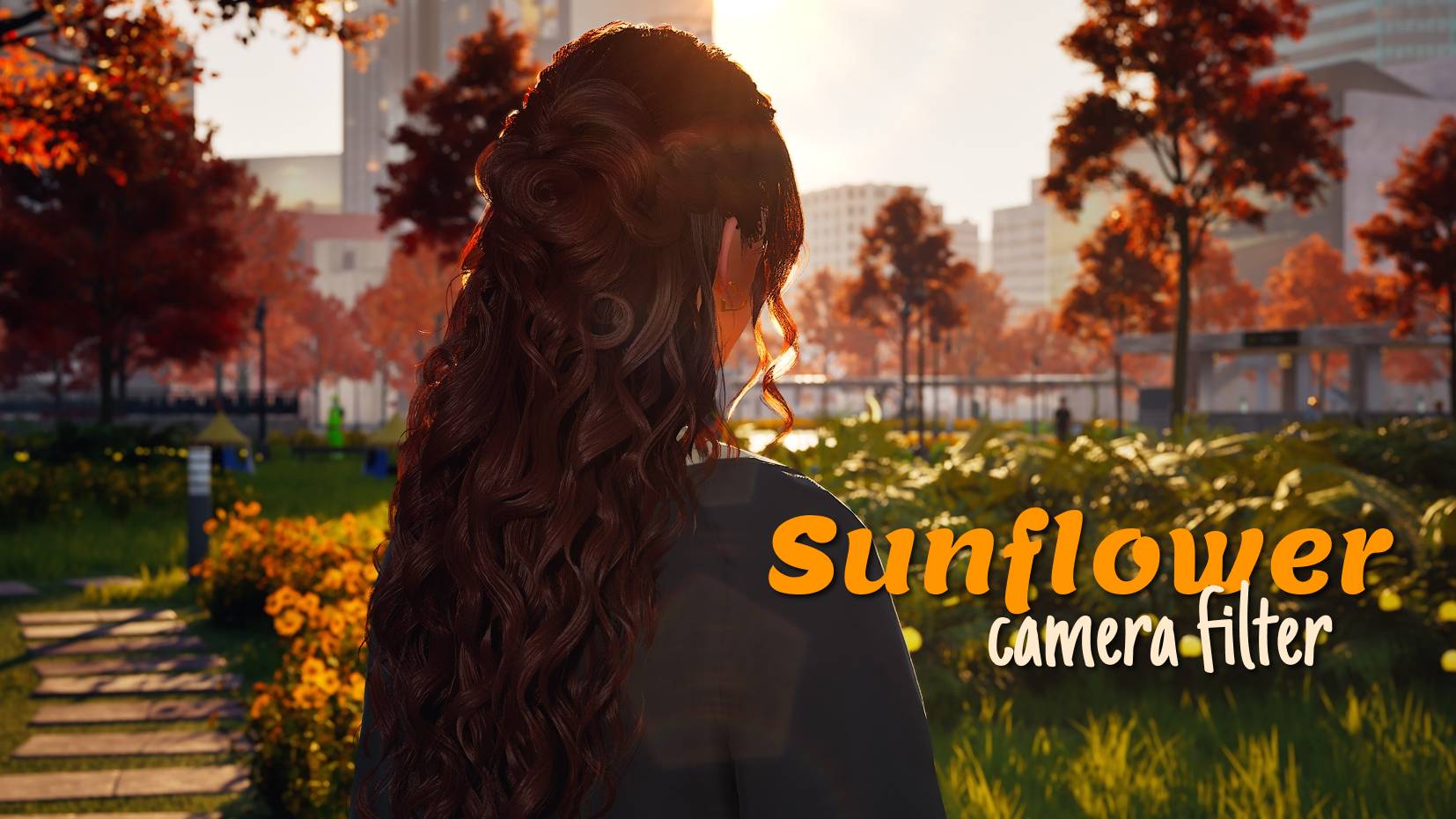
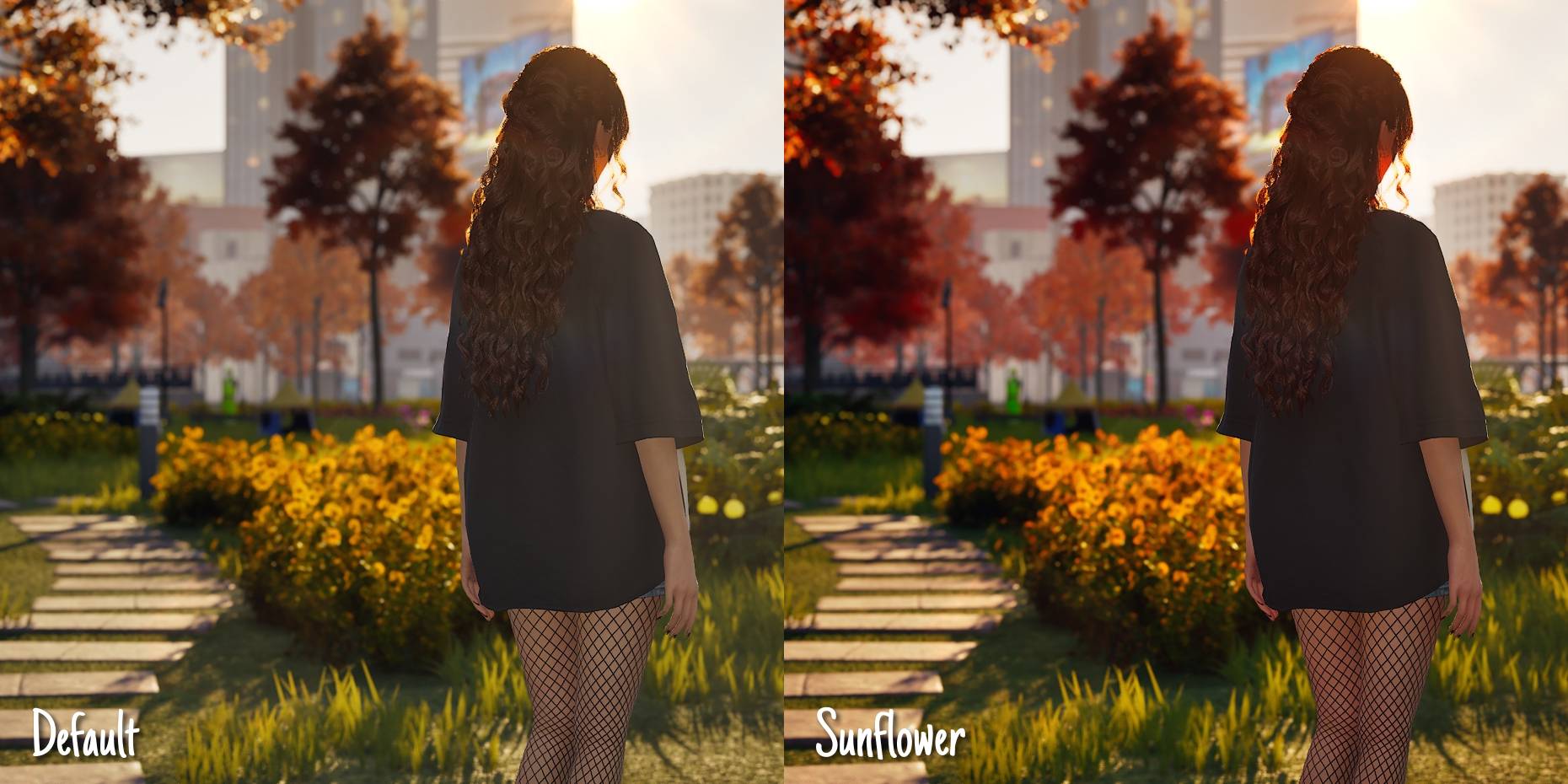
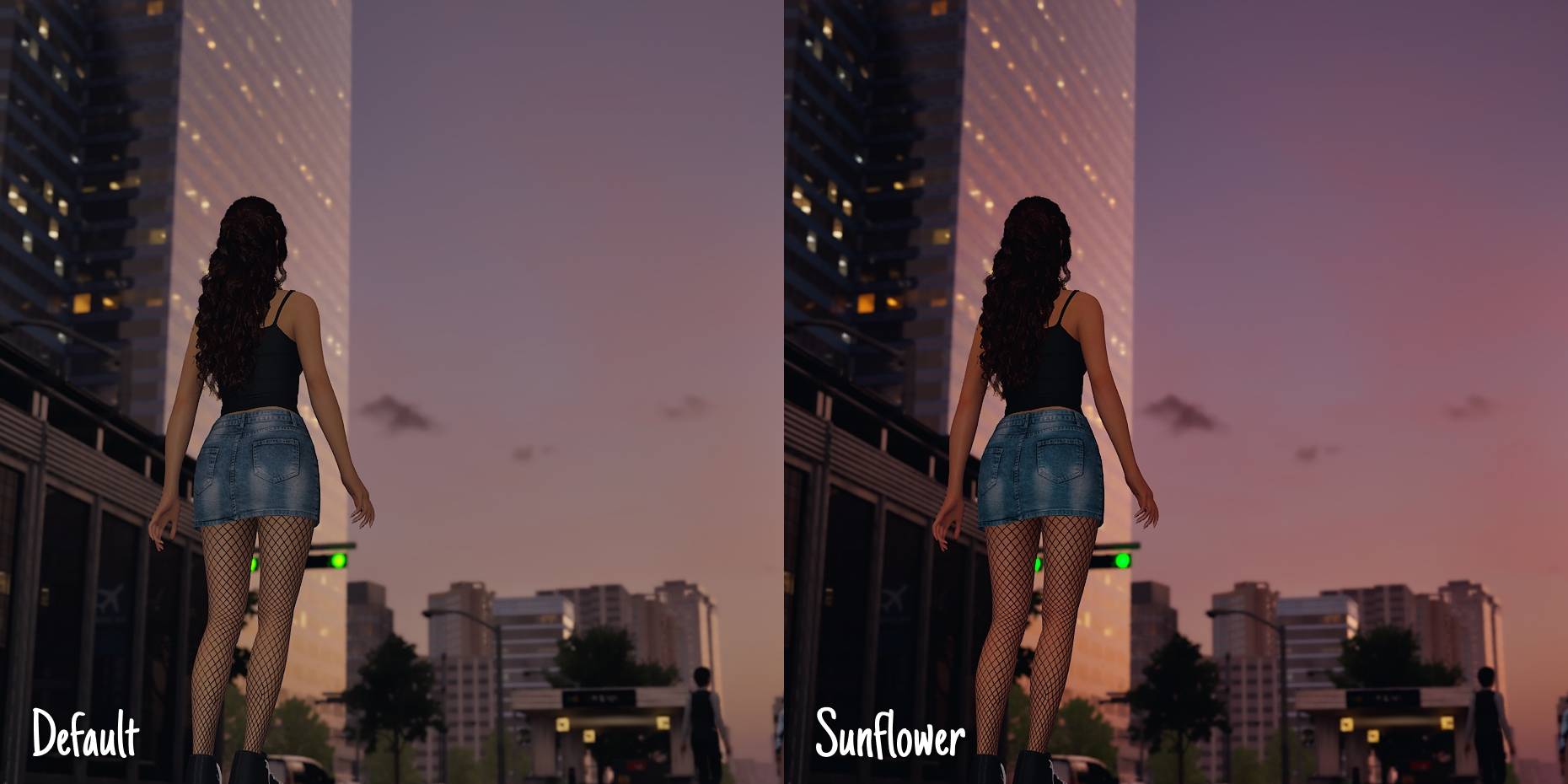
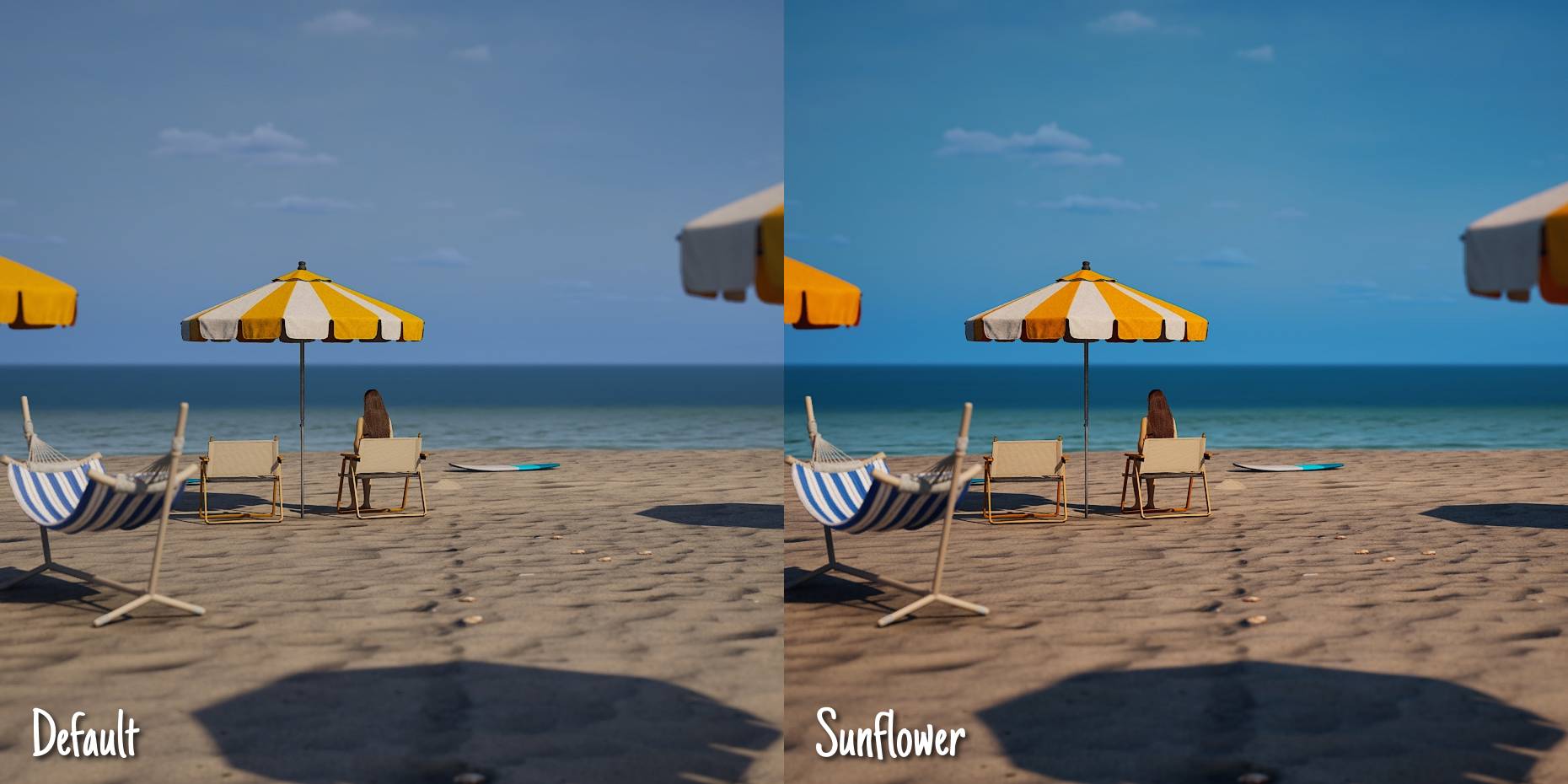
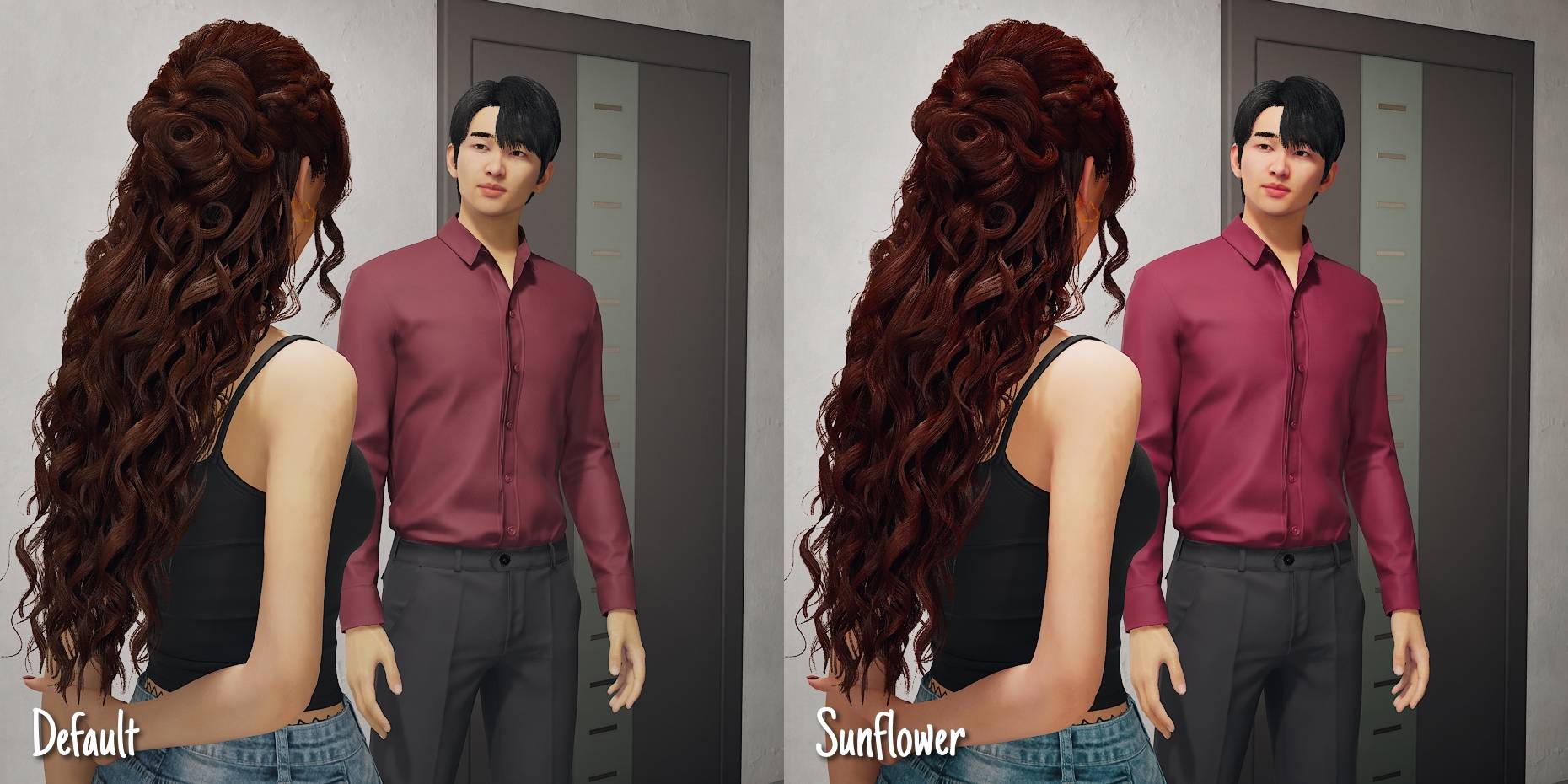
Give your game a vibrant look with this camera filter! Easy to use, you can quickly turn it on and off in the in-game filters tab. Works for BOTH gameplay and photo mode!
Group 4.jpg
Frame 4.jpg
Frame 7.jpg
Frame 8.jpg
Frame 6.jpg
Description
Give your game a vibrant look with this camera filter! Easy to use, you can quickly turn it on and off in the in-game filters tab. Works for BOTH gameplay and photo mode!
Sunflower filter offers:
- more colors and contrast
- no yellowish tone (changes into soft pinkish hue)
- beautiful vivid photos
- better views and gameplay experience
- unforgettable sunrises
- atmospheric nights
This graphic filter adds more vivid colors and a bit of contrast. The colors were adjusted to change the yellowish tone of the game. The soft yellow colors will fall into a more natural, slightly pink color. Recommended to also use during night - makes the sky darker and lights more standing out.
Please keep in mind that this filter might look different in your game depending on your settings and the in-game brightness percentage.
Settings used for screenshots:
- game quality: ultra
- in-game brightness: 50%
- night-time visibility: 0%
These settings are recommended by me for the most atmospheric look. Screenshots were taken with the blur effect in the photo mode.
How to enable for gameplay:
- make sure that this mod is enabled in "Mods" on the main screen
- load your save or make a new one
- find the long bar (in default at the top) where you have the options for photo mode, camera etc.
- click on the "Filter" option
- choose the last option "Mod"
- choose "Sunflower"
How to enable for photo mode:
- click on the "Photo mode" option (the same bar where filters are)
- go into camera options (at the bottom right)
- choose "Filter" -> "Mod" -> "Sunflower"
How to change in-game brightness:
- go into game options
- choose graphics options
- find postprocessing
- change brightness to 50% and night-time visibility to 0%.
If your game is too bright or too dark after these changes, please feel free to adjust it to your taste.
A few words from me:
I really love inZOI but something always bothered me about the graphics. I like the realistic style of it but I find the colors a little dull and a bit sad somehow. I was never a modder but that feeling pushed me to try and make my own filter. Although I have never made mods, I was very much into video editing, which I think helped me a bit with adjusting the colors in this filter.
So there it is. In my case it made the playing experience much better and now i finally feel like the world around my Zois is lively and colorful. I can enjoy the beautiful orange sunrises and walk around the city at late hours that finally feel like an actual night.
If you like more vivid graphics in games I recommend to get this mod and try it out. I hope you like it!
Sunflower - Camera Filter Team