Natural Contrast - Camera Filter
- By
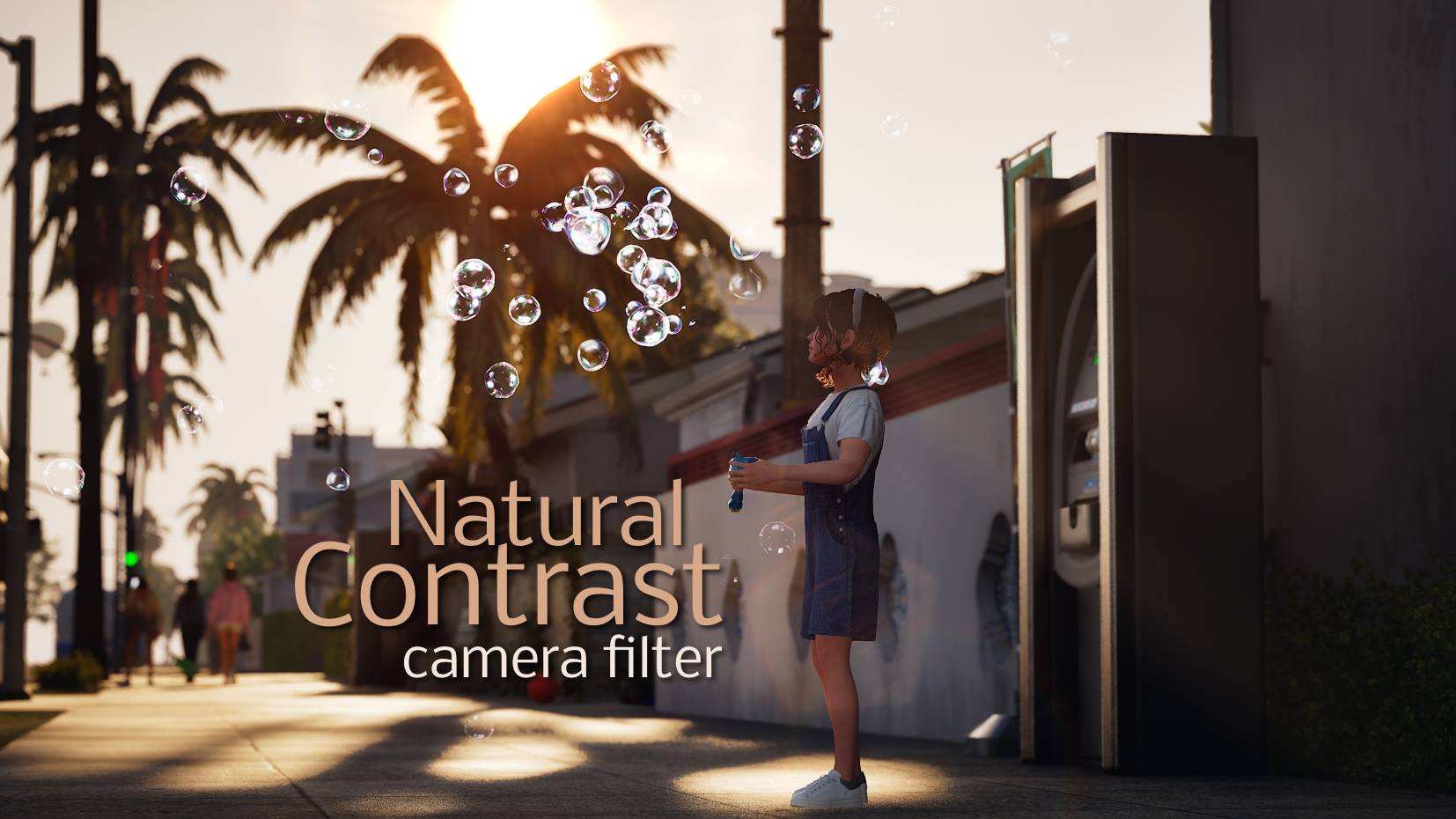
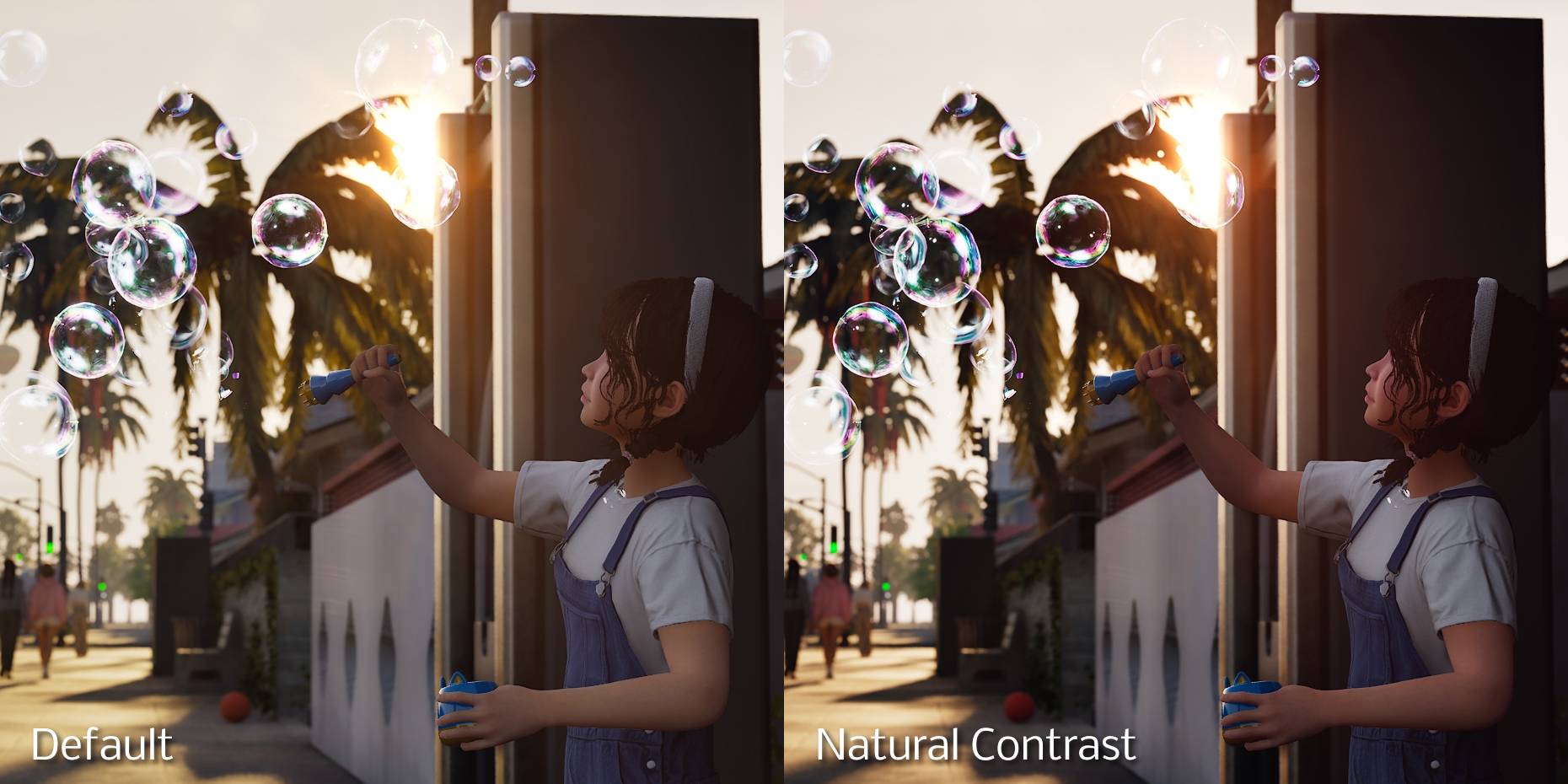
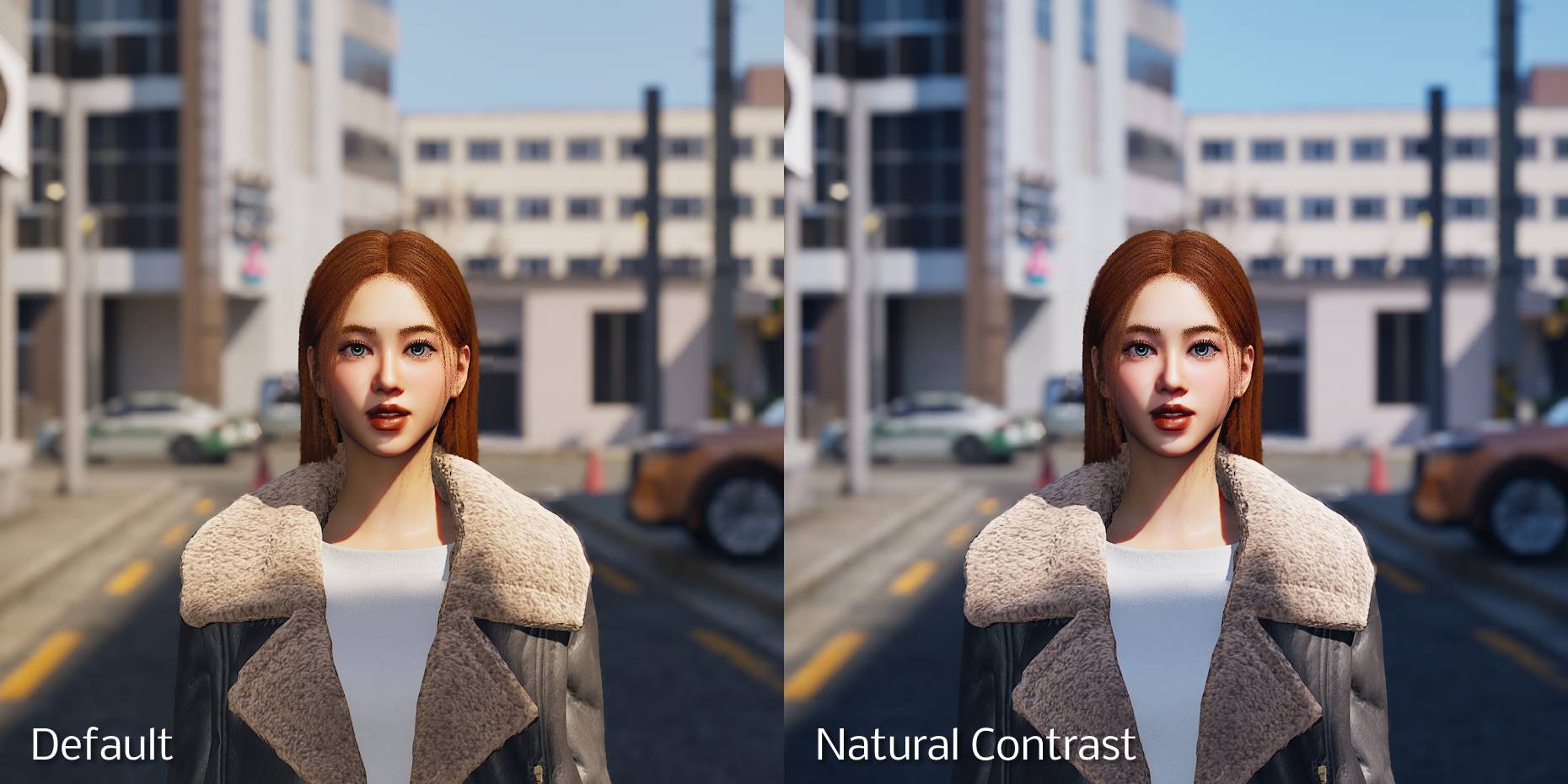
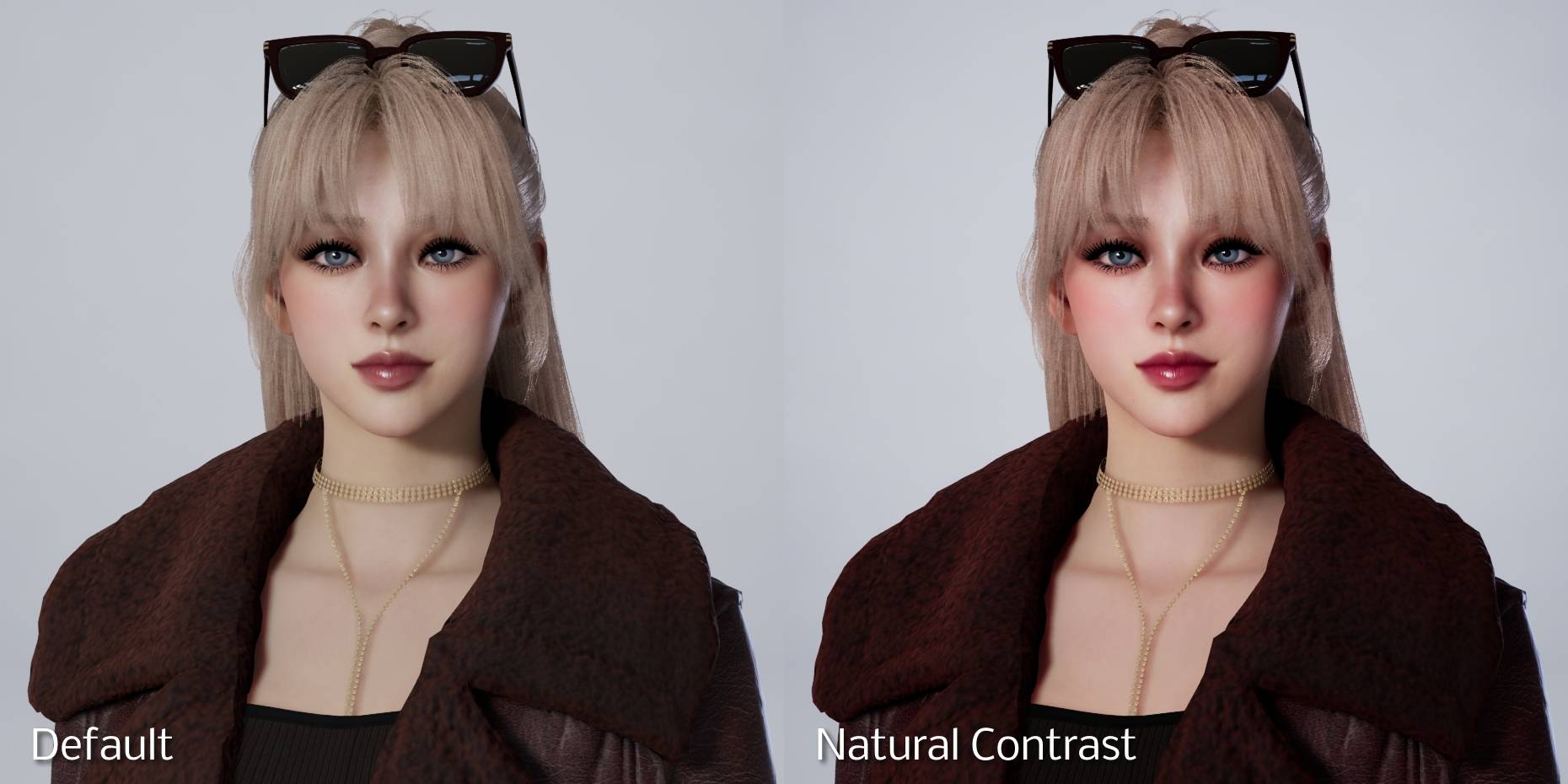
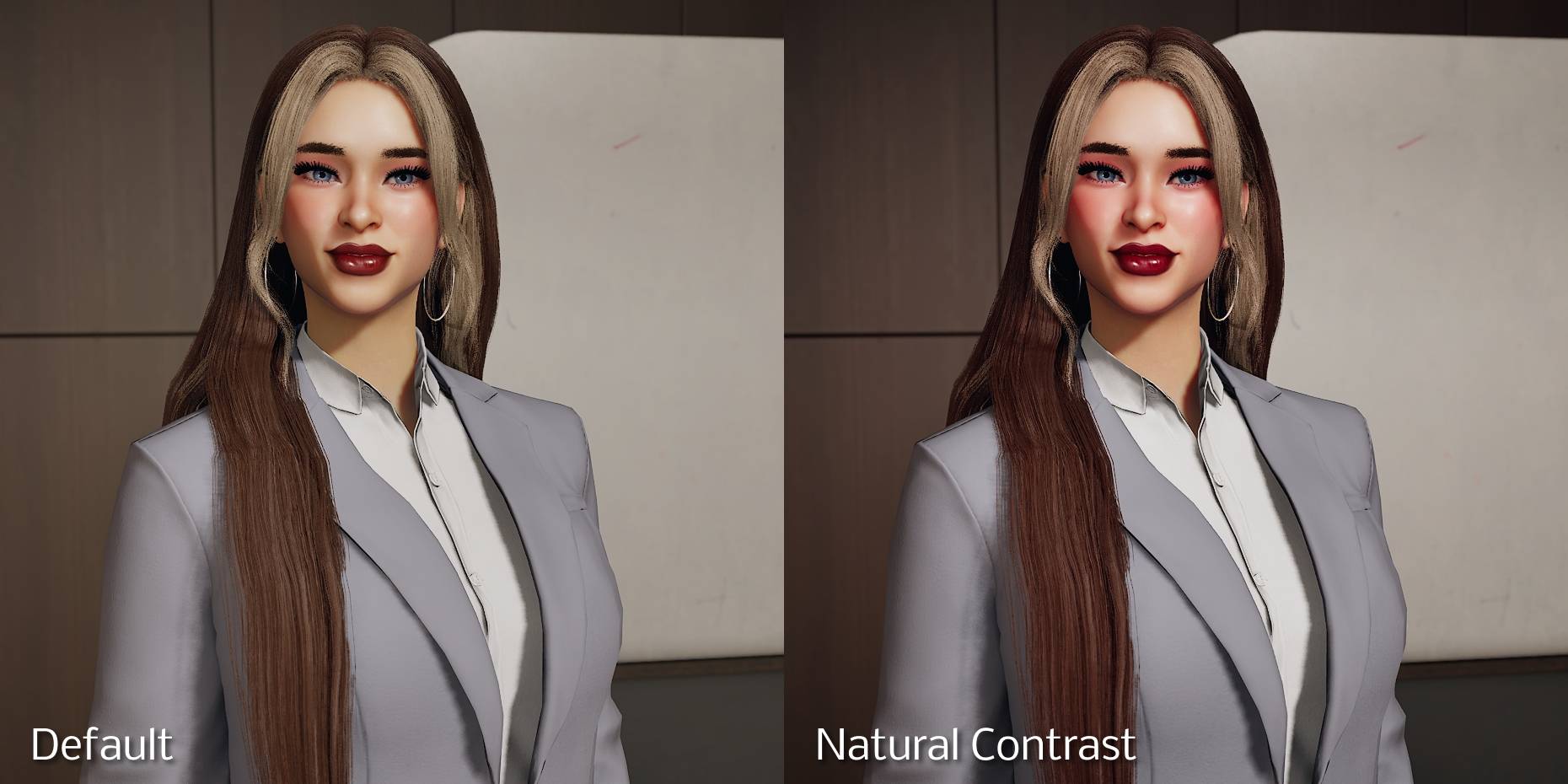
This filter gives the game a natural look without the yellow tint, while keeping the colors balanced. Works for both gameplay and photo mode!
Group 10.jpg
Frame 1.jpg
Frame 2.jpg
Frame 3.jpg
Frame 4.jpg
Description
This filter gives the game a natural look without the yellow tint, while keeping the colors balanced. Works for both gameplay and photo mode!
Natural Contrast filter offers:
- natural look
- more contrast
- balanced colors without yellowish tint
- beautiful photos
- better views and gameplay experience
- dark nights
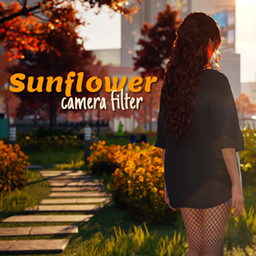
Perfect for Bliss Bay gameplay, where the yellow tint is most visible. This filter doesn't wash out the colors, it keeps them balanced but less vivid than in my "Sunflower" filter.
Please keep in mind that this filter might look different in your game depending on your settings and the in-game brightness percentage.
Settings used for screenshots:
- game quality: ultra
- in-game brightness: 50%
- night-time visibility: 0%
These settings are recommended by me for the most atmospheric look. Screenshots were taken with the blur effect in the photo mode.
How to enable for gameplay:
- make sure that this mod is enabled in "Mods" on the main screen
- load your save or make a new one
- find the long bar (in default at the top) where you have the options for photo mode, camera etc.
- click on the "Filter" option
- choose the last option "Mod"
- choose "Natural Contrast"
How to enable for photo mode:
- click on the "Photo mode" option (the same bar where filters are)
- go into camera options (at the bottom right)
- choose "Filter" -> "Mod" -> "Natural Contrast"
How to change in-game brightness:
- go into game options
- choose graphics options
- find postprocessing
- change brightness to 50% and night-time visibility to 0%
If your game is too bright or too dark after these changes, please feel free to adjust it to your taste.
Natural Contrast - Camera Filter Team