zLS_3.png
zLS_1.png
zLS_2.png
zLS_4.png
Description
zLootScroll
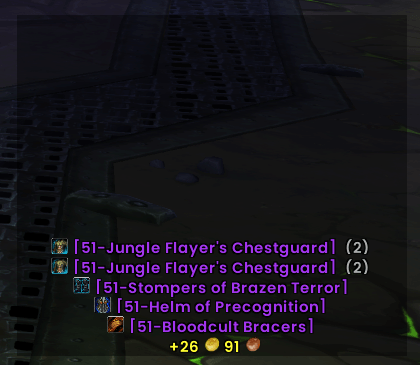
A clean, minimal scrolling loot feed for World of Warcraft (Retail). Every item, currency, and gold pickup you receive appears in a single dedicated frame — out of your chat, out of your way.
What It Does
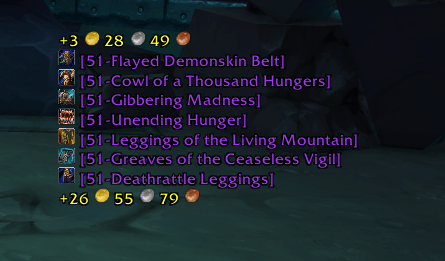
When you loot an item, earn a currency, or pick up gold, zLootScroll catches that event and displays it in a small scrolling feed you can position anywhere on screen. Messages fade out after a configurable duration. The default chat log is untouched.
- Items — looted, crafted, or received items, colored by quality
- Currency — tokens and special currencies with icons and running totals
- Money — gold, silver, and copper pickups displayed with coin icons
Getting Started
Type /zls to open the settings panel. That's it. The feed appears on screen at login using sensible defaults and is ready to use immediately.
Slash commands:
| Command | What it does |
|---|---|
/zls |
Open the settings panel |
/zls toggle |
Show or hide the feed frame |
/zls browse |
Open the loot history browser |
/zls move |
Unlock the frame so you can drag it |
/zls help |
Print the command list to chat |
Settings Overview
Settings are organized into five panels.
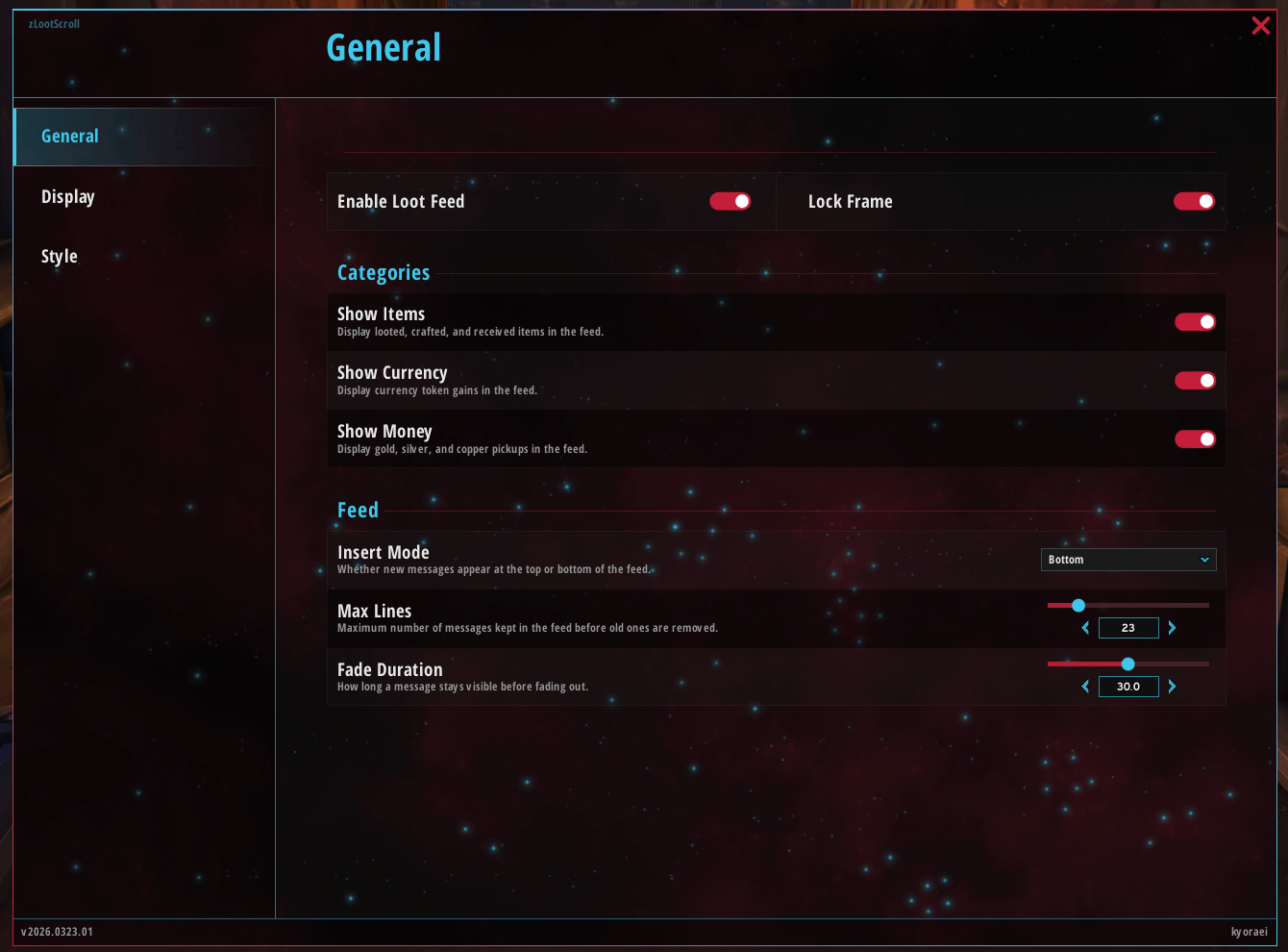
General
Controls what gets shown and how the feed behaves.
- Enable Loot Feed — Master on/off switch for the entire feed
- Lock Frame — Prevent the frame from being accidentally moved; also toggleable with
/zls move - Show Items / Show Currency / Show Money — Enable or disable each category independently
- Quality Filters — Show or hide items by quality tier (Poor through Legendary/Artifact) independently
- Insert Mode — Choose whether new messages appear at the top or the bottom of the feed
- Max Lines — How many messages the feed holds before old ones roll off (5–100)
- Fade Duration — How many seconds a message stays visible before fading out (0–300)
- Keep Forever — When enabled, messages stay in the feed indefinitely and Fade Duration is ignored
- History Length — Maximum loot entries stored per character; oldest entries are pruned when the cap is reached (disabled when Keep Forever is on)
Display
Controls how each message looks and how the feed frame is sized.
- Show Item Icons — Prepend a small inline icon to each item message
- Icon Size — Size of the inline icon in pixels (10–24)
- Show Item Level — Include the item level inside the brackets, e.g.
[620-Cloak of the Sky] - Show Bag Totals — After a short delay, append how many you now have in your bags, e.g.
(12) - Show Timestamps — Prepend a
[HH:MM:SS]timestamp to each message, with 12 or 24-hour format - Increment Before Name — When looting a stack, show
+3 Item Nameinstead ofItem Name +3 - Frame Width / Frame Height — Size the feed frame exactly how you want it (pixels)
- Line Spacing — Vertical space between each message (0–10)
- Show Background — Toggle the semi-transparent backdrop behind the feed
- Background Opacity — How opaque the background is (0 = invisible, 1 = fully opaque)
- Show Border — Toggle a thin border around the feed frame
Style
Controls the typeface, colors, and text rendering.
- Font — Choose any font registered with LibSharedMedia (includes all Blizzard defaults and any font added by other addons)
- Outline — None, Outline, Thick Outline, Monochrome, or combinations
- Font Size — Size of the message text
- Justification — Left, Center, or Right alignment
- Font Shadow — Toggle a drop shadow behind text, with customizable color and X/Y pixel offset
- Color by Quality — Tint each item and currency message using the item's quality color (grey, white, green, blue, purple, etc.)
- Money Color — Choose a custom color for gold/silver/copper messages
- Timestamp Color — Color for the
[HH:MM:SS]prefix - Count Color — Color for the
(N)bag and currency totals - Increment Color — Color for the
+Nstack increment
Log Storage
Controls what actually gets written to disk. These settings are account-wide — they apply to every character you log in on and are not tied to any profile.
Keep Forever / History Length
- Keep Forever — When on, the log grows without any cap. Entries are never automatically removed. Useful if you want a complete lifetime record. Turning this on requires confirmation (memory warning); turning it back off also requires confirmation because the log will be trimmed the next time you log in or reload.
- History Length — The maximum number of loot entries kept per character when Keep Forever is off. Defaults to 100, configurable from 50 to 2000 in steps of 25. When the log exceeds this cap at login, the oldest entries are removed first until the log fits within the limit. This slider is disabled while Keep Forever is on.
Item Quality
A toggle for each quality tier (Poor through Artifact). When a tier is enabled, drops of that quality are saved to the log as they happen. When you disable a tier, all existing entries of that quality are permanently deleted across every character at the next login or reload — you will be prompted to confirm before any toggle that would cause deletion takes effect. Poor and Common tiers can be disabled without a confirmation prompt since those entries are usually low-value noise.
Entry Types
- Store Money — Log gold/silver/copper pickups. Disabling removes all existing money entries at next login.
- Store Currency — Log token and special currency gains. Disabling removes all existing currency entries at next login.
Note that storage settings only control what is persisted to disk. The live feed displays events configured in the General tab of settings; pruning only affects what survives a reload.
Profiles
Full profile management for all feed settings. Each profile stores its own settings and frame position independently.
- Active Profile — Switch which profile is active for the current character
- New Profile — Create a new profile copied from the current one
- Copy From Another Profile — Overwrite the current profile's settings with those from another
- Delete a Profile — Permanently remove a profile (with confirmation)
- Reset Current Profile — Restore all settings to defaults (with confirmation)
Tooltips
When the feed is locked, hovering over an item or currency link will show its standard game tooltip. The frame is fully click-through otherwise — it won't block anything behind it.
Loot History Browser
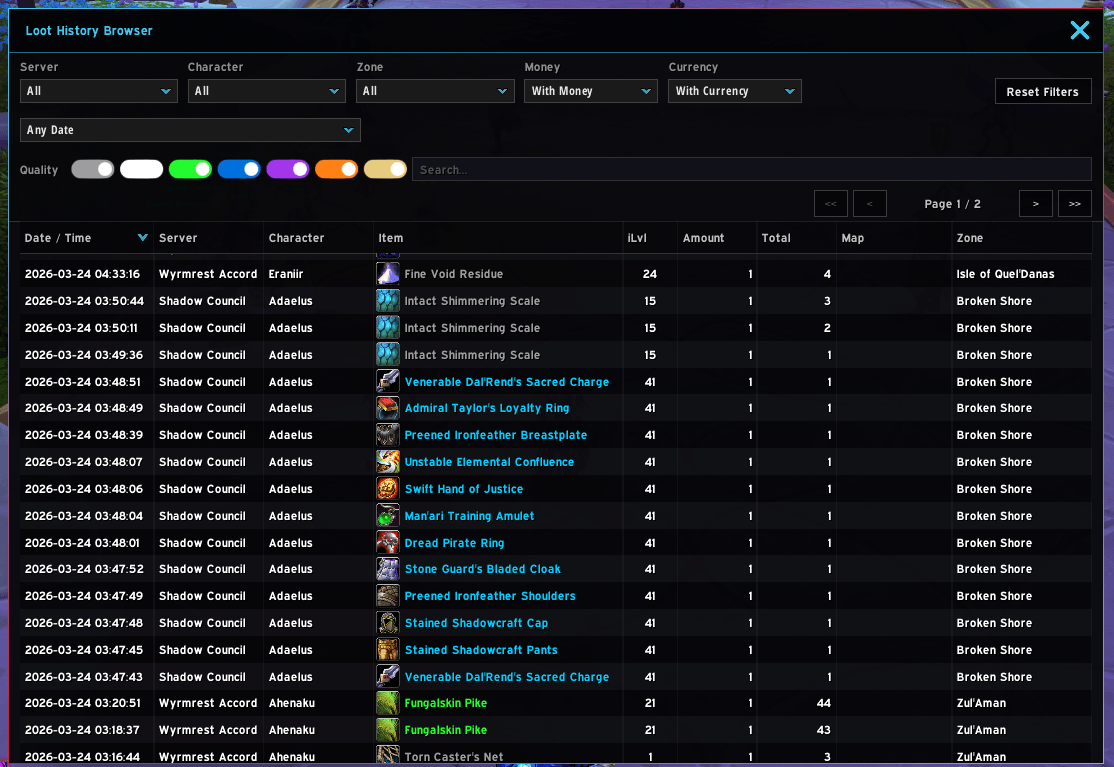
Open with /zls browse or Shift+left-click the minimap button. The browser shows your full loot history across all characters and realms in a searchable, filterable, sortable table.
Columns: Date & Time, Server, Character, Item, Item Level, Amount, Total, Map, Zone
Filters:
- Server / Character / Zone — Cascade dropdowns: picking a server narrows the character list; picking a character narrows the zone list to only zones that character has entries for
- Money / Currency — Include, exclude, or show only those entry types
- Date Range — Restrict results to a specific date window
- Quality — Color-coded pill buttons to toggle each quality tier on or off
- Search — Live substring search across item name, character, server, and zone
Click any column header to sort; click again to reverse. Results are paginated at 250 entries per page with first/prev/page indicator/next/last navigation at the bottom of the filter bar.
Minimap Button & DataBroker
zLootScroll ships its own minimap button powered by LibDBIcon-1.0. It appears on your minimap automatically at login — no extra addons needed. Its position is saved per character, so each alt can park it in a different spot.
| Action | Result |
|---|---|
| Left-click | Toggle the loot feed frame |
| Shift+left-click | Open the loot history browser |
| Right-click | Open the settings panel |
zLootScroll also registers a LibDataBroker launcher, so if you use a LDB display addon (Bazooka, FuBar, ElvUI DataTexts, etc.) the same click actions are available there as well.
Loot Log
Every item drop, currency gain, and money pickup is appended to a per-character log stored in your SavedVariables. The log is keyed by realm and character name, so each alt has its own independent history. All characters across all your realms are visible together in the Loot History Browser.
During a play session the log grows freely — nothing is removed while you're actively playing. Pruning only runs once, at login/reload, so you never lose an entry mid-session.
At login/reload, two passes run in order:
- Type & quality pruning — Any entry whose type or quality tier is currently disabled in Log Storage is deleted. This affects all characters, not just the one you're logging into.
- History cap — If Keep Forever is off, the oldest entries are removed from the front of each character's log until it fits within the History Length limit.
Restoring the feed after a reload — After pruning, entries that still fall within their fade window are replayed into the loot feed so you don't come back to a blank screen after a quick /reload.
Real-time redraw — The feed redraws in real time whenever you change display settings. Toggling icons, item level, quality filters, timestamps, or any other display option immediately updates everything already visible.
Frame Position
The frame starts just above the center of the screen so it's easy to find on first install. Drag it anywhere with /zls move, then lock it again. Position is saved per profile, so different profiles can have the frame in different spots.
NOTE: Issues must be reported via the Issues tab at the top of Curseforge. Issues reported in comments will be removed.
The zLootScroll Team

Owner