Yapbook
- By
yapbook1.jpg
yapbook2.jpg
yapbook4.jpg
yapbook3.jpg
Description
Yapbook
A spellbook for your chat messages.
Yapbook stores the things you type over and over (trade ads, guild recruitment, group calls, song lyrics, inside jokes) and sends them to chat with one click. Multi-line messages go out one line at a time with spam-filter-friendly pacing.
Version 1.3. Built and tested on the World of Warcraft Forever beta (client 1.60.1). It uses the Classic-era addon API, so it may also work on other Classic clients.
Installation
Download the zip and extract it.
Move the `Yapbook` folder into `World of Warcraft/<your client folder>/Interface/AddOns/`. The `.toc` and `.lua` files must sit directly inside `Interface/AddOns/Yapbook/`, not in a second nested folder.
Start the game. Yapbook should be ticked and not marked "Incompatible" in the AddOns list on the character select screen.
If the game marks it as incompatible, type `/dump select(4, GetBuildInfo())` in chat and put the number it prints at the start of the `## Interface:` line in `Yapbook.toc`.
Opening Yapbook
Click the book button on the minimap, or
type `/yap` or `/yapbook`.
Escape closes the window.
The book
Yapbook is laid out like the spellbook.
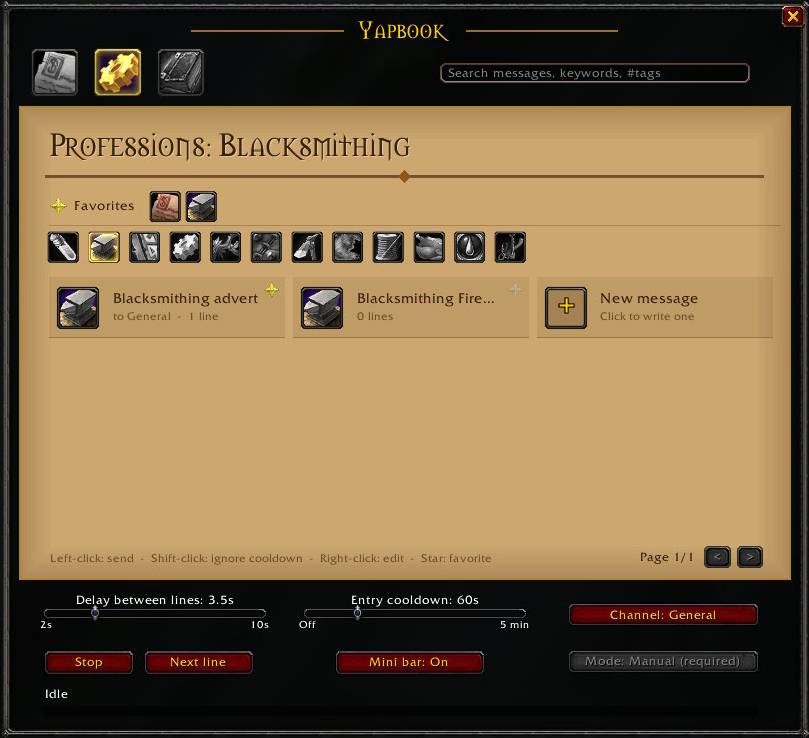
Chapters: The icon tabs at the top left are General Chat and Professions.
Professions: This chapter has its own row of tabs, one for each Vanilla profession: Alchemy, Blacksmithing, Enchanting, Engineering, Herbalism, Leatherworking, Mining, Skinning, Tailoring, Cooking, First Aid and Fishing. Each keeps its own messages.
Pages: Each page holds 12 entries. Turn pages with the arrows at the bottom right or the mouse wheel.
Search: The box at the top right searches entry names, message text and tags across every chapter. Start with `#` to search tags, for example `#wts`.
Working with entries
Action - What it does
Left-click an entry - Send it to the current channel
Shift + left-click - Send it even if it is on cooldown
Right-click an entry - Open the editor
Click the star on an entry - Add it to or remove it from Favorites
Click + New message - Write a new entry in the current chapter
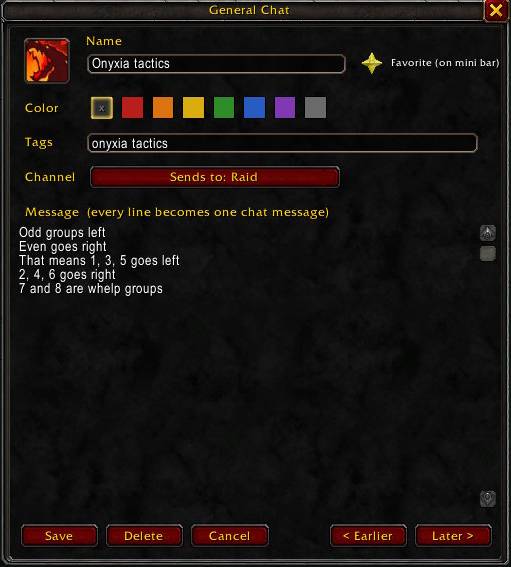
The editor
Name: what the entry is called in the book.
Icon: click it to pick one of about 60 classic icons, or type any icon name or file ID.
Favorite: pins the entry to the Favorites row.
Color: tints the entry's card and adds a colored stripe.
Tags: comma-separated keywords, such as `lyrics, meme, wts`. They show under the name and can be searched.
Message: every line becomes one chat message. Blank lines are skipped. A line longer than 240 characters is split at a space.
Save, Delete, Cancel, and < Earlier / Later > to reorder the entry within its chapter.
Favorites
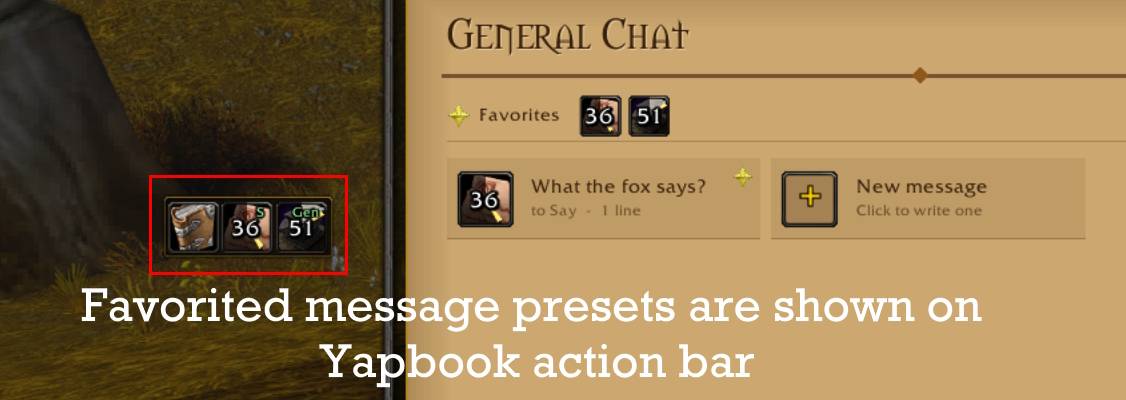
Starred entries appear in a row at the top of every page, whatever chapter you are in. Click one to send it, right-click it to edit. Up to 16 are shown.
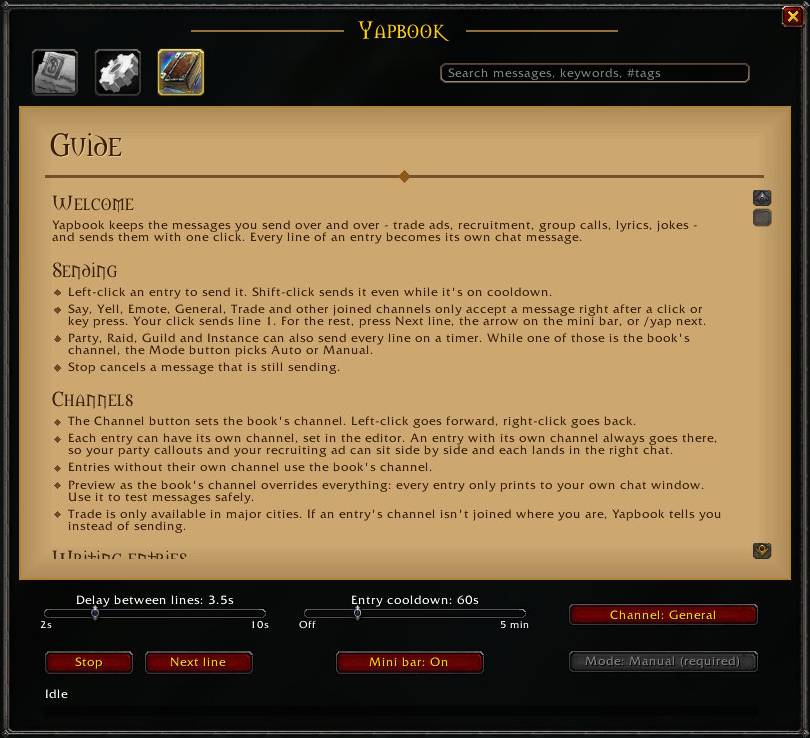
Sending
The controls under the page:
Delay between lines (2 to 10 seconds): the minimum time between two lines of the same message. A small random amount is added to each gap so the timing isn't perfectly regular.
Entry cooldown (off to 5 minutes): after you send an entry, its icon shows a cooldown swirl and a normal click is refused until it runs out. Shift-click overrides it. Useful for keeping ads from going out too often.
Channel: left-click cycles forward, right-click backward. The list is Preview, Party, Raid, Guild, Instance, Emote, Say, Yell, then every chat channel you have joined (General, Trade, LocalDefense, custom channels).
Mode: Auto or Manual (see below).
Stop cancels the message being sent. Next line sends the next line in Manual mode.
The status line and gold progress bar show what is sending and how far along it is.
Preview prints the message only in your own chat window. Use it to check a message before anyone else sees it. Preview sends don't start the cooldown.
Auto vs Manual mode
The game only lets addons send to some channels on a timer. Public channels need a real click or key press for every message, so Yapbook picks the mode from the channel:
Channel - Mode
Say, Yell, Emote, General, Trade, LocalDefense, custom channels - Always Manual. The Mode button shows "Manual (required)"
Party, Raid, Guild, Instance, Preview - Your choice of Auto or Manual
Auto: your click on the entry sends line 1 straight away, and the rest follow on the timer.
Manual: your click on the entry sends line 1. Press Next line (or run `/yap next`) for each following line. A `/yap next` macro on a keybind makes this quick.
Your Auto/Manual choice is remembered and applies whenever you switch back to Party, Raid, Guild, Instance or Preview.
If the game ever refuses a timed line anyway, Yapbook doesn't drop it. It switches that message to Manual and the refused line is sent on your next Next line press.
Slash commands
Command What it does
`/yap` Open or close the book
`/yap next` Send the next line (Manual mode)
`/yap stop` Stop sending
`/yap manual` Toggle Auto / Manual for Party, Raid, Guild, Instance and Preview
`/yap channel <name or number>` Set the channel, e.g. `/yap channel guild` or `/yap channel 2`
`/yap delay <seconds>` Set the delay between lines, 2 to 10
`/yap cooldown <seconds>` Set the entry cooldown, 0 to 300 (0 turns it off)
`/yap minimap` Hide or show the minimap button
Minimap button
Left-click: open or close the book
Right-click: toggle Auto / Manual (for channels that allow Auto)
Drag: move it around the minimap
Be a good neighbour
Yapbook paces messages, but what you send is still on you. Repeated ads in General or LocalDefense get people reported and muted, and Blizzard's chat rules apply to every channel. Trade is the usual place for ads, and custom channels follow their owner's rules. The entry cooldown is there to help.
Saved data
Everything is stored in the `YapbookDB` saved variable, per account, in `WTF/Account/<account>/SavedVariables/Yapbook.lua`. Back that file up if you want to keep your messages safe.
Known limitations
Some picker icons may not exist in every client. Where the client allows it, missing ones are hidden automatically. You can also type any icon name in the picker.
The window is sized for UIs around 1280x800 and larger.
Yapbook Team