WOW Handbook
- By
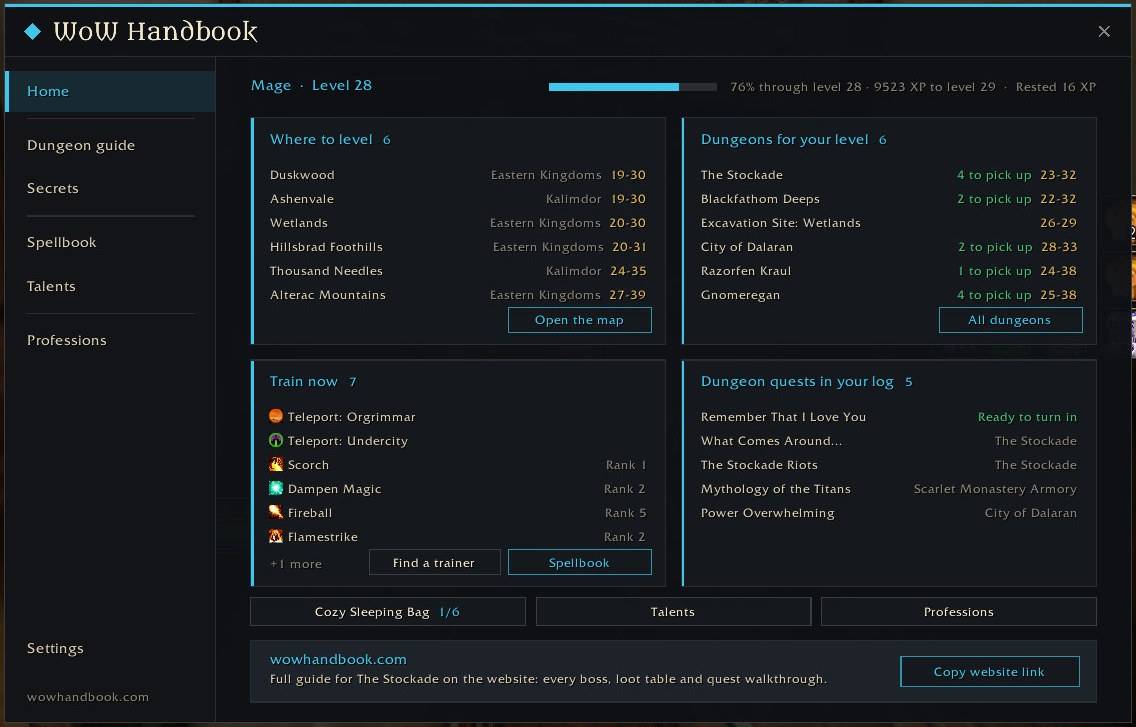
All-in-one companion for WoW: Forever. Level-based dungeon guides with quest chains and boss loot, talent simulator, spells by level, trainers on your maps, auto quests, and auto junk seller. Type /wh to open.
10-home.jpg
11-dungeon-guide.jpg
12-dungeon-quests.jpg
16-talent-simulator.jpg
23-library-books.jpg
Description
WoW Handbook answers the questions you ask yourself every play session in World of Warcraft: Forever: where to go, what to learn, where your trainer is, and what to do next. Everything runs inside the game, and every feature can be switched on or off.
Dungeons and quests
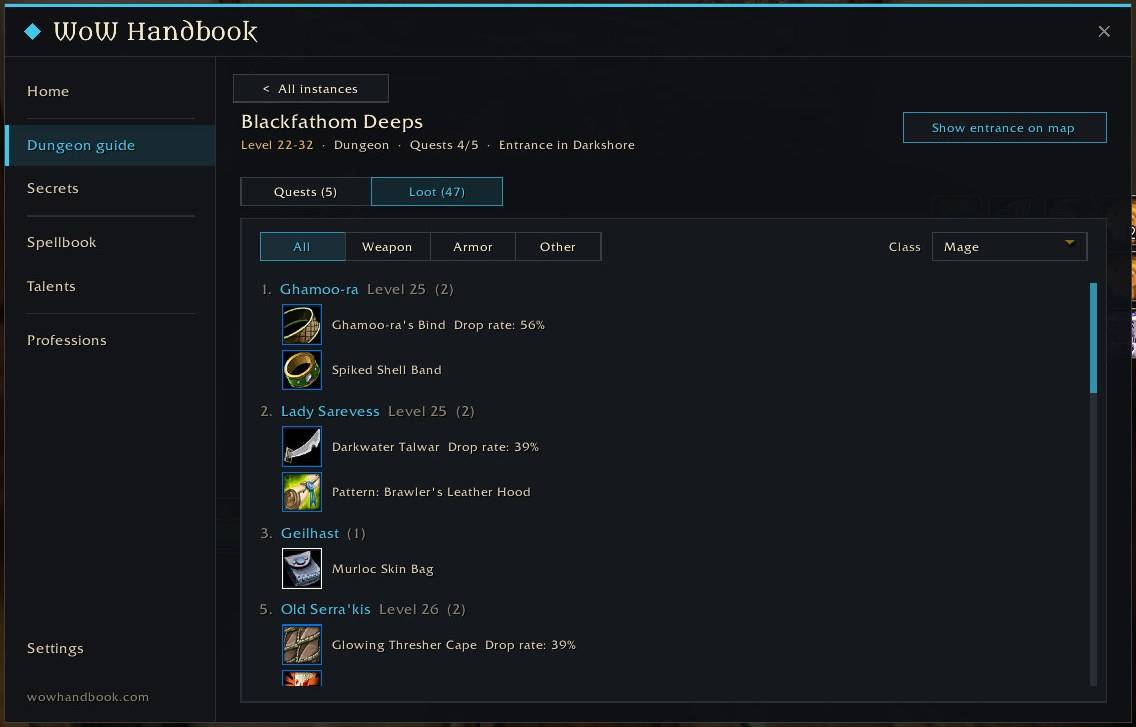
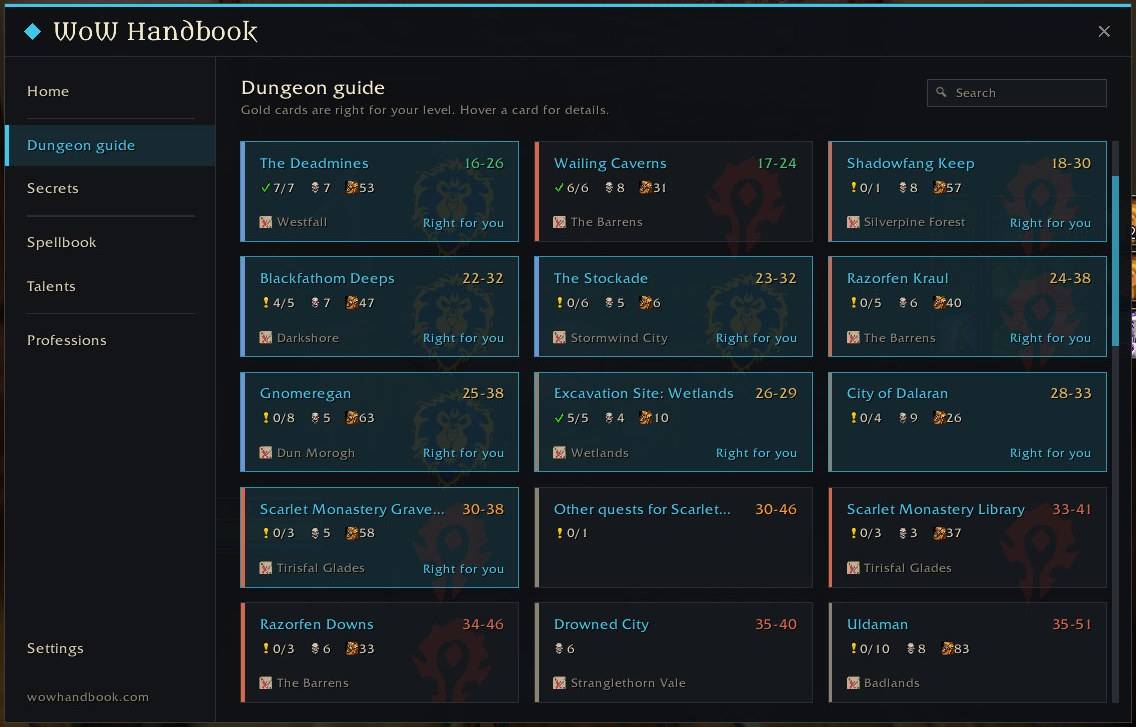
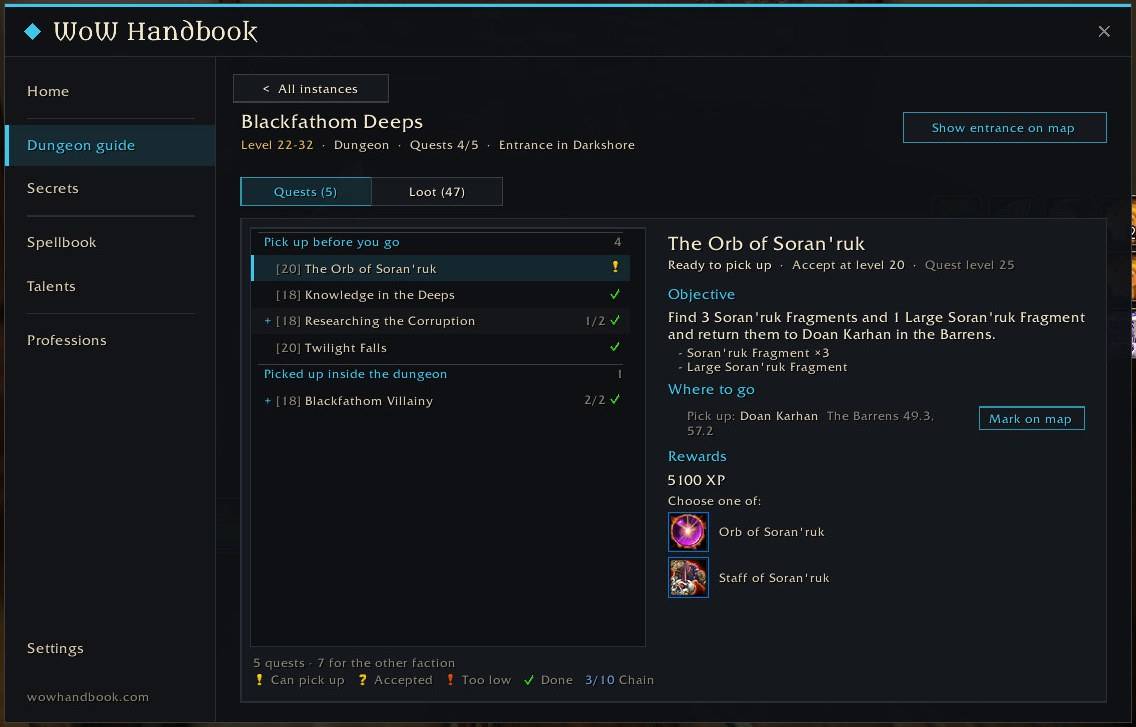
- Dungeon guide: dungeons matched to your level (including the new Excavation Site: Wetlands), the quests to pick up before you go in, full quest chains, and boss loot you can filter by class and armor type.
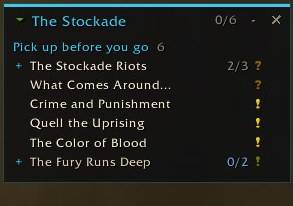
- Dungeon helper: a slim window that knows where you are. Outside, pick a dungeon (the ones suited to your level come first) and see the quests to pick up before you go in, with full chains; click a quest to mark its quest giver on the map. Inside, it shows boss progress in its title bar, folds killed bosses into one line, and marks your dungeon quests with the familiar quest icons (? ready to turn in, ! pick up here) and counts such as 3/8.
- Dungeon maps: inside a classic dungeon or raid, the world map shows the dungeon's own map, with a floor picker for multi-level dungeons.
- Map pins for quest givers and dungeon entrances.
- Auto quest: accept quests and turn in finished ones as soon as you talk to an NPC. When a quest offers several rewards, pick one yourself (default) or let the addon choose: a usable reward first, the most valuable one otherwise. Hold Shift while talking to an NPC to skip it once. A quest that cannot be accepted or turned in is not retried in the same conversation; talk to the NPC again and the addon tries once more. Works with DialogueUI too.
- Quest item glow: one switch makes quest items, and the monsters that drop them, glow. It shows the game's real setting and offers to reload the interface when you change it.
Secrets
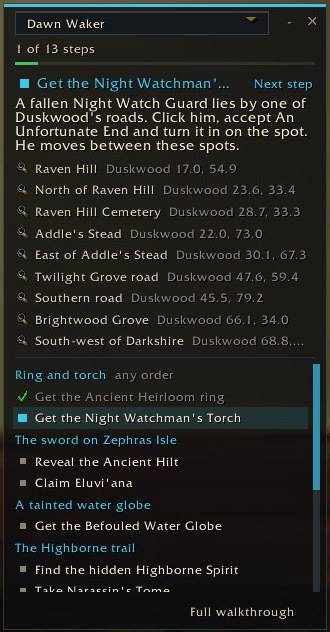
- Secrets helper: a small window for the long hidden quest chains, the Cozy Sleeping Bag and Dawn Waker. It follows your quests, bags, bank and gear, ticks off the steps you have done and tells you what to do next. Missing items show in red; click a location to mark it on the map. The Secrets page in the handbook lays out every step in full.
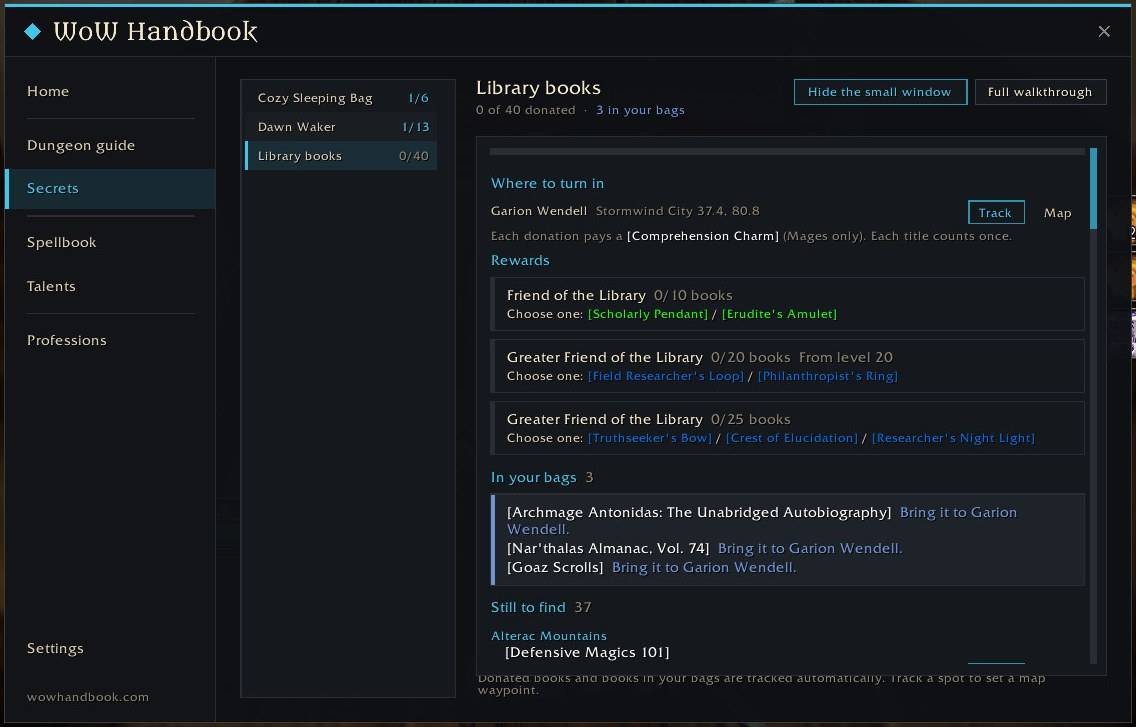
- Library books: all 40 books for the library, with where each one can be found (track it on the map with one click), which ones you already carry or have donated, where to hand them in, and the rewards at each stage.
Auction house and professions
- Auction prices: prices are recorded as you search the auction house, and a "Scan auction house" button in its bottom right corner scans everything at once. Item tooltips show the auction price and how old it is. Already using Auctionator? Tick "Use Auctionator prices" and the handbook reads its prices instead.
- Crafting cost: the crafting page of the profession window shows material cost, sale price, profit and margin for every recipe.
- Enchant all: when enchanting gear, one button enchants once per click and shows how many casts are left; the "replace enchant" prompt is confirmed for you.
- Waylaid crates: the tooltip of an identified crate lists every kind of goods it takes and what filling it costs at auction prices, with the cheapest one in green.
Inside the game's own windows
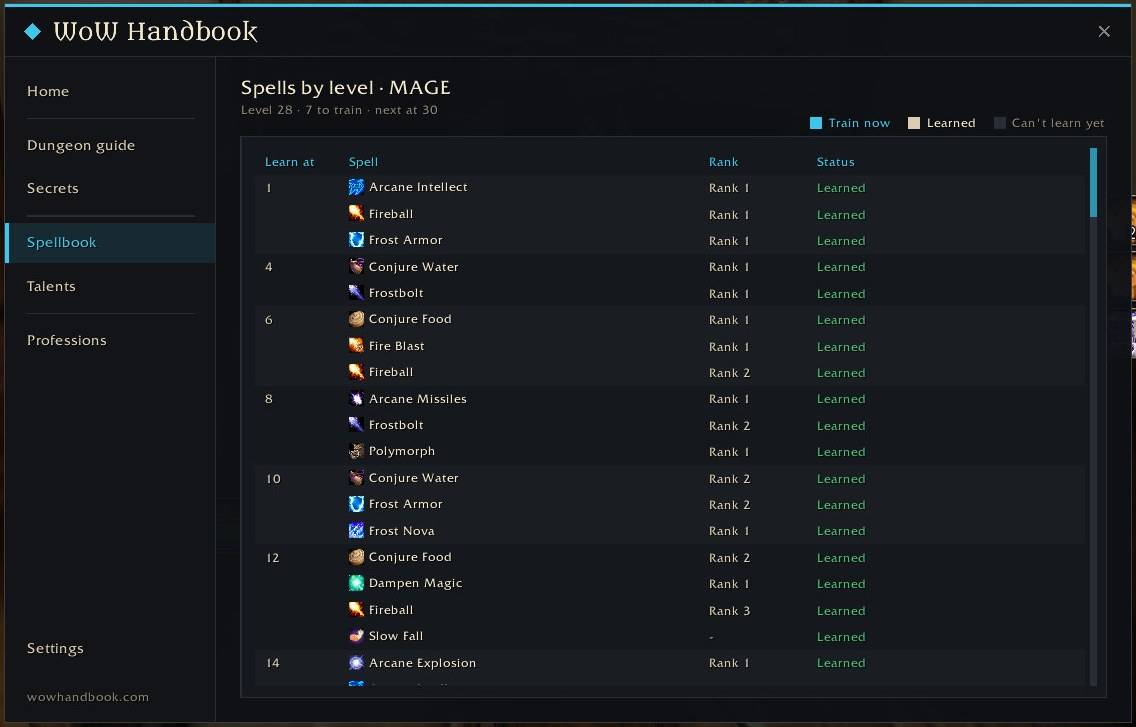
- Spells by level in the spellbook: a tab next to the game's own categories lists the spells you can train now and the ones coming at each level, drawn just like the game's spellbook. Warlocks see each demon's abilities in its own group.
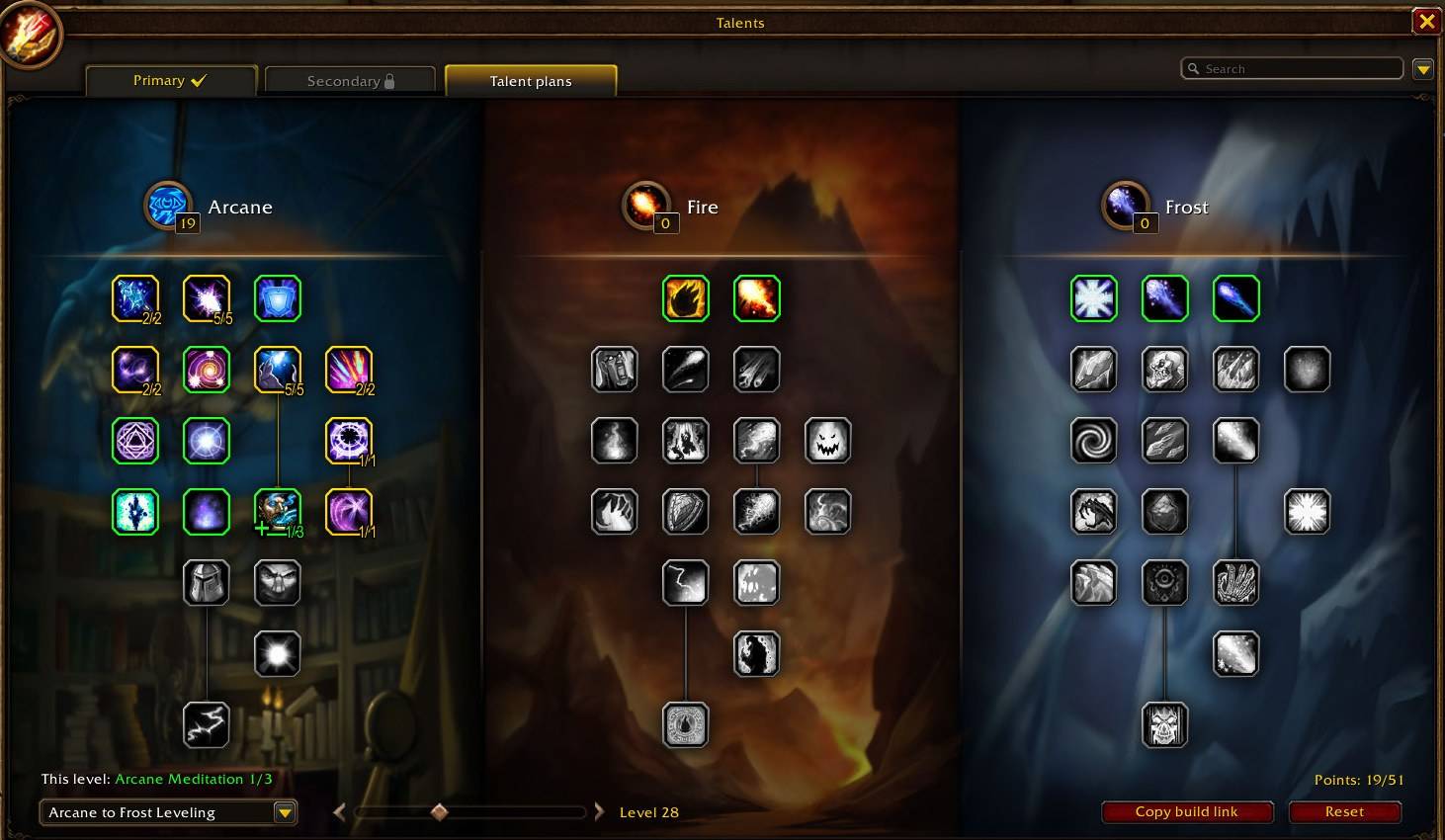
- Talent plans in the talent window: pick a recommended build from wowhandbook.com and drag the level slider to see exactly which point goes where at every level. The game's own talent buttons also show the levels at which the build takes them.
- BiS gear in the character window: a tab with your character model wearing the best gear for your spec and level, slot by slot, with where each piece comes from. Hover a slot for the item tooltip and the stat change; hold Alt for alternatives.
Talents, spells and trainers
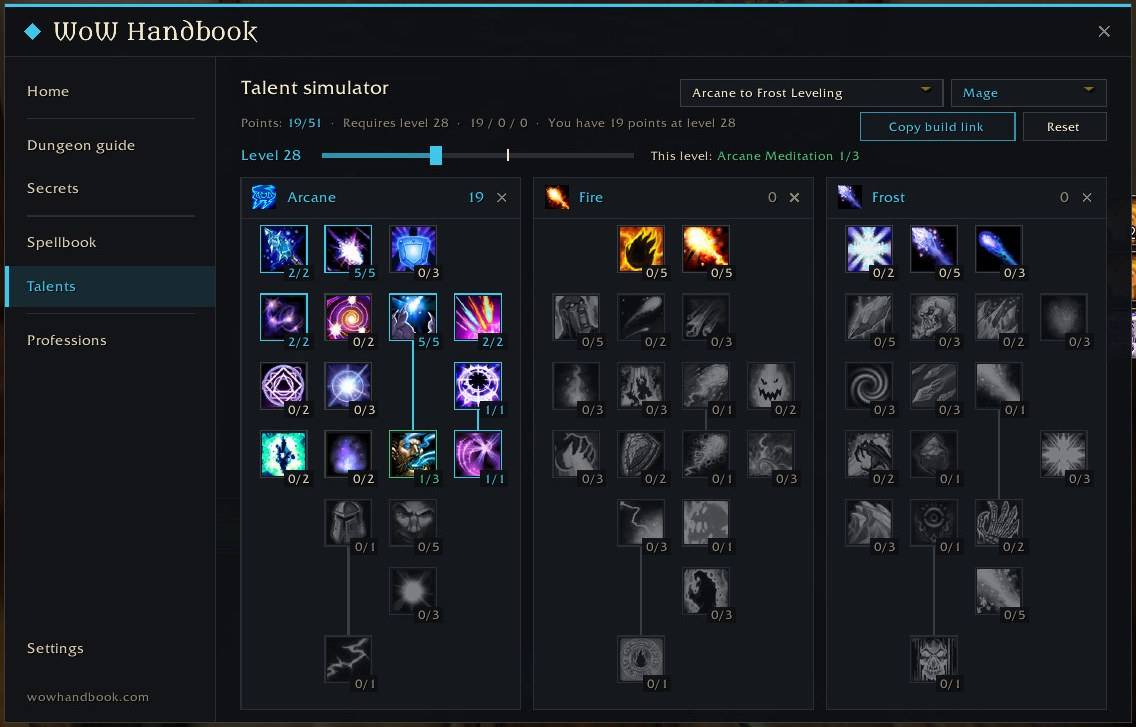
- Talent simulator: all nine classes, three trees side by side. Left-click adds a point, right-click removes one, and the game's own rules apply: 51 points, five points per row, prerequisites first. Each class keeps its own build, and one button copies a link that opens the same build in the talent calculator on wowhandbook.com. It only simulates; your character's real talents are never touched. Choose a recommended build and drag the level slider to follow it from level 10 to 60.
- Spells by level: every spell your class learns at each level, with a reminder when new ranks are waiting. Race-only spells are tagged with their race: green for yours, grey for the others. Warlocks get demon abilities and grimoires in clear groups.
- Action bar upgrades: new ranks replace lower ranks on your bars, and new active spells go into empty slots.
- Out of range in red: when your target is out of range, the whole action button turns red, not just the small hotkey number.
- Class trainers on the map, with how many spells you can train right now.
- Rare pets (hunters): every rare beast you can tame, filtered by what you can tame now, what needs more levels and what you already have. Each one shows its attack speed, special abilities and where it roams; click to mark it on the map. Tamed pets are checked off automatically.
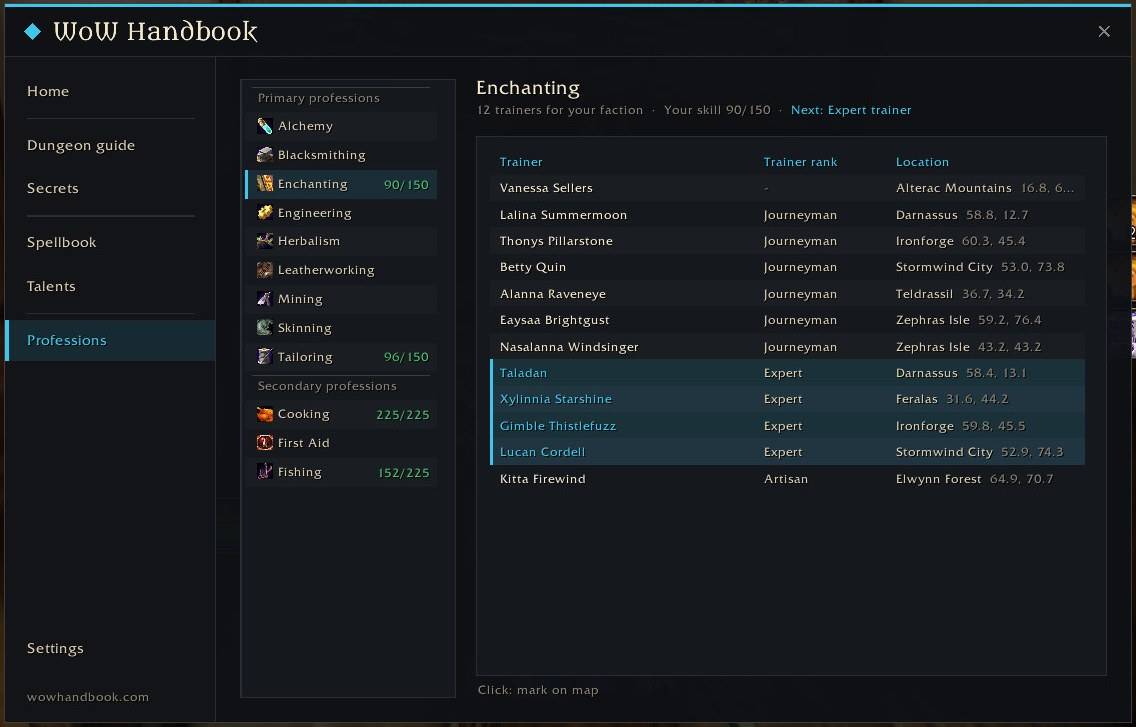
- Professions page: every trainer for all 12 professions, for your faction, with the rank they teach and where they stand. The trainer you need next is highlighted; click one to mark it on the map. Your professions' trainers also appear on the world map.
World map and minimap
- Herbs and mining nodes on the world map and minimap, shown once you learn Herbalism or Mining. Each spot shows the main node of the zone, with every possible node and its required skill in the tooltip. Nodes above your skill are tinted red. On the minimap, choose item icons or small circles that frame the game's own tracking dots. Spots you gather yourself are remembered and added to the map; quest-only nodes are left out.
- Trainers and spirit healers on the minimap: the class trainers, profession trainers and spirit healers you chose to see on the world map also appear on the minimap as small borderless icons. One switch turns them off.
- Zeppelins and boats: every zeppelin tower and boat landing on the world map and minimap, one icon per berth, using the game's own travel icon in your faction's color (blue for the Alliance, red for the Horde, gold for neutral boats). The tooltip names the route, for example "Auberdine → Stormwind (boat)", and the next two stops for the Menethil Harbor, Southshore and Auberdine loop. Includes the Zephras Isle airships to Dalaran and Thunder Bluff.
- Zone paths: arrows on the world map mark where one zone connects to the next (for example Ashenvale to Stonetalon Mountains) and the entrances to the capitals. Each arrow points toward the zone it leads to, and the tooltip names it.
- Transmogrifiers on the world map and minimap, for your faction, with a click to set a waypoint.
- Resurrection areas: along with the spirit healers for your faction, gold lines on the world map show which healer you return to when you die in each part of the zone.
- Zone level ranges, flight points (grey when not yet discovered), dungeon entrances, spirit healers, the full map including unexplored areas, and map scaling.
Look and language
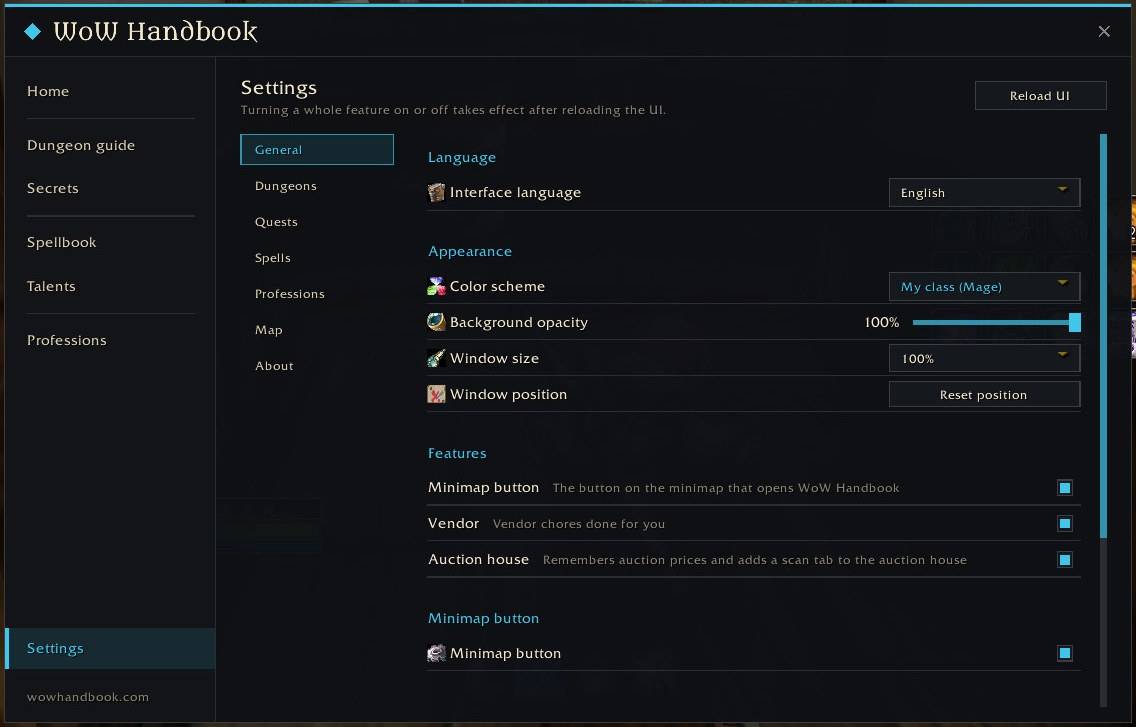
- Color scheme: the accent color follows your class by default. Switch to the classic handbook gold or any class color in Settings; the change applies at once.
- Background opacity: make the main window translucent, from 100% down to 30%. Text, borders and menus stay solid.
- Interface language: follow the game, or pick English or Simplified Chinese.
- About: the version, author and links live in Settings > About; the title bar shows the handbook's own wordmark.
Convenience
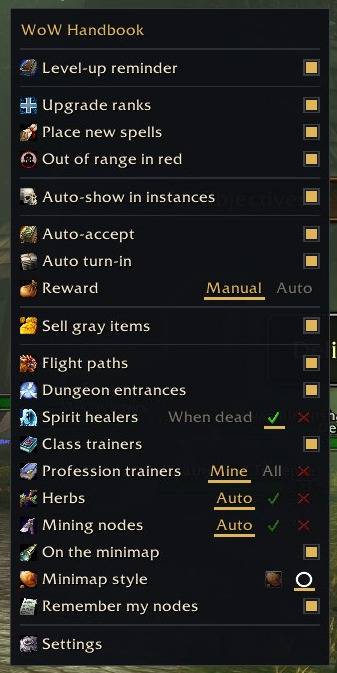
- Quick settings: right-click the minimap button for a compact menu: the most-used switches up front, everything else in groups.
- Right-click menus across the handbook: mark on the map, open in the handbook, mark as done. Small windows can be locked and resized from their right-click menu.
- Main window: remembers where you put it, and its size can be changed in Settings > Appearance. Each settings category starts with a list of its features and their switches, and changes that need a reload are marked.
- Automatic sale of grey items at vendors.
- One-click copy links to the full guides on wowhandbook.com.
Commands
/whor/wowhandbook: open or close the handbook./wh home,/wh dungeons,/wh spellbook,/wh professions,/wh pets,/wh settings: open that page./wh talents: open the talent simulator./wh secrets: show or hide the secrets helper./wh reset: move the handbook back to the center of the screen./wh quests: show or hide the dungeon helper./wh test: preview the dungeon helper with a sample dungeon.
简体中文
WoW 手册帮你解决每次上线都会遇到的问题:去哪升级、学什么技能、训练师在哪、下一步做什么。全部在游戏内完成,每项功能都可以单独开关。
副本与任务
- 副本手册:按等级推荐副本(含新副本“挖掘场:湿地”),列出进本前要接的任务与完整任务链,首领掉落可按职业与护甲类型筛选。
- 副本助手小窗:副本外选一个副本(适合你等级的排最前),列出进本前要接的任务与完整任务链,点任务在地图上标出接任务的人;进副本后显示首领进度与本副本任务。首领进度放在标题栏,已击杀的合并成一行;任务用熟悉的任务标记(? 可交、! 可接)和 3/8 这样的数量显示。
- 副本地图:在经典地下城与团队副本里打开大地图就是这个副本的地图,多层副本可以选层。
- 地图图钉:接交任务 NPC 与副本入口。
- 自动任务:和 NPC 对话时自动接任务、自动交已完成的任务。有多个奖励时可以自己选(默认),也可以交给插件:优先选能用的,其次选最值钱的。按住 Shift 对话可跳过一次;接不下或交不了的任务在同一次对话里不会反复尝试,关掉对话再点 NPC 会重新处理一次。兼容 DialogueUI。
- 任务物品发光:一个开关让任务物品和掉落任务物品的怪物发光;开关显示游戏里的实际设置,改动后可一键重新载入界面生效。
解谜
- 解谜助手:为“舒适的睡袋”“黎明唤醒者”这两条隐藏长任务链准备的小窗。它跟着你的任务、背包、银行与装备自动勾掉已完成的步骤,并告诉你下一步做什么;缺的物品标红,点地点就在地图上标出。手册里的“解谜”页完整展开每一步。
- 图书馆藏书:列出图书馆要收的全部 40 本书,每本书在哪里能找到(一键在地图上追踪)、哪些已经在包里或已经捐过、交给谁,以及各阶段的奖励。
拍卖行与专业
- 拍卖价格:搜索拍卖行时自动记下价格,拍卖行右下角的“扫描拍卖行”按钮一次扫描全部。物品鼠标提示显示拍卖价格与记录时间。已经在用 Auctionator?勾选“使用 Auctionator 价格”,手册直接读取它的价格。
- 制作成本:专业窗口的制作页显示每个配方的材料成本、售价、利润与利润率。
- 全部附魔:附魔到装备时,每点一次附魔一次,按钮显示剩余次数;“替换附魔”的确认框自动确认。
- 遭劫的板条箱:已辨认的板条箱鼠标提示列出可装的每种货物与装满所需的拍卖行价格,最便宜的一种标绿。
嵌入游戏自带窗口
- 技能书里的“按等级学习”:在游戏技能书的分类标签旁多一页,按游戏技能书的样子列出现在可学与之后每一级要学的技能;术士的恶魔技能按恶魔分组。
- 天赋窗口里的“天赋方案”:选 wowhandbook.com 的推荐方案,拖动等级条查看每一级点在哪里;游戏自己的天赋按钮上也标出方案在第几级点它。
- 角色窗口里的 BiS 装备:一页显示你的角色模型穿上当前天赋与等级的最佳装备,逐格列出获取途径;悬停看物品提示与属性变化,按住 Alt 看备选。
天赋、技能与训练师
- 天赋模拟器:九个职业,三棵天赋树并排显示。左键加点、右键减点,规则与游戏一致:共 51 点,每层 5 点,前置天赋先点满。每个职业的加点各自保存,一键复制链接即可在 wowhandbook.com 的天赋模拟器里打开同一套加点。只做模拟,不会改动角色的真实天赋。可选推荐方案,拖动等级条从 10 级看到 60 级。
- 按等级技能书:列出职业每一级能学的全部技能,有新等级可学时提醒;种族专属技能带种族标签,本种族绿色、其他种族灰色;术士的恶魔技能与魔典分类清楚。
- 动作条自动升级:学会高等级技能后替换动作条上的低等级版本,新的主动技能放进空位。
- 超距染红:目标超出技能距离时,整个动作条按钮染红,不再只是右上角的小数字变红。
- 职业训练师地图标记:显示本职业训练师,并提示现在可学几个技能。
- 稀有宠物(猎人):列出全部可驯服的稀有野兽,按现在能抓、等级不够、已抓到筛选;每只显示攻击速度、特殊技能与出没位置,点一下标到地图;驯服后自动打勾。
- 专业页:12 个专业的本阵营训练师、能教到的等级与位置,高亮你下一步要找的训练师,点一下标到地图;已学专业的训练师也显示在大地图上。
大地图与小地图
- 草药与矿点:学会草药学或采矿后在大地图和小地图上显示。每个点显示该区域的主要草药或矿,悬停列出可能刷出的全部种类与所需技能;技能不够的染红。小地图可选物品图标或小圆圈(圆圈正好框住游戏自带的采集追踪点)。自己采过的点会记下并显示在地图上(只掉任务物品的任务采集物不记)。
- 小地图上的训练师与灵魂医者:大地图上选了要显示的职业训练师、专业训练师与灵魂医者,小地图上也以无边框小图标显示,可单独关闭。
- 飞艇与船:大地图与小地图上标出每个飞艇塔与码头,一个泊位一个图标,用游戏自带的交通图标,颜色按阵营(联盟蓝、部落红、中立金)。悬停写航线,例如“奥伯丁 → 暴风城(船)”,米奈希尔港、南海镇、奥伯丁的环线写接下来两站;包括泽风岛往返达拉然与雷霆崖的飞艇。
- 区域路口:大地图上用箭头标出区域之间的路口(比如灰谷到石爪山脉)与通往首都的入口,箭头指向通往的区域,悬停写出去向。
- 幻化师:大地图与小地图显示本阵营的幻化师,点击设为导航。
- 复活区域:显示本阵营灵魂医者的同时,用金色分界线标出在区域各处死亡后会回到哪个灵魂医者。
- 区域等级范围、飞行点(未发现的灰显)、副本入口、灵魂医者、完整地图(含未探索区域)与地图缩放。
外观与语言
- 配色方案:强调色默认跟随你的职业,可在设置里改回手册金色或任一职业色,改动立即生效。
- 背景不透明度:主窗口可调成半透明(100% 到 30%),文字、边框与菜单保持清晰。
- 界面语言:跟随游戏,或指定 English / 简体中文。
- 关于:版本号、作者与链接在“设置 → 关于”里;标题栏显示手册自己的字标。
便利功能
- 快捷设置:右键小地图按钮弹出精简菜单,最常用的开关直接列出,其余按分类折叠。
- 右键菜单:手册各处右键可在地图上标记、在手册中查看、标记完成;小窗右键可锁定位置、调整大小。
- 主窗口:记住拖动后的位置,可在“设置 → 外观”里调整大小;设置页每一类顶部集中列出功能与开关,需要重新载入的改动会标出来。
- 与商人对话时自动出售灰色物品。
- 一键复制 wowhandbook.com 上对应的完整攻略链接。
游戏内命令
/wh或/wowhandbook:打开或关闭手册。/wh home、/wh dungeons、/wh spellbook、/wh professions、/wh pets、/wh settings:直接打开对应页面。/wh talents:打开天赋模拟器。/wh secrets:显示或隐藏解谜助手小窗。/wh reset:把手册窗口放回屏幕中央。/wh quests:显示或隐藏副本助手小窗。/wh test:用示例副本预览副本助手小窗。
Made by AntaresBuild (ArcaneStudio).
WoW Handbook is an unofficial, fan-made addon. It is not affiliated with or endorsed by Blizzard Entertainment.
Full guides, quest walkthroughs and loot tables: wowhandbook.com
WOW Handbook Team