Whisper People
- By
Send prewritten messages with a single click to a chat channel. Save time on trade chat, crafting requests, boss explanations, guild recruitment or any repeated texts - customizable, sortable and hotkey-ready.
WP.jpg
Description
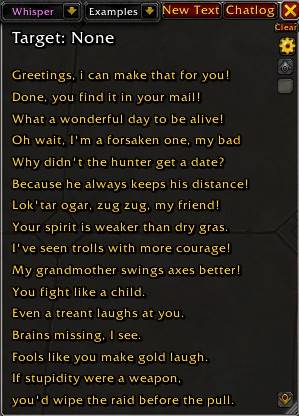
WhisperPeople lets you save messages you use often and send them with a click. It works well for trade chat, crafting offers, guild recruitment, whispers, or anything else you find yourself typing over and over.
Adding and using texts
Click New Text to add a new message.
Left-click a saved text to send it to the currently selected channel.
If you want to whisper someone, left-click their name in chat first and then click the saved text.
Each text can contain up to 255 characters.
Item links and profession links can also be added. While the cursor is active in the text edit box, hold Shift and left-click an item or the white speech bubble in your profession window.
To edit a text, right-click it.
To delete a text, right-click it, remove everything from the text field and press Enter.
If you want to change the order of your texts, hold Ctrl and drag them to a different position in the list.
Window and commands
Use /wpp to open the main window. You can also open it with the minimap button.
Use /wppm to hide or show the minimap button.
Use /wppreset if you want to reset the window position.
Use /wpphelp to open the ingame help. You can also find it in the cogwheel menu.
All WhisperPeople windows can be dragged freely around the screen.
The cogwheel menu also has a background opacity setting. You can make the main window completely transparent, fully opaque, or anything in between.
There is also an option to enable resizing. When enabled, a small resize area appears in the bottom-right corner of the main window.
Whisper chatlog
WhisperPeople keeps track of your last 20 players and the last 50 whispers.
Use /wpplog or the button in the main window to open the chatlog.
Left-click a player's name to set that player as your current whisper target. The player you whispered most recently will always be shown at the top.
For players on another realm, the first whisper may need to be sent through the normal chat input. Click the player's name in chat, then Shift and left-click your saved text. The text will be placed into the chat input and you can press Enter to send it.
After that first message, you can normally use your saved texts as usual.
Whisper targets
You can manually set a whisper target with:
/wppt playername
or:
/wppt playername-servername
Use /wppclear to clear the current target. You can also use the small Clear button in the window.
Ctrl and left-clicking a player's name in chat sets that player as your target without opening the chat input. This is useful if you want to send messages directly with a hotkey.
Your selected whisper target stays saved when you switch characters.
Channels and categories
The channel dropdown decides where your saved text will be sent.
The category dropdown lets you organize your texts into separate categories. You can use between 1 and 99 categories.
Right-click a category number or name to rename it.
By default, WhisperPeople uses 10 categories. You can change the number of available categories in the cogwheel menu.
Mythic Plus and boss fights
There is one limitation during Mythic Plus runs and active boss encounters.
Blizzard does not allow addons to use the normal chat sending method during these situations. Because of that, WhisperPeople has separate channels that work during this restricted state:
M+ Chat / Party Bossfight
Raid Bossfight
Instance Bossfight
Raidwarning Bossfight
These channels use a different method to send your saved messages while the normal addon chat method is blocked.
They are limited to 100 messages per category. Internally, WhisperPeople uses invisible buttons placed over the saved message lines in the main window to make this work within Blizzard's restrictions.
So while you are in a Mythic Plus run or actively fighting an instance or raid boss, use one of these special channels. The normal channels will not work until you are out of that restricted state.
Hotkeys
Ctrl and right-click a saved text to assign a hotkey to it.
Alt and right-click removes the assigned hotkey.
You can see the assigned key in the text's tooltip.
Hotkeys only work while the WhisperPeople main window is open, so they do not interfere with your normal keybinds.
If you have a whisper target selected, pressing the hotkey sends the corresponding text directly to that player.
You can also assign a normal WoW keybind for opening and closing WhisperPeople. Go to Esc, Options, Keyboard Settings, WhisperPeople and set a key for Toggle WhisperPeople Window.
Hotkeys are stored separately for each category.
Import and export
Use /wppshare to open the import and export window. You can also right-click the minimap button.
To import texts, click into the first line and paste them with Ctrl+V.
To export them, highlight the text and copy it with Ctrl+C.
Crafting order sounds
WhisperPeople plays a notification sound when you receive a personal crafting order.
If you do not want this, you can disable the sound in the cogwheel menu.
Macro buttons
WhisperPeople can also display buttons for your normal WoW macros directly inside the main window.
Open the cogwheel menu and enter a number from 0 to 9 in the Macro Buttons field, then press Enter.
The selected number of macro buttons will appear at the top of the main window.
Open WoW's macro window and drag any macro onto one of these buttons.
Left-clicking the button runs the assigned macro. Right-clicking it clears the slot.
Your macro button setup is saved automatically and restored after a relog or UI reload.
This can be useful for things like a /logout macro when switching characters, or any other macro you regularly use together with WhisperPeople.
Common questions
Why does WoW say that the player cannot be found when I try to whisper them?
This usually happens when the player is on another server. It can even happen when both servers belong to the same connected realm group.
For the first message, click the player's name in chat so the normal chat input opens. Then Shift and left-click the saved WhisperPeople text you want to send. It will be copied into the chat input. Press Enter to send it.
After that first contact, messages to that player should work normally through WhisperPeople.
Can I use WhisperPeople for scripts?
Yes.
If you simply click a saved script, WoW may treat it as normal chat text. Instead, Shift and left-click the saved text. This puts it into the normal chat input. Press Enter and WoW will handle it as a command or script.
You can also add a short description inside a /run script so you can tell what a saved script does later.
For example:
/run --[[Empty Questlog]] for i = 1, C_QuestLog.GetNumQuestLogEntries() do local qid = C_QuestLog.GetQuestIDForLogIndex(i); C_QuestLog.SetSelectedQuest(qid); C_QuestLog.SetAbandonQuest(); C_QuestLog.AbandonQuest(); end
Just keep in mind that saved texts are limited to 255 characters.
I've set up a small Discord Server for my addons https://discord.gg/j3vQVnWUYv Feel free to use it if you have any problems, suggestions or just a simple feedback - I am grateful for everything!
The Whisper People Team