


Whisper Messenger (WhisperMessenger)
- By

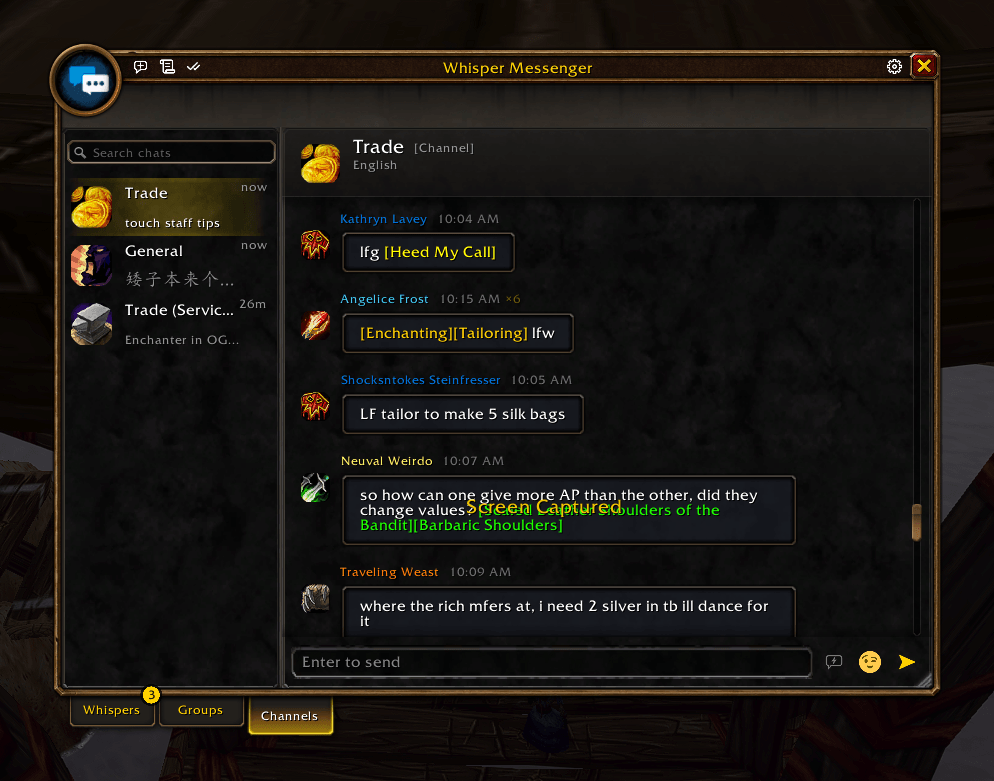
The Channels tab with Trade, General and Trade (Services). You can read and reply to channel chat in its own window, item and profession links included.
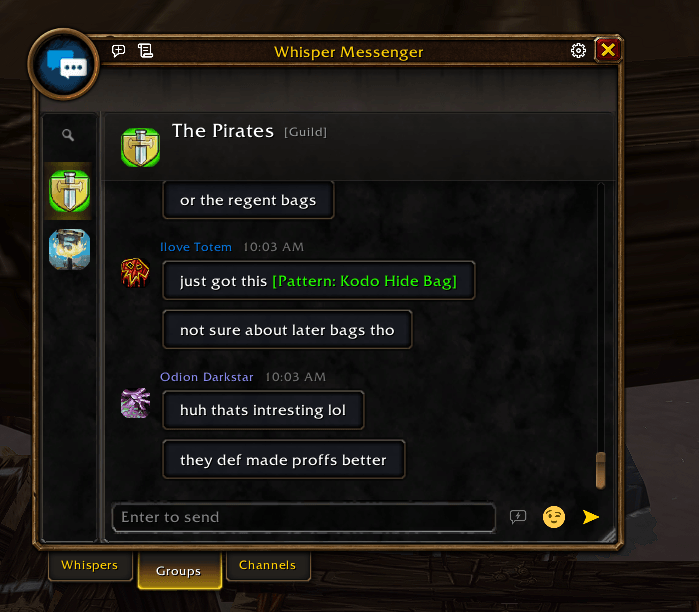
Guild chat in the Native WoW HUD style, with the slim icon-only contact list and the Whispers, Groups and Channels tabs under the window.
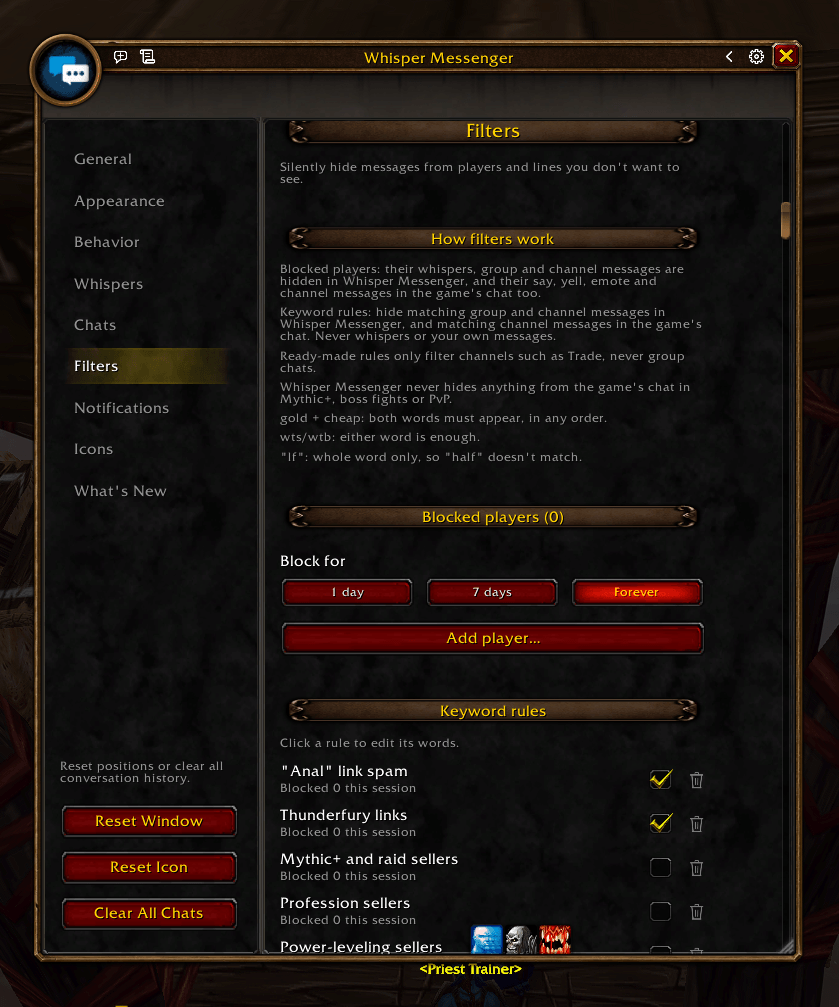
Filters settings: block a player for a day, a week or forever, and turn on ready-made keyword rules that hide link spam and boost or power-leveling sellers in channels.
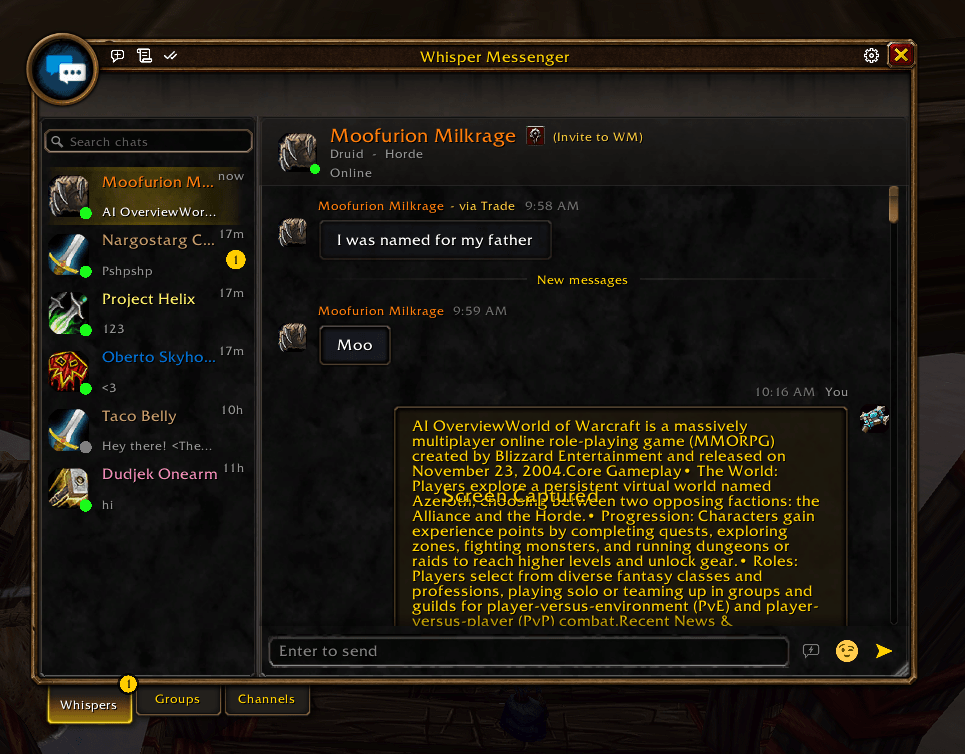
The Native WoW HUD style with its gold game frame. A whisper over 700 characters long arrives as one message instead of being split into pieces
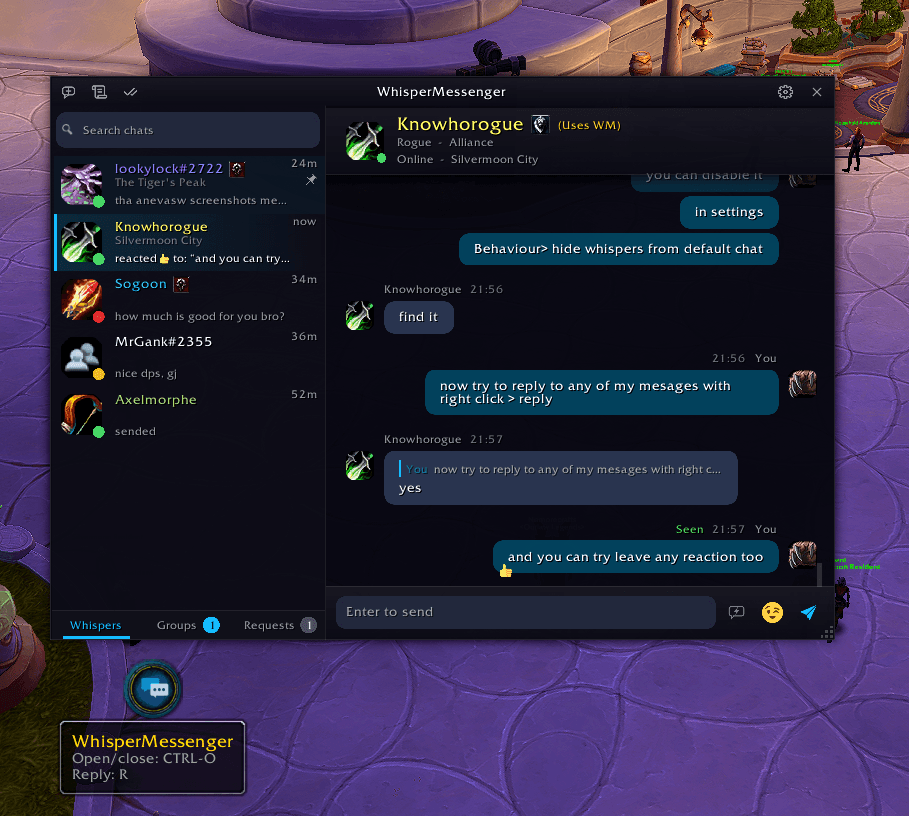
A whisper chat with a quoted reply, a thumbs-up reaction and a Seen receipt. The contact list shows class colors, online status and each friend's latest message.
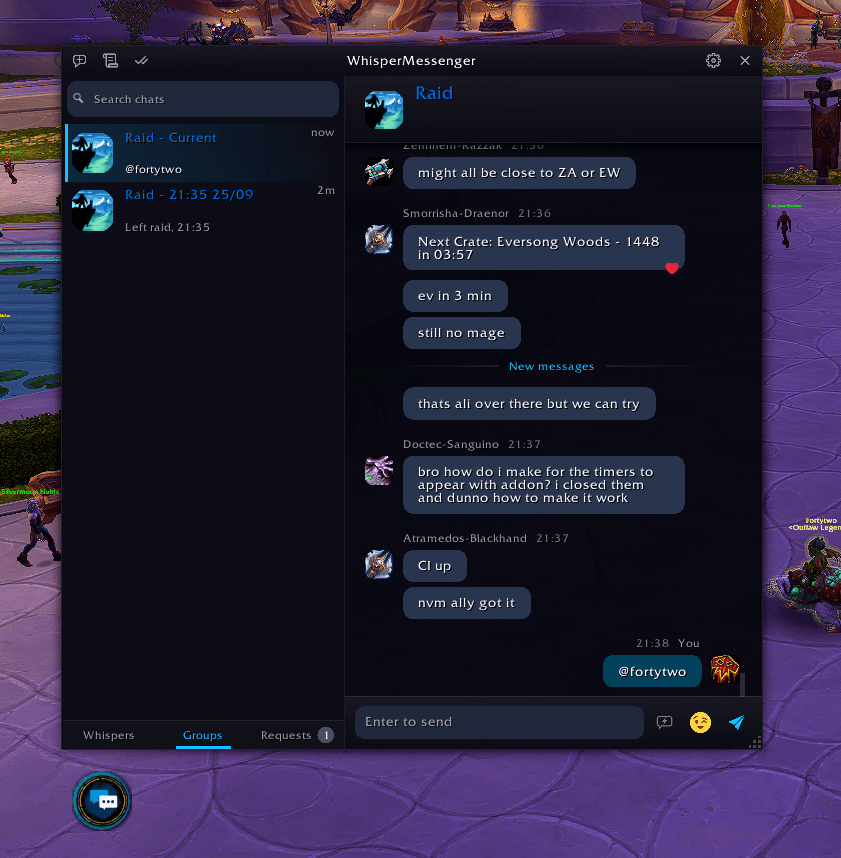
Raid chat in the Groups tab, with a New messages line marking where you left off. Past raids stay in the list after you leave the group.
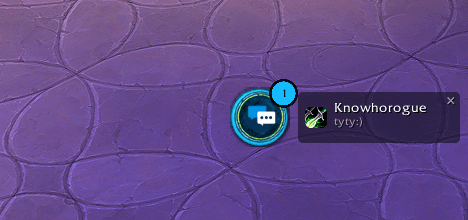
The floating button shows how many messages are unread and a short preview of the newest one, so you can see who wrote without opening the window.
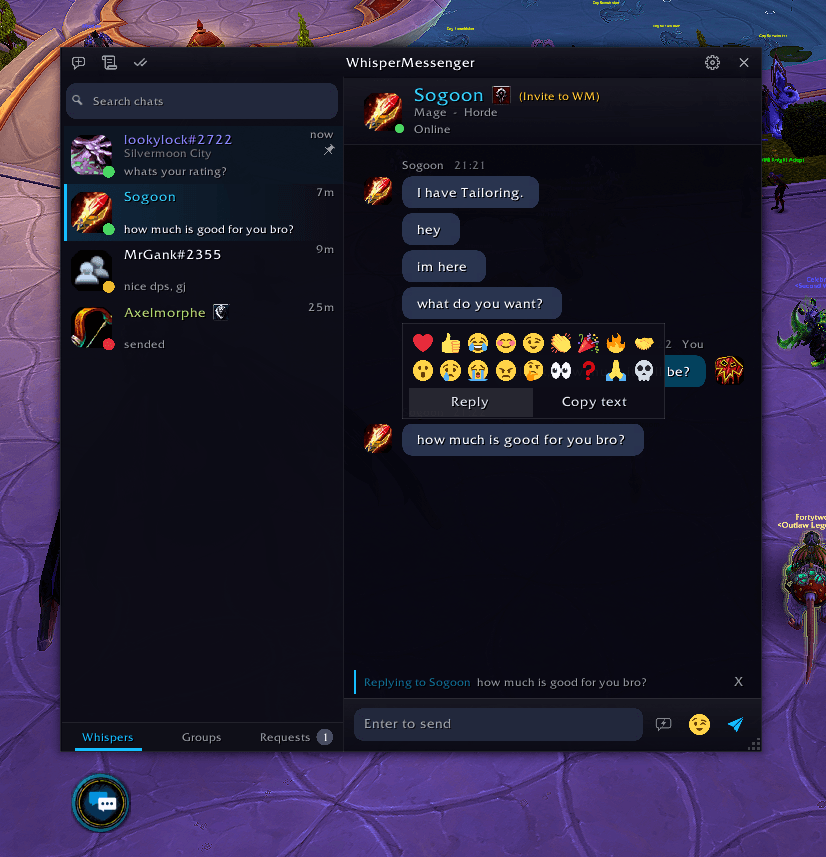
Right-click any message to react with an emoji, reply to it or copy its text. A bar above the message box shows who you're replying to.
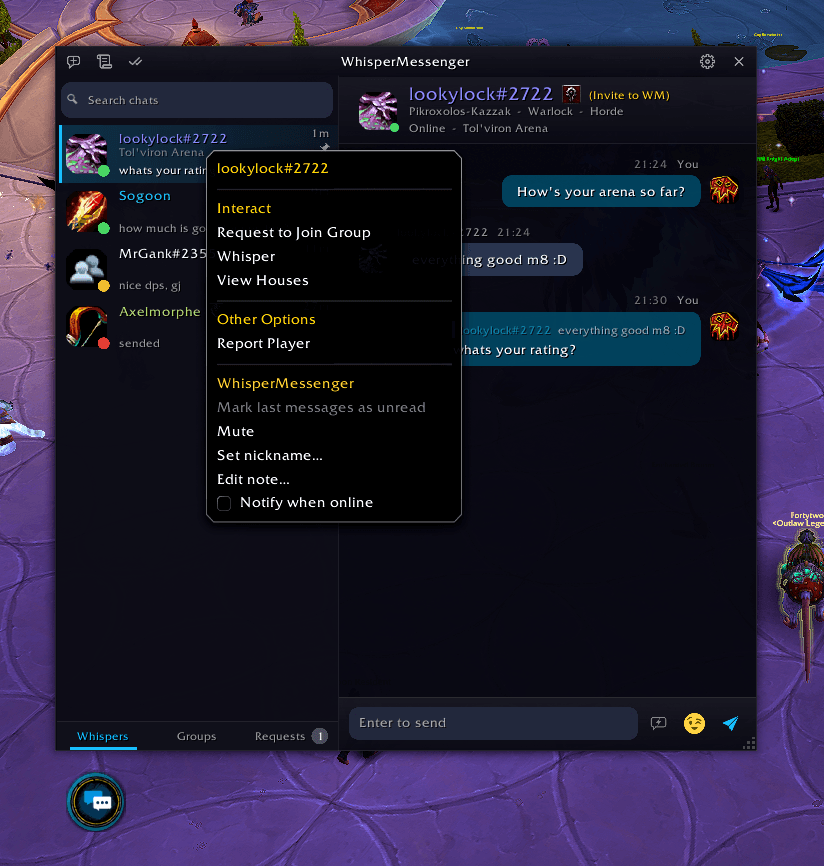
Right-click a contact to get the usual game options plus Mute, Set nickname, Edit note, Mark as unread and Notify when online.
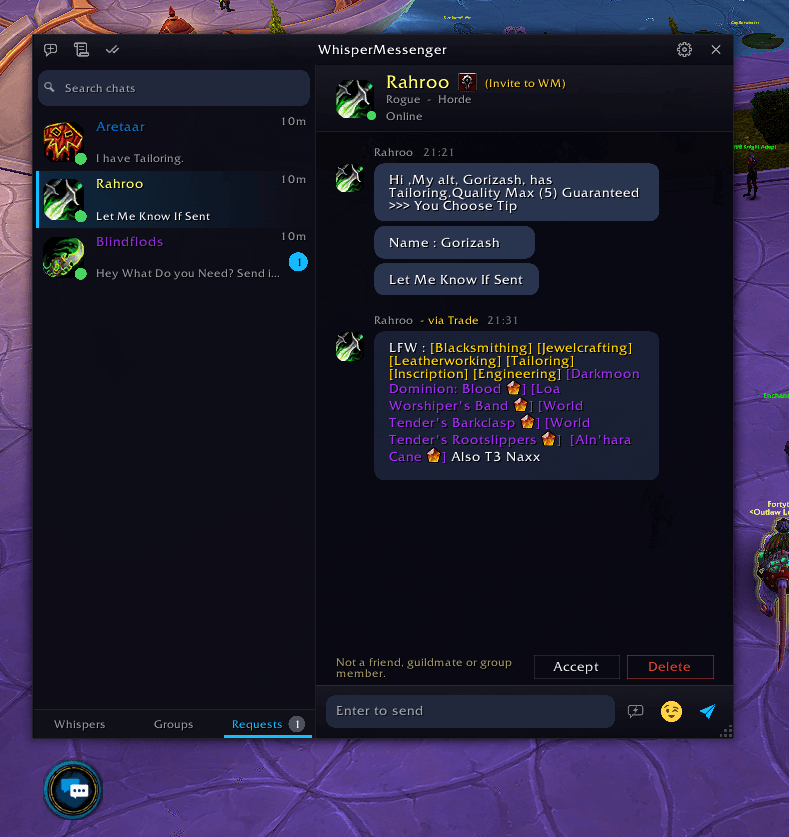
Whispers from strangers go to Requests. Accept moves them into your chats and Delete removes them. A message someone first sent in Trade is marked "via Trade".
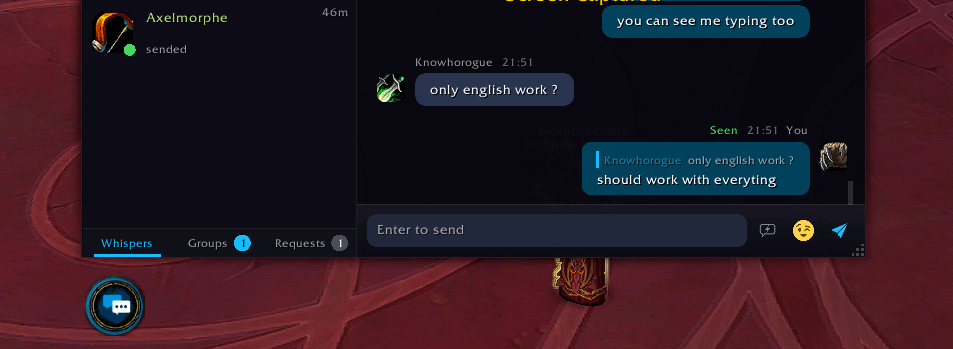
A green Seen mark appears next to the time once the other person has read your message, when you both use WhisperMessenger.
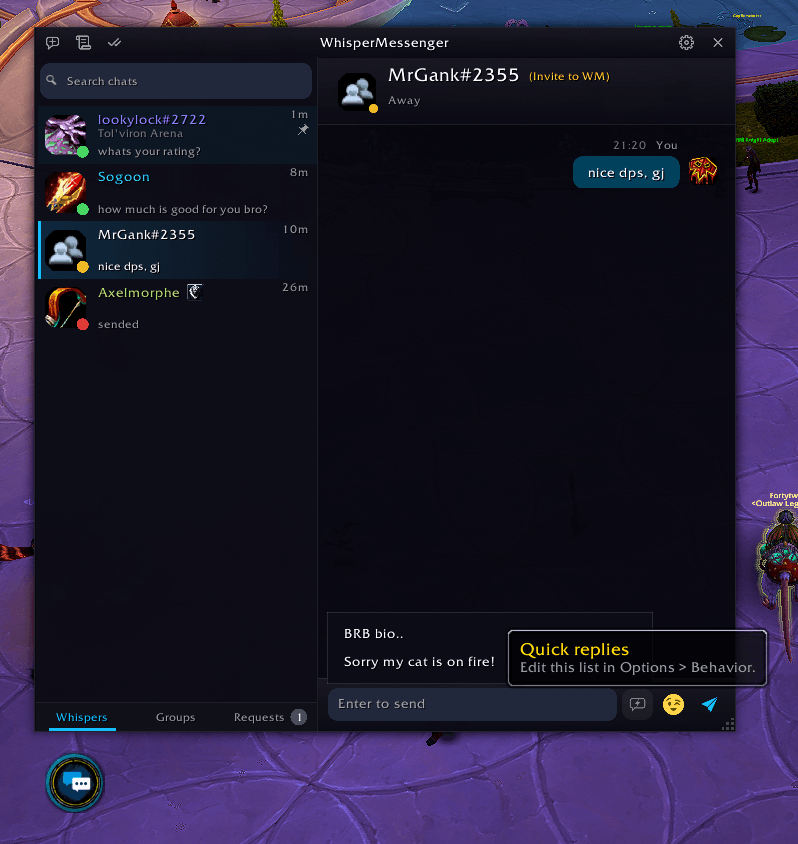
The quick replies button next to the emoji picker sends a saved line like "BRB bio.." in one click. You can edit the list in Options > Behavior.
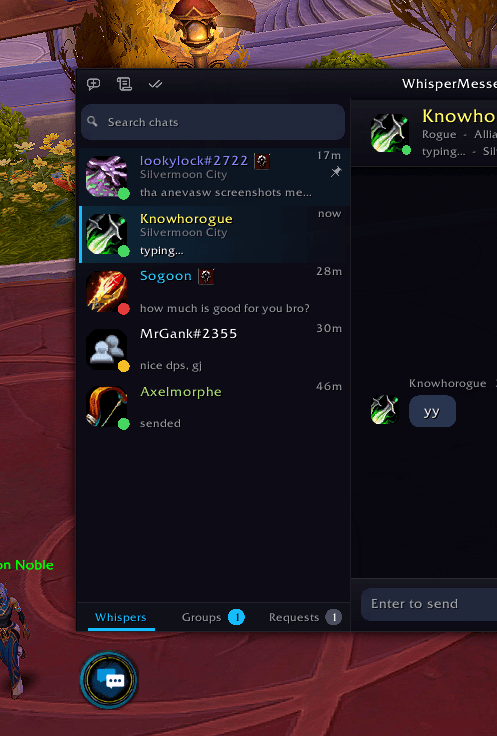
The contact list shows "typing..." under a friend's name while they write to you, when you both use WhisperMessenger.
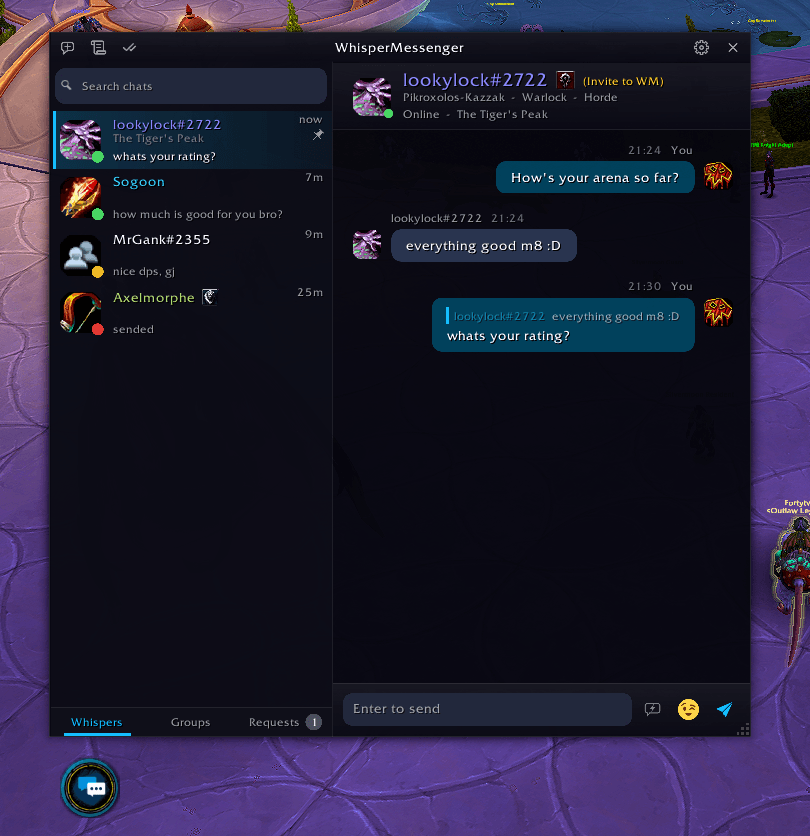
Right-click a message and pick Reply. Your answer shows the quoted line above it, so the other person knows what you're replying to.
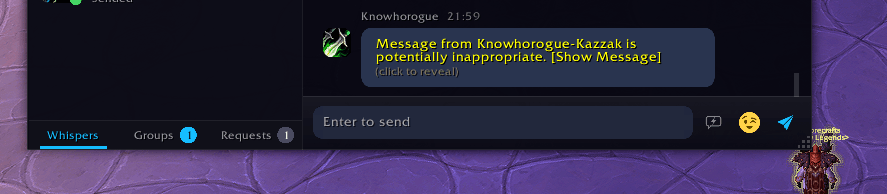
When the game's profanity filter flags a message, it stays hidden behind Show Message. Click it to see the text.
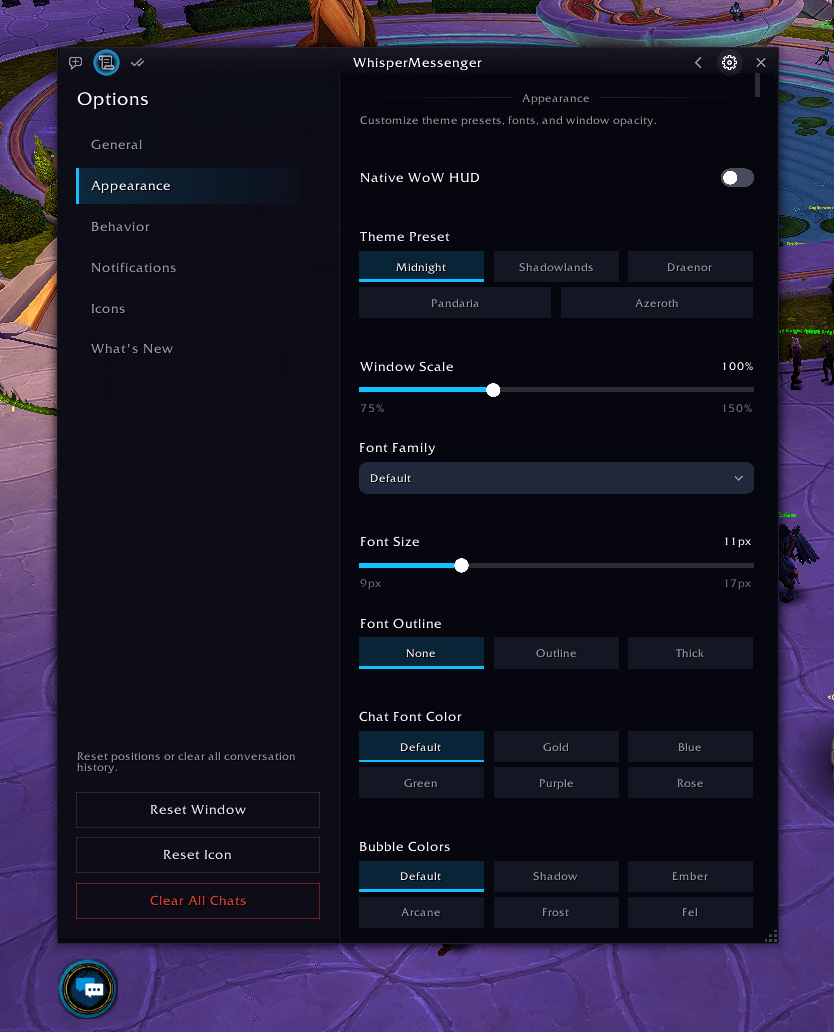
Appearance settings: Native WoW HUD, theme presets (Midnight, Shadowlands, Draenor, Pandaria, Azeroth), window scale, font, font size, text color and bubble colors.
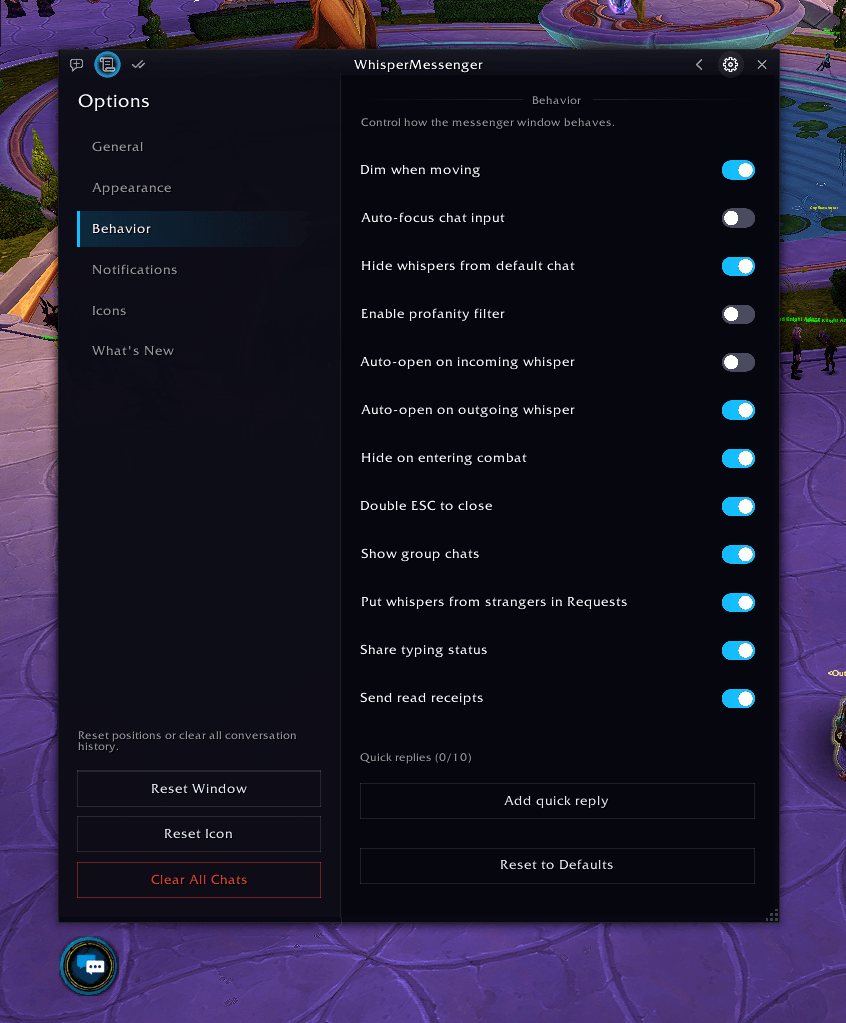
Behavior settings: hide whispers from the default chat, open the window on new whispers, hide it in combat, stranger requests, typing status, read receipts and quick replies.
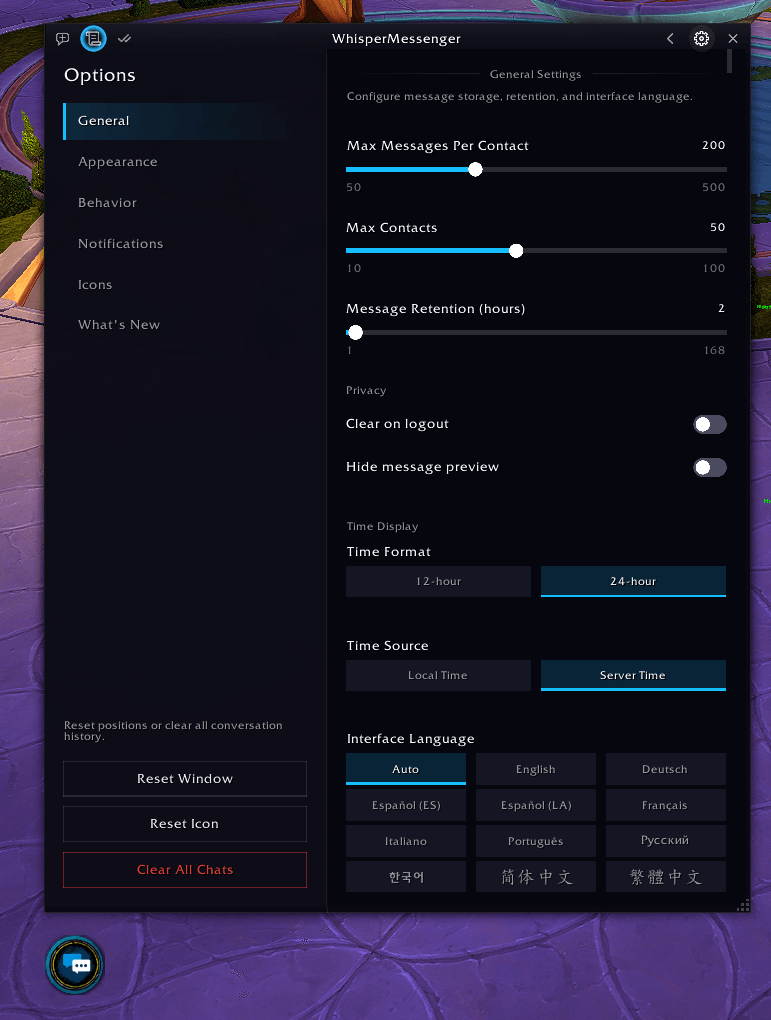
General settings: how many messages and contacts to keep and for how long, privacy options, 12-or 24-hour time, and the interface language.
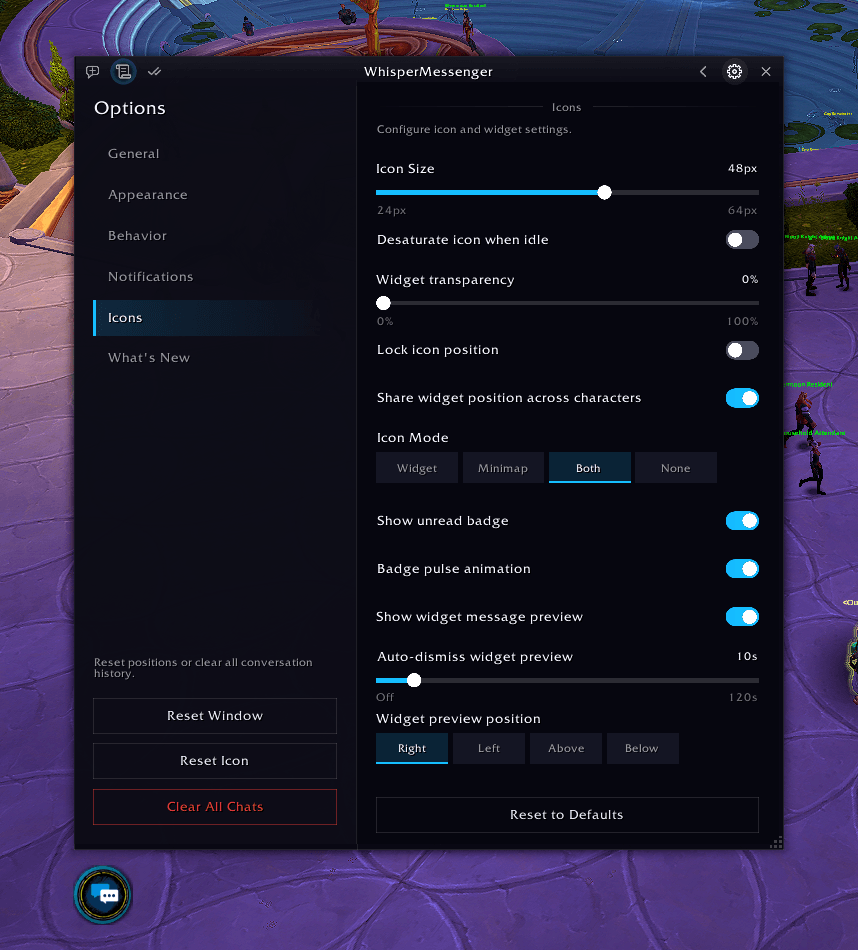
Icons settings: button size and transparency, floating button or minimap icon (or both), unread badge and pulse, and a message preview with its own position and timer.
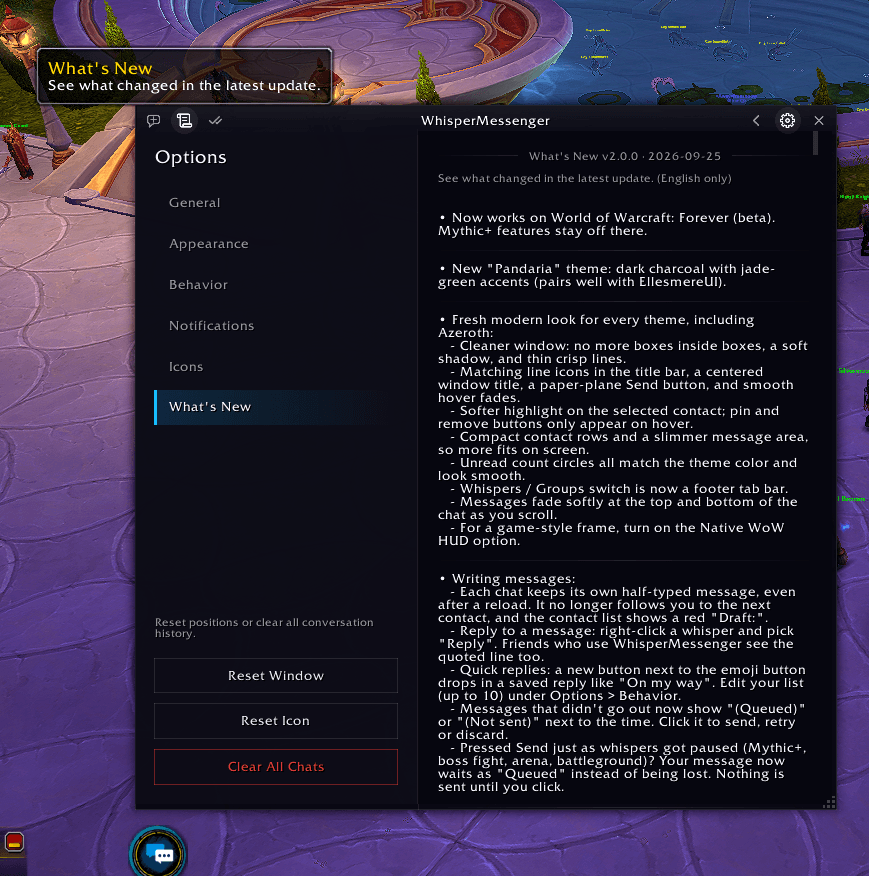
The What's New page in Options lists everything that changed in the latest update.
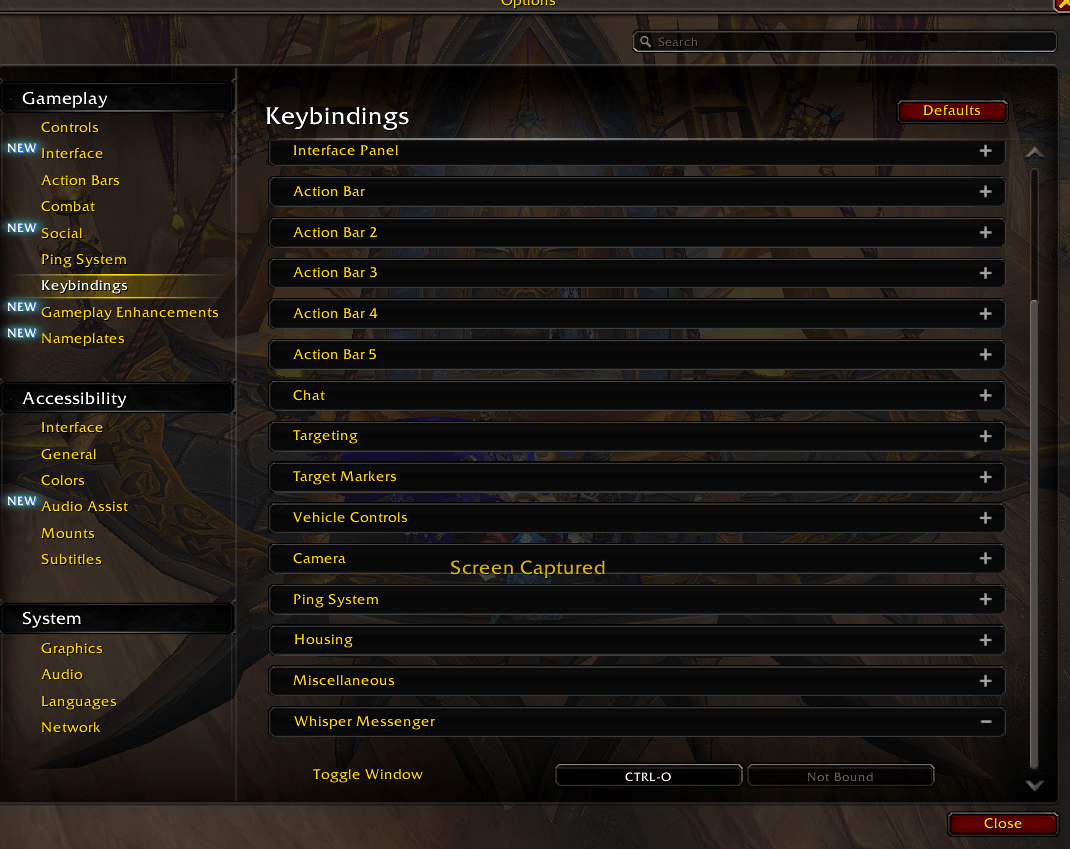
Keybindings for the Toggle Window
contest.png