
Whats Next? Quest Planner
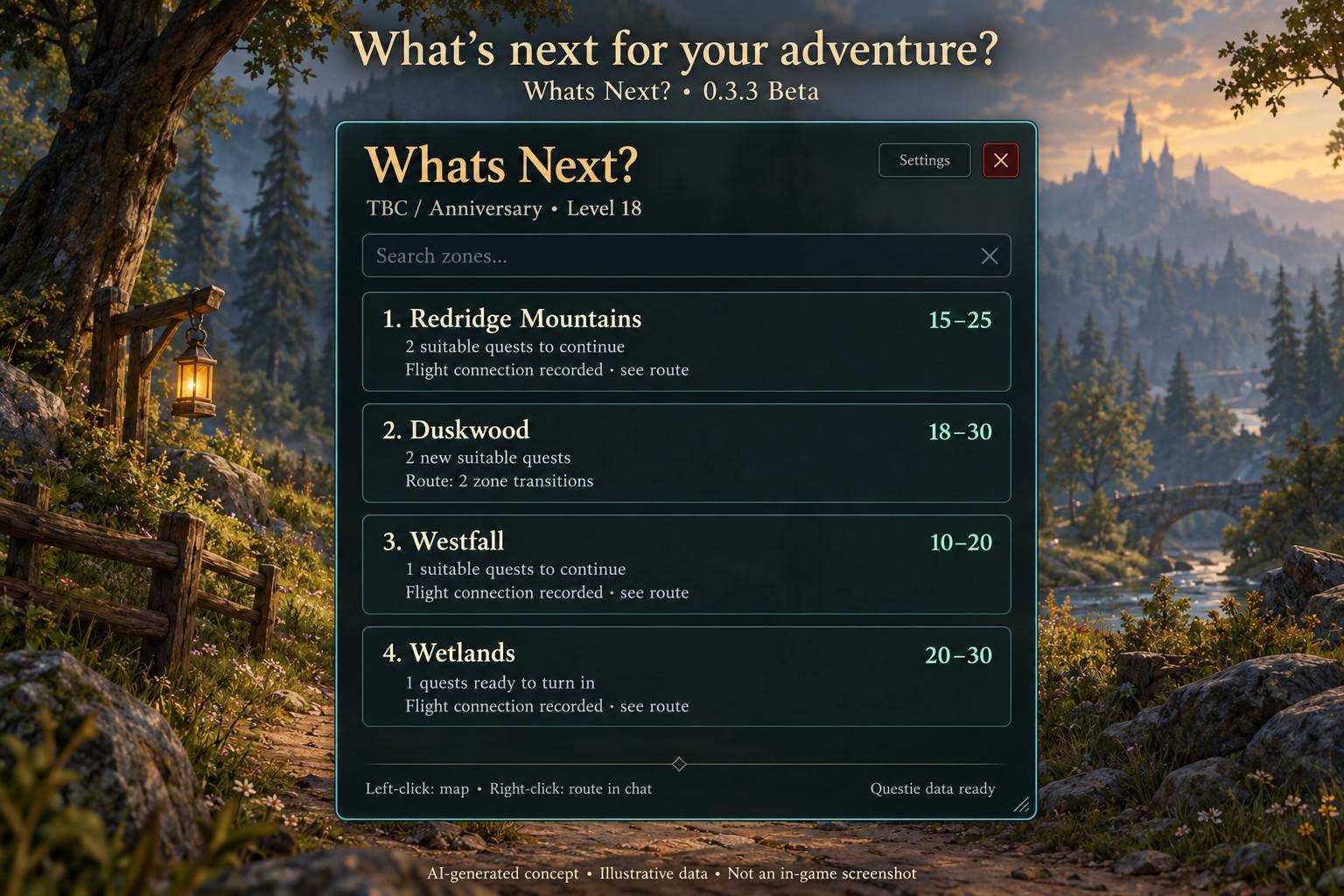
AI-generated 0.3.3 concept showing the normal recommendation list with an empty search field, quest reasons and route summaries. Data and scenery are illustrative; actual appearance may vary. Not an in-game screenshot.
Description
Whats Next? Quest Planner
Find your next questing area and plan the journey. Whats Next? combines your level, faction, location and known quest progress to suggest useful zones. Current version: 0.3.3 Beta.
Find somewhere useful to go
- Clear quest status: see suitable quests to continue, quests ready to turn in and new suitable quests. Each recommendation explains why the zone is shown.
- Zone search: look up supported zones by English or client-localized name, even outside your level range. Hover for level ranges, quest status and travel steps. Browse results with the arrows; X or Escape restores recommendations.
- Level-aware filtering: choose how many quest levels above you to consider, from +0 to +10 (default +2). The lower green-range boundary and quest eligibility requirements still apply. Zones with no suitable available or active quests rank lower and are reconsidered as you level.
- Optional Solo mode: excludes quests that Questie tags as elite, dungeon, heroic or raid from ongoing/new counts. Ready turn-ins remain included. Missing tags do not guarantee a quest is solo-friendly.
- Turn-in destinations: when Questie identifies one unambiguous finisher zone, ready quests count at that destination, including cities and areas outside your leveling bracket. Otherwise, check your quest log for the destination.
Travel and map information
Hover over a result for Walk/ride, Fly and supported transport steps. Open a flight master's map to record reachable connections for your character; visit other flight masters to improve coverage. Only observed directions are used. Unknown flight points are not assumed to be unlocked.
Left-click a result to open its map outside combat, or right-click to print its route in your local chat. Supported world-map zones also show suggested level ranges.
Routes estimate travel effort. They are not verified fastest or safest routes. Actual flight time, waiting time, within-zone distance, terrain hazards and affordability are not measured. Registered boat, zeppelin, tram and Dark Portal routes are specific to the TBC profile; transport coverage is incomplete. Do not use the routes as safe Hardcore guidance.
Make the panel yours
- Show 1–5 suggestions; adjust scale, width, opacity and compact view.
- Drag the bottom-right corner to scale the panel, or lock its position.
- Settings are grouped into Quests, Appearance and Map, with separate opacity for the settings window.
- Detail cards match the panel; press or release Shift while hovering to switch between short and expanded details.
- Drag the minimap button around the minimap. Left-click toggles the panel; right-click opens settings.
- English is the default; Norwegian is available in Settings. Zone names follow the WoW client language.
- Preferences, position, observed quest history and flight connections are saved per character.
Questie and data coverage
Questie is optional and is not bundled. With a compatible Questie installation, the addon considers registered one-time quests in your configured level window, completion state and eligibility requirements. Locked quests do not count as available. Counts remain estimates: prerequisites, hidden quests and database coverage affect the results.
Without compatible Questie data, the addon uses observed quest-log entries, turn-ins and completion flags for known quest IDs. Coverage is partial. Unknown availability is not treated as zero, and a cleared level window does not mean every activity in a zone is complete.
Search is a zone lookup, not a recommendation. Quest counts still reflect your current level and filters. The local zone database covers common leveling areas, not every instance, island or endgame area; level ranges are guidance.
Quick start
- Extract WhatsNext into your client's Interface/AddOns folder. The final path must be Interface/AddOns/WhatsNext/WhatsNext.toc.
- Restart WoW, enable the addon, then open it with the minimap button or /wn.
- Hover over a suggestion or search for a zone. Hold Shift for more detail.
- Open a flight master's map to record your available connections.
- Open Settings or /wn settings to adjust quests, appearance, maps and language.
Commands
- /wn or /whatsnext — toggle the panel
- /wn settings — open settings
- /wn minimap — toggle the minimap button
- /wn hover — toggle world-map level tips
- /wn reset — reset panel position and show the panel
- /wn debug — show client and integration diagnostics
- /wn help — show command help
Compatibility and beta status
Available for Classic 1.15.9, TBC Classic 2.5.6, Wrath Classic 3.4.5 and Mists of Pandaria Classic 5.5.4. Owner testing has been on TBC Anniversary; other clients and the newest search feature still need live verification. Automated Lua 5.1 tests simulate WoW and Questie APIs, including 28,100 quest-filter scans across levels, factions and five client profiles. These tests do not replace in-game testing. Retail is unsupported; Forever remains unverified.
When reporting a problem, include your client version, the full Lua error and /wn debug output. The gallery illustrates the 0.3.3 layout: normal recommendations, zone search and organized settings. Images are AI-generated concepts with illustrative data, not in-game screenshots.
Version history
See the full changelog for the main changes by version, including earlier alpha milestones.
Whats Next? Quest Planner Team
