VuloGearSets
- By
Save your equipment as named gear sets and switch between them by spec, stance, or a single click.
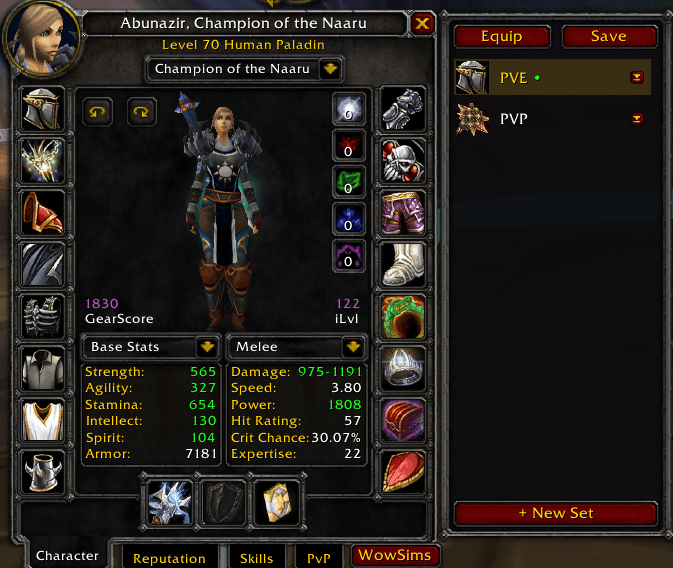
image.png
Description
What it does
VuloGearSets saves your equipment as named sets and lets you switch between them instantly — by hand, from your action bar, by talent spec, or by stance and form.
Works on TBC Classic Anniversary, Classic Era and now also on World of Warcraft: Forever.
Features
Gear sets Save your whole outfit or just parts of it: trinkets, weapons, rings or armour. Equipping works out of combat and pulls the items straight from your bags.
Sidebar on the character frame Every set gets its own icon. Click to select, double-click to equip, right-click for the context menu. Replace a single slot without rebuilding the whole set. Drag the sidebar wherever you want it with /gearset unlock.
Minimap button Left-click for the set switcher, right-click for the settings, drag to reposition.
Slot picker Hover an equipment slot and the matching items from your bags appear right next to it — click one to equip. It only shows up when there is actually something to swap. A configurable click opens the full window with all of them.
Action bar buttons Right-click a set and choose "Place on action bar" — the set lands on your cursor and you can drop it on any action button.
Back to previous gear One click, key or /gearset back puts back whatever the last set switch replaced. Press it again to switch forward.
Put a set in the bank With the bank open, right-click a set and choose "Put in bank" to move its pieces from your bags into free bank slots.
Automatic switching Bind a set to a talent spec or to a stance or form, and it equips itself when you switch. Warrior stances, druid forms and dual spec are all supported. Changes during combat are deferred until the fight ends instead of being dropped.
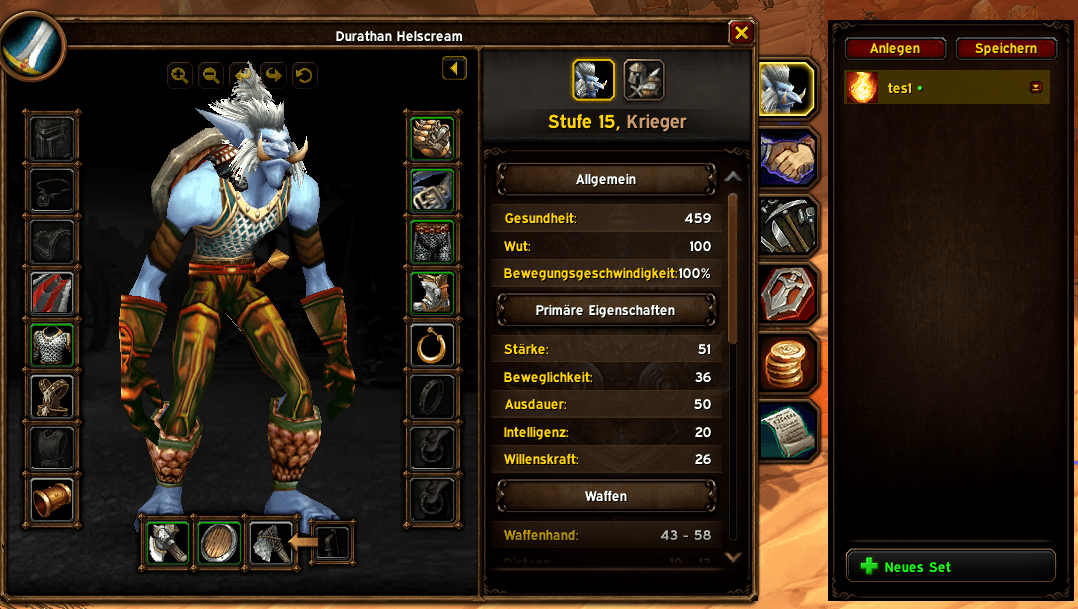
World of Warcraft: Forever Everything above works on the Forever client too. The sidebar there takes the look of Blizzard's own equipment manager, and your sets are also kept in the character window's equipment manager — stored on the server, so other addons and bag windows see which items belong to them.
Slash commands
- /gearset save <name> — save your current equipment as a set
- /gearset <name> — equip a set
- /gearset config — open the settings
/vgs works as a short form of /gearset.
Languages
English and German.
Coming from VuloClassicUI?
VuloGearSets started out as the equipment set module of VuloClassicUI and now runs completely on its own. If VuloClassicUI is installed, your existing sets — including spec and form bindings — are imported automatically the first time you log in on a character. VuloClassicUI's data is only read, never changed.
Neither addon disables the other. If you run both with their set modules active you will get two minimap buttons and two sidebars; just turn one of them off.
Important: start VuloGearSets at least once before removing VuloClassicUI, otherwise there is no saved data left to import from.
Source
https://github.com/mrvulo/VuloGearSets

VuloGearSets Team