VertiCrop
- By
See the 9:16 crop of your vertical video in game: frame, darkened sides and YouTube Shorts, TikTok and Instagram Reels safe zones. Place your UI, record in recording mode, get the crop values for OBS. Retail, Classic and WoW Forever.
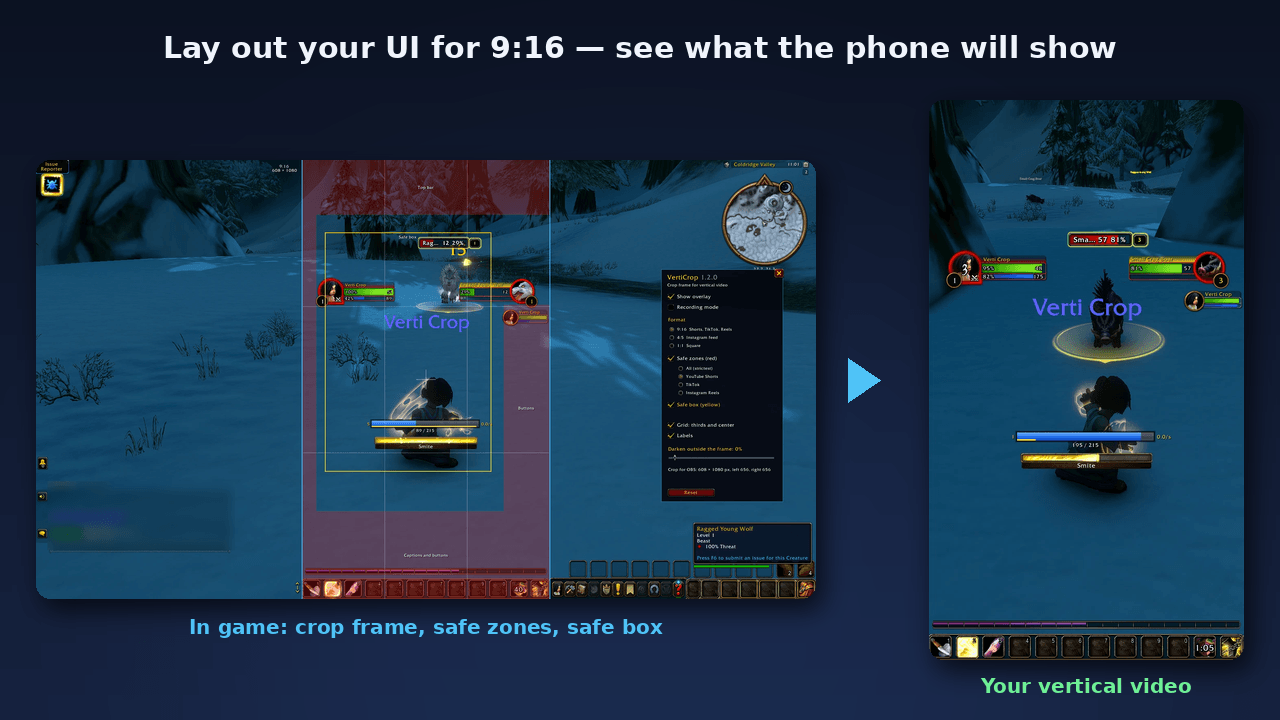
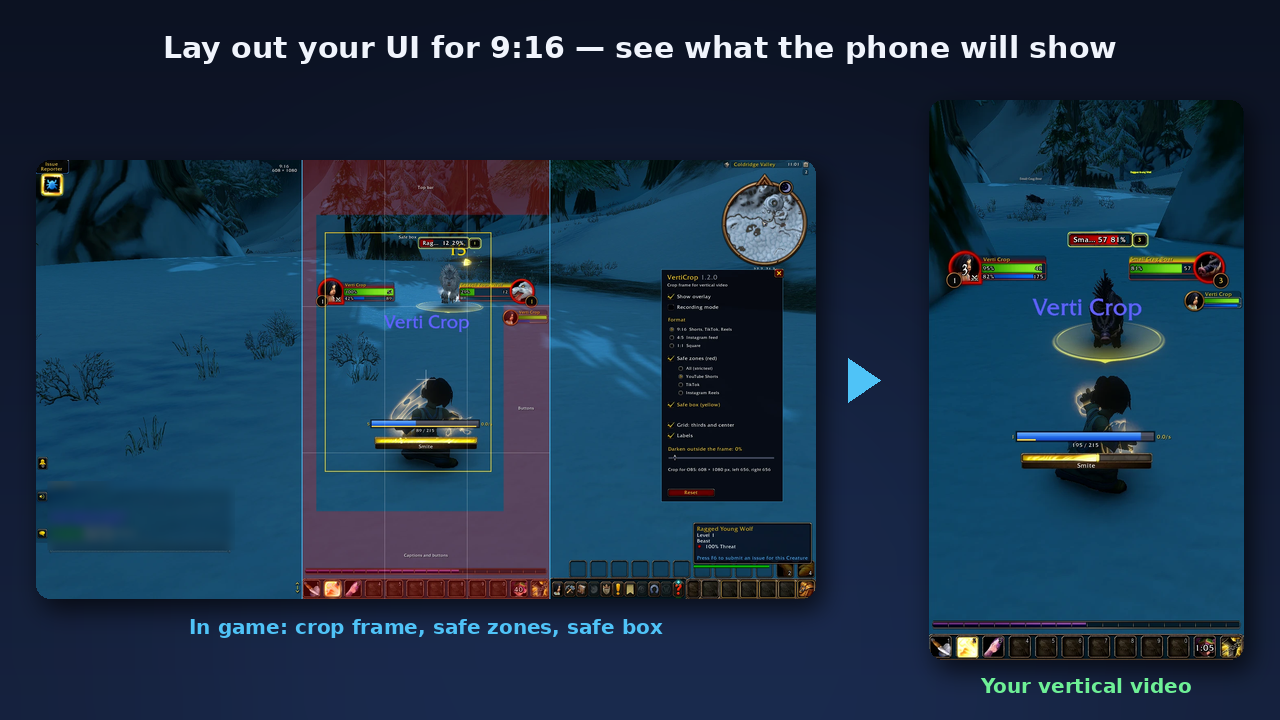
Lay out your UI for 9:16 in game and see what the phone will show: crop frame, YouTube Shorts / TikTok / Reels safe zones and the yellow safe box.
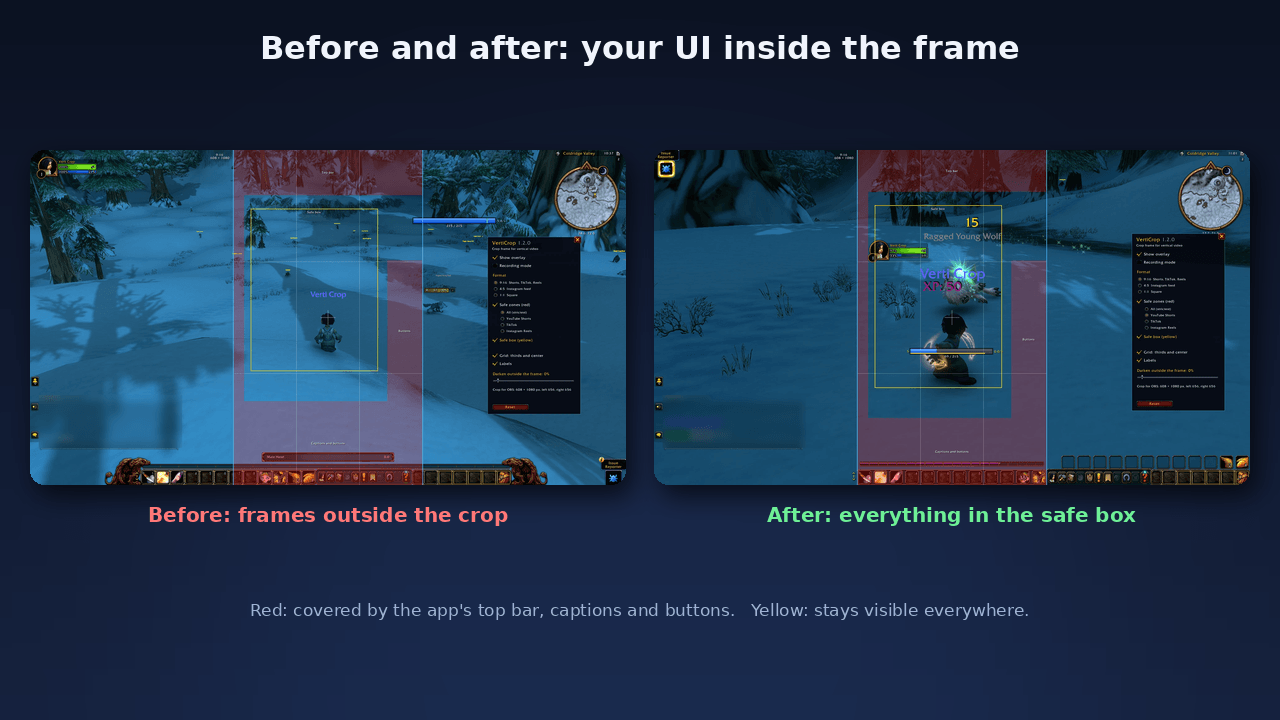
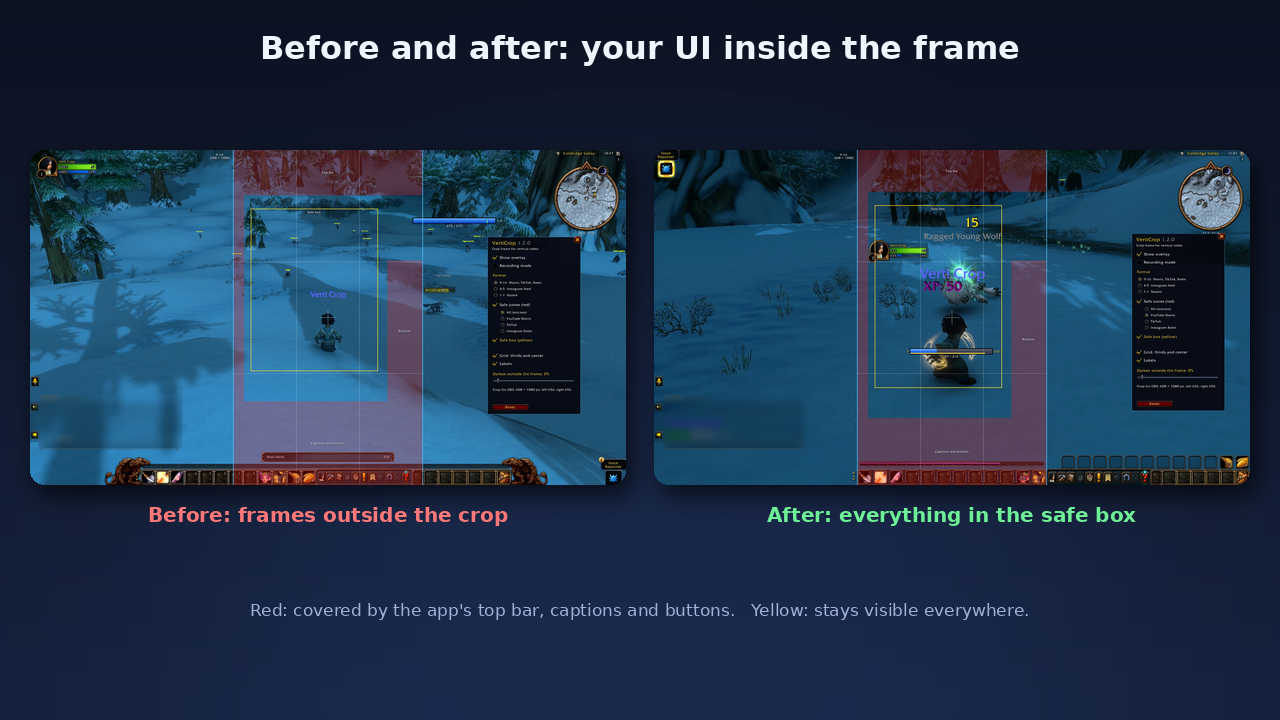
Before: unit frames and mana bar outside the crop. After: everything inside the safe box, nothing under the app's buttons and captions.
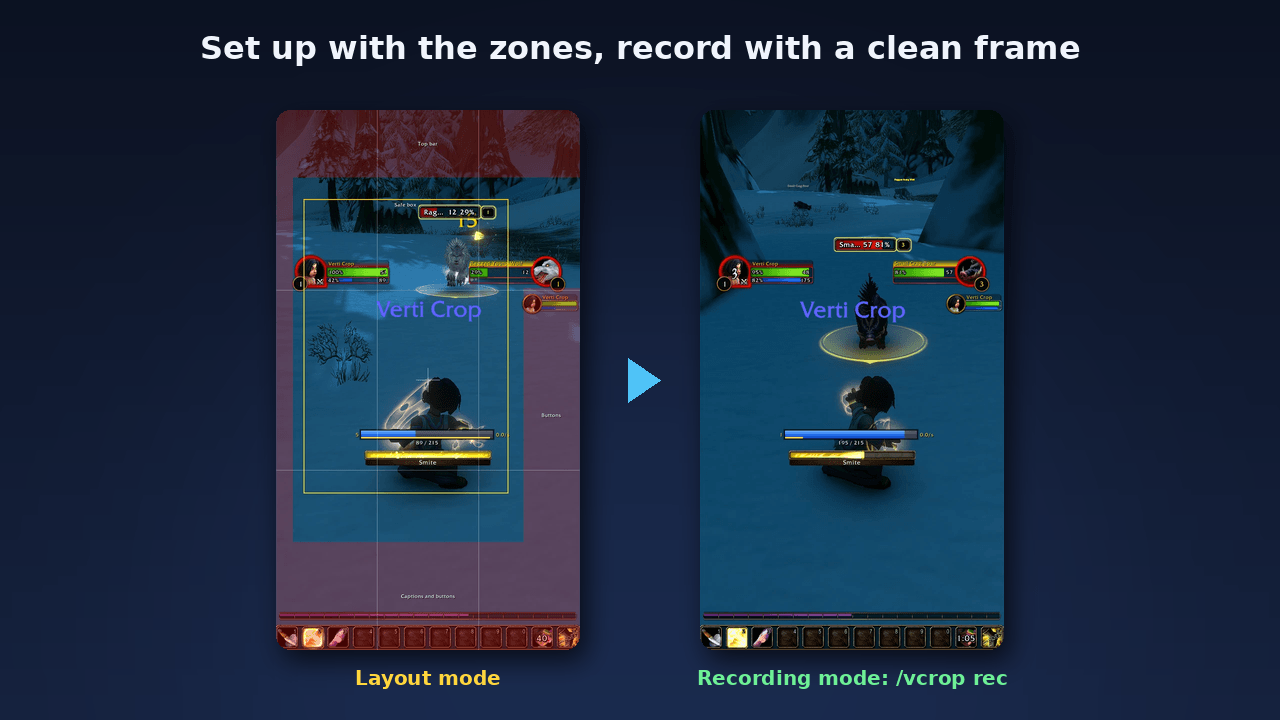
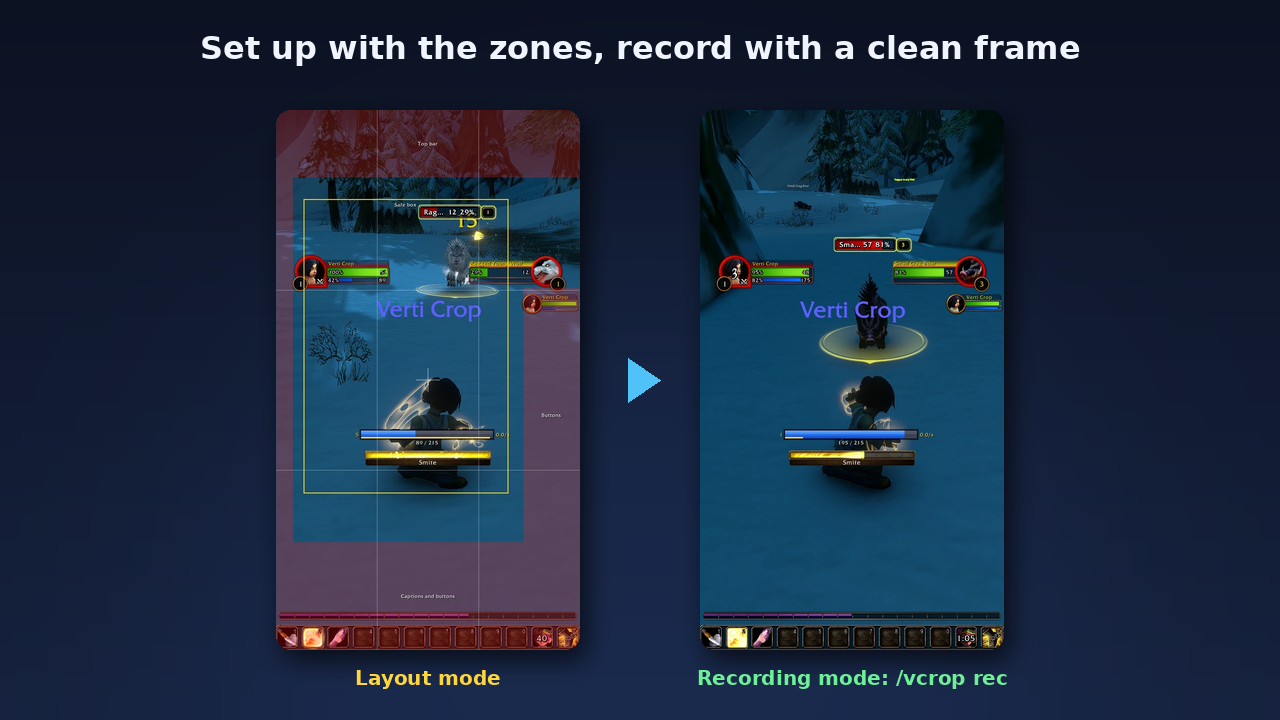
Set up with the zones, then /vcrop rec: nothing inside the frame, the crop cuts the dark sides and the border away.
Description
VertiCrop
See the 9:16 crop of your vertical video in game — for YouTube Shorts, TikTok and Instagram Reels.
VertiCrop draws the 9:16 crop frame over World of Warcraft and marks the safe zones of the apps: the top bar, the captions and the like/comment/share buttons that cover your video on the phone. Place your character, cast bar and UI for vertical video before you hit record, instead of finding out in the editor that your health bar ended up under the like button.
One download for Retail (Midnight), Classic Era, TBC Anniversary, Wrath and Cataclysm Classic, Mists of Pandaria Classic and WoW Forever.
Features asked for in the comments get built. Tell us what you need: comment here or open an issue on GitHub.
What it does
- 9:16 crop frame in the middle of your screen, full screen height. Also 4:5 (Instagram feed) and 1:1 (square).
- Darkened outside the frame (0–100 %): you see at a glance what stays in your video.
- Safe zones (red) for YouTube Shorts, TikTok, Instagram Reels, or All — the largest margin of every side, safe for posting the same clip everywhere.
- Safe box (yellow): keep what matters inside it and it stays visible even with long captions, automatic subtitles and on tall phones (19.5:9, 20:9) that cut the sides of a 9:16 video.
- Grid: rule-of-thirds lines and a center cross to place your character.
- Recording mode: one key hides everything inside the frame. Only the dark sides and a thin border stay — outside the frame, so cropping cuts them away. Record with the frame on.
- Crop values for OBS in pixels (width, height, left, right): enter them into a Crop/Pad filter on your game capture or into your video editor.
/vcrop pxprints them. - Sharp at any UI scale: lines are 1–2 screen pixels thick, the frame follows resolution and UI scale changes.
- Off at every login: a tool for setting up and recording, not for playing —
/vcropor your key binding switches it on, all other settings are kept. - Settings window with an explanation on every option:
/vcrop opt, the game's Options → AddOns, or the addon menu at the minimap. - Key bindings: overlay on/off, recording mode on/off, settings.
- Never touches your UI: it only draws on top of the screen and lets every mouse click through.
- 9 languages: English, Deutsch, Español, Français, Русский, 한국어, Português, 简体中文, 繁體中文.
How to use it
/vcrop opt— choose the format and the platform.- Move your UI (Edit Mode on Retail, your UI addon elsewhere) so that what matters is inside the frame and out of the red.
/vcrop recor your key binding — record.- Crop the recording in OBS or your editor with the values from
/vcrop px.
Tips for a UI that reads on a phone
- Out of the frame: chat, minimap, quest tracker, bags, micro menu and every action bar you do not press in the clip.
- In the safe box: player and target frame (the target frame left of the button zone), a bigger cast bar, one small bar with the 4–6 spells the clip is about.
- Bigger: a phone shows the frame at about a third of your monitor's width — raise the scale of what you keep.
- Camera a bit closer than usual, the character slightly below the middle of the frame.
Recording straight to 9:16 in OBS
Record the full screen in recording mode and crop afterwards with the values from /vcrop px, or set a 1080×1920 canvas in OBS (or a second vertical canvas, for example with the Aitum Vertical plugin), add the game capture with a Crop/Pad filter using those values and scale it to fill: OBS records a ready vertical file.
Commands
| Command | Does |
|---|---|
/vcrop |
overlay on/off (it starts off at every login) |
/vcrop rec |
recording mode on/off |
/vcrop opt |
settings window |
/vcrop px |
crop values for OBS in pixels |
/vcrop 9:16 / 4:5 / 1:1 |
switch the format |
/vcrop reset |
all settings back to the defaults |
About the safe zones
The safe zones are rounded from measured 1080×1920 layouts of YouTube Shorts, TikTok and Instagram Reels. The apps change their layout from time to time, so treat them as a guide and check your video in the app before you post. Spotted a zone that is off? Tell us in the comments.
FAQ
- Does the frame end up in my video? Not inside the crop: in recording mode everything VertiCrop draws sits outside the frame. Keeping the full 16:9 recording too? Set the darkening to 0 % or switch the overlay off with
/vcrop. - Does it move or hide my UI? No. It only draws on top.
- Which game versions? Retail, Classic Era, TBC Anniversary, Wrath and Cataclysm Classic, Mists of Pandaria Classic and WoW Forever, from one download.
Bug reports
Please include your game version, your screen resolution, what you did and what you expected. Lua errors are easiest to read with BugGrabber + BugSack.
Source code and issues: GitHub.
Vollständig auf Deutsch · Totalmente en español · Entièrement en français · Полностью на русском · 한국어 완전 지원 · Totalmente em português · 完整简体中文 · 完整繁體中文 — the addon follows your game language.
VertiCrop Team