Trigzy Lag Finder
- By
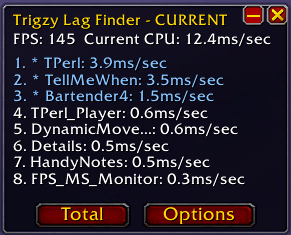
A compact in-game tool for watching addon CPU usage and finding possible causes of UI lag or stutters.
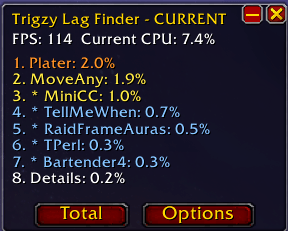
Screenshot 2026-06-17 140923.png
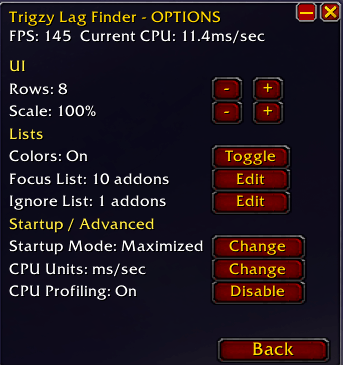
Screenshot 2026-06-17 141408.png

Screenshot 2026-06-17 141106.png
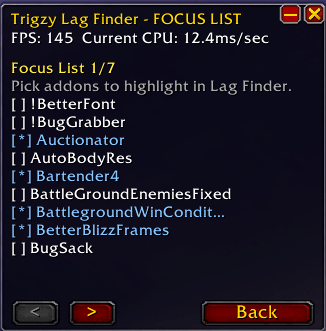
Screenshot 2026-06-17 141154.png
Screenshot 2026-06-17 141223.png
Description
Trigzy Lag Finder helps you see which addons are using CPU while you play.
Use it to spot addons that become unusually active when your UI feels laggy, delayed, or stuttery.
Features:
• Live addon CPU list using WoW's native addon profiler
• Recent view for short-term addon CPU activity
• Session view for longer-term CPU averages
• Spikes view for unusually expensive addon profiler ticks
• FPS display
• CPU values shown as ms/tick or Share %
• Focus List to highlight addons you care about
• Ignore List to hide addons you do not want in the ranking
• Compact minimized mode
• Scale options
• Startup modes: Maximized, Minimized, or Hidden
• Low-overhead polling that slows or stops when the live list is not needed
CPU Views:
Recent
Shows a short-term moving average of addon CPU activity from WoW's native profiler. It reacts to recent increases and decreases but does not identify the exact cause of individual frame hitches.
Session
Shows a longer-term average of each addon's CPU activity during the current WoW client session. Because it covers a much longer period, Session values normally change more slowly than Recent values.
Spikes
Shows how many native profiler ticks for an addon have exceeded 50 ms. These are useful as signs of unusually expensive addon work, but they are not guaranteed frame hitches and do not prove that an addon caused a stutter.
CPU Units:
ms/tick
Shows the native profiler's measured addon CPU time per profiler tick.
Share %
Shows an addon's share of the measured addon CPU activity. This is not your computer's CPU percentage. An addon can have a high Share % while still using very little CPU if total addon activity is low.
Colors:
• White: low recent addon CPU usage
• Yellow: around 0.20+ ms/tick
• Orange: around 0.50+ ms/tick
• Red: around 1.00+ ms/tick
• Blue/starred: addons added to your Focus List
Colors are quick visual guide marks based on recent addon CPU activity. They do not automatically mean an addon is causing lag.
Commands:
• /tlag
• /tlf
• /trigzylagfinder
Important note:
Higher CPU usage does not automatically mean an addon is causing a performance problem. Some addons naturally do more work because of what they provide, including unit frames, nameplates, action bars, aura trackers, combat tools, and other frequently updating UI systems.
The most useful thing to look for is whether an addon's CPU activity repeatedly increases at the same time you experience FPS drops, delays, or short freezes.
Other sources of lag:
Trigzy Lag Finder only shows addon CPU information exposed by WoW's native addon profiler. Some performance problems can come from things it cannot directly attribute to an addon, including Blizzard UI work, rendering or GPU load, game-engine workload, network conditions, large numbers of visible units or effects, and other system or game performance factors.
Because of this, Trigzy Lag Finder is best used as a suspect-finder and diagnostic aid, not a perfect cause detector.
Trigzy Lag Finder uses WoW's native addon profiler and does not require legacy scriptProfile CPU profiling to be enabled.
The Trigzy Lag Finder Team