thottbot4ever
- By
Records the quests, NPCs, objects, loot, vendors and trainers you see while you play, and writes them to a file you upload to thottbot4ever.com — a Thottbot-style database for the WoW: Forever client.
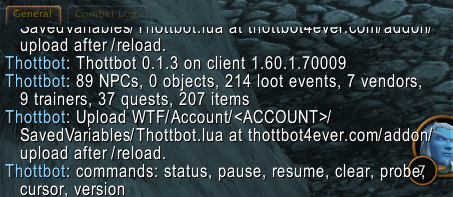
thottbot4ever-addon-slash-commands.png
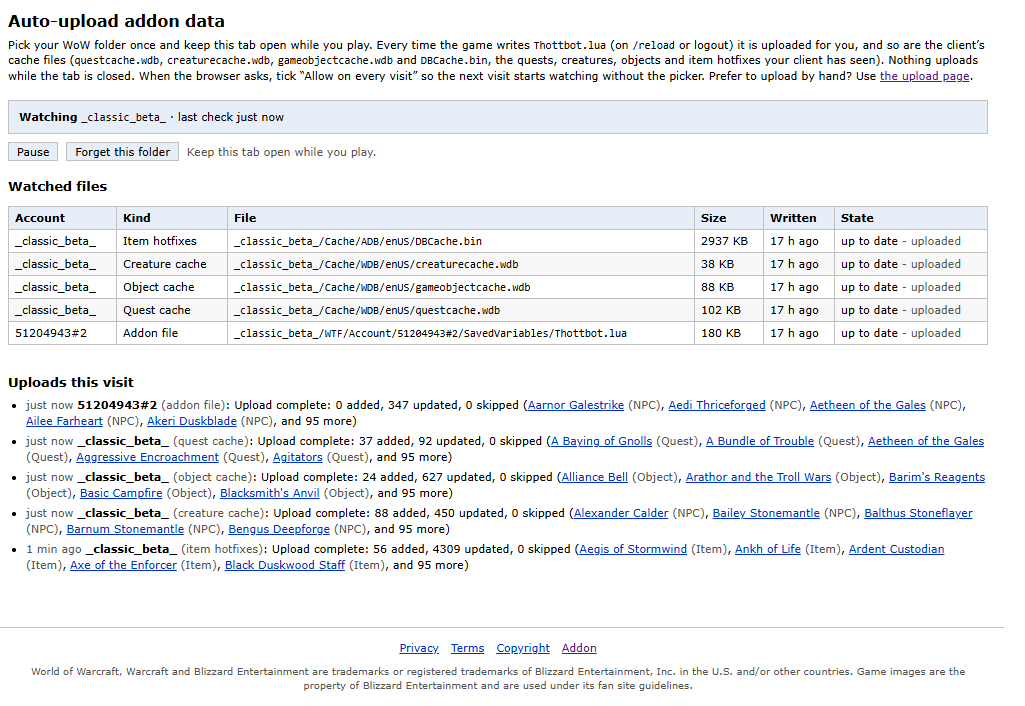
thottbot4ever-auto-upload.png
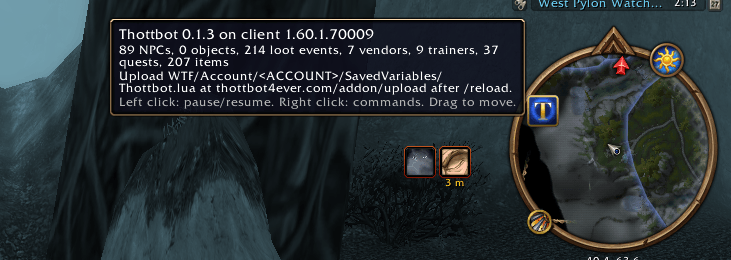
thottbot4ever-addon-tooltip.png
Description
Thottbot
Records what you see while you play, so the database fills itself.
Where NPCs stand, what they drop and how often, what vendors sell, what trainers teach, who gives and takes each quest. Thottbot writes it to a file you upload to thottbot4ever.com, where it becomes part of a database everyone else can read — a Thottbot-style reference rebuilt for the WoW: Forever client, with quests, items, NPCs, objects, zones, abilities and recipes, plus a talent-and-gear build optimizer.
There is nothing to configure. Play normally.
And show the world what you see: one click of the screenshot button captures the NPC, object or zone in front of you, hides the interface for a clean picture, and puts it on that page of the site for you — no renaming, no uploading by hand.
What it records
- Quests offered, in progress and turned in: text, level, rewards, and which NPC or object gave and took them, with your position at the time.
- NPCs you mouse over, target or talk to: id, name, title, level, classification, type, reaction, position.
- Objects you mouse over — chests, herbs, ore, quest objects: id, name, position.
- Loot windows: the source and every item in it. Each corpse counts once.
- Vendors: every item with price, currency and limited stock. Trainers: every spell with cost and required level.
- Items you see: name, quality, item level, bind, class, sell price, tooltip lines.
- Screenshots you take with the screenshot button: the file name, what it shows (NPC, object or zone), your position and the time.
What it never records
Your character name, realm, guild, level, chat, friends or account.
Besides the game entities above, the file holds only your faction (Alliance or Horde), the addon version and the client build. It is a plain text file — open it in any editor and read exactly what you are about to send. That is the intended way to use it.
Installing
- Download
Thottbot-<version>.zipfrom thottbot4ever.com/addon. - Unpack it so the folder is
World of Warcraft/_classic_beta_/Interface/AddOns/Thottbot/— that folder must containThottbot.toc. - Start the game. If the addon list flags it out of date, tick Load out of date AddOns.
Forever loads addons and settings from a previous beta's WTF folder, so if you played an
earlier beta, check the AddOns list on the character screen shows Thottbot enabled.
In game
A minimap button: hover for status, left click to pause or resume, right click for the command list, drag to move it around the rim.
A screenshot button (a spyglass) at the minimap's lower left — see Screenshots below.
/thottbot or /tb:
| Command | Does |
|---|---|
status |
What this session has collected (also the bare command) |
pause / resume |
Stop and restart recording |
clear |
Wipe the data and start a fresh file |
shot |
Take a screenshot for the site (the screenshot button) |
version |
The addon version in the current file |
probe |
Which client APIs are available — diagnostics |
cursor |
What the client reports for the chest, node or herb under your mouse. Use this if objects are missing from your uploads |
Screenshots
Pictures are what make a database page worth opening, and the screenshot button makes them one click:
- Target the NPC or object you want — or just point the mouse at it, or stand in the zone you want to show.
- Click the spyglass button at the minimap's lower left, type
/thottbot shot, or press your own key (Key Bindings → Thottbot). Drag the button anywhere you like. - The interface disappears for that one frame, so the shot is the game world and nothing else (in combat the game will not allow hiding it, so the shot keeps it).
- After a
/reloador logout, the auto-upload page (below) sends it to the page of whatever you captured — the target first, then what was under the mouse, then the zone.
The screenshot goes live straight away, credited to you, captioned Taken in game with the Thottbot addon, and can be reported or deleted like any other. If your screenshot format is set to TGA, the button switches it to JPEG for that one shot, since the site takes JPEG and PNG.
A few things to know:
- Only screenshots the button took are ever read. Every other file in your
Screenshotsfolder is left alone; if you press Print Screen within two seconds of the button, neither file is used, so the wrong picture can never go up. - Instances and NPCs the site has no page for are skipped rather than put somewhere wrong.
- Uploads are spaced about six minutes apart (the site takes up to 10 screenshots an hour), so a burst of shots trickles in while you keep playing. The addon remembers your last 50, and the site offers each one for 30 days.
Uploading
The game only writes the file when you log out or /reload. An upload taken mid-session is
missing whatever you just did.
Automatic — Chrome or Edge. Open thottbot4ever.com/addon/watch,
log in, and pick your WoW folder once; the game folder or _classic_beta_ is best, since every
account under WTF/Account is found and so are the cache files below. Tick Allow on every
visit when the browser asks, then keep the tab open while you play and every file the game
writes is uploaded for you. Nothing uploads while the tab is closed.
Screenshots. The auto-upload page also uploads the screenshot button's pictures from
_classic_beta_/Screenshots (see Screenshots above). The by-hand page does not take them.
By hand — any browser. Open thottbot4ever.com/addon/upload,
log in, and choose
World of Warcraft/_classic_beta_/WTF/Account/<ACCOUNT>/SavedVariables/Thottbot.lua.
Cache files (optional, and worth it). The client also keeps what it has been shown in
Cache/WDB/enUS/questcache.wdb, creaturecache.wdb and gameobjectcache.wdb, and in
Cache/ADB/enUS/DBCache.bin for item names and stats. Choose them alongside Thottbot.lua on
the upload page, or let the auto-upload page watch them. Only the enUS client's files are read.
Uploading the same file again after more play replaces your earlier upload — nothing is
counted twice, so there is no reason to hold back. /thottbot clear starts a clean slate when
you want one.
Every upload is credited to your account and is moderated; a bad batch can be reverted whole.
Keep it current
The site can refuse uploads from versions below a minimum it sets, and that minimum moves when the file format changes. Corrections, bug reports and data arguments are all welcome on the site.
License
MIT. Fork it, patch it, ship it — the code is yours to use.
The Thottbot name and logo are reserved, so a fork should carry its own name and art and point at its own service; otherwise players cannot tell whose database they are feeding.
thottbot4ever Team