TakeANote.jpg
Description
Take A Note is a notebook addon for World of Warcraft that lets you create and manage notes directly in the game.
You can use it for raid tactics, to-do lists, farming routes, character information, or anything else you want to keep track of without switching out of WoW.
Features
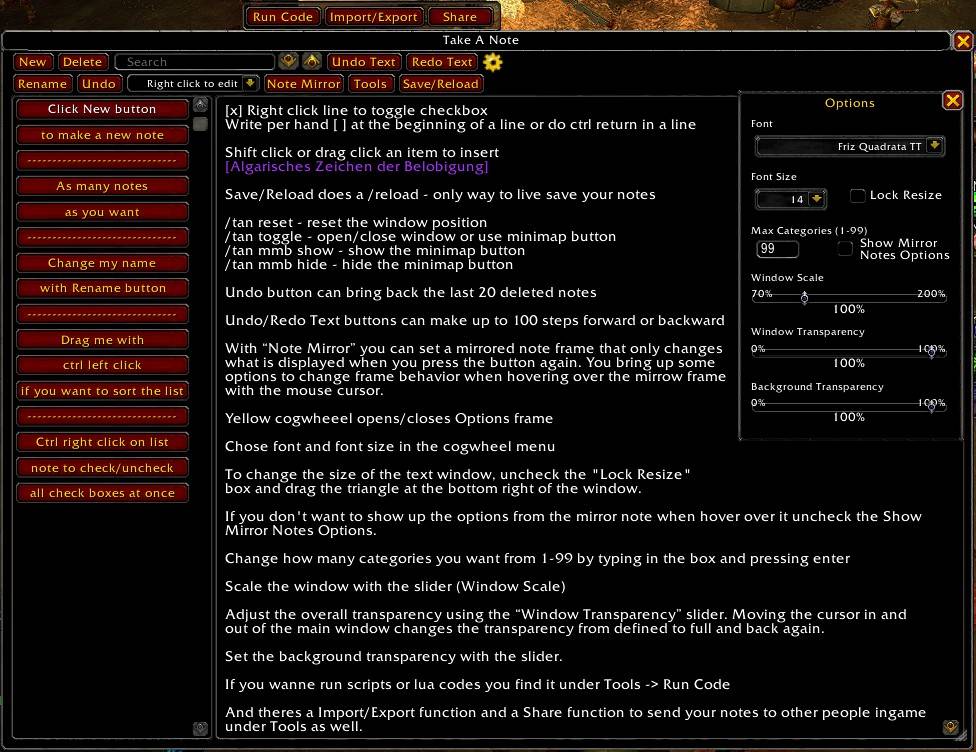
Notes and Categories
- Organize your notes in up to 99 categories
- Create as many notes as you need in each category
- Rename notes and categories at any time
- Each note supports up to 32,000 characters
- Move notes up or down in the list with Ctrl + Left Click and drag
- Multi-column category dropdown for larger notebooks
Text Editor
- Multiline text editor
- Undo and redo with up to 100 steps
- Automatic undo history while typing
- Shift-click items, spells, or achievements to insert their links
- Drag items directly into the editor
- Click anywhere in the text area to start typing
Search
The search field lets you find words or phrases across all notes and categories.
Use the arrow buttons to move between matches. Holding a button down continues searching automatically.
Checkboxes
You can use checkboxes to create simple to-do lists.
- Press Ctrl + Enter or type
[ ]at the beginning of a line to create a checkbox - Right-click the line to check or uncheck it
- Ctrl + Right Click the list button to check or uncheck all boxes at once
Note Mirror
The Note Mirror opens a separate, read-only window showing the currently selected note.
This is useful when you want to keep a note visible while playing without leaving the main notebook open.
- Movable and resizable window
- Adjustable transparency
- Uses the same font and font size as the notebook
- Remembers its position
- Mirror options can be hidden in the settings
Sharing Notes
Take A Note includes an in-game sharing system that uses WoW's addon communication channel.
Open it through Tools -> Share.
You can share:
- Individual notes
- Notes as a Note Mirror
- Entire categories
Supported destinations are individual players (Name-Realm), guild, party, and raid.
Incoming shares can be enabled or disabled. You can also choose who is allowed to send you notes using a name whitelist or guild, party, and raid permissions.
When receiving a category, you can choose where to save it. If the destination already contains notes, the addon asks for confirmation before overwriting anything.
Larger transfers are automatically split into smaller parts and reassembled by the receiver. The system also handles retries if necessary.
Only raid leaders and assistants can send notes to an entire raid.
Import and Export
The Import/Export tool lets you convert notes, categories, or your entire notebook into text strings.
You can copy these strings to share them outside the game, keep backups, or import them again later.
When importing, you can choose where the notes should be placed.
Send Notes to Chat
You can send the contents of your current note directly to a WoW chat channel through Tools -> Send to Chat.
- Sends text line by line to preserve line breaks
- Splits longer lines into smaller messages
- Supports notes up to 32,000 characters
- Handles chat throttling
- Supports whispers to Name or Name-Realm
- Uses secure sending when required by WoW
Run Lua Code
Tools -> Run Code lets you execute the contents of your current note as Lua code.
This can be used for simple commands, testing snippets, or running longer Lua scripts directly from a note.
Only run code that you understand and trust.
Appearance and Window Settings
The options panel allows you to adjust:
- Font selection using LibSharedMedia
- Font size
- Maximum number of categories
- Overall window scale
- Resizable text editor
- Window transparency
- Background transparency
- Note Mirror options
Changes to fonts and font sizes are applied immediately.
The main notebook window can be moved freely and remembers its position.
Minimap Button and Commands
The minimap button provides quick access to Take A Note and can be shown or hidden.
Available chat commands:
/tanor/tan help– Show available commands/tan toggle– Open or close the notebook/tan reset– Reset the window position/tan mmb show– Show the minimap button/tan mmb hide– Hide the minimap button
Keybinding
You can assign a key to open or close the notebook.
Open the WoW keybindings menu, find the Take A Note category, and assign a key to Toggle Window.
Saving Notes
Take A Note stores your notes using WoW's SavedVariables system.
Changes are kept in memory while playing and are written to disk when you log out or reload your UI.
The Save/Reload button reloads the UI to save your current notes without having to log out.
I've set up a small Discord Server for my addons https://discord.gg/j3vQVnWUYv Feel free to use it if you have any problems, suggestions or just a simple feedback - I am grateful for everything!
Take A Note Team