SuitUpForever
- By
Never pull a boss in your carrot trinket again – SuitUpForever shows an icon while fun or utility items from your watch list are equipped.
options.png
readycheck.png
Description
Never pull a boss in your carrot trinket again – SuitUpForever shows an icon while fun or utility items from your watch list are equipped.
Why?
Everyone has been there: you put on a mount speed trinket, a slow fall cloak or some other utility item for the trip to the boss – and then you pull while still wearing it. SuitUpForever keeps an eye on your equipment and reminds you to suit up before the fight starts.
Features
Watch list
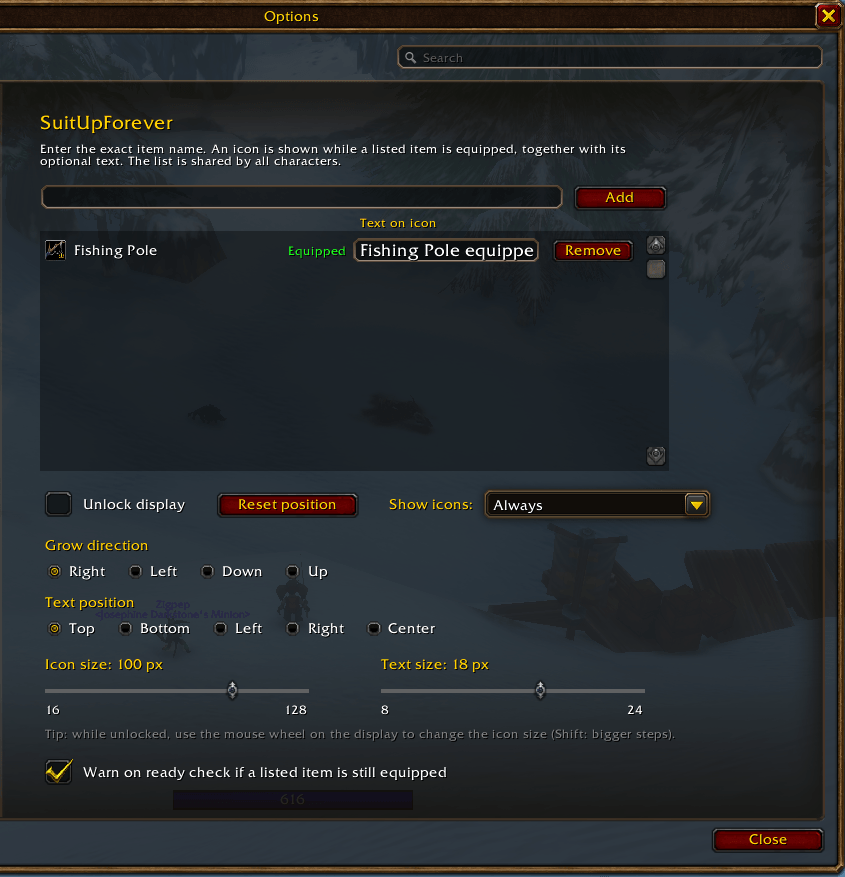
- Add any item by its exact name in the options.
- Names with or without brackets both work:
Rancher's Trousersand[Rancher's Trousers]. - Shift-click an item link into
/suf addto add it straight from your bags or character sheet. - The list is shared by all your characters.
- In the list, item names are colored by their item quality. Items you are currently wearing are marked with their icon and a green "Equipped" label.
Item names depend on your game language: on a German client, enter the German names.
Reminder icons
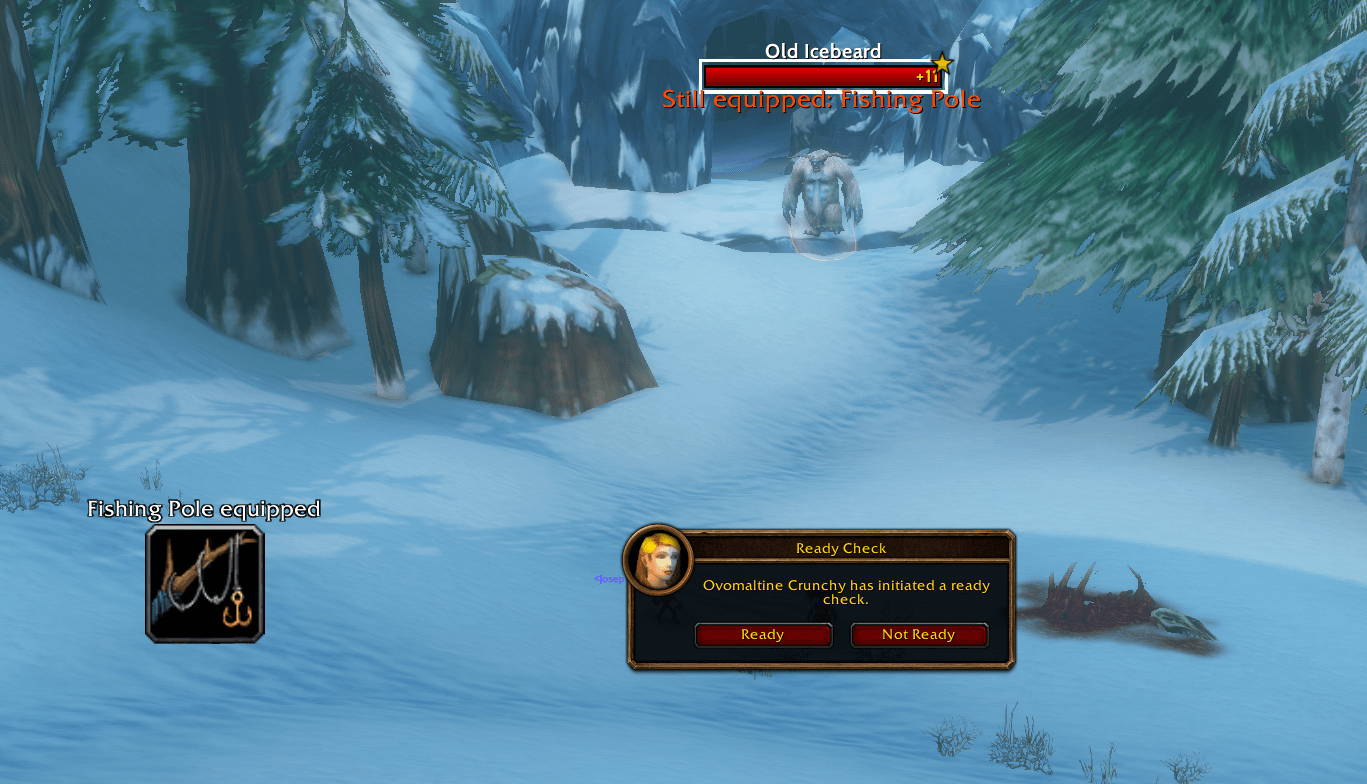
- While a listed item is equipped, its item icon is shown on screen. When you take the item off, the icon disappears.
- One icon per equipped item. Hover over an icon to see the normal item tooltip.
- Grow direction for several icons: Right, Left, Down or Up.
- Icon size from 16 to 128 px: use the slider, the mouse wheel on the unlocked display (hold Shift for bigger steps) or
/suf size. - Movable: unlock the display, drag it where you want it, lock it again. "Reset position" brings it back to the center.
Text on icons
- Give every item an optional text, e.g. "UNEQUIP" or "Swap cloak!".
- Choose the text position (Top, Bottom, Left, Right or Center) and text size (8–24 px).
- Spacing adjusts automatically, so texts never overlap the next icon or each other.
When to show the icons
Pick one option from the "Show icons" dropdown:
| Option | Icons are shown … |
|---|---|
| Always | whenever a listed item is equipped |
| Instanced | only inside dungeons and raids |
| Out of combat | only while you are not in combat |
| Instanced & out of combat | only inside dungeons and raids, and only out of combat |
While the display is unlocked, it is always shown, so you can position it.
Ready check warning
When a ready check starts and a listed item is still equipped, SuitUpForever warns you:
- with a raid warning style message in the middle of the screen, e.g. "Still equipped: Craftsman's Dagger",
- with the raid warning sound,
- and with the same line in your chat.
The warning can be turned off in the options. It works regardless of the "Show icons" setting.
Options
Open the options with /suf or via Options → AddOns → SuitUpForever.
Slash commands
| Command | Description |
|---|---|
/suf |
Open the options |
/suf add <name> |
Add an item (name, [name] or shift-clicked item link) |
/suf note <name> = <text> |
Set the text for an item (empty text removes it) |
/suf lock / /suf unlock |
Lock / unlock the display |
/suf grow right\|left\|down\|up |
Set the grow direction |
/suf size <16-128> |
Set the icon size in pixels |
Good to know
- SuitUpForever only displays information. It never equips or unequips anything for you, so it is safe to use in combat.
- Changes to your equipment are detected instantly, including right after logging in.
SuitUpForever Team