
Spoken Media Pause
- By
Spoken Media Pause adds a small, clickable indicator to the upper-left corner of World of Warcraft. The indicator shows when Spoken is narrating. The desktop companion reads it and pauses compatible music, video, or audiobook players. When narration ends, it resumes only the same media it paused.
Setup
Use WoW in Windowed or Windowed (Fullscreen) mode on both Linux and Windows. Exclusive fullscreen may make the in-game marker unreadable.
- Install Spoken and a voice pack for your WoW client.
- Install this addon next to Spoken and enable both at character selection.
- Run the desktop companion for your operating system. On Linux, it detects X11 and XWayland game windows. For native Wayland, choose Share WoW Window and select WoW. On Windows, use windowed or borderless mode and keep the top-left of the game visible.
- Start media and click Test Pause, then Test Play in the desktop companion. In WoW, trigger a voiced quest or NPC dialogue to test automatic pause and resume.
In-game marker
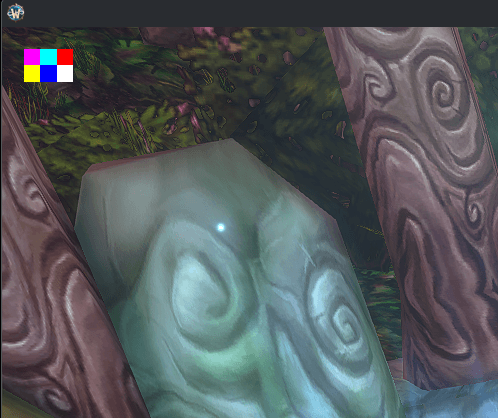
Look for two rows of three colored squares just inside the top-left corner of WoW. Click anywhere in the box to turn automatic pause off or back on. The top-right square shows the current state.
- Red means auto-pause is on and Spoken is idle, as shown above.
- Green means Spoken is narrating and the desktop helper should pause compatible media.
- White means auto-pause is off.
The bottom-right square blinks so the helper can detect when the game image stops updating. The latest desktop helpers keep their last pause decision while the marker is unreadable during a resolution or display mode change. When narration ends, you turn auto-pause off, or the helper detects that WoW or the capture session has closed, it releases any automatic pauses it still owns. If the marker stays unreadable, close the helper to release its pause.
The standard addon supports WoW Forever 1.60.1, Classic Era 1.15.9, and Burning Crusade Classic (Anniversary) 2.5.6. The x86-64 Linux helper targets glibc 2.35 or later and uses MPRIS media controls. The Windows x64 helper targets Windows 11, uses Windows system media controls, and is an untested beta. Windows 10 compatibility is unverified.
Spoken Media Pause Team
