Shot Window - Auto Shot & Wand Swing Timer
- By
Stand still at the right moment for hunter Auto Shot or a mage, priest or warlock wand: a red zone on the game's own ranged swing timer, adjusted for latency, plus eleven optional displays, clipping warnings and alerts.






Description
Shot Window
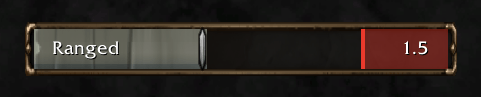
On WoW Forever, Auto Shot and a wand's Shoot wind up at the end of each swing, and you have to stand still while they do. Shot Window marks that wind-up with a red zone on the Ranged Swing Timer the game already has, so the bar keeps its Edit Mode position, size and visibility. It is for hunters, mages, priests and warlocks, with eleven optional displays of its own and alerts that work with or without one.
Getting started
- Turn on the game's swing timer: Options > Advanced Options > Swing Timer.
- Show the Ranged Swing Timer in Edit Mode and place it where you like.
- Type
/shotwindow, or open Esc > Options > AddOns > Shot Window.
The red zone
- Stop at the red line and stay still until the shot fires. The zone brightens while you are inside it, as long as Auto Shot or Shoot is on.
- Hunters can move freely before the line and again as soon as the shot fires. On Forever, Auto Shot fires during Aimed Shot, Multi-Shot and Sniper Shot, so casting does not delay it. Only moving does.
- Wands: moving stops Shoot, and the zone goes dark. If you need to move, do it right after a shot fires, never while the zone is lit.
- Moving in the zone (Auto Shot) turns it amber, because moving then delays the shot.
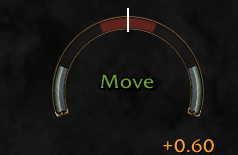
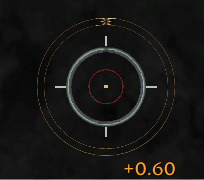
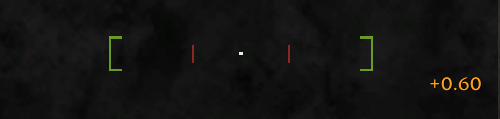
- Late shots (Auto Shot): if you keep moving, the shot comes late, but the game's bar empties anyway. Shot Window keeps the zone lit, pulsing after a moment, until the shot fires, then shows how late it was, for example "+0.42". When you start Auto Shot or Shoot, the zone also lights for the first shot's wind-up.
- Timing: the zone is the aim window, the last 0.5 seconds of the swing by default. It follows your swing speed, including haste such as Rapid Fire, and starts earlier by your latency so your stop reaches the server in time.
Eleven displays (optional)
- Classic bar: one fill, left to right, with the red end as the zone.
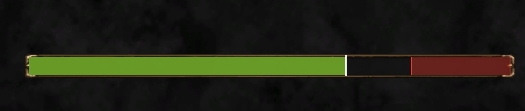
- Pincer bar: two fills race in from the ends and meet at the shot.
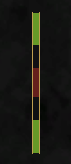
- Vertical pincer: the pincer on end, to sit beside your character.
- Closing gap: the bar shrinks toward the middle and closes at the shot.
- Closing brackets: two brackets slide in and close around the shot.
- Pips: pips light from both ends toward the middle pip, which is the shot.
- Scanner: the shot line stays in the middle while a spark sweeps across, and the spark stops on it while a shot is late.
- Rhythm track: the coming shots scroll toward a "now" line, so you see the next stand-still window before it arrives.
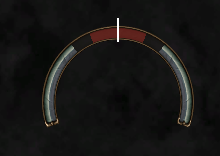
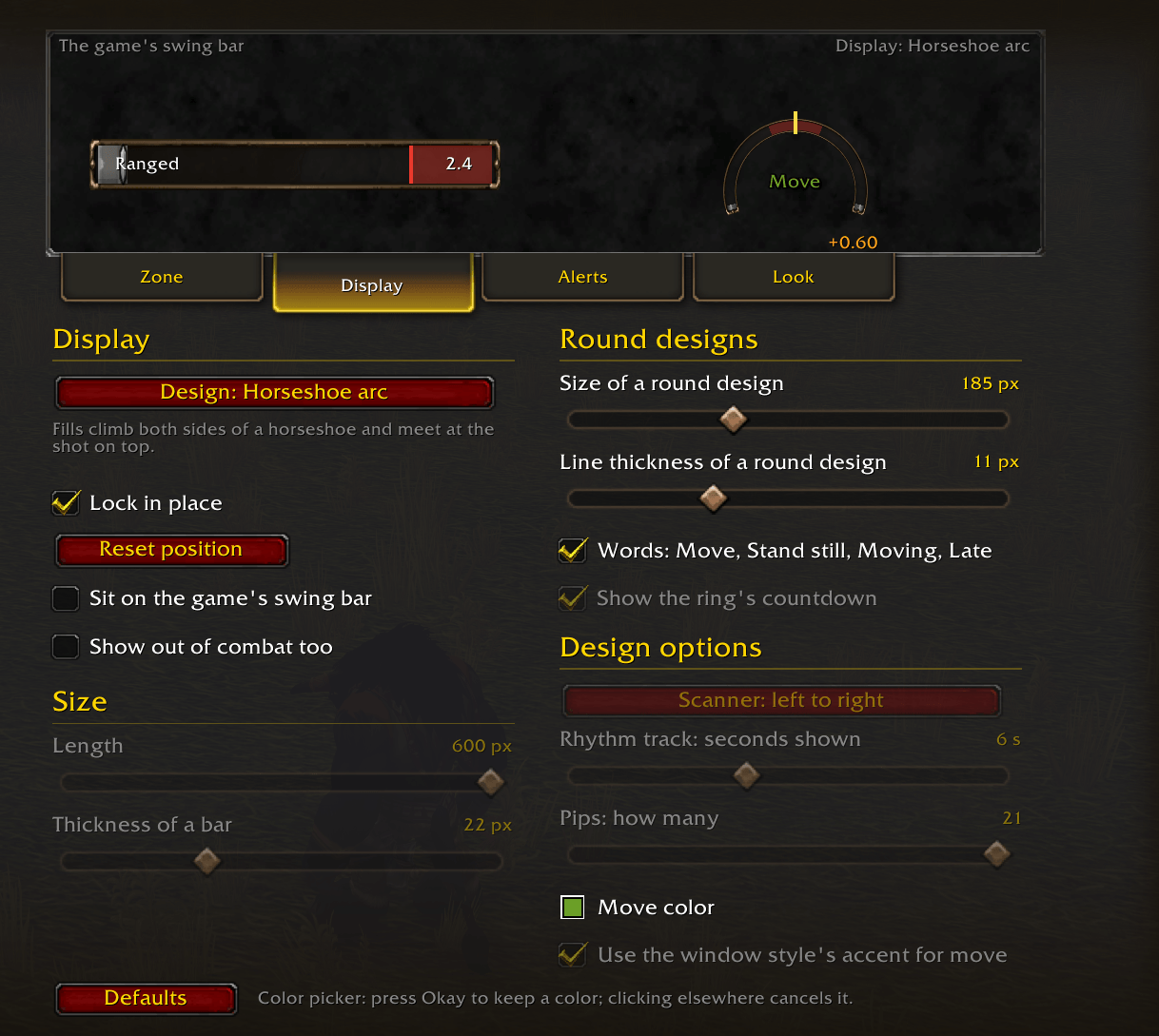
- Horseshoe arc: fills climb both sides of an arc and meet at the shot on top.
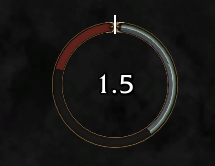
- Ring: one sweep around to the top, with a countdown inside.
- Tightening reticle: a circle closes on its center at the shot. Put it on your character to keep your eyes there.
Every display shows the same things: it brightens inside the zone, holds at the shot and pulses while a shot is late, turns amber when you move in the zone, and marks the shot as it fires. A display starts locked. Unlock it to drag it anywhere, or let it sit on the game's bar. It shows in combat and while Auto Shot or Shoot is on, or always. Straight designs have a length and a thickness, round ones a size and a line thickness, and the words on the horseshoe and the ring, and the ring's countdown, can be turned off.
Alerts (optional)
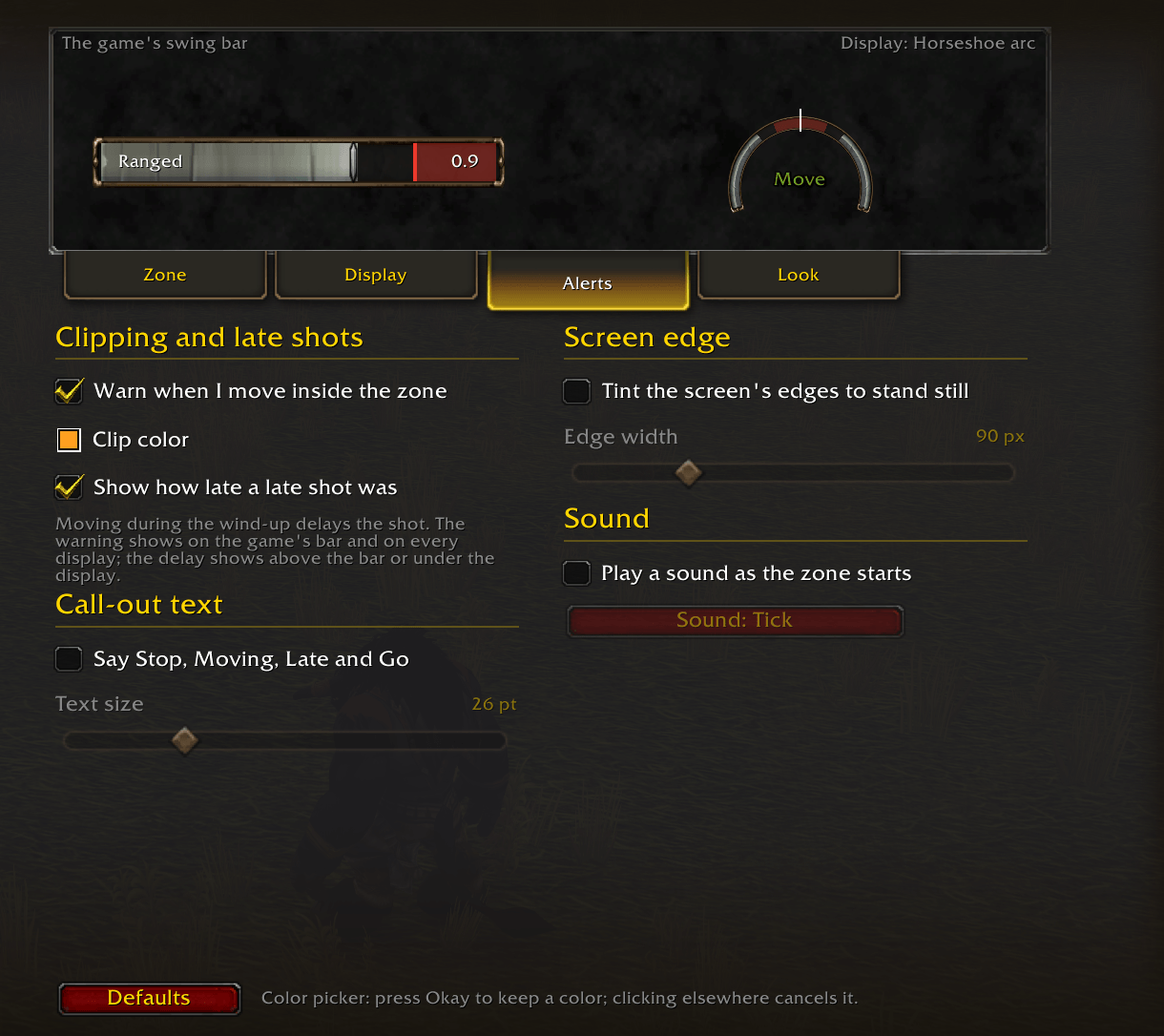
- Call-out text: Stop, Moving, Late and Go, in a size you choose.
- Screen edge: the edges of the screen tint while you must stand still, so you see it from the corner of your eye.
- Sound: a short sound as the zone starts, with four to pick from.
They work with or without a display.
Look
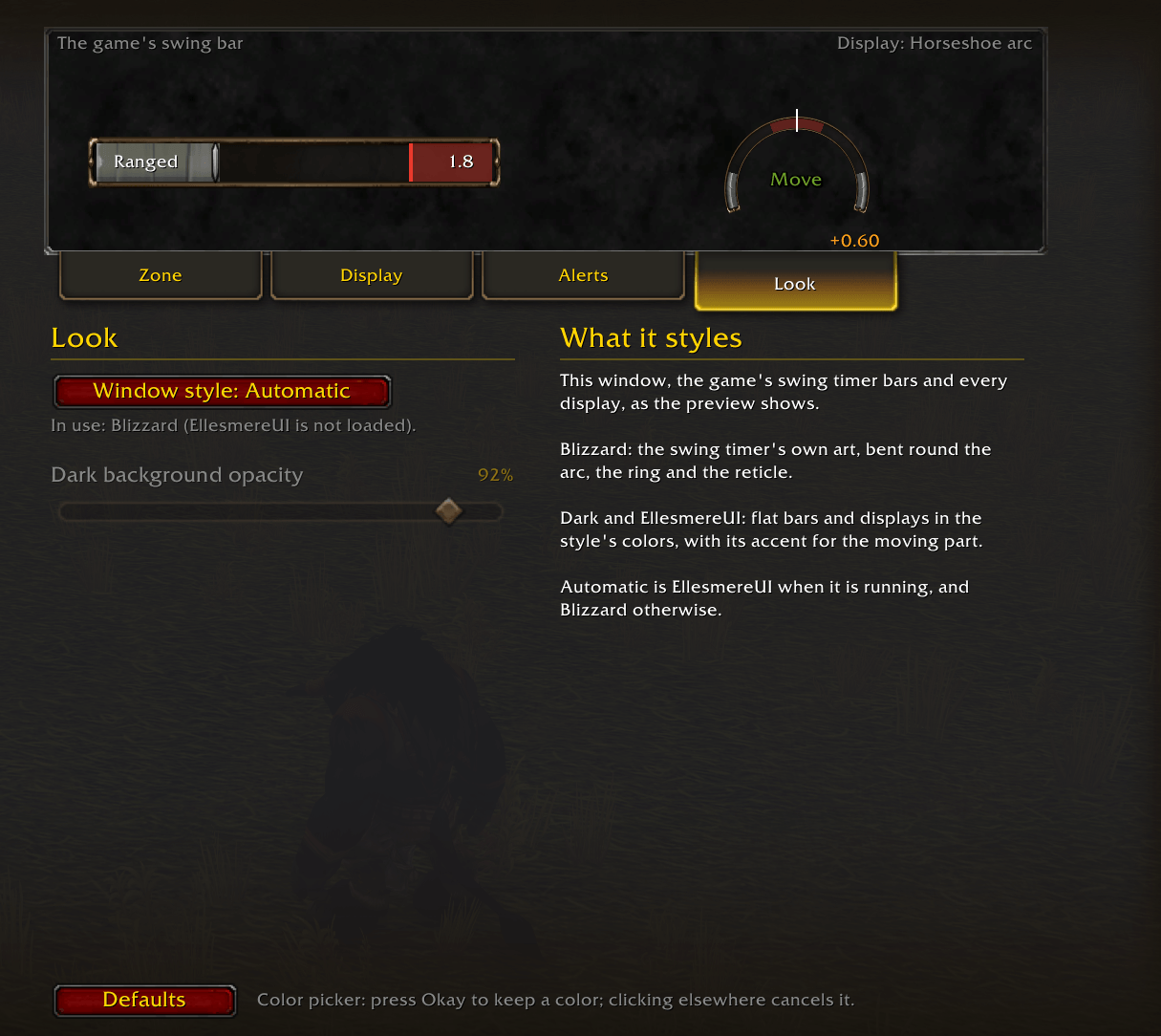
Choose a window style: Automatic (EllesmereUI's look when its Blizzard Skins+ module is on, otherwise Blizzard), Blizzard or Dark.
- Blizzard: the classic bar, pincer bar, closing gap, scanner and rhythm track sit in the swing timer's own frame, and the horseshoe, the ring and the reticle wear the swing timer bar's own art, bent around the curve live in the game. On the game's bar, Shot Window only adds its marks and changes nothing else.
- Dark and EllesmereUI: the displays and the game's swing timer bars are drawn flat in the style's colors. Every class gets the flat bars, so any character can use Shot Window for the look alone. Leaving a drawn style for another takes a reload, which Shot Window offers.
Options
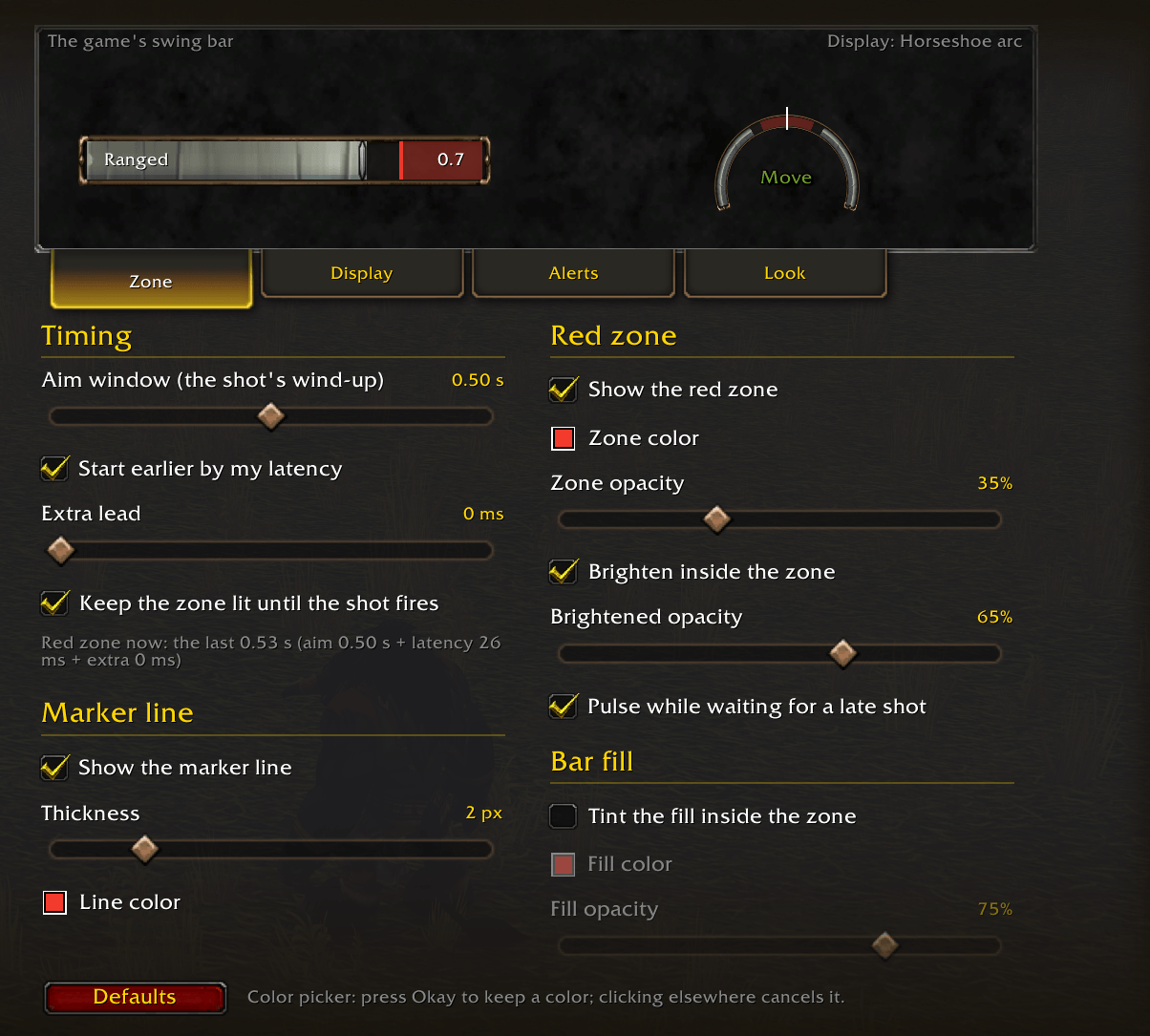
A live preview across the top plays a made-up fight on a copy of the game's bar and on your display, with the call-out and screen edge if you use them, so you see each change as you make it. Under it are four tabs:
- Zone: the aim window, the latency lead and an extra lead, keeping the zone lit until the shot, the zone's color, opacity, brightening and pulsing, the marker line, and an optional tint on the bar's fill.
- Display: the design, where it sits, its size and the options for each design.
- Alerts: moving in the zone, late shots, call-out text, the screen edge and the sound.
- Look: the window style.
If the game will not open its Options page (in combat, for example), the same options open in a window of their own. Defaults puts the settings back; a dragged display keeps its place until you press Reset position on the Display tab. Settings are saved per character. On classes without Auto Shot or a wand, the options hold only the window style.
Commands
/shotwindow(or/shotwin): open the options./shotwindow display arc: choose a display: none, classic, pincer, vpincer, gap, brackets, pips, scanner, track, arc, ring or reticle. With no name it steps to the next one./shotwindow unlockand/shotwindow lock: drag the display (when it is not sitting on the game's bar), then fix it in place./shotwindow style dark: the window style: auto, blizzard or dark. With no word it steps to the next one./shotwindow window 0.3: the aim window, from 0 to 1 second (default 0.5)./shotwindow latencyand/shotwindow flash: turn the latency lead, or brightening inside the zone, on or off./shotwindow debug: what the addon sees (please include it with bug reports)./shotwindow help: list the commands.
Beta note
Blizzard has said the 0.5 second wind-up before Auto Shot and wand shots is not working properly in the beta. Shots currently fire after a much shorter one, so the red zone is wider than it needs to be. Lower the aim window on the Zone tab, or type /shotwindow window 0.1.
Requirements
WoW Forever (client 1.60.1) with the game's Swing Timer option on. No libraries and no combat log. EllesmereUI is optional. Open source (MIT): https://github.com/jonlipin/shot-window
Discord
Join my Discord for Feedback, Development Updates, Addon Ideas, Feature Requests, and Bug Reports.
Shot Window - Auto Shot & Wand Swing Timer Team