RotationHelper [Forever]
- By
Highlights your next rotation spell, buffs, interrupts, shields and dispels on your action bars, with talent builds for WoW Forever.
Description
Rotation Helper
Rotation Helper tells you which spell to press next. It lights the button on your action bar, draws the icon on your screen, and reminds you to buff your friends. It never presses anything for you. You stay in charge; it just stops you forgetting Sunder Armor.
It works out your class, spec, level, and known spells by itself. The rotations and talent builds follow the Wowhead Forever guides. Spells you have not learned yet are skipped, so a level 20 character is not stuck staring at endgame buttons.
What it tells you
- Gold is the next spell in your rotation. If that spell is on cooldown, it moves on to the next one. The global cooldown does not count as a reason to skip.
- Blue, out of combat, is a buff you are missing. If you target a friendly player, the buff goes to them. Otherwise it goes to you.
- Blue, in combat, is an interrupt, shown when the enemy you target is casting something you can stop.
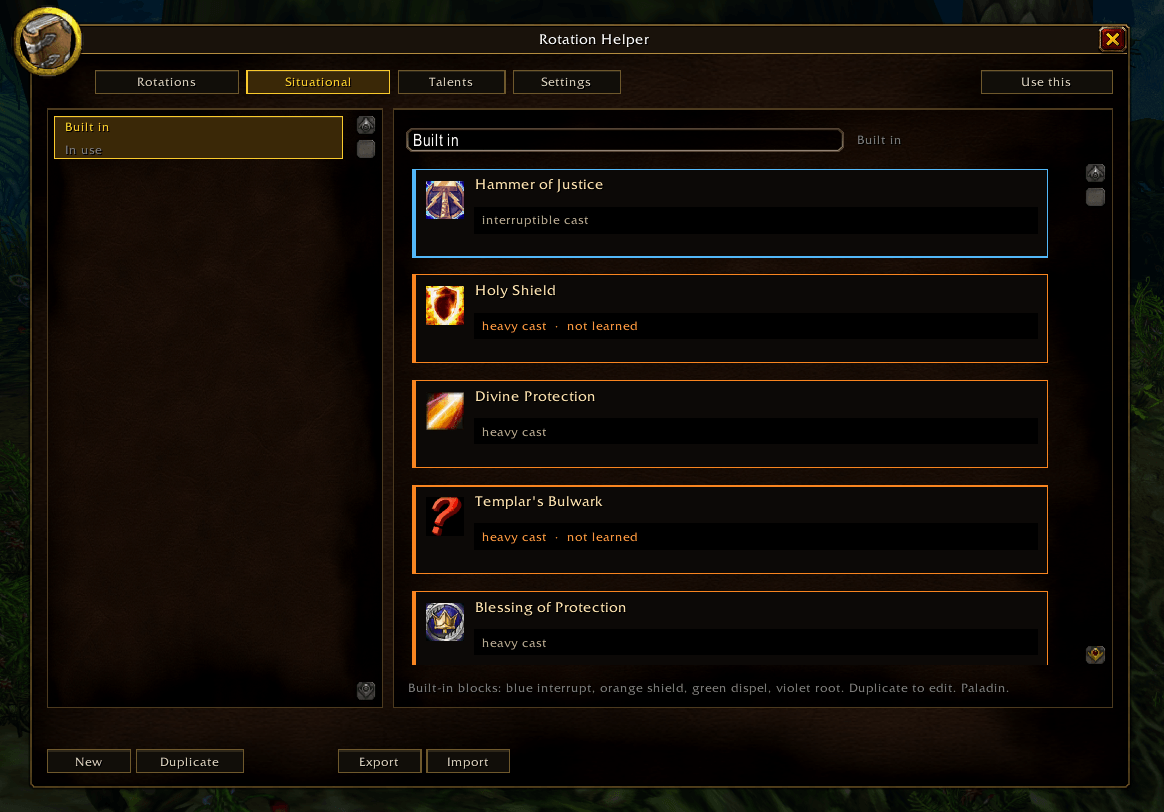
- Orange is a shield or defensive, shown when a heavy hit is coming. It goes away when the cast ends, even if you never pressed the button.
- Green is a dispel, shown while you have a debuff your class can remove (magic, disease, poison, or curse).
- Violet is a way out of a root, such as Blessing of Freedom, Blink, Sprint, or Dash.
- White is a paladin aura you are missing, or the stance or form your warrior or druid spec needs.
Buffs and auras that are still running are not suggested again. When the client can see an aura, the helper checks it directly. In combat the client often hides auras, so the helper then falls back to its own timers.
The icon strip
The icon strip is a row of icons on your screen, and it is the easiest way to see what comes next:
- The big icon is the next spell. The smaller one after it is the spell after that.
- Situational icons (buffs, interrupts, shields, dispels, roots, stances) appear beside them when they apply.
- When you cast the next spell, the rest of the row slides into place. It is a small thing, but it feels much nicer than the icons blinking out.
- Each icon has a frame in the colour of its type, and it can show the key from your action bar.
- Drag it to move it. Lock it in Settings when you are done arranging.
Settings
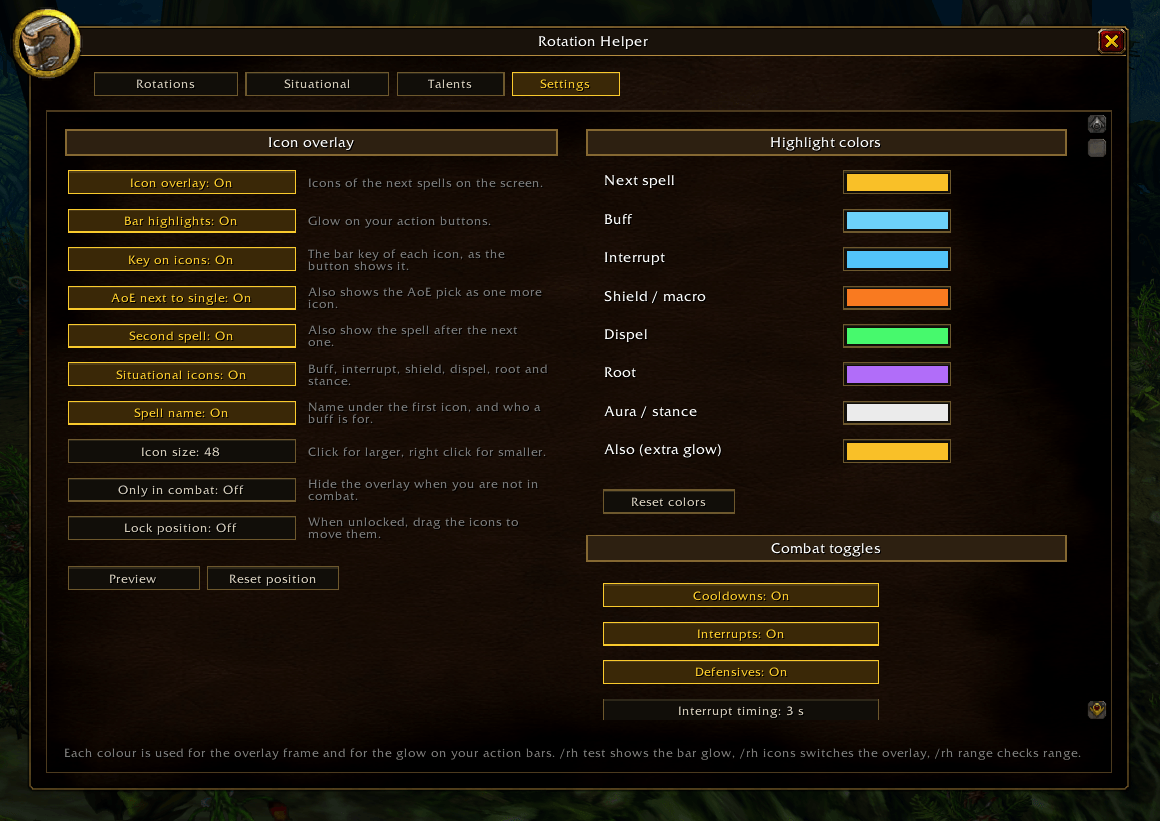
Type /rh options (or Ctrl + left click the minimap button) and open the Settings tab. You can:
- Turn the icon strip, the bar highlights, the bar keys on the icons, and the spell name under the first icon on or off.
- Show the spell after the next one, and show the AoE spell as an extra icon.
- Hide the strip when you are out of combat.
- Change the icon size, and pick a colour for each type of highlight.
- Preview the strip for 12 seconds, reset its position, or reset the colours.
- Switch Cooldowns, Interrupts, and Defensives on or off.
- Set how early an interrupt appears. You can pick 0.25, 0.5, 1, 2, or 3 seconds before the enemy finishes the cast.
- Set how many nearby enemies turn AoE on automatically. The default is 3.
Each combat toggle also has a key under Key Bindings, in the Rotation Helper section.
Main window
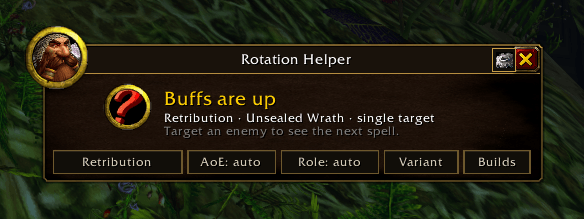
Left click the minimap button to open the main window. It shows the next spell and the one after it, and it has a few buttons:
- AoE cycles auto, yes, no. Auto switches to the area rotation when enough enemies are close. The number is set in Settings.
- Role cycles auto, dps, tank, healer. Auto follows your talents. A feral druid in bear form counts as a tank.
- Variant switches a spec that has two rotations. The helper picks one based on the spells you know.
- Builds opens the talent builds window.
Close the main window with the X button. Escape closes the builds and settings windows.
Talent builds
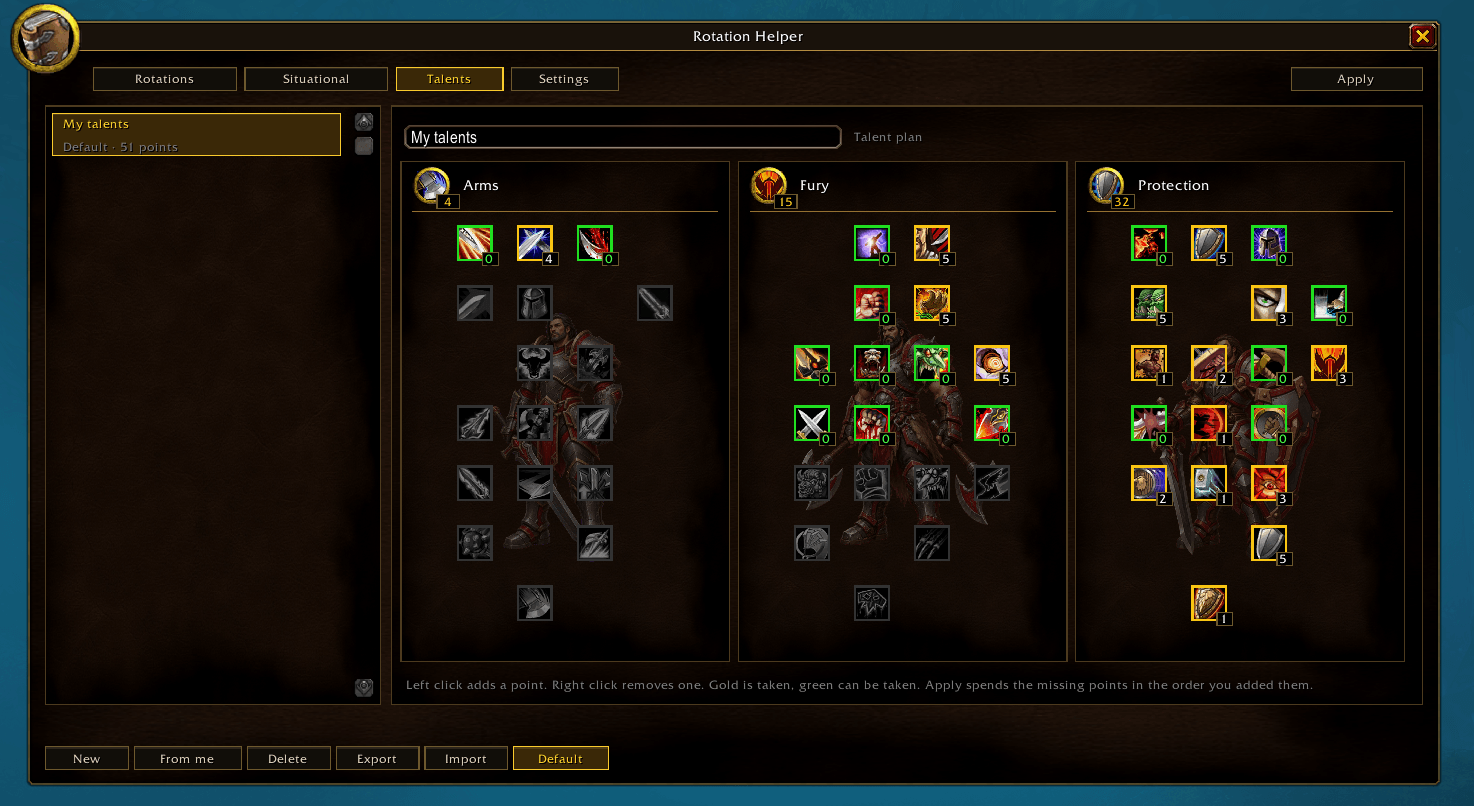
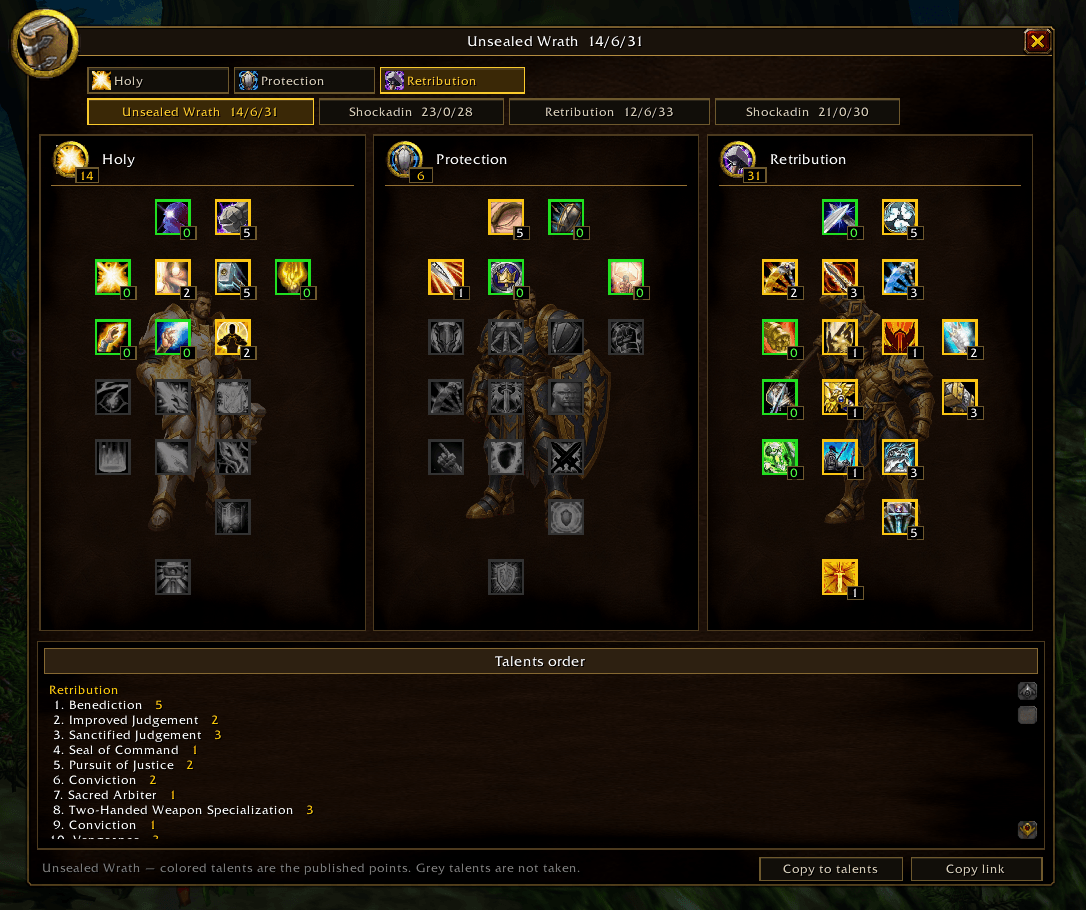
Right click the minimap button, or use the Builds button. Each class has its three trees as tabs. Under the selected tree are the named PvE builds from the Wowhead Forever calculators, for raids and dungeons.
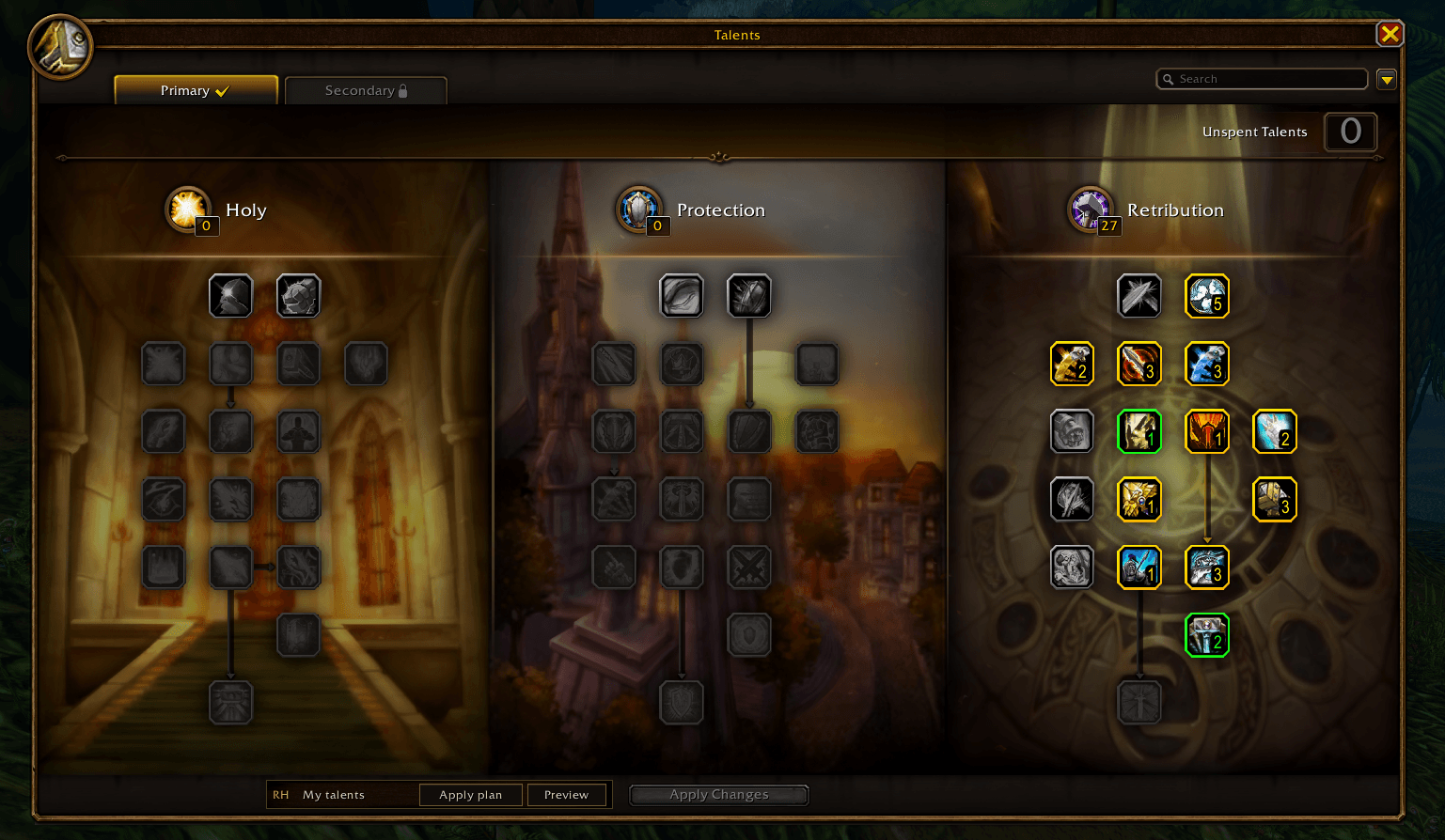
The window draws the trees with your client's icons. Taken talents have a gold border, talents you can take have a green border, and locked talents are grey. Talents order shows the sequence the points are spent in, and Copy link puts the Wowhead link on your clipboard.
If a published calculator spends points on a talent your tree no longer has, those points are left unspent. They are not moved to a different talent.
Your own rotations
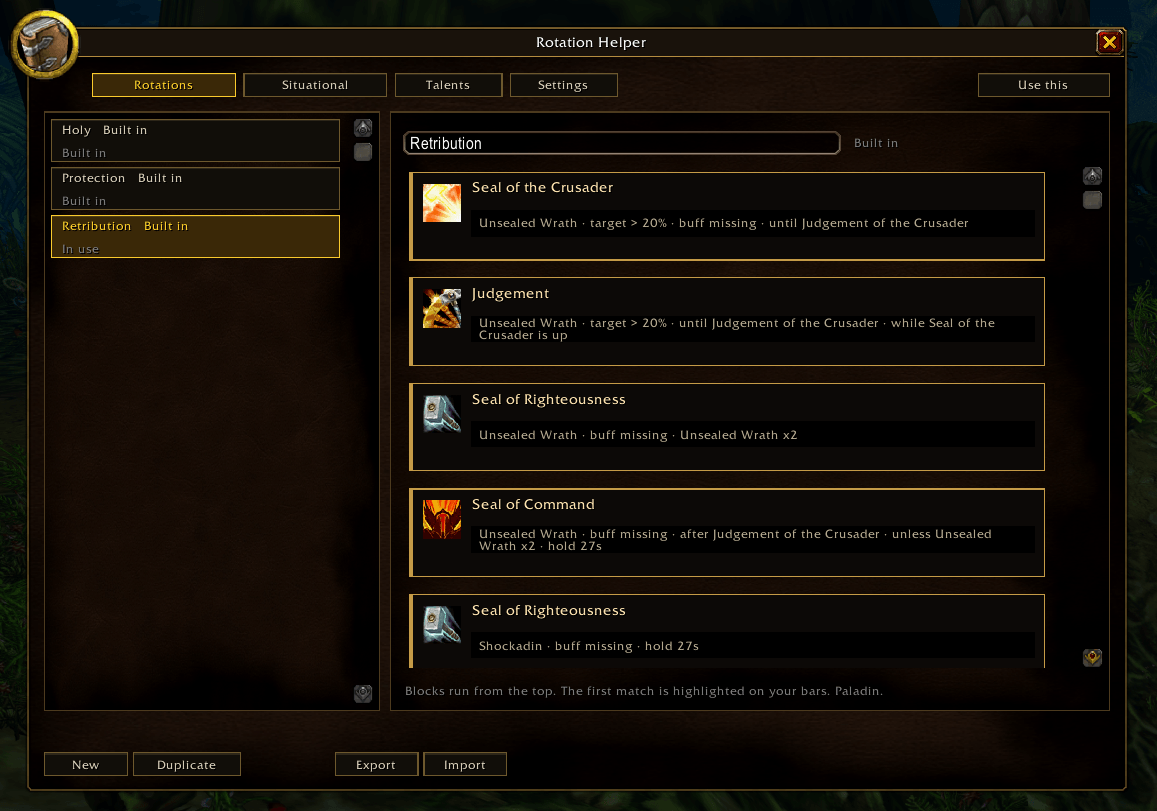
The Rotations and Situational tabs are where you change what the helper suggests. You can copy a built-in rotation, change its steps, and save it. You can also export a rotation as text and import one from a friend. A Default button puts the built-in rotation back.
Commands
| Command | What it does |
|---|---|
/rh |
Turn the helper on or off |
/rh options |
Open the options window |
/rh icons |
Show or hide the icon strip |
/rh aoe |
Cycle AoE: auto, yes, no |
/rh role |
Cycle role: auto, dps, tank, healer |
/rh variant |
Switch to the next rotation variant |
/rh builds |
Open or close the talent builds |
/rh lock |
Lock or unlock the main window |
/rh status |
Shows your spec, the next spell, and any spells the helper could not recognise |
/rh test |
Glows every spell on your bars for 8 seconds, coloured by type. Run it again to stop |
/rh bind English Name |
Teaches the helper a spell it cannot see |
Newer Forever spells have no classic spell ID. On an English client they are matched by name. On any other client, hover the icon in your spellbook, type /rh bind, and add the English name shown by /rh status. The binding is saved for that character.
Notes
- AoE needs enemy nameplates. The helper counts nearby enemies from the nameplates on your screen. Turn on Show Enemy Nameplates and Show All Nameplates in the interface settings.
/rh statuswarns you when they are off. - Enemies behind the camera, or far away, are not counted.
- The helper is for the World of Warcraft Forever client.
- After you copy new files into the addon folder, type
/reloadin the game.
Happy pressing. The keyboard is still yours.
RotationHelper [Forever] Team