


Road To Sixty
- By
Road To Sixty quietly records where your character goes from level 1 to 60. Open the map whenever you like to see your whole adventure drawn across Azeroth, and replay it from the very first step.
Description
Road to Sixty
Road to Sixty quietly records where your character goes from level 1 to 60. Open the map whenever you like to see your whole adventure drawn across Azeroth, and replay it from the very first step.
Features
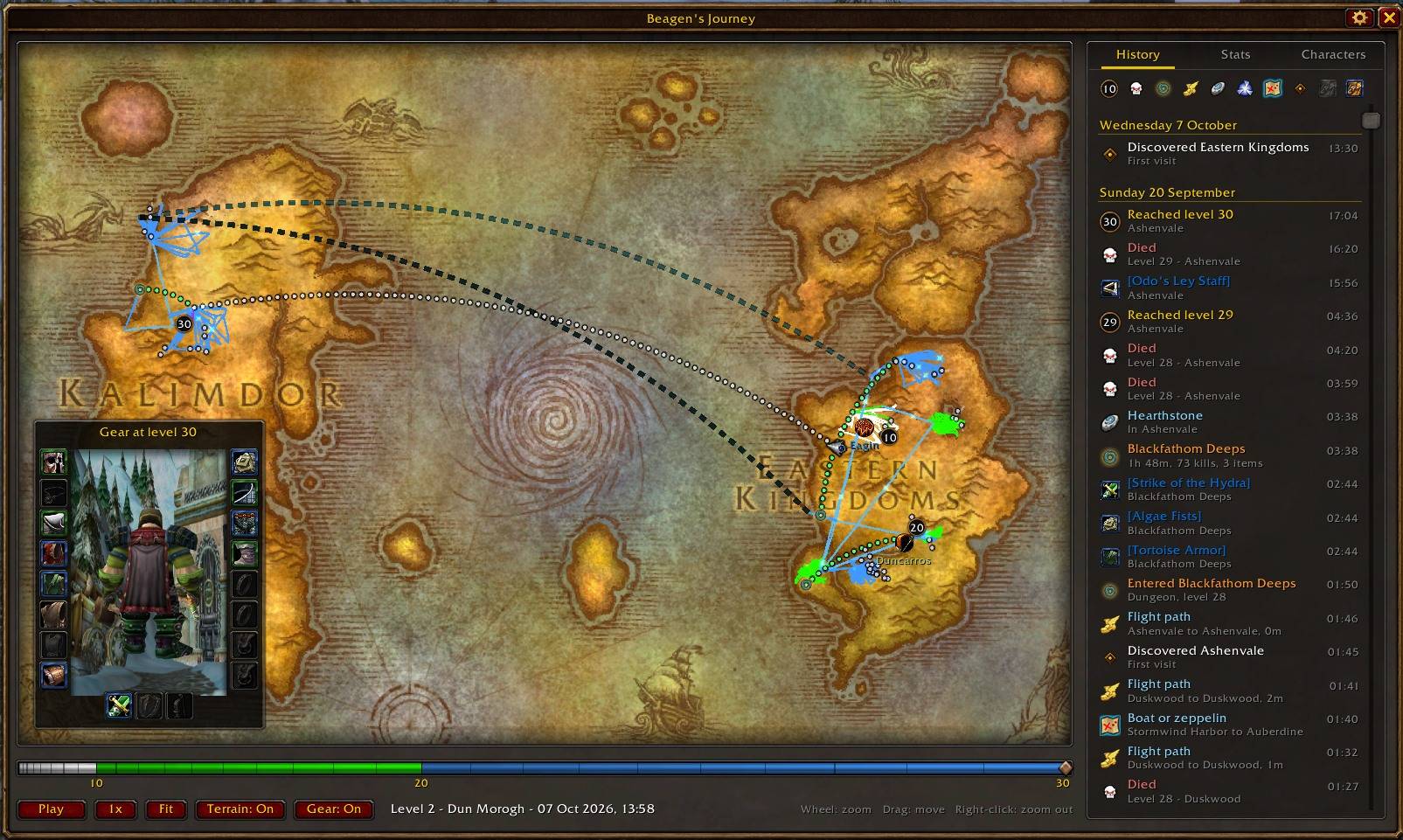
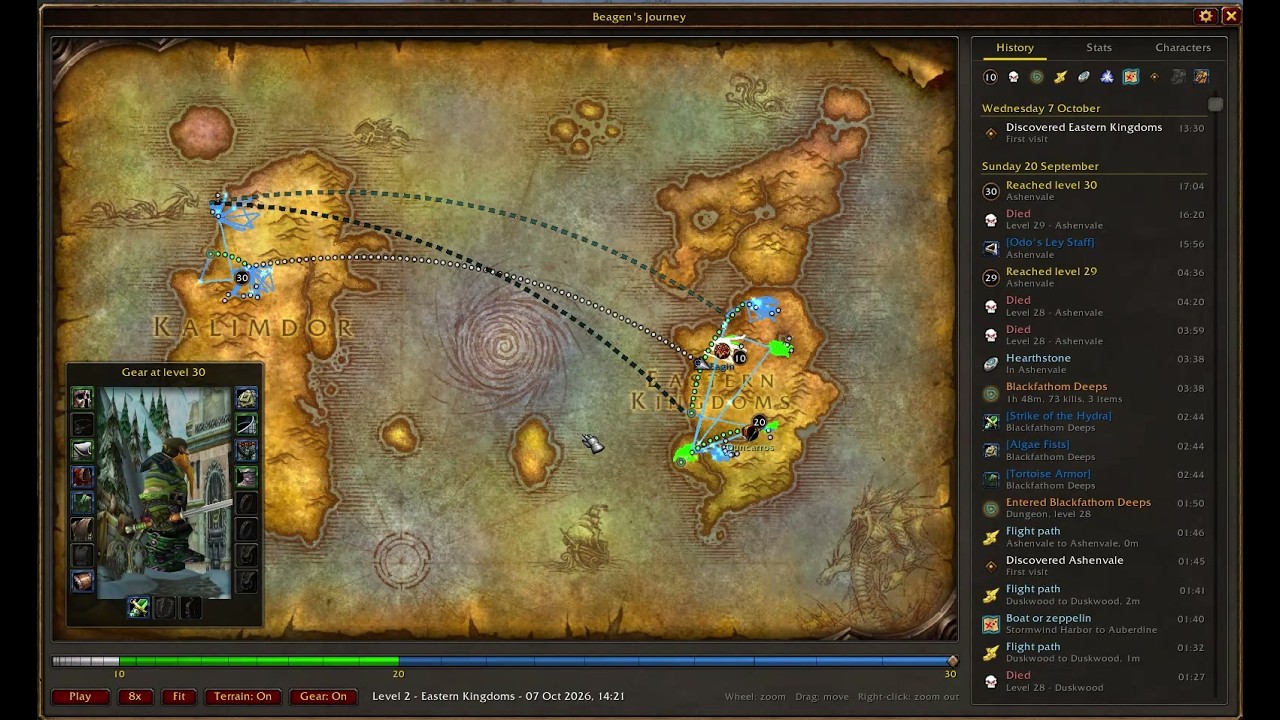
Your path on the world map
- One map for the whole world, in a window styled like the game's own: zoom smoothly from Azeroth into each continent and down to terrain detail.
- The path changes colour as you level, using the item quality colours: white, green, blue, purple, orange.
- Flight paths and corpse runs have their own styles, and arcane sparkles drift along the road.
Replay
- Press Play to watch your journey unfold, at 1x to 32x speed.
- The timeline bar shows your level bands. Click or drag it to jump to any moment, and hover it to see your level, zone and date at that point.
Your gear, level by level
- Road to Sixty remembers what you wore at every level up.
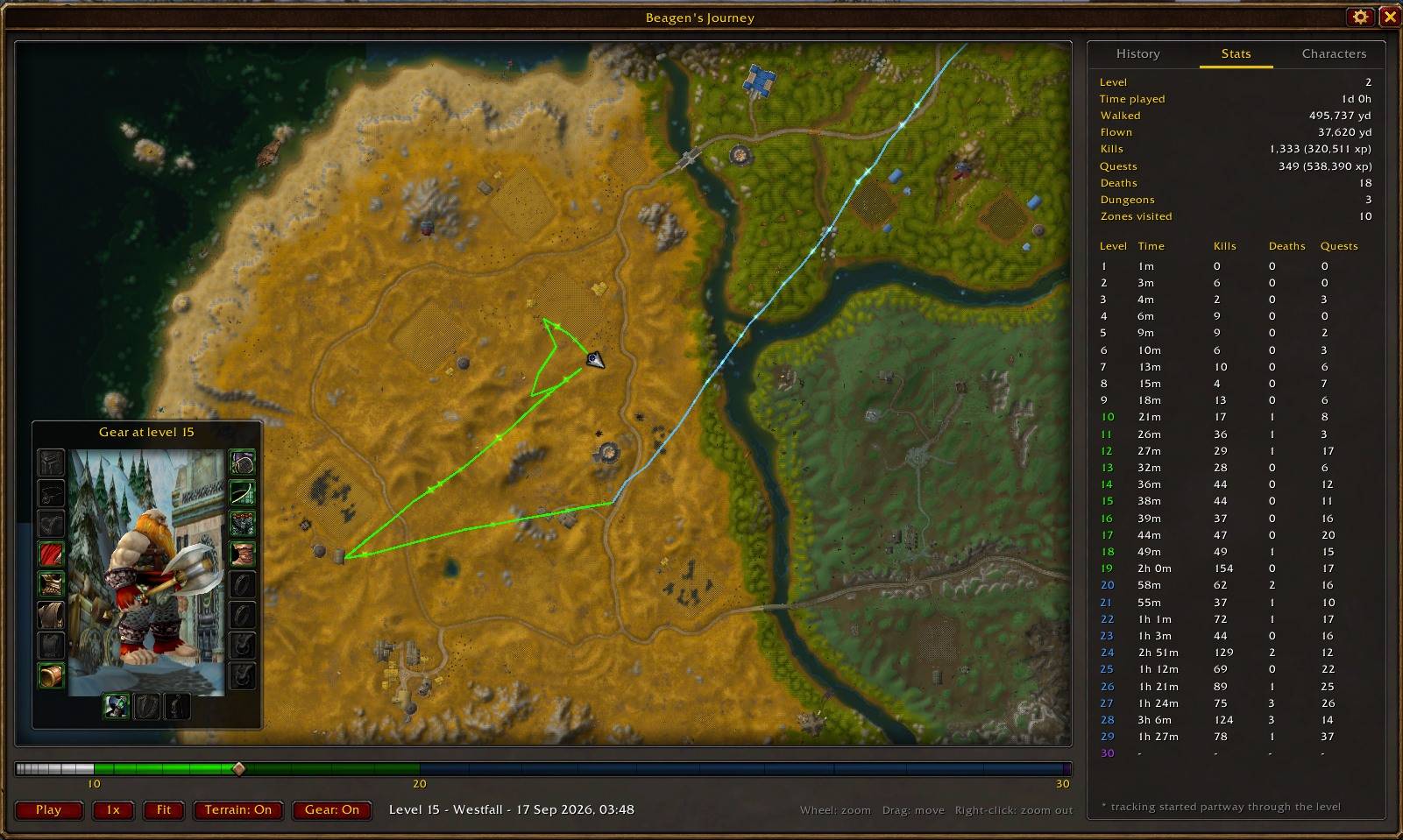
- Hover a level up on the map, in History or in Stats to see your character in that gear, character sheet style.
- Turn on Gear during a replay to watch your gear change as you go, with a gold flash on each upgrade. Hover a slot for the item's tooltip.
Every jump explained
- Hearthstones, mage teleports, boats, deaths and dungeons are drawn as coloured arcs, with an icon when you zoom in.
- Hover any line for details, for example "Boat: Stormwind Harbor to Auberdine".
History
- A side panel lists your level ups, deaths, dungeon runs (with a summary of each run), flights, hearths, teleports, boats, new zones, and green, blue and epic loot.
- Filters hide a category from both the list and the map.
- During a replay, the History list follows along and highlights where you are in the story.
Stats
- Totals and a level-by-level table: kills, quests, experience, deaths, time played, distance walked and distance flown.
Your other characters
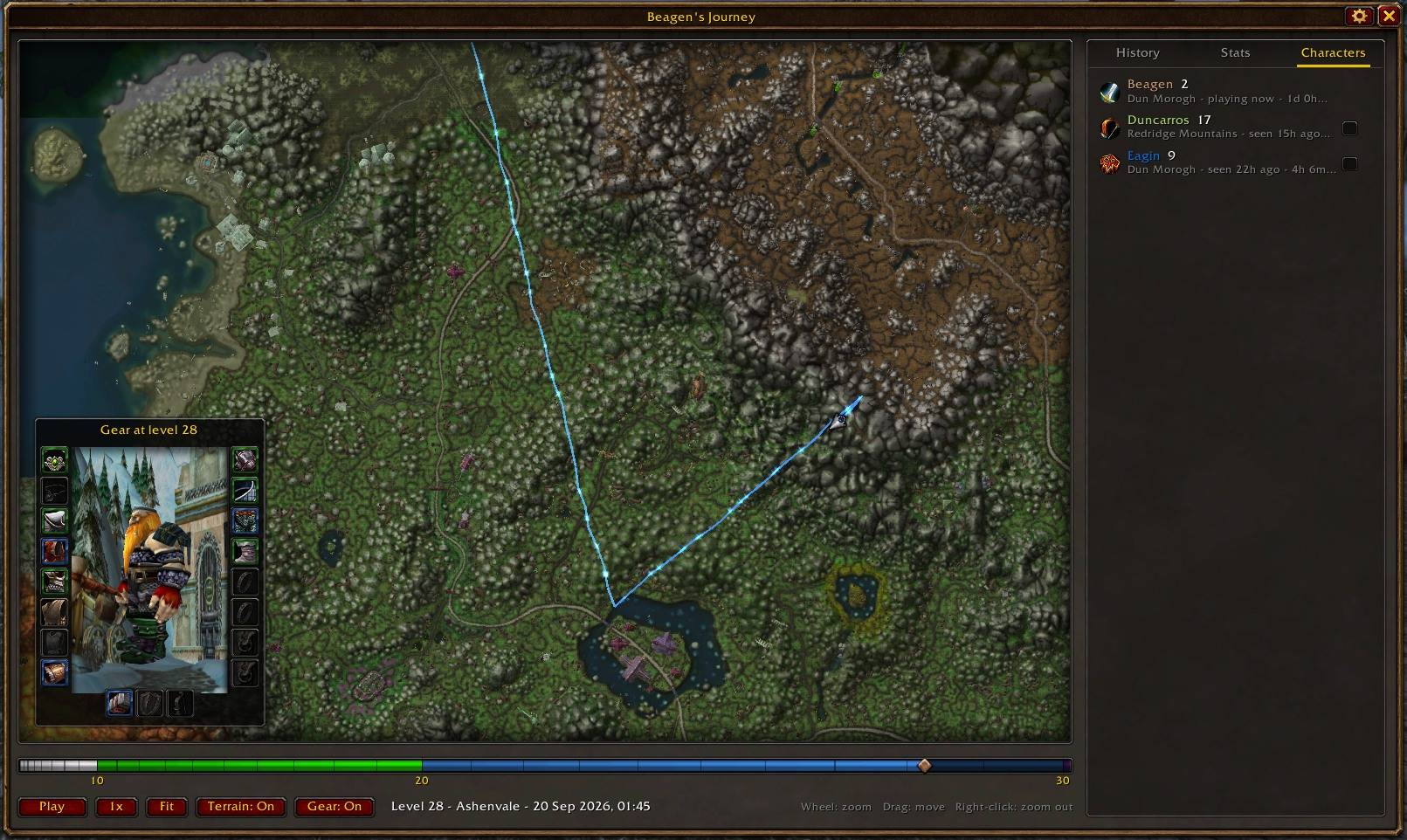
- A Characters tab shows all your characters and where they last were.
- Turn on their paths to see them alongside your own.
Light on performance
- Recording is lightweight. The map only draws detail where you are looking, so zooming stays smooth even with a full 1–60 journey.
Options and commands
Click the minimap button to open the map (drag it to move it). Right-click it, or click the cog on the map window, for the options: the minimap button, terrain, sparkles, the gear card during replays, and checking or erasing your journey. They are also under Options > AddOns > Road to Sixty.
Or use:
| Command | What it does |
|---|---|
/rts map |
Open the journey map |
/rts options |
Open the options panel |
/rts check |
Check that recording is working |
/rts stats |
Show journey totals and recording size |
/rts where |
Show your position as the recorder sees it |
/rts minimap |
Show or hide the minimap button |
/rts motes |
Turn the arcane sparkles on the path on or off |
/rts greet |
Turn the login message on or off |
/rts reset confirm |
Erase this character's journey |
Good to know
- Recording starts when you install the addon. Earlier travels cannot be recovered, so install it early!
- Journeys are stored per character. The Characters tab shows all of them on your account.
Beta
This is an early beta, and your feedback shapes what comes next. Please share in the comments:
- bugs, with the output of
/rts checkif recording seems off - ideas for what else to track on your journey
- screenshots of your journeys!
Road To Sixty Team
