RL: Radial Menu
- By
Description
Open a radial menu of actions with one keybind. It works in combat, with a mouse or a controller, on Retail and WoW Forever.
Features
- One keybind per menu, as many menus as you like. It can hold spells, items, mounts, toys, battle pets, macros, emotes, pet commands, and target/world markers.
- Quick actions can be used without the menu showing.
- Library menus that auto-update (consumables, quest items, hearthstones, gear, equipment sets, action bars, professions, specializations and talent loadouts).
- Submenus, scrolled or spread into the menu.
- Actions you cannot use right now are hidden automatically.
- Icons show cooldowns, charges, range and procs like your action bars.
- Open menus at the cursor, or at a fixed position placed with Edit Mode.
- Share menus as text, with their macros and submenus.
- Controller support in WoW Forever's gamepad UI and with ConsolePort:
- Menus are set up with mouse and keyboard.
- In game, aim with the right stick, press A to pick and B to close. D-pad to scroll submenus.
Getting started
- Open the settings with the minimap's addon drawer, under Esc → Options → AddOns → Radial Menu, or one of these chat commands:
/rm,/radial, or/radialmenu. - On the Menus tab, click + New and set a keybind.
- Drag spells or items onto the menu, or search with +.
NOTE: In WoW Forever's gamepad UI, you can only open the settings from the minimap's addon drawer. The other ways can crash the game because of a Blizzard bug.
Feature Demos
Ping-style menus
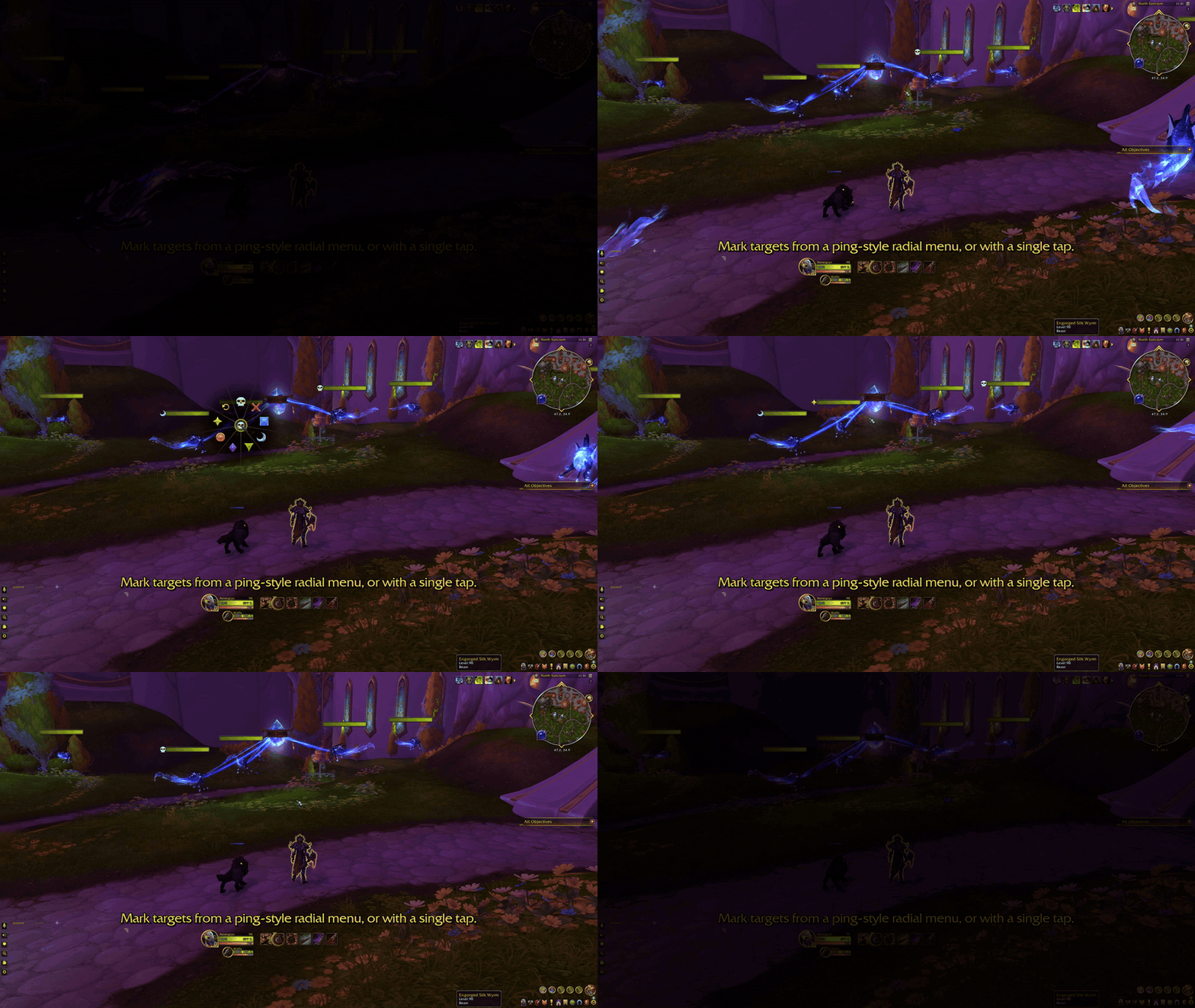
Hold your keybind and the menu opens at your cursor, like the game's ping wheel. Move toward an action and release to use it. Here, a target marker menu marks the dragonhawks one by one.
The action in the center of the menu is the quick action. Press and release the keybind without moving the cursor, and the quick action is used without the menu appearing. In a marker menu, the quick action marks the unit under your cursor.
Any action
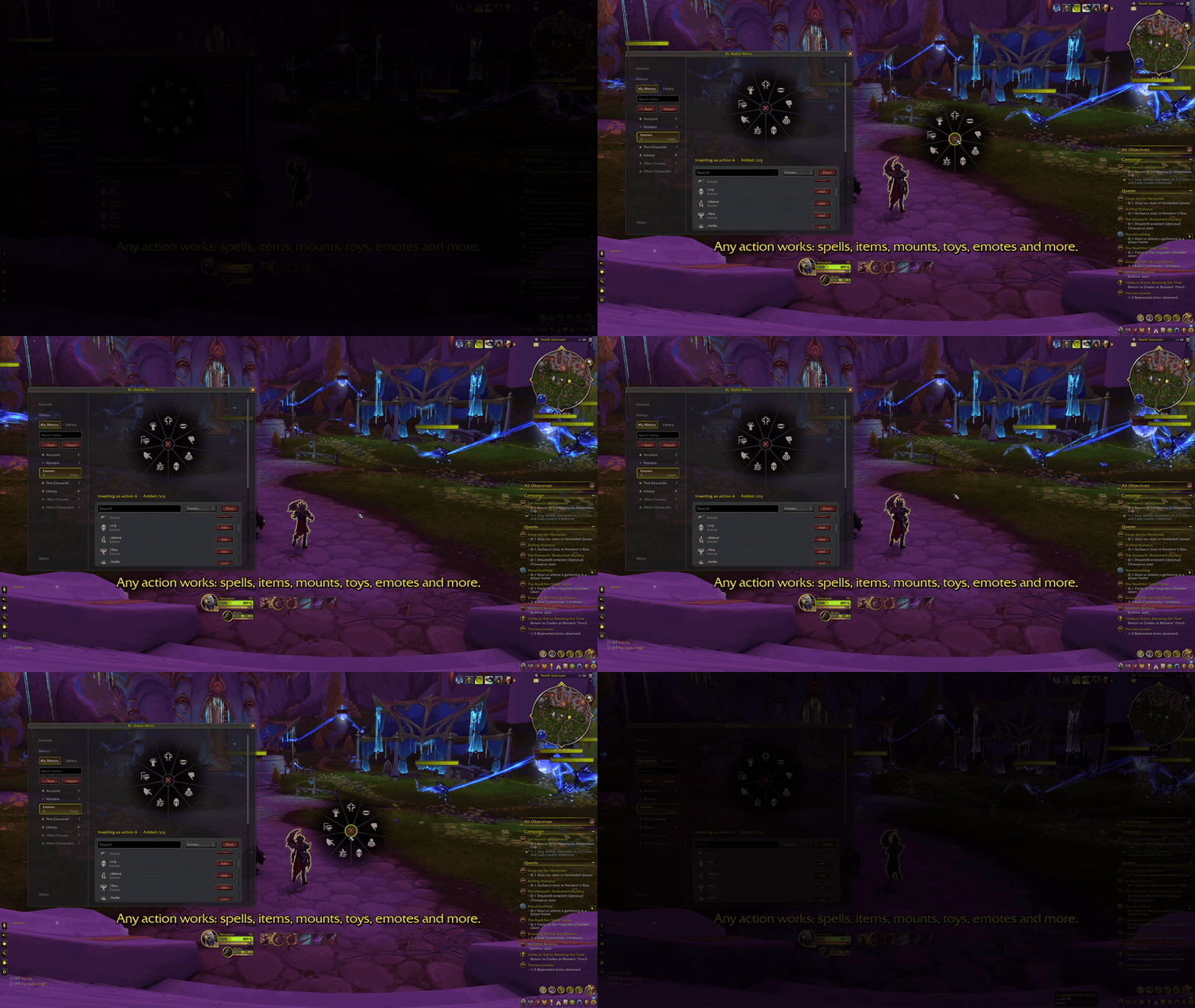
A menu can hold almost anything you can put on an action bar. Here, an emote menu is filled from the search and then used in game. Each emote gets its own symbol, so the menu is easy to read at a glance. The full list is in What a menu can hold.
In combat
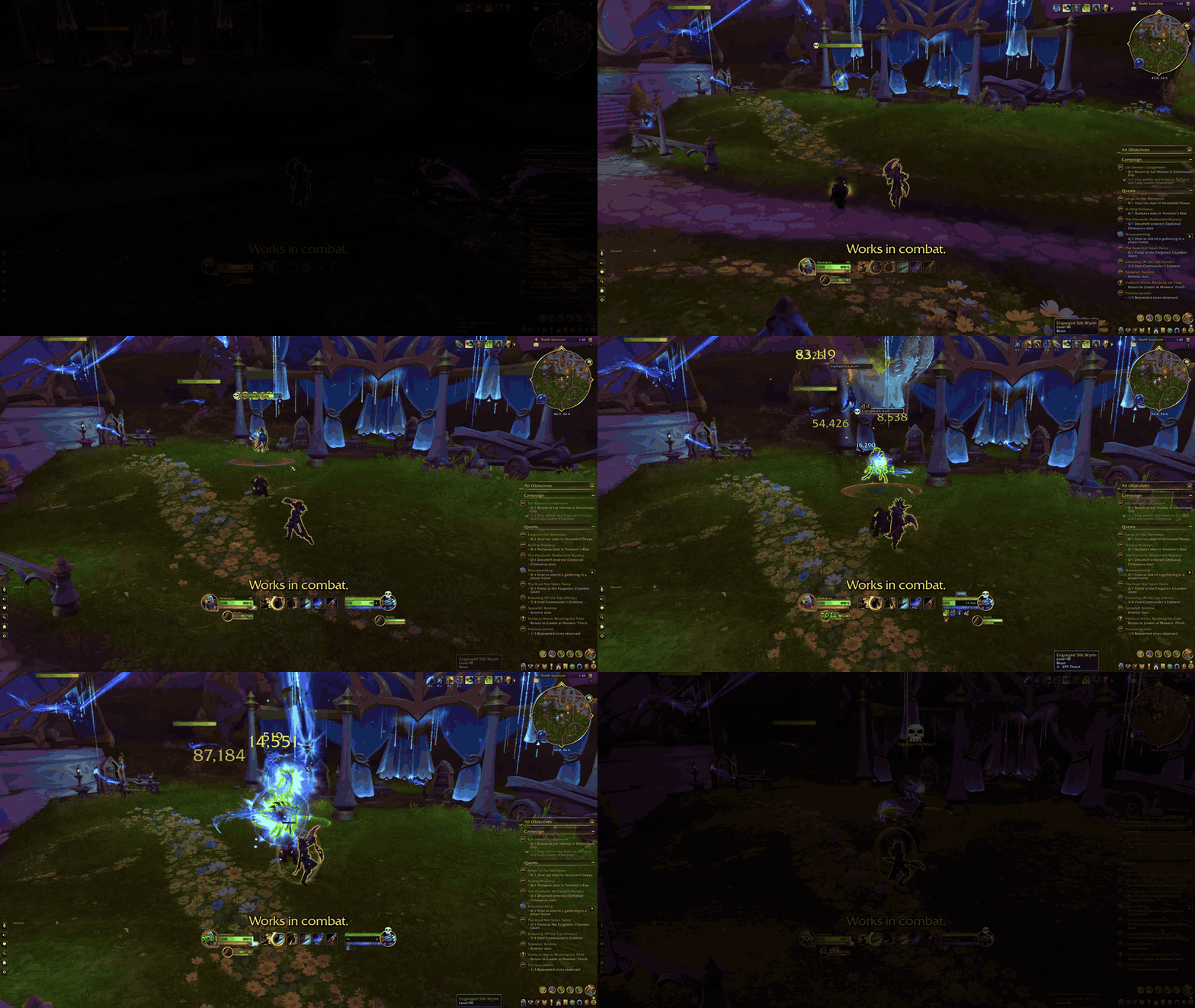
Menus work in combat like any action bar button. Here, a skull goes on the enemy in the middle of the fight. Icons show cooldowns, charges, range, procs, and missing resources, just like your action bars. The game's own combat rules still apply. You cannot change your spec or talents, mount up, or swap armor in combat.
Hidden actions
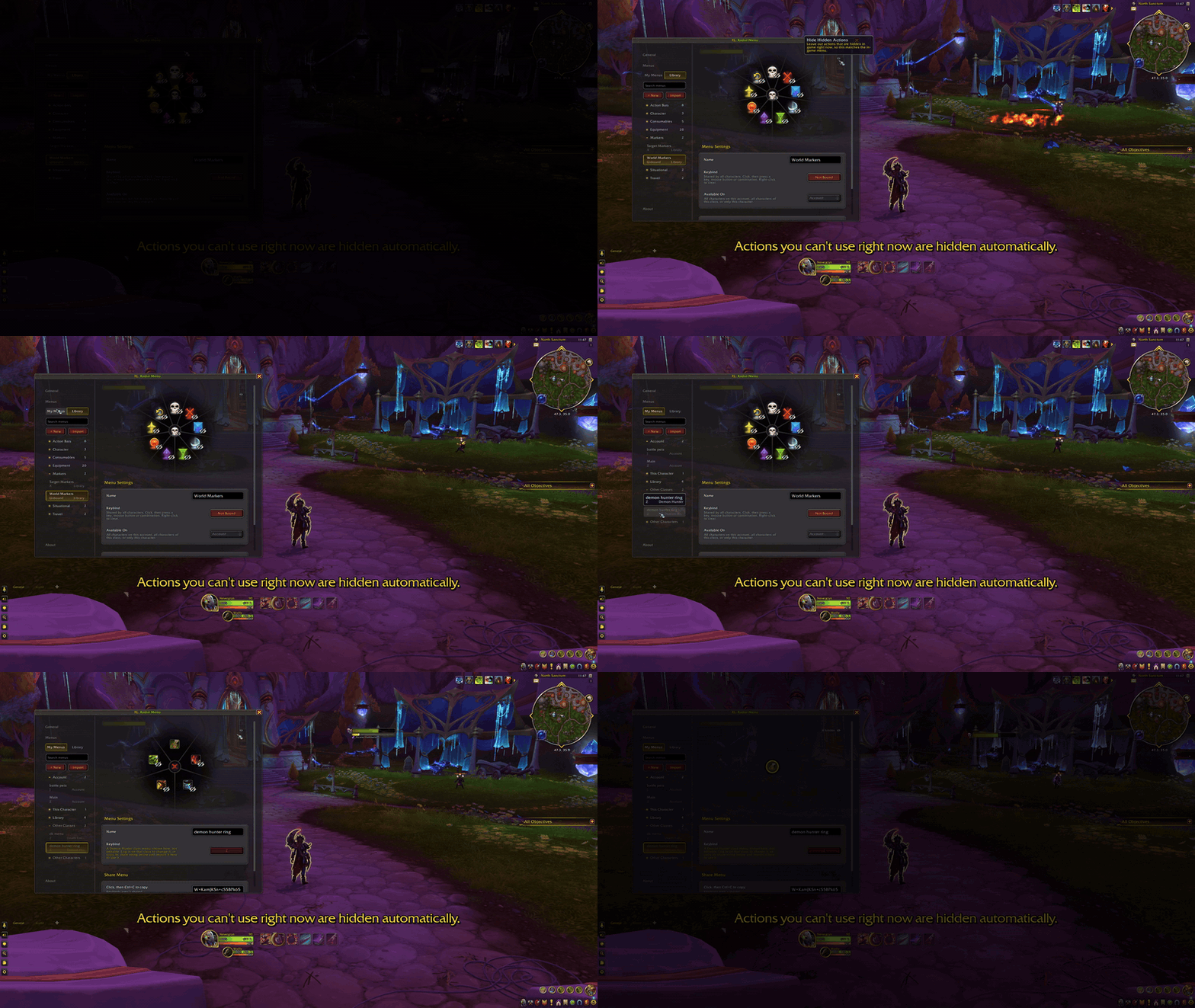
Actions you cannot use right now are left out of the menu, and come back when you can use them again. Here, the world markers are hidden while not in a group, and another class's spells are hidden on this character. The eye in the corner of the preview removes the actions that are currently hidden.
Special actions
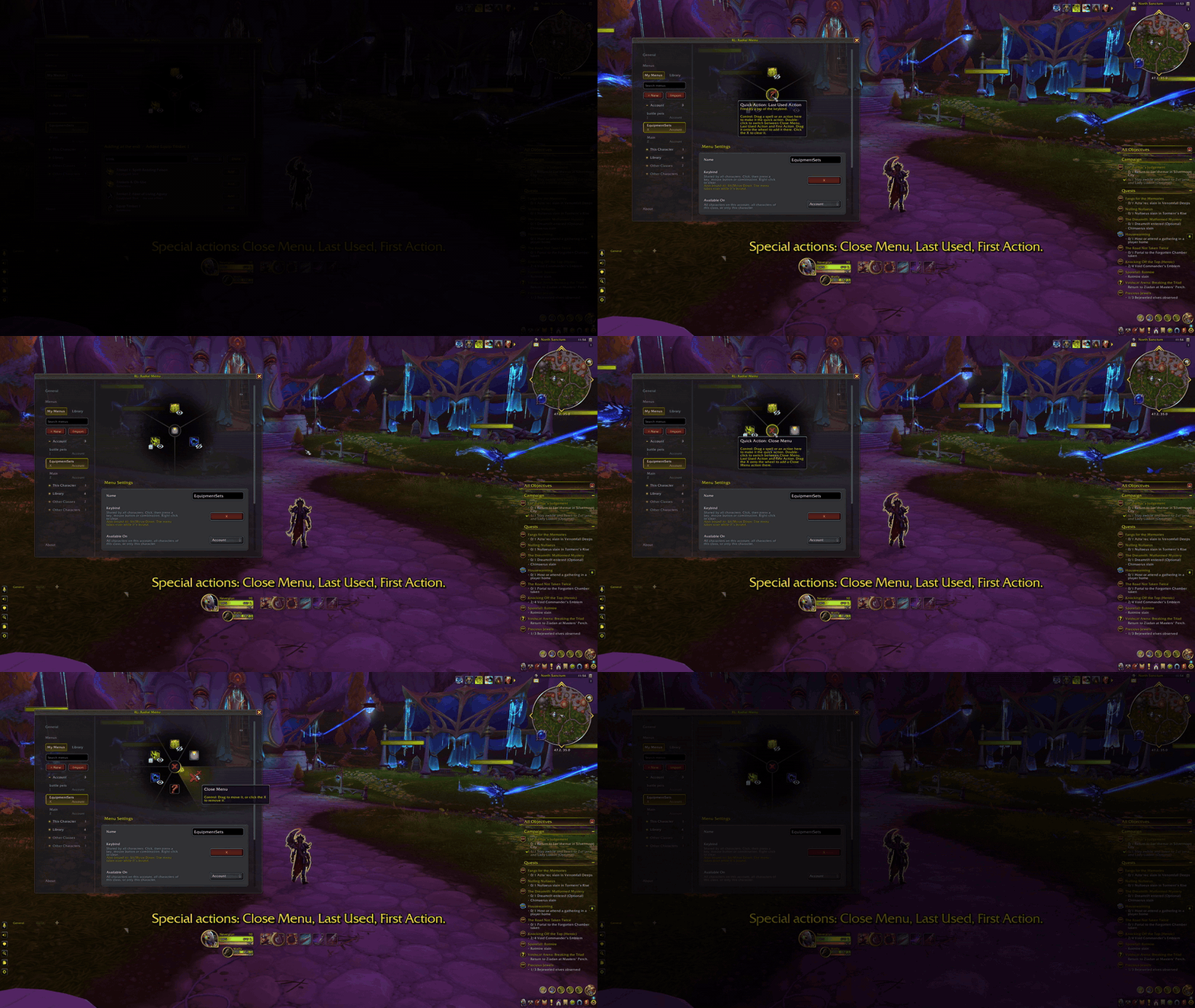
Three special actions do something other than cast.
- The Close Menu action closes the menu without using anything.
- The Last Used Action repeats what you used last from that menu. It is useful for quest items or abilities, or any menu where you tend to use the same action several times in a row.
- The First Action uses the first action this character can use. Here, it is the quick action of an equipment set menu. The set you are wearing is hidden, so the quick action always puts on the other one, and swaps between the two.
These actions work anywhere in the menu, not just as the quick action. To make one the quick action, double-click the center of the menu in the settings to switch between them, or drag and drop it there like any other action.
Submenus
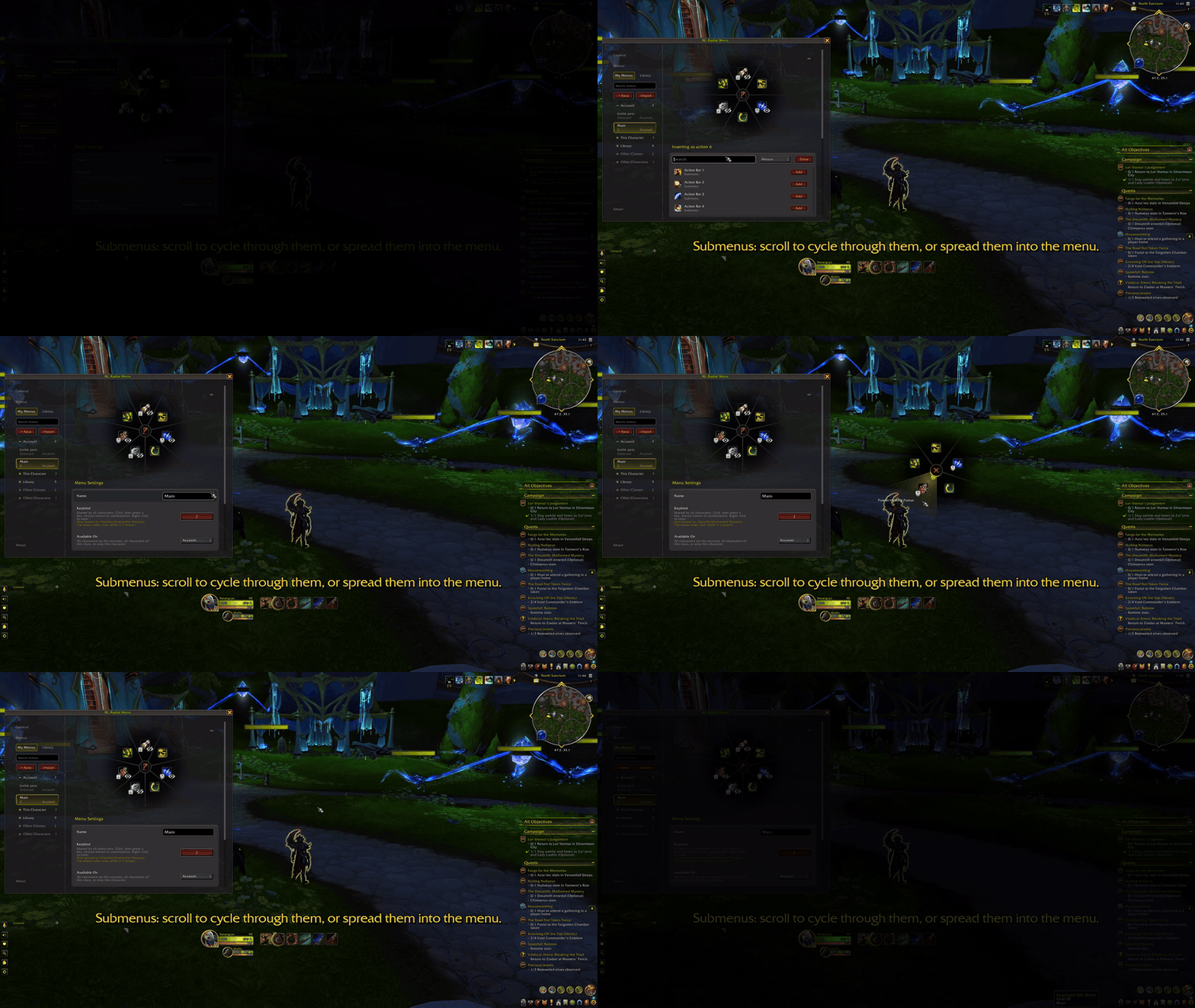
A menu can hold your other menus. Add them from the search using the Menus filter.
A submenu shows up as a single action in the menu preview. Hover over it and scroll the mouse wheel to go through its actions. To see all of the submenu's actions at once instead, double-click it in the settings to spread them into the menu.
Here, a submenu is added, scrolled through in game, then spread.
Menu position
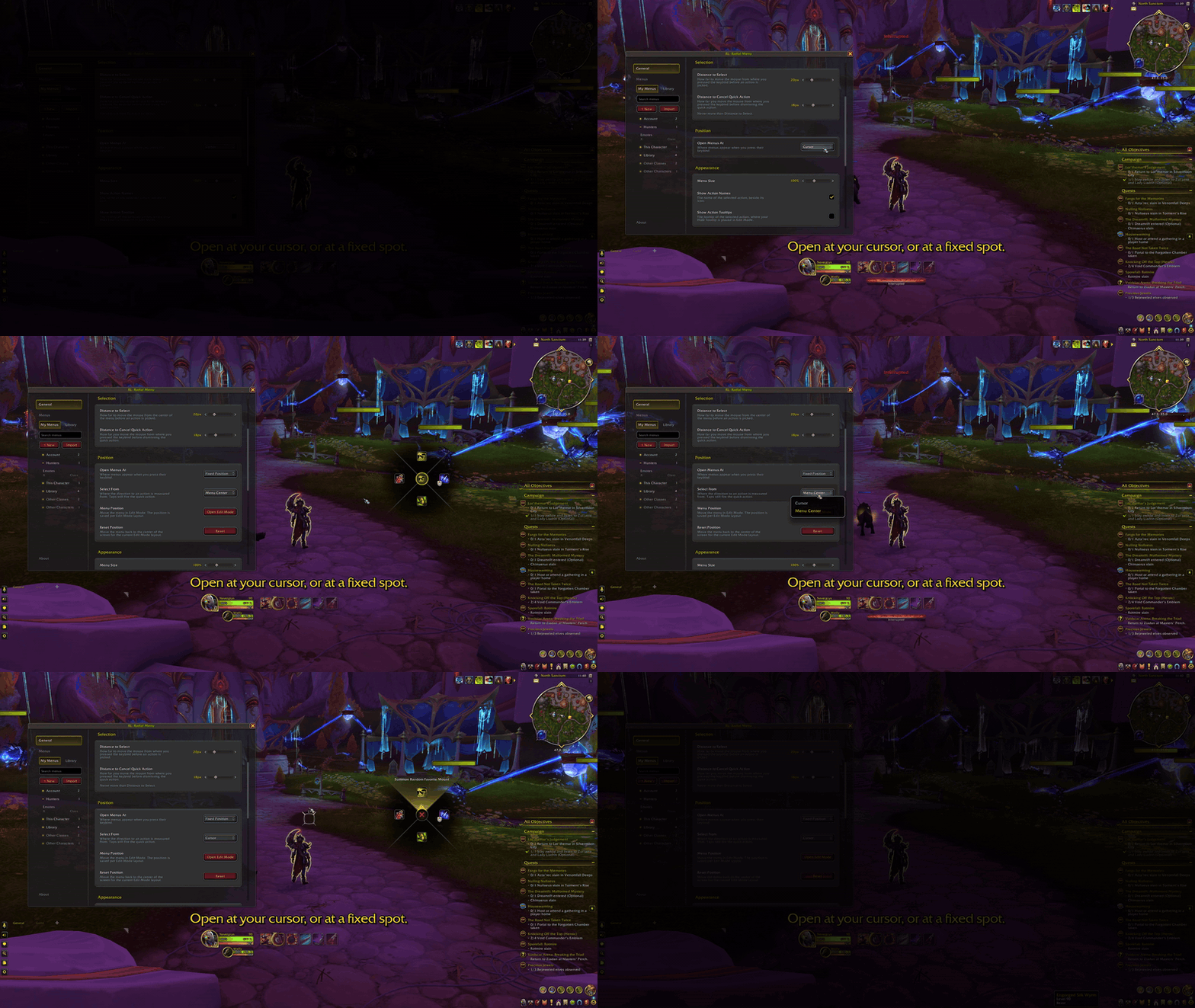
Menus open at your cursor by default. With the Open Menus At setting configured to Fixed Position, they open in the same spot on screen every time instead.
A fixed menu also lets you choose how actions are selected, using the Select From setting. With the Menu Center option, move your cursor over the menu toward the action you want. With the Cursor option, move your cursor toward the action as if the menu appeared at the cursor. You do not move your cursor over to the menu.
Here, Open Menus At switches from Cursor to Fixed Position, then Select From switches between Menu Center and Cursor.
Edit Mode
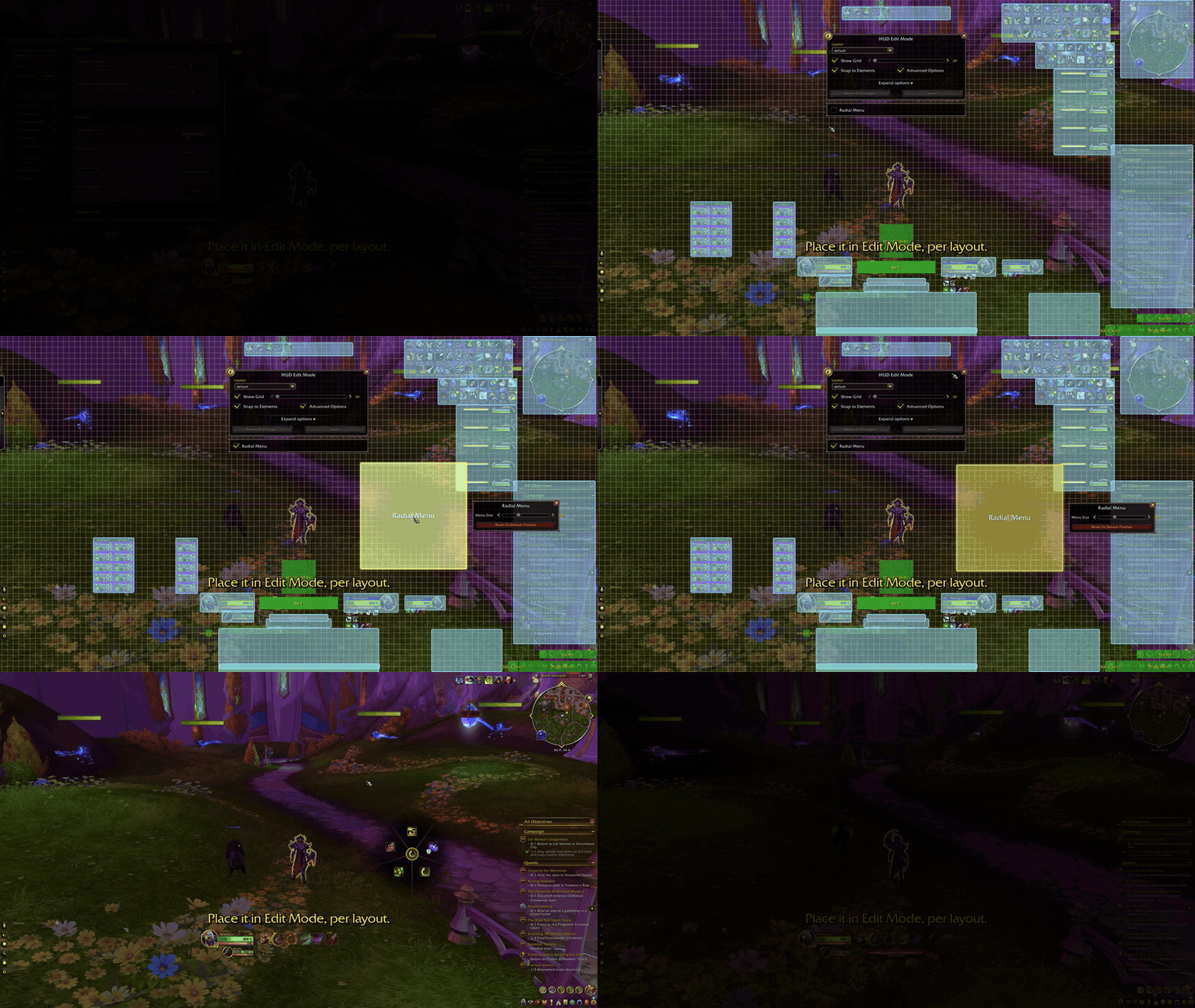
The fixed position is placed in the game's Edit Mode. Here, Open Edit Mode shows the Radial Menu box, which is dragged to a new spot and resized. Each Edit Mode layout keeps its own position.
Building menus
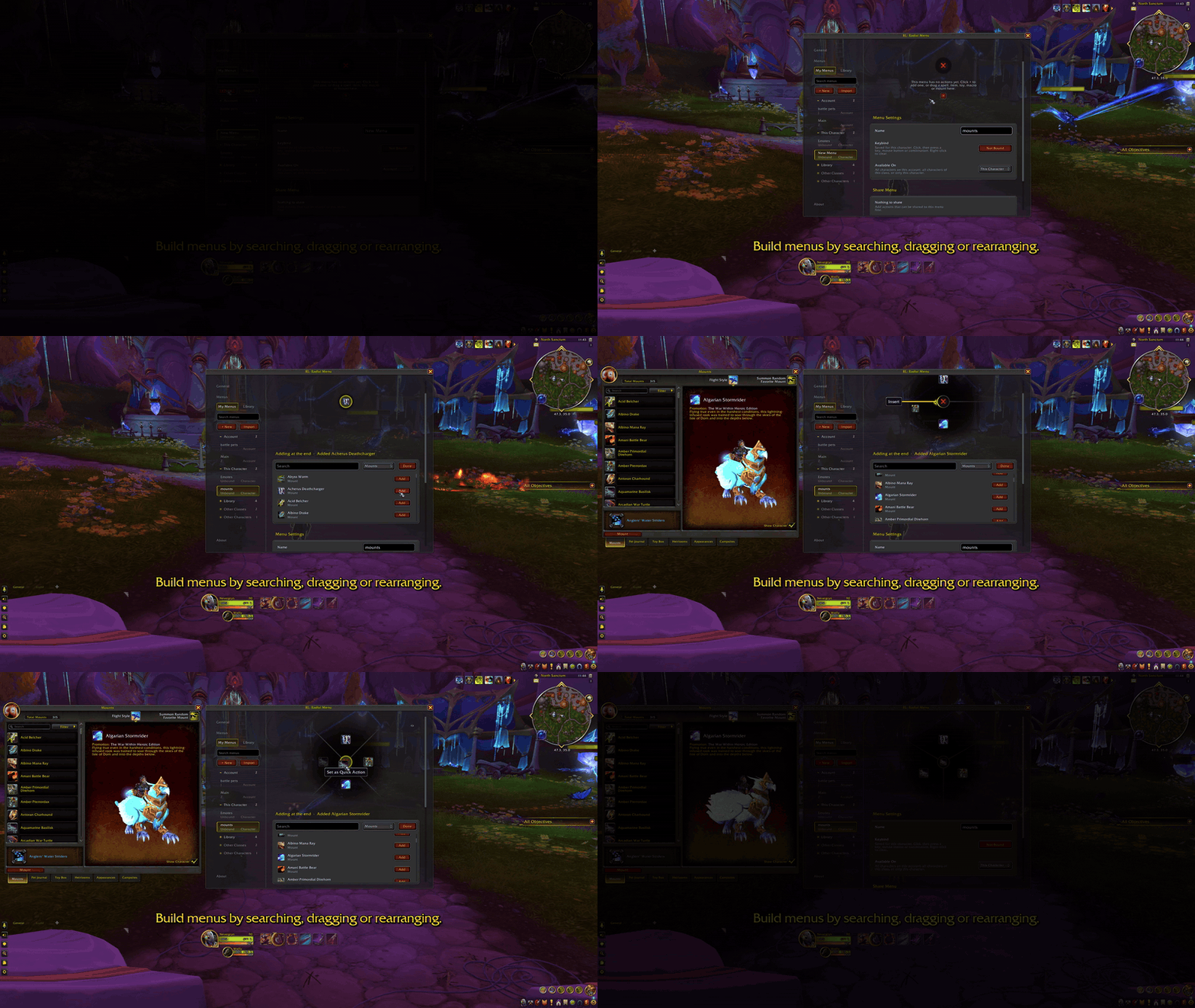
Here, a new mount menu is made for this character only. Mounts are added from the search and dragged in from the mount journal, then two are swapped by dragging one onto the other. The same works with spells, items, toys, and macros from your spellbook and bags. Remove an action with the X on its icon.
Sharing
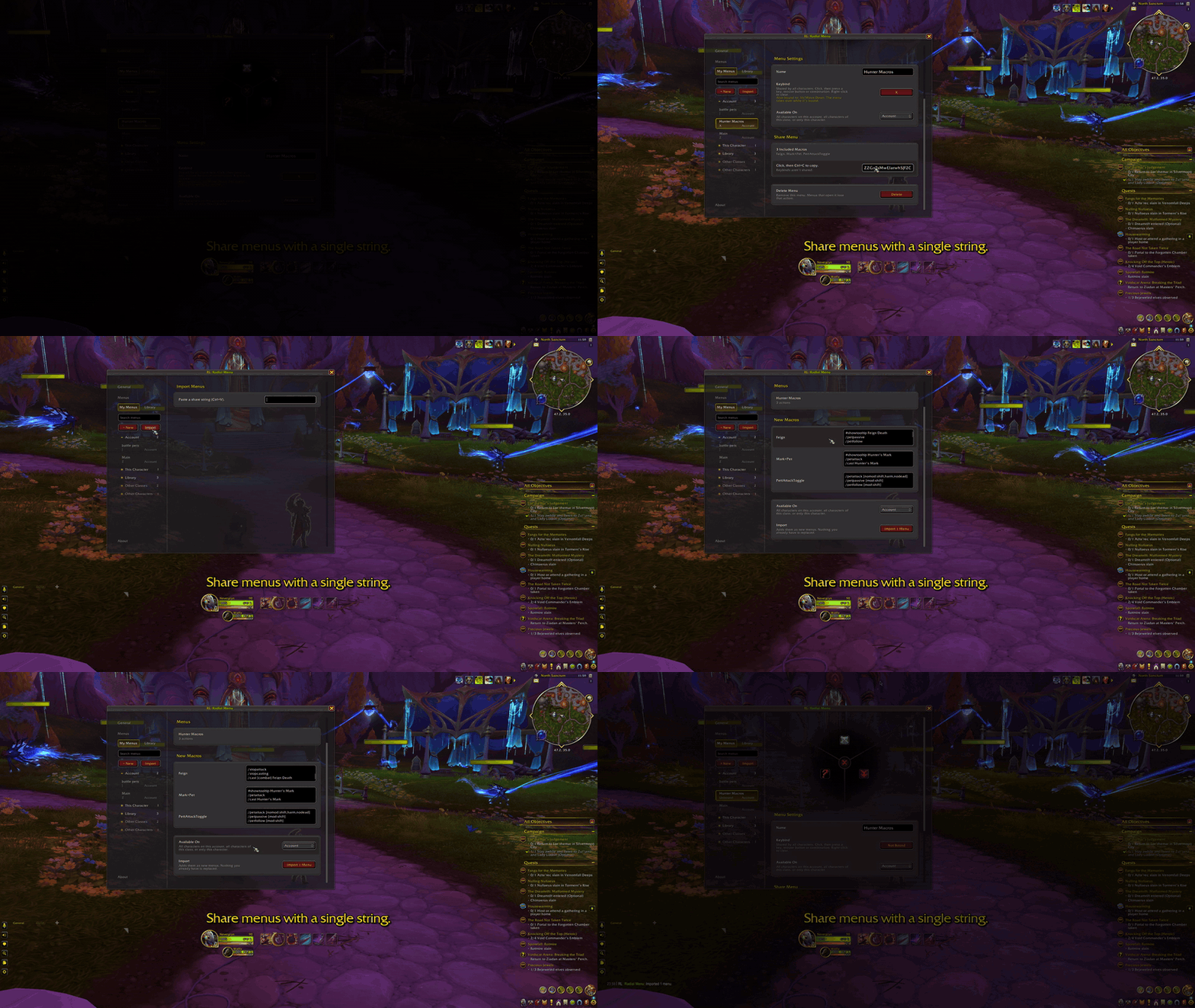
Every menu has a share string under Share Menu. Its submenus and macros are included and listed, so nothing is shared by surprise. It also lists anything that cannot be shared, and why. Battle pets are tied to your account, for example.
Before anything is added, the import page lists each menu and every macro it will create, with its text. Importing only adds new menus. It never replaces your existing ones.
Here, a menu of hunter macros is copied with Share Menu, then pasted into Import.
Library menus
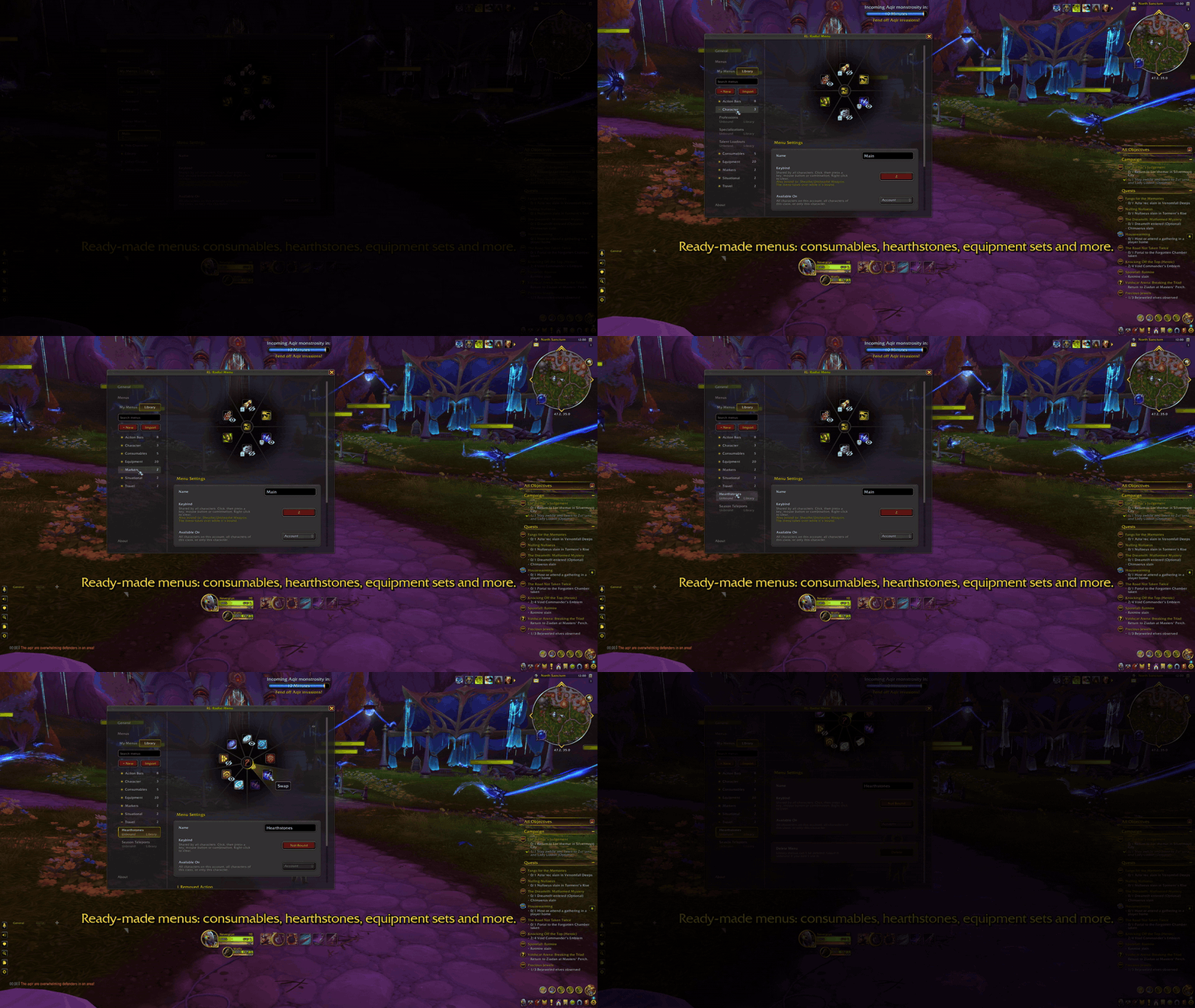
The Library has auto-updating, ready-made menus that fill themselves from your bags, spellbook, and collections. Give one a keybind, or add it to your own menu as a submenu.
You can rearrange the actions in a Library menu and remove the actions you do not need. A removed action remains removed as the menu updates, but you can restore it from the menu's page. Library menus themselves cannot be deleted. The full list is in Library menus.
Here, the Hearthstones menu is opened and one hearthstone is removed.
ConsolePort
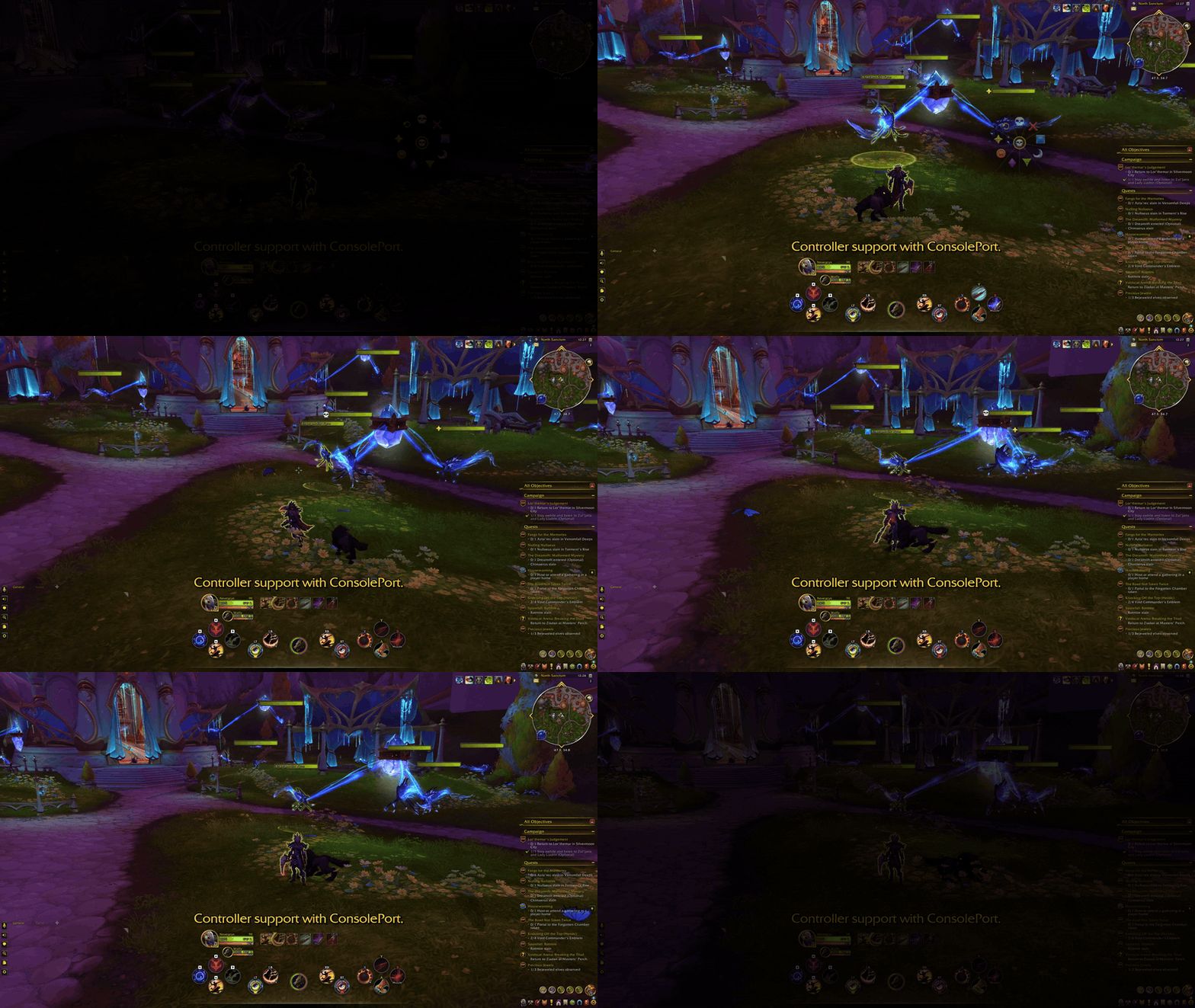
With ConsolePort, you can use your menus with a controller. Bind a menu to any controller button or combination, aim with the right stick, and press A to use the action or B to close. Scroll submenus with the D-pad.
Creating and editing menus still require a mouse and keyboard. To bind a controller button, click the menu's Keybind and press the button on your controller.
Here, the markers go on the unit ConsolePort is pointing at.
WoW Forever
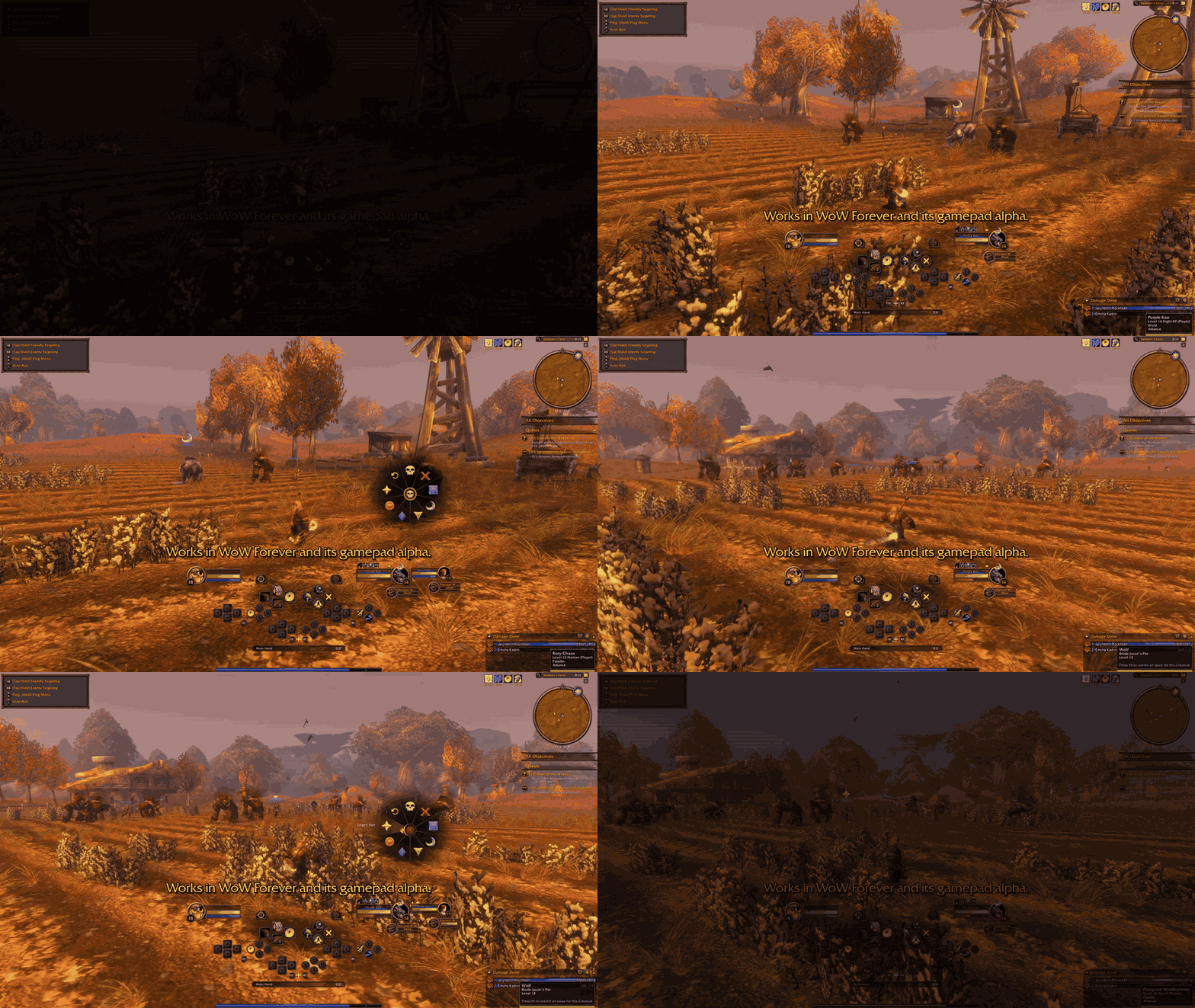
Menus work in WoW Forever too, including its gamepad alpha. A few Retail-only actions and menus are marked in the full reference.
In the gamepad alpha, creating and editing menus still require a mouse and keyboard. To bind a controller button, click the menu's Keybind and press the button on your controller.
Here, a marker menu is used with WoW Forever's gamepad UI.
Full reference
Every action a menu can hold, every Library menu, and every setting with its default are in the README on GitHub.
Credits
- The settings UI is based on WaypointUI by AdaptiveX (GPLv3).
- The right-stick camera technique follows ConsolePort by Sebastian Lindfors.
- Emote symbols are from game-icons.net (Lorc, Delapouite, Caro Asercion, Cathelineau), under CC BY 3.0.
AI disclosure: this addon was developed with the help of AI tools.
RL: Radial Menu Team