


QuietUI
- By
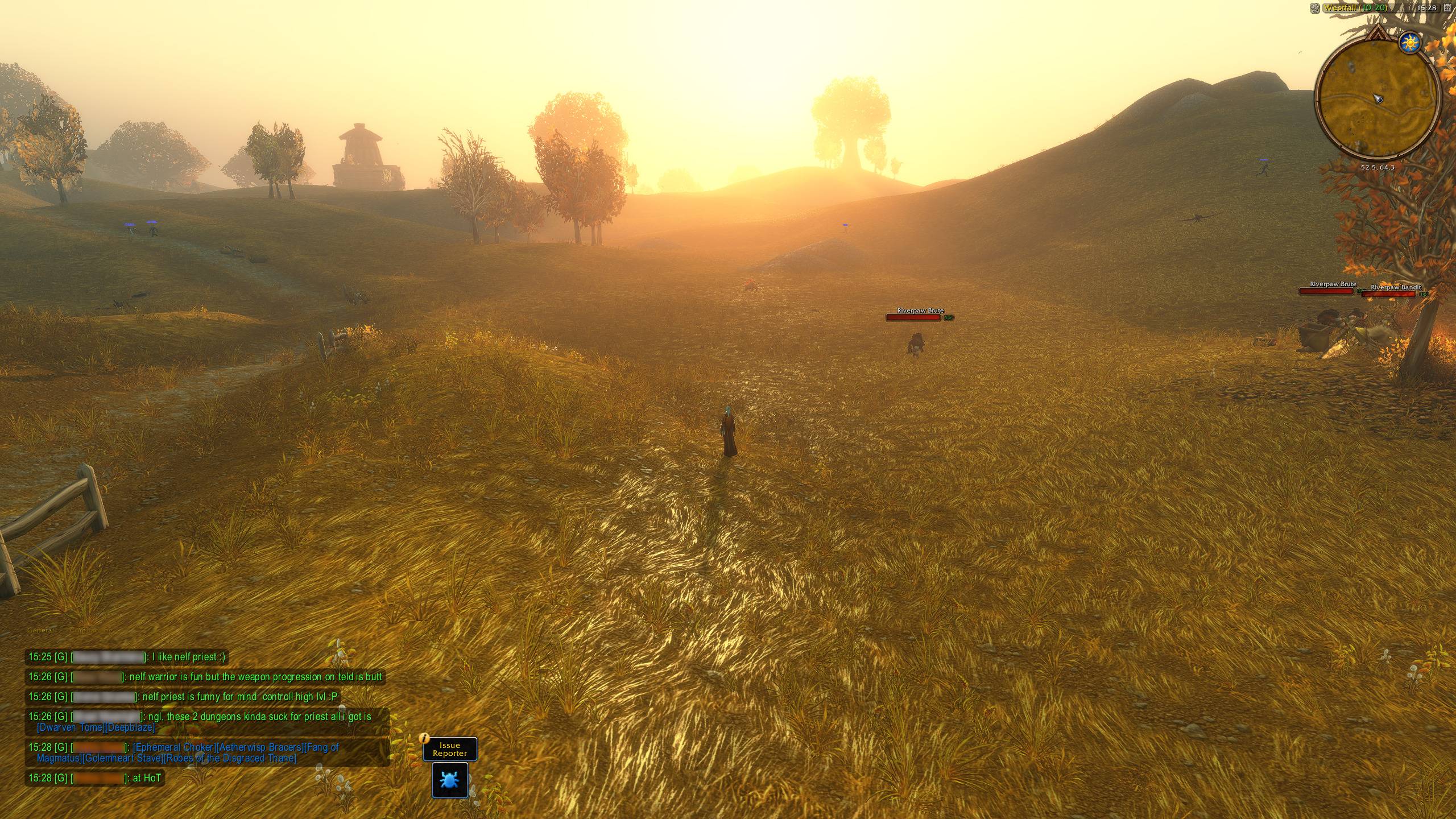
UI outside of combat with no target
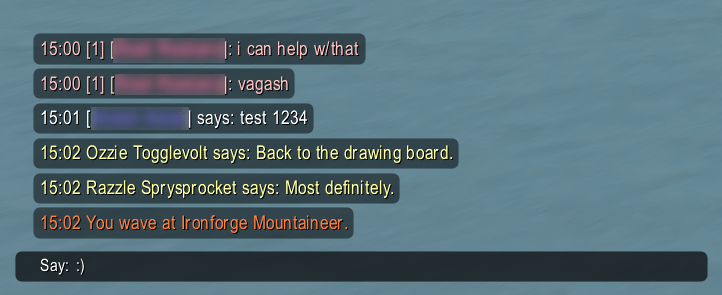
Chat window.
img006.png
img007.png
Description
A quiet interface for WoW Forever
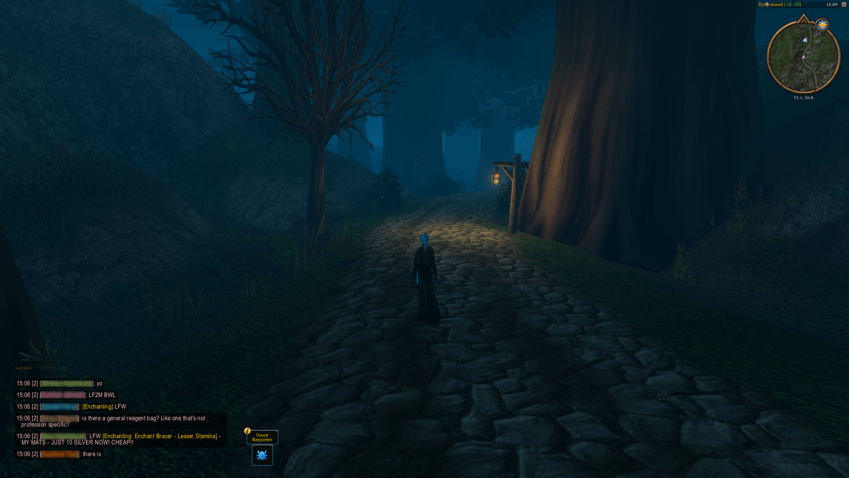
I wanted more of the world on my screen in WoW Forever, so I made QuietUI. It fades the Blizzard HUD while you explore and brings back the parts you need through hover, combat, and your current situation.
The defaults work without setup. If you want to change a few things, there is one window with settings saved per character. You can keep using your own Edit Mode layout.
What it does
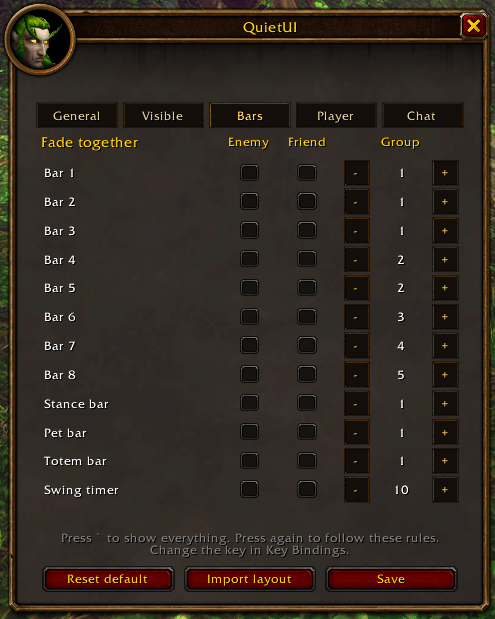
- Action bars fade in groups. Hover anywhere over a bar, including empty slots, to reveal its group. Combat, vehicles, dungeons, raids, battlegrounds and arenas reveal all action bars. You can choose which bars fade together, keep action bars always visible, or keep individual bars up for a living enemy or friendly target.
- XP has its own rules. Hover reveals it, and it stays up for five seconds after a quest awards XP. Combat alone does not show it. An open spell flyout or an item on the cursor also reveals action bars and XP.
- Cooldowns and damage meter appear in combat, in an instance, or in a group. The meter stays for ten seconds after combat. Hover does not reveal either.
- Health and resources appear when they need attention. The personal resource bar shows in combat and instances, or while mana, focus, or energy is below 70%. Its health bar also shows whenever health is not full. The player portrait and pet can appear alongside it; buffs and debuffs follow the player frame by default.
- Quests, buffs and the micro menu fade too. Hover across the quest tracker or micro menu, including the gaps, to reveal it. Buffs and debuffs also show in combat, instances and groups.
- One bag button, separate micro menu. Left click opens bags, right click reveals bag slots for swapping, and dragging moves the button. Hover over the micro menu's own row to access character, talents, professions and the other menu buttons.
- Modern chat puts each message in a dark bubble. New lines slide in, older lines move upward, and messages fade after ten seconds by default. Hover over the chat block to bring faded lines back and scroll through history; hover a line to copy it. Change the fade delay or choose Stay to keep messages visible. Experience and money messages follow the chat tab's filters. Enter works as usual.
- Glance reveals the faded HUD without disabling QuietUI or changing chat. Press the backtick key (`) once to show it, then again to return to your normal rules. The default is assigned only if the key is free; you can change it under QuietUI in Key Bindings.
One setup window
Open /quiet setup or click the minimap button. The six tabs are General, Visible, Bars, Player, Chat, and Info.
Choose what stays visible, set bar groups and target rules, toggle the player frame and grouped buffs, or adjust modern chat. Save applies your choices and leaves the window open. X or Escape closes it without saving pending changes. Reset default restores and saves the defaults immediately.
Two optional settings on the Player tab are off by default:
- In range: a green gradient on a living target's nameplate health bar while it is in range and the action bars are down. Choose 10 yards, 28 yards, or Spell, and Unfriendly or Friendly. Enter a spell name, or leave it empty to use the longest matching spell on bar 1. It needs a visible target nameplate and stays off during combat, Glance, and other situations that reveal all bars.
- Require a living target: fades the player, pet and target frames when your target is dead or a ghost, including during combat and Glance. Edit Mode still shows them.
Your layout stays yours
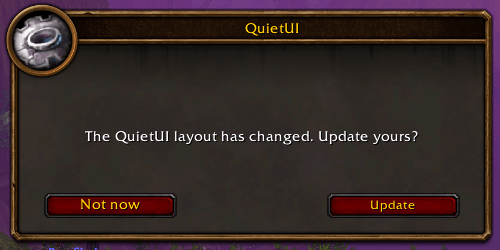
The bundled QuietUI Edit Mode layout is optional. Choose Not now to keep yours, or use Import layout later. Force QuietUI layout is off by default. Turn it on only if you want enabling QuietUI to select its layout and disabling it to restore your previous one.
QuietUI leaves party and raid frames, the minimap, extra action buttons and the LFG eye alone. Edit Mode reveals the HUD for arranging it. Modern chat can be turned off separately to return to Blizzard chat.
Commands
/quiet— toggle QuietUI/quiet setup— open settings
The QuietUI Team
