PvPGroupOptimizer
Keep the players who need you most in your raid subgroup during battlegrounds and world PvP, with a single key press
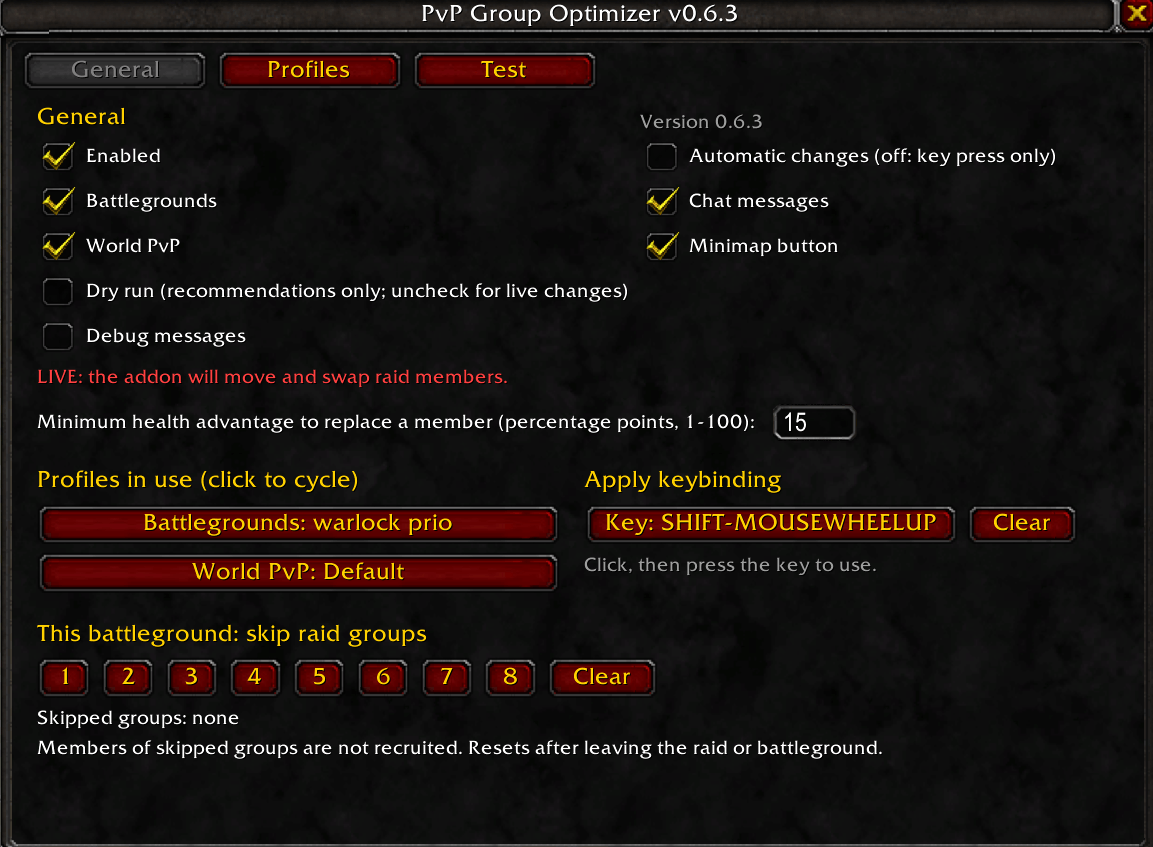
Description
Keep the players who need you most in your raid subgroup during battlegrounds and world PvP, with a single key press.
What it does
PvP Group Optimizer looks at your raid and brings low-health raid members who are near you into your own subgroup. It swaps them in for members who are far away, out of range, or healthy.
- Works for any class, with no talent requirements.
- Works in battlegrounds and world PvP raids. Dungeons, raids, and arenas are never touched.
- You need to be raid leader or assistant, because only they can move players between groups.
Features
- One key to fill your group. Press your key and up to four changes are made at once. Automatic changes are optional and off by default.
- Live by default, dry run available. Turn on dry run to only see what the addon would do, without moving anyone.
- Profiles with priority layers. Prefer certain classes, health ranges, or named players, limit how many slots each layer may take, and set a maximum distance. See below for how priority works.
- Windfury protection. Warriors and the Shamans who give them Windfury are kept together. Hover over the ? in the Profiles tab for a short explanation.
- Skip groups in this battleground. Leave a group alone, for example a group defending a base.
- Test tab. Try your profiles on a simulated 40-player raid without touching your real raid; see below.
- Minimap button and settings window. Everything can be set up with the mouse.
- Easy key setup. Set the apply key right in the window. Keyboard keys, the mouse wheel, and mouse buttons 3 to 5 all work, with Shift, Ctrl, or Alt.
- Quiet by default. Routine chat messages are off. Warnings, such as a blocked change, are always shown.
Getting started
- Install the
PvPGroupOptimizerfolder inInterface/AddOns/and log in. - Type
/pgo ui, or click the minimap button, to open the settings window. - On the General tab, click Key: not set under "Apply keybinding" and press the key you want to use.
- Optionally, open the Profiles tab, copy the built-in
Defaultprofile, and adjust it. Then choose which profile to use for battlegrounds and for world PvP on the General tab. - Join a battleground raid as leader or assistant, and press your key to fill your group.
The first time you load the addon it reminds you that live mode is on. Type /pgo dryrun on if you only want recommendations.
Commands
/pgo uiopens or closes the settings window./pgo statusshows whether the addon can act right now, and why./pgo applydoes the same as pressing your key./pgo auto onor/pgo auto offturns automatic changes on or off./pgo dryrun onor/pgo dryrun offswitches between recommendations only and live changes./pgo evaluateexplains how each nearby raid member is rated./pgo exclude 3skips group 3 in this battleground, and/pgo exclude clearundoes all skips./pgo chat onshows routine chat messages./pgo minimap offhides the minimap button.
Type /pgo help to see every command.
How it decides
- Who counts. Only living, connected raid members whose distance can be estimated as within about 50 yards are considered. Distance comes from the game's range checks, so it is approximate.
- Who comes in first. Lowest health first, within the rules of your profile. The built-in
Defaultprofile simply takes the lowest-health players. - Who goes out first. Group members who are out of range, dead, or offline are replaced first.
- Avoiding back-and-forth swaps. Healthy members are only swapped out when the newcomer is clearly more hurt, by 15 health points by default.
- Your own place. You are never moved out of your own group.
Windfury protection, simply put: a Shaman's Windfury Totem only helps the melee players in the Shaman's own group. The addon therefore avoids pulling a Warrior away from his Shaman, or a Shaman away from his Warrior, unless they are clearly far apart anyway. If it does borrow a Warrior, it sends him back to his own group after about 15 seconds out of combat. You can switch this protection off per profile.
Profiles, layers and priority
A profile decides who may be brought into your group and in which order. The built-in Default profile simply takes the lowest-health players near you. It cannot be edited; use Copy in the Profiles tab to make your own. On the General tab, choose one profile for battlegrounds and one for world PvP.
A profile is an ordered list of layers. Each player belongs to the first layer whose filters they pass; a player who passes no layer is never brought in. A layer can filter on:
- Classes: click a class to cycle between any, + only and - never.
- Health range: for example 0 to 50 % for "badly hurt players".
- Only these players / Never these players: names, separated by commas.
- Range: 28, 40 or 50 yards. 40 yards matches the dimming of most raid frames.
- Max slots: how many places in your group this layer may take (blank means any).
Each profile also has Windfury protection (on or off, with a radius) and a Never move list of players who always stay where they are.
How priority works
- Earlier layers come first: a player in layer 1 is brought in before anyone in layer 2, even if he is healthier.
- Within a layer, the lowest health comes first.
- Group members who are out of range, dead, offline, or match no layer are replaced first.
- Within the same layer, a member is only replaced by someone at least 15 health points lower (the threshold on the General tab).
- A much more hurt player can still take a priority player's place: someone from a later layer replaces an earlier-layer member when he is at least twice the threshold lower (30 points by default).
- In the other direction, a priority player is not brought in over a group member who is more than 1.5 times the threshold (22.5 points) lower than him. This stops the two from swapping back and forth.
Example. A profile with layer 1 "Warlocks" (+ Warlock) and layer 2 "Anyone". Nearby warlocks are pulled in first. A rogue at 10 % still replaces a warlock at 40 % in your group (30 points lower), but a rogue at 15 % does not. To keep at most two warlocks, set Max slots to 2 on the warlock layer.
Test your setup in the Test tab
The Test tab lets you try a profile on a simulated 40-player raid. Nothing in your real raid is moved.
- Click the Profile button at the top until it shows the profile you want to test, and click New raid for a fresh random raid. You are "You" in group 1.
- Click any player to select them. Below the grid you can change their class, health (type a number and press Enter), distance (close, near, unknown, far) and group.
- Click a Group header to skip that group, just like skipping a group in a battleground.
- Preview highlights what one key press would do: green for players coming in, red for players going out. The line under the grid explains how the profile sees the selected player, for example "candidate, layer 2" or "in your group, layer 1", and the planned changes give their reason.
- Simulate press applies the changes to the simulated raid only. The last presses are listed underneath, each starting with the profile it used.
Faded players are those without a confirmed close distance, like dimmed players in your raid frames.
Good to know
- No changes in combat. Blizzard does not allow group changes during combat. Changes found in combat wait until combat ends.
- Battleground restrictions. In battlegrounds the game may block changes made automatically. Use your key instead. It is still being confirmed that key presses always work there.
- Game version. Made for WoW Classic Era 1.15.x (interface 11509).
- Test build. Behaviour in real battlegrounds is still being verified. Please report what you see.
Feedback
Bug reports and suggestions are welcome through the comments or issue tracker of the page where you downloaded the addon. Please include what you expected, what happened, and the output of /pgo status.
PvPGroupOptimizer Team