
One spell in range
Description
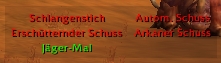
You can setup action slots (spells) to be checked whether they are in range to attack your target. If a given action slot is in range, a message appears together with the corresponding spell name. You can also setup a monitor window (see pic).
Setup one or more action slot(s) via the chat command:
/rc <action slot id> <action slot id> <action slot id> ...
"/rc display" toggles between display modes:
-> Text: A text message is displayed in the screen center if a spell is in range. It will be displayed only one time. If you move out of range and back in, it is not displayed again.
-> Window: A dragable window shows up, in which your monitored spells are listed (it can hold up to ten spells). The window gets updated constantly, at any time during combat you can see which spell is in range. Color green means that the spell is in range, red means out of range. Grey color is a hint that no range check is possible.
-> Text + Window: The above combined.
"/rc text<action slot id> <text>" to display <text> for <action slot id> instead of the spell name.
"/rc text<action slot id>" deletes custom text and displays spell name.
You can change the look of the window a bit:
Enter "/rc alpha <0.0 - 1.0>" to set alpha value for the window background.
Enter "/rc lock" if you have moved the window into position, this will prevent you from moving the window by accident.
Enter "/rc unlock" if you want to move the window again.
Enter "/rc fontsize <1-30>" to set the font size of the text.
Enter "/rc switch" to select between one or two columns (window).
Enter "/rc reset" to reset window position to the screen center.
Enter "/rc 0" to disable the script.
Enter "/rc help" for a command summary.
Enter "/rc status" to see which action slots are monitored.
Enter "/rc friendly" to toggle monitor of friendly players / pets. Will work only with your buff spells, all other (attack) spells are always reported as "in range" for friendly players / pets. Default is disabled.
The action slot id's are:
Actionbar 1 Buttons -> ID 1 - 12 (from left to right)
Actionbar 2 Buttons -> ID 13 - 24 (from left to right)
Actionbar 3 Buttons -> ID 25 - 36 (from left to right)
Actionbar 4 Buttons -> ID 37 - 48 (from left to right)
Actionbar 5 Buttons -> ID 49 - 60 (from left to right)
Actionbar 6 Buttons -> ID 61 - 72 (from left to right)
Melee weapons seems to be always in range.
If you play a warrior, druid or rogue things get a little bit more complicated:
Warrior
=====
ActionBar 1 Buttons are special, depending on your stance they have different ID's:
Stance 1: 73 - 84
Stance 2: 85 - 96
Stance 3: 97 - 108
ActionBar 2 - 6 have ID's 13 - 72
Druid
====
ActionBar 1 Buttons are special, depending on your shape they have different ID's:
Cat: 73 - 78
Bear: 97 - 108
ActionBar 2 - 6 have ID's 13 - 72
Rogue
====
ActionBar 1 Buttons are special. If your are in stealth mode they have different ID's:
Stealth: 73 - 84
ActionBar 2 - 6 have ID's 13 - 72
The Range Check Team
