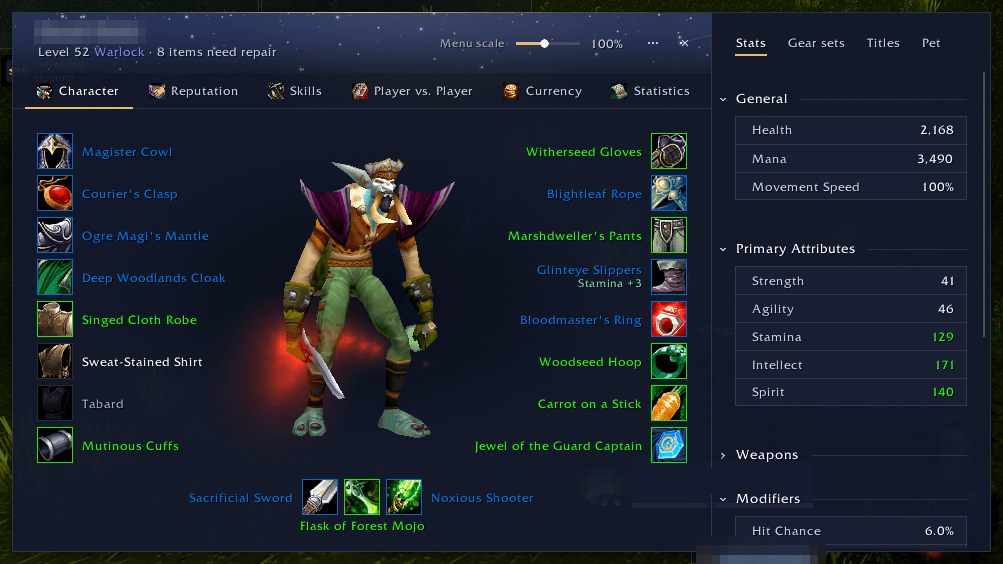
00-character-gear.png
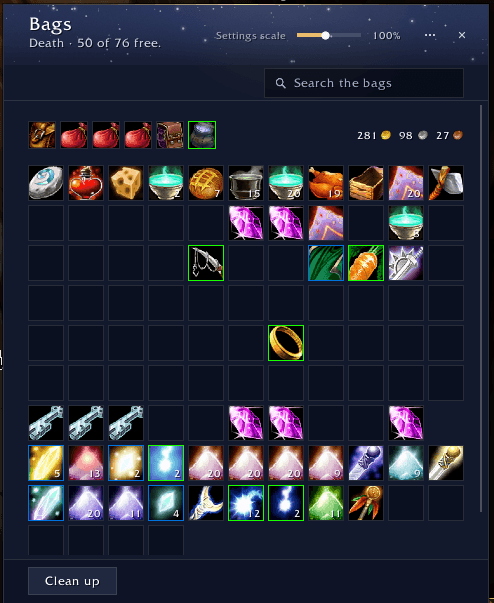
bags.png
10-guild-roster.png
03-spellbook.png
Description
Polestar: UI
The game's own windows and HUD, remade in the look of Polestar. Everything is drawn with Polestar's own widgets, so it follows Polestar's scheme, accent, font and border settings live. Every piece can be switched back to the game's own, one at a time.
Upgrading from 0.2.0 or older? The addon folder is now
PolestarUI. Update, log in once with the oldPolestar_UIfolder still installed (your settings move across on their own), then deleteInterface\AddOns\Polestar_UIand/reload. If the old folder is already gone, renamePolestar_UI.luatoPolestarUI.luain yourWTFSavedVariables folders (account and each character) to get your settings back.
Requirements
- Polestar 0.4.0 or newer. With an older Polestar nothing switches on and a chat line says so.
- The WoW Forever client.
Windows
- Character: gear around the model, a stats drawer, gear sets, titles, Reputation, Currency, Player vs. Player, Skills and Statistics, and your pet.
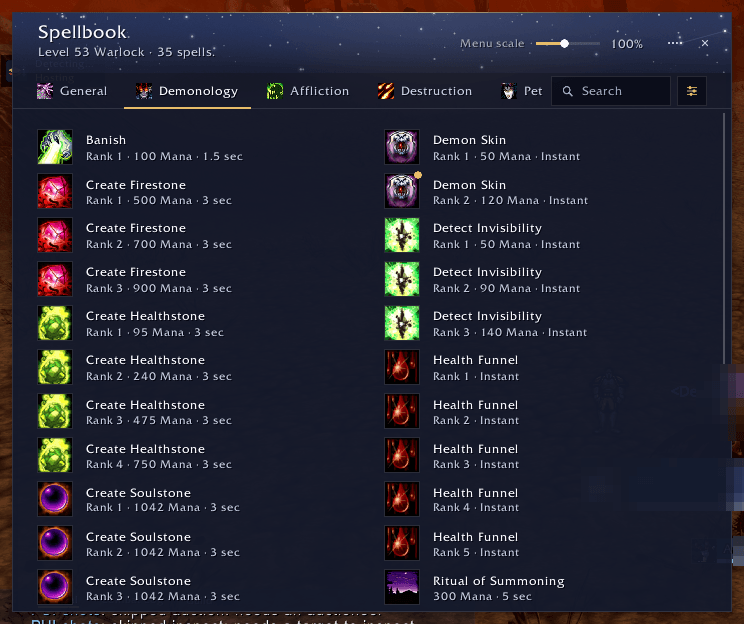
- Spellbook: every tab, search, cooldowns and pet autocast; drag spells to your bars.
- Talents: the trees on the class's art, search, and points staged until you Apply.
- Professions and Crafting: a card per profession; recipes with "Can make now", filters, reagents, and Craft or Craft all.
- Legacy: the reward track, challenges and the legacy tree.
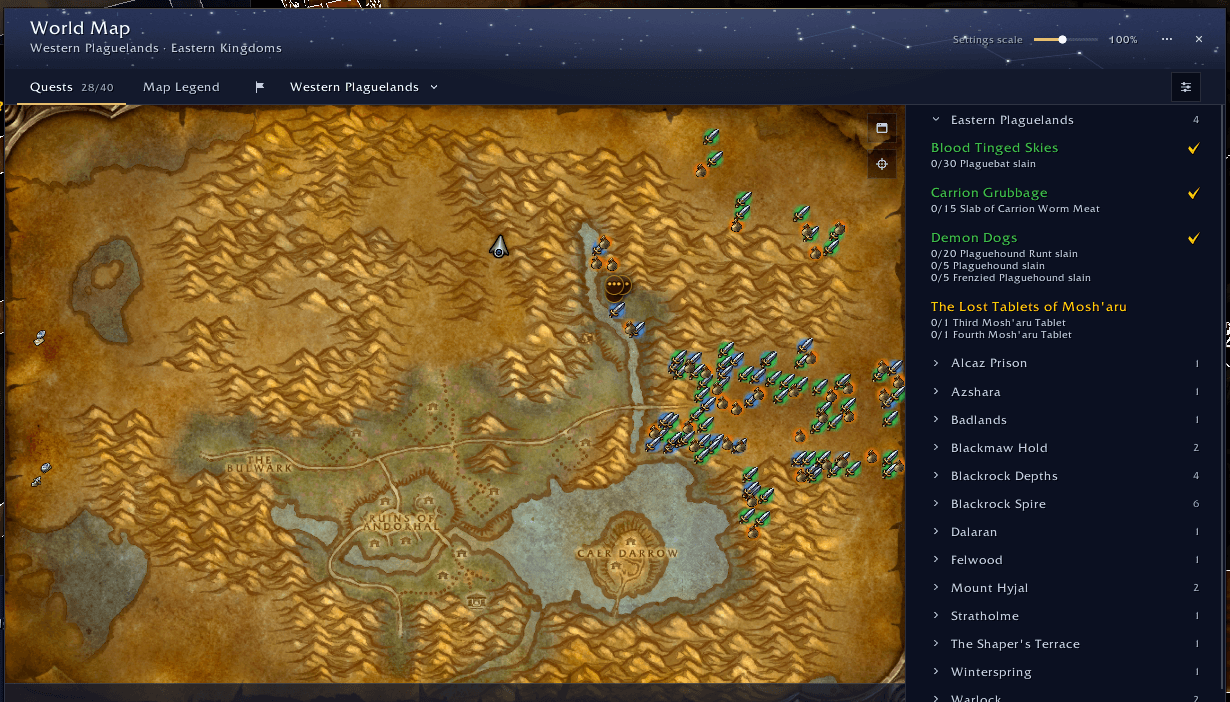
- World Map and Quest Log: the game's map with zones, zoom and full screen, and the quest log beside it.
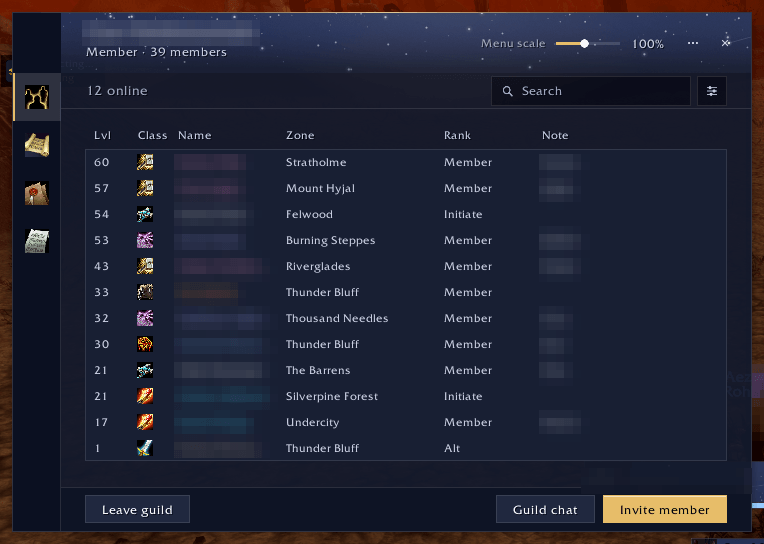
- Social, Guild, Macros, Inspect: friends, ignore list and raid; the guild roster, news, perks and log; the macro editor and icon picker; other players' gear.
- Group Finder: list your group, browse listings, search Who.
- Collections: mounts, toys, pets and appearances.
- Bags: every bag in one grid, with search, Clean up and new items glowing.
NPC windows
- Bank (with the Warband bank), Mail (Open all, attachments, COD), Auction House (search, buying, posting, your auctions, the WoW Token).
- Gossip, Quest dialog (rewards, best pick marked), Merchant (Buy, Buyback, Repair all, Sell junk), Trainer, Loot.
HUD
Replaced or restyled in place, and everything stays placed and sized with the game's Edit Mode:
- Unit frames: player, target, focus, target of target, pet, party and boss, with a damage trail, incoming heals, shields and a threat glow. Click-casting addons such as Clique work on them.
- Buffs and debuffs, cast bars, action bars (with the pet and stance bars), bag bar and micro menu.
- Minimap (square), experience and reputation bars, nameplates, Cooldown Viewer, Personal Resource Display and the damage meter.
- Tooltips and chat: the game's own, restyled, with every line other addons add.
Borders, shadows and background opacity follow Polestar's Frames settings. In our settings, Frames, Plates and Icons can each override that look (for example a thick window border with thin icon borders).
Switching back to the game's window
- In any window, open the "…" menu and pick Use game window.
- Shift-click a micro button to open the game's window just this once.
- Type
/pui <window> offto switch it back to the game's,/pui <window> onto return. - Or use the Polestar: UI page in Polestar's settings (
/pui), with every window and HUD part on or off.
Switching can't happen in combat. NPC windows, Crafting, Inspect and Loot go back to the game's after a /reload.
Slash commands
/pui: open the settings page (it shows the version)./pui help: list every window and HUD part and whether it is Polestar's or the game's./pui <key>: open that window./pui <key> on/off: switch it./pui dock on/off: windows dock from the top left as the game's do, or move freely.
Other addons
- Baganator: a Polestar skin for its bags, bank and guild bank (pick Baganator's Blizzard skin).
/pui baganator offgives its own look back. Our Bags and Bank stand down beside Baganator or Bagnon. - What's Training?: a Training tab in the Spellbook.
- Talents Forever: a button to its planner and your next planned point marked in Talents.
- Questie: its map icons, tooltips and patrol paths on our World Map.
- ForeverQuestTint: its marks on Forever's own quests in our quest log, quest dialog and map.
- HandyNotes, TomTom and other HereBeDragons map pins: shown on our map (no tooltips or clicks yet).
- Immersion: our Gossip and Quest dialog start off beside it.
- Auctionator, TradeSkillMaster, AHledger, CraftProfit, Undying, Naowh Forever: our Auction House starts off beside them.
- Plater, Platynator, KuiNameplates, Threat Plates, ElvUI nameplates: our nameplates start off beside them.
Known limits
- Map and quest links in chat, the quest tracker and the game's other routes to the map still open the game's map.
- Challenge links in chat still open the game's Legacy window; recipe links open the game's crafting window.
- GatherMate2, GatherPathForever and ForeverFishing draw only on the game's map.
- With Forever's gamepad UI on, everything starts off and
/puiisn't available. - No Game Menu restyle yet.
Links
- Source and downloads: https://github.com/rohkin/polestar-ui
- Report a bug or ask for a window: https://github.com/rohkin/polestar-ui/issues
Polestar: UI Team