Photo Mode - MothBerriess
- By
A add-on that remove all text and UI from your screen to take the perfect screenshot.
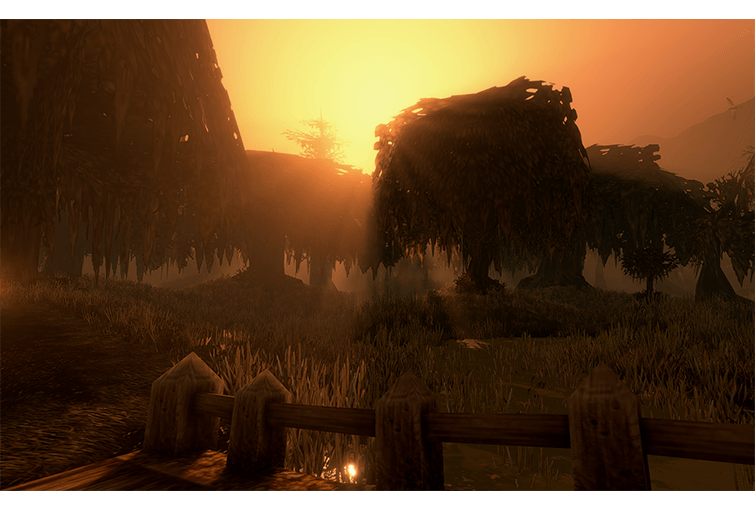
Screenshot 2026-11-18 152206.png
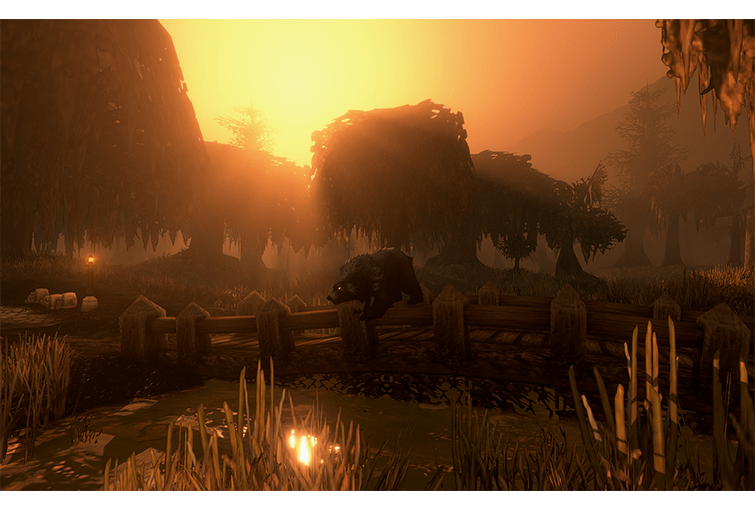
Screenshot 2026-11-18 152247.png
Screenshot 2026-11-18 152322.png
Description
Photo Mode - Mothberriess
Ever wanted to take the perfect screenshot in World of Warcraft without your interface, character names, nameplates, or other distractions getting in the way?
Photo Mode- Mothberriess makes capturing beautiful screenshots simple! With one customizable hotkey, instantly hide your selected interface elements and enjoy a clean, immersive view of Azeroth. Press the same hotkey again, and everything returns to how it was before.
Whether you're capturing breathtaking landscapes, character portraits, guild screenshots, or unforgettable adventures, Moth Photo Mode helps you get the perfect shot!
Features
- One-Key Photo Mode: Instantly toggle your selected interface elements on or off with a customizable hotkey.
- Universal Compatibility: Designed for both WoW Retail and WoW Forever using one add-on package.
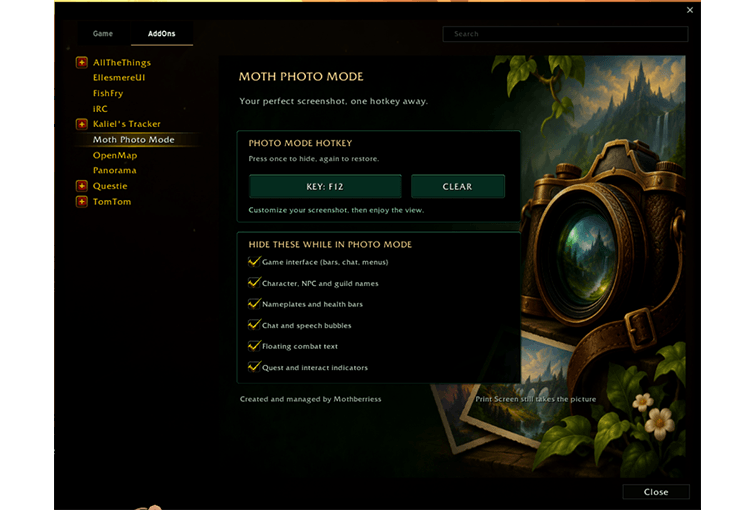
- Custom Interface: A beautiful, camera-themed settings panel featuring a dark emerald and gold design.
- Easy Keybinding: Assign, change, or clear your preferred hotkey directly from the options panel.
- Customizable Visibility: Independently choose which interface elements to hide.
- Automatic Restoration: Saves your previous display settings and restores them when photo mode ends.
- Saved Preferences: Your selected options and hotkey are saved between gaming sessions.
Customizable Options
Choose which elements disappear when Photo Mode is activated:
- Game Interface (Action Bars, Chat, Menus)
- Player, NPC, and Guild Names
- Nameplates and Health Bars
- Chat and Speech Bubbles
- Floating Combat Text
- Quest and Interaction Indicators
Each option can be individually enabled or disabled through the settings panel.
Commands
| Command | Description |
|---|---|
/mphoto |
Toggle Photo Mode ON/OFF |
/mphoto options |
Open the options panel |
/mphoto restore |
Restore your previous display settings |
/mphoto status |
Display current settings |
/mphoto help |
Show available commands |
Advanced Commands
| Command | Controls |
|---|---|
/mphoto ui on/off |
Game interface |
/mphoto names on/off |
Player and NPC names |
/mphoto nameplates on/off |
Nameplates and health bars |
/mphoto bubbles on/off |
Chat bubbles |
/mphoto combattext on/off |
Floating combat text |
/mphoto markers on/off |
Quest and interaction indicators |
ON means the selected element will be hidden during Photo Mode. OFF means it will remain unchanged.
How to Use
-
Type
/mphoto optionsor navigate to Esc → Options → AddOns → Moth Photo Mode. -
Select Set Keybind and press your preferred shortcut.
-
Customize which interface elements you want hidden.
-
Press your assigned hotkey to enter Photo Mode.
-
Press Print Screen to capture your screenshot.
-
Press your hotkey again to restore your original settings!
Designed for World of Warcraft Retail and WoW Forever. Both games use the same add-on package, but require installation into their respective AddOns folders.
Please Note: Some UI elements, third-party overlays, and game settings may be restricted by the WoW client. For best results, activate Photo Mode outside combat. Live compatibility testing is still recommended.
Created and managed by Mothberriess
Because every adventure deserves the perfect screenshot. 🦋📸
Photo Mode - MothBerriess Team