PadShot
- By
Take screenshots in World of Warcraft with a custom gamepad button combo—no keyboard required.
IMG_0658.jpeg
IMG_0657.jpeg
IMG_0656.jpeg
IMG_0655.jpeg
Description
PadShot 🇺🇸 🇬🇧 🇫🇷 🇩🇪 🇪🇸 🇲🇽 🇮🇹 🇧🇷 🇷🇺 🇰🇷 🇨🇳 🇹🇼
Take screenshots with your gamepad. Hold a combo of 1 to 3 buttons and PadShot takes the screenshot, with or without your interface. Made for gamepad players, on PC or on handhelds like the Steam Deck and the Lenovo Legion Go.
Features
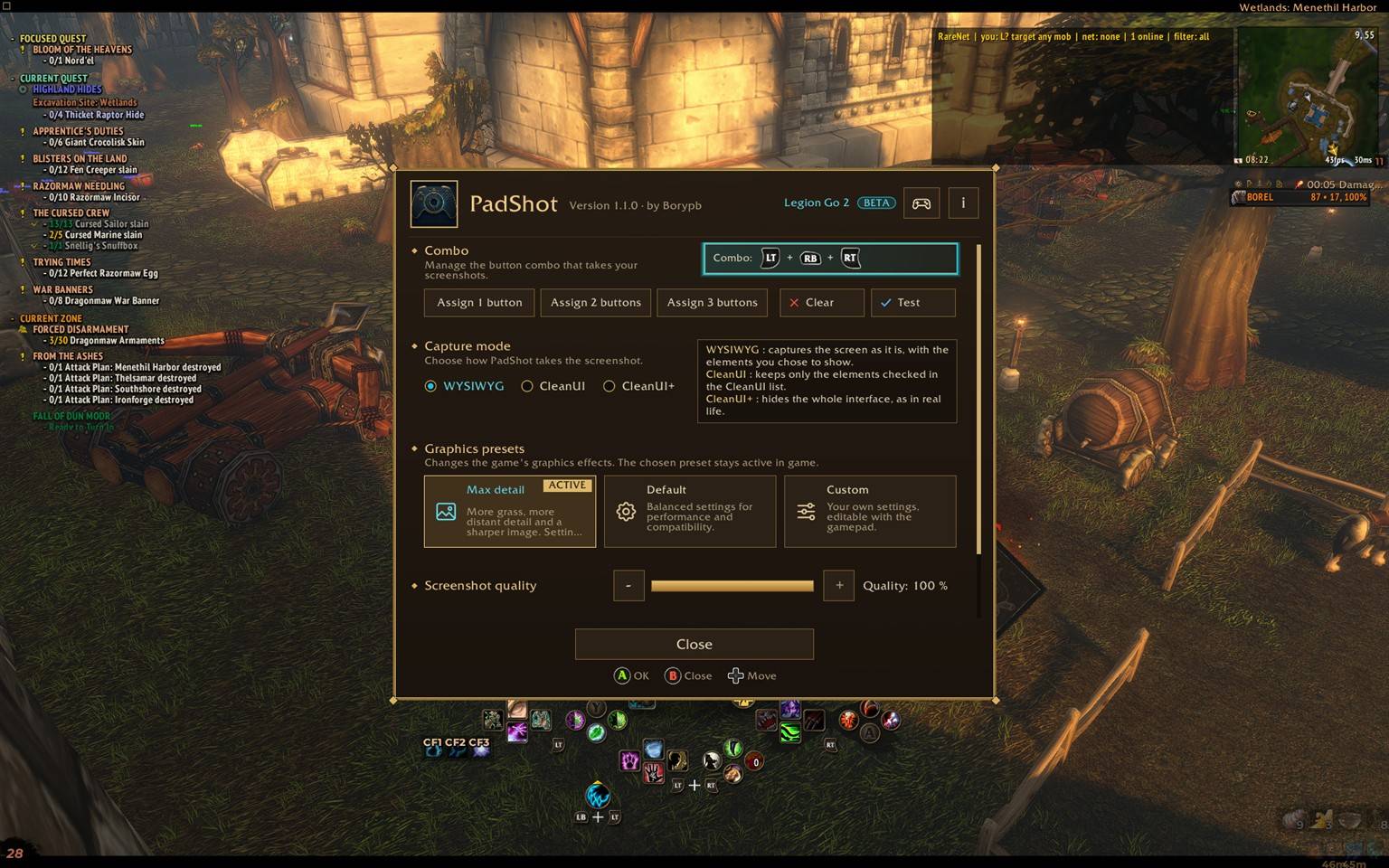
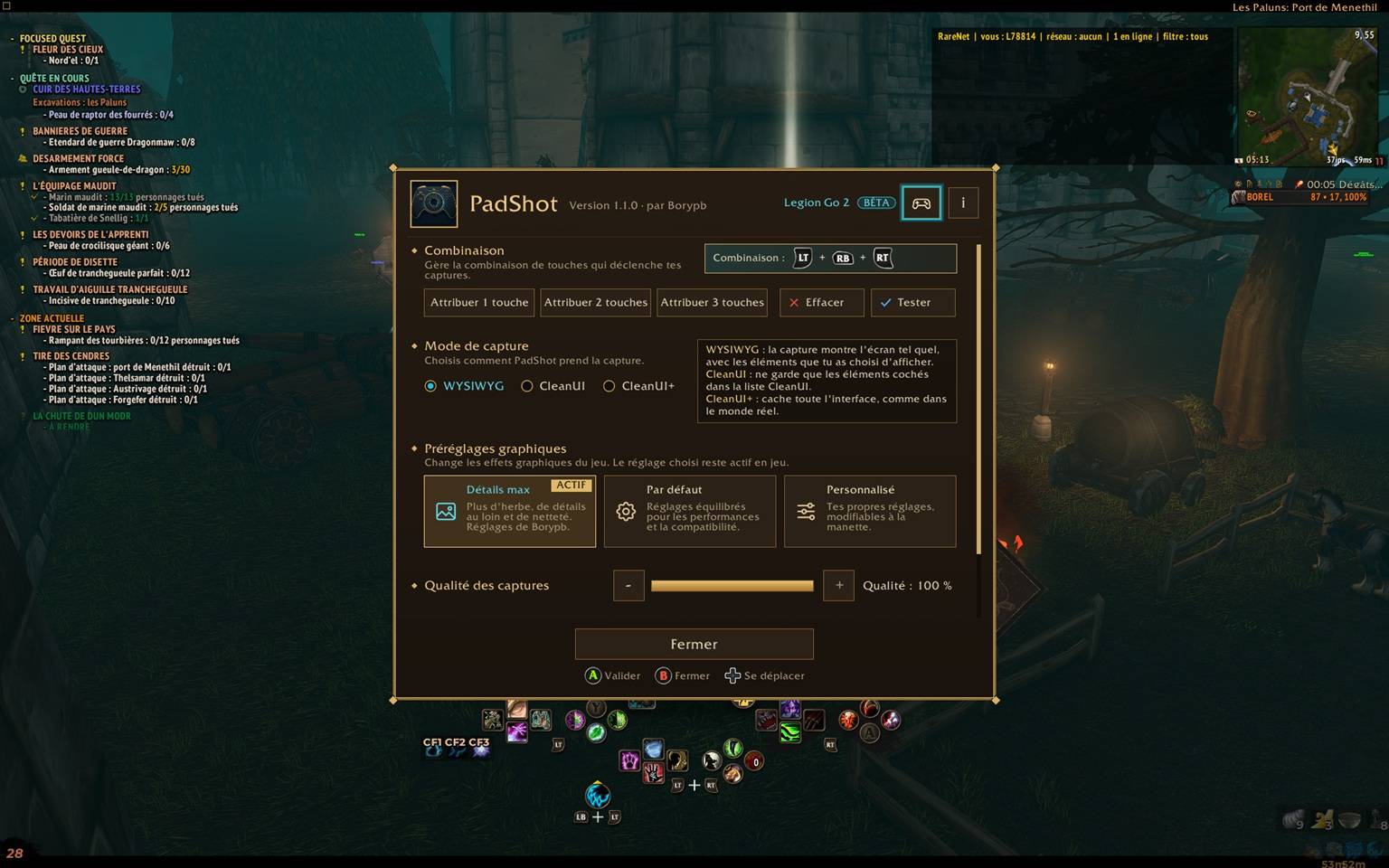
- Gamepad combo: assign 1, 2 or 3 buttons. One screenshot per press, and your controller keeps working normally in game.
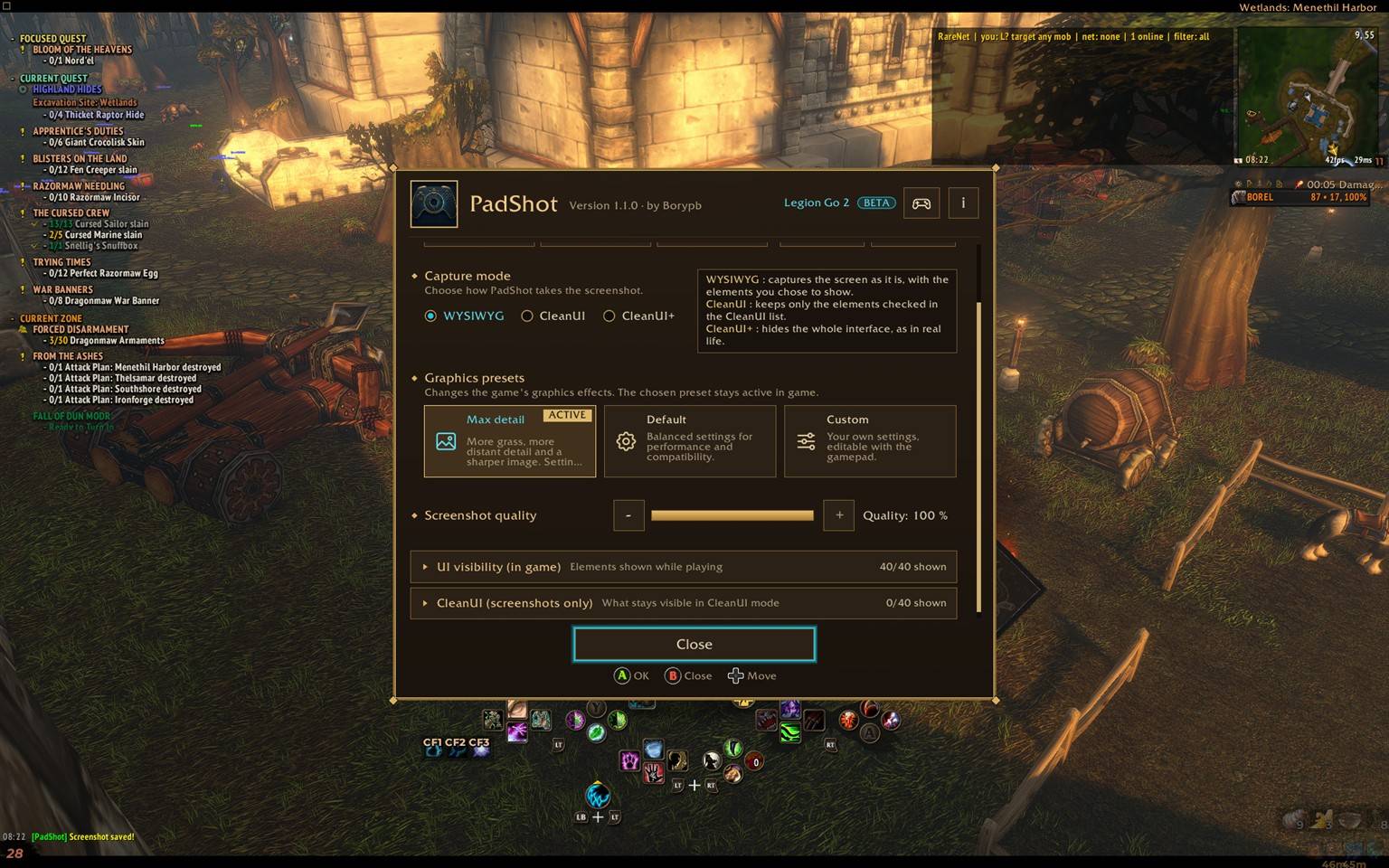
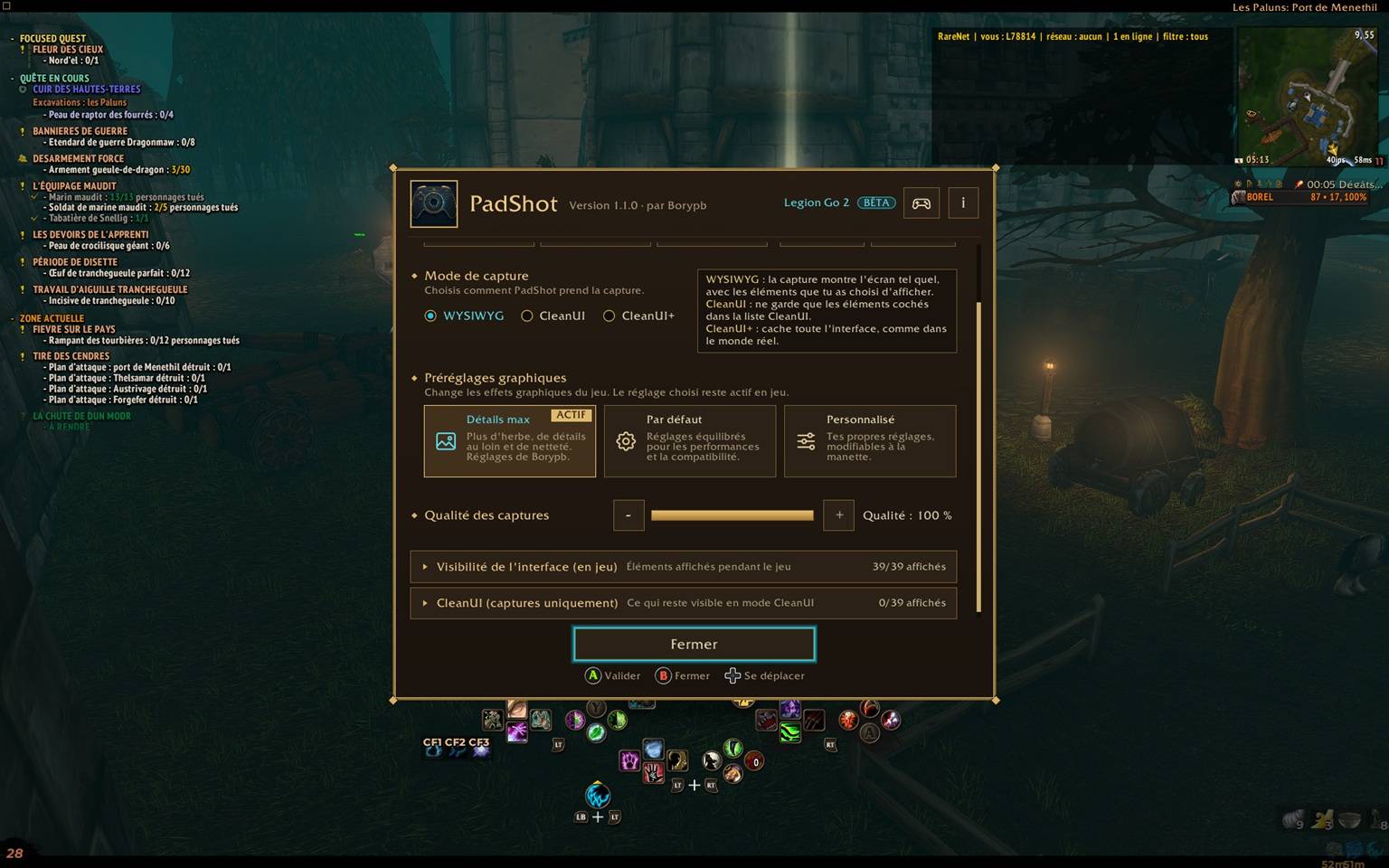
- Three capture modes
- WYSIWYG: the screen as you see it, with the elements you chose to show.
- CleanUI: only the elements checked in the CleanUI list.
- CleanUI+: no interface at all, as in real life (no names, no bubbles, no markers).
- Everything comes back after a screenshot, even after a crash or a /reload at the wrong moment.
- UI visibility (in game): choose which interface elements stay visible while you play, with Show all / Hide all for each list and each section.
- Graphics presets: Max detail (settings by Borypb), Default, or Custom (set each effect with the gamepad).
- Screenshot quality from 10 to 100%.
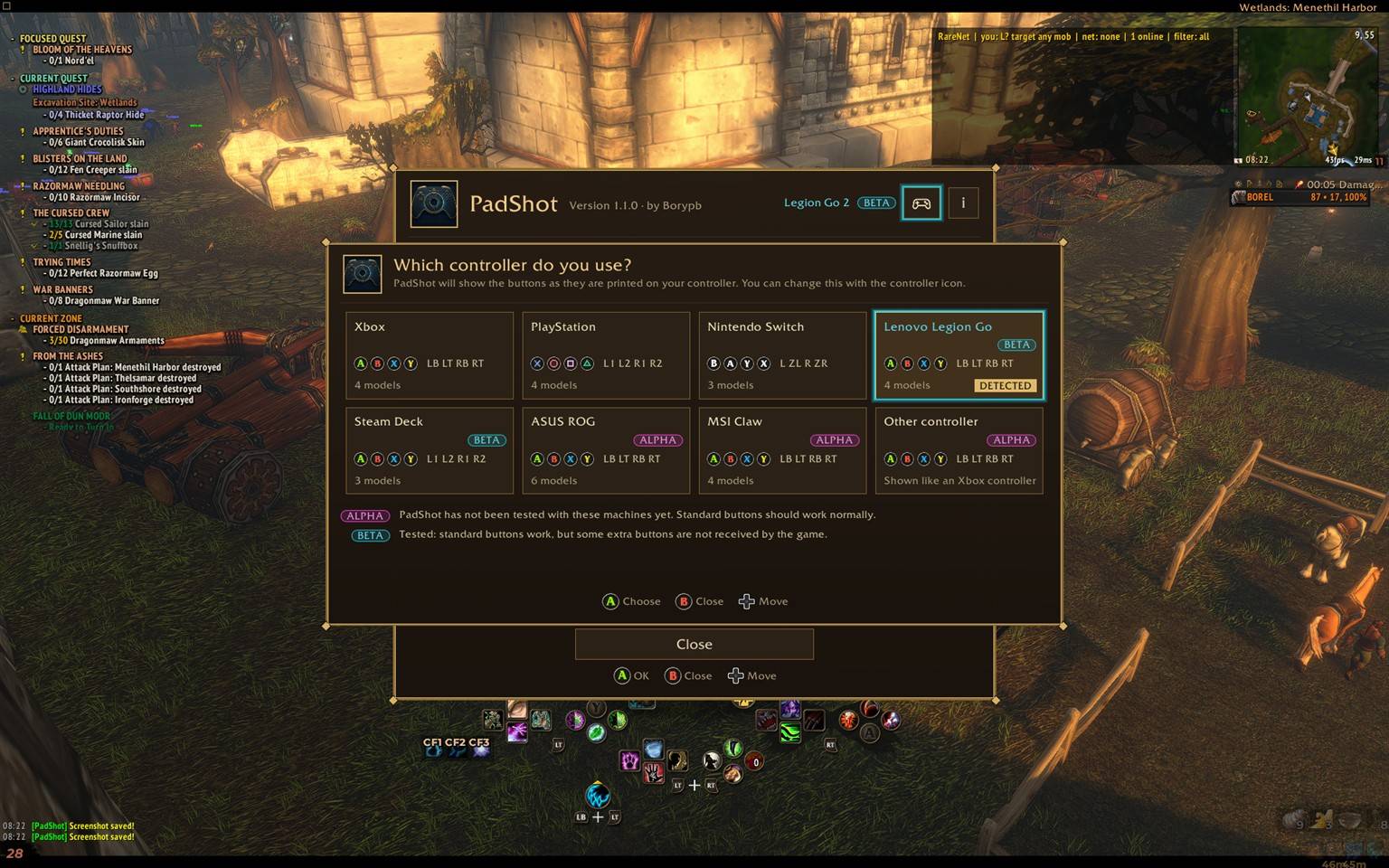
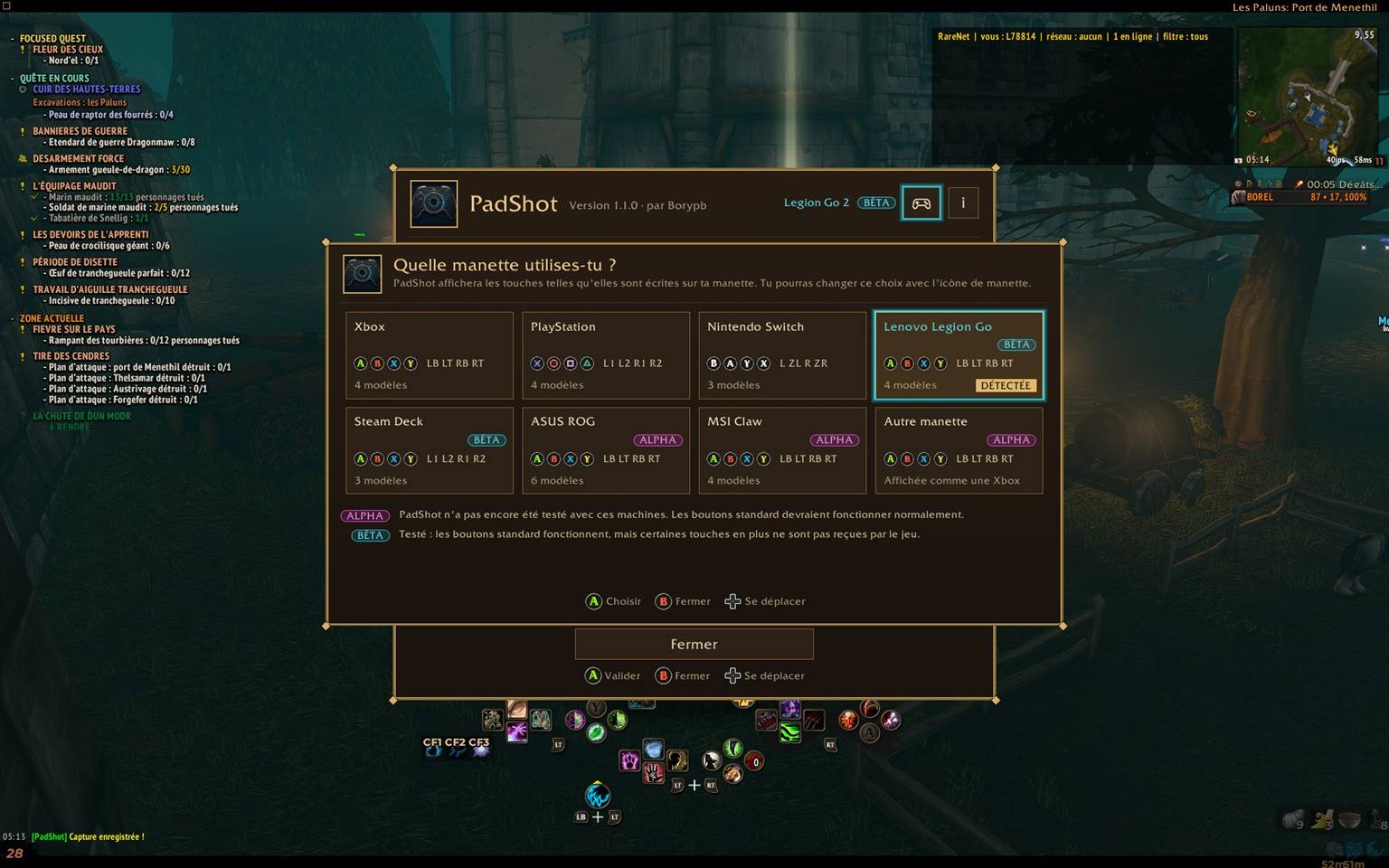
- Your controller's buttons: choose your controller and PadShot shows the buttons as printed on it (Xbox, PlayStation, Nintendo Switch, Lenovo Legion Go, Steam Deck, ASUS ROG, MSI Claw, other controllers).
- Made for the gamepad: every window works with the D-pad or the left stick, with a blue aura on the selection and the back button to close. Nintendo controllers confirm with A, as in Switch games.
- PadShot button in the Esc menu, plus key bindings (PadShot category): Open PadShot options, Take screenshot now, Hide / Show UI.
Steam Deck
Choose who takes the screenshot:
- PadShot: your combo takes the screenshot with PadShot's settings.
- Steam Deck shortcut (Steam + R1): your combo hides the interface according to the capture mode, you take the screenshot with Steam + R1, then your combo brings everything back. Optional safety: the interface comes back by itself after 60 s or when a fight starts. SteamOS saves these screenshots: Steam button, then Media.
Controller marks
- ALPHA: not tested with PadShot yet. Standard buttons should work normally.
-
BETA: tested. Standard buttons work, but some extra buttons are not received by the game:
- Legion Go 2: Y1 to M3 (kept by Legion Space)
- Steam Deck: L4, L5, R4, R5 (kept by Steam)
To use one anyway, give it a keyboard key in Legion Space or Steam, then bind that key to "Take screenshot now" in the game's key bindings (PadShot category).
Getting started
- Type /padshot (or /ps), or open the Esc menu and choose PadShot.
- Choose your controller.
- Click Assign 2 buttons (or 1, or 3) and hold your combo.
- Pick a capture mode. Done: hold your combo in game.
Commands
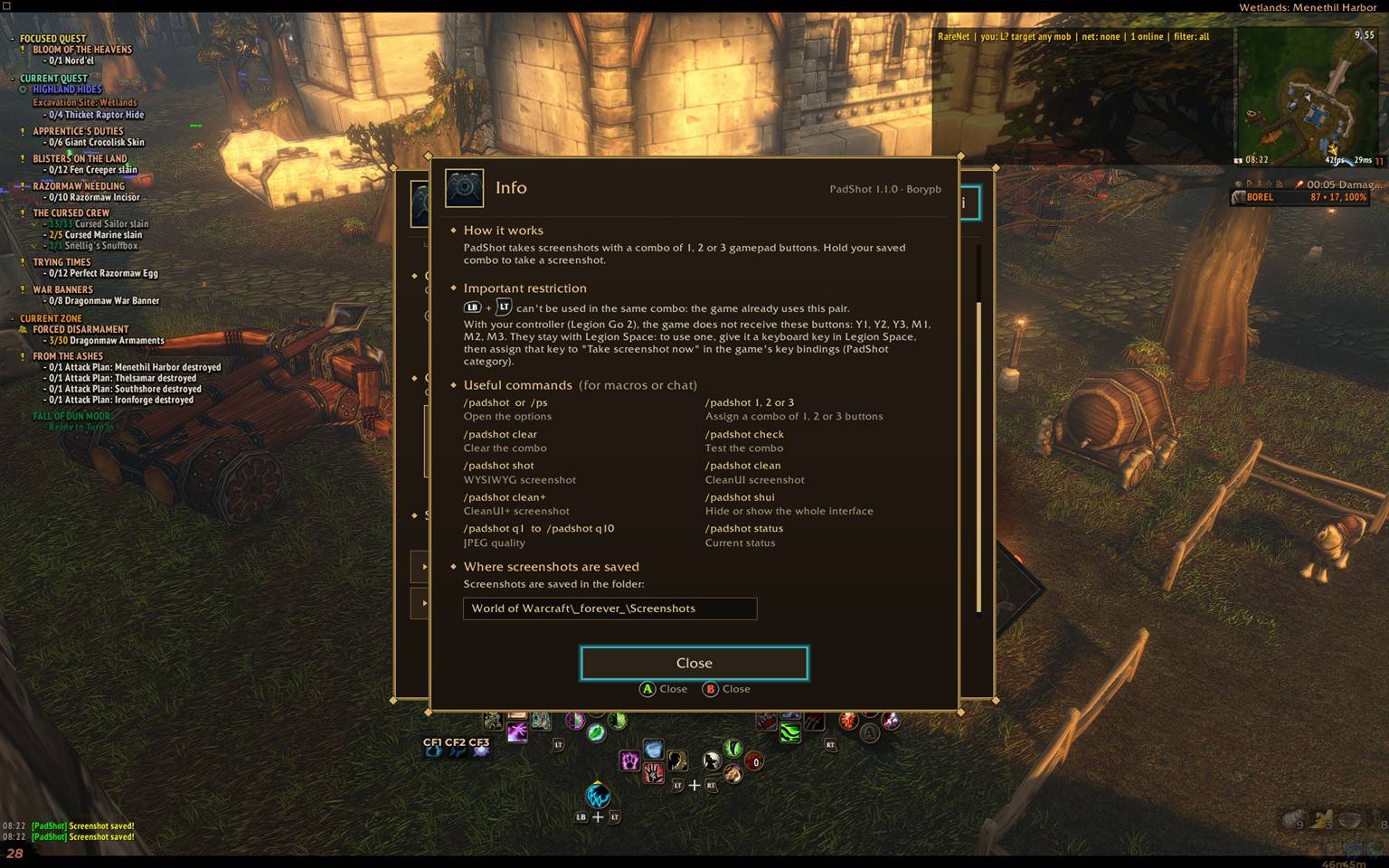
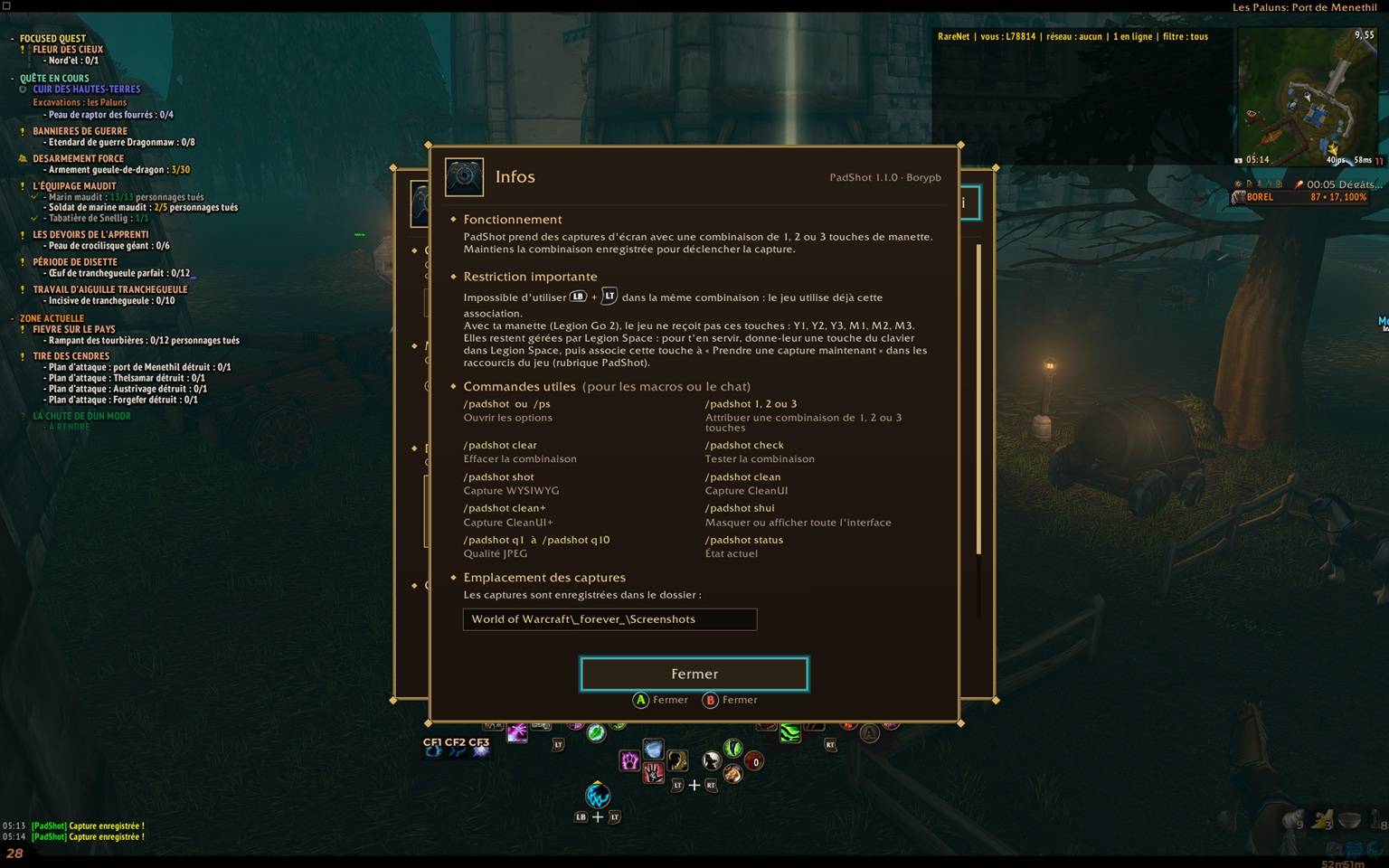
- /padshot or /ps: open the options
- /padshot 1, 2 or 3: assign a combo of 1, 2 or 3 buttons
- /padshot clear: clear the combo
- /padshot check: test the combo
- /padshot shot: WYSIWYG screenshot
- /padshot clean: CleanUI screenshot
- /padshot clean+: CleanUI+ screenshot
- /padshot shui: hide or show the whole interface
- /padshot q1 to /padshot q10: JPEG quality
- /padshot status: current status
Good to know
- LT + LB can't be used in the same combo: the game already uses this pair.
- In combat, settings protected by the game (nameplates) are applied when the fight ends.
- Screenshots are saved in World of Warcraft_forever_\Screenshots (or by SteamOS with the Steam Deck shortcut).
- Languages: English, French, German, Spanish (Spain and Latin America), Italian, Portuguese (Brazil), Russian, Korean, Simplified and Traditional Chinese.
PadShot Team