OAP Debug
- By
A debug window for addon authors: per-addon log, live table and frame inspector, a frame picker, performance graphs for every addon, and Lua errors filed under the addon they came from.
OAP Debug is a debug and inspection window for World of Warcraft addons. Addons that find it installed register with it and send their log lines, the tables they want to look at, timings and counts, and copies of their chat output - each addon in its own colour, in one window. When it is not installed, those addons carry on exactly as before.
It is the workbench behind the OAP addons (OAP UnitButtons, OAP Dungeon Maps, OAP Party Utils, OAP Spell Stats), and any addon can use it: a few lines of Lua, shown in its manual. Some parts - the Perf tab and the frame picker - are useful with no other addon at all.
(OAP: Old Age Pensioner. Written by one, for my own addons.)
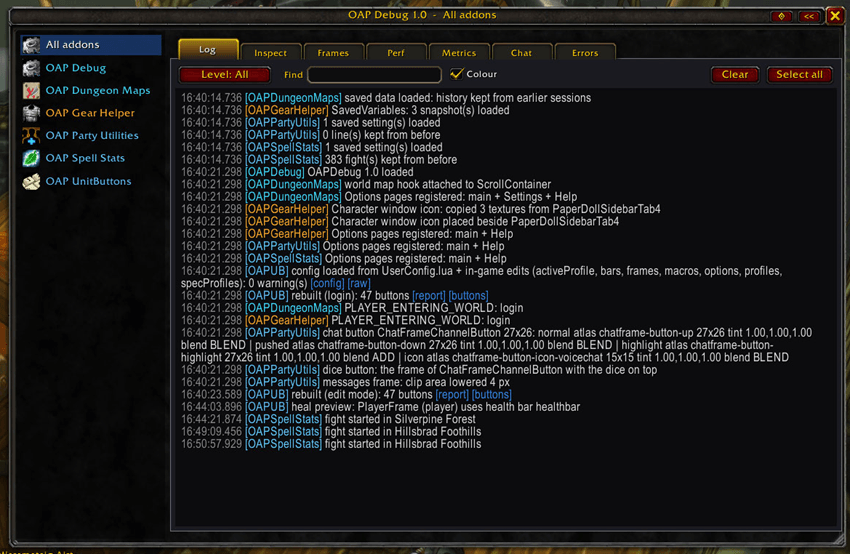
The tabs
- Log - every registered addon's log lines, by level (error, warn, info, debug), with a find box and a level filter. Tables and frames named in a line are blue links: click one to open it.
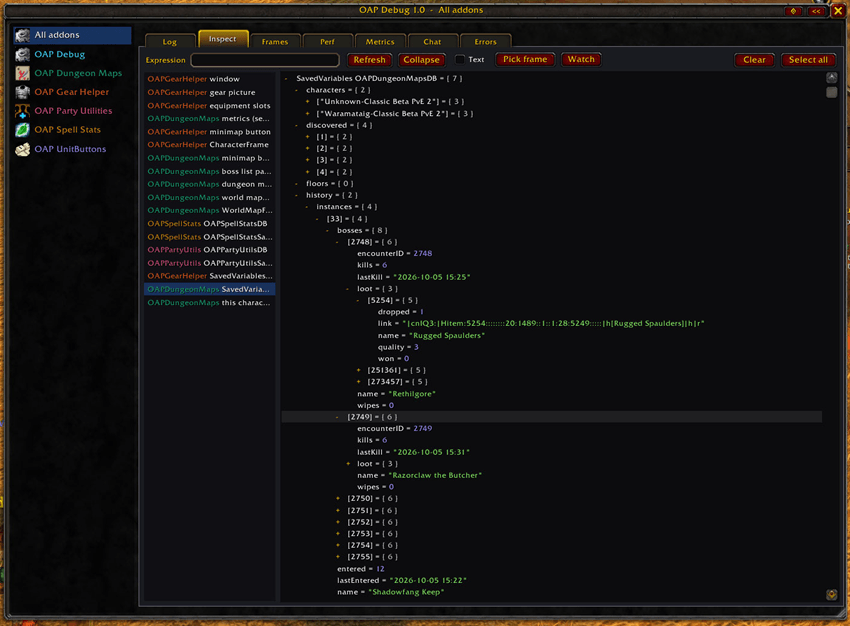
- Inspect - Lua tables and functions as a tree you click to open, as deep as you like. Type any global name or expression to look at it live.
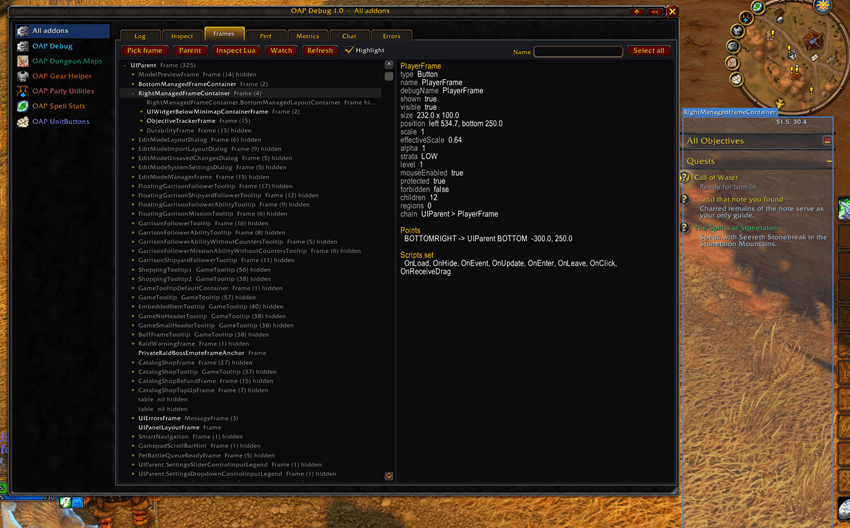
- Frames - a frame inspector: the hierarchy from the top level down, and the selected frame's size, points, scripts and regions. Hover a row and that frame is outlined on screen.
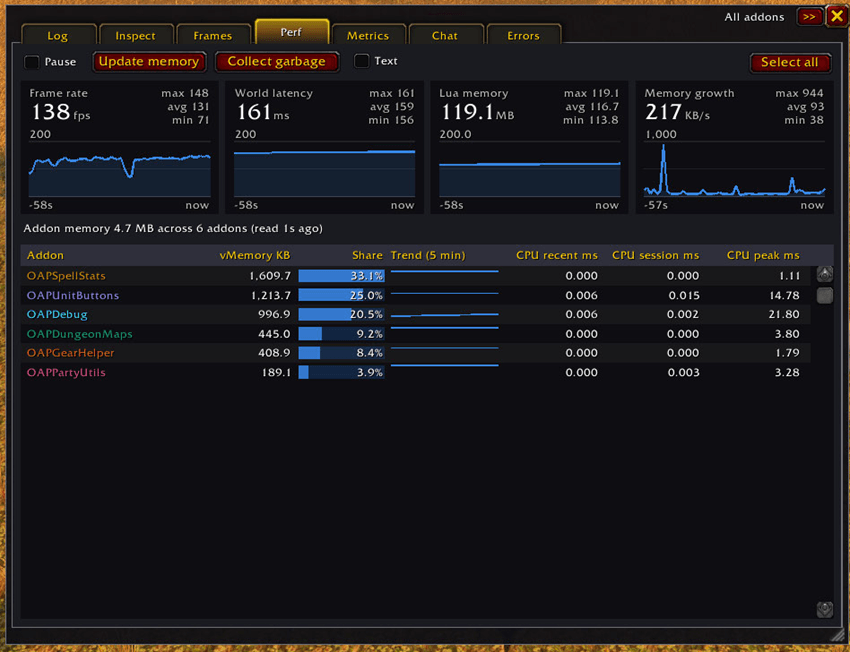
- Perf - frame rate, latency, Lua memory and memory growth as charts over the last five minutes, and a table of every loaded addon: memory, its share, a five-minute trend line, and CPU when the game's addon profiler is on. Sort by any column.
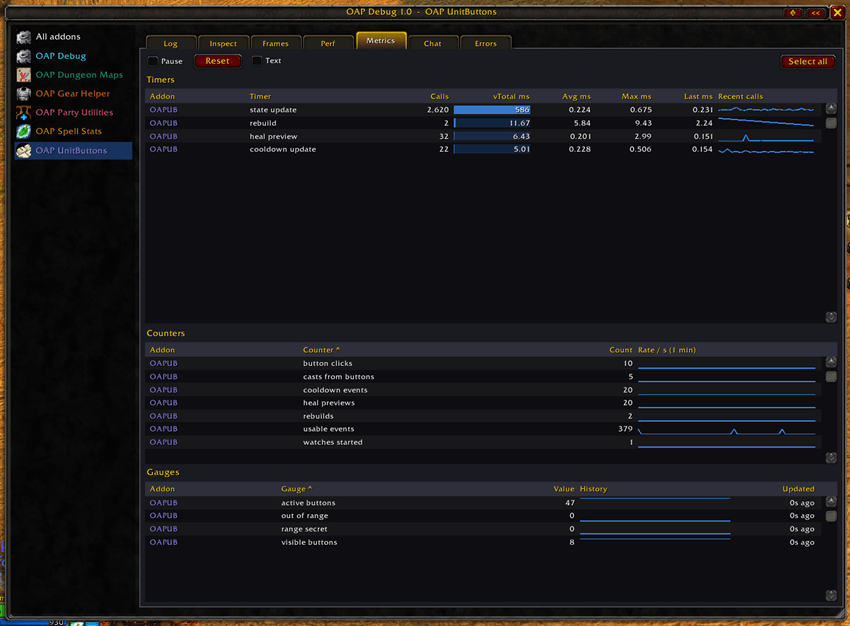
- Metrics - the timers, counters and gauges that registered addons send themselves, with bars and small graphs of recent values.
- Chat - copies of what each addon printed to chat, kept apart from the game's chat.
- Errors - Lua errors, warnings and blocked actions, filed under the addon they came from, with the stack. Repeats are counted, not listed again.
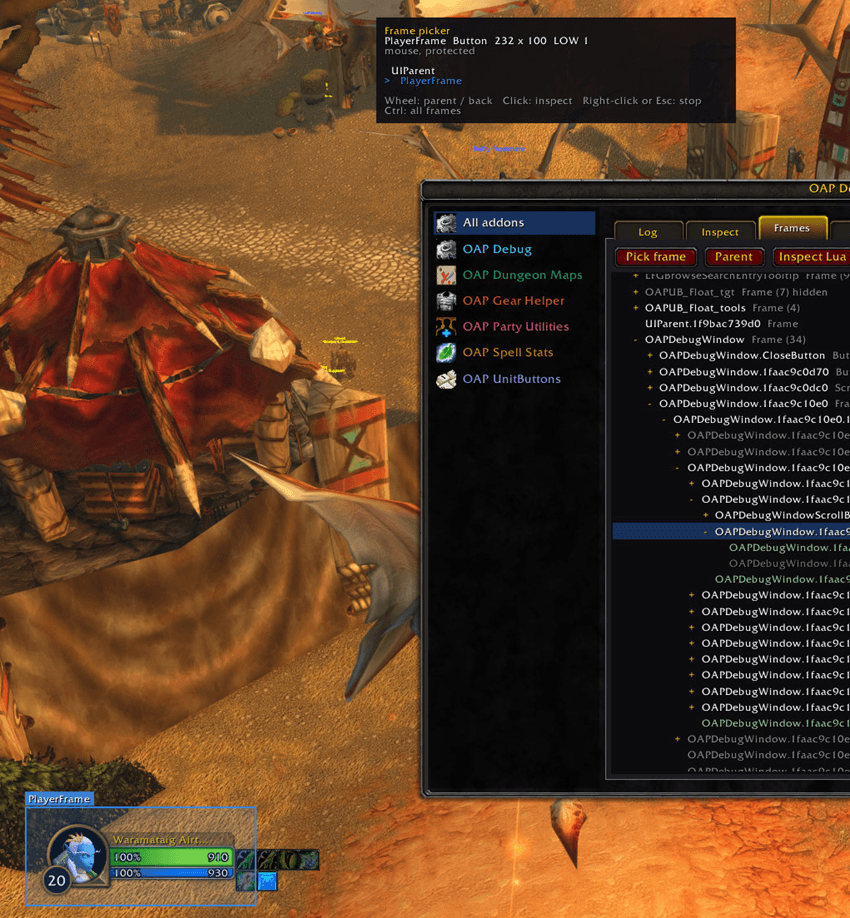
Pick any frame on screen
Pick frame (or /oapd pick) outlines whatever is under the mouse. The mouse wheel climbs to its parent and on up to the top level; a click opens it on the Frames tab. Hold Ctrl to include frames that ignore the mouse.
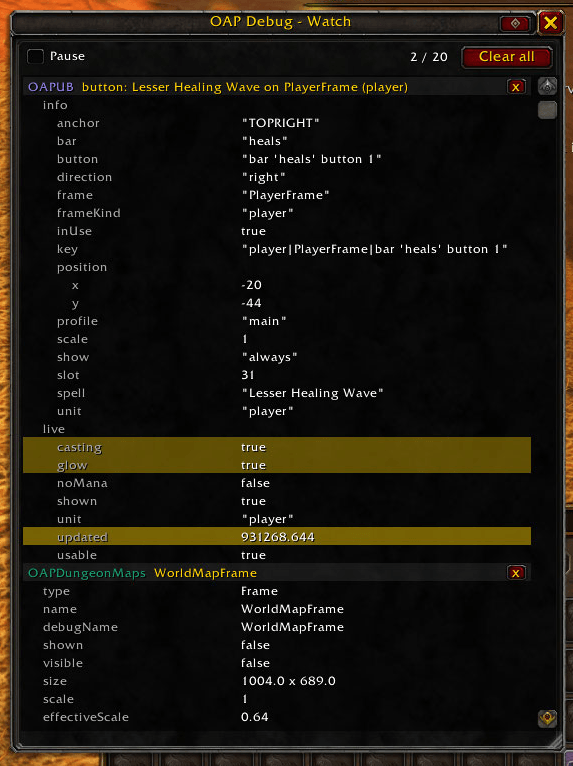
Watch values live
The Watch window shows chosen values updating a few times a second, and a value that changes flashes yellow. Watch a table, a frame, or any expression (/oapd watch); addons can add their own watches too.
Handy touches
- Compact view - hide the sidebar and title bar for a small window you can keep open.
- Pin - a pinned window (or the Watch window) stays open when Escape, the game menu or Options would close it.
- Copy anything - every text area can be selected and copied with Ctrl+C.
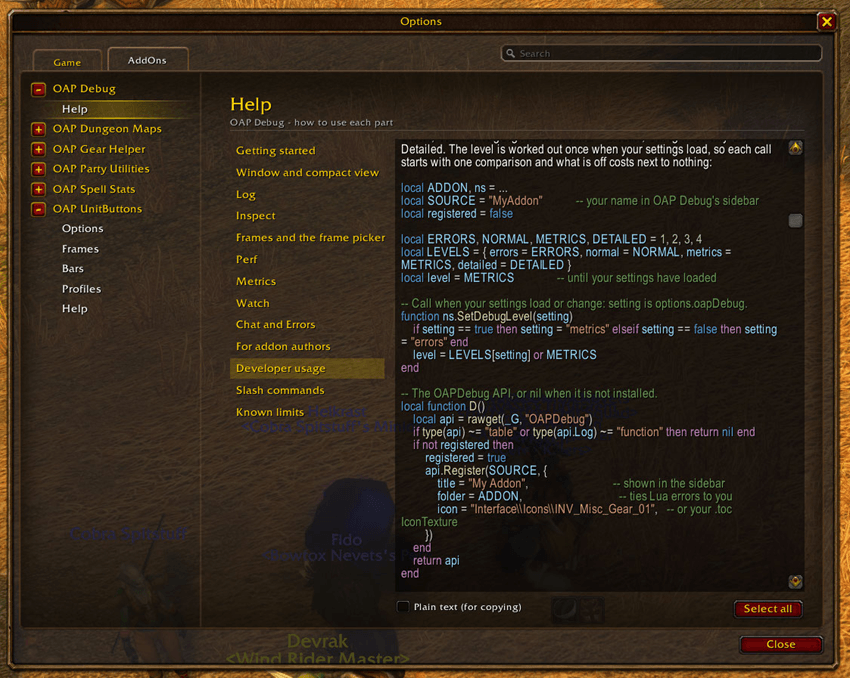
- A full manual in Options > AddOns > OAP Debug > Help, including a Developer usage page with Lua to copy, in editor colours.
- Settings (minimap button, compact view, pins) are kept between sessions.
For addon authors
Everything goes through one global table, OAPDebug, and every call catches its own errors. List it as an optional dependency, keep the calls in one small file of your addon, and check it is there before calling - your addon then works the same with or without it:
## OptionalDeps: OAPDebug
local D = OAPDebug
if D then
    D.Register("MyAddon", { title = "My Addon", folder = "MyAddon" })
    D.Log("MyAddon", "built {1} buttons for {2}", "info", count, frame)
end
The in-game Developer usage page has the full pattern, including an "OAP Debug" level setting (errors only, normal, normal + metrics, detailed) so players choose how much is sent.
Good to know
- Made for WoW Forever, using the Retail API.
- Lua errors are kept only for addons that have registered: OAP Debug is not an error catcher for every addon, and it passes errors on, so the game's own error display (or your error addon) still works.
- Nothing is sent anywhere. At logout the last log lines, errors and a Perf report are written to the addon's saved file, for reading outside the game.
/oapd helplists the commands.
OAP Debug Team