MyProfs
Skills window replacement with features but with a classic feel.
2026-07-02_08-55-04.PNG
2026-07-02_11-32-58.PNG
2026-07-06_08-34-14.PNG
Description
🌟 MyProfs — A Modern Profession & Crafting UI Overhaul
MyProfs is a complete, retail-inspired interface redesign for World of Warcraft Classic and Burning Crusade (TBC) Classic. It replaces the tiny, archaic default profession frames with a beautiful, high-utility, three-pane interface designed to streamline your crafting, leveling, and inventory management.
Equipped with advanced helper macros, an interactive 3D character sheet, and automatic vendor purchasing, MyProfs transforms crafting from a click-heavy chore into a smooth and immersive experience.
🚀 Core Features
💻 1. Modern Three-Pane Layout
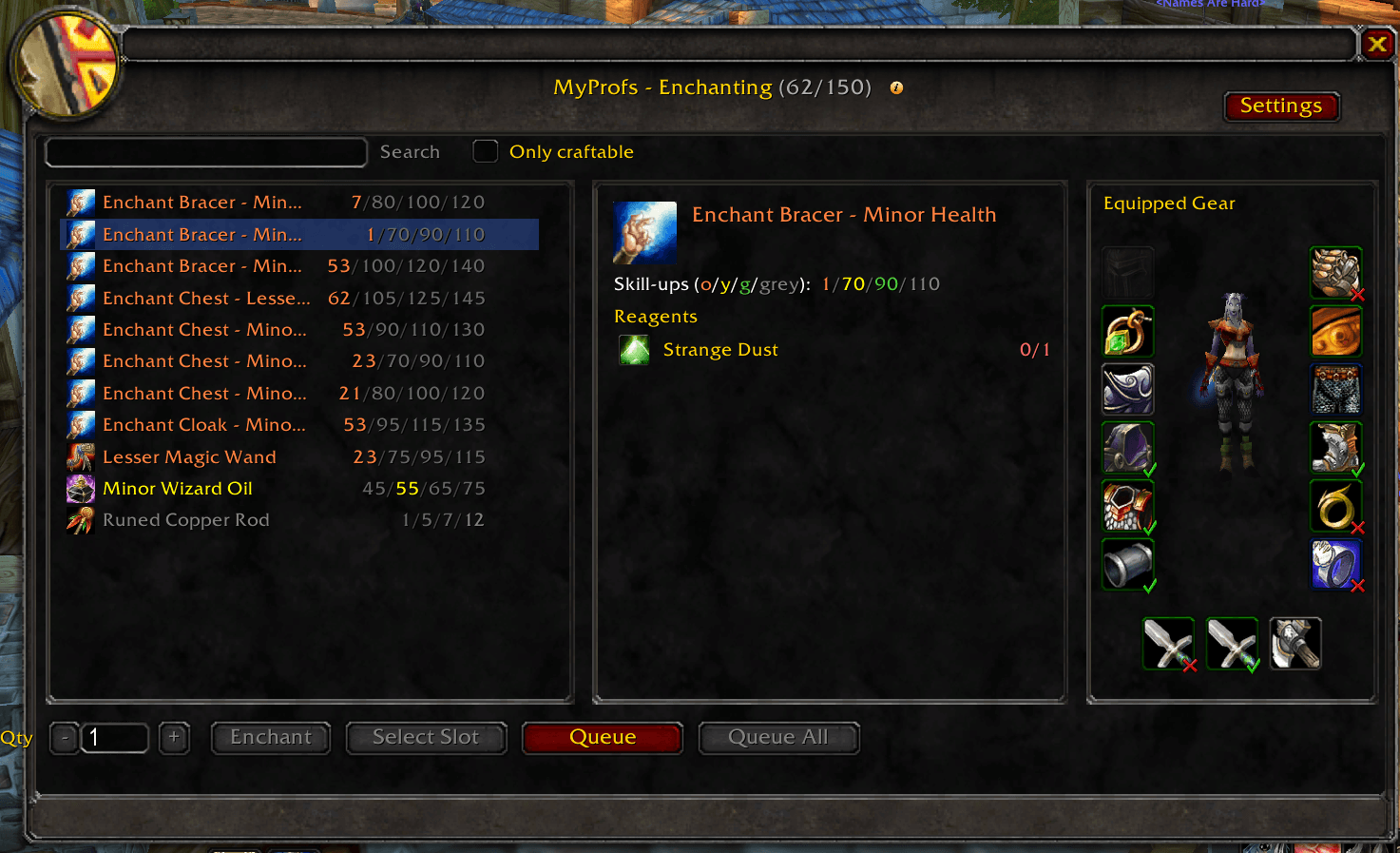
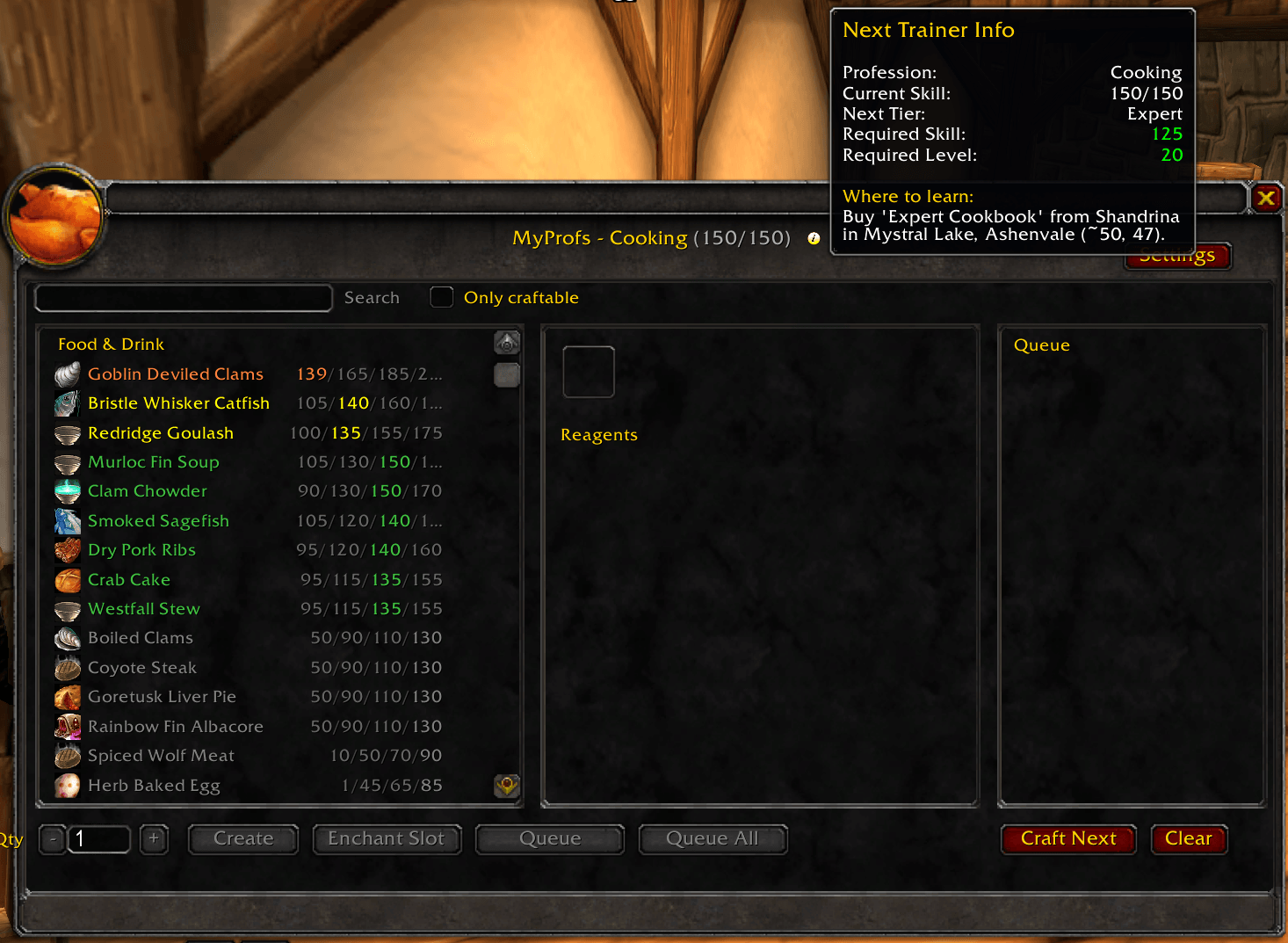
- The Layout: A clean, spacious interface divided into three high-utility panels:
- Left Pane: A scrollable list of recipes with clear color-coded difficulty indicators (🟠 Orange, 🟡 Yellow, 🟢 Green, ⚪ Grey) and instant craftable counts.
- Middle Pane: Detailed ingredients view showing exactly what reagents you need, complete with color-coded Have/Need text (🟢 Green if you have enough, 🔴 Red if you need more).
- Right Pane: Alternates between a custom crafting queue and a live character sheet depending on your open profession.
- ✨ User Experience: No more squinting at tiny default windows. Get a complete, stress-free overview of your recipe list and reagent stock at a glance.
🛡️ 2. Mini Character Paperdoll (Enchanting Mode)
- The Layout: When viewing Enchanting, the right pane displays a live 3D model of your character surrounded by interactive equipment slots.
- ✅/❌ Enchant Indicators: Green checkmarks and red "X" icons instantly show which items are currently enchanted.
- 🔍 Tooltip Previews: Hover over any gear slot to see the full tooltip of the equipped item.
- ✨ User Experience: Immersive and visual. Easily scan your gear to identify which slots are missing enchants without opening your character pane or searching your inventory.
⚡ 3. "Enchant Slot" Leveling Loop (Scroll-Wheel / Spacebar Automation)
- The Layout: Select an equipped slot in the mini character panel and click Enchant Slot to initiate a secure, fast-leveling loop:
- Tapping/Scrolling: The addon binds your Spacebar and Mouse Scroll Wheel (Up and Down) to run a safe, alternating macro:
- Click 1 (Cast): Starts casting the selected enchant spell.
- Click 2 (Target & Confirm): Automatically targets the selected gear slot and clicks "Yes" on the replacement popup.
- 🔒 Safety First: Tapping early is safely ignored (uses
SpellIsTargeting()). Pressing Escape, right-clicking the button, or closing the window instantly stops the loop and restores your keys to normal.
- Tapping/Scrolling: The addon binds your Spacebar and Mouse Scroll Wheel (Up and Down) to run a safe, alternating macro:
- ✨ User Experience: Leveling Enchanting is no longer a click-heavy chore. Simply select a slot, flick your mouse scroll wheel, and watch your skill points fly up!
🛒 4. Vendor Reagent Auto-Buy
- The Layout: MyProfs automatically caches the reagents needed for all items currently in your craft queues.
- Auto-Purchase: The moment you open any merchant window, the addon checks your queue, counts your bags, and automatically buys the exact quantity of vendor materials needed (e.g. Mild Spice, Thread, Flux, Vials, Coal).
- 💰 Smart Controls: Automatically divides by vendor stack sizes, respects limited stock, ignores token/honor costs, and checks your gold balance so you never overbuy or overspend.
- ✨ User Experience: Fully hands-free buying. Run to a General Goods vendor, open their shop window, and watch your missing queue materials get purchased instantly in the chat log (e.g.,
MyProfs: Auto-bought 10 Mild Spice.).
➕ 5. Queue Management & "Queue All"
- The Layout: Build a custom crafting list in the queue pane. Use the Queue button to queue a specific count, or hit Queue All to instantly add the maximum craftable amount based on your bag materials. Use "Craft Next" to craft them sequentially.
- ✨ User Experience: Batch-crafting management made simple. Queue up your leveling materials and process them in order.
📍 6. Integrated Trainer coordinates helper
- The Layout: A subtle
[?]help icon next to the profession header displays a detailed tooltip showing leveling costs, requirements, and trainer coordinates in Azeroth and Outland (e.g. Thrallmar, Honor Hold, Shattrath). - ✨ User Experience: Stay immersed in the game world—no need to Alt-Tab to look up trainer locations or level requirements online!
🛠️ How to Use
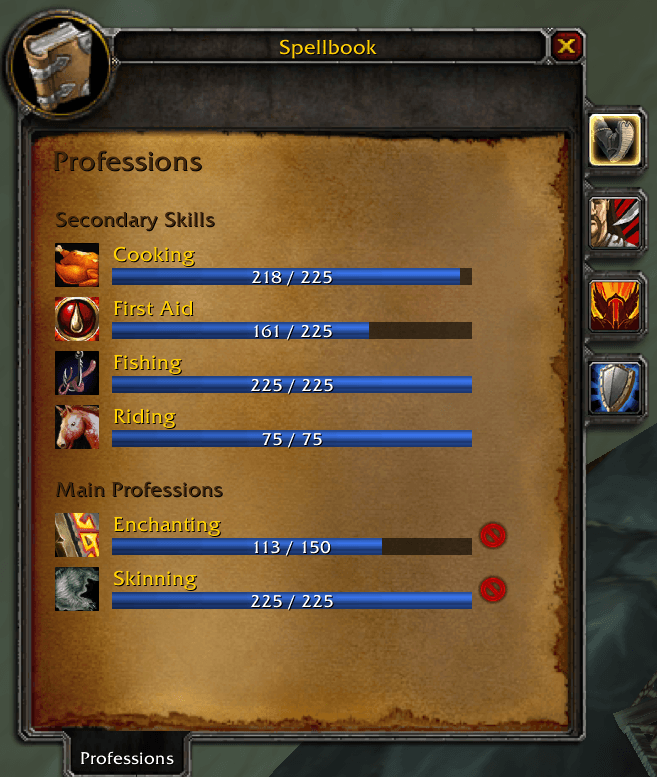
- Open Professions: Open your standard spellbook and click any profession. The beautiful MyProfs UI will load automatically.
- Queue Recipes: Select a recipe and click Queue or Queue All.
- Auto-Buy: Visit a merchant and open their shop window to auto-buy queued vendor items.
- Enchant Items: If you are an Enchanter, click an item slot in the gear panel, hit Enchant Slot, and use your Spacebar or Mouse Scroll Wheel to start and repeat casts. Press Escape to stop.
MyProfs Team