MiliUI Quest Tracker
- By
Restyles Blizzard's quest tracker, with auto collapse, a Mythic+ timer, and auto accept / turn in.
Preview
Description
Appearance
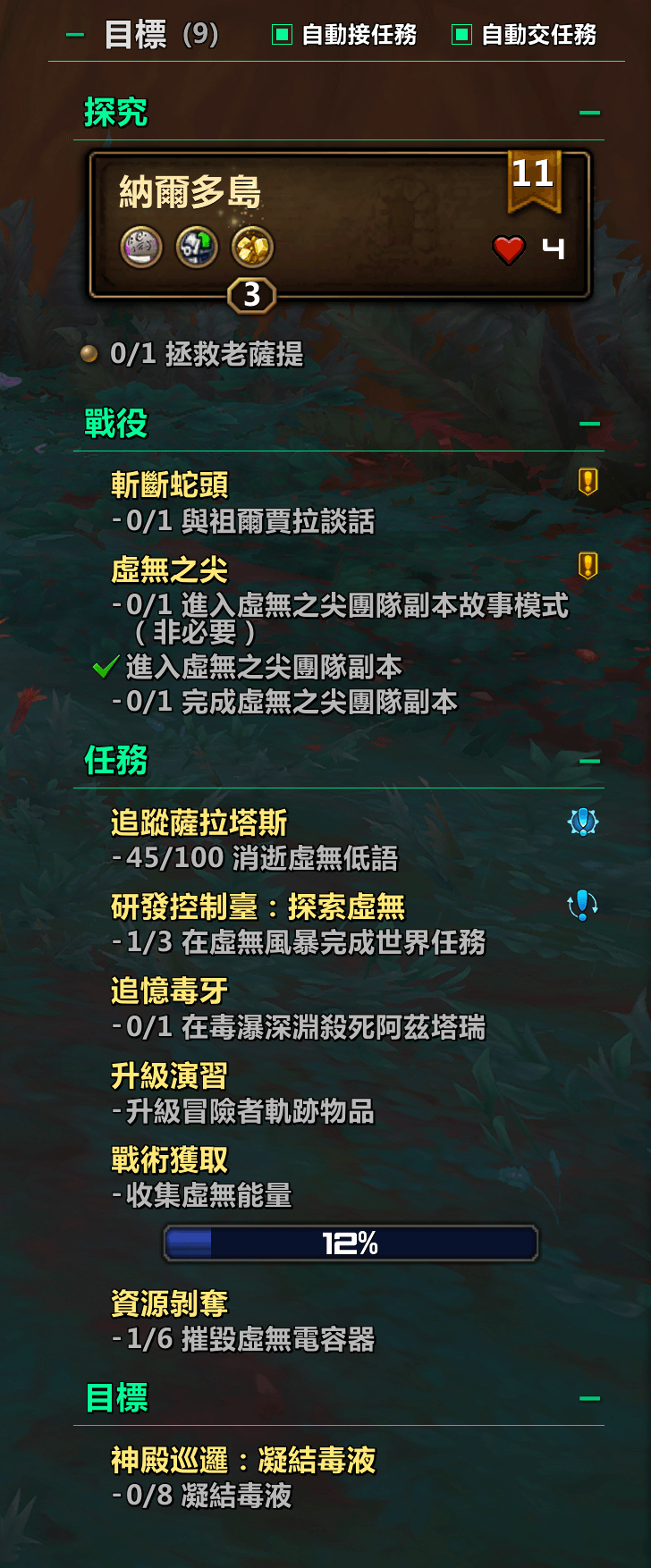
- Replaces the parchment, ribbons, and glows with flat backgrounds and 1px dividers, using the same colors as MiliUI Damage Meters. The background is off by default and can be turned on.
- Customizable font and outline, with separate font sizes for section headers, quest titles, and objective text. Choose "Use Blizzard's font" to change only the font sizes.
- Colors: quest titles in gold, completed quests in green, the quest you're navigating to in purple, and section headers in your class color by default.
- Campaign, Legendary, Important, and Repeatable quests are marked in the top-right corner of each quest.
- Click anywhere on a section header to collapse that section.
Header
- Replaces Blizzard's "All Objectives" header with "Objectives (17)", where the number in parentheses is the number of entries currently in the list.
- Click the header to collapse the whole tracker. It stays collapsed after a reload.
- The header has two toggles, Auto Accept and Auto Turn In. Right-click for more options.
Auto Collapse
- The tracker can collapse automatically during raid boss encounters (on by default), for the whole raid instance, in dungeons, arenas, battlegrounds, in combat, and in Mythic+ (on by default).
- It expands again when the condition ends. If you expand it while it's auto-collapsed, it counts as a quick peek and will collapse again the next time the condition applies.
Mythic+ Timer
- When a keystone starts, the quest list collapses and a timer panel takes its place: the timer (with +3 / +2 / +1 segments), keystone level and affixes, deaths, bosses with kill times, and an Enemy Forces bar.
- Mouse over an enemy to see how much Enemy Forces it's worth in the tooltip. This uses Blizzard's official data, so MDT isn't needed.
- Font size and bar height can be adjusted, and the font follows your Appearance settings. Text can be aligned left or right. Use left alignment when the tracker sits on the left side of the screen.
Auto Accept / Turn In
On by default, but it stops and lets you decide when:
- There are multiple rewards to choose from
- Turning in the quest costs gold, currency, or items
- The NPC offers more than one quest
- The dialog has special options, such as skipping a cutscene or choosing a faction
Also:
- Hold Shift to pause automation.
- A few weekly quests fail to accept (the window flashes and closes). The addon remembers these quests and waits a moment before accepting them next time. This list is shared across your account.
- If Leatrix Plus's quest automation is also enabled, the settings page will remind you to use only one of them.
Positioning
- While the settings window is open, an overlay appears on the tracker. Left-drag it to move the tracker. It stays where you put it even if you switch layouts in Edit Mode later.
- Right-click the overlay to hand positioning back to Edit Mode.
- Snaps to and aligns with MiliUI's Info Bar, Minimap, Damage Meters, and Chat Bar.
Commands
/mquest: Open settings (also available from the addon menu next to the minimap)/mquest fold: Collapse or expand the tracker/mquest debug: Open a diagnostic report. If quest progress isn't showing, type this right when the problem happens and send the whole report to the author.
Notes
- The tracker can't scroll. Anything beyond its height is cut off, so adjust the height in Edit Mode.
- If you anchor the tracker to an action bar in Edit Mode and the list was already collapsed before combat, you won't be able to expand it until combat ends. This is a protection restriction in the game.
MiliUI Quest Tracker Team