MarketSync
- By
Synchronizes auction data across your guild to build a shared, offline-accessible pricing network with instant chat price checks.
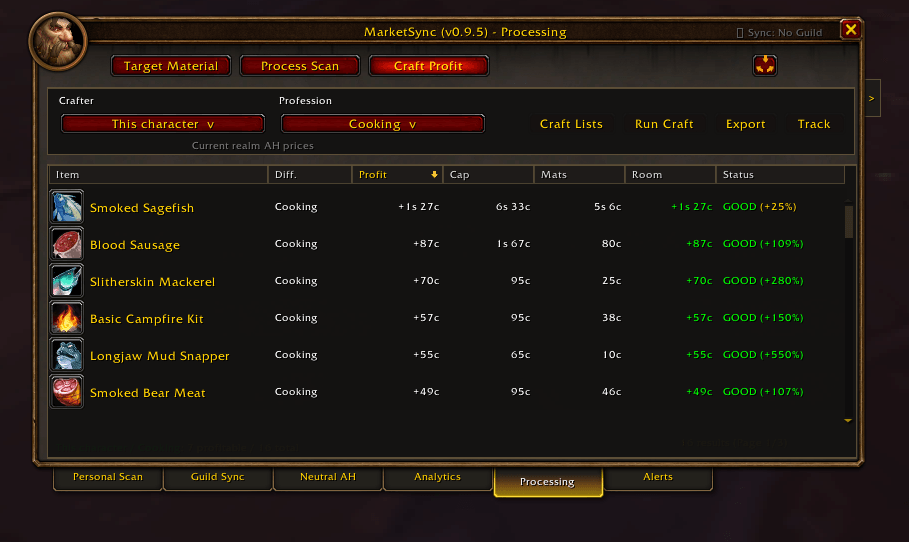
Built in processing page showing profitability for character learned professions.
Description
MarketSync
Your scans. Your guild's market. One place to browse, plan, and buy.
MarketSync is an Auction House companion for WoW Forever, Classic Era / Season of Discovery, and TBC. Scan auctions, keep your own price history, share newer observations with guildmates, and turn those prices into shopping lists, crafting plans, and alerts.
Auctionator is optional. MarketSync includes a standalone scanner and can also import supported Auctionator scans when you prefer its scanning interface.
This guide covers 0.9.7-rc3, the current release candidate. Legacy-client testing is ongoing; the available Auction House controls depend on your client.
Start here
- Install MarketSync for your client and enable it at character selection.
- Open an auctioneer and complete a Full AH Scan with MarketSync or your selected Auctionator scanner.
- Close the Auction House so MarketSync can announce the new scan to your guild.
- Click the minimap icon or use
/ms searchto browse your saved prices. - Create a shopping list, open Analytics for an item, or enable Processing and Alerts in Settings when you want those tools.
For crafting, open each profession window once so MarketSync can discover the character's known recipes.
Understand your price data
Personal Scan: your own observations
Personal contains the auction prices you recorded yourself. Incoming guild data does not overwrite your personal scan prices or observation times. You can compare what you last recorded with the wider guild market.
Guild Sync: the cumulative market
Guild combines your personal observations and validated scans received from guildmates. Newer observations update this shared view while existing history remains available under the retention rules.
For example, you scan an item at 10g. A guildmate later records it at 12g. Your Personal view retains your 10g observation, while the cumulative Guild view can show the newer 12g quote.
Local items appear in both views, so their counts are not two independent sets of auctions. Prices are recorded observations; an offline quote does not guarantee that a listing is still available to buy.
Neutral Auction House
Neutral-AH data has its own view and sync scope. It is kept separate from the main faction market.
Factions and Forever playsets
Alliance and Horde have separate saved price histories, alert state, and sync markets, including when you play both factions in the same environment.
On Forever, numbered backend partitions of the same playset can synchronize. For example, ClassicBetaPvP and ClassicBetaPvP2 match. Different playsets remain separate. Other supported clients retain exact realm matching.
Scan with or without Auctionator
Standalone MarketSync scanning
The Scanner page lets you run a full Auction House scan or scan selected shopping lists. A full scan builds a broad saved-price snapshot; selected lists focus on the items you track.
Full scans follow the client's Auction House cooldown. Native item searches wait for complete results before recording them. Large snapshots are processed in batches so reads, history updates, and item loading can progress across frames.
Scanning an item does not automatically add it to a shopping list or create an alert. Those are explicit item actions.
Using Auctionator
When Auctionator is installed, MarketSync normally lets it handle scanning and hides the duplicate Scanner tab. Change Settings → Use Auctionator scanning to choose MarketSync's native scanner instead.
MarketSync can import supported Auctionator scan observations into its own records. Received guild prices remain cumulative market data rather than being written back as personal Auctionator scans.
Enhanced Classic Search
On supported Classic clients, the enhanced Search page shows live auctions grouped by item variant, unit price, and stack size.
Scan Entire List and Scan Buy Materials collect results for multiple items into one table. The game still queries items and their result pages in sequence; each item's results remain available together for browsing.
Select a price/stack row to check a live stack. MarketSync rechecks its source page before enabling Buy 1 Stack, then asks you to confirm the purchase. Live Search is a buying view; use the Scanner page for a saved full scan.
The Auction House breakout drawer
Open the MarketSync arrow beside the Auction House to expand the sidecar drawer. It brings three workflows alongside the AH:
| Tab | What it does |
|---|---|
| Shopping | Create lists, add items, search individual entries, and scan an entire list. |
| Craft | Keep crafting requests, adjust quantities, and choose which materials to buy, craft, or provide. |
| Bags | Browse auctionable bag items, search their market, and select items into the AH selling interface. |
The drawer can be collapsed when you want more room. Its actions use the Auction House interfaces available on your client.
Right-click item actions
Supported item rows and headers expose a shared right-click menu. Available actions depend on the page and item:
| Action | Use it to… |
|---|---|
| Search in AH | Look up the item at the auctioneer. |
| Show Analytics | Open its price history and market detail. |
| Create Price Alert | Start an alert with the item already selected. |
| Add to List → [list name] | Add the item to an existing shopping list. |
| Remove from [list name] | Remove an item when you opened the menu from that list. |
| Link to Chat | Insert an available item link into chat. |
Processing results add context-specific choices such as Select / Deselect, Add to Favorites, and, for craft results, Add to Craft List.
Build shopping lists
Use shopping lists for consumables, profession materials, gear targets, or items you regularly check.
- Open Shopping in the AH drawer and choose + New to create a named list, or select an existing list such as Favorites.
- Add an item through right-click → Add to List → [list name] on a supported MarketSync item row.
- Alternatively, drag an item into the Shopping entry area or enter its name or item ID.
- Click an entry to search for it, or use Scan Entire List to search the list through the supported client flow.
- Remove entries with their remove control or the contextual Remove from [list name] action.
Shopping lists and craft-request lists are separate. Adding an item to Shopping does not create a crafting plan.
Build craft lists and material plans
Craft lists start with what you want to make, then help you decide how to obtain the ingredients.
Add a craft
- In Processing → Craft Profit, right-click a craft result and choose Add to Craft List.
- Craft detail panels also provide + Craft List for supported recipe/item selections.
- In the AH drawer's Craft tab, you can drop a crafted item or recipe, or enter a supported item ID or link.
Use + New to keep separate named craft lists and the quantity controls to adjust your requests. Recipe availability depends on the profession knowledge MarketSync has captured.
Choose Buy, Craft, or Provide
The material checklist lets you decide how each component will be supplied:
- Craft: make a component through an available known recipe.
- Buy: include it in the material purchase plan.
- Provide: supply it yourself, for example from storage or farming.
The drawer explains its checkboxes: the craft check selects crafting, the Buy check selects purchasing, and materials not selected for purchase are provided by you. Choices and requested quantities are saved with the plan.
Search and export the materials
Scan Buy Materials searches the required non-vendor AH materials marked Buy. Copy to Shopping exports the purchase plan to a shopping list with quantities.
The export is a snapshot of the current purchase plan. It replaces that plan's exported shopping list when refreshed; it does not keep every edit synchronized automatically between the two lists.
Processing and crafting calculations
Enable Processing in Settings to access:
- Target Material: find supported processing routes into a selected material.
- Process Scan: compare supported processing opportunities using available cached prices.
- Craft Profit: compare known recipes, reagent costs, output prices, and estimated profit.
Where supported, calculations can include craftable intermediate components and selected reagent choices. Missing prices remain missing rather than becoming invented costs. Broad scans use the built market cache, so build the relevant Personal/Guild cache before running them.
Processing estimates depend on the recipes, market data, and probability tables available for your client. Disenchant outcome ranges describe possible outcomes, not guaranteed returns. Legacy disenchant odds have not been independently validated for Forever custom gear.
Analytics and item history
Open Show Analytics from an item action menu to inspect recorded pricing history, scan age, and available source information. Analytics also provides recent-scan and shopping-list views for focusing on relevant items.
Random-suffix items can retain distinct price records when exact suffix data is available. Observation time belongs to the individual quote; scanning another item or rebuilding a cache does not make an old price newly observed.
Price alerts
Enable Alerts in Settings, then use Create Price Alert from a supported item menu to select an item and configure its price conditions.
Alerts use recorded prices and your settings. Creating an alert does not buy an item or guarantee that a matching live auction remains available.
Shift-left-click the minimap icon to mute alert delivery for the session. Use the shortcut again to restore delivery; logging out also ends the session mute. The first mute asks for confirmation.
Bag browsing and selling
The AH drawer's Bags tab groups auctionable inventory by bag and provides a name filter. Refresh it after inventory changes.
Left-click a supported item to select it into the Auction House sell slot. Right-click to search its market. Displayed market or match-price guidance helps you review your listing; normal AH controls still handle posting.
Guild synchronization and the Network Monitor
Guild members with compatible MarketSync builds exchange newer verified observations through WoW's hidden guild addon channel. Sync requires members to be online, and combat/instance settings can temporarily pause participation.
The Network Monitor shows announcements, peer state, transfer activity, and cache processing. Ready means a peer was discovered; it does not mean a download is needed. A peer advertising zero records has no eligible data in that announcement. A pull is requested when the peer has suitable newer data for your market.
Transfers are checked for completeness before application. Replayed records do not create duplicate history entries, and revision-based selection limits updates to the eligible newer data.
Performance, storage, and privacy
MarketSync stores its database in local WoW SavedVariables. Guild synchronization uses the game client; it does not automatically upload your prices to an external cloud service.
Large databases take memory, and item names/icons may continue loading while caches build. Low RAM and on-demand cache settings let you choose when to build searchable views. Retention compacts older histories and expires data beyond its configured tiers.
The debugging tools include a Network Monitor and Task Manager for inspecting sync, cache, and background activity.
Upgrading and troubleshooting
For guild testing, update both users to the current candidate and reload. Complete a fresh scan and close the AH before checking advertisements and pulls.
Older unlabelled prices remain archived after faction separation. Earlier builds also combined personal and received observations; rc3 preserves cumulative history and separates records whose received source can be identified. A personal value already overwritten by an older build cannot be reconstructed exactly.
When reporting an issue, include your client/build, MarketSync version, faction, realm/playset, scanner choice, reproduction steps, Lua errors, and relevant Network Monitor output.
Commands and links
| Command | Action |
|---|---|
/ms search or /ms browse |
Open or toggle the browse window. |
/ms config |
Open Settings. |
/ms block <name> |
Block a sync sender. |
/ms unblock <name> |
Unblock a sync sender. |
Source and documentation · Release downloads · Report an issue
MarketSync is licensed under GPL-3.0.
MarketSync Team

Owner