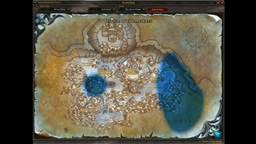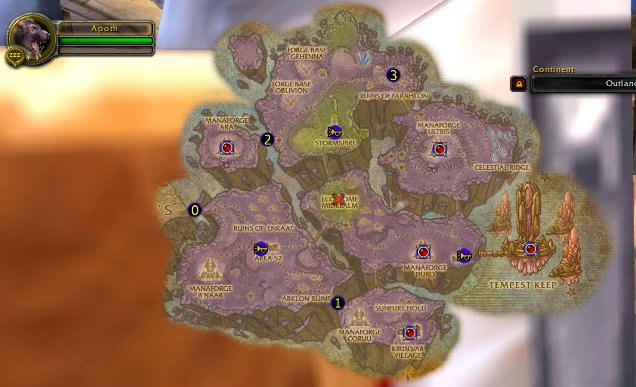
Custom Icons on AlphaMap
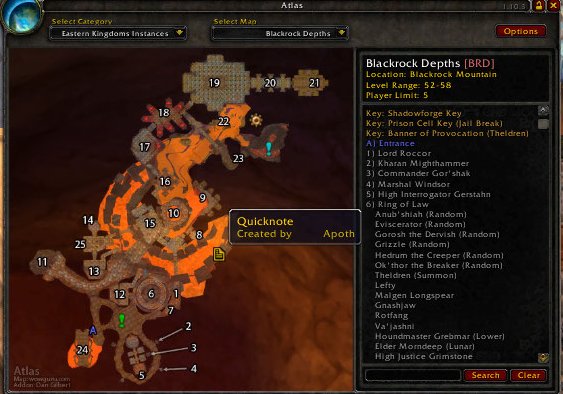
Custom Icons on Atlas
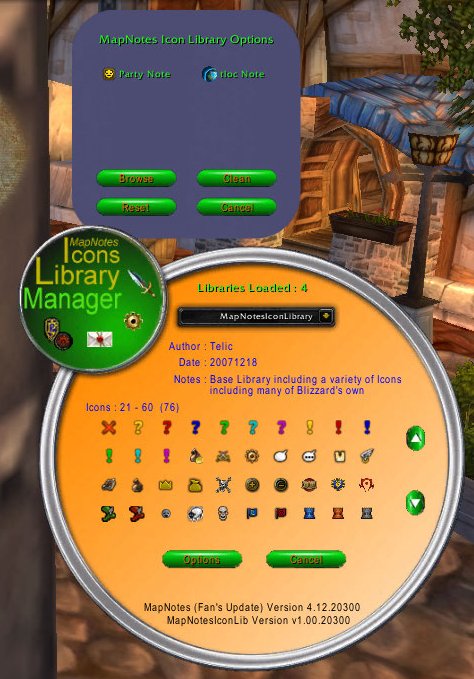
Options & Icon Browser Frame
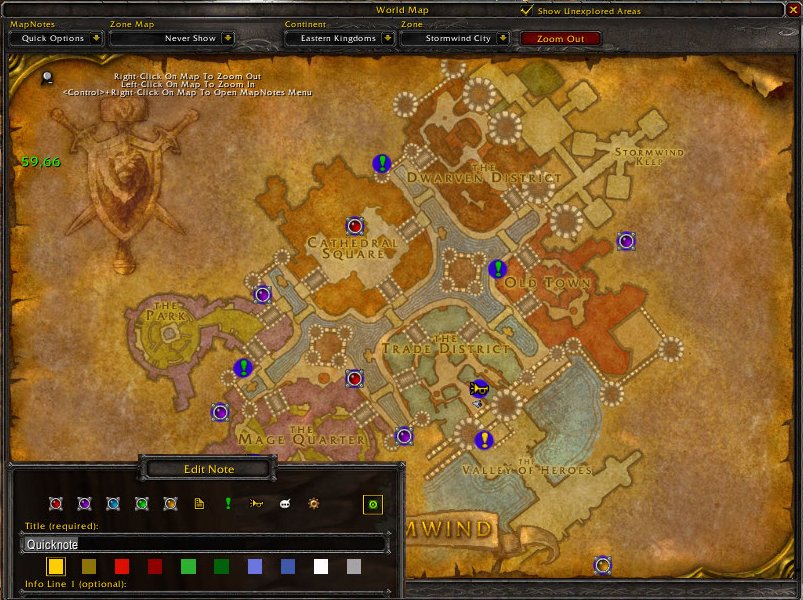
WorldMap & Edit Frame Icons
Description
MapNotesIconLib _______________
v1.03.20400
Provides a much larger set of Icons to use for MapNotes (Fan's Update).
MapNotesIconLib comes with 76 new core icons, mainly sourced from the Game itself.
Packaged with the library are 3 other Plugin libraries : Fancy - some fancy icons modified from source graphics at from http://www.freebuttons.com Numbered - a variety of numbered icons (again, some modified versions of http://www.freebuttons.com) Neptunia - the Icons originally donated by Neptunia
With MapNotesIconLib installed, Icon choices are applied immediately when selected without having to save the Note.
Getting Started _______________
Open up a Note Edit Frame via MapNotes menus, or <Ctrl><Alt>-Right clicking on a MapNote.
There is a new empty blue highlighted button to the right of the normal MapNote Icons. Click on this square to open up the Icon Library Browser frame and choose a new Icon for this MapNote :) <Alt>-Click on this square to delete the custom Icon choice, and MapNotes will revert to using the default Icon it was using originally.
The change will take effect immediately without having to save the note.
Advanced Use ____________
1.) You can change the original 10 default icons used by MapNotes
Open up a Note Edit Frame via MapNotes menus, or <Ctrl><Alt>-Right clicking on a MapNote. <Ctrl>-Click on any of the default MapNote Icons to open up the Icon Library Browser frame and choose a new default icon :) <Alt>-Click on any of the default MapNote Icons to reset it to the original MapNotes version.
The changes will take effect immediately, and will propagate thoughout the database and change all MapNotes that were using that default Icon.
2.) The Icon Library Options frame
Use the "/mnil" slash command to open the Icon Library Options frame From the Options frame you can :
a.) Change the default Party / tloc Icons by clicking on them and choosing new ones from the Icon Library Browser frame b.) Simply open the Icon Library Broswer frame just to look through the Icons available c.) Reset ALL MapNotes to use the original MapNotes defaults, and remove ALL customised Icons d.) This Option will "clean" the MapNotes database, by removing any references to icons that you no longer explicitly load. [See Special Note for more details] e.) Cancel and close the Options frame
NOTE that to "Reset" or "Clean" the Icons requires clicking Okay in a Confirmation dialogue box. So if you don't see the confirmation box, then close the World Map and move frames around until it is visible ;)
<file type="tooltip">4116</file>
MapNotesIconLib Team