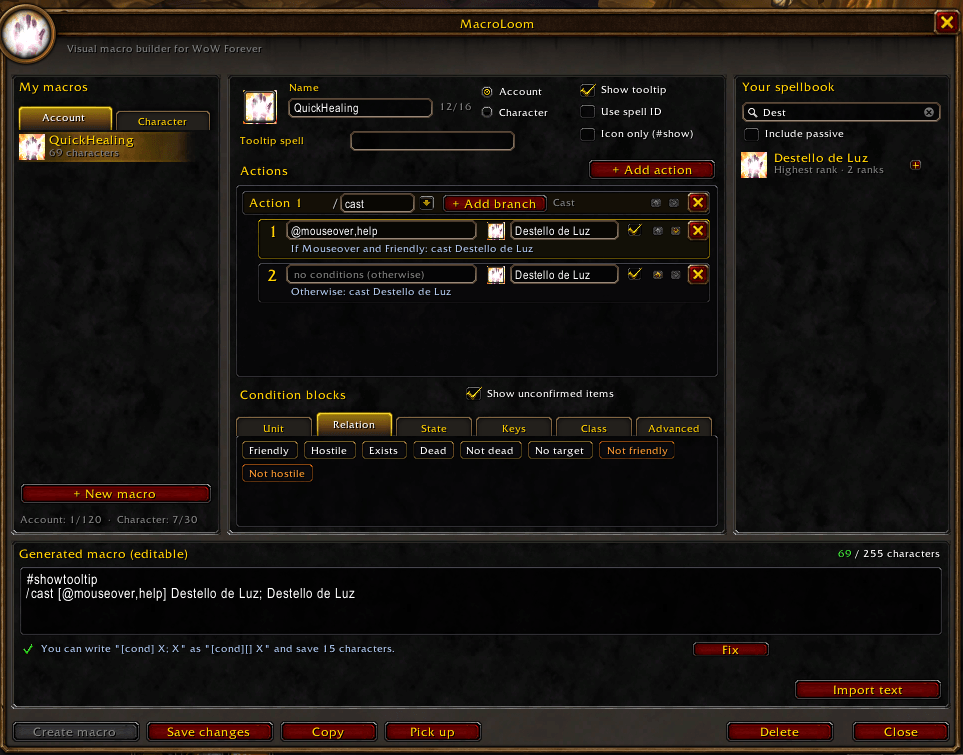
v-0.2.0.png
Description
MacroLoom
A visual macro builder for World of Warcraft: Forever.
Build, edit and organise your macros without memorising macro syntax. Pick commands, spells, icons and condition values from lists, and click conditions such as Mouseover, Hostile or Shift. MacroLoom writes a valid macro for you, checks the character limit and catches common mistakes before you save. For many of those mistakes, a Fix button corrects them for you.
MacroLoom is only an editor. It does not make combat decisions, read health or cooldowns, or run rotations. It writes ordinary macros, the same ones you could type by hand.
What's new in 0.2.0
- Pickers everywhere: commands (▼ menu on each action), icons (searchable grid) and condition values such as
equipped:(list from your client, in your language). - Emotes and game commands are recognised in your client's language (
/dance,/bailar,/decir, other addons' commands), and#showis supported. - Checks that fix mistakes, each with a Fix button:
@ali→help;equipped:dagfa→equipped:Dagas;[cond] X; X→[cond][] X, which is shorter.
- Enable/disable branches without deleting them, and window preferences that survive
/reload.
See the changelog for the full list.
Features
Native-looking window
- A three-column window styled like Blizzard's own panels:
- My macros: your account and character macros, in tabs.
- Editor: the macro you are building.
- Your spellbook: a searchable list of your spells.
- Below the columns are an editable live preview and a list of checks.
- Macro and spell icons are shown everywhere, and lists scroll with the mouse wheel.
- The window is draggable, closes with ESC, and doesn't capture your movement keys.
- Your choices (unconfirmed items, passive spells, open tabs) are remembered between sessions.
Actions and branches
- A macro is made of actions. Each action is one line, such as
/cast,/useor/castsequence. - Choose each action's command from a ▼ menu. Commands are grouped (Spells, Combat, Target, Pet, Utility, Chat) and each has a short description. Or just type the command.
- Each action has its own branches. A branch is an alternative with conditions; branches are joined with
;. - You can add, reorder, remove and temporarily disable both actions and branches.
- Every branch shows a plain-language description, for example: "If Mouseover and Hostile: cast Frostbolt" or "Otherwise: cast Frostbolt".
- Emotes and other game commands work too (
/dance, or/bailaron a Spanish client), and commands without arguments hide the spell field.
#showtooltip
/cast [@mouseover,harm,nodead][] Frostbolt
/cast [mod:shift] Fireball; Frostbolt
/use 13
Condition blocks
- One click adds a condition to the selected branch.
- Conditions are grouped in tabs: Unit, Relation, State, Keys, Class and Advanced.
Conditions with a value open a picker:
- for
equipped:, item types from your client, in your language; - for
known:, your spells; - for
spec:and the action bar conditions, their numbers.
Type to filter, or enter your own value. Several values can be combined with
/.- for
- A new
@unitor value condition replaces the previous one in the branch, instead of creating an invalid macro. - Conditions not yet confirmed on Forever are hidden by default. When you show them, they appear in orange with a warning.
Spellbook with ranks
- Spells are listed once per spell name. Clicking one inserts it without a rank, and the game automatically casts the highest rank you know.
- Press + on a spell to list its individual ranks and insert an exact one, such as
Frostbolt(Rank 2). - Right-click a spell icon inside a branch to switch between highest rank and the exact rank.
- Rank names come from your client, so they are always in your game language.
- There is an optional Use spell ID mode.
Icons
- Click the macro icon to open a searchable icon grid. It shows, in this order:
- the dynamic ? icon;
- the icons of your macro's spells;
- your spellbook;
- every macro icon the game offers.
- From spell uses the selected branch's spell icon. Right-click the icon to type one by hand.
- Choose between
#showtooltipand Icon only (#show).
Checks before saving
- 255-character limit, with a green, yellow and red counter.
- 16-character name limit, and duplicate names.
- Unknown or unconfirmed commands and conditions, with a "Did you mean…?" suggestion.
- Unknown or missing values in conditions such as
equipped:, with the closest valid value suggested. - More than one
@unitin a bracket, a misplaced[]fallback, and branches that can never run. [conditions]on emotes or chat commands, which would be sent as plain text.Shift+1..6/Ctrl+1..6conflicts with the default action-bar paging.- A missing
#showtooltipon macros that cast or use something. - One-click Fix for suggestions, and for shortening
[cond] X; Xto[cond][] X.
Real macros, safely
- Create, save, delete (with confirmation), copy and pick up macros. Drag a macro from the list straight onto an action bar.
- Slot limits are read live from the game (120 account + 30 character by default).
- Combat-safe: macros cannot be edited in combat. If you save during combat, the change is queued and applied as soon as combat ends.
Import existing macros
- Paste or edit macro text in the preview, then press Import text to turn it back into actions and branches. Every alternative becomes its own branch, and
#showlines are kept. - The old
target=unitform is converted to the modern@unitform automatically.
Minimap button
- Drag the button around the minimap to place it, and hide it with Shift + right-click or
/loom minimap. - Its tooltip shows your macro slot usage and the available shortcuts.
- MacroLoom also appears in the addon compartment, with the same tooltip.
Commands
| Command | Description |
|---|---|
/loom or /macroloom |
Open / close the window |
/loom new |
Open with a new empty macro |
/loom edit <name> |
Open an existing macro |
/loom minimap |
Show / hide the minimap button |
/loom selftest |
Run the built-in self-test |
/loom debug |
Show the detected client profile |
/loom spells |
Spellbook scan diagnostics |
Minimap button: left-click opens or closes the window, right-click starts a new macro, drag moves it, and Shift + right-click hides it.
Languages
The interface is available in English and Spanish, and switches automatically with your game client. Macro commands and conditions are always written in English, as the game requires. Spell names, rank names, item types and emotes use your client's language.
Requirements
- World of Warcraft: Forever (interface 16001).
- No other addons or libraries are required.
Known limitations
- Some commands and conditions are marked as unconfirmed on Forever and are hidden by default. Among them are the pet stance, targeting, chat,
/clickand/scriptcommands. Enable Show unconfirmed items to use them. If one works for you, please let us know. - Only the Forever client is supported for now. Retail and Classic support is planned.
Feedback
Bug reports and suggestions are very welcome. Please use the comments or the issue tracker on this page, and include your client language. Screenshots help a lot.
License
MacroLoom is free software released under the GNU General Public License v3.0.
MacroLoom Team