Lucky's Wardrobe
- By
Lucky's Wardrobe: appearance/transmog collection tracker and set manager for World of Warcraft.
Photos_7rOp8H2na6.jpg
Wow_UahvbZ7CIA.jpg
Wow_B7G6vo1mZJ.png
settings.png
Wow_T6f0ajyLmn.png
Description
Lucky's Wardrobe
Find the sets you can still finish, hear about it the moment a piece drops, and get more out of Blizzard's collection journal.
It adds to the collection journal instead of replacing it, so it stays light and is far less likely to break when a patch lands.
Features
Collection Journal
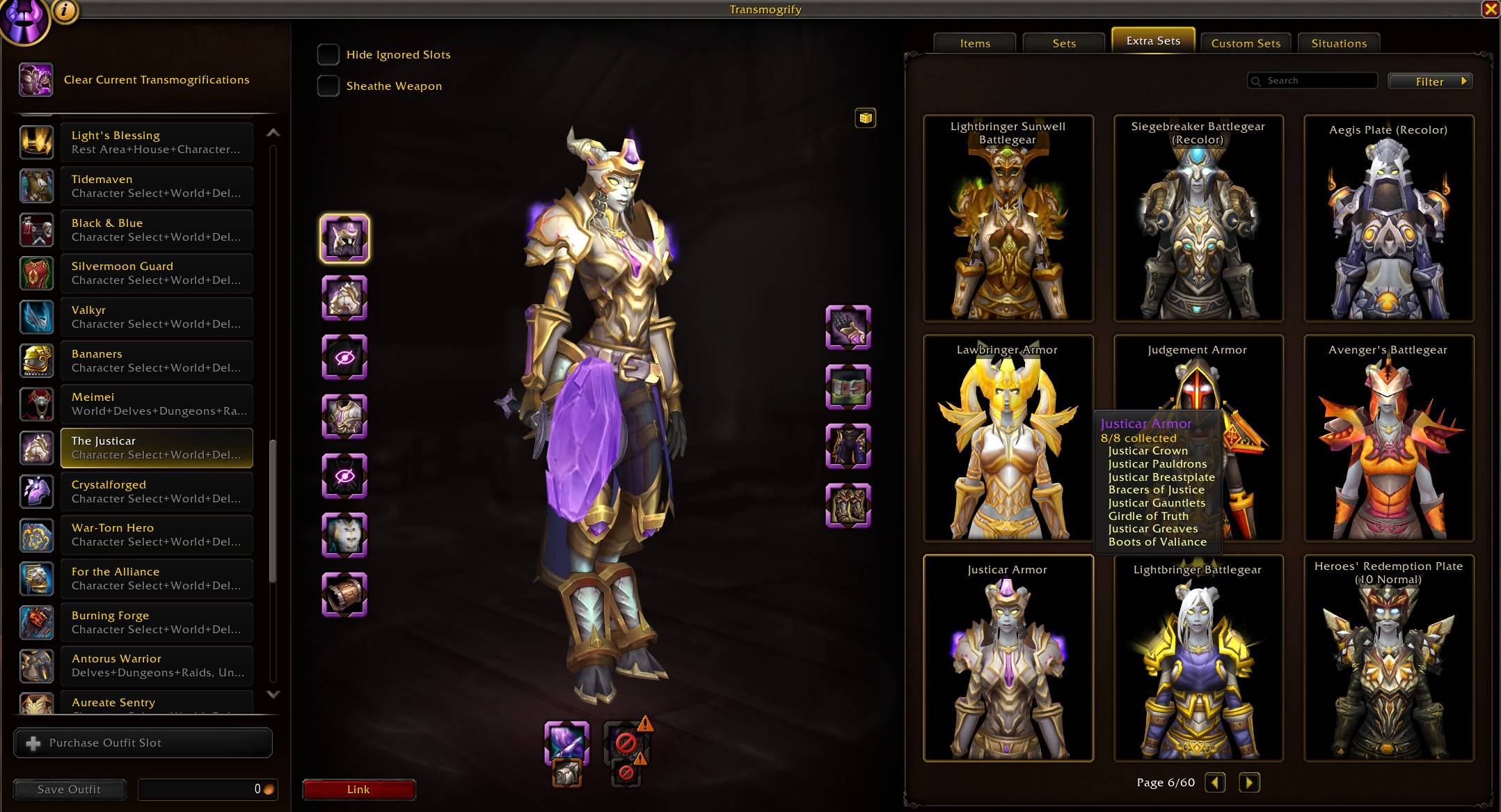
- Extra Sets tab: A third tab in Collections, Appearances listing the armour sets Blizzard defines but never shows in the Sets tab. It lists only what one class could wear, and shares the Sets tab's class selector, so both tabs always show the same class. Search the list, preview any set on your character, and shift-click to track the pieces you are missing.
- One row per set. Sets listed twice under two names are folded into a single row, and a set that comes in several colourways is one row with a picker in the details pane to switch between them, the same way the Sets tab handles its variants. Sets that are the same armour under unrelated names fold together too, matched on the models the client draws them with rather than on anything in their names, which is how a season's suit sold half a dozen times comes down to one line. The corner of a folded row says how many colourways it holds, and hovering that count names each one with how much of it you have collected. The progress under the name counts every piece across all of them. A folded name still finds the row that holds it.
- Sets you can buy. The sets an ensemble teaches are listed too, close to two thousand of them, and open a set to see which ensemble to go after. Search for "ensemble" to list every set there is one for.
- One garment, every colour. The Trading Post sells the same outfit in eighteen colours as eighteen separate sets. Those come together into one row with the colours behind a picker, so a page of sweatsuits is a single line again.
- Sorted how you like. Order the tab by name, completion, piece count, or how many colours a set comes in, either direction, and narrow it by expansion or by what you have collected. The handful of sets nothing could date sit behind an Unknown box of their own.
- Custom Sets tab: A fourth tab, Custom, in Collections, Appearances, listing the outfits you have saved at the transmogrifier, so you can look through them without standing at one. Search the list, see any outfit on your character, and read every look it is made of underneath, with the ones you have yet to collect faded. Shift-click to track what an outfit is missing.
- Colourways counted on the Sets tab: A tier you finished on Normal used to read as done while Heroic sat untouched, because the row followed whichever difficulty you were furthest through. The count, the name colour and the progress bar now cover every colourway the set comes in, and the corner says how many that is. Hover that count, or the set's icon, to see each colourway with how much of it you have collected.
- Sort by completion: Order the Sets list by how close each one is, ascending to work on the nearest first or descending to see what you have most of. Favourites stay at the top.
- Filter by expansion and source: Narrow the list to the expansions you are working through, or to where the sets come from, covering Raid, PvP, Covenants, Heritage, Cosmetic, Trading Post, and Miscellaneous. The count reflects what the filters actually left on screen.
- Search by expansion and source: Type an expansion into any set list's search box, as its full name or a short form like tww, mn, df or bfa, and the list is cut to that expansion. Add raid, pvp or pve, as in "tww pvp" or "mn raid", to narrow it again. Works on the Sets, Extra Sets and Custom tabs, in Appearances and at the transmog NPC alike.
- Track a whole set, or one piece of it: Shift-click a set to start tracking every appearance you are still missing from it, or open the set and shift-click one of its pieces to track just that one. Shift-click a piece you are already tracking to call it off.
- Choose which slots the previews dress: A button in the corner of every set pane, on the Sets, Extra Sets and Custom tabs alike, offers the armour slots as checkboxes, so a set can be looked at without the helm your character never shows. Only the preview changes: pieces, counts and tracking carry on as they were.
- Preview one piece on its own: Ctrl-click a piece in the Extra Sets or Custom tab to open just that piece in the dressing room.
- See what you are hunting: Open a set and the pieces you are tracking carry a crosshair in the corner, in the Sets tab and the Extra Sets tab alike, so a set says what you are still out after. Hover one and its tooltip says so too. A set you are hunting every missing piece of carries the mark on its own row, so the list says which sets you are after without opening each one.
Set Tracker
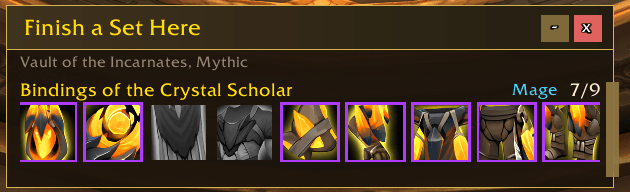
- Finish a set here: Enter a dungeon or raid and a list opens showing the sets you are close to completing whose missing pieces drop there, closest to done first. Each entry names the pieces still to find and where each one comes from. Click a set to open it in your appearances.
- Loot alerts: Loot a piece of a set you are close to finishing, anywhere in the world, and the addon says so with a sound, a chat line, or both. Items the catalyst could turn into an appearance you are missing get a quieter alert of their own.
- Pieces you already hold the makings of: A piece you are missing is stamped with a catalyst mark when you are carrying or wearing something the catalyst would turn into it, so a set reads as closer to done than the collected count alone says. Hover the piece to see which item would make it. Requires: Transmog Upgrade Master.
- Set how close counts: Choose how incomplete a set can be and still count, so the list and the alerts stay as narrow or as thorough as you like. Sets from the tier you are currently raiding are left out, since you will finish that one by turning up, and you can ask for them back. Other classes' sets can be brought in too, picking out just the alts you collect for.
Transmog Window
- Only the sets you can wear: The Sets tab at the transmog NPC lists a set as soon as one piece of it would fit, and a cloak fits anybody, so it fills up with armour your character cannot wear. Those are hidden, leaving what you could actually dress in. Sets in your own armour type stay whichever class they were built for. Turn it off from the tab's own Filter button, or in settings, to browse the lot again.
- Filter the Sets tab by expansion: The Sets tab's own Filter button carries an Expansion submenu, so a wall of cards can be cut down to the expansion you are actually working through. Check All and Uncheck All are there for jumping between one expansion and the lot.
- Filter the Items tab by expansion: The Items tab's button reads Filters rather than Sources, holding the usual source boxes in a submenu of their own beside a new Expansion one, so finding a weapon or a piece to match a set from one expansion is no longer a scroll through hundreds. Hiding a slot stays on the page whatever you untick. Shop and promotional pieces get a No Expansion box of their own rather than being counted as Classic, which is where the game files them.
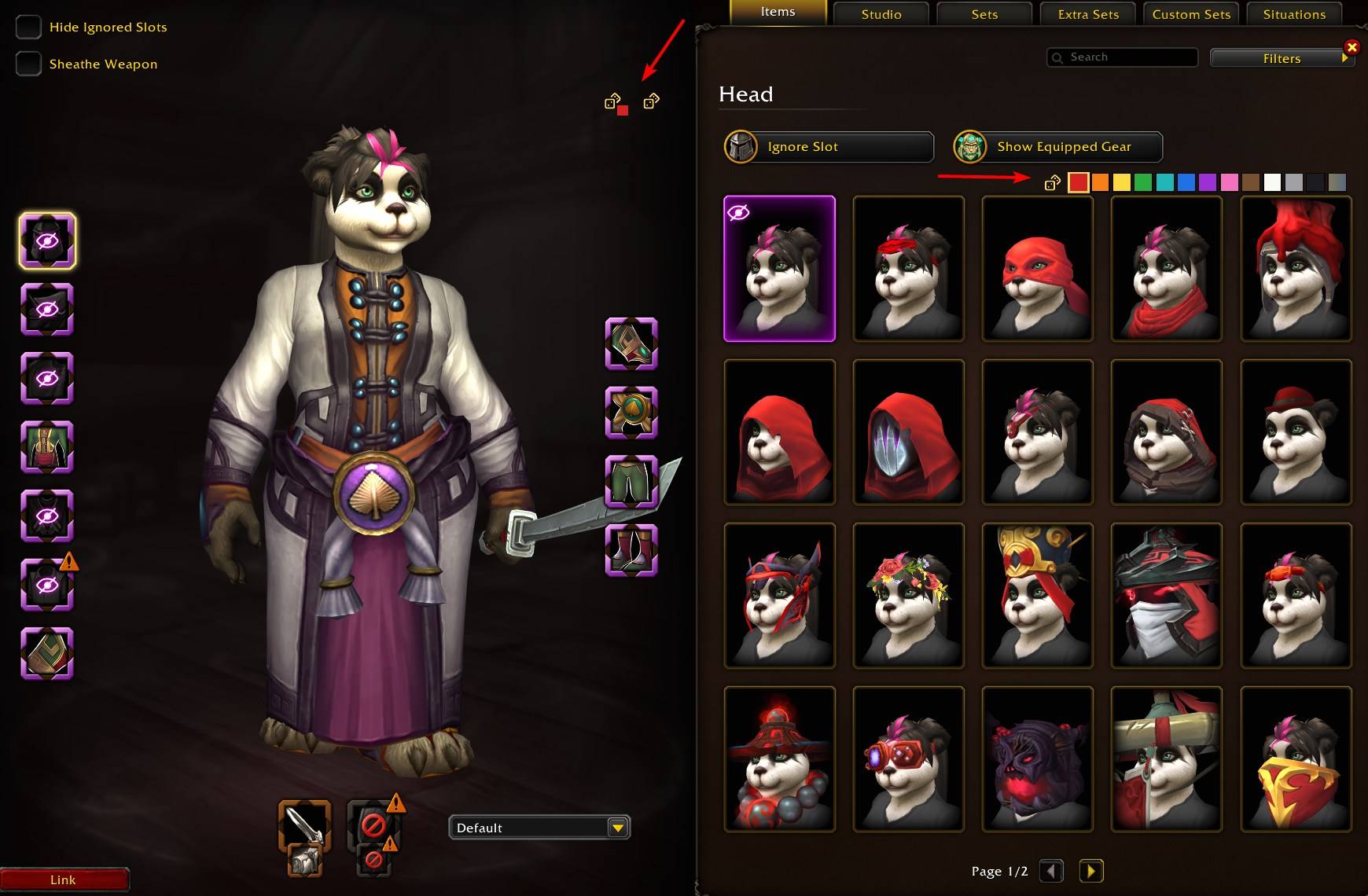
- Filter the Items tab by colour: A row of colour swatches sits above the appearance grid, at the transmog NPC and on the Appearances tab in your collection alike. Click one to leave only the pieces carrying that colour, which is how you find a belt to go with a tabard without opening every one in turn. Click it again for the whole list back. Every piece is filed under the colour most of it is painted, so a piece is always on one page whatever it is made of. It joins a second colour's page if that covers a fifth of the piece, and a third colour's if that covers a tenth, which is how a black and red robe with gold trim is found under all three and a black robe with a red rune is found under Black alone. The pieces that colour is most of come first on the page. A thirteenth swatch on the end keeps the few pieces there is no colour for at all, the ones newer than the addon knows about, so nothing in your collection is off every page. Hiding a slot stays on the page whichever swatch is lit. A dice button sits beside the swatches while a colour is lit, putting a random piece from the page on the slot you have open, so a roll keeps to the colour you picked.
- Extra Sets tab: A tab beside Sets at the transmog NPC showing the hidden sets your class can wear, drawn as the same preview cards as the Sets tab. Click a set to apply every piece you have collected, and right-click for its Wowhead address. The cards run from closest to complete down to untouched, with search, a collected filter, and an expansion filter to narrow them.
- Set names on the cards: Every set card at the transmog NPC carries its name across the top, on the Sets, Custom Sets and Extra Sets tabs alike, so you can tell one little model from another without hovering each in turn. A set you have not finished is named in the same colour its border carries. Turn the names off from the filter menu on either sets tab, or from settings.
- Random outfit: Hold the dice button to spin every armour slot through appearances you own, then let go and watch it settle. A padlock appears beside any slot with a piece set on it, on the side facing your character. Set a piece on a slot yourself and its padlock shuts, and that slot sits out every later spin, so you can build half a look by hand and leave the rest to the dice. Click a padlock to lock or unlock that slot yourself, which is how you keep a piece the spin landed on and roll the rest again. Slots with nothing set keep their padlock out of sight until you hover where it sits, so you can hold on to what you are already wearing too. Light a colour swatch on the Items tab and a second dice appears beside the first wearing that colour, spinning the same slots through only the pieces you own in it, so a whole outfit in one colour is one press. A slot you own nothing in that colour for is hidden rather than left as it was, wearing nothing being the only other way to keep to the colour. Weapons are left alone, and nothing is bought until you press Apply.
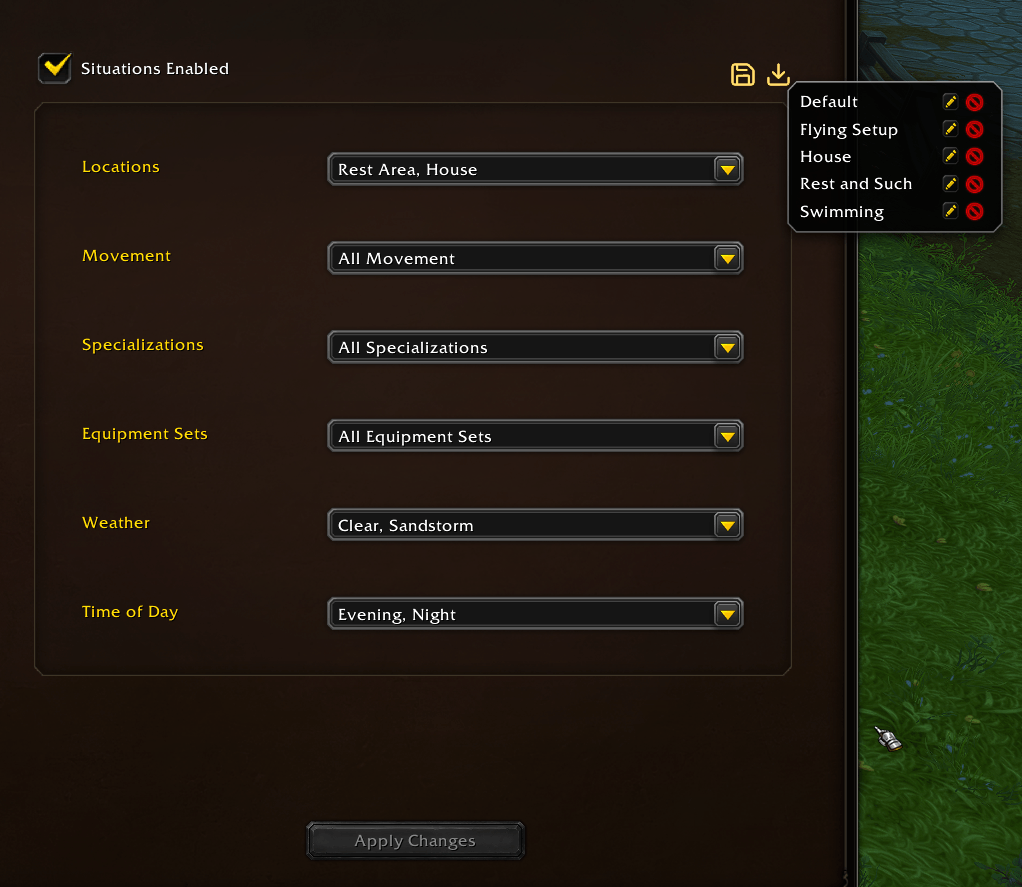
- Situation presets: Save the situations you have picked for an outfit under a name, then apply the whole lot to another outfit in one click. Rename or delete them from the same menu.
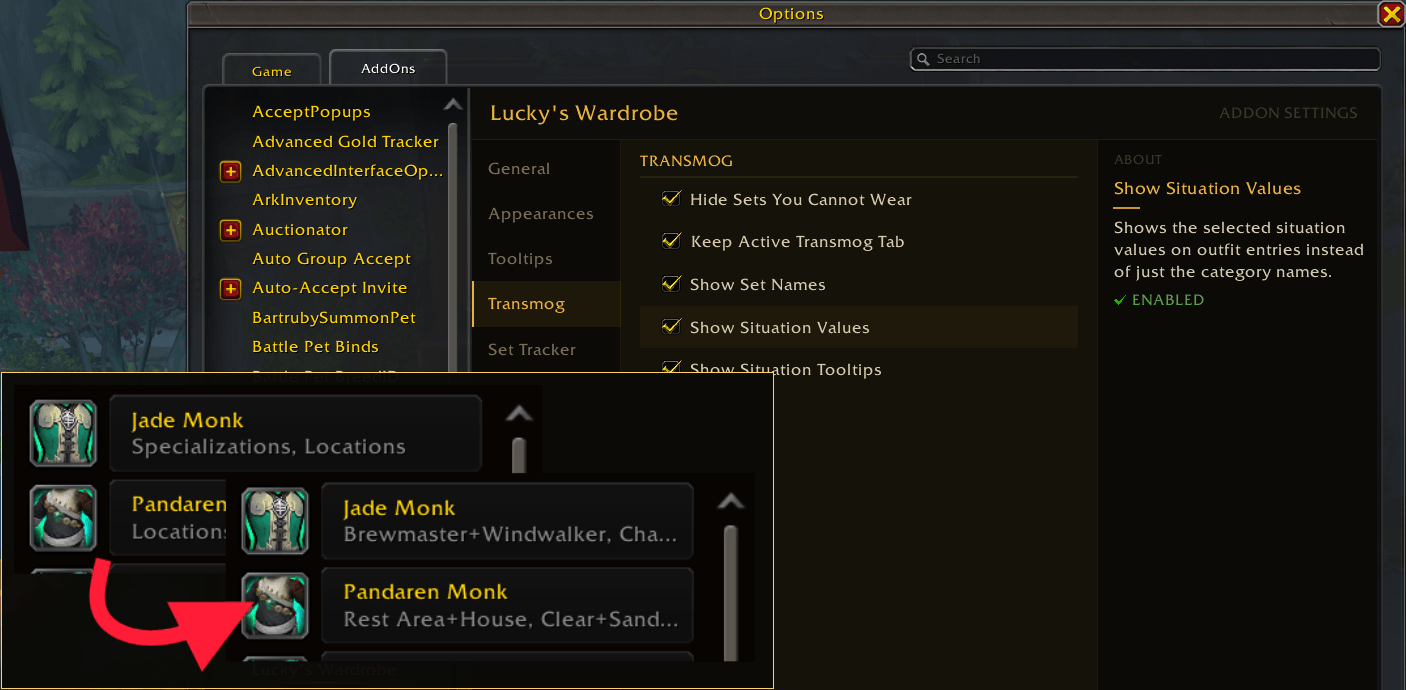
- Situation detail on outfits: Show the values you have chosen on each outfit in the list, and hover an outfit for a tooltip with its full situation breakdown. An outfit whose situations match one you have saved is named after it instead, so you can scan the list for the ones set up the way you meant. Outfits that go a value or two further than the saved situation can be named after it too, with the extra values listed after the name.
- Click an appearance again to undo: On the Items tab at the transmog NPC, clicking an appearance the slot is already set to puts the slot back to what you are wearing, so a piece can be clicked on and off to judge it. A setting makes that second click empty the slot instead, for judging the piece against a bare slot.
- Keep your active tab: Switching outfits at the transmog NPC no longer throws you back to Items. Clicking a slot still opens Items.
Everywhere Else
- Item tooltips: Hover an item anywhere in the game and its tooltip names the set the piece belongs to and how far along that set is, as in "From set: Glyphed Garb 7/8". Sets that only appear on the Extra Sets tab are named too, so a world drop nobody would guess was part of anything still says what it belongs to.
- Preview models on tooltips: Hover a piece of gear anywhere in the game and the piece itself appears beside the tooltip, close up and with nothing else in the frame, so you can see the appearance without opening the dressing room. Weapons, shields and off-hands are shown as models on their own. Armour is not something the game has a model of, only a character wearing one, so those are shown close up on a bare figure, framed on the slot the piece sits in. Gear you already have, worn or in your bags, is left out unless you ask for it in the settings.
- Wowhead addresses: Alt-click any item in your appearance collection, in the Appearances tab, in a set's details, or in the Extra Sets tab, to bring up its Wowhead address in a box ready to copy.
- Minimap button: Shift-click for the sets you can finish where you are standing, or right-click for settings. Drag it to reposition it, middle-click to toggle dev mode, or turn it off entirely in the settings. The addon also lists itself in panel addons such as Titan Panel, so its button can sit on a bar instead.
- A welcome note: A hello at your first login, with the Discord address for anything the addon is still missing.
/wardrobe welcomebrings it back any time.
Installation
Install from CurseForge, or place the Luckys_Wardrobe folder in World of Warcraft/_retail_/Interface/AddOns/.
Lucky's Utils is required. CurseForge release packages include it automatically.
Usage
- Open the Collections Journal (Shift+P) and go to Appearances > Sets.
- Use Filter to sort by completion and narrow the list by expansion or source.
- Shift-click a set to track every appearance you are still missing from it.
- Walk into a dungeon or raid and the set list opens with what you can finish there.
- Adjust everything via
/wardrobeor Options > AddOns > Lucky's Wardrobe.
Slash Commands
| Command | Action |
|---|---|
/wardrobe |
Open addon settings |
/lw |
Short form of /wardrobe |
/lw sets |
Show the sets you can finish where you are standing |
A keybinding for the set list is available under Sets You Can Finish Here in the game's Key Bindings screen.
Troubleshooting
These report what the addon can see, for working out why something looks wrong.
| Command | Action |
|---|---|
/lw replay |
Reopen the set list as if you had just walked in, for checking your settings |
/lw scan |
Report what the addon can see about the instance you are in |
/lw items <expansion> |
Report which appearances the open Items tab dated to an expansion, and where they come from |
/lw roll |
Report what each slot has to draw from when the dice spins, and in the lit colour |
/lw slots |
Report what every slot is holding and which pieces the dice put there |
/lw extrasets |
Report how many extra sets this client can show, and how many were left out and why |
/lw extrasets full |
List the extra sets and the ones left out, with the reason for each |
/lw extrasets find <name> |
Look one set up by name: listed, left out and why, or already in the Sets tab |
/lw extrasets looks <name> |
Compare the looks behind a set with the ones the Sets tab holds, for checking why a set was folded away |
/lw extrasets variants <name> |
Ask the client which sets it already calls colourways of one another |
/lw extrasets colours |
List every family of sets grouped as one garment in several colours (colors works too) |
/lw extrasets pieces |
Report the set selected in the Extra Sets tab piece by piece, for working out why it reads as unwearable |
/lw extrasets perf |
Report how long the tab's work takes and how it lands on your frame rate |
/lw extrasets perf reset |
Clear those measurements and start again |
/lw recolors |
Report how many recolor families this client's appearances form |
/lw recolors full |
List every family, its pieces, and every cluster left out |
/lw recolors dump |
Save the whole family report to saved variables for reading after a reload |
/lw recolors probe |
Report how many appearances in each slot the client can name yet, for when a report comes back short |
Settings
Open settings with /lw or Options > AddOns > Lucky's Wardrobe.
- What's New: The settings added in recent releases, each one clicking through to where it lives. Dev mode and the minimap button are buttons in the title bar, and the version you are running reads beside the addon name.
- Appearances: Turn shift-click tracking on or off, choose whether tracked pieces carry a crosshair, and turn alt-click Wowhead addresses on or off.
- Tooltips: Choose whether an item's tooltip names the set the piece belongs to and your progress through it, whether a preview model of the piece appears beside it, and whether that preview covers gear you already have as well.
- Transmog: Hide the sets your character cannot wear from the Sets tab, keep your active tab at the transmog NPC when switching outfits, choose whether set cards carry their names, and choose how much situation detail appears on saved outfits.
- Set Tracker: Choose how many pieces a set can still be missing and count as close to done, whether to include the tier you are currently raiding and other classes' sets, and whether missing pieces carry the catalyst mark. Set whether the list opens by itself in a dungeon or raid and how long it holds the middle of the screen, and whether looting a piece alerts you with a sound, a chat line, or both. A button puts the list back in the corner if you drag it somewhere you cannot reach.
Known Issues & Notes
- The Extra Sets catalogue is read from your client the first time you open Appearances. On a cold client it takes a moment, and the tab says so while it works.
- Some pieces are not on every client build. A set that holds one says how many it cannot show, and those pieces cannot be previewed or applied.
- Catalyst marks and catalyst loot alerts need Transmog Upgrade Master. Without it those two options stay off, and the settings panel says why.
A note on AI
My addons are made by one person who plays the game and wants them to work properly. I use AI tools to move faster, mostly on code, bug hunting, and docs, but every change is reviewed and tested in game before release. If a feature feels off or something breaks, that's mine to fix, and the Discord is the fastest way to reach me.
Author
Lucky Phil
The Lucky's Wardrobe Team