Lucid
- By
Immersion UI suite for WoW Forever and Retail: the interface fades out until you need it. Also zone text, minimap, nameplates, camera and world map.
01_settings.jpg
02a_before.jpg
02b_after.jpg
03_chat-glass.jpg
04_zone-text.jpg
Description
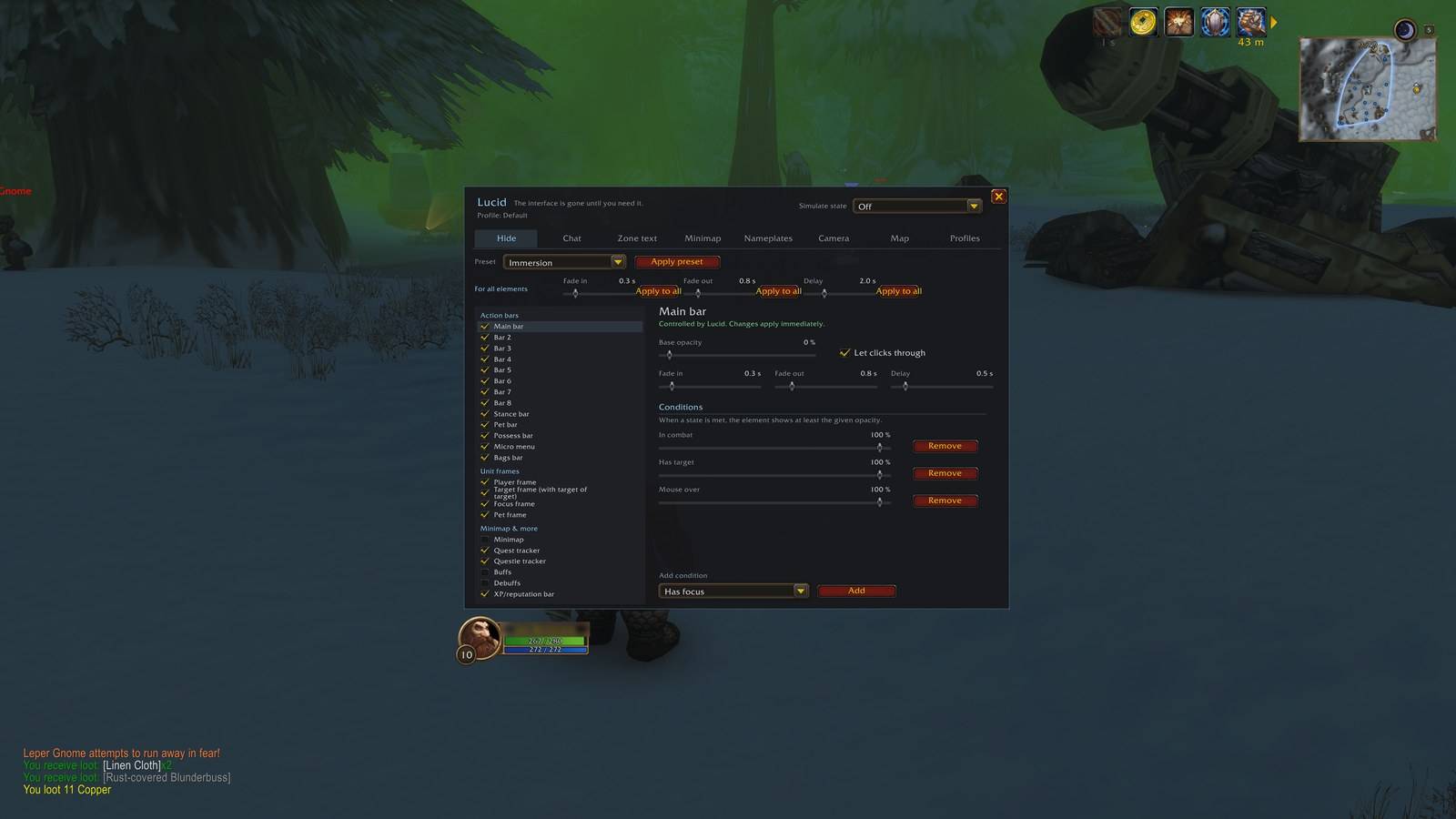
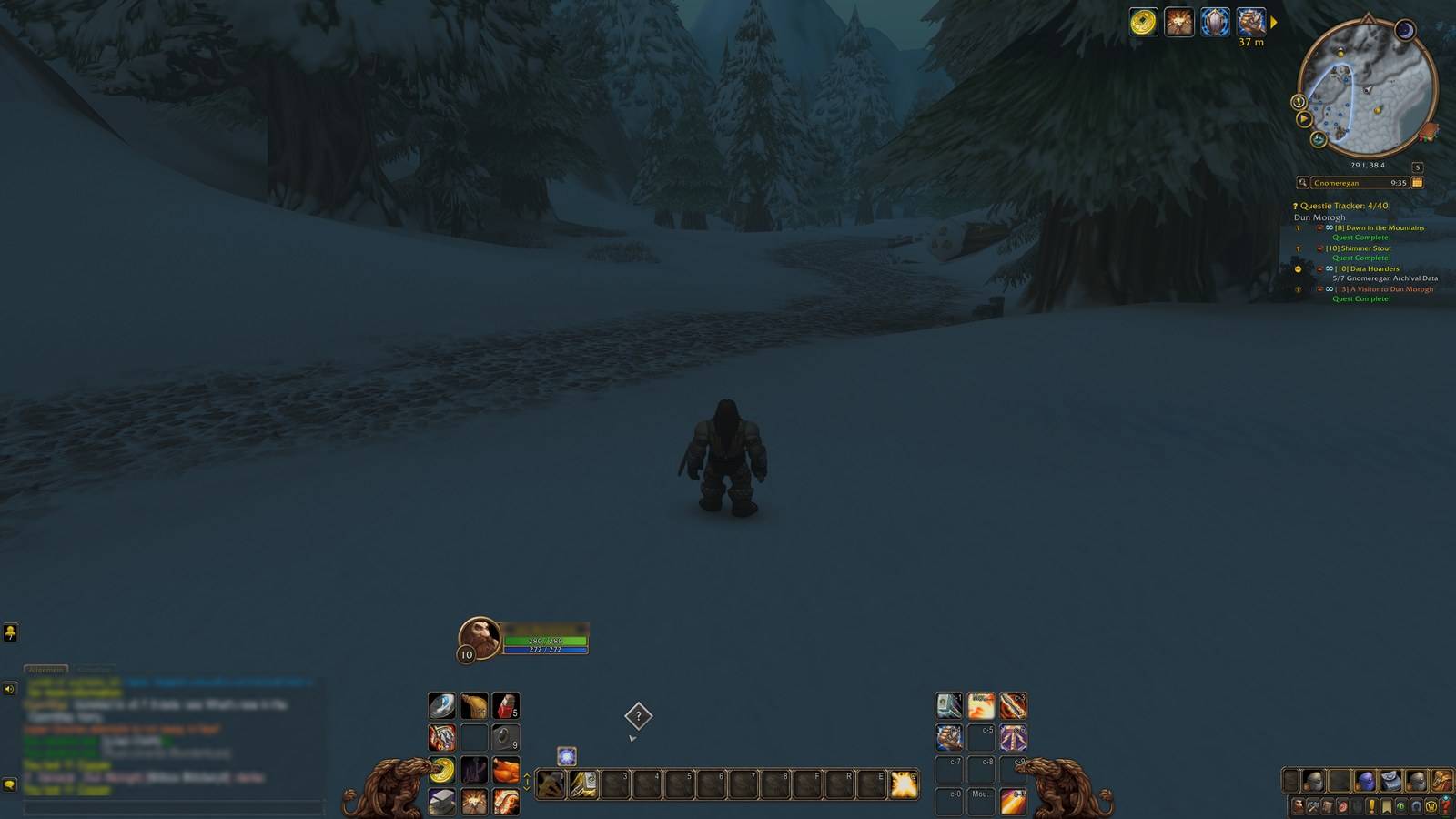
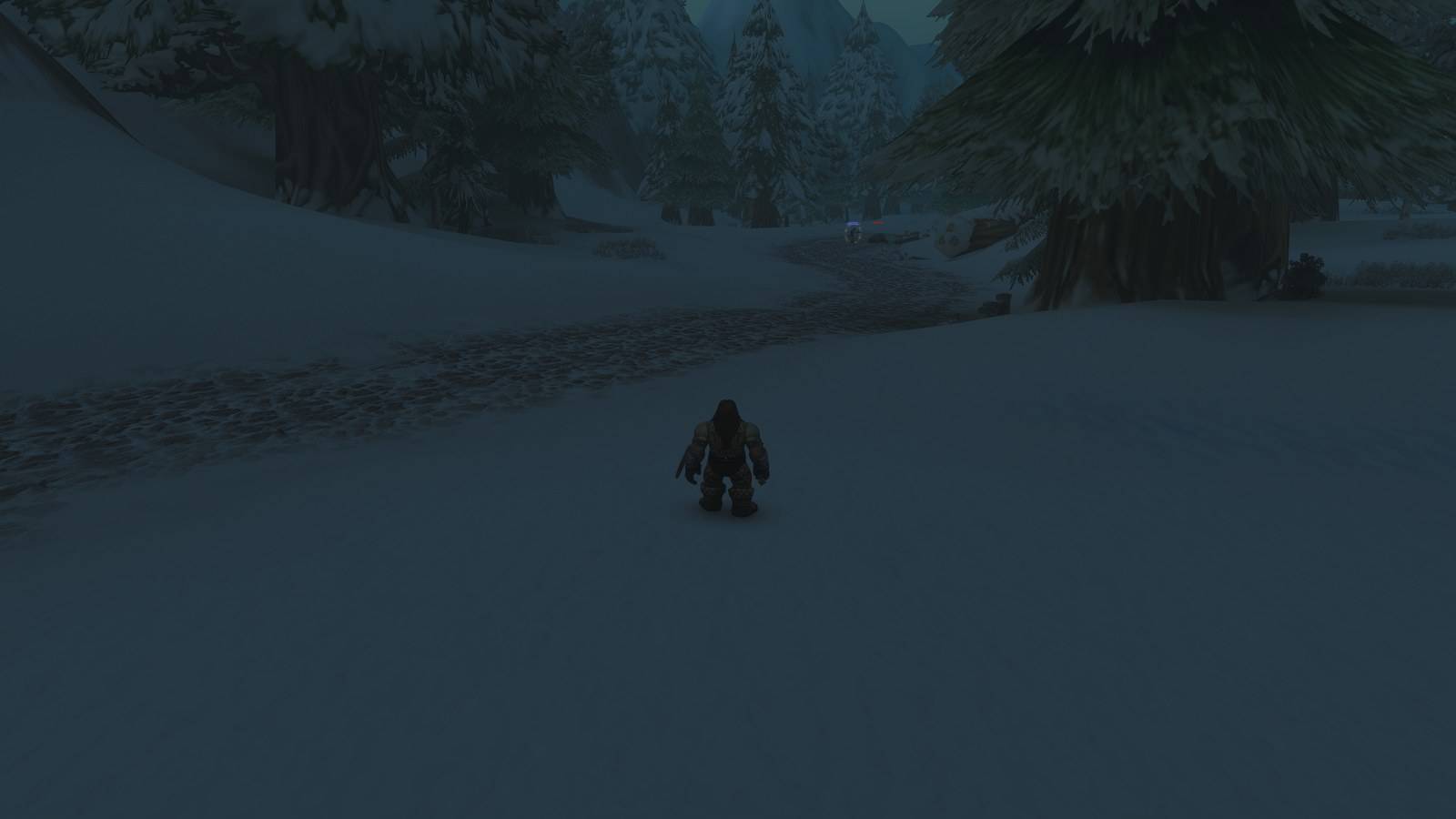
Lucid fades parts of the default interface out of sight and brings them back when you need them. Action bars, unit frames, the minimap, buffs, the quest tracker and other elements disappear until you enter combat, target something, move the mouse over them or meet another condition you pick. The same window also holds settings for a cinematic zone text, the minimap shape and frame, nameplates, the camera, the world map and the chat.
Lucid runs on WoW Forever (Interface 16001) and Retail (Interface 120105) from one download, in English and German. After installing, every feature is off. Only Lucid's own minimap button is shown; you can hide it with /lucid minimap button off. Open the settings with /lucid, with the Lucid minimap button or under Options > AddOns.
Fading the interface
Lucid can control more than 20 elements: the main bar and bars 2 to 8, the stance, pet and possess bars, the micro menu, the bags bar, the player, target, focus and pet frames, the minimap, the quest tracker, the Questie tracker, buffs, debuffs and the XP and reputation bar. Each element is switched on separately. An element that your client does not have is marked as not present, and its setting is kept for when it appears.
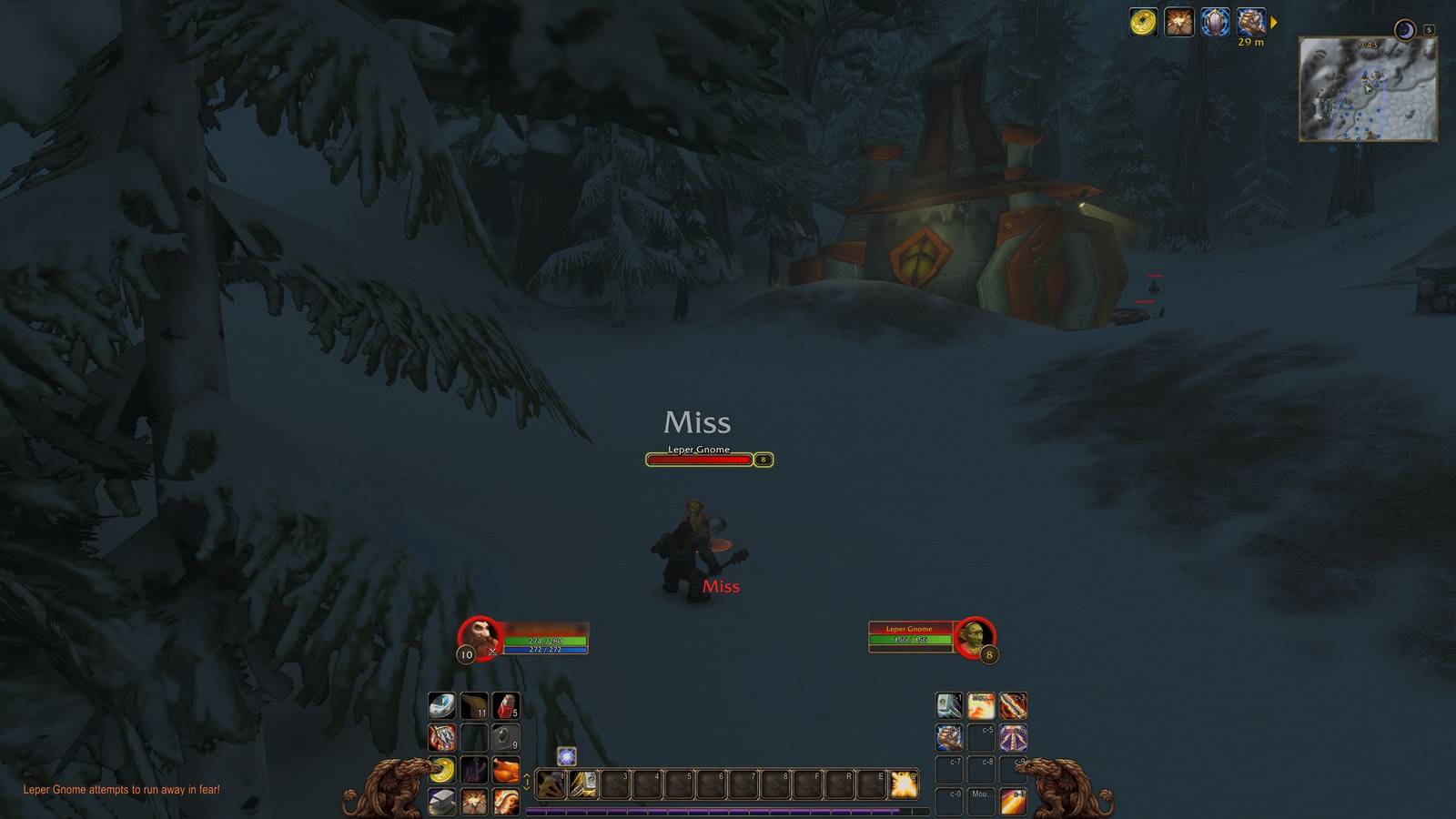
Every element has a base opacity, fade in and fade out times, a delay before it fades out and a list of conditions. A condition is a state of your character, such as in combat, has target, has focus, mouse over, resting, in a capital city, in a group, in a raid, in an instance, mounted, flying, casting, away, typing in chat, health not full, resource not at rest, talking to an NPC, indoors and swimming. While it is met, the element shows at the opacity you set for it. "Let clicks through" sends mouse clicks to the game world while an element is fully hidden; this only works outside of combat. "Simulate state" in the window shows what a state would do without you having to enter it.
Four presets (Immersion, Balanced, Combat, Off) fill in all elements at once and can be adjusted afterwards. The row "For all elements" sets the fade times of everything in one step, and /lucid delay <seconds> does the same for the delay.
The Questie tracker is an element of its own. If Ink & Embers docks its to-do note to the quest tracker, the note fades together with the tracker.
Chat
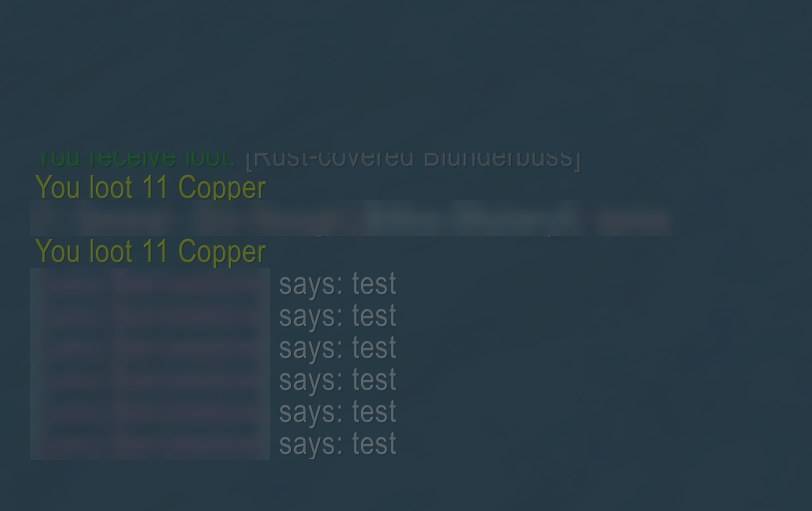
Chat glass hides the chat background, tabs, buttons and scroll bar and shows them again when the mouse is over the chat or you are typing. Separately, chat messages can fade out one by one after a time you set (1 to 600 seconds); mouse over or typing shows the history again. Turning both off restores the chat as it was.
Zone text
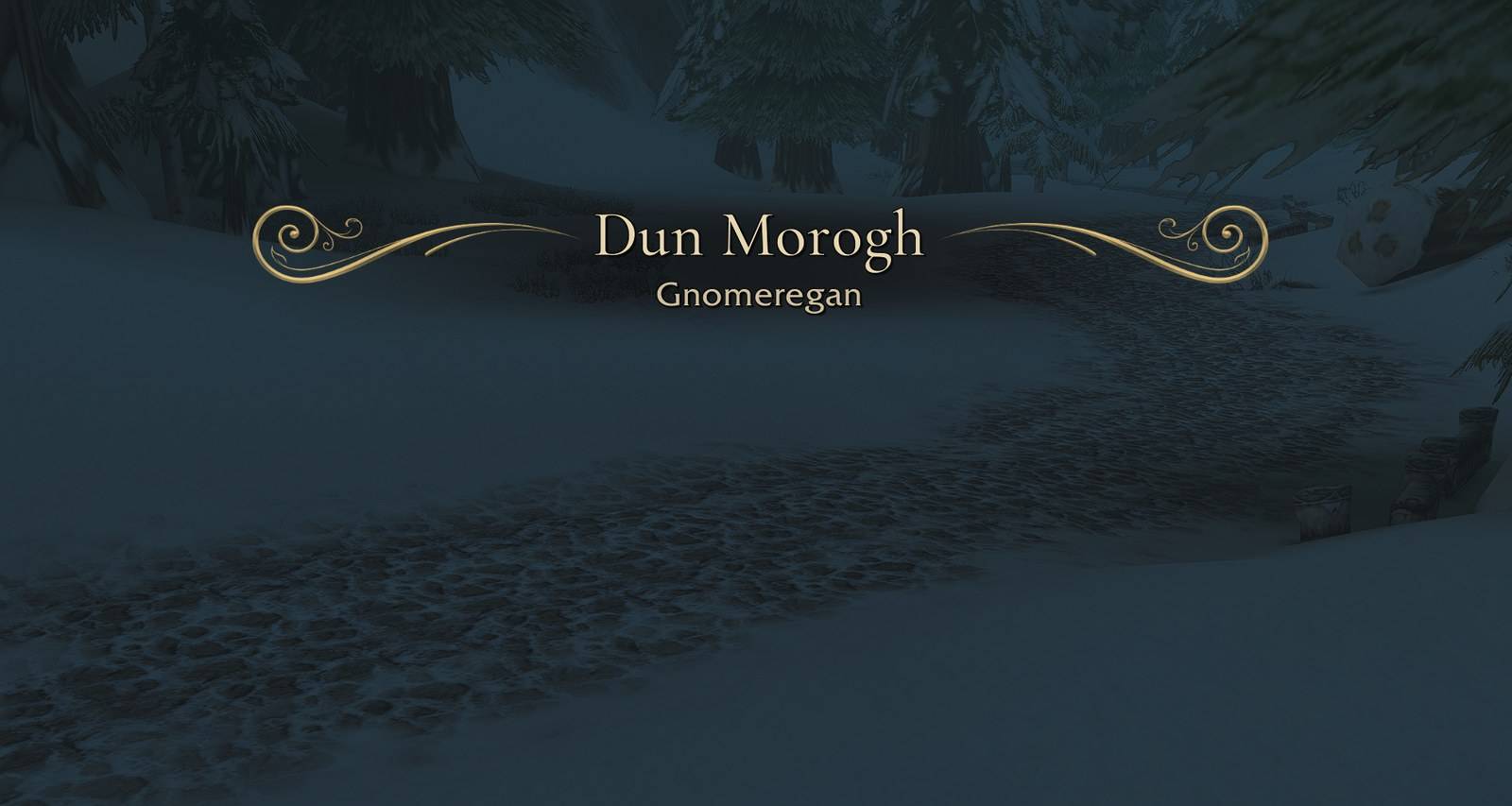
Lucid can replace Blizzard's zone text with its own card for the zone, the subzone and newly discovered areas. Each of the three has its own font, size and timings. Fonts are the game fonts plus Cinzel, Cormorant Garamond and Marcellus. The large card can have an ornament (several styles or none), a glow and a dark band behind the name for readability. You drag the text to the place you want, and /lucid zone test plays a sample.
Inside instances Blizzard's zone text stays. The game's PvP status lines (sanctuary, contested and so on) are not shown while Lucid's zone text is on.
Minimap
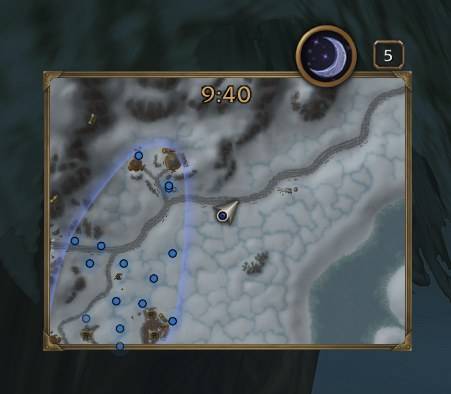
The minimap can be round (Blizzard's own), square or rectangular (3:2, 4:3, 16:9, 2:3 or 3:4). Square and rectangular shapes get a frame in one of several styles with adjustable strength, and optionally an N marker. The size goes from 50 to 200 percent. Mail, tracking, calendar, clock, instance difficulty, the expansion button, the addon compartment, the zoom buttons, the location name, the coordinates and the addon icons at the edge can each be set to always, on mouseover or off. Location name and clock can sit inside the frame.
Lucid adds its own minimap button. Left-click opens the settings window, right-click opens a quick menu for the preset, the camera preset, the map mode and the zone text. Map pins of other addons, for example Questie's, are not treated as addon icons.
Nameplates
Nameplates appear only in the states you choose, for example in combat or when you have a target. Two presets (combat only, combat and target) set this up, and the states can be chosen separately for enemies and friends. The nameplate of your current target can stay visible while the others fade. Plates fade softly or switch at once, and the view distance can be limited. While this is on, Lucid sets its values again at each state change, so the V key and Blizzard's nameplate options do not hold. Switching it off restores Blizzard's values.
Camera
The camera options follow your state. Presets are Cinematic, Cinematic calm, Cinematic dynamic, Classic and Wide in combat, or you build your own rules: the first rule whose state applies wins. Values include shoulder offset, dynamic pitch, head movement, looking at your enemy target or at NPCs you talk to, zoom speed, maximum zoom distance, field of view and target zoom distances for situations like combat or a conversation. Switching it off restores Blizzard's values.
While Action Cam values are used, Lucid turns Blizzard's motion sickness options off and restores them afterwards (this can be disabled). Blizzard's warning about experimental values can be hidden. If another camera addon such as DynamicCam, ActionCamPlus or CameraOverShoulderFix is loaded, Lucid leaves the camera alone.
World map
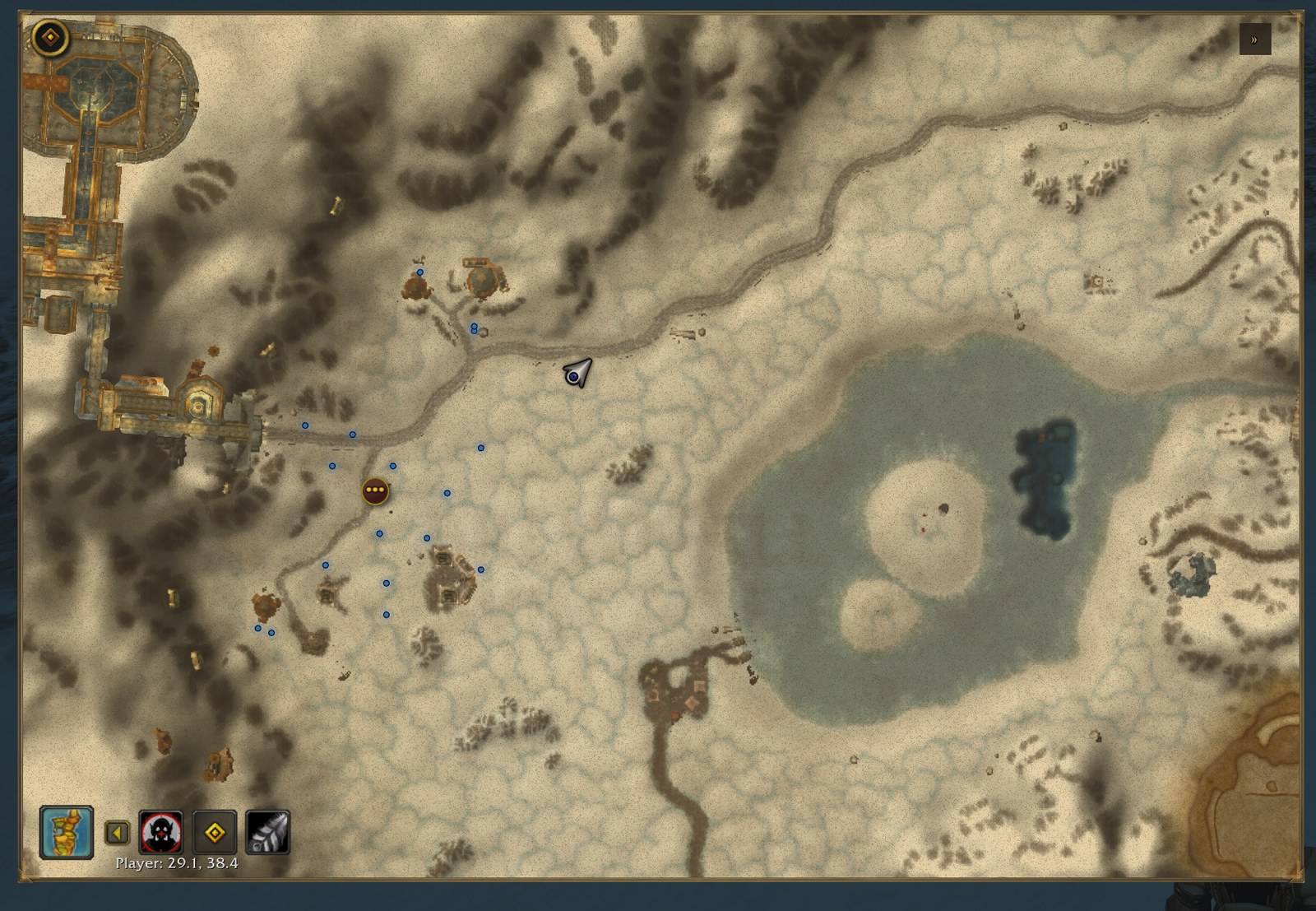
The Lucid map mode turns the world map into a slim window with a frame of its own, optionally without the header and Blizzard's window frame. The quest list can be hidden, collapsible with a small button or always shown. You change the size by dragging a corner, move the window by dragging its frame, and set its opacity. The map can also fade while you are moving. The map key (usually M) can open the Lucid map, with Blizzard's large map on Shift plus the key if that combination is free; both are also available as key bindings under Key Bindings > AddOns. Your saved key bindings do not change. Map content and the pins of other addons stay as they are. With Open Map you can leave position and size to that addon.
Profiles
Settings are stored in profiles. The profile "Default" is shared by the account, and each character can use a profile of its own. Profiles can be created, copied, renamed, deleted and reset. An export gives you a text to copy; an import checks the text before anything is changed.
Commands
/lucidopens or closes the settings window./lucid helplists all commands,/lucid versionshows the version./lucid preset <immersion|balanced|combat|off>applies a fading preset./lucid toggle <element>switches an element on or off,/lucid statusshows which elements were found,/lucid delay <seconds>sets the delay for all elements./lucid chat glass on|off,/lucid chat fade on|off,/lucid chat time <seconds>./lucid zone on|off,/lucid zone test,/lucid zone move,/lucid zone seed./lucid minimap shape <round|square|rect>,/lucid minimap scale <50-200>,/lucid minimap border <style|none>,/lucid minimap button on|off./lucid nameplates on|off|status|preset <combat|combattarget|off>./lucid camera on|off|status|preset <cinematic|cinematicCalm|cinematicDynamic|classic|combatwide>./lucid map on|off|status.- For troubleshooting:
/lucid nameplates probe,/lucid camera probe,/lucid map probe,/lucid zone debug,/lucid minimap debug. The probe commands briefly change some game settings to test them and restore them right away. Use them for bug reports.
Game versions
One download for WoW Forever (Interface 16001) and Retail (Interface 120105). Lucid checks what the client offers. Elements, states and camera values that do not exist in a client are marked as not available, and their settings are kept.
Known issues
This is version 1.0. I played this build in Forever. In Retail I last checked a slightly earlier build, so reports from Retail help too.
- With the rectangular minimap, pins that other addons place at the map edge through HereBeDragons (Questie's, for example) can sit about 16 pixels outside the frame at the top and bottom.
- In both clients the game locks some values in combat, such as your health. "Health not full" works through a workaround: the frame appears at once instead of fading in, and "Let clicks through" has no effect on it.
- Some changes wait until combat ends, for example the minimap shape, the nameplate view distance and camera values.
- The game locks friendly nameplates in instances for addons. There the nameplates switch at once instead of fading.
- The shoulder offset of the camera looks different per character model and mount.
Privacy
Everything stays on your computer. Lucid has no network access (WoW addons cannot make web requests) and sends nothing to anyone. Settings are stored in the account-wide saved variable LucidDB (file Lucid.lua in WTF\Account\NAME\SavedVariables). Delete that file to reset all settings.
AI notice
I built Lucid with a lot of help from Claude Code. Some of the graphics (the minimap frames, the zone text ornaments and the icon) were generated with Google Gemini and then processed into game textures. The screenshots on this page are real in-game screenshots; character names are blurred.
Licenses
- Code: MIT License, (c) 2026 EveN.
- Graphics and media: all rights reserved, to the extent that protection exists.
- Fonts Cinzel, Cormorant Garamond and Marcellus: SIL Open Font License 1.1, unchanged. The license texts are in the add-on's
Fontsfolder. - Lucid bundles no libraries. HereBeDragons and Questie are only read at runtime when another addon provides them. Details are in
THIRD-PARTY.mdin the add-on folder. - World of Warcraft and related content are (c) Blizzard Entertainment. This add-on is not affiliated with or endorsed by Blizzard Entertainment.
Feedback
Bug reports, ideas and questions are welcome here in the comments or as an issue on GitHub. For a bug please include the exact error message (/console scriptErrors 1 shows Lua errors), the Lucid version and whether you play Forever or Retail: https://github.com/even512/Lucid/issues
Source code: https://github.com/even512/Lucid
Support (optional)
If you like the add-on and want to support its development, you can do so on Ko-fi: https://ko-fi.com/even512
Deutsch
Immersions-Suite für WoW Forever und Retail: die Oberfläche blendet sich aus, bis du sie brauchst. Dazu Zonentext, Minimap, Plaketten, Kamera und Karte.
Lucid blendet Teile der Standard-Oberfläche aus und holt sie zurück, wenn du sie brauchst. Aktionsleisten, Einheitenfenster, die Minimap, Buffs, der Quest-Tracker und weitere Elemente sind weg, bis du in einen Kampf gehst, etwas anvisierst, die Maus darüber bewegst oder eine andere Bedingung erfüllst, die du selbst festlegst. Im selben Fenster liegen außerdem Einstellungen für einen filmischen Zonentext, Form und Rahmen der Minimap, Namensplaketten, die Kamera, die Weltkarte und den Chat.
Lucid läuft in WoW Forever (Interface 16001) und Retail (Interface 120105) mit einem Download, auf Deutsch und Englisch. Nach der Installation sind alle Funktionen aus. Nur der Minimap-Knopf von Lucid ist sichtbar; mit /lucid minimap button off blendest du ihn aus. Die Einstellungen öffnest du mit /lucid, mit dem Lucid-Minimap-Knopf oder unter Optionen > AddOns.
Oberfläche ausblenden
Lucid steuert mehr als 20 Elemente: die Hauptleiste und die Leisten 2 bis 8, die Haltungs-, Begleiter- und Besessenheitsleiste, das Mikromenü, die Taschenleiste, Spieler-, Ziel-, Fokus- und Begleiterfenster, die Minimap, den Quest-Tracker, den Questie-Tracker, Buffs, Debuffs und die XP- und Rufleiste. Jedes Element schaltest du einzeln ein. Ein Element, das es in deinem Client nicht gibt, ist als nicht vorhanden markiert, seine Einstellung bleibt für den Fall erhalten, dass es auftaucht.
Jedes Element hat eine Grund-Deckkraft, Zeiten fürs Ein- und Ausblenden, eine Verzögerung vor dem Ausblenden und eine Liste von Bedingungen. Eine Bedingung ist ein Zustand deines Charakters, etwa im Kampf, hat ein Ziel, hat einen Fokus, Maus darüber, erholt sich, in einer Hauptstadt, in einer Gruppe, in einem Schlachtzug, in einer Instanz, beritten, fliegt, wirkt einen Zauber, abwesend, schreibt im Chat, Leben nicht voll, Ressource nicht in Ruhe, im Gespräch mit einem NPC, in Gebäuden oder Höhlen und schwimmt. Solange sie erfüllt ist, zeigt sich das Element mit der Deckkraft, die du dafür eingestellt hast. „Klicks durchlassen“ schickt Mausklicks in die Spielwelt, solange ein Element ganz ausgeblendet ist; das geht nur außerhalb des Kampfs. Mit „Zustand simulieren“ siehst du im Fenster, was ein Zustand bewirken würde, ohne ihn herbeiführen zu müssen.
Vier Presets (Immersion, Ausgewogen, Kampf, Aus) füllen alle Elemente auf einmal aus und lassen sich danach anpassen. Die Zeile „Für alle Elemente“ setzt die Zeiten für alles in einem Schritt, und /lucid delay <Sekunden> macht dasselbe für die Verzögerung.
Der Questie-Tracker ist ein eigenes Element. Dockt Ink & Embers seinen To-do-Zettel an den Quest-Tracker an, blendet der Zettel zusammen mit dem Tracker aus und ein.
Chat
Chat-Glass blendet Hintergrund, Tabs, Knöpfe und Scrollleiste des Chats aus und zeigt sie wieder, wenn die Maus über dem Chat ist oder du schreibst. Unabhängig davon können Chat-Nachrichten einzeln nach einer einstellbaren Zeit (1 bis 600 Sekunden) ausblenden; mit der Maus darüber oder beim Schreiben ist der Verlauf wieder sichtbar. Schaltest du beides ab, ist der Chat wieder wie vorher.
Zonentext
Lucid kann den Zonentext von Blizzard durch eine eigene Karte für Zone, Subzone und neu entdeckte Gebiete ersetzen. Jede der drei hat eigene Schrift, Größe und Zeiten. Zur Wahl stehen die Spielschriften sowie Cinzel, Cormorant Garamond und Marcellus. Die große Karte kann eine Verzierung (mehrere Stile oder keine), einen Glanz und ein dunkles Band hinter dem Namen für die Lesbarkeit haben. Den Text ziehst du an die gewünschte Stelle, und /lucid zone test spielt ein Beispiel ab.
In Instanzen bleibt der Zonentext von Blizzard. Die PvP-Statuszeilen des Spiels (Zuflucht, umkämpft und so weiter) erscheinen nicht, solange Lucids Zonentext an ist.
Minimap
Die Minimap kann rund (die von Blizzard), quadratisch oder rechteckig sein (3:2, 4:3, 16:9, 2:3 oder 3:4). Quadratische und rechteckige Formen bekommen einen Rahmen in einem von mehreren Stilen mit einstellbarer Stärke und auf Wunsch eine N-Markierung. Die Größe geht von 50 bis 200 Prozent. Post, Tracking, Kalender, Uhr, Instanzschwierigkeit, der Erweiterungsknopf, das Addon-Menü, die Zoomknöpfe, der Ortsname, die Koordinaten und die Addon-Symbole am Rand lassen sich je auf „immer“, „bei Maus darüber“ oder „aus“ stellen. Ortsname und Uhr können im Rahmen sitzen.
Lucid bringt einen eigenen Minimap-Knopf mit. Linksklick öffnet das Einstellungsfenster, Rechtsklick ein Schnellmenü für Preset, Kamera-Voreinstellung, Kartenmodus und Zonentext. Kartenmarkierungen anderer Addons, zum Beispiel von Questie, werden nicht als Addon-Symbole behandelt.
Plaketten
Namensplaketten erscheinen nur in den Zuständen, die du wählst, etwa im Kampf oder mit einem Ziel. Zwei Presets (nur im Kampf, Kampf und Ziel) richten das ein, und die Zustände lassen sich für Gegner und Freunde getrennt wählen. Die Plakette deines aktuellen Ziels kann sichtbar bleiben, während die anderen ausblenden. Die Plaketten blenden weich oder sofort um, und die Sichtweite lässt sich begrenzen. Solange das an ist, setzt Lucid seine Werte bei jedem Zustandswechsel erneut, die V-Taste und Blizzards Plaketten-Optionen halten also nicht. Beim Ausschalten stellt Lucid die Werte von Blizzard wieder her.
Kamera
Die Kamera-Einstellungen folgen deinem Zustand. Zur Wahl stehen die Presets Filmisch, Filmisch ruhig, Filmisch dynamisch, Klassisch und Kampf weit, oder du baust eigene Regeln: Es gilt die erste Regel, deren Zustand zutrifft. Einstellbar sind unter anderem Schulterversatz, dynamische Neigung, Kopfbewegung, der Blick auf das feindliche Ziel oder auf NPCs, mit denen du sprichst, Zoomgeschwindigkeit, maximale Zoomdistanz, Sichtfeld und Zieldistanzen für Situationen wie Kampf oder Gespräch. Beim Ausschalten stellt Lucid die Werte von Blizzard wieder her.
Solange Action-Cam-Werte gesetzt sind, schaltet Lucid Blizzards Optionen gegen Reisekrankheit ab und stellt sie danach wieder her (das lässt sich abstellen). Blizzards Warnung vor experimentellen Werten lässt sich ausblenden. Ist ein anderes Kamera-Addon wie DynamicCam, ActionCamPlus oder CameraOverShoulderFix geladen, lässt Lucid die Kamera in Ruhe.
Weltkarte
Der Lucid-Kartenmodus macht aus der Weltkarte ein schmales Fenster mit eigenem Rahmen, auf Wunsch ohne Kopfzeile und ohne Blizzards Fensterrahmen. Die Questliste kann ausgeblendet, mit einem kleinen Knopf einklappbar oder immer sichtbar sein. Die Größe änderst du an einer Ecke, das Fenster verschiebst du am Rahmen, und die Deckkraft ist einstellbar. Die Karte kann außerdem ausblenden, während du dich bewegst. Die Kartentaste (meist M) kann die Lucid-Karte öffnen, Blizzards große Karte liegt dann auf Umschalt plus Taste, wenn die Kombination frei ist; beides gibt es auch als Tastenbelegung unter Tastaturbelegung > AddOns. Deine gespeicherte Tastaturbelegung ändert sich dabei nicht. Karteninhalt und die Markierungen anderer Addons bleiben unverändert. Mit Open Map kannst du Position und Größe diesem Addon überlassen.
Profile
Die Einstellungen liegen in Profilen. Das Profil „Default“ gilt accountweit, und jeder Charakter kann ein eigenes Profil benutzen. Profile lassen sich anlegen, kopieren, umbenennen, löschen und zurücksetzen. Ein Export liefert einen Text zum Kopieren; ein Import prüft den Text, bevor etwas geändert wird.
Befehle
/lucidöffnet und schließt das Einstellungsfenster./lucid helplistet alle Befehle,/lucid versionzeigt die Version./lucid preset <immersion|balanced|combat|off>wendet ein Ausblenden-Preset an (auch deutsch: ausgewogen, kampf, aus)./lucid toggle <Element>schaltet ein Element ein oder aus,/lucid statuszeigt, welche Elemente gefunden wurden,/lucid delay <Sekunden>setzt die Verzögerung für alle Elemente./lucid chat glass on|off,/lucid chat fade on|off,/lucid chat time <Sekunden>./lucid zone on|off,/lucid zone test,/lucid zone move,/lucid zone seed./lucid minimap shape <round|square|rect>,/lucid minimap scale <50-200>,/lucid minimap border <Stil|none>,/lucid minimap button on|off./lucid nameplates on|off|status|preset <combat|combattarget|off>./lucid camera on|off|status|preset <cinematic|cinematicCalm|cinematicDynamic|classic|combatwide>./lucid map on|off|status.- Zur Fehlersuche:
/lucid nameplates probe,/lucid camera probe,/lucid map probe,/lucid zone debug,/lucid minimap debug. Die Probe-Befehle ändern kurz einige Spieleinstellungen, um sie zu testen, und stellen sie sofort wieder her. Nutze sie für Fehlermeldungen.
Spielversionen
Ein Download für WoW Forever (Interface 16001) und Retail (Interface 120105). Lucid prüft, was der Client anbietet. Elemente, Zustände und Kamerawerte, die es in einem Client nicht gibt, sind als nicht verfügbar markiert, ihre Einstellungen bleiben erhalten.
Bekannte Probleme
Das ist Version 1.0. Diesen Stand habe ich in Forever gespielt. In Retail habe ich zuletzt einen etwas älteren Stand geprüft, Rückmeldungen von dort helfen also auch.
- Bei der rechteckigen Minimap können Markierungen, die andere Addons über HereBeDragons am Kartenrand setzen (zum Beispiel die von Questie), oben und unten etwa 16 Pixel außerhalb des Rahmens liegen.
- In beiden Clients sperrt das Spiel manche Werte im Kampf, zum Beispiel dein Leben. „Leben nicht voll“ läuft deshalb über einen Umweg: Das Fenster erscheint sofort, statt einzublenden, und „Klicks durchlassen“ wirkt dafür nicht.
- Manche Änderungen warten, bis der Kampf vorbei ist, etwa die Minimap-Form, die Plaketten-Sichtweite und Kamerawerte.
- Das Spiel sperrt in Instanzen die Plaketten freundlicher Spieler für Addons. Dort schalten die Plaketten sofort um, statt weich auszublenden.
- Der Schulterversatz der Kamera sieht je nach Charaktermodell und Reittier anders aus.
Datenschutz
Alles bleibt auf deinem Rechner. Lucid hat keinen Netzwerkzugriff (WoW-Addons können keine Webanfragen stellen) und schickt nichts an Dritte. Die Einstellungen liegen in der accountweiten gespeicherten Variable LucidDB (Datei Lucid.lua unter WTF\Account\NAME\SavedVariables). Löschst du diese Datei, sind alle Einstellungen zurückgesetzt.
Hinweis zur KI
Ich habe Lucid mit viel Hilfe von Claude Code gebaut. Ein Teil der Grafiken (die Minimap-Rahmen, die Verzierungen des Zonentexts und das Symbol) wurde mit Google Gemini erzeugt und dann zu Spieltexturen aufbereitet. Die Screenshots auf dieser Seite sind echte Bilder aus dem Spiel, Charakternamen sind unkenntlich gemacht.
Lizenzen
- Code: MIT-Lizenz, (c) 2026 EveN.
- Grafiken und Medien: alle Rechte vorbehalten, soweit Schutz besteht.
- Schriften Cinzel, Cormorant Garamond und Marcellus: SIL Open Font License 1.1, unverändert. Die Lizenztexte liegen im Ordner
Fontsdes Addons. - Lucid bringt keine Bibliotheken mit. HereBeDragons und Questie werden nur zur Laufzeit gelesen, wenn ein anderes Addon sie bereitstellt. Einzelheiten stehen in
THIRD-PARTY.mdim Addon-Ordner. - World of Warcraft und zugehörige Inhalte sind (c) Blizzard Entertainment. Dieses Addon steht in keiner Verbindung zu Blizzard Entertainment und wird nicht von dort unterstützt.
Rückmeldungen
Fehlermeldungen, Ideen und Fragen sind willkommen, hier in den Kommentaren oder als Issue auf GitHub. Bei einem Fehler bitte die genaue Meldung angeben (/console scriptErrors 1 zeigt Lua-Fehler), dazu die Lucid-Version und ob du Forever oder Retail spielst: https://github.com/even512/Lucid/issues
Quellcode: https://github.com/even512/Lucid
Unterstützen (freiwillig)
Wenn dir das Addon gefällt und du die Entwicklung unterstützen möchtest, geht das über Ko-fi: https://ko-fi.com/even512
Lucid Team