


LooseButtons
Place spells, items, and character panels as free-floating buttons you drag from the spellbook, then theme, scale, keybind, and share as layouts.
LooseButtons01-small.gif
demo01-small.gif
kiss-small.gif
spellbook.png
Description

All the buttons. Not a bar.
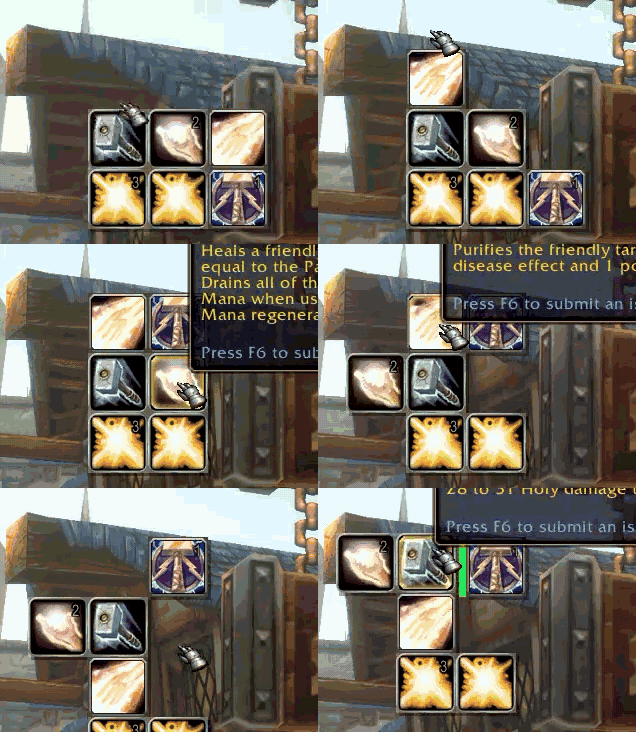
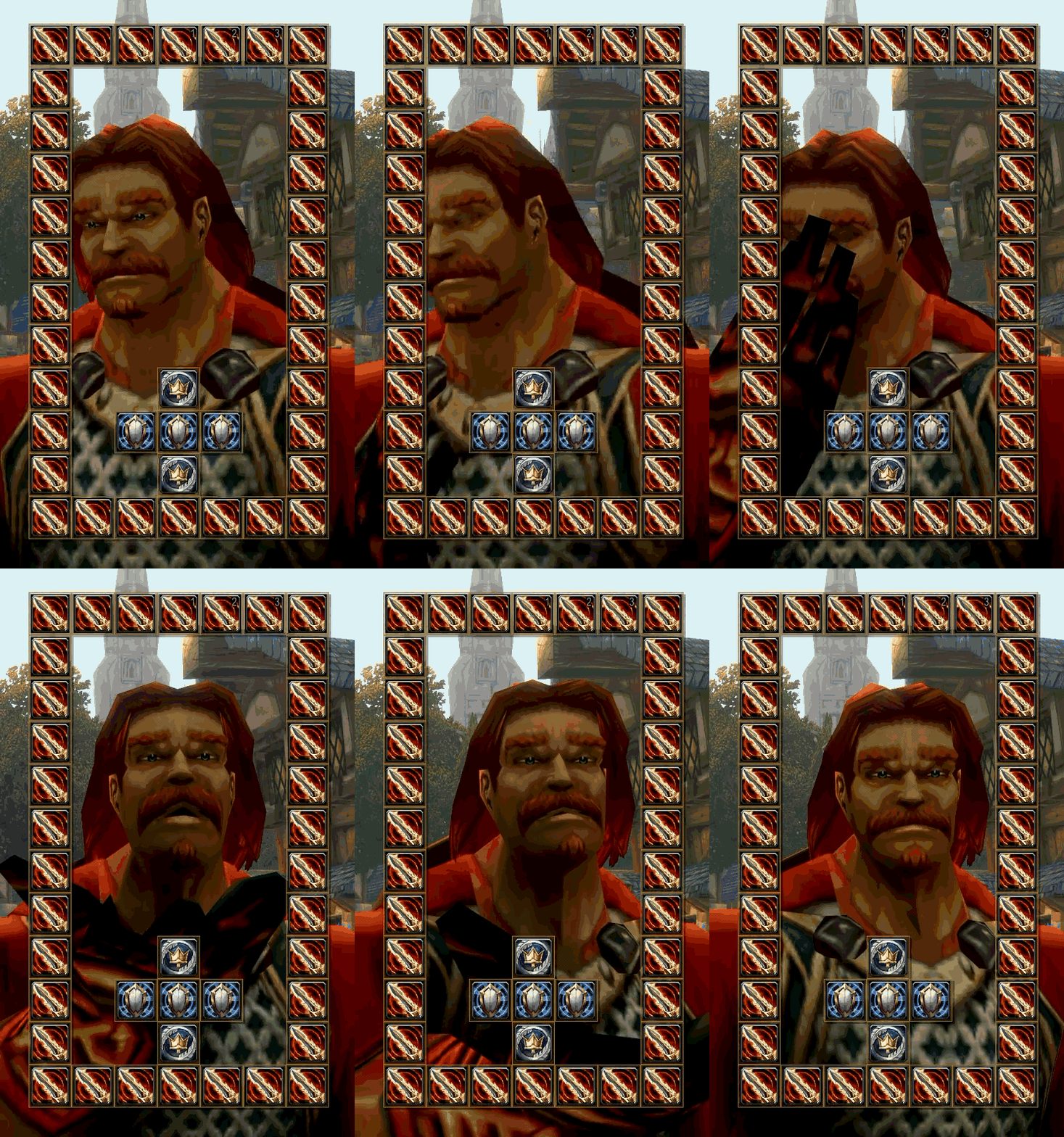
LooseButtons lets you drag spells, items, macros, and Character & info launchers out of your spellbook and drop them anywhere on screen as single, free-floating buttons. Snap a few together, pick a theme, bind keys, and save the arrangement as a layout you can share.
It grows one button at a time. It does not replace your action bars.
Why LooseButtons
- Put things where you use them. A mount by the minimap, a potion by your health bar, Talents beside the map.
- Nothing to configure first. No rows, paging, or grids. Each button stands on its own.
- Made for the modern UI. Built for WoW Forever and the current Mainline (Midnight-era) interface.
Features
Place and snap
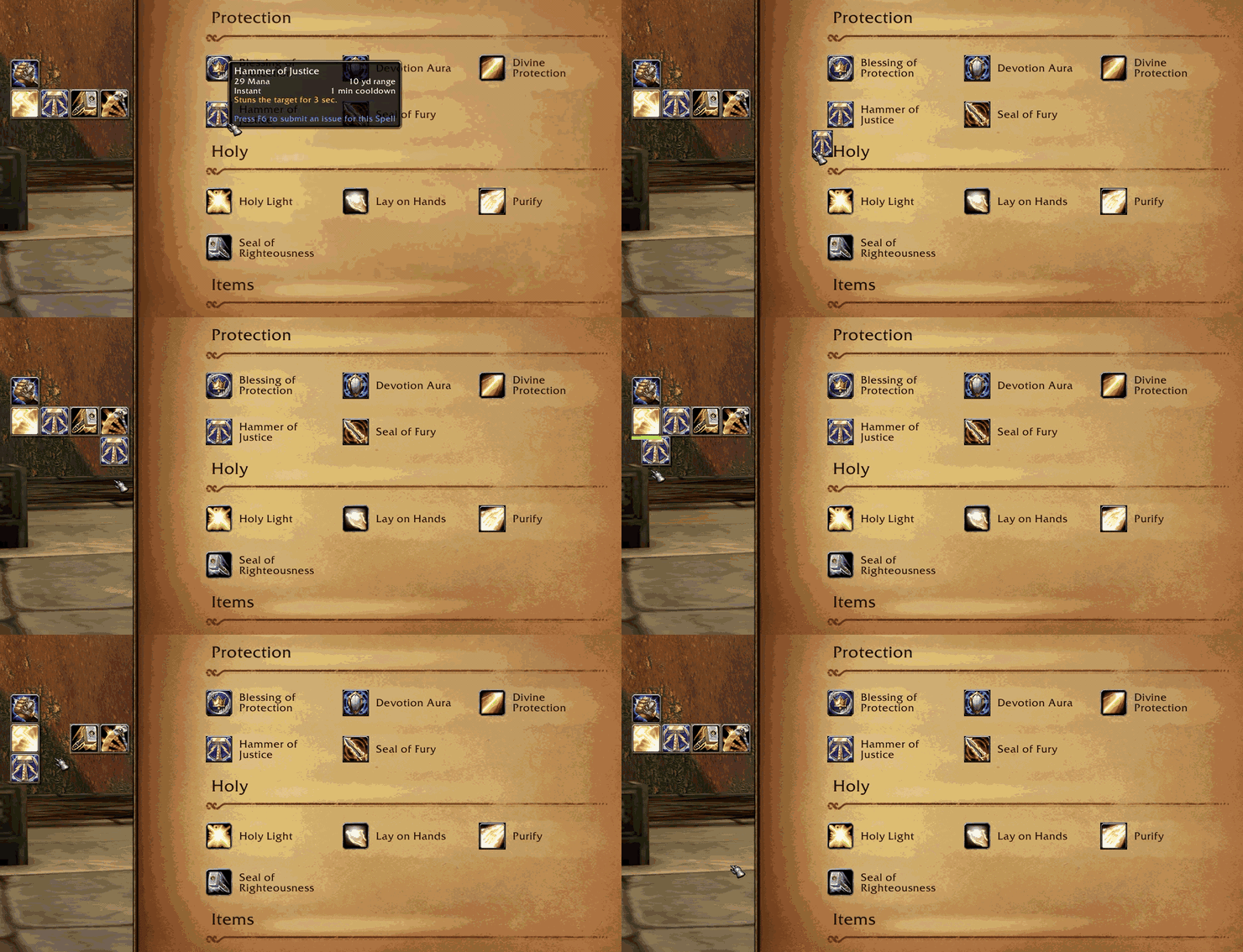
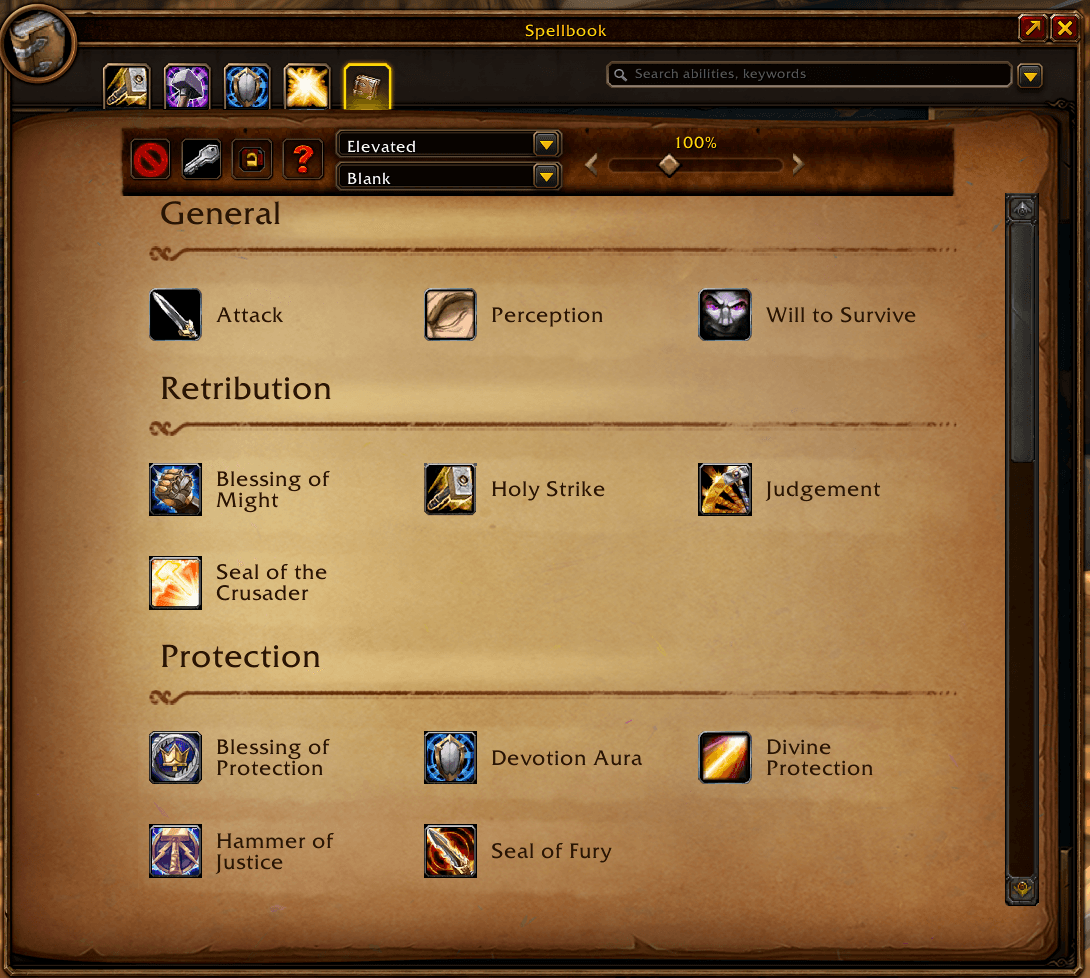
- Drag from the LooseButtons tab in your spellbook onto open ground
- Buttons snap flush to neighbors, with green edges previewing every link before you let go
- Drop into a gap or onto a seam and the cluster opens up to make room
- Shift-drag moves a whole group; Alt-drag pulls one button free
What you can place
- Spells and items, with cooldowns and item counts
- Macros
- Character & info launchers: Character, Talents, Professions, Quest log, Collections, Group finder, Adventure guide, Achievements, Guild, Housing, Game menu, and more
- Backpack, listed under Items
Themes and scale
- Four themes: Default, Elevated, Glass Lip, and No Plate
- Button scale from 50% to 200%
- Optional separate scale and theme for Character & info launchers
Layouts
- Saved layouts are shared across your account; each character picks its own, similar to Edit Mode
- New characters start on a Blank layout
- New Layout, Rename, and Delete from the Layout dropdown
- Share copies an
LB1!string; Import pastes one from a friend
Spellbook controls
- A parchment ribbon at the top of the LooseButtons tab holds Lock, Edit, Clear all, and Help
- Lock stops moving, snapping, and deleting until you unlock
- Edit opens Quick Keybind
- Help covers placing, snapping, dragging, and removing
Keybinds
- Bind any placed button with Quick Keybind
- Bindings also appear under Key Bindings > AddOns
Getting Started
- Install LooseButtons and log in.
- Open your spellbook and click the LooseButtons icon on the category row.
- Drag a spell, item, or launcher onto the screen.
- Drop it next to another button to snap them together.
- Click Lock when everything is where you want it.
Removing buttons: Alt-right-click removes one button, Shift-right-click removes its group, and Clear all removes everything.
Commands
/lbor/loose: open Quick Keybind/lb help: open Help/lb reset: remove every button right away (no confirmation)
Good to Know
- In combat: placed spells, items, and macros work as normal, and launcher keybinds still work. Clicking a launcher that opens a window is blocked in combat by the game. Moving and placing buttons is out of combat only.
- Spells you don't have remain in a shared layout but are hidden on characters that lack them.
- Game version: if the game is newer than the addon, enable Load out of date AddOns on the character select AddOns screen.
- Not for Classic Era or other Classic clients.
- Forever beta: the beta client can fail to reload saved addon settings after a full restart.
/reloadkeeps them. This is a known client issue.
Feedback and Support
- Found a bug? Leave a comment with what you did, what you expected, and any error text. BugSack makes that easy to copy.
- Ideas and theme requests are welcome.
- LooseButtons is free, with full source in every download. No ads and no paid features.
The LooseButtons Team
